
VNC Viewer
50K+
pgmystery/docker-extension-vnc:1.4.0
A Docker Desktop Extension that enables you to connect to VNC servers running inside Docker containers or on remote hosts — directly from Docker Desktop.
This requires Docker Desktop 4.10 or higher.
🐳 Docker Extension: VNC Viewer 🖥️
A Docker Desktop Extension that allows you to connect to VNC servers running inside Docker containers or on remote hosts — directly from Docker Desktop.
📚 Table of Contents
🧭 Overview
This Docker Desktop Extension creates a temporary proxy container using noVNC, giving you browser-based access to any VNC server — whether it's inside another container or running on a remote host.
🔑 Key Features
- Connect to Docker containers, images, or remote VNC servers
- Automatic Docker networking and cleanup
- Secure session management with persistent storage
- Includes pre-built environments:
🚀 What You Can Do
🖥️ Run GUI-Based Linux Applications
Launch popular apps without installing anything on your host:
- Browsers (Firefox, Chromium)
- Editors (VS Code, LibreOffice)
- Tools (GIMP, PDF viewers)
And many more...
✔️ Ideal for isolated, disposable environments. Ideal for temporary, sandboxed tasks without cluttering your OS.🌐 Web Dev & Browser Testing
Spin up clean browser instances in seconds for testing login flows, UI layouts, or performance.
💡 Use multiple containers for parallel testing.🤖 Selenium Testing
Try our ready-to-use Selenium testing example:
Navigate to the /examples/selenium directory
Follow the step-by-step guide in the README file to:
- Set up a Selenium Chrome container
- Run automated browser tests
- Watch the tests execute in real-time
🔍 Perfect for visual debugging of Selenium test suites
🔬 Malware or File Analysis (Safely)
Open suspicious files in an isolated Linux environment.
🔒 Just close the container to dispose of everything.🛠️ GUI Debugging in Containers
Run GUI debuggers or desktop editors inside a container.
💻 Perfect for debugging GUI-based apps or editors (e.g. GDB GUI, VS Code Desktop) without leaving Docker.📦 Legacy Software in CI/CD
Use GUI-reliant tools in headless pipelines.
🔁 Ideal for automated PDF/image generation or GUI testing.🎓 Disposable Desktops for Training
Provide ready-to-use Linux desktops for workshops, demos, or internal labs.
🎓 Great for teaching Linux, Docker, or OSS tools.✨ Why Use This Extension?
- ✅ Zero Setup – Just launch from Docker Desktop
- 📦 Fully Containerized – Nothing installed on the host
- 🔒 Safe & Isolated – Perfect for testing risky files
- 🔧 Customizable – Add your own Dockerfiles and tools
🔧 Installation
📥 Install from Docker Marketplace
🛠️ Manual Installation
docker extension install pgmystery/docker-extension-vnc:1.4.0🧪 Usage
▶️ Try the Example Container
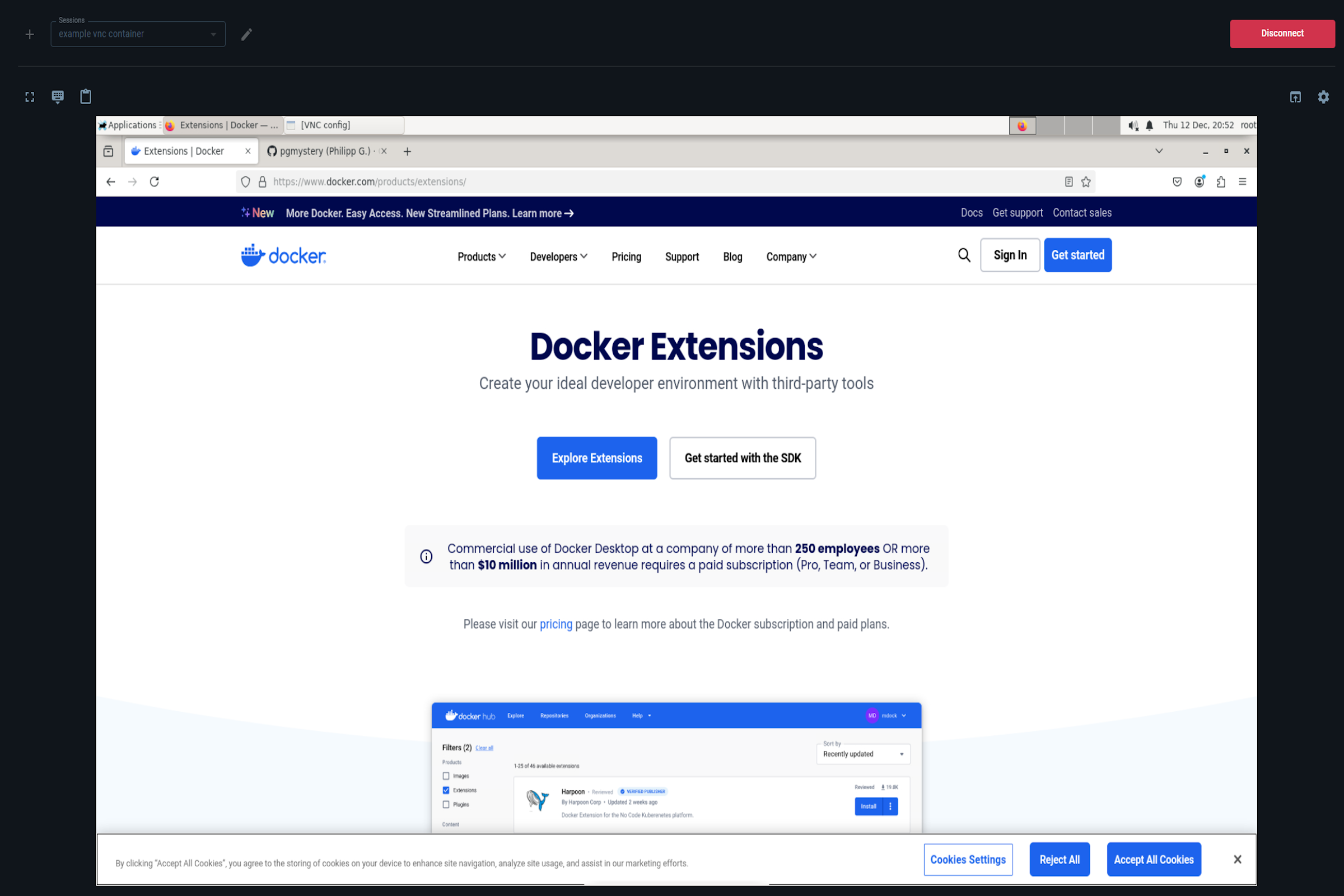
Click the "Try example container" button to launch a prebuilt Ubuntu VNC image with a desktop environment.
Dashboard Screenshot Screenshot
🎤 Audio Support (Input & Output)
The extension fully supports real-time, low-latency audio using FFmpeg and PulseAudio under the hood. You can route complete audio output (listening to apps) or audio input (using your browser mic) seamlessly.
| Component | Role | Resilience Strategy |
|---|---|---|
| FFmpeg | Source | Runs in an immortal background loop inside the target container. |
| MediaMTX | Proxy | Acts as an SRT Caller, proactively reaching out to FFmpeg. |
| Electron / Docker Desktop | Client | Uses Exponential Backoff to wait for the stream to be ready. |
| Networking | Transport | Forced ICE-over-TCP to ensure stability over Docker's bridge. |
📚 Check out the Audio Setup Guide to learn how to explicitly configure Audio Support on your own custom Docker Images.
🗂 Working with Sessions
Sessions allow you to save and manage connection presets. Stored securely in a Docker volume via a backend container using SQLite.
To create a session:
- Click the ➕ icon
- Fill out the form
- Save and click Connect
Supported connection types:
🐳 Connect to a Docker Container
- Create a new session
- Select Docker Container
- Choose a running container or enter its name/ID
- Set the internal VNC port
- (Optional) Enter credentials
- Save and connect
Container Desktop Screenshot Screenshot
📦 Run from a Docker Image
- Enter a unique Session name.
- Choose Docker Image as the connection type.
- Select a VNC-enabled Docker Image from the Docker-Hub or locally (e.g.
selenium/standalone-chrome-debug). - Select the image tag.
- (Optional) Add Docker Run Options.
- (Optional) Specify a custom Docker Run command with Args.
- Specify the VNC-Server port.
- Choose whether to remove the Container after disconnecting or keep it alive.
- (Optional) Enter the credentials for the VNC connection if you want to store them.
- Save and connect
🌍 Connect to a Remote Host
- Enter a unique Session name.
- Choose Remote Host as the connection type.
- Enter the IP-Address of the remote host.
- Specify the VNC-Server port.
- (Optional) Enter the credentials for the VNC connection if you want to store them.
- Save and connect
Supports Linux, macOS, and Windows hosts.