anatolyrugalev/kubecom
kubecom: browse your Kubernetes cluster in a casual way
948
anatolyrugalev/kubecom repository overview
Kube Commander (kubecom)



kubecom is an easy to use tool for observing Kubernetes cluster from your terminal.
Soon
kube-commanderwill change its name tokubecom. Please don't mind some naming inconsistency - I'm trying to make the migration as seamless as possible.
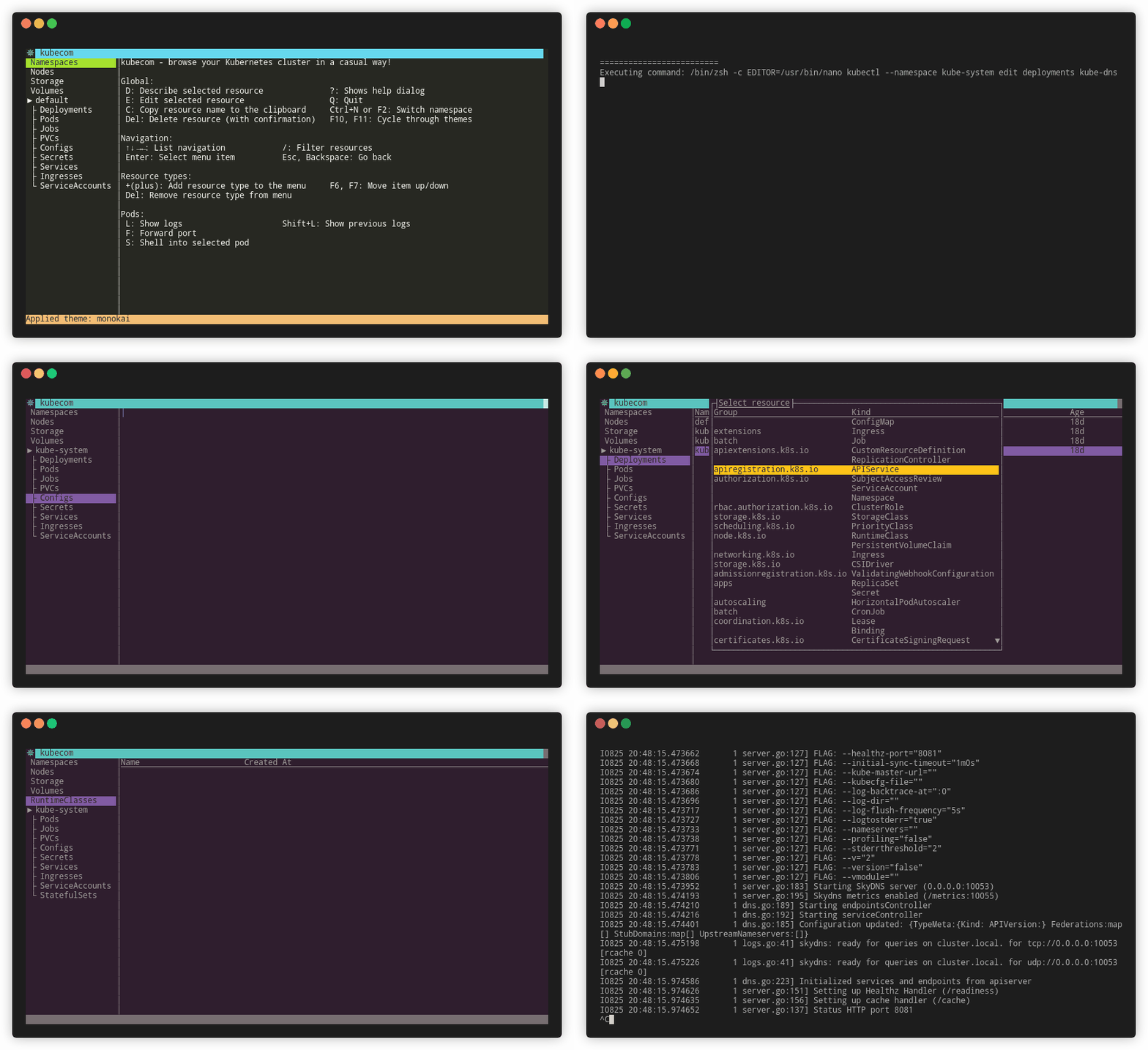
kubecom vs. kubernetes-dashboard comparison
| kubecom | kubernetes-dashboard | |
|---|---|---|
| Easy to use | :heavy_check_mark: | :heavy_check_mark: |
| Realtime data update | :heavy_check_mark: | :heavy_multiplication_x: |
| Doesn't require deployment | :heavy_check_mark: | :heavy_multiplication_x: |
| Doesn't require http access to cluster | :heavy_check_mark: | :heavy_multiplication_x: |
| Can be used over SSH | :heavy_check_mark: | :heavy_multiplication_x: |
| Responsiveness | :zap: | :turtle: |
| Suitable for hackers | :heavy_check_mark: | :heavy_multiplication_x: |
| Requires cluster-specific configuration | :heavy_check_mark: | :heavy_check_mark: |
Requirements
- GNU/Linux, MacOS or Windows system
- kubectl installed and configured to access your cluster
- And... that's it!
Installation
AUR
If you use Archlinux you can install kubecom from AUR with your favorite AUR helper:
yay -S kube-commander
Homebrew
To install kubecom with brew you first need to add a tap:
brew tap AnatolyRugalev/kubecom
brew install kubecom
Brew formula has both Linux and MacOS binaries.
Binary
You can install kubecom from binary release for your OS. Linux, macOS and Windows are supported. You can find
a package for your OS on this page. Just download
and put it to /usr/local/bin.
There's oneliner to download the latest binary for your OS to current directory:
curl -sL https://git.io/JUneH | bash
./kubecom --version
Sources
If you have Go environment configured you can install kubecom easily with this command:
go get -u github.com/AnatolyRugalev/kube-commander/cmd/kubecom
NOTE: Make sure your $PATH has $GOPATH/bin in it.
Run with Docker
alias kubecom="docker run --rm -v ~/.kube:/root/.kube -ti anatolyrugalev/kubecom:latest"
kubecom
Usage
Run
Before starting kubecom make sure you have proper kubectl configuration:
kubectl cluster-info
Then you can start kubecom:
kubecom
If you installed kubecom from AUR, you can start it with kubectl ui.
Configure
You can easily configure kubecom with this options:
| Flag | Env var | Description |
|---|---|---|
| config | KUBECOMCONFIG | Path to .kubecom.yaml |
| kubeconfig | KUBECONFIG | Path to kubeconfig |
| context | KUBECONTEXT | Context name |
| namespace | KUBENAMESPACE | Initial namespace to show |
| timeout | Connection timeout (default: "5s") | |
| editor | EDITOR | Name of the editor binary. Default: "vi". But you probably already have one defined by your OS |
| pager | PAGER | Pager command for 'describe' command. Default: "less" |
| log-pager | LOGPAGER | Pager command for log output. Default: none |
| kubectl | KUBECTL | Name of kubectl binary. Default: "kubectl" |
| tail | KUBETAIL | Number of log lines to show with kubectl logs. Default: 1000 |
| klog | KUBELOG | Kubernetes log file for debugging. Default: none |
Example:
kubecom --context=my-cluster-2 --namespace=my-namespace --kubeconfig=~/.kube/my-config
Sometimes you want to colorify JSON logs, so here's useful --log-pager configuration for that:
kubecom --log-pager="jq -c -R -r '. as \$line | try fromjson catch \$line'"
You can pipe commands here as well:
kubecom --log-pager="jq -c | some_other_command"
Configuration file
You can edit configuration file at ~/.kubecom.yaml to modify resource menu titles and themes. Usually you don't need
to edit config manually: it updates automatically when you change resource menu items or switch theme. You can get
familiar with configuration capabilities inspecting pb/config.proto protobuf file.
Hotkeys
The first thing you need to press is "?". This will show help dialog in case you missed it on start screen.
Official Kubernetes Dashboard has a refresh key which updates items on page. With kubecom you don't have to do that: kubecom watches changes and updates screen in real time, so you can relax and take a sip of your fresh coffee while monitoring your deployment rolling out.
The most of hotkeys you can find on help dialog. Here they are:
| Key | Action |
|---|---|
| ? | Show help dialog |
| ↑↓→← | Navigation. When table doesn't fit to the screen, use ← and → to scroll horizontally |
| Enter | Select menu item |
| Esc, Backspace | Go back |
| Q, Ctrl+C | Quit |
| Ctrl+N, F2 | Switch namespace |
| F3 | (experimental) Show all known resources in resource menu |
| D | Describe selected resource with kubectl describe |
| E | Edit selected resource with kubectl edit |
| Delete | Delete selected resource (then press "y" to confirm) |
| C | Copy resource name to the clipboard |
| / | Enter filtering mode. Type string and then press Enter to confirm |
| Ctrl+P | Switch to pods |
| Ctrl+D | Switch to deployments |
| Ctrl+I | Switch to ingresses |
| L | Show pod logs |
| Shift+L | Show previous pod logs |
| F | Forward pod port |
| S | Enter to container /bin/sh shell |
| + (plus) | Add resource type to the menu |
| F6, F7 | Move resource type up/down in menu |
| F10, F11 | Cycle through themes |
Contribution
We play by gentleman rules. If you want to contribute a code - please file an issue describing your intentions first. This way we can avoid wasting time doing easy work the hard way. I'm always open to give my point of view on your ideas.
Special thanks
- terminal.sexy - great terminal color scheme configurator
- tcell - TUI library
- Goreleaser - helps to ship Go software
- k9s - another Kubernetes TUI utility
Tag summary
Content type
Image
Digest
Size
35 MB
Last updated
about 6 years ago
docker pull anatolyrugalev/kubecom