andrewchangdewitt/rpi-security-gpio2mqtt
A docker image for reading input from wired home security sensors & publishing a message via MQTT
667
andrewchangdewitt/rpi-security-gpio2mqtt repository overview
rpi-security-gpio2mqtt




A docker image for reading GPIO input from wired home security sensors & publishing a message via MQTT on a sensor detection event. Intended to be used on a Raspberry Pi with the 40-pin GPIO header & containerized to Docker for easy installation & management.
Getting up and running is fairly simple, but it does have a few hardware & software requirements. Also, some basic circuitry wiring is neccessary. Requirements & basic instructions are included below.
Requirements
The software requirements are a much simpler than the hardware, thanks to Docker.
Software:
Docker on a Linux distribution (tested with Debian-based varities (Ubuntu & Raspbian) as well as Alpine, but may work with others).
Hardware:
At minimum, the following hardware is needed:
-
Raspberry Pi with a 40-pin GPIO header (tested on a Raspberry Pi Zero v1.3, but should work just as well on any version from the 1B+ through the newest 4B as well as the Zero W)
-
A compatible power supply for the Raspberry Pi (RaspberryPi.org recommends 5V & 2.5A)
-
A 16GB or larger micro SD card (more here) or a similar wifi adapter.
-
Sensors - So far this can be any of the following types
- PIR Motion (tested with the HC-SR501)
- Form A (Normally Open, SPST) Reed Switch (tested with the Honeywell 951WG & the Honeywell 944TRE, but should work with any basic Form A switch)
-
Resistors (anything between 1k & 5k Ohms should work)
-
Wires
For a more complete and easier to manage (but also more complicated to build) setup, it's advisable to have the following:
- A prototyping board for wiring the sensors to the GPIO pins & building simple circuits
- Screw terminals to solder to the prototyping board for easier configuration of sensors
- Both solid-core & stranded core wiring (solid core is easier for use on a breadboard & prototyping board, but doesn't work as well for longer runs to sensor installation locations due to it's liklihood to break inside the insulation)
- If you're using a Pi Zero (not W), a USB network adapter is needed, either USB to Ethernet (such as this low-power one from MonoPrice)
Lastly, if you want a setup that's really easy to place the raspberry pi, you can always look into Power Over Ethernet or using a Pi Zero W.
Installation
Software
The easist path to get the application up & running is to use DockerHub. On a compatible Raspberry Pi running Docker on Linux (see requirements above), pull the latest image with
$ docker pull rpi-security-gpio2mqtt
then run using
$ docker run -itd \
    --name rpi-security \
    --restart always \
    --privileged \
    -v /rpi-security2mqtt/configuration.yaml:/src/configuration.yaml \
    -e MQTT_USER=your_username_here \
    -e MQTT_PASS=your_password_here \
    rpi-security-gpio2mqtt
This command runs the image in privilaged mode (required for GPIO access) & sets the restart parameter to
always for better uptime & easier management. It also maps the configuration file to a root folder for the
application (any location can be used, just change the part after -v to the path of your choosing like
this -v SOME/PATH/FILE.yaml:/src/configuration.yaml). Mapping the configuration file to a volume allows
for editing of the file & restarting the container to implement changes. The two -e flags are to set
your username & password for your mqtt broker & need to be edited to match your setup as needed. Alternatively,
these can be left out if you want your security to publish on mqtt as an anonymous user.
Lastly, you'll need to edit the host copy (located at the first half of the volume declaration you specified
at docker run ... -v). The first part to change is your MQTT settings; you'll need to tell the application
your MQTT host address & port number & (only if you want to change the default value) the root topic
you want all the sensor's data to be published on.
mqtt_host: "host.address.here"    # must be a string, defaults to 127.0.0.1, or localhost
mqtt_port: 1111                   # must be a number, defaults to 1883
root_topic: "/some/topic/"        # string, the last '/' is required, defaults to /security/sensors/
In addition to MQTT configuration, you'll need to set up the sensors. They are organized by group, like this:
sensor_groups:
    a_group:
        # ... sensors go here
    another_group:
        # ... more sensors here
which will cause them to broadcast on a sub topic specific to their group, (e.g. /security/sensors/a_group
or /security/sensors/another_group in the example above). Then individual sensors are added to the groups
as a sequence, specifying a sensor name (to be used in creating the final MQTT topic), a type (see types below),
and the GPIO input pin number (using Broadcom numbering only, see
more here)
like this:
    a_group:
      - name: "sensor_name"
        type:                # ... can be any of the supported types (see the Sensor Types section near the end of this README)
        pin:                  # an integer corresponding the the GPIO input (Broadcom Number) the sensor will be wired to
      - name: "another_sensor"
        type: ...
        pin: 11
        # ... and continues like above for each sensor
Hardware
Of course, having the application running in Docker on the Pi is useless without having the sensors wired up. Instructions for each currently supported type is below.
Sensor types
All tested sensor types are included below. Refer to the type for instructions on wiring & how to include
in configuration.yaml.
If you have a sensor type that's not supported below, please submit an issue or pull request to add the sensor.
PIR Motion Sensor
A simple motion sensor, so far supporting HC-SR501 style sensors (easily found on Amazon or at electronics supply sites like Adafruit or ThePiHut), but it might work with any similar 3-pin, 3-5V digital PIR sensor.
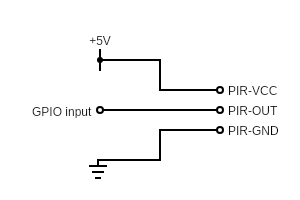
Wiring of these is very simple, just connect a 5 volt output pin to the PIR-VCC, a Ground pin to PIR-GND, & the desired GPIO pin to PIR-OUT. Then just make sure to use the same GPIO pin number in the configuration file (picture & example configuration below).
- name: "motion_sensor"
  type: "motion" # specifying motion here tells the application how to interpret this sensor
  pin: # ... some pin number
Reed Switches
A simple reed switch, tested on the Honeywell 951WG & the Honeywell 944TRE, but should work with any basic Form A (Normally Open, SPST--Single Pole Single Throw) switch.
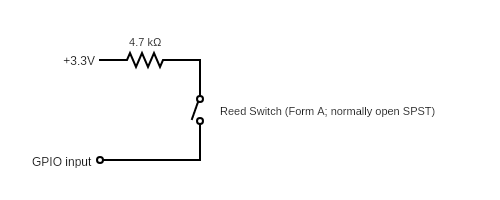
Wiring is a little more complicated than a motion sensor, as a resistor is needed to protect the Pi from any possible shorts (but wiring a hardware pulldown or pullup circuit is not required as the Pi's software version on the Broadcom chip is used instead). To wire this sensor, connect the 3.3 Volt pin to a lead on a resistor (anything from 1k to 5k Ohms should work), then connect the other lead to a lead on the Reed Switch. Lastly, connect the other Reed Switch lead to a GPIO input. See diagram & example configuration below:
- name: "reed switch"
  type: "door" # a reed switch can be specified as either a 'door' or 'window' switch
  pin: # ... desired pin #
Usage
When all the necessary setup from above has been completed, usage is fairly simple. The sensors you've setup will publish state changes to your mqtt server, so any actions you want to be triggered by these changes simply need to subscribe to the correct topic.
For example, assuming you have a single door sensor (reed switch, see hardware requirements above) wired to
GPIO 7 & your configuration.yaml is set up similar to the following excerpts:
...
root_topic: "/security/sensors"
...

...
sensor_groups:
    a_group:
      - name: "sensor_a"
        type: "door"
        pin: 7
then anything you want to listen for state changes just needs to subscribe to the topic /security/sensors/a_group/door/sensor_a & it will receive updates.
If you wanted to have Home Assistant observe the above sensor setup, you'd just need to add it as a binary sensor
listening on that topic for the state attribute:
# homeassistant's configuration.yaml
...
binary_sensor:
  - platform: mqtt
    name: Some Sensor Name
    device_class: "door"
    state_topic: "/security/sensors/a_group/door/sensor_a"
    value_template: "{{ value_json.state }}"
    payload_on: "TRIPPED"
    payload_off: "OK"
...
Tag summary
Content type
Image
Digest
Size
79 MB
Last updated
almost 6 years ago
docker pull andrewchangdewitt/rpi-security-gpio2mqtt