appsvctest/apps repository overview
Magento2 CE Docker Image
Overview
A Magento2 CE Docker image which is built with the Dockerfile under this repo can run on both Azure Web App on Linux and your Docker engines's host.
Components
This docker image currently contains the following components:
- Magento2 CE 2.1.5
- PHP 7.1.2
- Apache HTTPD 2.4.25
- MariaDB 10.0+
- Redis 3.2.8
- phpMyAdmin 4.6.6
- cron
Features
This docker image enables you to:
- run a Magento site in Production mode;
- run a Magento site on Azure Web App on Linux or your Docker engine's host;
- connect your Magento site to the builtin MariaDB or a MySQL database server with version 5.6+;
- leverage Azure Redis Cache or the builtin Redis cache server;
Limitations
- If you deploy a Magento site on Azure with this docker image and use the MariaDB built in this docker image as the database, then scaling out your site to multiple instances is not recommended.
- The Redis cache built in this docker image is available only when you use the MariaDB built in this docker image as the database.
- The phpMyAdmin built in this docker image is available only when you use the MariaDB built in this docker image as the database.
Deploying / Running
You can specify the following environment variables when deploying the image to Azure or running it on your Docker engine's host.
| Name | Default Value |
|---|---|
| MAGENTO_BASE_URL | [not set] |
| MAGENTO_BACKEND_FRONTNAME | admin_1qn |
| MAGENTO_ADMIN_USER | admin |
| MAGENTO_ADMIN_PASSWORD | MS173m_QN |
| MAGENTO_ADMIN_FIRSTNAME | firstname |
| MAGENTO_ADMIN_LASTNAME | lastname |
| MAGENTO_ADMIN_EMAIL | [email protected] |
| MAGENTO_DB_HOST | 127.0.0.1 |
| MAGENTO_DB_NAME | magento |
| MAGENTO_DB_USERNAME | magento |
| MAGENTO_DB_PASSWORD | MS173m_QN |
| MAGENTO_DB_PREFIX | m2_ |
| PHPMYADMIN_USERNAME | phpmyadmin |
| PHPMYADMIN_PASSWORD | MS173m_QN |
[NOTE]:
- You need set the MAGENTO_BASE_URL parameter to a value matching this pattern: "http://yoursitedomainname[:port]/" or "http://yoursiteipaddress[:port]/".
- This image always uses "--admin-use-security-key=1" and "--use-rewrites=1" in Mageneo installation.
- It's recommended to change these default values in your deployment.
Deploying to Azure
With the button below, you can easily deploy the image to Azure.

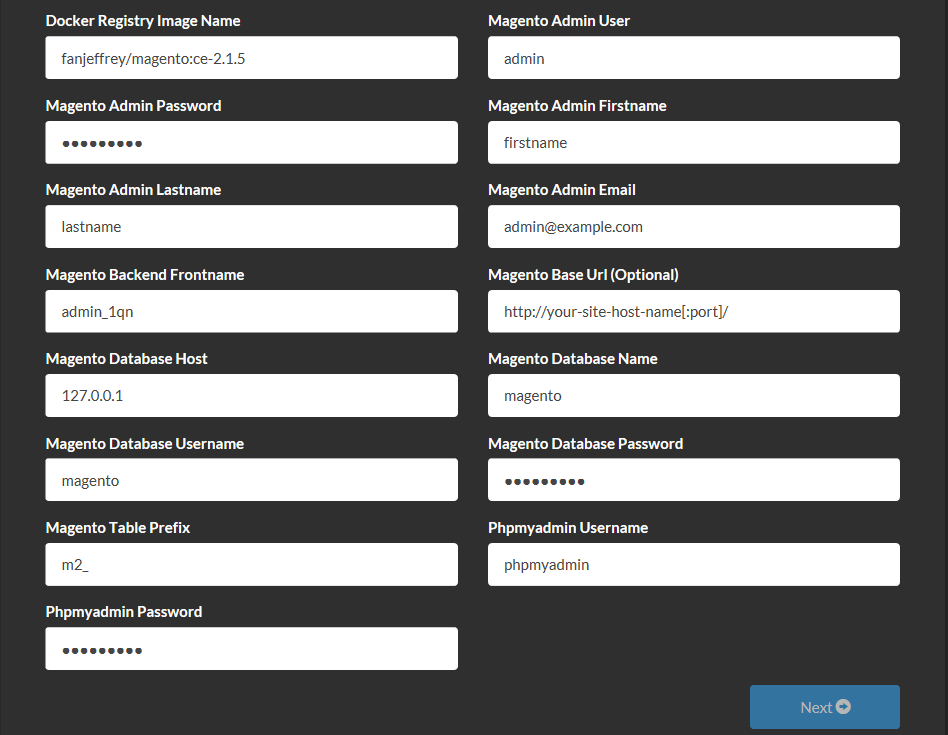
At the SETUP page, as shown below, you can change default values of these environment variables with yours.
Running on Docker engine's host
The docker run command below will get you a container that has a Magento2 CE site connected to the builtin MariaDB, and has the builtin Redis cache server started, and has the builtin phpMyAdmin site enabled, and has the builtin cron started.
docker run -e MAGENTO_BASE_URL=http://12.34.56.78/ -d -t -p 80:80 fanjeffrey/magento:ce-2.1.5
The command below will connect the Magento2 CE site within your Docker container to a MySQL database server with version 5.6+.
docker run -d -t -p 80:80 \
    -e "MAGENTO_BASE_URL=http://yoursitedomainname[:port]/" \
    -e "MAGENTO_BACKEND_FRONTNAME=<your_backend_frontname>" \
    -e "MAGENTO_ADMIN_USER=<your_admin_username>" \
    -e "MAGENTO_ADMIN_PASSWORD=<your_admin_password>" \
    -e "MAGENTO_ADMIN_FIRSTNAME=<your_admin_firstname>" \
    -e "MAGENTO_ADMIN_LASTNAME=<your_admin_lastname>" \
    -e "MAGENTO_ADMIN_EMAIL=<your_admin_email>" \
    -e "MAGENTO_DB_HOST=<your_db_host_name>" \
    -e "MAGENTO_DB_NAME=<your_db_name>" \
    -e "MAGENTO_DB_USERNAME=<your_db_username>" \
    -e "MAGENTO_DB_PASSWORD=<your_db_password>" \
    -e "MAGENTO_DB_PREFIX=<your_table_name_prefix>" \
    fanjeffrey/magento:ce-2.1.5
When you use 127.0.0.1 as the database host, you can customize phpMyAdmin username and password.
docker run -d -t -p 80:80 \
    -e "MAGENTO_DB_HOST=127.0.0.1" \
    -e "MAGENTO_DB_NAME=<your_db_name>" \
    -e "MAGENTO_DB_USERNAME=<your_db_username>" \
    -e "MAGENTO_DB_PASSWORD=<your_db_password>" \
    -e "MAGENTO_DB_TABLE_NAME_PREFIX=<your_table_name_prefix>" \
    -e "PHPMYADMIN_USERNAME=<your_phpmyadmin_username>" \
    -e "PHPMYADMIN_PASSWORD=<your_phpmyadmin_password>" \
    fanjeffrey/magento:ce-2.1.5
For more information about these parameters, please refer to the offical document: Install the Magento software from the command line.
The Builtin MariaDB server
The builtin MariaDB server uses port 3306.
The Builtin phpMyAdmin Site
If you're using the builtin MariaDB, you can access the builtin phpMyAdmin site with a URL like below:
http://hostname[port]/phpmyadmin
The Builtin Redis Cache Server
The builtin Redis cache server uses port 6379.
For more details on how to leverage Redis, please refer to:
The builtin Cron
If you choose to use local MariaDB as the database server, the builtin Cron will start and be ready also.
For more details on how to use Cron, please refer to: Set up a custom cron job and cron group.
Tag summary
Content type
Image
Digest
Size
275.2 MB
Last updated
over 9 years ago
docker pull appsvctest/apps:magneto