bukowa/seleniumbase repository overview


A complete end-to-end testing experience.




SeleniumBase is an all-in-one Python framework for automated browser testing. Tests are run with "pytest", and use WebDriver APIs for web-page interaction.
🚀 Start |
🗂️ Features |
🖥️ CLI |
📖 Examples
♻️ Boilerplates |
🗾 Locales |
🗄️ PkgManager
📗 API |
📋 Reports |
💻 Scripts |
📱 Mobile
🔡 SyntaxFormats |
🌐 GridHub |
⏺️ Recorder
🤖 CI |
🌏 Translate |
🗺️ Tours |
🖼️ VisualTest
📑 Presenter |
📊 ChartMaker |
🛂 MasterQA
✅ Simple setup steps with Python and Git.
✅ Chrome/Edge/Firefox/IE/Opera/Safari.
✅ Includes reporting and dashboard tools.
Example: my_first_test.py (--demo mode)
pytest my_first_test.py --demo
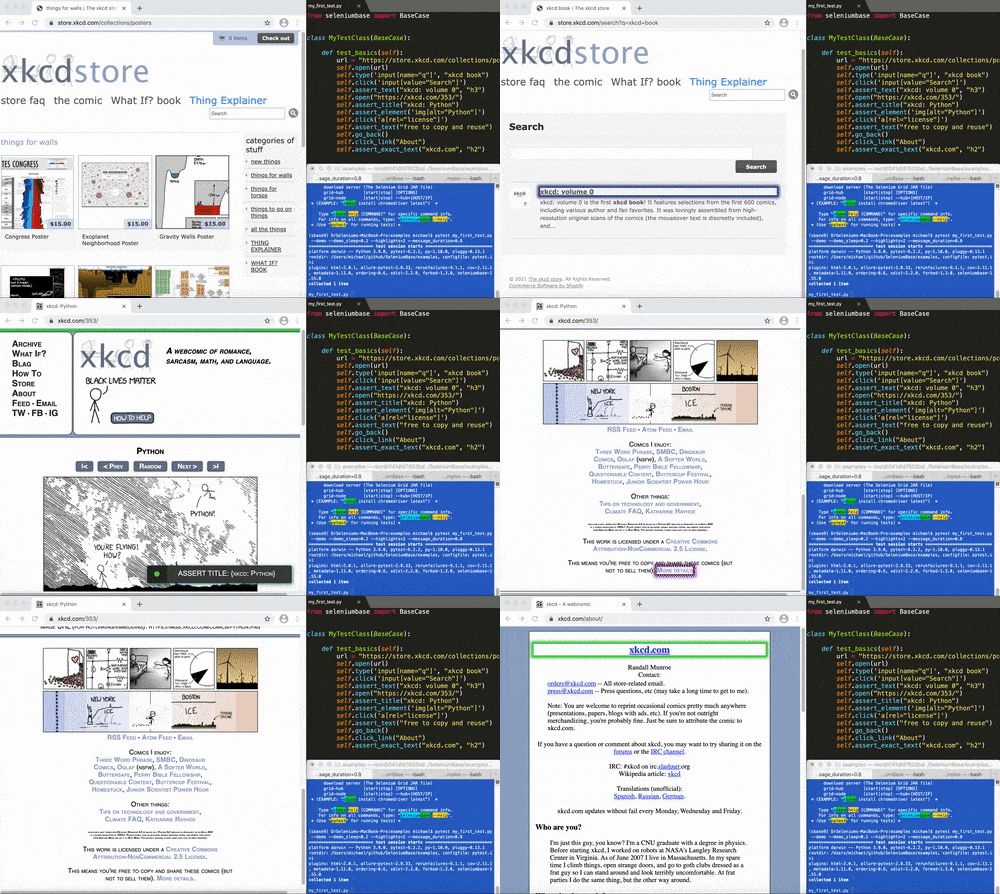
from seleniumbase import BaseCase

class MyTestClass(BaseCase):

    def test_basics(self):
        url = "https://store.xkcd.com/collections/posters"
        self.open(url)
        self.type('input[name="q"]', "xkcd book")
        self.click('input[value="Search"]')
        self.assert_text("xkcd: volume 0", "h3")
        self.open("https://xkcd.com/353/")
        self.assert_title("xkcd: Python")
        self.assert_element('img[alt="Python"]')
        self.click('a[rel="license"]')
        self.assert_text("free to copy and reuse")
        self.go_back()
        self.click_link("About")
        self.assert_exact_text("xkcd.com", "h2")
 Python Setup:
🔵 Add Python and Git to your System PATH.
🔵 Create a Python virtual environment.
Install SeleniumBase:
🔵 You can install seleniumbase from GitHub:
git clone https://github.com/seleniumbase/SeleniumBase.git
cd SeleniumBase/
pip install .  # Normal installation
pip install -e .  # Editable install
(When using a virtual env, the Editable install is faster.)
🔵 You can also install seleniumbase from pypi:
pip install seleniumbase
(Add
--upgradeOR-Uto upgrade an installation.) (Add--force-reinstallto upgrade dependencies.) (Usepip3if multiple versions of Python are installed.)
🔵 Type seleniumbase or sbase to verify that SeleniumBase was installed successfully:
   ______     __           _                 ____
  / ____/__  / /__  ____  (_)_  ______ ___  / _  \____  ________
  \__ \/ _ \/ / _ \/ __ \/ / / / / __ `__ \/ /_) / __ \/ ___/ _ \
 ___/ /  __/ /  __/ / / / / /_/ / / / / / / /_) / (_/ /__  /  __/
/____/\___/_/\___/_/ /_/_/\__,_/_/ /_/ /_/_____/\__,_/____/\___/
-----------------------------------------------------------------

 * USAGE: "seleniumbase [COMMAND] [PARAMETERS]"
 *    OR:        "sbase [COMMAND] [PARAMETERS]"

COMMANDS:
      install         [DRIVER] [OPTIONS]
      methods         (List common Python methods)
      options         (List common pytest options)
      mkdir           [DIRECTORY] [OPTIONS]
      mkfile          [FILE.py] [OPTIONS]
      mkpres          [FILE.py] [LANG]
      print           [FILE] [OPTIONS]
      translate       [SB_FILE.py] [LANG] [ACTION]
      convert         [WEBDRIVER_UNITTEST_FILE.py]
      extract-objects [SB_FILE.py]
      inject-objects  [SB_FILE.py] [OPTIONS]
      objectify       [SB_FILE.py] [OPTIONS]
      revert-objects  [SB_FILE.py] [OPTIONS]
      encrypt         (OR: obfuscate)
      decrypt         (OR: unobfuscate)
      download server (The Selenium Grid JAR file)
      grid-hub        [start|stop] [OPTIONS]
      grid-node       [start|stop] --hub=[HOST/IP]
 * (EXAMPLE: "sbase install chromedriver latest")  *

    Type "sbase help [COMMAND]" for specific command info.
    For info on all commands, type: "seleniumbase --help".
 * (Use "pytest" for running tests) *
Download a webdriver:
✅ SeleniumBase can download webdrivers to the seleniumbase/drivers folder with the install command:
sbase install chromedriver
- You need a different webdriver for each browser to automate:
chromedriverfor Chrome,edgedriverfor Edge,geckodriverfor Firefox, andoperadriverfor Opera. - If you have the latest version of Chrome installed, get the latest chromedriver (otherwise it defaults to chromedriver 2.44 for compatibility reasons):
sbase install chromedriver latest
- If you run a test without the correct webdriver installed, the driver will be downloaded automatically.
(See seleniumbase.io/seleniumbase/console_scripts/ReadMe/ for more information on SeleniumBase console scripts.)
Running tests:
🔵 If you've cloned SeleniumBase from GitHub, you can run sample tests from the examples/ folder:
cd examples/
pytest test_demo_site.py
(Chrome is the default browser if not specified with
--browser=BROWSER. On Linux,--headlessis the default behavior. You can also run in headless mode on any OS. If your Linux machine has a GUI and you want to see the web browser as tests run, add--headedor--gui.)
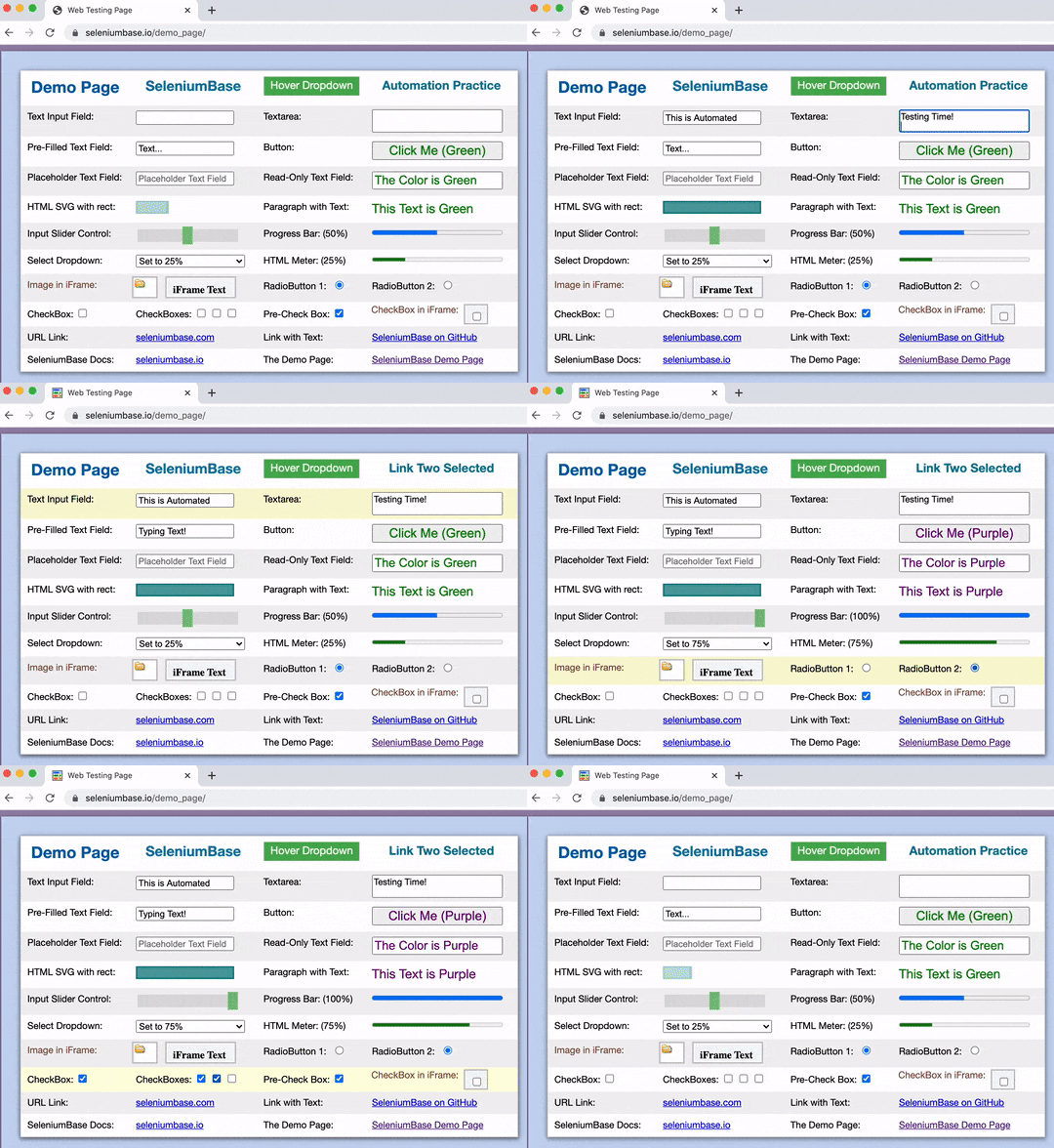
🔵 Here are more examples that you can run:
pytest my_first_test.py

pytest test_swag_labs.py
🔵 Run my_first_test.py in Demo Mode:
pytest my_first_test.py --demo
- By default, CSS Selectors are used for finding page elements.
- If you're new to CSS Selectors, games like Flukeout can help you learn.
- Here are some common
SeleniumBasemethods that you might find in tests:
self.open(URL)  # Navigate to the web page
self.click(SELECTOR)  # Click a page element
self.type(SELECTOR, TEXT)  # Type text (Add "\n" to text for pressing enter/return.)
self.assert_element(SELECTOR)  # Assert element is visible
self.assert_text(TEXT)  # Assert text is visible (has optional SELECTOR arg)
self.assert_title(PAGE_TITLE)  # Assert page title
self.assert_no_404_errors()  # Assert no 404 errors from files on the page
self.assert_no_js_errors()  # Assert no JavaScript errors on the page (Chrome-ONLY)
self.execute_script(JAVASCRIPT)  # Execute JavaScript code
self.go_back()  # Navigate to the previous URL
self.get_text(SELECTOR)  # Get text from a selector
self.get_attribute(SELECTOR, ATTRIBUTE)  # Get a specific attribute from a selector
self.is_element_visible(SELECTOR)  # Determine if an element is visible on the page
self.is_text_visible(TEXT)  # Determine if text is visible on the page (optional SELECTOR)
self.hover_and_click(HOVER_SELECTOR, CLICK_SELECTOR)  # Mouseover element & click another
self.select_option_by_text(DROPDOWN_SELECTOR, OPTION_TEXT)  # Select a dropdown option
self.switch_to_frame(FRAME_NAME)  # Switch webdriver control to an iframe on the page
self.switch_to_default_content()  # Switch webdriver control out of the current iframe
self.switch_to_window(WINDOW_NUMBER)  # Switch to a different window/tab
self.save_screenshot(FILE_NAME)  # Save a screenshot of the current page
🔵 For the complete list of SeleniumBase methods, see: Method Summary
Learn More:
✅ Automatic WebDriver Abilities:
SeleniumBase automatically handles common WebDriver actions such as spinning up web browsers and saving screenshots during test failures. (Read more about customizing test runs.)
✅ Simplified Code:
SeleniumBase uses simple syntax for commands. Example:
self.type("input", "dogs\n")
SeleniumBase tests can be run with both pytest and nosetests, but using pytest is recommended. (chrome is the default browser if not specified.)
pytest my_first_test.py --browser=chrome

nosetests test_suite.py --browser=firefox
✅ Automatic Test Discovery:
All Python methods that start with test_ will automatically be run when using pytest or nosetests on a Python file, (or on folders containing Python files). You can also be more specific on what to run within a file by using the following: (Note that the syntax is different for pytest vs nosetests.)
pytest [FILE_NAME.py]::[CLASS_NAME]::[METHOD_NAME]

nosetests [FILE_NAME.py]:[CLASS_NAME].[METHOD_NAME]
✅ No More Flaky Tests:
SeleniumBase methods automatically wait for page elements to finish loading before interacting with them (up to a timeout limit). This means you no longer need random time.sleep() statements in your scripts.

✅ Automated/Manual Hybrid Mode:
SeleniumBase includes a solution called MasterQA, which speeds up manual testing by having automation perform all the browser actions while the manual tester handles validation.
✅ Feature-Rich:
For a full list of SeleniumBase features, Click Here.
Detailed Instructions:
Use Demo Mode to help you see what tests are asserting.
🔵 If the example test is moving too fast for your eyes, you can run it in Demo Mode by adding --demo on the command-line, which pauses the browser briefly between actions, highlights page elements being acted on, and lets you know what test assertions are happening in real time:
pytest my_first_test.py --demo
🔵 Pytest includes test discovery. If you don't specify a specific file or folder to run from, pytest will search all subdirectories automatically for tests to run based on the following matching criteria:
Python filenames that start with test_ or end with _test.py.
Python methods that start with test_.
The Python class name can be anything since SeleniumBase's BaseCase class inherits from the unittest.TestCase class.
You can see which tests are getting discovered by pytest by using:
pytest --collect-only -q
🔵 You can use the following calls in your scripts to help you debug issues:
import time; time.sleep(5)  # Makes the test wait and do nothing for 5 seconds.
import ipdb; ipdb.set_trace()  # Enter debugging mode. n = next, c = continue, s = step.
import pytest; pytest.set_trace()  # Enter debugging mode. n = next, c = continue, s = step.
🔵 To pause an active test that throws an exception or error, add --pdb:
pytest my_first_test.py --pdb
The code above will leave your browser window open in case there's a failure. (ipdb commands: 'n', 'c', 's' => next, continue, step).
🔵 Here are some useful command-line options that come with pytest:
-v  # Verbose mode. Prints the full name of each test run.
-q  # Quiet mode. Print fewer details in the console output when running tests.
-x  # Stop running the tests after the first failure is reached.
--html=report.html  # Creates a detailed pytest-html report after tests finish.
--collect-only | --co  # Show what tests would get run. (Without running them)
-n=NUM  # Multithread the tests using that many threads. (Speed up test runs!)
-s  # See print statements. (Should be on by default with pytest.ini present.)
--junit-xml=report.xml  # Creates a junit-xml report after tests finish.
--pdb  # If a test fails, pause run and enter debug mode. (Don't use with CI!)
-m=MARKER  # Run tests with the specified pytest marker.
🔵 SeleniumBase provides additional pytest command-line options for tests:
--browser=BROWSER  # (The web browser to use. Default: "chrome".)
--chrome  # (Shortcut for "--browser=chrome". On by default.)
--edge  # (Shortcut for "--browser=edge".)
--firefox  # (Shortcut for "--browser=firefox".)
--opera  # (Shortcut for "--browser=opera".)
--safari  # (Shortcut for "--browser=safari".)
--cap-file=FILE  # (The web browser's desired capabilities to use.)
--cap-string=STRING  # (The web browser's desired capabilities to use.)
--settings-file=FILE  # (Override default SeleniumBase settings.)
--env=ENV  # (Set a test environment. Use "self.env" to use this in tests.)
--data=DATA  # (Extra test data. Access with "self.data" in tests.)
--var1=DATA  # (Extra test data. Access with "self.var1" in tests.)
--var2=DATA  # (Extra test data. Access with "self.var2" in tests.)
--var3=DATA  # (Extra test data. Access with "self.var3" in tests.)
--user-data-dir=DIR  # (Set the Chrome user data directory to use.)
--server=SERVER  # (The Selenium Grid server/IP used for tests.)
--port=PORT  # (The Selenium Grid port used by the test server.)
--proxy=SERVER:PORT  # (Connect to a proxy server:port for tests.)
--proxy=USERNAME:PASSWORD@SERVER:PORT  # (Use authenticated proxy server.)
--agent=STRING  # (Modify the web browser's User-Agent string.)
--mobile  # (Use the mobile device emulator while running tests.)
--metrics=STRING  # (Set mobile metrics: "CSSWidth,CSSHeight,PixelRatio".)
--extension-zip=ZIP  # (Load a Chrome Extension .zip|.crx, comma-separated.)
--extension-dir=DIR  # (Load a Chrome Extension directory, comma-separated.)
--headless  # (Run tests headlessly. Default mode on Linux OS.)
--headed  # (Run tests with a GUI on Linux OS.)
--locale=LOCALE_CODE  # (Set the Language Locale Code for the web browser.)
--interval=SECONDS  # (The autoplay interval for presentations & tour steps)
--start-page=URL  # (The starting URL for the web browser when tests begin.)
--archive-logs  #  (Archive existing log files instead of deleting them.)
--archive-downloads  #  (Archive old downloads instead of deleting them.)
--time-limit=SECONDS  # (Safely fail any test that exceeds the time limit.)
--slow  # (Slow down the automation. Faster than using Demo Mode.)
--demo  # (Slow down and visually see test actions as they occur.)
--demo-sleep=SECONDS  # (Set the wait time after Demo Mode actions.)
--highlights=NUM  # (Number of highlight animations for Demo Mode actions.)
--message-duration=SECONDS  # (The time length for Messenger alerts.)
--check-js  # (Check for JavaScript errors after page loads.)
--ad-block  # (Block some types of display ads after page loads.)
--block-images  # (Block images from loading during tests.)
--verify-delay=SECONDS  # (The delay before MasterQA verification checks.)
--disable-csp  # (Disable the Content Security Policy of websites.)
--disable-ws  # (Disable Web Security on Chromium-based browsers.)
--enable-ws  # (Enable Web Security on Chromium-based browsers.)
--enable-sync  # (Enable "Chrome Sync".)
--use-auto-ext  # (Use Chrome's automation extension.)
--remote-debug  # (Enable Chrome's Remote Debugger on http://localhost:9222)
--dashboard  # (Enable the SeleniumBase Dashboard. Saved at: dashboard.html)
--swiftshader  # (Use Chrome's "--use-gl=swiftshader" feature.)
--incognito  #  (Enable Chrome's Incognito mode.)
--guest  # (Enable Chrome's Guest mode.)
--devtools  # (Open Chrome's DevTools when the browser opens.)
--reuse-session | --rs  # (Reuse browser session between tests.)
--crumbs  # (Delete all cookies between tests reusing a session.)
--maximize-window  # (Start tests with the web browser window maximized.)
--save-screenshot  # (Save a screenshot at the end of each test.)
--visual-baseline  # (Set the visual baseline for Visual/Layout tests.)
--timeout-multiplier=MULTIPLIER  # (Multiplies the default timeout values.)
(For more details, see the full list of command-line options here.)
🔵 During test failures, logs and screenshots from the most recent test run will get saved to the latest_logs/ folder. Those logs will get moved to archived_logs/ if you add --archive_logs to command-line options, or have ARCHIVE_EXISTING_LOGS set to True in settings.py, otherwise log files with be cleaned up at the start of the next test run. The test_suite.py collection contains tests that fail on purpose so that you can see how logging works.
cd examples/

pytest test_suite.py --browser=chrome

pytest test_suite.py --browser=firefox
An easy way to override seleniumbase/config/settings.py is by using a custom settings file.
Here's the command-line option to add to tests: (See examples/custom_settings.py)
--settings_file=custom_settings.py
(Settings include default timeout values, a two-factor auth key, DB credentials, S3 credentials, and other important settings used by tests.)
🔵 To pass additional data from the command-line to tests, add --data="ANY STRING".
Inside your tests, you can use self.data to access that.
Test Directory Configuration:
🔵 When running tests with pytest, you'll want a copy of pytest.ini in your root folders. When running tests with nosetests, you'll want a copy of setup.cfg in your root folders. These files specify default configuration details for tests. Folders should also include a blank __init__.py file, which allows your tests to import files from that folder.
🔵 sbase mkdir DIR creates a folder with config files and sample tests:
sbase mkdir ui_tests
That new folder will have these files:
ui_tests/
│
├── __init__.py
├── my_first_test.py
├── parameterized_test.py
├── pytest.ini
├── requirements.txt
├── setup.cfg
├── test_demo_site.py
└── boilerplates/
    │
    ├── __init__.py
    ├── base_test_case.py
    ├── boilerplate_test.py
    ├── classic_obj_test.py
    ├── page_objects.py
    ├── sb_fixture_test.py
    └── samples/
        │
        ├── __init__.py
        ├── google_objects.py
        ├── google_test.py
        └── swag_labs_test.py
ProTip™: You can also create a boilerplate folder without any sample tests in it by adding -b or --basic to the sbase mkdir command:
sbase mkdir ui_tests --basic
That new folder will have these files:
Tag summary
Content type
Image
Digest
Size
574 MB
Last updated
over 5 years ago
docker pull bukowa/seleniumbase