cloudbedrock/cribops
CribOps™ Webhook automation management tool.
8.9K
cloudbedrock/cribops repository overview

Crib Ops - Production Ready Webhook Management for all your automation needs
The Crib Ops SaaS provides subscribers the ability to provision public webhooks for their use which then provides a highly available front door to your automation stack.
We do this by having a durable job processor and highly avaialble and scalable queue to reliably buffer your inbound webhooks. Crib Ops ops software then runs self hosted (in the cloud or on premise) and consumes from these queues to do the final integration to your self hosted automation stack or custom application.
You can be up in running in a couple minutes or less! First head on over to cribops.com, if you haven't already. Once subscribed you'll receive an email with your license.txt file and links to download the cribops-cli for your operating system.
Installation
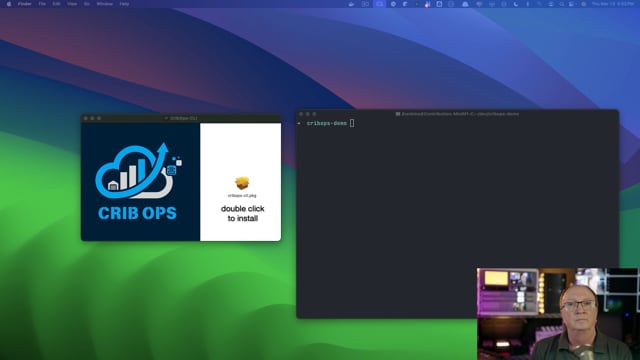
macOS Installation
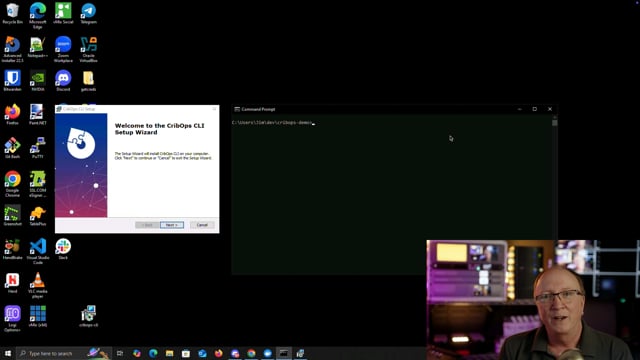
Windows Installation
-
Download and Install:
Run the macOS or Windows installer for Crib Ops CLI. The installer addscribops-clito your system’s PATH. The linux version can be placed manually into an appropriate path of your choosing.You can also run the cribops-cli via docker run if you don't wish to install the cli on your os.
docker run -v "$(pwd):/app" -w /app ghcr.io/cloudbedrock/cribops-cli -
Prepare License File:
Save the attachedlicense.txtfile (from your purchase email) in the directory where you will run the CLI.
Getting Started
Using the License File
Simply place your license.txt in your working directory and run the following command in your terminal:
cribops-cli setup
The tool will:
- Read your
license.txtfile. - Contact the crib ops API to retrieve your credentials.
- Generate secret files and a Docker Compose file for your environment.
Passing the License Key as an Argument
Alternatively, you can pass your license key directly:
cribops-cli setup YOUR_LICENSE_KEY_HERE
This bypasses the need for a local license.txt file.
Expected Output
After running the setup, you should see messages similar to:
Secret ACCESS_KEY_ID written to secrets/.accesskeyid
Secret SECRET_ACCESS_KEY written to secrets/.secretaccesskey
Secret CUSTOMER_UUID written to secrets/.customeruuid
Secret CRIBOPS_LICENSE_KEY written to secrets/.cribopslicensekey
Secret CRIBOPS_ITEM_ID written to secrets/.cribopsitemid
Secret SECRET_KEY_BASE written to secrets/.secretkeybase
Secret POSTGRES_PASSWORD written to secrets/.postgrespassword
Secrets successfully written to the secrets directory.
Use these files as secrets in your Docker Compose configuration.
Generated compose.yaml successfully.
If credentials have already been retrieved, you’ll receive a prompt informing you that they can only be retrieved once. In that case, follow the instructions to contact support if needed.
Generated Files Tree
Once setup is complete, your project directory will include files similar to the following tree:
.
├── license.txt
├── compose.yaml
├── secrets
│   ├── .accesskeyid
│   ├── .cribopsitemid
│   ├── .cribopslicensekey
│   ├── .customeruuid
│   ├── .databaseurl
│   ├── .postgrespassword
│   ├── .secretaccesskey
│   └── .secretkeybase
└── .gitignore
Example compose.yaml
Here’s an example of the generated compose.yaml file:
services:
  db:
    image: postgres:17.4
    healthcheck:
      test: ["CMD", "pg_isready", "--username=postgres"]
      interval: 10s
      timeout: 5s
      retries: 5
    deploy:
      restart_policy:
        condition: on-failure
        delay: 5s
        max_attempts: 3
        window: 120s
    environment:
      POSTGRES_PASSWORD_FILE: /run/secrets/postgrespassword
      PGDATA: /var/lib/postgresql/data/pgdata
    volumes:
      - db_data:/var/lib/postgresql/data
    ports:
      - ${POSTGRES_PORT:-5432}
    secrets:
      - postgrespassword

  cribops:
    image: ${WEB_IMAGE:-ghcr.io/cloudbedrock/cribops:latest}
    deploy:
      restart_policy:
        condition: on-failure
        delay: 5s
        max_attempts: 3
        window: 120s
    environment:
      DATABASE_URL_FILE: /run/secrets/databaseurl
      SECRET_KEY_BASE_FILE: /run/secrets/secretkeybase
      ACCESS_KEY_ID_FILE: /run/secrets/accesskeyid
      SECRET_ACCESS_KEY_FILE: /run/secrets/secretaccesskey
      CRIBOPS_LICENSE_KEY_FILE: /run/secrets/cribopslicensekey
      CRIBOPS_ITEM_ID_FILE: /run/secrets/cribopsitemid
      CUSTOMER_UUID_FILE: /run/secrets/customeruuid
      PHX_HOST: localhost
      PORT: 4000
      CHECK_ORIGIN: "//localhost:4000"
    ports:
      - "4000:4000"
    command: >
      bash -c "bin/migrate && \
               bin/server"
    depends_on:
      - db
    secrets:
      - secretkeybase
      - databaseurl
      - accesskeyid
      - secretaccesskey
      - cribopslicensekey
      - cribopsitemid
      - customeruuid

volumes:
  db_data:

secrets:
  postgrespassword:
    file: ./secrets/.postgrespassword
  secretkeybase:
    file: ./secrets/.secretkeybase
  databaseurl:
    file: ./secrets/.databaseurl
  accesskeyid:
    file: ./secrets/.accesskeyid
  secretaccesskey:
    file: ./secrets/.secretaccesskey
  cribopslicensekey:
    file: ./secrets/.cribopslicensekey
  cribopsitemid:
    file: ./secrets/.cribopsitemid
  customeruuid:
    file: ./secrets/.customeruuid
Docker Compose Commands
After generating your compose.yaml and secret files, you can use Docker Compose to manage your services. Here are some common commands:
-
Run in Foreground:
docker compose upThis starts all services and streams the logs to your console.
-
Run in Detached Mode:
docker compose up -dThis starts the services in the background.
-
Stop Containers:
docker compose stopThis stops all running containers without removing them.
-
Take Down Containers and Network:
docker compose downThis stops containers and removes the containers, networks, and any created volumes associated with the project.
-
View Logs:
docker compose logsTo follow logs in real time, use:
docker compose logs -f
Note: If you’re using the legacy Docker Compose (version 1), replace docker compose with docker-compose.
Troubleshooting & Support
- First-Time Setup Only: Credentials are retrieved only on the first setup. If you have already run the setup and lost your files, please contact [email protected] with your license key.
- **Self Help License Key Reset will be added shorlty as well as other license management features.
- License Issues: Ensure that your
license.txtfile is placed correctly or that you pass the valid license key as an argument. - Further Help: For any issues or further assistance, please visit cribops.com or reach out to our support team.
Tag summary
Content type
Image
Digest
sha256:9d10c7bc8…
Size
66.5 MB
Last updated
over 1 year ago
docker pull cloudbedrock/cribops