compdfkit/comidp-actuator repository overview
Get Started
Requirements
Before starting, please make sure that you have already met the following prerequisites.
Get ComIDP License Key
ComIDP provides two types of license key: 30-day free trial license, and formal license.
How to Get Free Trial License
Contact our sales team and we'll send you a 30-day free trial license for ComIDP.
How to Get Formal License
ComIDP is a commercial product that requires a license for application release. Any documents, sample code, or source code distribution from the released package of ComIDP to any third party is prohibited.
Install ComIDP Package
Contact us to obtain the ComIDP package.
System Requirements
Supported Operating Systems
ComIDP runs on a variety of platforms. The following operating systems are supported:
- Ubuntu, Fedora, Debian, or CentOS. Ubuntu and Debian derivatives, such as Kubuntu or Xubuntu, are also supported. Currently only 64-bit Intel (x86_64) processors are supported.
Regardless of which operating system you use, you will need at least 85GB of memory.
Recommended Configuration for Functional Combination
| System Combination | CPU Recommendation | GPU Recommendation | Memory Recommendation | Storage Recommendation |
|---|---|---|---|---|
| Knowledge Base (KB) | ≥ 4 cores (Intel i5 / AMD Ryzen 5) | ≥ 12GB video memory (such as RTX 3060 / A2000) can be adjusted according to the question-answering model | ≥ 16 GB | ≥ 100 GB SSD (SATA or NVMe) |
| Document Extraction (Extract) | ≥ 8 cores (Intel i7 / AMD Ryzen 7) | RTX 3090 / 4080 (≥16GB video memory) | ≥ 32 GB | ≥ 500 GB NVMe SSD |
| Document Parsing (Parse) | ≥ 16 cores (Xeon Gold 63xx / EPYC 7402) | No independent GPU required | ≥ 64 GB | ≥ 1 TB NVMe SSD (read speed > 2GB/s) |
| KB + Extract | ≥ 8 cores (Intel i7 / Ryzen 7) | RTX 3090 / 4080 (≥16GB VRAM) | ≥ 48 GB | ≥ 500 GB NVMe SSD |
| KB + Parse | ≥ 8 cores (Intel i7 / Ryzen 7) | ≥ 12GB VRAM (such as RTX 3060 / A2000) can be adjusted according to the question-answering model | ≥ 96 GB | ≥ 500 GB NVMe SSD |
| Extract + Parse | ≥ 16 cores (EPYC 7402 / Xeon Gold 63xx) | RTX 4090 / A100 (≥24GB VRAM) | ≥ 96 GB | ≥ 1 TB NVMe SSD (read speed >2GB/s) |
| KB + Extract + Parse | ≥ 16 cores (EPYC / Xeon Gold multi-core concurrent support) | RTX 4090 / A100 / H100 (≥24GB VRAM) | ≥ 128 GB | ≥ 1 TB high-speed NVMe SSD (read speed >2GB/s) |
Install Docker
ComIDP is distributed as a Docker container. To run it on your computer, you need to install the Docker runtime environment suitable for your operating system.
Please follow the instructions on the Docker official website to install and start Docker Engine.
After installing Docker, you can install Docker Compose by following the installation instructions.
Install NVIDIA Container Toolkit
Install NVIDIA Drivers
Visit the official NVIDIA Drivers page to download and install the correct driver.
Verify that your GPU is running and accessible.
The following example is Ubuntu 22.04 - NVIDIA T4
# Make sure the server has gcc and make environments installed. You can check the gcc version with the following command
gcc -v
# You can check the make version with the following command
make -v
# Download the installation package
wget https://us.download.nvidia.com/tesla/550.54.15/NVIDIA-Linux-x86_64-550.54.15.run
# Execute the installation package
sudo sh NVIDIA-Linux-x86_64-550.54.15.run
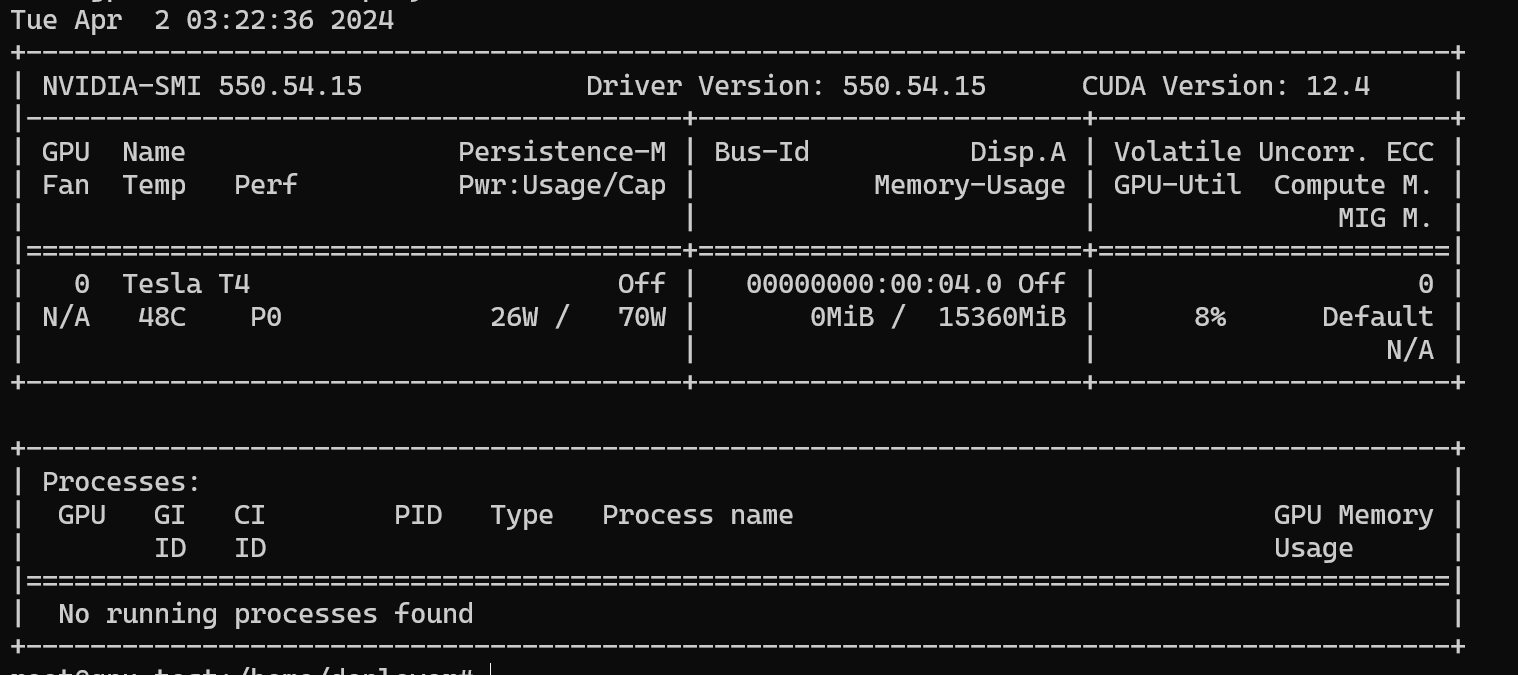
Use nvidia-smi to check if the installation is successful. If the following screenshot appears, the driver has been successfully installed
Install NVIDIA Container Toolkit
Please follow the official installation instructions of nvidia-container-toolkit to install it.
The following example is based on Ubuntu 22.04 - NVIDIA T4
- Configure the production repository:
curl -fsSL https://nvidia.github.io/libnvidia-container/gpgkey | sudo gpg --dearmor -o /usr/share/keyrings/nvidia-container-toolkit-keyring.gpg \
&& curl -s -L https://nvidia.github.io/libnvidia-container/stable/deb/nvidia-container-toolkit.list | \
sed 's#deb https://#deb [signed-by=/usr/share/keyrings/nvidia-container-toolkit-keyring.gpg] https://#g' | \
sudo tee /etc/apt/sources.list.d/nvidia-container-toolkit.list
- Update the package list from the repository:
sudo apt-get update
- Install the NVIDIA Container Toolkit package:
sudo apt-get install -y nvidia-container-toolkit
Run nvidia-container-toolkit -version to verify that the installation was successful
- Configure Docker
sudo nvidia-ctk run-configure --runtime=docker
# Restart the Docker daemon
sudo systemctl restart docker
Start ComIDP
ComIDP provides an intuitive web interface. You can access it through http://localhost to easily experience the relevant functions of ComIDP and enjoy an efficient and accurate interactive experience.
- Contact our sales to download the ComIDP deployment installation package. The compressed package structure is as follows:
-
docker-compose.yml: ComIDP container startup driver file, including basic configuration information for each service
-
.env: ComIDP service configuration file
-
init.sql: Database initialization file
-
service_conf.yaml: ComIDP Rag service connection configuration information
-
start.sh: ComIDP startup script
- Edit the
LICENSE_KEYin the .env file to add your License
LICENSE_KEY=your License
- Run the start.sh file
sh start.sh
When you see the following message, it means the project has been successfully started:
Running ComIDP_RAG.
ComIDP Configuration
Configure the operating environment information of ComIDP. The key file .env is as follows
# your License Key
# If you do not have a license key, please visit https://compdf.com to
LICENSE_KEY=your License

# The type of doc engine to use.
# Available options:
# - `elasticsearch` (default)
DOC_ENGINE=${DOC_ENGINE:-elasticsearch}
COMIDP_SERVER_IMAGE=compdfkit/comidp-server:2.2.0
COMIDP_ACTUATOR_IMAGE=compdfkit/comidp-actuator:2.2.0
COMIDP_IMAGE=compdfkit/comidp-rag:2.2.0

# ------------------------------
# docker env var for specifying vector db type at startup
# (based on the vector db type, the corresponding docker
# compose profile will be used)
# ------------------------------
COMPOSE_PROFILES=${DOC_ENGINE}

# The version of Elasticsearch.
STACK_VERSION=8.11.3

# The hostname where the Elasticsearch service is exposed
ES_HOST=es01

# The port used to expose the Elasticsearch service to the host machine,
# allowing EXTERNAL access to the service running inside the Docker container.
ES_PORT=1200

# The password for Elasticsearch.
ELASTIC_PASSWORD=comidp_rag

# The maximum amount of the memory, in bytes, that a specific Docker container can use while running.
# Update it according to the available memory in the host machine.
MEM_LIMIT=8073741824

# The User for MySQL.
MYSQL_USER=root
# The password for MySQL.
MYSQL_PASSWORD=comidp_rag
# The hostname where the MySQL service is exposed
MYSQL_HOST=mysql
# The database of the MySQL service to use
MYSQL_DBNAME=comidp
# The port used to expose the MySQL service to the host machine,
# allowing EXTERNAL access to the MySQL database running inside the Docker container.
MYSQL_PORT=5455

# The hostname where the MinIO service is exposed
MINIO_HOST=minio
# The port used to expose the MinIO console interface to the host machine,
# allowing EXTERNAL access to the web-based console running inside the Docker container.
MINIO_CONSOLE_PORT=9001
# The port used to expose the MinIO API service to the host machine,
# allowing EXTERNAL access to the MinIO object storage service running inside the Docker container.
MINIO_PORT=9000
# The username for MinIO.
# When updated, you must revise the `minio.user` entry in service_conf.yaml accordingly.
MINIO_USER=comidp
# The password for MinIO.
# When updated, you must revise the `minio.password` entry in service_conf.yaml accordingly.
MINIO_PASSWORD=comidp_rag

# The hostname where the Redis service is exposed
REDIS_HOST=redis
# The port used to expose the Redis service to the host machine,
# allowing EXTERNAL access to the Redis service running inside the Docker container.
REDIS_PORT=6379
# The password for Redis.
REDIS_PASSWORD=comidp_rag
REDIS_DATABASE=0

# The port used to expose ComIDP's HTTP API service to the host machine,
# allowing EXTERNAL access to the service running inside the Docker container.
SVR_HTTP_PORT=9380

# The local time zone.
TIMEZONE='Asia/Shanghai'

# user registration switch
REGISTER_ENABLED=1
# rabbitMq
MQ_HOST=rabbitmq
MQ_PORT=5672
MQ_USER=admin
MQ_PASSWORD=admin123
Tag summary
Content type
Image
Digest
sha256:483c56498…
Size
3.3 GB
Last updated
about 1 month ago
docker pull compdfkit/comidp-actuator:2.6.2-arm64-gb10-20260924-r4