cschranz/gpu-jupyter
Accelerate your JupyterLab with NVIDIA GPU via CUDA in Tensorflow and Pytorch.
500K+
cschranz/gpu-jupyter repository overview
GPU-Jupyter

GPU-Jupyter: Your GPU-accelerated JupyterLab with PyTorch, TensorFlow, and a rich data science toolstack for your reproducible deep learning experiments.


TL;DR
mkdir -p data
docker run --gpus all -it -p 8848:8888 -v "$(pwd)/data:/home/jovyan/work" --user root cschranz/gpu-jupyter:v1.11_cuda-13.0_ubuntu-24.04_python-only
Open http://localhost:8848 using the token printed in the terminal. See Quickstart below for requirements and all configuration options.
Welcome to this project, which provides a GPU-capable environment based on NVIDIA's official CUDA Docker image and the popular Jupyter's Docker Stacks. By utilizing version control for the source code, tagged data spaces, seeds for the random functions within isolated Docker containers, our solution empowers researchers to conduct fully reproducible and sharable machine-learning experiments.
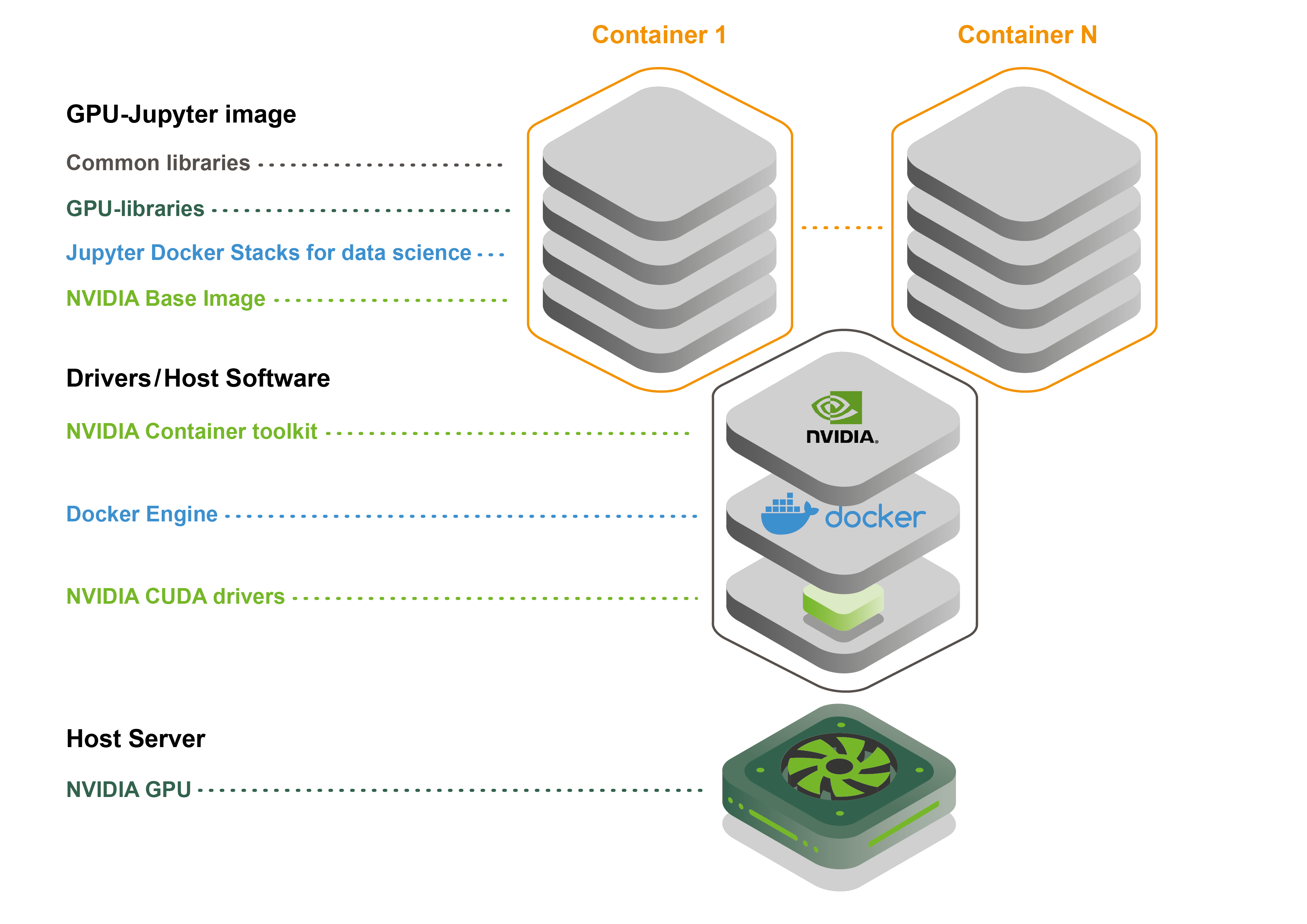 Architecture of the GPU-Jupyter Docker image on top of NVIDIA and Docker.
Please find an example of how to use GPU-Jupyter to make your deep learning research reproducible with one single command on github.com/iot-salzburg/reproducible-research-with-gpu-jupyter.
Contents
Quickstart
-
Requirements:
- NVIDIA GPU with drivers
- CUDA
- Docker
- NVIDIA Container Toolkit
You can confirm that all requirements are matched if the Docker command below returns a result similar to this one:
docker run --rm --gpus all nvidia/cuda:13.0.3-cudnn-runtime-ubuntu24.04 nvidia-smi... Thu Jul 23 17:02:12 2026 +-----------------------------------------------------------------------------------------+ | NVIDIA-SMI 580.173.02 Driver Version: 580.173.02 CUDA Version: 13.0 | +-----------------------------------------+------------------------+----------------------+ | GPU Name Persistence-M | Bus-Id Disp.A | Volatile Uncorr. ECC | | Fan Temp Perf Pwr:Usage/Cap | Memory-Usage | GPU-Util Compute M. | | | | MIG M. | |=========================================+========================+======================| | 0 NVIDIA RTX PRO 4000 Blac... On | 00000000:A2:00.0 Off | Off | | 30% 32C P8 5W / 145W | 18MiB / 24467MiB | 0% Default | | | | N/A | +-----------------------------------------+------------------------+----------------------+ +-----------------------------------------------------------------------------------------+ | Processes: | | GPU GI CI PID Type Process name GPU Memory | | ID ID Usage | |=========================================================================================| | No running processes found | +-----------------------------------------------------------------------------------------+If your computer doesn't have an NVIDIA GPU, you can get a cloud solution, e.g., using Saturn Cloud. To install the NVIDIA drivers, CUDA, Docker, and the NVIDIA Container Toolkit, follow the installation script or the guide in this Medium article: Set up Your own GPU-based Jupyter easily using Docker.
-
Pull and run the GPU-Jupyter image:
This may take some time as the whole environment for data science will be downloaded:
cd your-working-directory
ll data  # this path will be mounted by default
docker run --gpus all -it -p 8848:8888 -v "$(pwd)/data:/home/jovyan/work" -e GRANT_SUDO=yes -e JUPYTER_ENABLE_LAB=yes --user root cschranz/gpu-jupyter:v1.11_cuda-13.0_ubuntu-24.04_python-only
This starts a Docker container of GPU-Jupyter with the version
v1.11_cuda-13.0_ubuntu-24.04_python-onlylocally at http://localhost:8848 on port8848. Log in with the token that is displayed in the output (here5b96bb15be315ccb24643ea368a52cc0ba13657fbc29e409):docker exec -it [container-ID/name] jupyter server list # [JupyterServerListApp] Currently running servers: # [JupyterServerListApp] http://791003a731e1:8888/?token=5b96bb15be315ccb24643ea368a52cc0ba13657fbc29e409 :: /home/jovyan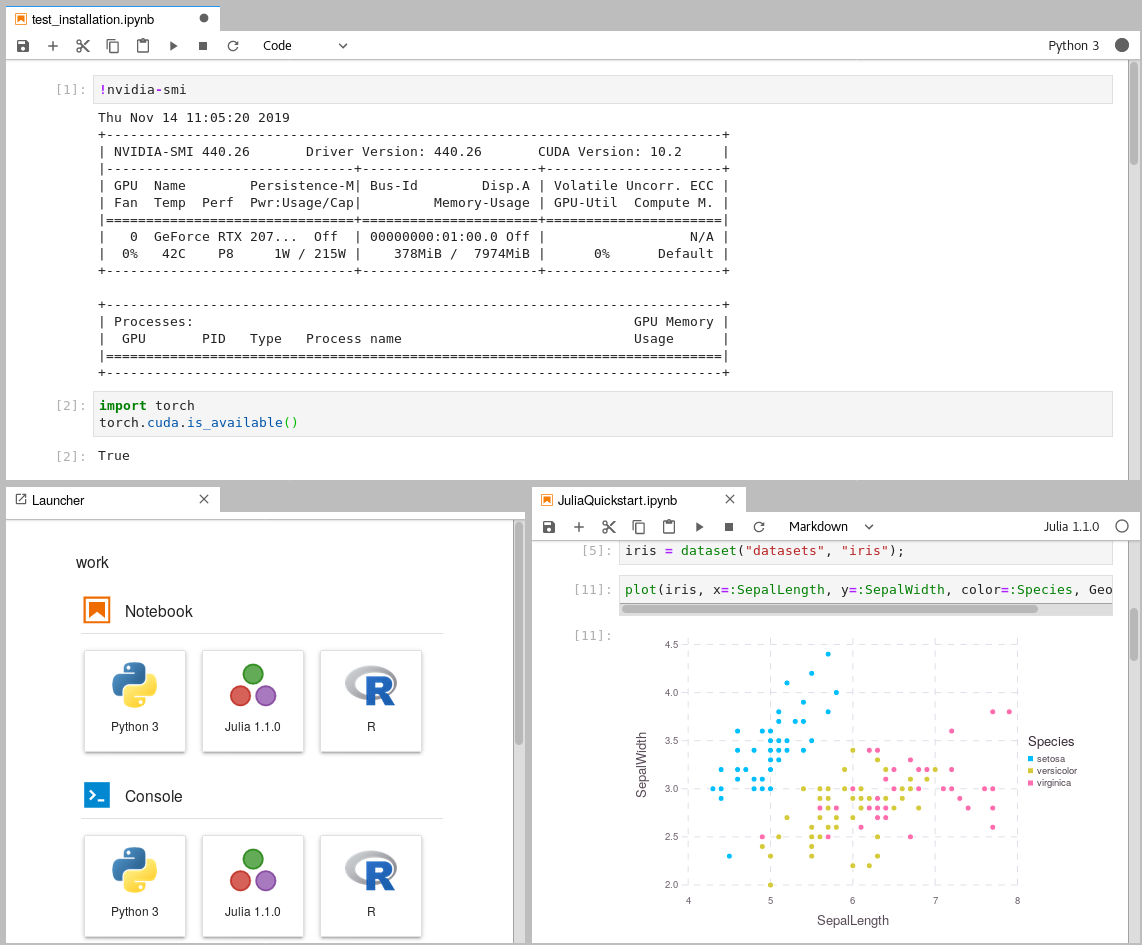
Within JupyterLab, you can access your GPU using
nvidia-smi. Install custom packages on top of the built image withapt(runsudo apt updatebefore). To help you get started with using the GPU, the repository includes some sample code located inextra/Getting_Started. If you're new to JupyterLab or want to learn more about its features, we recommend checking out this Jupyter Tutorial.
Configuration
Docker parameters
Customize the container using the following Docker parameters:
-
--gpus all: Grants the container access to all available GPUs on the host system, enabling GPU acceleration for deep learning workloads. -
-it: Runs the container in interactive mode, allowing direct user interaction via a terminal (useful for executing commands inside the container). -
-d: Run Docker container in detached mode. -
-p 8848:8888: Maps port 8888 of the container to port 8848 on the host, enabling access to JupyterLab throughhttp://localhost:8848. -
-v $(pwd):/home/jovyan/work: Mounts the current directory ($(pwd)) on the host to/home/jovyan/workinside the container, ensuring persistent access to files and code across sessions. -
-e GRANT_SUDO=yes: Grants the Jupyter user (jovyan) sudo privileges inside the container, allowing administrative commands if needed. -
-e JUPYTER_ENABLE_LAB=yes: Ensures JupyterLab (instead of the classic Jupyter Notebook interface) is enabled when the container starts. -
-e NB_UID=$(id -u) -e NB_GID=$(id -g): Sets the user ID (UID) and group ID (GID) inside the container to match the host system’s user, preventing permission issues when accessing mounted files. -
--user root: This is the default configuration for running Jupyter within containers, allowing unrestricted access to system configurations and software installations in the isolated environment. -
--restart: unless-stopped: Restart policy of the container, e.g., at host restart. -
cschranz/gpu-jupyter:v1.11_cuda-13.0_ubuntu-24.04: Specifies the version of GPU-Jupyter, see the following section for available GPU-Jupyter images. It is strongly recommended to tag the version for the reproducibility of your experiments.The most important Docker commands
With these commands we can investigate the container:
docker ps  # use the flat '-a' to view all
docker stats
docker logs [service-name | UID] -f  # view the logs
docker exec -it [service-name | UID] bash  # open bash in the container
docker rm -f [service-name | UID]  # stop container
Available GPU-Jupyter Images
All pre-built images are available on Dockerhub. Here are the latest:
v1.11_cuda-13.0_ubuntu-24.04(full image, see package README-versions)v1.11_cuda-13.0_ubuntu-24.04_python-only(only with a python interpreter and without Julia and R)v1.11_cuda-13.0_ubuntu-24.04_slim(only with a python interpreter and without additional packages)v1.10_cuda-12.9_ubuntu-24.04(full image, see package README-versions)v1.10_cuda-12.9_ubuntu-24.04_python-only(only with a python interpreter and without Julia and R)v1.10_cuda-12.9_ubuntu-24.04_slim(only with a python interpreter and without additional packages)
Older images
v1.9_cuda-12.6_ubuntu-24.04(full image, see package README-versions)v1.9_cuda-12.6_ubuntu-24.04_python-only(only with a python interpreter and without Julia and R)v1.9_cuda-12.6_ubuntu-24.04_slim(only with a python interpreter and without additional packages)v1.8_cuda-12.5_ubuntu-22.04(full image, see package README-versions)v1.8_cuda-12.5_ubuntu-22.04_python-only(only with a python interpreter and without Julia and R)v1.8_cuda-12.5_ubuntu-22.04_slim(only with a python interpreter and without additional packages)v1.7_cuda-12.3_ubuntu-22.04(full image)v1.7_cuda-12.3_ubuntu-22.04_python-only(only with a python interpreter and without Julia and R)v1.7_cuda-12.3_ubuntu-22.04_slim(only with a python interpreter and without additional packages)v1.6_cuda-12.0_ubuntu-22.04(full image)v1.6_cuda-12.0_ubuntu-22.04_python-only(only with a python interpreter and without Julia and R)v1.6_cuda-12.0_ubuntu-22.04_slim(only with a python interpreter and without additional packages)v1.6_cuda-11.8_ubuntu-22.04(full image)v1.6_cuda-11.8_ubuntu-22.04_python-only(only with a python interpreter and without Julia and R)v1.6_cuda-11.8_ubuntu-22.04_slim(only with a python interpreter and without additional packages)v1.5_cuda-12.0_ubuntu-22.04(full image)v1.5_cuda-12.0_ubuntu-22.04_python-only(only with a python interpreter and without Julia and R)v1.5_cuda-12.0_ubuntu-22.04_slim(only with a python interpreter and without additional packages)v1.5_cuda-11.8_ubuntu-22.04(full image)v1.5_cuda-11.8_ubuntu-22.04_python-only(only with a python interpreter and without Julia and R)v1.5_cuda-11.8_ubuntu-22.04_slim(only with a python interpreter and without additional packages)v1.5_cuda-11.6_ubuntu-20.04(full image)v1.5_cuda-11.6_ubuntu-20.04_python-only(only with a python interpreter and without Julia and R)v1.5_cuda-11.6_ubuntu-20.04_slim(only with a python interpreter and without additional packages)v1.4_cuda-11.6_ubuntu-20.04(full image)v1.4_cuda-11.6_ubuntu-20.04_python-only(only with a python interpreter and without Julia and R)v1.4_cuda-11.6_ubuntu-20.04_slim(only with a python interpreter and without additional packages)v1.4_cuda-11.2_ubuntu-20.04(full image)v1.4_cuda-11.2_ubuntu-20.04_python-only(only with a python interpreter and without Julia and R)v1.4_cuda-11.2_ubuntu-20.04_slim(only with a python interpreter and without additional packages)v1.4_cuda-11.0_ubuntu-20.04(full image)v1.4_cuda-11.0_ubuntu-20.04_python-only(only with a python interpreter and without Julia and R)v1.4_cuda-11.0_ubuntu-20.04_slim(only with a python interpreter and without additional packages)v1.4_cuda-11.0_ubuntu-18.04(full image)v1.4_cuda-11.0_ubuntu-18.04_python-only(only with a python interpreter and without Julia and R)v1.4_cuda-11.0_ubuntu-18.04_slim(only with a python interpreter and without additional packages)v1.4_cuda-10.1_ubuntu-18.04(full image)v1.4_cuda-10.1_ubuntu-18.04_python-only(only with a python interpreter and without Julia and R)v1.4_cuda-10.1_ubuntu-18.04_slim(only with a python interpreter and without additional packages)
The version number, e.g. v1.11, declares the version of the generator setup and is directly linked to a commit hash of the Jupyter Docker Stacks.
See the installed package versions, including (Python, Julia, R, PyTorch, and TensorFlow) under README-versions.
The Cuda version, e.g. cuda-13.0, must be supported by the installed NVIDIA driver version on the host. Note that the images built for Ubuntu 20.04 LTS or Ubuntu 22.04 LTS also work on Ubuntu 24.04 LTS.
In case you are using another version or the GPU libraries don't work on your hardware, please try to build the image on your own as described in Build Your Image.
Set a Static Token
Jupyter by default regenerates a new token on each new start.
GPU-Jupyter provides the environment variable JUPYTER_TOKEN to set a customized static token.
This option is practicable if the host machine is periodically restarted.
Here, a UUID is used as a token, however, every other token is also possible:
export JUPYTER_TOKEN=$(uuidgen)
echo $JUPYTER_TOKEN
In Docker add the environment variable -e JUPYTER_TOKEN=${JUPYTER_TOKEN}:
docker run --gpus all -d -it -p 8848:8888 -v $(pwd)/data:/home/jovyan/work -e GRANT_SUDO=yes -e JUPYTER_ENABLE_LAB=yes -e NB_UID="$(id -u)" -e NB_GID="$(id -g)" -e JUPYTER_TOKEN=${JUPYTER_TOKEN} --user root --restart always --name gpu-jupyter_1 gpu-jupyter
Any token can be requested by calling jupyter server list within the container:
docker exec -it gpu-jupyter_1 jupyter server list
Deploy with Docker Compose
Docker Compose features a convenient way for container management through the text-based specification of Docker parameters and advanced resource constraints.
To run GPU-Jupyter in docker-compose, you can use the docker-compose.yml as a basis for your setup.
docker-compose up -d  # run in detached mode
docker-compose ps  # check status
docker-compose logs -f  # view the logs
docker-compose down  # stop the container
It is recommended to use the option env_file in docker-compose to load the JUPYTER_TOKEN set in a separate .env-file:
In token.env:
JUPYTER_TOKEN=b5cd1234-3921-4424-90b5-47a1566d299a
In docker-compose.yml:
    env_file:
      - token.env
Adaptions for using Tensorboard
Both TensorFlow and PyTorch support tensorboard. This package is already installed in the GPU-packages and can be used with these settings:
-
Forward the port in the docker command using
-p 6006:6006to access in the browser on localhost:6006 (only for usage outside of Juypterlab). -
Starting tensorboad with port binding within a container or Jupyterlab UI. Make sure the parameter
--bind_allis set.docker exec -it [container-name/ID] bash root@749eb1a06d60:~# tensorboard --logdir mylogdir --bind_all%tensorboard --logdir logs/[logdir] --bind_all -
Writing the states and results in the tensorboard log-dir, as described in the tutorials for TensorFlow and PyTorch or in the Getting Started section
data/Getting_Started.
Customized installations
GPU-Jupyter is very flexible and allows custom installations even on the OS level.
-
pip install -r requirements.txt: Install pip-packages specified in the requirements-file. -
sudo apt install [package]: Runsudo apt updatebefore.Install packages in the command line or build specific packages from source.
For the best reproducibility, it is recommended to build on top of the Dockerfile, as described below.
Share your customized Dockerfile
Build additional layers on top of GPU-Jupyter by creating a new Dockerfile for your setup:
# This Dockerfile builds the image of the deep learning experiment
FROM cschranz/gpu-jupyter:v1.11_cuda-13.0_ubuntu-24.04
LABEL authors="Your Name <[email protected]>"

# #############################################################
# ################### Custom installations ####################
# #############################################################

# apt install your other packages
USER root
RUN apt-get update && \
    apt-get -y install apt-utils

# Copy requirements.txt and install in pip
ADD requirements.txt .
RUN pip install -r requirements.txt

# #############################################################
# ###################### Set environment ######################
# #############################################################

# fix permissions to avoid files or folders hidden in the container
USER root
RUN chown -R ${NB_USER}:${NB_GID} /home/jovyan/work/

# Switch back to user Jovyan to avoid accidental container runs as root
USER ${NB_UID}
WORKDIR ${HOME}
Build your custom GPU-Jupyter Dockerfile and tag it for sharing your reproducible setup seamlessly!
docker build -t your-dockerhub-username/image-name:tag .
docker push your-dockerhub-username/image-name:tag  # optionally push to Dockerhub
docker run --gpus all --rm -it -p 8849:8888 your-dockerhub-username/image-name:tag
Build Your Image
If you have a specific GPU architecture the recommended option is to build your own Docker image by adapting the partial Dockerfiles in custom/ and generating and building a new Dockerfile. To use a custom base image, modify custom/header.Dockerfile. To install specific GPU-related libraries, modify custom/gpulibs.Dockerfile, and to add specific libraries, append them to custom/usefulpackages.Dockerfile.
Keep in mind that every time a Dockerfile is generated, the file .build/Dockerfile is overwritten, so it's best to append custom installations in custom/usefulpackages.Dockerfile or generate-Dockerfile.sh.
After making the necessary modifications, regenerate the Dockerfile in /.build. Once you have confirmed that your GPU is accessible within Docker containers by running docker run --rm --gpus all nvidia/cuda:13.0.3-cudnn-runtime-ubuntu24.04 nvidia-smi and seeing the GPU statistics, you can generate, build, and run the Docker image.
git clone https://github.com/iot-salzburg/gpu-jupyter.git
cd gpu-jupyter
git branch  # Check for existing branches
git checkout v1.11_cuda-13.0_ubuntu-24.04  # select or create a new version
# generate the Dockerfile with Python and without Julia and R (see options: --help)
./generate-Dockerfile.sh --python-only
docker build -t gpu-jupyter .build/ --progress=plain  # will take a while
docker run --rm --gpus all -it -p 8848:8888 -v "$(pwd)/data:/home/jovyan/work" -e GRANT_SUDO=yes -e JUPYTER_ENABLE_LAB=yes -e NB_UID="$(id -u)" -e NB_GID="$(id -g)" --user root --name gpu-jupyter gpu-jupyter

docker exec -it gpu-jupyter jupyter server list  # print token, e.g. from another terminal
# Currently running servers:
# http://localhost:8888/?token=b7d21295f604e8444981fdfff68a035539c61d1aeffc27d2 :: /home/jovyan
This command starts a container with GPU support and a shared local data volume /data, along with other necessary configurations, such as root permissions to install packages within the container. For more configuration options, see Configuration of the Dockerfile-Generation below.
Configuration of the Dockerfile-Generation
To generate a Dockerfile for GPU-Jupyter, you can use the script generate-Dockerfile.sh. It generates a Dockerfile in the .build/ directory, which is overwritten with each new generation.
The script has the following parameters:
-
-h|--help: Show a help message. -
-p|--pw|--password: Set the password for GPU-Jupyter by updating the salted hashed token incustom/jupyter_notebook_config.json. -
-c|--commit: specify a commit or"latest"for theJupyter's Docker Stacks, the default commit is a working one. -
-s|--slim: Generate a slim Dockerfile. As some installations are not needed by everyone, there is the possibility to skip some installations to reduce the size of the image. Here thescipy-notebookis used instead ofdatascience-notebookthat comes with Julia and R, see Jupyter's Docker Stacks. Moreover, none of the packages withincustom/usefulpackages.Dockerfileis installed. -
--python-only|--no-datascience-notebook: As the name suggests, thedatascience-notebookis not installed on top of thescipy-notebook, but the packages withincustom/usefulpackages.Dockerfileare. -
--no-useful-packages: On top of thedatascience-notebook(Julia and R), the essentialgpulibsare installed, but not the packages withincustom/usefulpackages.Dockerfile.
Note that only one of the parameters --slim, --python-only, and --no-useful-packages can be used at the same time:
Cite This Work
Please cite the GPU-Jupyter framework in your publication when you are using GPU-Jupyter for your academic work:
Schranz, C., Pilosov, M., & Beeking, M. (2025). GPU-Jupyter: A Framework for Reproducible Deep Learning Research. In Interdisciplinary Data Science Conference. 10.13140/RG.2.2.15549.99040
@inproceedings{GPU-Jupyter2025,
  author = {Schranz, C. and Pilosov, M. and Beeking, M.},
  title = {GPU-Jupyter: A Framework for Reproducible    Deep Learning Research},
  booktitle = {Interdisciplinary Data Science Conference},
  year = {2025},
  publisher = {ResearchGate},
  doi = {10.13140/RG.2.2.15549.99040},
  url = {https://www.researchgate.net/publication/393662057}
}
Tag summary
Content type
Image
Digest
sha256:ae9f0bb5f…
Size
10.9 GB
Last updated
3 months ago
docker pull cschranz/gpu-jupyter:v1.11_cuda-13.0_ubuntu-24.04_python-only