dockerxialab/expressanalyst_docker
Perform raw RNA-seq processing (FASTQ to counts table) using the ExpressAnalyst interface.
1.8K
dockerxialab/expressanalyst_docker repository overview
ExpressAnalyst: A unified framework for high-performance, high-resolution, and user-friendly RNA-seq profiling of non-model organisms.
Introduction
Growing applications of RNA-seq in studies involving non-model organisms demand efficient transcriptome profiling and functional analysis. ExpressAnalyst is a comprehensive tool for RNA-seq processing, statistical, and functional analysis of FASTQ files from any eukaryotic species. ExpressAnalyst enables simultaneous identification and quantification of raw RNA-seq reads via translated search of a high-resolution ortholog database using the Seq2Fun algorithm.
Here we provide a Stand Alone docker version of ExpressAnalyst (ExpressAnalystSA) raw data processing module so that users can avoid challenging big data upload to the Xia Lab server.
Instructions
Use the following steps to run the ExpressAnalyst raw data processing docker on your computer. Note that Docker is more difficult to configure for Windows systems - if you have access to a Mac or Linux OS, we highly recommend this instead. In our experience, the Docker installer + Docker software + ExpressAnalyst Docker container take ~4GB space for Mac/Linux and ~6-7GB space for Windows, and takes between 10-20 minutes to install.
Installation of Docker
-
First, install the Docker software. We suggest Docker Desktop. Click on the Docker icon to start the software - it may take a few minutes to initialize and start running.
-
Next, open the command line and enter this command to pull the ExpressAnalyst docker image to your local computer:
docker pull dockerxialab/expressanalyst_docker:latest. For Windows, some additional troubleshooting may be required. Here are some suggestions if its not working:- Windows computers usually have two different command line programs. Make sure that you are using "Power Shell", not "Command Prompt".
- You must have support for a WSL 2 Backend. This is not the default option for many Windows machines, but you can manually install by following these instructions.
- Docker can be configured to run either Windows or Linux containers - we need to run Linux containers. Right click the Docker whale icon on the bottom right of your screen. If one of the options says "Switch to Windows Containers", it means that we are already running Linux containers and so its ok. If it says "Switch to Linux Containers", click to switch.
- Open the "Windows Features" settings, and make sure the options "Containers", "Hyper V", and "Windows Subsystem for Linux" options are all enabled
- Run your command line program as adminstrator
Preparation of Working Directory (Folder)
- Once the docker (or docker desktop) is installed sucessfully, we need to organize all fastq.gz data files and database files (see below about how and where to download the database). You need to create a working folder containing three sub-folders. The sub-folders must be exactly named as "FASTQ", "DATABASE" and "RESULTS" within the mother folder (with any name). Please note, the names of these three folders are capital-sensitive.
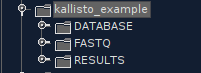 Before this action, you need to decide where to create the working folder. For Linux (e.g. Ubuntu) and Windows, you can create it anywhere (over root "/" for Linux or within any drive for Windows, e.g "C:"); while for MacOS, it is recommended to create it within users' home directory.
- Here is quick guidance to find user's home directory, so that ExpressAnalyst knows where to look for the FASTQ and database files. To find your home directory filepath, go the command line and enter
cd ~and thenpwd. Whatever is printed will be your home directory. For me, it's "/Users/jessicaewald". Note that if you are using Windows, the 'Command Prompt' command line doesn't recognize this command - use 'Power Shell' instead.
- Here is quick guidance to find user's home directory, so that ExpressAnalyst knows where to look for the FASTQ and database files. To find your home directory filepath, go the command line and enter
Now, all fastq.gz files should be directly deposited into the folder "FASTQ". The database file should be directly saved into folder "DATABASE". All results generated will be saved in to the directory "RESULTS".
Execution of Dokcer Container
1. From Command line
Everything is ready, let's get started ^_^. For different Operating Systems (OS), we recommend users to follow the guidelines below.
- For Windows, if your working directory is organized at C:\ drive, you should run this command :
docker run -ti --rm -p 8080:8080 -v C:\:/data dockerxialab/expressanalyst_docker:latest
- For Linux, you can directly mount the root "/" into the docker container, in this case, you should run this command :
docker run -ti --rm -p 8080:8080 -v /:/data dockerxialab/expressanalyst_docker:latest`
- For MacOS, you are suggessted to mount your user home directory into the docker container, in this case, you should run the following command. You have to put your home directory filepath where it says
/home/directory, so for me the command looks likedocker run -ti --rm -p 8080:8080 -v /Users/jessicaewald:/data dockerxialab/expressanalyst_docker:latest.
docker run -ti --rm -p 8080:8080 -v /home/directory:/data dockerxialab/expressanalyst_docker:latest
-
[Optional for advanced Users] The general principle here is that the mounting directory (the path after
-v) must include your working directory. When the container is running, you will be asked to provide a relative path to your working directory. Please remember, the path must a relative path against the directory you are mounting here. For advanced users, you can customize any path in this step. For beginners without sufficient knowledge on docker structure or computer science, you can skip this point and use the default option above. Besides, for Windows, filepaths have slashes in the opposite direction. It's fine, just pay close attention to make sure you get it right. For example, a home directory might beC:\Krittika. In this case, the full command would look like this:docker run -ti --rm -p 8080:8080 -v C:\Krittika:/data dockerxialab/expressanalyst_docker:latest. -
A bunch of text will be outputted into your command line window. When the output stops for at least 20 seconds and the final lines say "ready in #### ms", the application is ready to use. Access the application from your browser at http://localhost:8080/ExpressAnalystSA. We recommend using Chrome, but other commonly used browsers should also work.
-
If you use the ExpressAnalyst Docker in the future, make sure to re-run the "docker pull" command before "docker run" to make sure that you are using the most recently updated version.
2. From Docker Desktop
-
- Click the 'Docker Destop' icon to start it. It will show up like below. This step may take up to a few minutes to be finished.
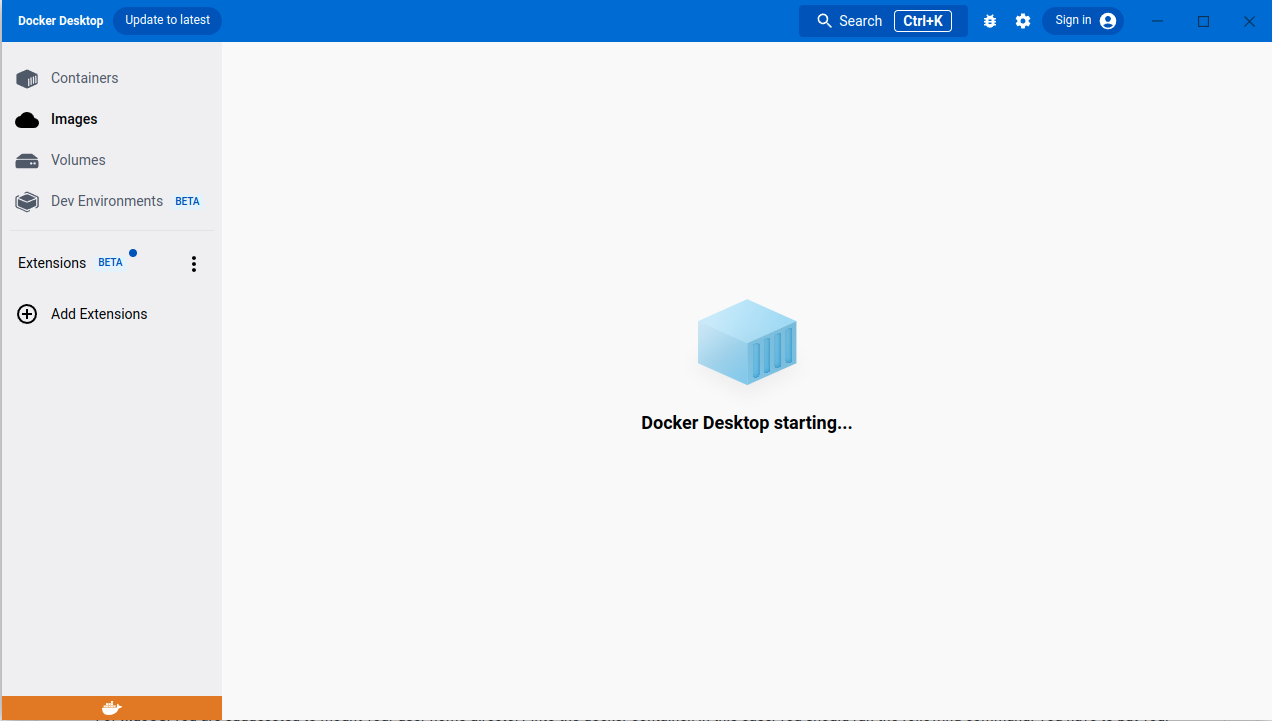
- Click the 'Docker Destop' icon to start it. It will show up like below. This step may take up to a few minutes to be finished.
-
- Select the image you have pulled at the begining, and click the "Run" button.
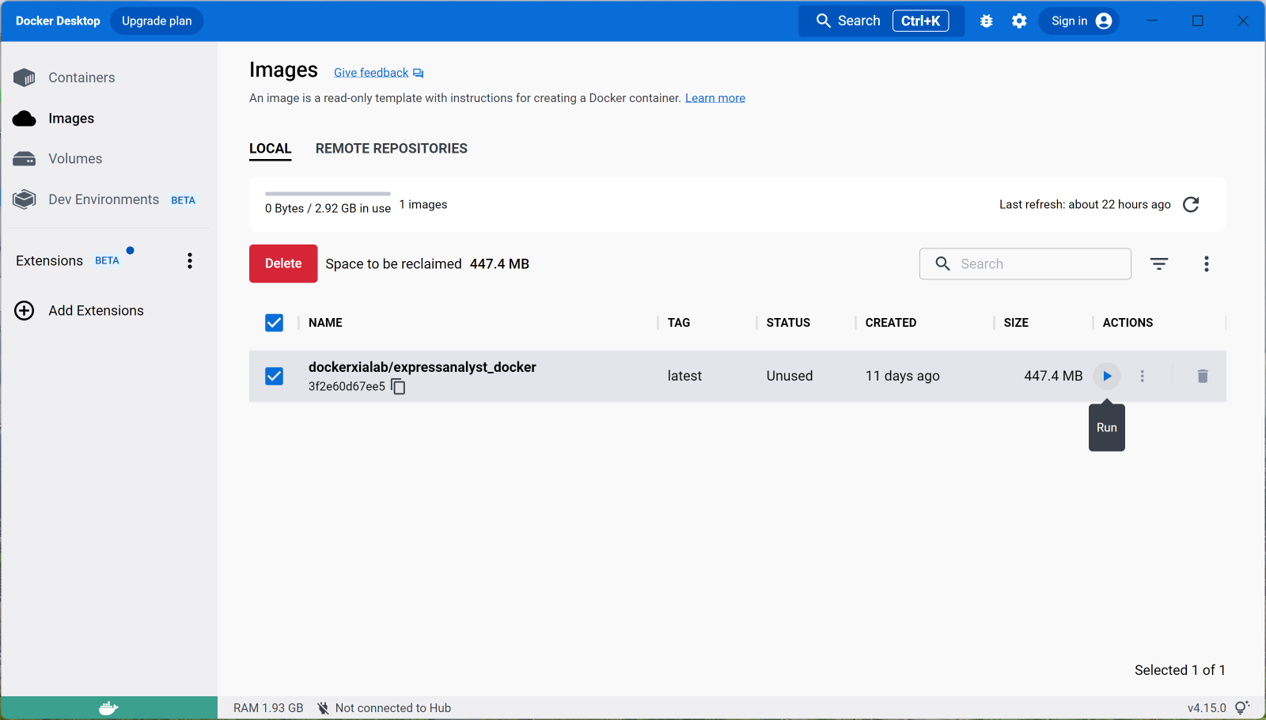
- Select the image you have pulled at the begining, and click the "Run" button.
-
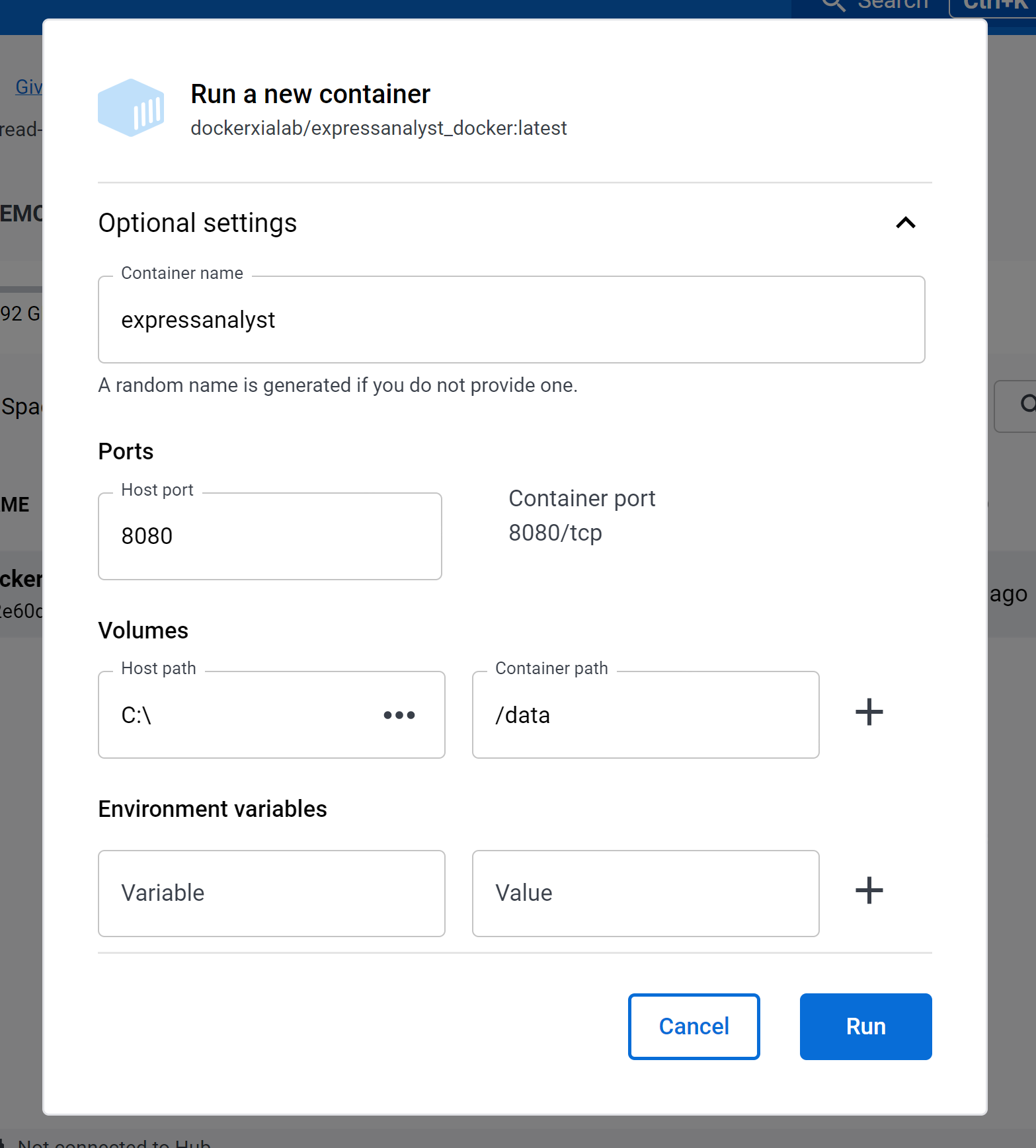
- Then you will see the docker parameters setting-up dialog. You name this container as whatever you want. But the most critical part is port number (8080 by default) and volume (which equates -v parameters from command line).
- For Windows, use the drive containing your working directory (e.g. "C:" here).
- For Linux, use root ("/") is recommeded.
- For MacOS, use you home directory is recommended (see more details above on how to find your home directory).
- Keep the Container path as "/data" (otherwise the docker will not work). Then click "Run" button to start the docker container.
-
- Then you will see the running logs of the container. When you see the "ready in .." information, it means your docker container has been started sucessfully. Then, you can access the application from your browser at http://localhost:8080/ExpressAnalystSA.
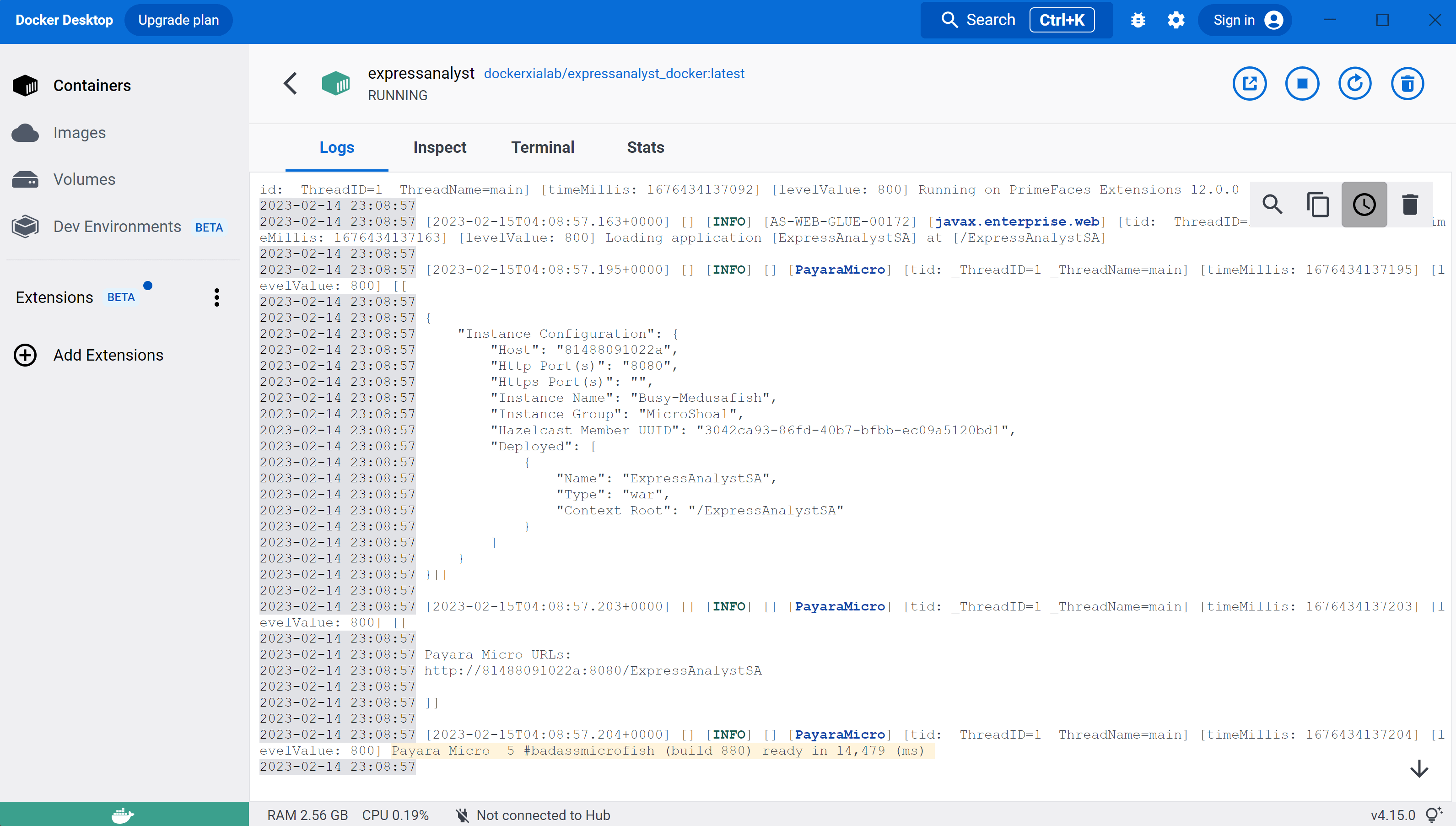
- Then you will see the running logs of the container. When you see the "ready in .." information, it means your docker container has been started sucessfully. Then, you can access the application from your browser at http://localhost:8080/ExpressAnalystSA.
Download Databases
To quantify RNA-seq reads, you need to map them to either a reference transcriptome or to an ortholog database (for species that do not have a published transcriptome). These files can be large, so only download the ones that you need. All databases can be downloaded here.
Video Tutorials
Here is a video tutorial on installing Docker and running the ExpressAnalyst docker image for the first time.
Example Data
You can download small seq2fun example data here and kallisto example data here.
Troubleshooting
-
Make sure there are no spaces or special characters (for example, a "[", ")" or "@") in your folder names or FASTQ file names
-
Ensure that all your input files and output folder paths are in the same drive as where you ran Docker from. For example, if you ran docker in "C:\Users" but your files are in "D:\files", Docker won't be able to find them.
See some additional helpful tips here. Please post on the ExpressAnalyst topic in our OmicsForum with any questions or technical issues.
Tag summary
Content type
Image
Digest
sha256:63a0f0a17…
Size
234.9 MB
Last updated
over 2 years ago
docker pull dockerxialab/expressanalyst_docker