dolthub/dolt-workbench
A modern, browser-based SQL workbench with added version control features when using Dolt/Doltgres.
10K+
dolthub/dolt-workbench repository overview
dolt-workbench
A modern, browser-based, open source SQL workbench for your MySQL and PostgreSQL compatible databases. Unlock powerful version control features when you use Dolt or Doltgres.
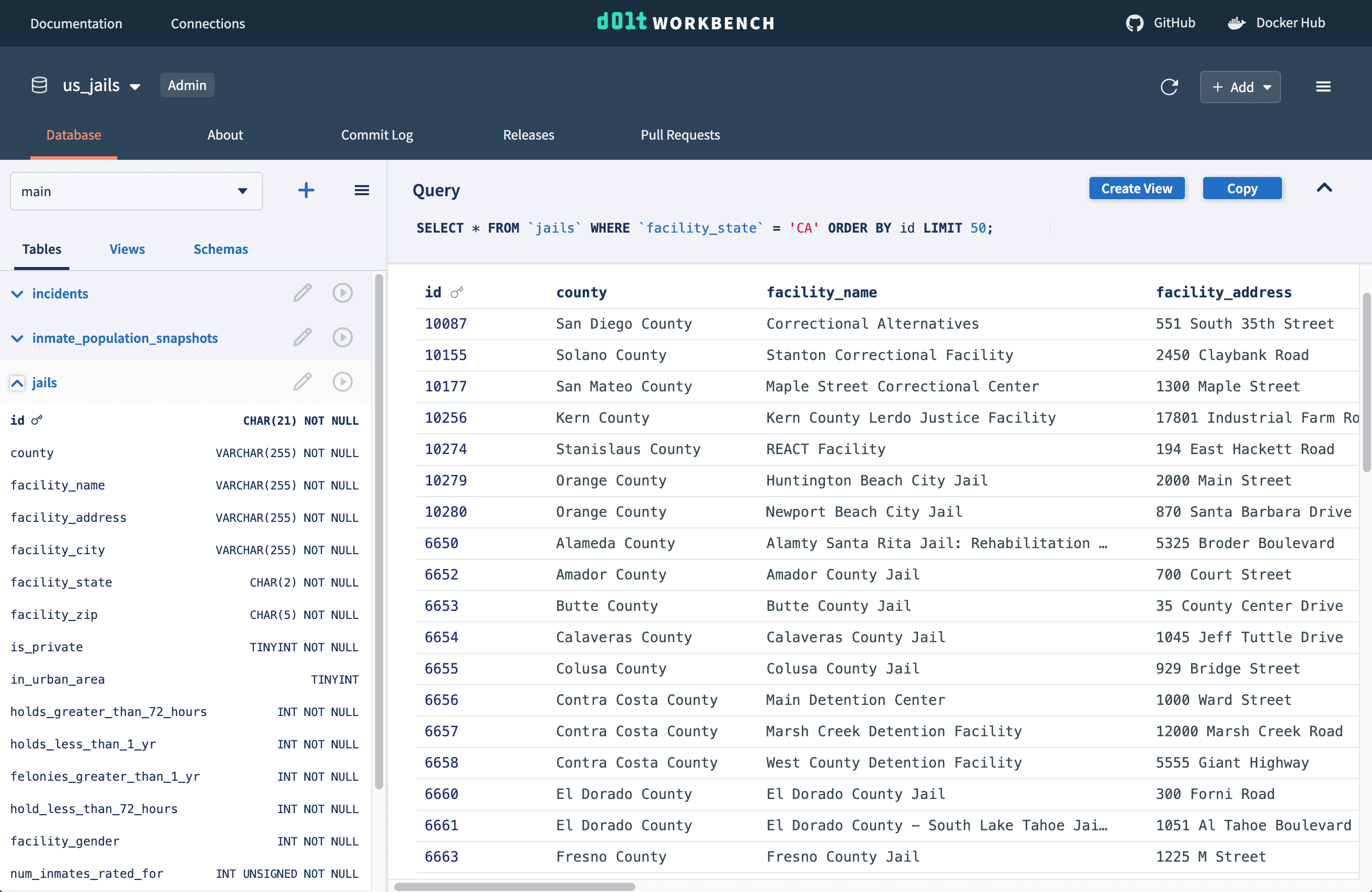
Features include:
- Modern, web-based table browser
- Auto-complete SQL queries
- Editing data using point and click interface
- ER diagrams
- File upload
For Dolt and Doltgres databases, access additional version control features, such as:
- Commit log visualizations
- Branch navigation
- Tags
- Pull requests
You can find the code for the Dolt Workbench in this GitHub repository.
Getting started
% docker pull dolthub/dolt-workbench:latest
% docker run -p 9002:9002 -p 3000:3000 dolthub/dolt-workbench:latest
Go to http://localhost:3000 and add your connection information. See instructions below for connecting to locally and Docker installed databases.
You can also access the GraphQL Playground at http://localhost:9002/graphql.
Saving connection information between runs
Using the file store
If you want to save connection metadata between Docker runs, you can mount a local
directory to the store directory in /app/graphql-server in the container.
% docker run -p 9002:9002 -p 3000:3000 -v ~/path/to/store:/app/graphql-server/store dolthub/dolt-workbench:latest
Using a MySQL database
You can also persist connection metadata in a MySQL-compatible database by providing database connection information through environment variables.
Using a .env file:
# Specify individual fields:
DW_DB_DBNAME=dolt_workbench
DW_DB_PORT=3306
DW_DB_USER=<username>
DW_DB_PASS=<password>
DW_DB_HOST=host.docker.internal

# Or use a connection URI:
DW_DB_CONNECTION_URI=mysql://<username>:<password>@host.docker.internal:3306/dolt_workbench

# For databases that require secure connections
DW_DB_USE_SSL=true
% docker run -p 9002:9002 -p 3000:3000 --env-file <env_file_name> dolthub/dolt-workbench:latest
Or use the -e flag:
% docker run -p 9002:9002 -p 3000:3000 -e DW_DB_CONNECTION_URI="mysql://<username>:<password>@host.docker.internal:3306/dolt_workbench" dolthub/dolt-workbench:latest
Note that we do not create the database dolt_workbench for you. You must create it
yourself:
CREATE DATABASE dolt_workbench;
Specifying a different GraphQL API URL
When running this Docker image locally, GraphQL API requests are routed to the GraphQL
server running at http://localhost:9002/graphql. In some cases you may want to specify a
different url to route GraphQL API requests, and you can do so using the following
environment variable:
% docker run -p 9002:9002 -p 3000:3000 -e GRAPHQLAPI_URL="[your-host]:9002/graphql" dolthub/dolt-workbench:latest
Connecting to an internet accessible database
If your database is already internet accessible (i.e. your database is hosted on a service like AWS RDS or Hosted Dolt), simply enter your database connection information through the UI.
Connecting to a locally installed database
If you'd like to connect to a database server running on your local machine, there are some additional steps to accept connections from other hosts. Docker containers cannot use localhost or 127.0.0.1 to access services running on the host machine because they have their own local network. Instead, you can use host.docker.internal* as the host IP which Docker resolves to the internal IP address used by the host machine.
* If you are on Linux you will need to use the
--add-hostflag to maphost.docker.internalto the host's gateway:For example,
docker run -it --add-host=host.docker.internal:host-gateway dolthub/dolt-workbench:latest
MySQL
Set the bind-address directive in the MySQL configuration file (my.cnf or my.ini) to 0.0.0.0. Restart the server.
bind-address = 0.0.0.0
Use host.docker.internal as the host when entering your connection information from the UI.
On a Mac with MySQL installed via Homebrew, the location of this file is /opt/homebrew/etc/my.cnf. It can also be found at /etc/mysql/my.cnf or /etc/mysql/mysql.conf.d/mysqld.cnf.
Dolt
Run the Dolt SQL server with host 0.0.0.0.
my-dolt-db % dolt sql-server -H 0.0.0.0
Use host.docker.internal as the host when entering your connection information from the UI.
PostgreSQL
Locate your PostgreSQL configuration file (postgresql.conf) and change the listen_addresses directive from localhost to *. Restart the server.
listen_addresses = '*'
Use host.docker.internal as the host when entering your connection information from the UI.
Connecting to a Docker installed database
You can use Docker container networking to allow containers to connect to and communicate with each other, or to non-Docker workloads. This allows us to run a local server in the same network as the workbench.
First, create the network:
% docker network create dolt-workbench
And then run the workbench in that network:
% docker run --network dolt-workbench -p 9002:9002 -p 3000:3000 dolthub/dolt-workbench:latest
MySQL
For MySQL databases, you can use the mysql/mysql-server image to start a SQL server for a new database:
% docker run --network dolt-workbench --name mysql-db mysql/mysql-server:latest
Or an existing database on your local machine (see MySQL documentation for more information):
% docker run --name=mysql-db --network dolt-workbench \
--mount type=bind,src=/path-on-host-machine/my.cnf,dst=/etc/my.cnf \
--mount type=bind,src=/path-on-host-machine/datadir,dst=/var/lib/mysql \
-d mysql/mysql-server:latest
Some caveats to consider:
- You can see at the bottom of this article where the relevant MySQL directories are located on a Mac. This location is different if you installed MySQL via Homebrew. If you get an error about the bind source path not existing, you may need to add these paths to the shared paths configuration from Docker.
- Your MySQL version must be the same for your Docker container and source data directory.
- For new servers, follow the instructions in the
mysql/mysql-serverREADME for setting a password for therootuser. You may want to create a new user for this workbench that can be accessed from any host.
When you enter your connection information from the UI, you can use mysql-db as the host name to connect to the database running in that container.
Dolt
For Dolt databases, you can use the dolthub/dolt-sql-server image to start a SQL server for a new database:
% docker run --network dolt-workbench --name my-doltdb -p 3307:3306 dolthub/dolt-sql-server:latest
Or you can run a Dolt SQL server for an existing database on your local machine:
% docker run --network dolt-workbench -p 3307:3306 -v ~/path/to/parent/dir:/var/lib/dolt dolthub/dolt-sql-server:latest
When you enter your database configuration from the UI, you can use my-doltdb as the host name to connect to the database running in that container.
Using a reverse proxy
In some circumstances you may want to add a reverse proxy in front of the Dolt Workbench for authentication or other purposes. If you'd like to use the authenticated user from the proxy as the author for commits or tags, you can pass through the user headers.
For example, given this NGINX configuration that implements basic authentication:
events {}

http {
  server {
    listen 80;
    server_name localhost;

    location / {
      auth_basic "Restricted Access";
      auth_basic_user_file /etc/nginx/.htpasswd;

      proxy_pass http://workbench:3000;
      proxy_set_header X-Forwarded-For $proxy_add_x_forwarded_for;
      proxy_set_header Host $host;
      proxy_set_header X-Forwarded-Proto $scheme;
      proxy_set_header X-Forwarded-User $remote_user;
      proxy_set_header X-Forwarded-Email [email protected];
    }
  }
}
The X-Forwarded-User and X-Forwarded-Email headers are passed through to the workbench
and can used as the
author
when creating a commit. Simply check the "Use name and email from headers as commit
author" checkbox. The commit will be created with the user and email.
You can also utilize this checkbox when creating releases and merging pull requests. If the headers are not properly configured the checkbox will be disabled.
Contact
You can reach us on Discord or file a GitHub issue.
Tag summary
Content type
Image
Digest
sha256:acba96fe2…
Size
145.8 MB
Last updated
about 2 months ago
docker pull dolthub/dolt-workbench