duinrahaic/schedulebot repository overview

ScheduleBot is a open-source self-hosted Discord Event management bot. It's currently built to assist small-to-large discords community events.
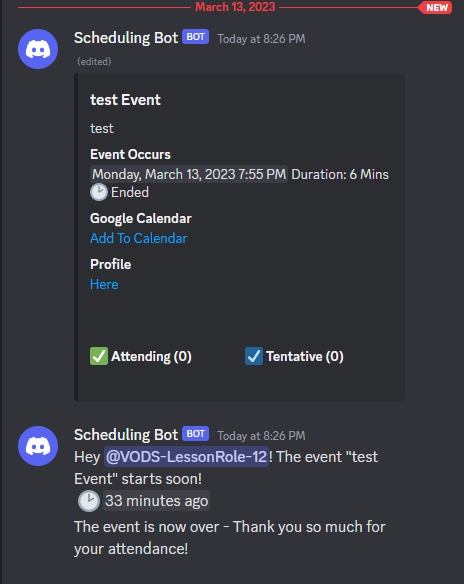
Features
- Create and mange events with one-line commands
- Detailed event presentation
- Creates and remove threads for events an hour before and after the event
- Auto role management
- Attendance tracking
- Slash Commands
- Containerized! (Docker)
Commands
Refresh- Refreshes the UI of the schedulesSetEventChannel- Sets the channel for the bot to post eventsGetAttendanceReport- Gets attendance report between a date range.Version- Gets the current version of the botRestartEvent- Restarts an eventEvent- Creates an eventEdit- Edits an event
How to use (Quick Start)
Create a discord bot
-
Go to the Discord Developer Portal
-
Create a new application and give it a name.
-
Got to the bot tab and create a new bot. Write down the token. (This is your DISCORD_BOT_TOKEN)
-
Go to the general tab and copy the client ID. (This is your DISCORD_BOT_CLIENT_ID)
-
To invite you the bot to your server, go to the following link and replace the CLIENT_ID with your DISCORD_BOT_CLIENT_ID:
https://discord.com/oauth2/authorize?client_id=DISCORD_BOT_CLIENT_ID&scope=bot%20applications.commands&permissions=8
Docker Deployment
This is the easiest way to get started. This will run the bot in a container.
Windows
-
Download and configure Docker Desktop
-
Install Docker Compose
-
(Optional) If you plan on using your own MYSQL instance to store the data, you will need to install MySQL Server.
-
Create a new folder called "Scheduling Bot" and navigate inside that folder. This is where your configuration and data will be stored.
-
Create a file called docker-compose.yaml
If you want to run the bot want to use the built-in MySQL database, your "docker-compose.yaml" file follow Option 1:
Option 1: Using the built-in MySQL database
Your "docker-compose.yaml" file should have the following content:
version: '3.9'
name: schedule-bot
services:
    db:
        hostname: scheduleBot-db
        image: mysql:8.0.26
        cap_add:
            - SYS_NICE
        restart: always
        environment:
            MYSQL_DATABASE: '${MYSQL_DB}'
            MYSQL_ROOT_PASSWORD: '${MYSQL_ROOT_PW}'
            MYSQL_USER: '${MYSQL_USER}'
            MYSQL_PASSWORD: '${MYSQL_USER_PW}'
        ports:
            - '3306:3306'
        volumes:
            - db:/var/lib/mysql
            - ./db/init.sql:/docker-entrypoint-initdb.d/init.sql
        networks:
            - scheduleBot-network
        env_file:
            - .env
        healthcheck:
            test: ["CMD", "mysqladmin", "-u {MYSQL_USER}", "-p {MYSQL_USER_PW}",  "ping", "-h", "localhost"]
            interval: 30s
            timeout: 10s
            retries: 3
    bot:
        depends_on:
            db:
                condition: service_healthy
        hostname: scheduleBot-bot
        restart: always
        environment:
            DISCORD_BOT_TOKEN: '${DISCORD_BOT_TOKEN}'
            DISCORD_EVENT_ROLE_PREFIX: '${DISCORD_EVENT_ROLE_PREFIX}'
            MYSQL_SERVER: '${MYSQL_SERVER}' # optional (Default: scheduleBot-db)
            MYSQL_DATABASE: '${MYSQL_DB}' # optional (Default: ScheduleBot)
            MYSQL_USER: '${MYSQL_USER}' # optional (Default: scheduleBot)
            MYSQL_PASSWORD: '${MYSQL_USER_PW}' # optional (Default: scheduleBot)
        image: 'duinrahaic/schedulebot:latest'
        networks:
            - scheduleBot-network
        env_file:
            - .env
volumes:
  db:
    driver: local
networks:
    scheduleBot-network:
        internal: false
        driver: bridge
        name: scheduleBot-network
Optional 2: External MySQL Database
version: '3.9'
name: schedule-bot
services:
    bot:
        depends_on:
            db:
                condition: service_healthy
        hostname: scheduleBot-bot
        restart: always
        environment:
            DISCORD_BOT_TOKEN: '${DISCORD_BOT_TOKEN}'
            DISCORD_EVENT_ROLE_PREFIX: '${DISCORD_EVENT_ROLE_PREFIX}' # optional (Default: EventRole)
            MYSQL_SERVER: '${MYSQL_SERVER}' # optional (Default: scheduleBot-db)
            MYSQL_DATABASE: '${MYSQL_DB}' # optional (Default: ScheduleBot)
            MYSQL_USER: '${MYSQL_USER}' # optional (Default: scheduleBot)
            MYSQL_PASSWORD: '${MYSQL_USER_PW}' # optional (Default: scheduleBot)
            DISCORD_BOT_CONNECTION_STRING
        image: 'duinrahaic/schedulebot:latest'
        networks:
            - scheduleBot-network
        env_file:
            - .env
volumes:
  db:
    driver: local
networks:
    scheduleBot-network:
        internal: false
        driver: bridge
        name: scheduleBot-network
Configuration:
- In the same folder, create a file called
.env - Your
.envfile should have the following content (depending on your database type):
#Environment Variables
#Schedule bot
DISCORD_BOT_TOKEN="YOUR_DISCORD_BOT_TOKEN_GOES_HERE" #Required
DISCORD_EVENT_ROLE_PREFIX="EventRole" #Optional
DISCORD_BOT_CONNECTION_STRING="" #Optional
#DB
MYSQL_SERVER="scheduleBot-db" #Required
MYSQL_DB="ScheduleBot" #Required
MYSQL_ROOT_PW="Password" #Required
MYSQL_USER="schedulebot" #Required
MYSQL_USER_PW="schedulebot" #Required
Notice: Change your root and user passwords to something secure. This is the password for your database.
- Replace
YOUR_DISCORD_BOT_TOKEN_GOES_HEREwith your Discord Bot Token from step 3 of the "Create a discord bot" section. - Open a command prompt and navigate to the folder you created in step 3 of the "Docker Deployment" section.
- Run the following command:
docker-compose up -d - Invite the bot to your server(s) using the link from step 5.
- Use '/seteventchannel' and tag your event channel. This is where your bot will post about events.
- You should now be able to use the bot in your server(s).
Configuration Properties:
| Property Name | Description | Default Value | Optional |
|---|---|---|---|
| DISCORD_BOT_TOKEN | The token of your discord bot. | No | |
| DISCORD_EVENT_ROLE_PREFIX | The prefix for the event roles. This will be used as a prefix when generating roles. | EventRole | Yes |
| DISCORD_BOT_CONNECTION_STRING | The connection string for the database. Leave blank if not in use. | Yes | |
| MYSQL_SERVER | The hostname of the MySQL server. | scheduleBot-db | No |
| MYSQL_DB | The name of the MySQL database. | ScheduleBot | No |
| MYSQL_ROOT_PW | The password of the MySQL root user. | Password | No |
| MYSQL_USER | The username of the MySQL user. | schedulebot | No |
| MYSQL_USER_PW | The password of the MySQL user. | schedulebot | No |
Docker Commands
docker-compose up -d- Starts the botdocker-compose down- Stops the botdocker logs Schedule-Bot- Shows the logs of the bot
License
This project is licensed under the MIT License. You can find the license here
Docker Hub
Docker Image: Here
docker pull duinrahaic/schedulebot:latest
Techincal Support
If you need technical support with this project create an issue.
Donation Support
If you would like to support this project, you can do so via donations here
If you want to support me long term you can subscribe to my Patreon
Contributing
If you would like to contribute to this project, please create a pull request. If you have any questions, please create an issue.
Credits
- dsharpplus.net - Discord API Wrapper
- Logo - Logo Designer
Tag summary
Content type
Image
Digest
sha256:b9f04630a…
Size
96.8 MB
Last updated
about 3 years ago
docker pull duinrahaic/schedulebot