evanqu/library-cover-studio
Jellyfin/Emby 媒体库封面设计与自动化 | Cover design & automation
8.8K
evanqu/library-cover-studio repository overview
LibraryCoverStudio
简体中文
Jellyfin / Emby 媒体库封面设计与自动化工具。 使用内置模板或可视化设计器,为电影、电视剧和动漫分类生成封面,再按计划自动上传更新。
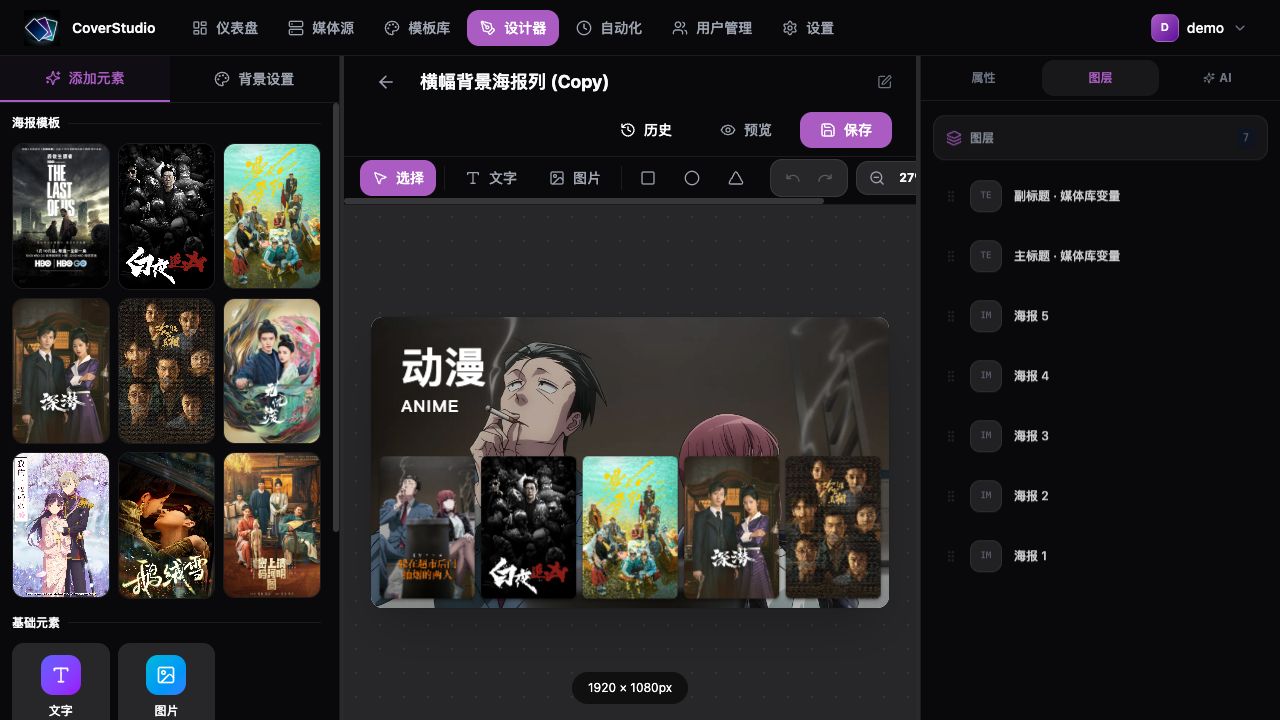
主要功能
- 可视化设计:拖拽海报、文字和形状,调整图层、背景、圆角及旋转。
- 七套内置模板:1920 × 1080,首次启动即可使用,新增横幅背景海报列,使用首个影片的横向背景图搭配底部五张海报。支持复制、解锁编辑和模板历史回退,管理员可在设置中一键还原默认模板。
- Jellyfin / Emby:通过 API 读取媒体库海报,无需挂载电影文件目录。
- 自动化更新:每个媒体库可单独选择模板和标题,按天、周、月或 Cron 执行。
- 真实样张与执行历史:上传前预览,执行后查看当次封面、逐库结果并下载原图。
- 可选 AI 助手:接入自己的 AI 服务生成可编辑设计,基础功能无需 AI。
- 中英文界面:首次访问默认中文,可随时切换英文,保留未保存设计、任务配置与 AI 对话。
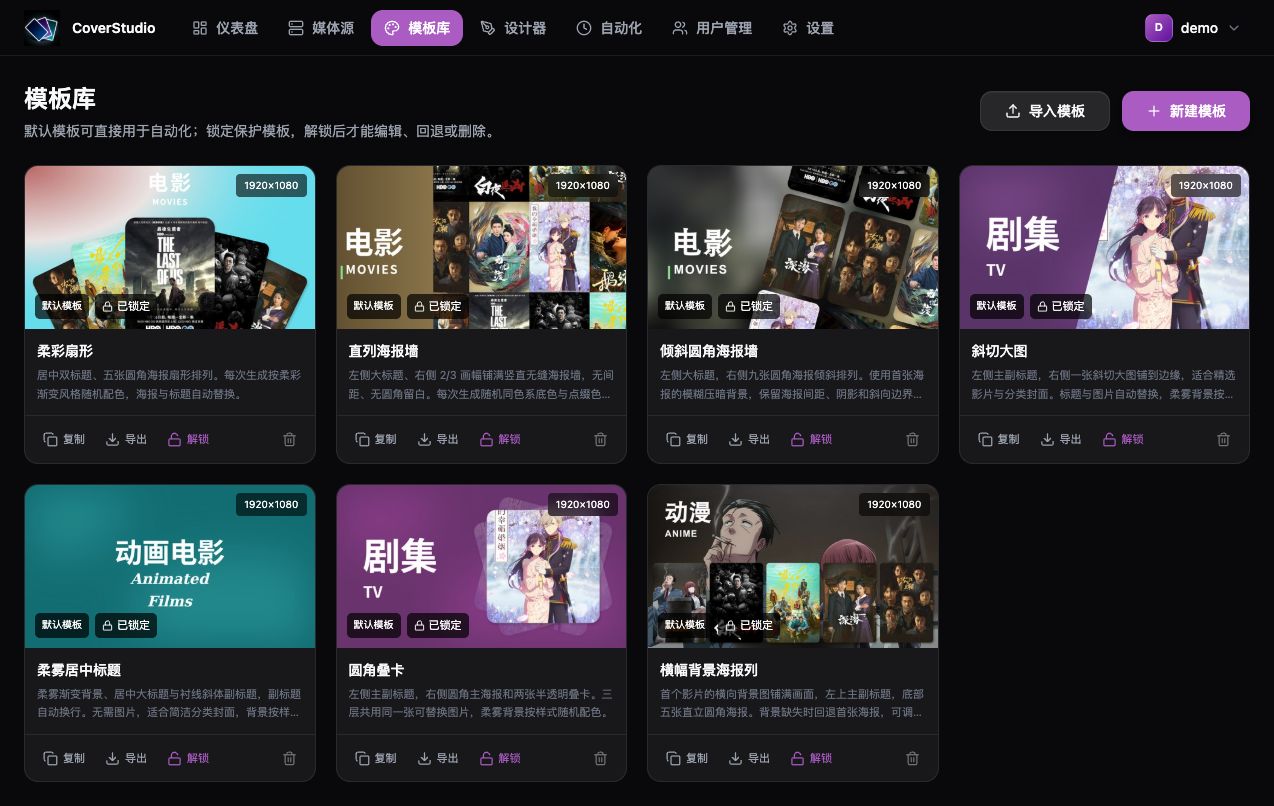
「背景设置 → 影片背景」支持首张海报或首个影片的横向背景图,可调整模糊和压暗。横向背景图缺失时回退首张海报。
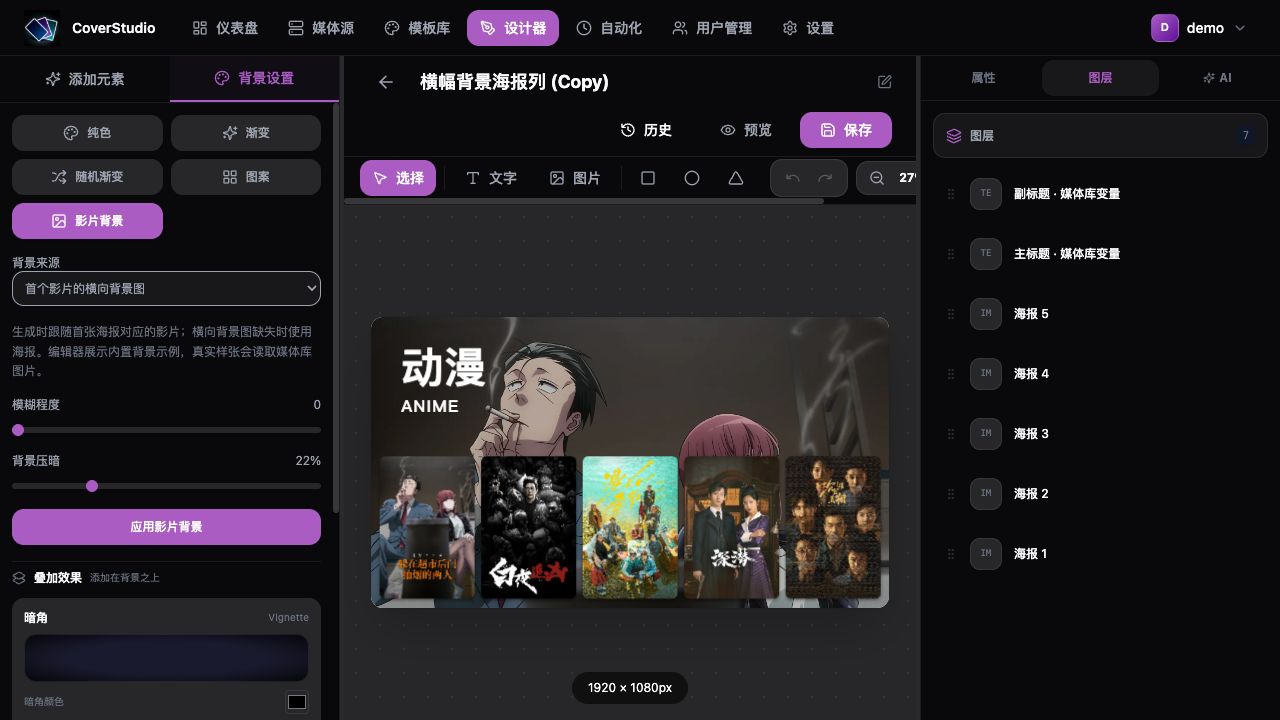
管理员可在「设置 → 数据管理」一键还原七套默认模板,保留自建、复制模板及还原前的设计历史。
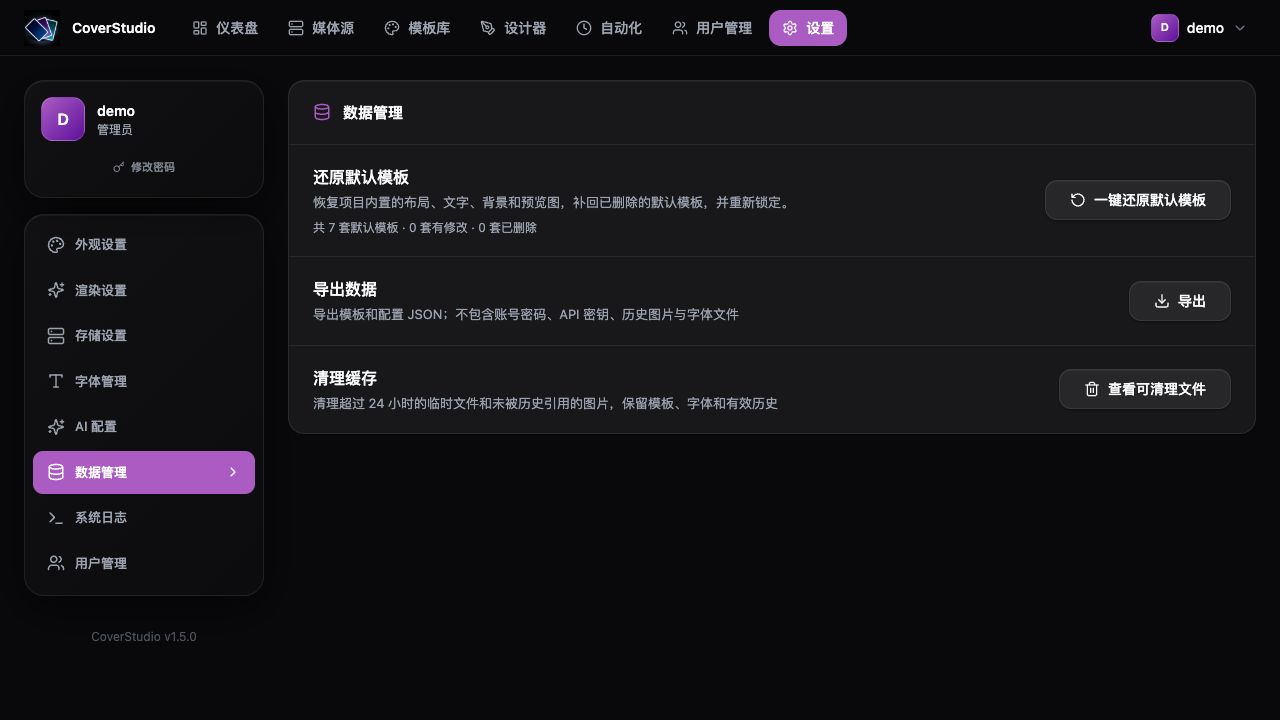
界面语言
支持简体中文和英文,首次访问默认中文。可在登录页、账号菜单或「设置 → 外观设置 → 语言」切换;选择保存在当前浏览器,同源标签页同步,刷新或退出登录后保留。
切换只改变界面和日期、数字的显示格式,不清空草稿、画布、撤销记录、任务向导或参考图,不重发样张或 AI 请求,也不改变 Cron、调度时区及执行时间。模板与媒体库名称、封面文字、用户输入、社区说明、诊断和 AI 对话/输出保留原文;生成内容的语言由你的需求决定。
镜像说明
镜像 evanqu/library-cover-studio 包含网页、API、SQLite、封面渲染和任务调度,容器端口为 8080,支持 linux/amd64 / linux/arm64。
latest 对应主分支发布,正式版本使用 MAJOR.MINOR.PATCH / MAJOR.MINOR,sha-* 对应具体提交,edge 用于手动验证。请以 Docker Hub Tags 页实际可用的标签为准。旧版 -web / -backend 镜像不再随新版本发布,迁移方法见完整部署教程。
Docker Compose 部署
只需 Docker 和 Compose v2。新建一个空目录,将下面内容保存为 compose.yaml(也可下载 部署示例):
services:
  library-cover-studio:
    image: evanqu/library-cover-studio:latest
    restart: unless-stopped
    environment:
      JWT_SECRET: "REPLACE_WITH_RANDOM_JWT_SECRET"
      ENCRYPTION_KEY: "REPLACE_WITH_RANDOM_ENCRYPTION_KEY"
    ports:
      - "8080:8080"
    volumes:
      - ./data:/app/data
把 JWT_SECRET 和 ENCRYPTION_KEY 分别换成不同的随机密钥。可执行两次 openssl rand -hex 32,将结果填入对应位置。升级时保留这两个值。
在这个目录执行:
docker compose up -d
打开 http://192.168.1.10:8080(换成自己的服务器地址;本机使用 http://localhost:8080),点击「立即注册」,第一个账号成为管理员。
一个镜像、一个容器、一个端口。 网页、API、封面渲染和定时任务均在这个容器中运行,数据自动保存在同目录的 data 文件夹。改端口只需修改 8080:8080 的左侧;NAS 直接使用局域网地址访问,不必另配 FRONTEND_URL。镜像标签以 Docker Hub 实际发布结果为准。
尚未发布所需镜像标签时,可按 源码构建教程 部署。
自动化图文教程
1. 连接服务器
在「媒体源 → 添加服务器」填写名称、Jellyfin / Emby 类型、服务器基础地址与 API 密钥。地址必须能从后端容器访问,例如局域网地址 http://192.168.1.20:8096;容器中的 localhost 指的是容器自身。
保存后测试连接,点击「媒体库」确认目标分类和海报可读取。密钥需要读取素材与更新封面的权限。
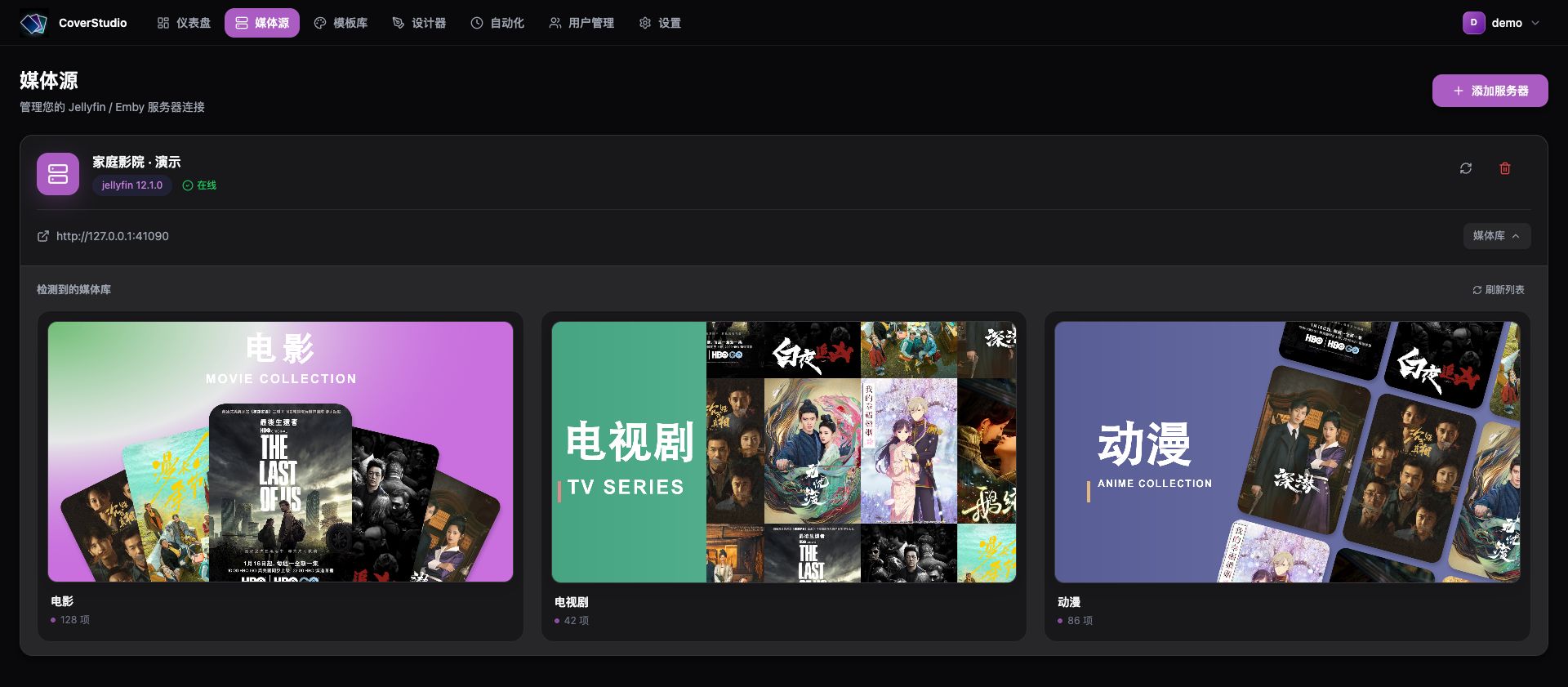
2. 选择媒体库并配置封面
进入「自动化 → 新建任务」,选择服务器和需要更新的媒体库。下一步批量设置模板,再按库调整主标题、副标题和素材排序。右侧「生成真实样张」读取媒体库海报进行实际渲染,不会上传或修改服务器。
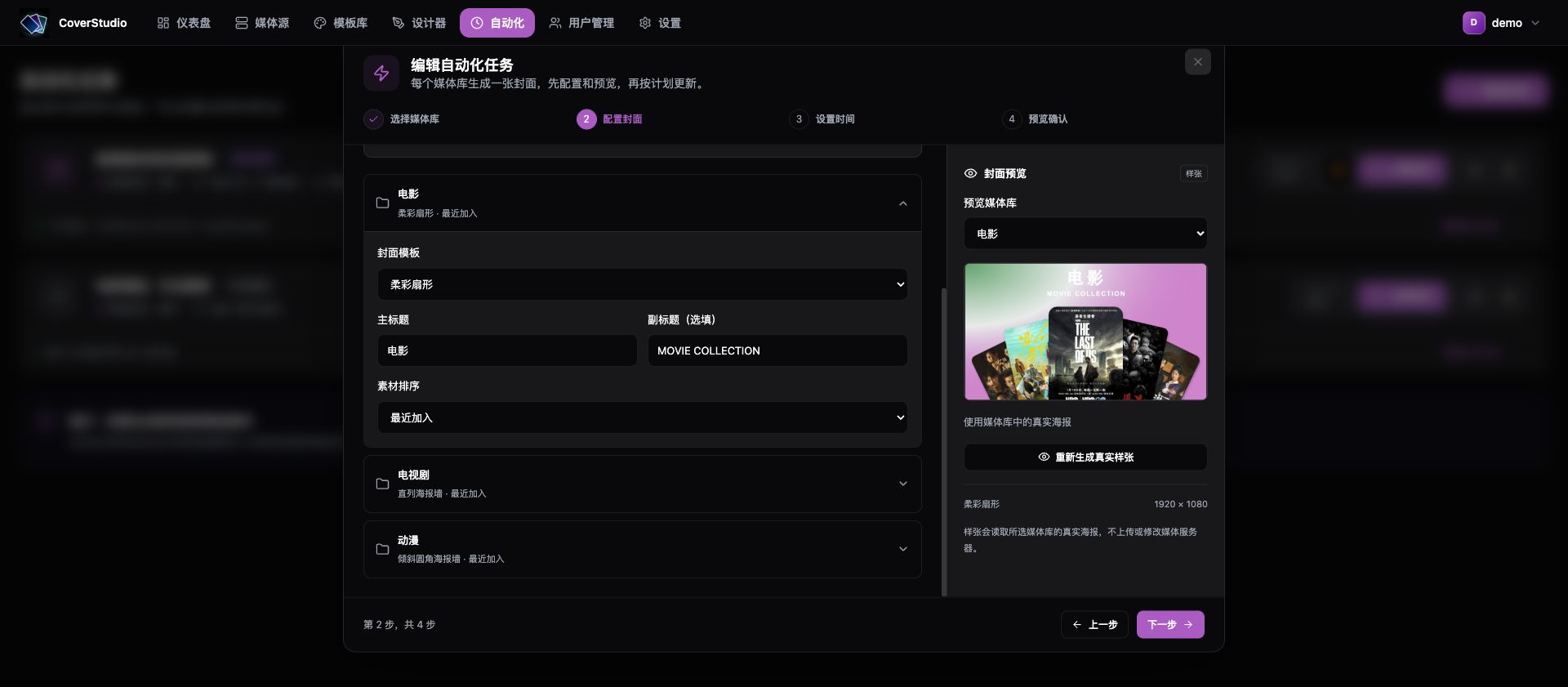
3. 设置时间并启用
选择「按计划运行」,设置频率和执行时间,核对调度时区及未来三次执行,勾选「保存后启用此计划」。默认时区为 Asia/Shanghai,以任务页面显示为准。
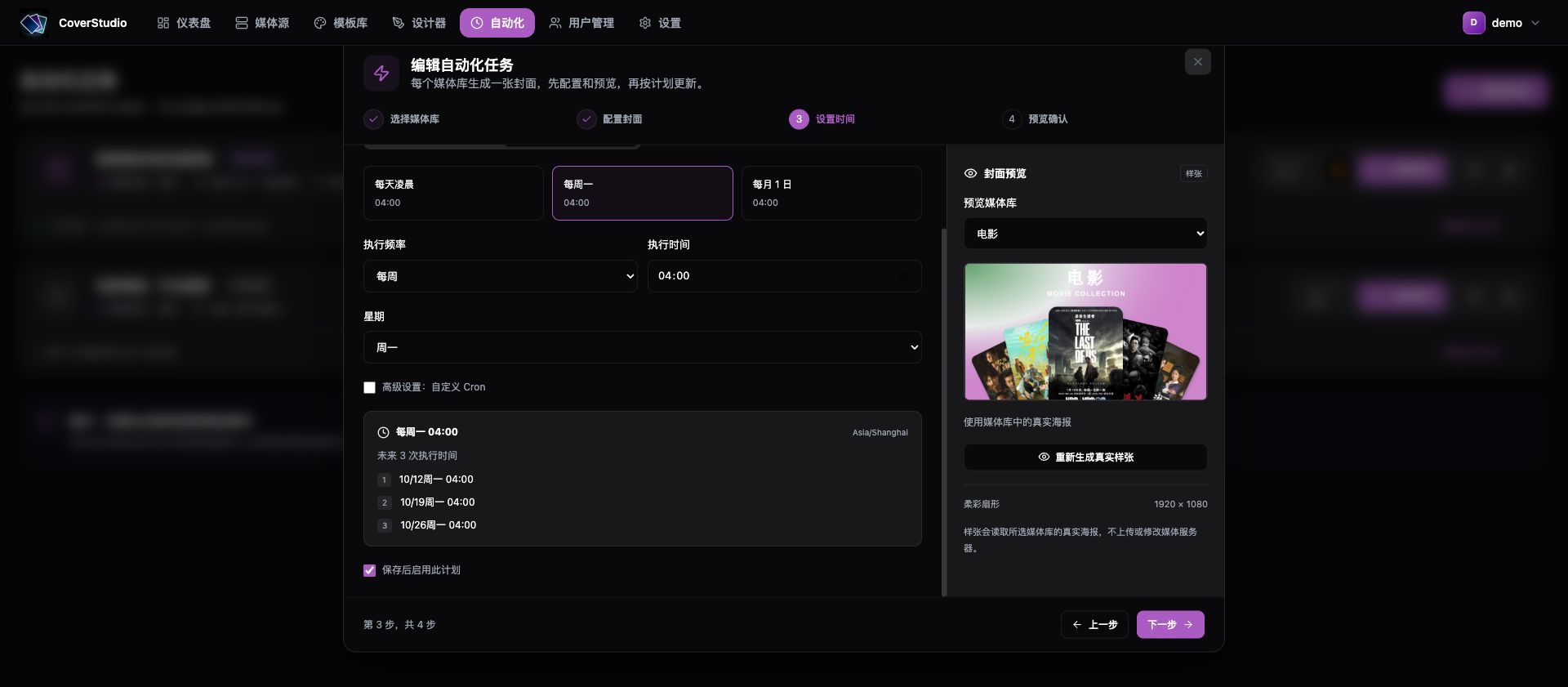
| 执行计划 | Cron |
|---|---|
| 每天 04:00 | 0 4 * * * |
| 每周一 04:00 | 0 4 * * 1 |
| 每月 1 日 04:00 | 0 4 1 * * |
| 每小时整点 | 0 * * * * |
不需要定时则选择「手动运行」,保存后点击「立即执行」。后端需持续运行才能按计划执行,关机期间错过的执行时间不会自动补跑。
4. 保存、执行和查看历史
在「预览确认」核对配置后保存。保存不会立即上传,执行会替换所选媒体库的分类封面;需要保留原封面时请提前自行备份。每个选中的媒体库生成一张封面,不会逐部更换电影 / 剧集海报。
可以先点一次「立即执行」验收,再打开「查看执行历史」,检查逐库状态、放大图片并下载原图。
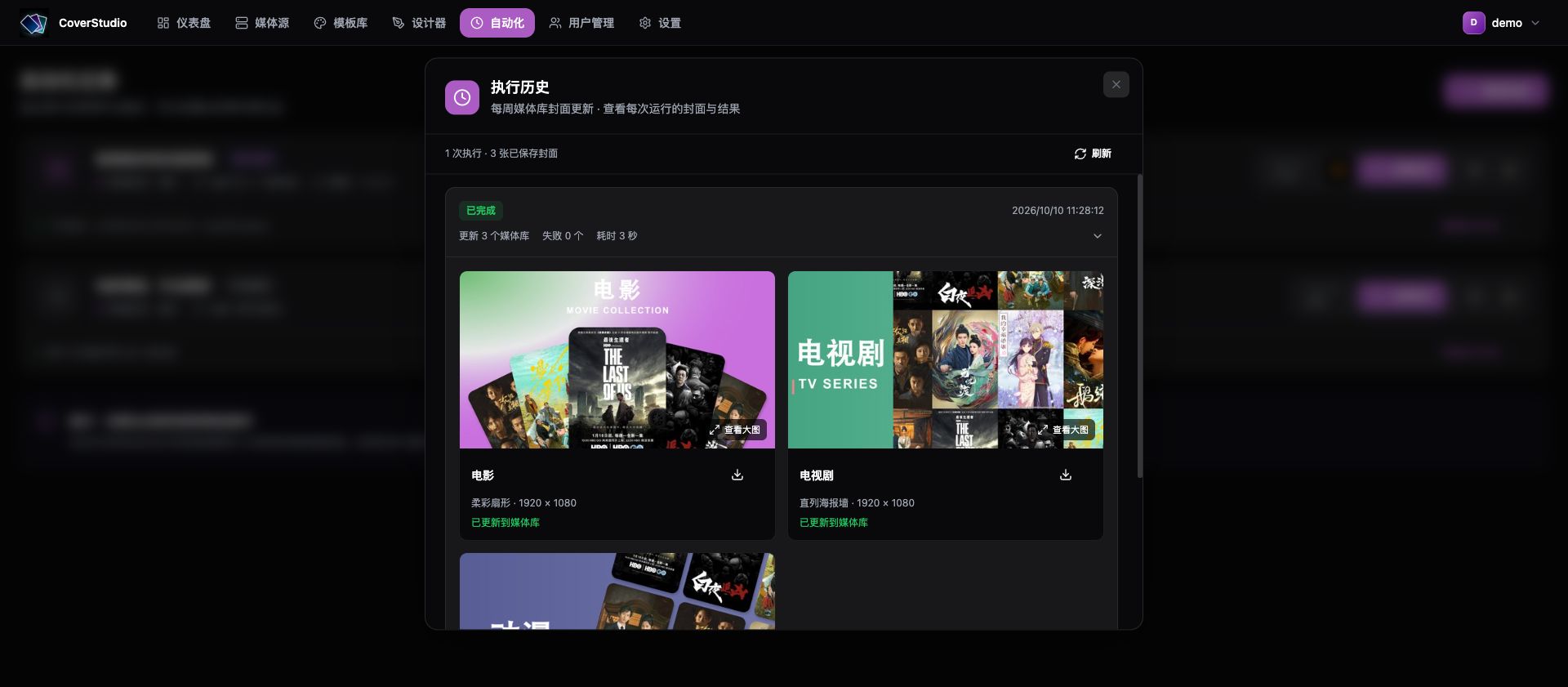
历史默认每个任务保留最多 50 次、30 天内的已结束执行,可在「设置 → 存储设置」调整。「保存生成的封面」开关控制额外导出,关闭后历史仍会保存独立图片。
截图来自实际应用的隔离演示环境,使用示例账号、模拟媒体库和内置海报。截图链接需要 GitHub 仓库及图片可以匿名访问。
升级与数据维护
按上面的配置安装时,数据保存在部署目录的 data 文件夹。完整备份需要同时保存 compose.yaml 和 data;配置文件包含密钥,请妥善保管。配置导出不能代替完整备份。
先按 备份与恢复教程 备份。升级可修改镜像的版本标签,再执行:
docker compose pull
docker compose up -d
保留原密钥和 data。旧版两容器安装请先按完整教程迁移,保留原密钥和数据;新的目录挂载不会自动读取旧命名卷。
排查问题
docker compose ps
docker compose logs --tail=100 library-cover-studio
| 问题 | 处理 |
|---|---|
| 镜像无法拉取 | 检查镜像名、命名空间及目标标签是否已发布;未发布时使用源码构建。 |
| NAS 其他设备无法访问 | 使用 NAS 的局域网地址访问,检查端口映射和 NAS 防火墙。 |
| 连接服务器失败 | 检查容器网络可达性、API 密钥权限和地址,避免误用 localhost。 |
| CORS 错误 | 直接访问无需配置;HTTPS 反向代理时设置 FRONTEND_URL 为浏览器实际来源。 |
| 模板商店或版本检查无法连接 GitHub | 管理员在「设置 → 网络」配置 HTTP / HTTPS / SOCKS5 代理,测试后保存。使用容器可访问的局域网地址,Docker Desktop 可用 host.docker.internal;容器内的 127.0.0.1 指向容器自身。 |
| 定时任务不执行 | 检查后端是否健康、任务是否启用、调度时区和下次运行时间。 |
| 升级后密钥无法解密 | 核对原 ENCRYPTION_KEY 和 data 中的加密盐是否保留。 |
完整部署与故障排查 · 自动化使用指南 · MIT License
English
Library cover design and automation for Jellyfin / Emby. Use built-in templates or the visual designer to create covers for movie, TV and anime libraries, then upload updates on a schedule. Each selected library receives one cover; individual movie and episode posters stay unchanged.
Source code · English project guide · Detailed deployment guide (Chinese) · Illustrated automation guide (Chinese)
Features
- Visual designer: arrange posters, text and shapes; adjust layers, backgrounds, rounded corners and rotation.
- Seven built-in templates: ready-to-use 1920 × 1080 designs, including a banner backdrop with five posters below. Duplicate or unlock templates to edit them, restore revisions, or reset defaults as an administrator.
- Jellyfin / Emby integration: read artwork through the media server API without mounting your movie directories.
- Scheduled updates: choose a template and titles per library, then run daily, weekly, monthly or with a custom Cron expression.
- Real previews and run history: preview before uploading, inspect each library's result and download the original generated image from a run.
- Optional AI assistant: connect your own provider to generate editable designs. Core features work without AI.
- Chinese and English interfaces: Chinese is the first-visit default. Switch to English while keeping unsaved designs, task configuration and AI conversations.
In the designer's background settings, use the first poster or the first item's landscape backdrop, with blur and dimming controls. A missing backdrop falls back to the first poster. Administrators can reset all seven defaults under Settings → Data management, preserving custom templates, duplicates and the previous designs in revision history.
Interface language
Choose English on the sign-in page, in the account menu, or under Settings → Appearance → Language. The choice is saved in this browser, synchronized across tabs on the same origin and retained after refresh or sign-out. The browser's own language does not change the first-visit Chinese default.
Switching changes interface text and date/number formatting. It preserves drafts, canvas content, undo history, task wizard inputs, reference images and AI conversations, and does not resend preview or AI requests. Cron expressions, scheduler time zones and execution times stay unchanged.
Template and library names, cover text, user input, community descriptions, diagnostics and AI instructions/conversations/output remain in their original language. Specify the desired language in your prompt for AI-generated content. Missing translations fall back to Chinese.
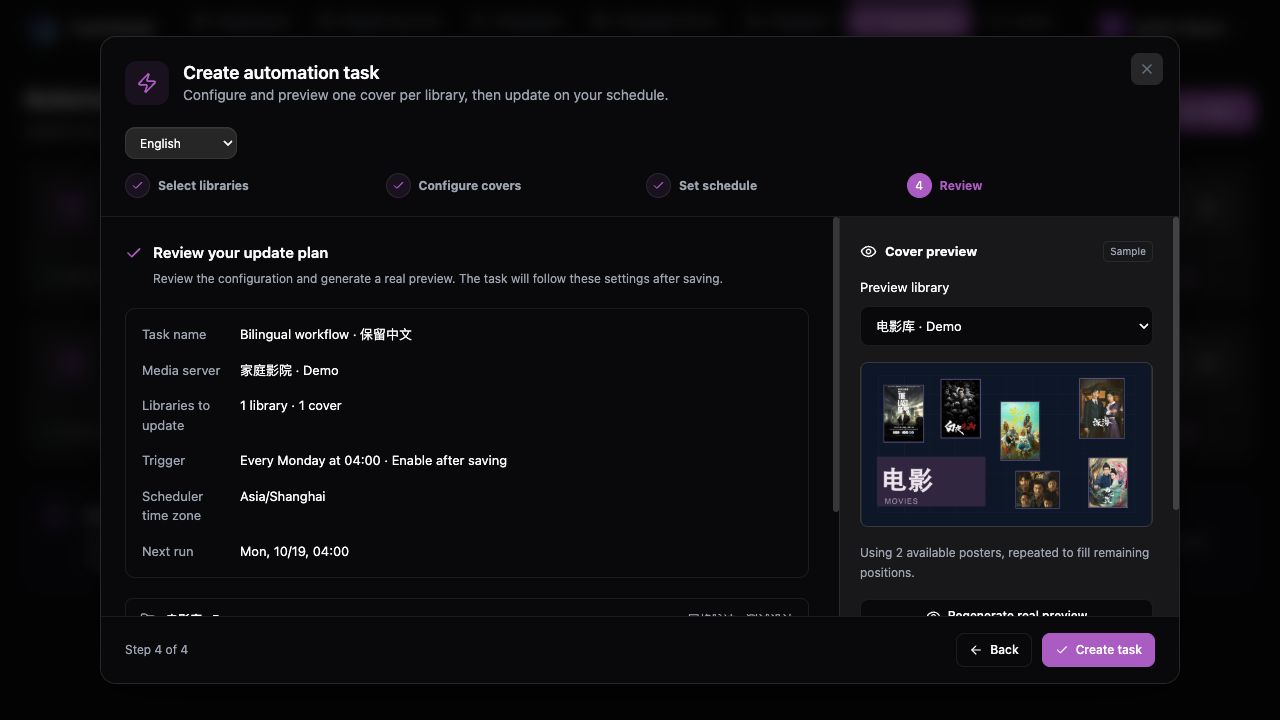
Image and tags
The evanqu/library-cover-studio image includes the web interface, API, SQLite database, cover renderer and scheduler. It listens on container port 8080 and supports linux/amd64 / linux/arm64.
latest follows main-branch publishing. Releases use MAJOR.MINOR.PATCH / MAJOR.MINOR; sha-* identifies a source commit, and edge is used for manual verification. Check the Docker Hub Tags page for tags that actually exist. The legacy -web / -backend images are no longer published with new versions; see the deployment guide for migration.
Deploy with Docker Compose
Install Docker and Compose v2. Create an empty directory and save the following as compose.yaml, or use the deployment example:
services:
  library-cover-studio:
    image: evanqu/library-cover-studio:latest
    restart: unless-stopped
    environment:
      JWT_SECRET: "REPLACE_WITH_RANDOM_JWT_SECRET"
      ENCRYPTION_KEY: "REPLACE_WITH_RANDOM_ENCRYPTION_KEY"
    ports:
      - "8080:8080"
    volumes:
      - ./data:/app/data
Run openssl rand -hex 32 twice and replace the two placeholders with different random secrets. Keep both values when upgrading. In the deployment directory, run:
docker compose up -d
Open http://<your-server-LAN-address>:8080, or http://localhost:8080 on the host. Select Register now. The first account becomes the administrator.
One image, one container, one port. The web interface, API, renderer and scheduler run together; persistent data is stored in the deployment directory's data folder. To change the host port, change the left side of 8080:8080. For direct LAN access on a NAS, use its LAN address; no separate FRONTEND_URL setting is needed.
If your desired tag is not available yet, follow the source build instructions (Chinese).
Set up automation
1. Connect a media server
Under Media Sources → Add server, enter a name, select Jellyfin or Emby, and provide the server's base URL and API key. The URL must be reachable from the app container, for example http://192.168.1.20:8096. Inside a container, localhost refers to that container itself.
Test the connection and open Libraries to check that the target libraries and artwork are readable. The key needs permission to read artwork and update library covers.
2. Select libraries and configure covers
Open Automation → New task, choose the server and select the libraries to update. Apply a shared template, then adjust each library's primary title, secondary title and poster sort order. Generate real preview renders actual library posters without uploading or modifying anything on the media server.
3. Set a schedule
Choose Run on schedule, set the frequency and time, and check the scheduler's time zone and next three execution times. Select Enable this schedule after saving. The default scheduler time zone is Asia/Shanghai; use the time zone displayed in the task interface.
| Schedule | Cron |
|---|---|
| Every day at 04:00 | 0 4 * * * |
| Every Monday at 04:00 | 0 4 * * 1 |
| First day of each month at 04:00 | 0 4 1 * * |
| Every hour on the hour | 0 * * * * |
For on-demand updates, choose Run manually, save the task and click Run now. The container must remain running for schedules to execute. Runs missed while the app is offline are not automatically replayed.
4. Save, run and inspect history
Review the configuration in the final Review step and save. Saving does not upload covers immediately; running a task replaces the selected libraries' covers. Back up the previous covers first if you need to retain them. One cover is generated per selected library, rather than replacing each movie or episode poster.
Try Run now, then open View run history to inspect each library's result, enlarge the cover and download the original image. By default, history retains up to 50 completed runs per task within the last 30 days. Change the limits under Settings → Storage. The Save generated covers setting controls additional file exports; disabling it does not disable history images.
The Chinese walkthrough above contains screenshots of the same workflow. Screenshots use isolated demo accounts, simulated media libraries and built-in artwork, rather than production data. Public image links require the GitHub repository and image files to be anonymously accessible.
Upgrade and maintain data
With the configuration above, back up both compose.yaml and the complete data directory. The Compose file contains your secrets; store it securely. Exporting configuration alone is not a full backup.
Follow the backup guide (Chinese) before upgrading. To pin a version, choose a published image tag, then run:
docker compose pull
docker compose up -d
Keep the original secrets and data, including its encryption salt. For an older two-container installation, follow the migration guide first: a new directory mount does not automatically read an old named volume.
Troubleshooting
docker compose ps
docker compose logs --tail=100 library-cover-studio
| Problem | What to check |
|---|---|
| Image cannot be pulled | Check the repository, namespace and published tag. Build from source if the tag is not published. |
| Other devices cannot access the NAS | Use the NAS LAN address; check the host port mapping and NAS firewall. |
| Media server connection fails | Check container network access, API permissions and the base URL. Avoid using localhost for another device. |
| CORS error | Direct access needs no extra setting. For an HTTPS reverse proxy, set FRONTEND_URL to the browser's actual origin. |
| Template store or version checks cannot reach GitHub | As an administrator, configure and test an HTTP / HTTPS / SOCKS5 proxy under Settings → Network, then save. Use a proxy address reachable from the container. Docker Desktop can use host.docker.internal; 127.0.0.1 inside the container refers to the container itself. |
| Scheduled tasks do not run | Check container health, whether the schedule is enabled, the scheduler time zone and the next run time. |
| Stored keys cannot be decrypted after an upgrade | Check that the original ENCRYPTION_KEY and encryption salt in data were retained. |
Deployment and troubleshooting (Chinese) · English project guide · MIT License
Tag summary
Content type
Image
Digest
sha256:92a1d7986…
Size
212.3 MB
Last updated
2 days ago
docker pull evanqu/library-cover-studio