exastro/it-automation repository overview
What is Exastro IT Automation?
Exastro IT Automation offers solutions to the following problems in the system life cycle:
- Data management errors
- Manual processing mistakes
- Delays in responding to problems
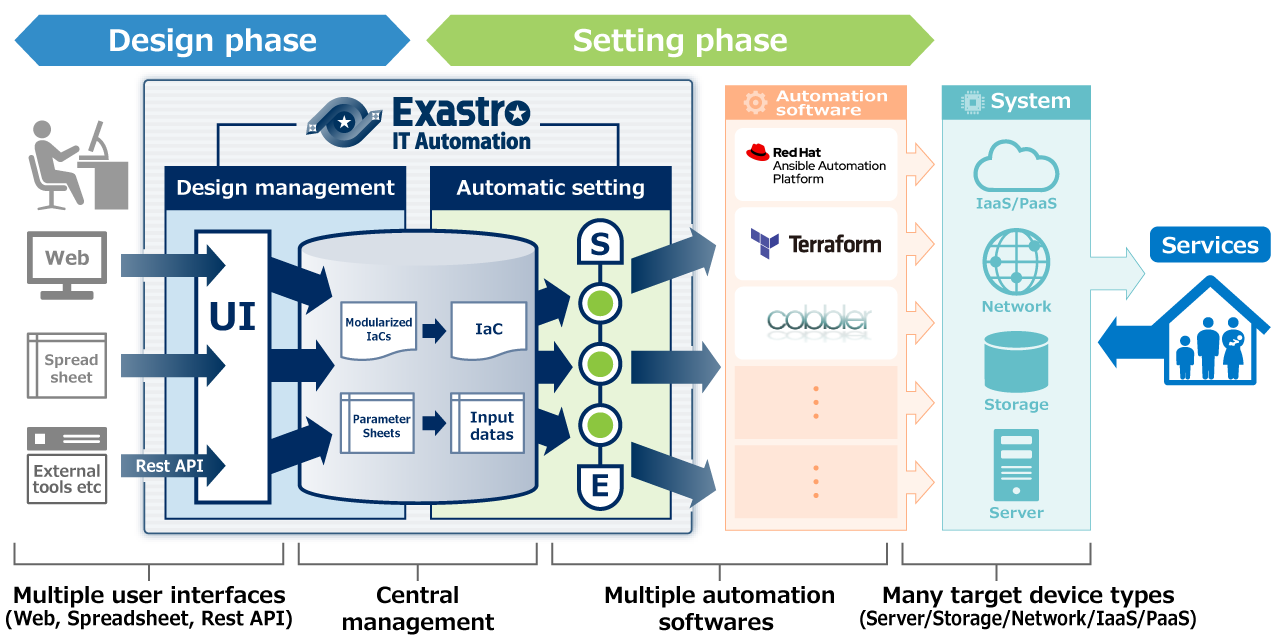
notes: If you want to use Terraform and cobbler, please install it by yourself.
Community site : https://exastro-suite.github.io/it-automation-docs/index.html
QuickStart with Exastro and Docker
Here is how to get an all-in-one server running in a Docker container:
Step - 1 : Run Exastro Server docker container
Command example:
# docker run --privileged --add-host=exastro-it-automation:127.0.0.1 -d -p 8080:80 -p 10443:443 --name exastro01 exastro/it-automation:1.11.1-en
notes: Please change the port number etc. according to the tag and your environment.
step - 2 : Web Console to start Exastro IT Automation
Next,visit http://[Docker_Host_IP]:8080 or https://[Docker-Host-IP]:10443
step - 3: Exastro IT Automation login
When the IT Automation login screen appears, enter the given login ID and initial password and then click the Login button.
- Login ID: administrator
- Initial password: password
If you are logging in for the first time after installation, you will be prompted to change the password.
Change the initial password.
step - 4: Exastro IT Automation Quick start
Get Started with Exastro IT Automation with Quick Start
Step - 5 :Container settings for Production environments
The production environment must be created with support for the following taken into account.
・ Data persistence
・ Systemd service
・ TLS Support (SSL)
・ Docker Compose
See the README file on the GitHub page for more information. (Only in Japanese)
What's in this image?
ITAutomation All-in-one server is installed.
Installation settings
- Base Image :ubi8(ITA 1.9.0~) centOS8(ITA 1.8.2~1.5.0)
- language:
English (image name : X.X.X-en)
Japanese (imagename : X.X.X-ja) - DB settings
db_name : ita_db
db_root_password : ita_root_password
db_username : ita_db_user
db_password : ita_db_password
notes
- The message below might be displayed in the Execution log (Error log) when Ansible is run.
The message can be ignored, as it does not have any effect on the operation itself.
【Message】
/usr/local/lib/python3.6/site-packages/ansible/parsing/vault/init.py:44: CryptographyDeprecationWarning: Python 3.6 is no longer supported by the Python core team.
Therefore, support for it is deprecated in cryptography and will be removed in a future release.from cryptography.exceptions import InvalidSignature
Dockerfile links
- 1.11.2-en / 1.11.2-ja
- 1.11.1-en / 1.11.1-ja
- 1.11.0-en / 1.11.0-ja
- 1.10.2-en / 1.10.2-ja
- 1.10.1-en / 1.10.1-ja
- 1.10.0-en / 1.10.0-ja
- 1.9.1-en / 1.9.1-ja
- 1.9.0-en / 1.9.0-ja
- 1.8.2-en / 1.8.2-ja
- 1.8.1-en / 1.8.1-ja
- 1.8.0-en / 1.8.0-ja
- 1.7.2-en / 1.7.2-ja
- 1.7.1-en / 1.7.1-ja
- 1.7.0-en / 1.7.0-ja
- 1.6.3-en / 1.6.3-ja
- 1.6.2-en / 1.6.2-ja
- 1.6.1-en / 1.6.1-ja
- 1.6.0-en / 1.6.0-ja
- 1.5.0-en / 1.5.0-ja
License
Tag summary
Content type
Image
Digest
sha256:f0b0c1224…
Size
673 MB
Last updated
over 1 year ago
docker pull exastro/it-automation:1.11.2-en