gabrielrf/video2telegram repository overview

Video to Telegram
About
This docker container checks if a new file is created on a folder and sends it to a person/group/channel using Telegram Messenger.
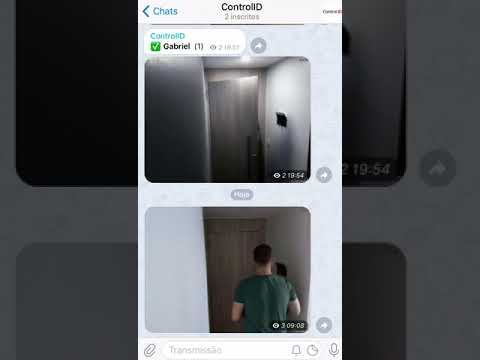
The idea behind this project is to send me a gif everytime my camera detects movement. The camera is pointed to my door, this way I can see on real time who is entering or leaving my place. Also, another unexpected benefit of using this project is to have a cloud backup of my camera for free.
Setup
Docker Compose
file2gif:
    image: gabrielrf/video2telegram
    environment:
        - BOT_TOKEN=
        - FOLDER=/
        - EXTENSION=mp4
        - DESTINATION=
        - SPEEDX=2
        - RESIZE=0.8
        - FPS=5
    restart: always
    volumes:
        - host_folder:container_folder
BOT_TOKEN: Token given by @BotFather on Telegram.
FOLDER: Folder that will be monitored by the script. In case of a folder tree, set the top-level folder.
EXTENSION: The extension of the file that should be sent. Usually mp4 is the case.
DESTINATION: To whom the message will be sent.
SPEEDX: 1 means the gif speed will be the same as the video speed. 2 means to double the speed.
RESIZE: To change the video size. It's recommended to make it smaller so the upload gets faster.
FPS: How many frames per second the gif will have.
volumes: The same folder used on FOLDER:Some folder that exists on the container. Suggested: /mnt
Python
First, run
pip install inotify
pip install pytelegrambotapi
to install the libraries needed. Then, open file2gif.py and make the necessary adjustments on BOT_TOKEN, FOLDER, EXTENSION and DESTINATION as listed above.
Run the Python Script.
python file2gif.py
Synology Docker
Open the Docker App on your Synology Device. On Registry, look for video2telegram and double click the result to download the image.

On the Image tab, check if the download is completed. Once completed, double click the image and set it as follows.

Container Name is optional. Enable auto-restart is recommended.
Click on Advanced Settings and go to tab Volume. Click on Add Folder and find your camera folder.

Click on Select. Go to tab Environment and add the variables. Check Docker Compose topic for details.
Your settings should look similar to this image:

Click on Apply and it should be ready and running.
Example
This is a YouTube video with the expected result
Contribute
Pull requests and issues are welcome!
Contact me
@GabrielRF on Telegram.
Tag summary
Content type
Image
Digest
Size
250.6 MB
Last updated
almost 8 years ago
docker pull gabrielrf/video2telegram