gmarxcc/texstudio repository overview
The docker image
Like first step run your Docker image, but in order to have the latest image update it first
$ docker pull gmarxcc/texstudio:0.16
Note you can check the latest version on: docker-hub.
Cloning the repository
Now, from command line or power-shell clone go to a folder that will contain this repository, in my case is:
$ cd rs-101/git-examples/
Now let's clone the repository using 'git clone' command
$ git clone http://gmarx.jumpingcrab.com:8088/mice-rs101/latex-basic.git
then go inside the folder just created:
$ ls
latex-basic
$ cd latex-basic
$ ls
LICENSE				sampleDocument.tex
README.md			references.bib
as you can see, there are some files related with the repository :) goo job
Running the image and mounting the repository
Now you can mount the volume that contain the just cloned repository.
If you are using MacOS
If you are using MacOS:
$ open -a XQuartz
$ ip=$(ifconfig en0 | grep inet | awk '$1=="inet" {print $2}')
$ xhost + $ip
192.xxx.x.xx being added to access control list
$ docker run --rm -it -v`pwd`:/mnt \
            -e DISPLAY=$ip:0 \
            -v /tmp/.X11-unix:/tmp/.X11-unix \
            gmarxcc/texstudio:0.16
root@d442a76cd169:/#
this means that you are already have mounted the 'texstudio:0.16' image.
If you are using Windows:
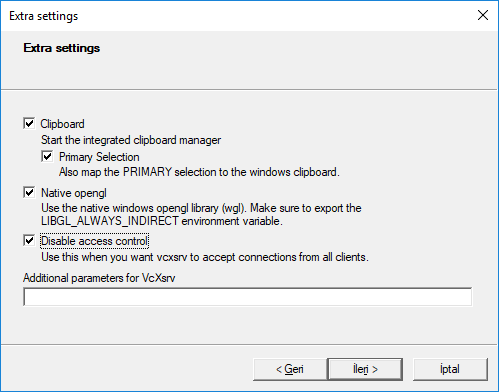
- Firts open or install VcXsrv Windows X Server. When VcXsrv Windows X Server is open make sure to have selected as follow the extra settings. Check all options as below and finish configuration.
- Get your IP address using ipconfig command at the PowerShell:
PS C:\Users\gmarx> ipconfig

......

Wireless LAN adapter Wi-Fi:

   Connection-specific DNS Suffix  . : rga.ip
   IPv6 Address. . . . . . . . . . . : 2806:103e:5:e64e:d01:9a10:1ba8:8577
   Temporary IPv6 Address. . . . . . : 2806:103e:5:e64e:44a7:4800:cc9a:7a3c
   Link-local IPv6 Address . . . . . : fe80::d01:9a10:1ba8:8577%2
   IPv4 Address. . . . . . . . . . . : 192.168.1.77
   Subnet Mask . . . . . . . . . . . : 255.255.255.0
   Default Gateway . . . . . . . . . : fe80::1%2
                                       192.168.1.254
**remember to use a physical adapter activaded, it means whit an IP address, in my case is Wi-Fi adapter IPv4 192.168.1.77.
Now you can go to the folder you want to mount at docker and run the container using the next commands
PS C:\Users\gmarx>cd myFolder
PS C:\Users\gmarx\myFolder> $ docker run --rm -it -v ${PWD}:/mnt -e DISPLAY=192.168.1.77:0.0 gmarxcc/texstudio:0.16
root@d442a76cd169:/#
this means that you are already have mounted the 'texstudio:0.16' image.

Testing the docker image with texstudio
In order to test the image, run 'texstudio':
root@d442a76cd169:/# texstudio
must probably you will get some warning at prompt, but don't care, those are about some video drivers. By running the 'texstudio' command you get the 'texstudio' main window:

Thus, you are ready to write a document. :)
Tag summary
Content type
Image
Digest
Size
1.3 GB
Last updated
over 6 years ago
docker pull gmarxcc/texstudio:0.16