iheve/serf-reverse-proxy-ssl-demo repository overview
docker-serf-reverse-proxy
Code available at : https://github.com/Iheve/docker-serf-reverse-proxy
Containers available at :
- https://registry.hub.docker.com/u/iheve/serf-reverse-proxy/
- https://registry.hub.docker.com/u/iheve/serf-reverse-proxy-back-end/
- https://registry.hub.docker.com/u/iheve/serf-reverse-proxy-be-demo/
This docker container is an http nginx reverse-proxy. It uses serf to keep an up-to-date nginx configuration.
To build this docker, use
docker build -t iheve/serf-reverse-proxy .
To run this docker, use
docker run -d -p 80:80 iheve/serf-reverse-proxy
You will be able to browse http://localhost/
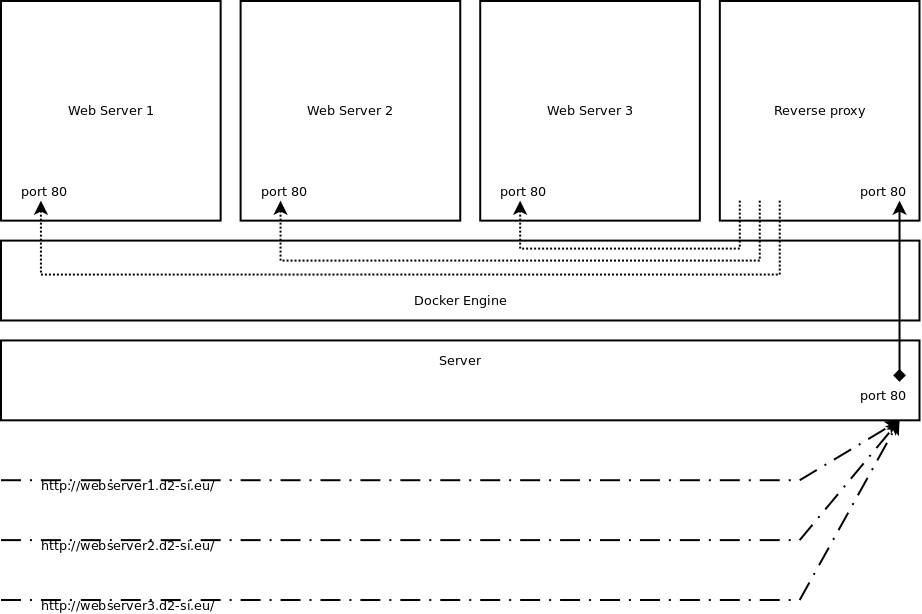
Architecture of the solution
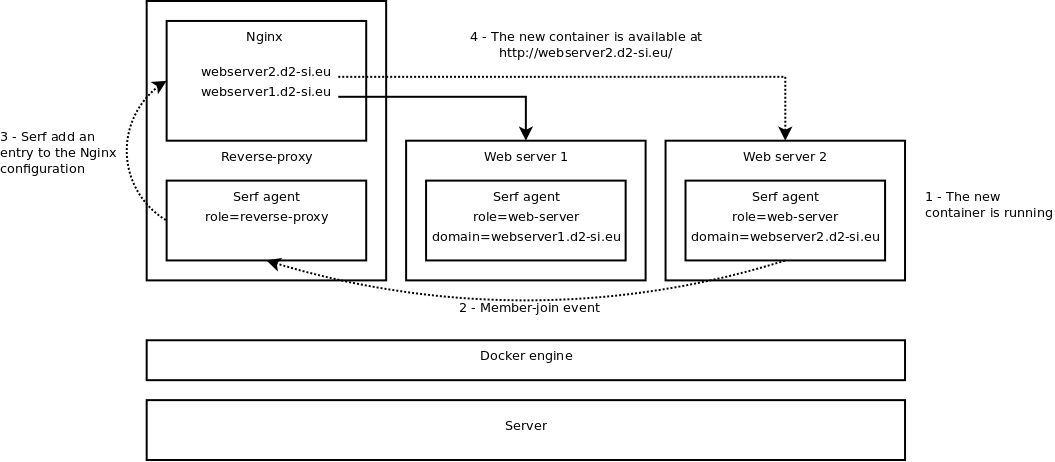
Configuration update
Back end
You can find the base back-end image in the back-end folder.
Back end demo
You can find a demo back-end image in the back-end-demo folder.
Front end ssl
If you want to use HTTPS, you can find a base front-end image in the front-end-ssl folder.
Front end ssl demo
You can find a demo front-end imae int the front-end-ssl-demo folder. This image already have an autosigned certificate issued to ``*.example.org`
Walk through
Update your /etc/hosts :
echo "127.0.0.1 example.org" >> /etc/hosts
Start the front-end :
docker run -d -p 80:80 iheve/serf-reverse-proxy
Access http://example.org/ in your web browser. You will find the default nginx page. You stayed on the reverse-proxy container.
Start a demo-back-end :
docker run -d -e "SERVICE_NAME=example.org" iheve/serf-reverse-proxy-be-demo
Access http://example.org/ in your web browser. After less thant 30 secondes, you will find the default apache2 page. You went through the reverse-proxy container to hit the second container.
Walk through https
Update your /etc/hosts :
echo "127.0.0.1 www.example.org" >> /etc/hosts
Start the front-end :
docker run -d -p 443:443 iheve/serf-reverse-proxy-ssl-demo
Access https://www.example.org/ in your web browser. You will find the default page (currently unavailable). You stayed on the reverse-proxy container.
Start a demo-back-end :
docker run -d -e "SERVICE_NAME=www.example.org" iheve/serf-reverse-proxy-be-demo
Access https://example.org/ in your web browser. After less thant 30 secondes, you will find the default apache2 page. You went through the reverse-proxy container to hit the second container.
Tips
If you need to connect through ssh, you might want to set the root password by adding
to your Dockerfile :
RUN echo "root:yourpwd"|chpasswd
Tag summary
Content type
Image
Digest
sha256:6f2413bdc…
Size
86.2 MB
Last updated
over 10 years ago
docker pull iheve/serf-reverse-proxy-ssl-demo