jhoeller/tf2-gpu repository overview
NVIDIA GPU Tensorflow 2 + Tensorboard
A complete computer vision container that includes Jupyter notebooks with built-in code hinting, Anaconda, CUDA-X, CuPy (GPU drop in replacement for Numpy), TF2, Tensorboard, for accelerated workloads on NVIDIA Tensor cores and GPUs. (There are working notebook examples on how to wire up, both Torch and TF2 to Tensorboard).
If you want to skip the build process to save time you can pull the pre-built image from DockerHub here:
https://hub.docker.com/r/jhoeller/tf2-gpu
docker pull jhoeller/tf2-gpu:default
Features
- Anaconda: Accelerated Python, version 3.7.3
- CuPy: GPU accelerated drop in for Numpy
- Tensorflow 2 with Keras
- Tensorboard
- Repo includes working notebook example on how to wire up TF2 to TensorBoard, located in
/appfolder
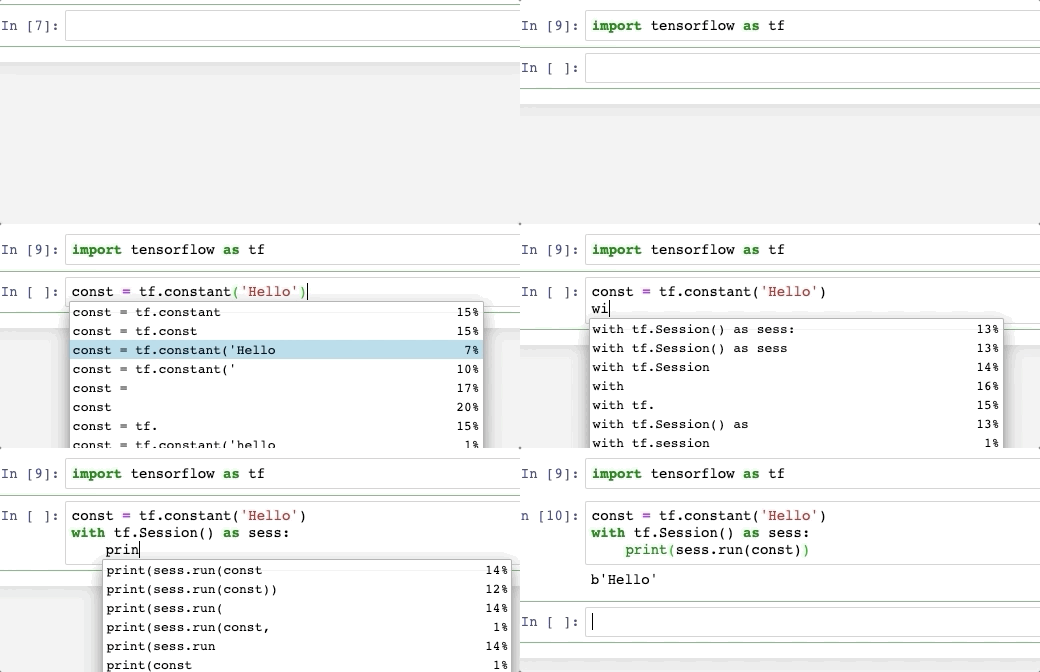
Built in code hinting in Jupyter Notebook
Press tab to see what methods you have access to by clicking tab.
Before you begin (This might be optional)
Link to nvidia-docker2 install: Tutorial
You must install nvidia-docker2 and all it's deps first, assuming that is done, run:
sudo apt-get install nvidia-docker2
sudo pkill -SIGHUP dockerd
sudo systemctl daemon-reload
sudo systemctl restart docker
How to run this container:
Step 1
docker build -t <container name> . < note the . after
If you get an authorized user from the docker pull cmd inside the container, try:
$ docker logout
...and then run it or pull again. As it is public repo you shouldn't need to login.
Step 2
Run the image, mount the volumes for Jupyter and app folder for your fav IDE, and finally the expose ports 8888 for Jupyter Notebook:
docker run --rm -it --runtime=nvidia --user $(id -u):$(id -g) --group-add container_user --group-add sudo -v "${PWD}:/app" -p 8888:8888 -p 6006:6006 <container name>
Step 3: Check to make sure GPU drivers and CUDA is running
-
Open another ssh tab, and exec into the container and check if your GPU is registering in the container and CUDA is working:
-
Get the container id:
docker ps
- Exec into container:
docker exec -u root -t -i <container id> /bin/bash
- Check if NVIDIA GPU DRIVERS have container access:
nvidia-smi
- Check if CUDA is working:
nvcc -V
Initialize Tensorboard
- Exec into the container as stated above, or launch a terminal from Jupyter and run the following:
tensorboard --logdir=//app --bind_all
- You will recieve output that looks somnething like this:
TensorBoard 2.1.0 at http://af5d7fc520cb:6006/
Just replace af5d7fc520cb with the word localhost and launch in the browser, then you will see:


Known conflicts with nvidia-docker and Ubuntu
AppArmor on Ubuntu has sec issues, so remove docker from it on your local box, (it does not hurt security on your computer):
sudo aa-remove-unknown
Tag summary
Content type
Image
Digest
Size
4.3 GB
Last updated
almost 6 years ago
docker pull jhoeller/tf2-gpu:default