jms1717/8mblocal
Self-hosted GPU video compressor with batch, API, Folder Watch, and CPU fallback.
500K+
jms1717/8mblocal repository overview
8mb.local – Self-Hosted GPU Video Compressor
8mb.local is a self-hosted, fire-and-forget video compressor. Drop a file, choose a target size (e.g., 8 MB, 25 MB, 50 MB, 100 MB), and let GPU-accelerated encoding produce compact outputs with AV1/HEVC/H.264. Supports NVIDIA NVENC, Intel Quick Sync, Windows AMD AMF, and Linux VAAPI (including AMD) with automatic CPU fallback. The Docker deployment uses a SvelteKit UI, FastAPI backend, Celery worker, Redis broker, and real-time progress via Server-Sent Events (SSE). The native Windows installer runs the same UI/API/worker code with a local in-process queue.
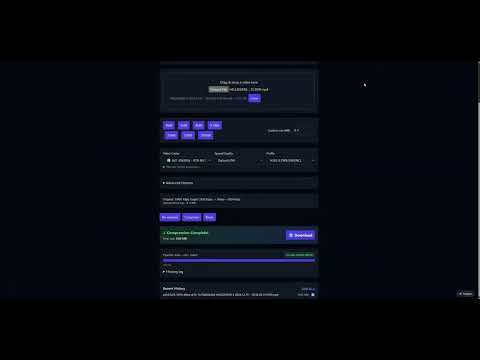
Video Demo
Table of Contents
- Features
- Screenshots
- Projects
- Architecture
- Installation
- Usage
- Configuration
- Performance & Concurrency
- Reverse Proxy Configuration
- Troubleshooting
- License
Features
- NVIDIA NVENC, Intel QSV, Windows AMD AMF, and Linux VAAPI hardware encoding with automatic CPU fallback when a GPU or driver is unavailable
- Robust encoder validation at startup — tests actual encoder initialization, not just availability
- AV1, HEVC (H.265), and H.264 encoding via NVENC, QSV, AMF, VAAPI, or CPU software encoders
- Drag-and-drop UI with helpful presets and advanced options (codec, container, tune, audio bitrate)
- Configurable codec visibility — enable/disable specific codecs in the Settings page
- Resolution control — set max width/height while maintaining aspect ratio
- Video trimming — specify start/end times (seconds or HH:MM:SS format)
- Real-time progress tracking using output size, time processed, bitrate, and wall-clock estimates
- Real-time FFmpeg logs streamed during compression
- Live queue management — view all active jobs with real-time progress, cancel individual jobs, or clear entire queue
- Automatic file size optimization — re-encodes with adjusted bitrate if output exceeds target by >2%
- Batch processing — compress multiple files in a single operation
- Job history enabled by default
- Auto-download enabled by default
- Output container choice: MP4 or MKV, with compatibility safeguards
- Version tracking — UI displays current version, backend provides
/api/version
Projects
Public instances run by people who offer their 8mb.local install for anyone to use (community compressors, demos, mirrors). If you run a public deployment and want it listed here, open a pull request that adds a row to this section.
| Site | Notes |
|---|---|
| fits.video | Online compressor (free and open source) |
Architecture
flowchart LR
  A[Browser / SvelteKit UI] -- Upload / SSE --> B(FastAPI Backend)
  B -- Enqueue --> C[Redis]
  D[Celery Worker + FFmpeg GPU/CPU] -- Progress / Logs --> C
  B -- Pub/Sub relay --> A
  D -- Files --> E[outputs/]
  A -- Download --> B
Components
| Layer | Technology | Role |
|---|---|---|
| Frontend | SvelteKit + Vite | Drag-and-drop UI, size estimates, SSE progress/logs, download |
| Backend API | FastAPI | Accepts uploads, runs ffprobe, relays SSE, serves downloads |
| Worker | Celery + FFmpeg 6.1.1 | Compression with NVENC/QSV/VAAPI or CPU; parses ffmpeg -progress |
| Broker | Redis | Celery broker and pub/sub transport for progress events |
Data & files
uploads/— incoming files (cleaned up afterFILE_RETENTION_HOURS)outputs/— compressed results (cleaned up on the same schedule)
All components run in a single container via supervisord.
Native Windows mode
The Windows installer packages the same frontend, backend, worker, and FFmpeg
path in one executable. It replaces only Redis/Celery transport with an
in-process bounded queue, stores data under the user's local application data
directory, binds to localhost, and opens a native WebView2 window without
visible terminal windows. The standalone 8mblocal.exe does not require
Docker, Redis, Python, Node.js, or a separate FFmpeg installation. See
windows/README.md.
Installation
Quick Start (Docker Hub)
NVIDIA GPU
docker run -d \
  --name 8mblocal \
  --gpus all \
  -e NVIDIA_DRIVER_CAPABILITIES=compute,video,utility \
  -p 8001:8001 \
  -v ./uploads:/app/uploads \
  -v ./outputs:/app/outputs \
  jms1717/8mblocal:latest
The
-e NVIDIA_DRIVER_CAPABILITIES=compute,video,utilityflag is required — it tells the NVIDIA Container Toolkit to mount NVENC libraries into the container.
CPU Only (No GPU)
docker run -d \
  --name 8mblocal \
  -p 8001:8001 \
  -v ./uploads:/app/uploads \
  -v ./outputs:/app/outputs \
  jms1717/8mblocal:latest
Access the web UI at http://localhost:8001.
Intel / AMD VAAPI
For Linux hosts with Intel or AMD graphics, use the DRI-enabled compose
profile. It discovers /dev/dri/renderD*, validates QSV/VAAPI at startup, and
falls back to CPU when the device cannot encode:
docker compose -f docker-compose.vaapi.yml up -d --build
Docker Compose
NVIDIA GPU
services:
  8mblocal:
    image: jms1717/8mblocal:latest
    container_name: 8mblocal
    ports:
      - "8001:8001"
    volumes:
      - ./uploads:/app/uploads
      - ./outputs:/app/outputs
      - ./.env:/app/.env  # optional
    gpus: all
    environment:
      - NVIDIA_DRIVER_CAPABILITIES=compute,video,utility
    restart: unless-stopped
CPU Only
services:
  8mblocal:
    image: jms1717/8mblocal:latest
    container_name: 8mblocal
    ports:
      - "8001:8001"
    volumes:
      - ./uploads:/app/uploads
      - ./outputs:/app/outputs
      - ./.env:/app/.env  # optional
    restart: unless-stopped
Then run:
docker compose up -d
Configure memory-backed temporary uploads
The maximum application memory budget is user-configurable in the host .env
file. MEDIA_MEMORY_LIMIT_GB is the application admission ceiling, while
MEDIA_SHM_SIZE is the Docker /dev/shm capacity ceiling. Neither value
reserves that amount of host RAM up front.
Recommended adaptive mode: use memory when the live budget fits, and fall back to disk automatically when it does not:
cp .env.example .env
# Edit .env:
MEDIA_STORAGE=auto
MEDIA_MEMORY_LIMIT_GB=10
MEDIA_SHM_SIZE=10g

docker compose up -d --build
docker compose exec 8mblocal df -h /dev/shm
To require memory-backed uploads on Linux/Docker, choose a budget that fits the host and set the shared-memory ceiling at least as high. Jobs that cannot safely fit are rejected instead of silently writing to disk:
# Edit .env:
MEDIA_STORAGE=memory
MEDIA_MEMORY_LIMIT_GB=4
MEDIA_SHM_SIZE=4g

docker compose up -d --build
To force disk-backed temporary uploads, use MEDIA_STORAGE=disk. You can
change MEDIA_MEMORY_LIMIT_GB and MEDIA_SHM_SIZE to another host-appropriate
value, then recreate the container with docker compose up -d. In auto
mode, MEDIA_MEMORY_LIMIT_GB is still enforced as the maximum application
budget; available shared memory and host headroom can reduce the amount used.
Building from Source
Default (NVIDIA GPU): requires NVIDIA Container Toolkit and a working docker run --rm --gpus all nvidia/cuda:12.2.0-base-ubuntu22.04 nvidia-smi on the host.
git clone https://github.com/JMS1717/8mb.local.git
cd 8mb.local
docker compose up -d --build
CPU only (no GPU passthrough — e.g. macOS or machine without GPU access):
docker compose -f docker-compose.cpu.yml up -d --build
Platform Notes
| Platform | GPU Support | Notes |
|---|---|---|
| Windows | NVIDIA via WSL2 | Install Docker Desktop, enable WSL2 GPU support, install NVIDIA drivers |
| Linux | NVIDIA native | Install NVIDIA drivers + Container Toolkit |
| Linux | Intel / AMD VAAPI | Use docker-compose.vaapi.yml and pass /dev/dri; the worker identifies the vendor |
| macOS | CPU only | Docker runs in a Linux VM without GPU passthrough |
Native Windows executable
For a Docker-free Windows install, run the manual Build native Windows
executable GitHub Actions workflow and download 8mblocal-Setup.exe from its
8mblocal-windows artifact. The per-user installer creates a Start Menu
shortcut and optionally a Desktop shortcut. The release also includes a
standalone 8mblocal.exe that can run without installation. Both open the same
native WebView2 interface on localhost and probe NVENC, Quick Sync, and AMD AMF
before falling back to CPU encoding. See windows/README.md
for the installer, Windows security warning, hardware probes, and build details.
Repeatable end-to-end validation
The repository includes a disposable scenario harness. It generates a small media corpus, starts the local runtime, uploads real files, runs selected codecs, verifies downloaded outputs with FFprobe, and exercises parallel batch upload plus ZIP download. Explicit hardware requests are useful on CPU-only machines too: a healthy runtime should complete them through its documented CPU fallback path.
# Source/local runtime (no Docker or GPU required)
python scripts/e2e_test.py --mode local

# A representative quicker run
python scripts/e2e_test.py --mode local --profile quick \
  --codecs libx264,h264_qsv,h264_vaapi,h264_nvenc

# A disposable Docker run; build the image first if it is not already present
docker build -t 8mb.local:e2e .
python scripts/e2e_test.py --mode docker --docker-image 8mb.local:e2e

# Hardware-specific Docker runs on the matching host
python scripts/e2e_test.py --mode docker --docker-image 8mb.local:e2e --docker-gpu nvidia
python scripts/e2e_test.py --mode docker --docker-image 8mb.local:e2e --docker-gpu vaapi
The Docker harness uses a unique container name and temporary bind-mounted
directories, then stops and removes only the container it created. Use
--keep when retaining logs and outputs for diagnosis. The full codec list is
the default; narrow it with --codecs when iterating on one hardware path.
The manual Docker end-to-end smoke workflow builds a CPU container and runs
the same representative scenarios in GitHub Actions.
On Windows, the release script performs the same health, frontend, upload,
transcode, status, download, and FFprobe checks. Add -Install to silently
install and uninstall the Inno Setup package in an isolated temporary folder:
.\windows\test-release.ps1 -Build -Install
Verify Installation
# Check container status
docker ps | grep 8mblocal

# Check NVIDIA GPU access
docker exec 8mblocal nvidia-smi

# List available encoders
docker exec 8mblocal bash -c "ffmpeg -hide_banner -encoders | grep -E 'nvenc|264|265|av1'"

# View startup logs
docker logs 8mblocal
Update to Latest Version
docker compose pull
docker compose up -d
Or with docker run:
docker pull jms1717/8mblocal:latest
docker stop 8mblocal && docker rm 8mblocal
# Re-run your docker run command
Usage
- Drop a video — drag and drop or click Choose File. Analysis runs automatically.
- Pick a target size — click a preset button or enter a custom MB value.
- Optional: open Advanced Options
- Video Codec: AV1 (best quality, RTX 40/50), HEVC (H.265), or H.264 (widest compatibility)
- Audio Codec: Opus (default) or AAC — MP4 containers auto-switch to AAC
- Speed/Quality: NVENC presets P1 (fastest) through P7 (best quality), default P6
- Container: MP4 (most compatible) or MKV (best with Opus audio)
- Tune: HQ (default), Low Latency, Ultra-Low Latency, or Lossless
- Resolution: Set max width/height to downscale while preserving aspect ratio
- Trimming: Set start/end times to compress only a portion
- Click Compress and watch progress/logs in real time. Cancel anytime. Download starts automatically.
Tips
- For very small targets, prefer AV1 or HEVC and keep audio around 96–128 kbps.
- For speed, try Low Latency tune with a faster preset (P1–P4).
- MP4 + Opus is not supported; the worker auto-switches to AAC for MP4 containers.
- MP4 outputs include
+faststartfor better web/streaming playback. - HEVC MP4 outputs use the Apple-compatible
hvc1sample-entry tag so iPhone, iPad, Safari, and other strict players can recognize the video stream.
Configuration
Environment Variables
Create a .env file and mount it at /app/.env:
# Authentication (also configurable via Settings UI)
AUTH_ENABLED=false
AUTH_USER=admin
AUTH_PASS=changeme

# File retention
FILE_RETENTION_HOURS=1

# Worker concurrency: automatic is the recommended default. It uses live
# CPU/RAM/GPU capacity and does not reserve memory. Set 1..20 for a manual cap.
WORKER_CONCURRENCY=auto

# SVT-AV1 thread-level parallelism. "auto" is safest across mixed hardware;
# optionally set 0..6 after benchmarking a stable host.
SVTAV1_LP=auto

# Codec visibility is persisted in settings.json and managed from Settings.
# Hardware entries are still hidden unless their runtime probe passes.

# Redis / backend (usually no need to change)
REDIS_URL=redis://127.0.0.1:6379/0
BACKEND_HOST=0.0.0.0
BACKEND_PORT=8001
The Compose profiles bind ./uploads and ./outputs for media, ./state for
settings/history, and ./redis-data for the local Redis AOF. Multipart upload
and FFmpeg temporary files use ./uploads/.tmp, so large batch uploads do not
consume the container's writable layer. Put the media directories on the disk
with the most free space and back up state/ if you want to preserve the UI
configuration.
Temporary media storage
Uploads use MEDIA_STORAGE=auto by default. The Docker Compose profiles set a
10 GiB /dev/shm ceiling by default through MEDIA_SHM_SIZE=10g; this is a
capacity limit, not a preallocation. Tmpfs consumes host memory only as files
are written and releases it when they are deleted. On Linux/Docker, auto mode uses
/dev/shm/8mb.local/uploads only when there is at least 512 MB free; use
MEDIA_STORAGE=memory to require the memory-backed path, or disk to force
normal disk-backed uploads. On native Windows, auto and memory modes keep a
normal per-user filesystem pathname and apply FILE_ATTRIBUTE_TEMPORARY, a
RAM-preferred Windows cache hint. Windows may still spill temporary data to
disk under memory pressure, so this is not a guaranteed RAM disk. Explicit
memory mode also applies a conservative per-upload admission budget based
on MEDIA_MEMORY_LIMIT_GB, available memory, worker concurrency, FFmpeg
working space, and OS headroom. Temporary API upload inputs are removed after
the encode, retries, fallback, and final validation finish on every platform;
failed partial uploads are removed immediately. Folder Watch source files remain
owned by Folder Watch and follow its keep/delete/move policy. Settings,
history, Redis data, and final outputs remain on their persistent disk
locations.
For Docker, increase or reduce the shared-memory ceiling in .env with
MEDIA_SHM_SIZE before recreating the container. Check the active limit with
docker compose exec 8mblocal df -h /dev/shm. auto can still fall back to
the persistent uploads disk when the available shared memory or the configured
MEDIA_MEMORY_LIMIT_GB budget is not sufficient. This keeps RAM use bounded
instead of treating the entire host memory pool as a temporary filesystem.
Folder Watch
The Folder Watch (Advanced) panel is at the bottom of /settings, is
collapsed by default, and can poll an existing
Windows, UNC, or Linux-mounted folder. It waits for a file's size and mtime to
remain stable, then sends it through the same Celery compression queue used by
uploads. It supports recursive scanning, new-only or existing-file processing,
an explicit profile, same-folder or specific-folder output, and keep/delete/
move-after-success behavior. Stable seconds is the safety delay before a
file is considered finished: the watcher requires the file size and modified
time to remain unchanged for that many seconds before starting compression.
It is a quiet-period safety delay, not the video's duration and not the total
processing time.
The default is 5 seconds; use a longer value for slow network copies. The
polling interval controls how often the folder is checked and is separate from
the stable-file delay. Deletion or moving happens only after the output is
non-empty and passes FFprobe validation. Folder Watch state is persisted in
the application settings file and is not an arbitrary public-path API.
Settings UI
Manage settings at /settings with no container restart required:
- Authentication — enable/disable, manage credentials
- Default Presets — target size, codec, quality, container defaults
- Codec Visibility — enable/disable NVIDIA, Intel/VAAPI, and CPU codecs
- Preset Profiles — create named presets for quick access
- Worker Concurrency — adjust parallel job limit
- Size Buttons — customize the target size quick-pick buttons
- GPU Support Reference — hardware encoding compatibility at
/gpu-support
The direct API is documented in docs/API.md. The same routes
are available from Docker and the native Windows app, including single-file
and batch upload, status polling, cancellation, and downloads.
The Folder Watch panel is also available under Settings for optional cross-platform polling of stable files through the normal queue.
Performance & Concurrency
8mb.local supports multiple parallel compression jobs. The default
WORKER_CONCURRENCY=auto selects a bounded starting ceiling from live
available system RAM, physical CPU cores, and detected NVIDIA VRAM. For
NVIDIA, the worker also checks free VRAM before each encode. If another
application consumes GPU memory, new encodes wait; when memory becomes
available again, queued work can start. This is resource-aware admission, not
a guarantee of maximum NVENC sessions. A 16 GB card such as an RTX 4070 Ti
SUPER therefore starts higher than a 3–6 GB GTX 1060, while numeric values
remain available as manual overrides. The selector never reserves the
reported memory; MEDIA_MEMORY_LIMIT_GB remains the separate media admission
budget.
Use the Settings page to switch between Automatic (recommended) and a manual limit. Automatic mode can scale active encode admission down and up without restarting when live GPU memory changes. Changing the configured manual limit still requires a container or desktop-app restart because it changes the worker pool ceiling.
Manual setting change: restart the container or desktop app after changing the configured worker limit. Automatic VRAM/RAM admission keeps adapting while it runs.
Reverse Proxy Configuration
SSE (Server-Sent Events) requires special proxy configuration to prevent buffering.
Nginx / Nginx Proxy Manager
location /api/stream/ {
    proxy_pass http://backend:8001;
    proxy_buffering off;
    proxy_cache off;
    proxy_set_header Connection '';
    chunked_transfer_encoding on;
}
In Nginx Proxy Manager: Edit Proxy Host → Advanced tab → Custom Nginx Configuration.
Traefik
labels:
  - "traefik.http.middlewares.no-buffer.buffering.maxRequestBodyBytes=0"
  - "traefik.http.middlewares.no-buffer.buffering.maxResponseBodyBytes=0"
  - "traefik.http.routers.8mblocal.middlewares=no-buffer"
Apache
<Location /api/stream/>
    ProxyPass http://backend:8001/api/stream/
    ProxyPassReverse http://backend:8001/api/stream/
    SetEnv proxy-sendchunked 1
    SetEnv proxy-interim-response RFC
</Location>
Why this matters: Without proxy_buffering off, your proxy buffers the entire SSE stream and delivers all progress events at once when the job completes — progress appears stuck at 0% until done.
Troubleshooting
Container won't start with --gpus all
If the host has no NVIDIA GPU, Docker's NVIDIA runtime hook will abort:
nvidia-container-cli: initialization error: WSL environment detected but no adapters were found
Fix: Remove --gpus all and any NVIDIA_* environment variables. The app will start in CPU mode automatically.
NVENC not working
1. Missing NVIDIA_DRIVER_CAPABILITIES
Symptom: Cannot load libnvidia-encode.so.1
Fix: Add the environment variable to your docker run or compose:
-e NVIDIA_DRIVER_CAPABILITIES=compute,video,utility
This tells the Container Toolkit to mount NVENC libraries into the container.
2. Driver too old (NVENC API mismatch)
Symptom: Driver does not support the required nvenc API version. Required: 13.0 Found: 12.1
This means your NVIDIA driver is 535.x or older. You need driver 550+.
# Debian 12
wget https://developer.download.nvidia.com/compute/cuda/repos/debian12/x86_64/cuda-keyring_1.1-1_all.deb
sudo dpkg -i cuda-keyring_1.1-1_all.deb
sudo apt update && sudo apt install nvidia-driver
sudo reboot

# Ubuntu
sudo add-apt-repository ppa:graphics-drivers/ppa
sudo apt update && sudo apt install nvidia-driver-550
sudo reboot
Verify after reboot: nvidia-smi should show driver 550+.
3. Missing NVIDIA Container Toolkit
# Install (Debian/Ubuntu)
curl -fsSL https://nvidia.github.io/libnvidia-container/gpgkey \
  | sudo gpg --dearmor -o /usr/share/keyrings/nvidia-container-toolkit-keyring.gpg
distribution=$(. /etc/os-release; echo $ID$VERSION_ID)
curl -s -L https://nvidia.github.io/libnvidia-container/$distribution/libnvidia-container.list \
  | sed 's#deb https://#deb [signed-by=/usr/share/keyrings/nvidia-container-toolkit-keyring.gpg] https://#g' \
  | sudo tee /etc/apt/sources.list.d/nvidia-container-toolkit.list
sudo apt-get update && sudo apt-get install -y nvidia-container-toolkit
sudo systemctl restart docker
If you can't upgrade the driver, the system will automatically fall back to CPU encoding. Your videos will still compress — just slower.
Progress bar stuck at 0%
Cause: Reverse proxy buffering SSE responses.
Fix: Add proxy_buffering off; for the /api/stream/ location. See Reverse Proxy Configuration.
File slightly over target size
This is handled automatically. If the output exceeds the target by more than 2%, the system re-encodes with a reduced bitrate (up to 2 retries). You'll see a notification and hear an audio alert.
General issues
| Problem | Solution |
|---|---|
| Permission denied on uploads/outputs | chmod 777 uploads outputs or chown $USER:$USER uploads outputs |
| Port already in use | Change mapping: -p 8080:8001 |
| Container won't start | docker logs 8mblocal to check errors; docker rm -f 8mblocal and retry |
| FFmpeg errors | Check logs in the UI; try the CPU fallback paths: SVT-AV1 (libsvtav1), x265 (libx265), or x264 (libx264) |
Quick Diagnostic Commands
docker ps | grep 8mblocal              # Is it running?
docker logs 8mblocal                   # Startup and runtime logs
docker exec 8mblocal nvidia-smi        # GPU visible?
docker exec 8mblocal ffmpeg -hide_banner -encoders 2>&1 | grep nvenc  # NVENC available?
docker restart 8mblocal                # Restart
docker logs -f 8mblocal               # Live log tail
License
Creative Commons Attribution-NonCommercial 4.0 International (CC BY-NC 4.0)
You are free to use, share, and adapt this project for non-commercial purposes with appropriate attribution. Commercial use requires a separate license — please contact me directly.
Contributing
Pull requests welcome! Please ensure Docker builds succeed and test with your GPU hardware.
Support
For issues, questions, or feature requests, please open an issue on GitHub.
Tag summary
Content type
Image
Digest
sha256:a034dbaa7…
Size
478.1 MB
Last updated
about 2 months ago
docker pull jms1717/8mblocal