jordond/nut repository overview
Nut
An application for serving Switch titles.
Getting Started With Docker
Note about nut v2
Nut v2 no longer has a web gui, only the api works.
Here are some example snippets to help you get started creating a container.
Once you run these commands, you should be able to visit http://<your-ip>:9000, username guest, password guest.
Force a scan using http://<your-ip>:9000/api/scan. By default, scans start between 0 and 30 seconds after interacting with nut, and typically take 10 seconds to 2 minutes depending on the size of your collection.
This is a modified version of doctorpangloss/nut's version.
docker
docker create \
  --name=nut \
  --net=host \
  -e PUID=1000 \
  -e PGID=1000 \
  -v </path/to/games>:/games \
  -v </optional/path/to/config>:/config \
  -v </optional/path/to/data>:/data \
  --restart unless-stopped \
  jordond/nut
By default version the current latest version v2.3 of nut will be installed, you can override this by passing --env VERSION=xxx, like so:
docker create \
  --name=nut \
  --net=host \
  -e VERSION=v2.3
  -e PUID=1000 \
  -e PGID=1000 \
  -v </path/to/games>:/games \
  -v </optional/path/to/config>:/config \
  -v </optional/path/to/data>:/data \
  --restart unless-stopped \
  jordond/nut
docker-compose
Compatible with docker-compose v2 schemas.
version: "2"
services:
  plex:
    image: dockerpangloss/nut
    container_name: nut
    network_mode: host
    environment:
      - PUID=1000
      - PGID=1000
    volumes:
      - </path/to/games>:/games
      - </optional/path/to/config>:/config
      - </optional/path/to/data>:/data
    restart: unless-stopped
Parameters
Container images are configured using parameters passed at runtime (such as those above). These parameters are separated by a colon and indicate <external>:<internal> respectively. For example, -p 8080:80 would expose port 80 from inside the container to be accessible from the host's IP on port 8080 outside the container.
| Parameter | Function |
|---|---|
-e PUID=1000 | for UserID - see below for explanation |
-e PGID=1000 | for GroupID - see below for explanation |
-v /games | Games should go here. |
-v /config | Directory to copy default configuration files to. Optional. It will be populated with defaults. |
-v /data | Directory to save various nut runtime files to. Optional. It will be populated with images and other files nut needs to run. |
Optional Parameters
Special note - If you'd like to run nut without requiring --net=host, then you will need the following ports in your docker create command:
-p 9000:9000
The application accepts a series of environment variables to further customize itself on boot:
| Parameter | Function |
|---|---|
-e NUT_SCAN_DEBOUNCE_SECONDS=30.0 | At most one scan can run in the last number of seconds specified here. This image is configured to scan automatically whenever you connect to nut. |
User / Group Identifiers
When using volumes (-v flags) permissions issues can arise between the host OS and the container, we avoid this issue by allowing you to specify the user PUID and group PGID.
Ensure any volume directories on the host are owned by the same user you specify and any permissions issues will vanish like magic.
In this instance PUID=1000 and PGID=1000, to find yours use id user as below:
  $ id username
    uid=1000(dockeruser) gid=1000(dockergroup) groups=1000(dockergroup)
Application Setup
There is a web UI at <your-ip>:9000. It will take some time to scan the titles, so be patient.
The default username and password is guest:guest. To change this, edit the /config/users.conf file.
Docker Tips and Tricks
The rest of this document concerns running nut from a local directory on Windows, and portions of it are no longer up to date.
If the scanning takes too long, set an environment variable, NUT_SCAN_DEBOUNCE_SECONDS to a greater number of seconds, like 999, to prevent scanning from running too frequently.
To disable scanning, set the value of NUT_SCAN_DEBOUNCE_SECONDS to 99999999999.
Then, to force a scan, visit http://<your-ip>:9000/api/scan, and be patient!
Information
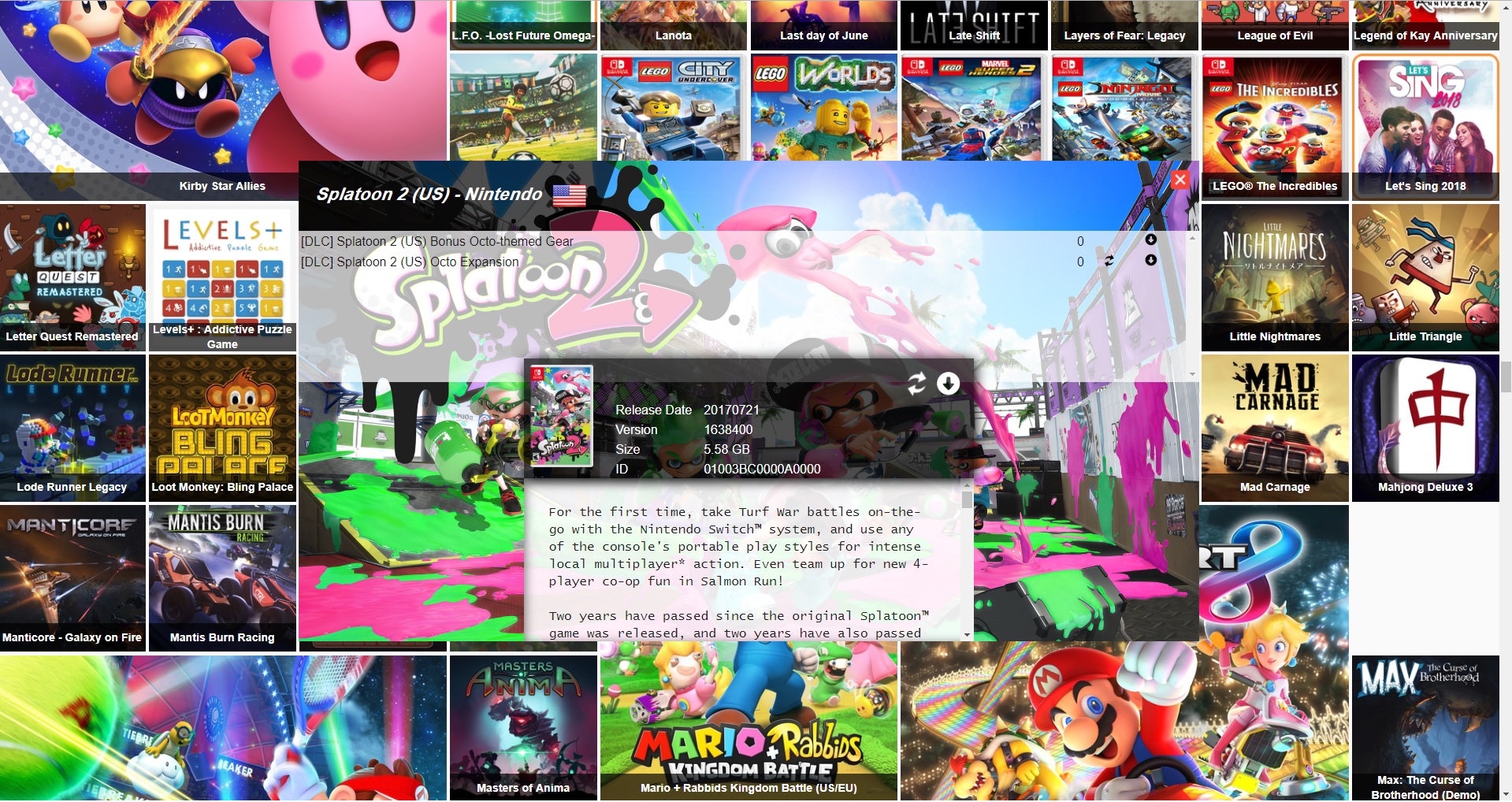
This is a program that automatically downloads all games from the CDN, and organizes them on the file system as backups. You can only play games that you have legally purchased / have a title key for. Nut also provides a web interface for browsing your collection.
You should copy nut.default.conf to nut.conf and make all of your local edits in nut.conf.
If you only wish to rename / organize files, and not download anything, edit nut.conf and set all downloading options to false. Your NSP files should have the titleid as a part of the filename in brackets.
It can download any titles you do not have a key for (for archiving), by enabling sansTitleKey in nut.conf. These titles are saved with the .nsx file extension, and can be unlocked at a later time when a title key is found.
Credits
- blawar for nut
- doctorpangloss for the original docker container.
Tag summary
Content type
Image
Digest
Size
128.9 MB
Last updated
almost 7 years ago
docker pull jordond/nut