kyzimaspb/gui
The base image for running GUI applications in Docker
10K+
kyzimaspb/gui repository overview
docker-gui
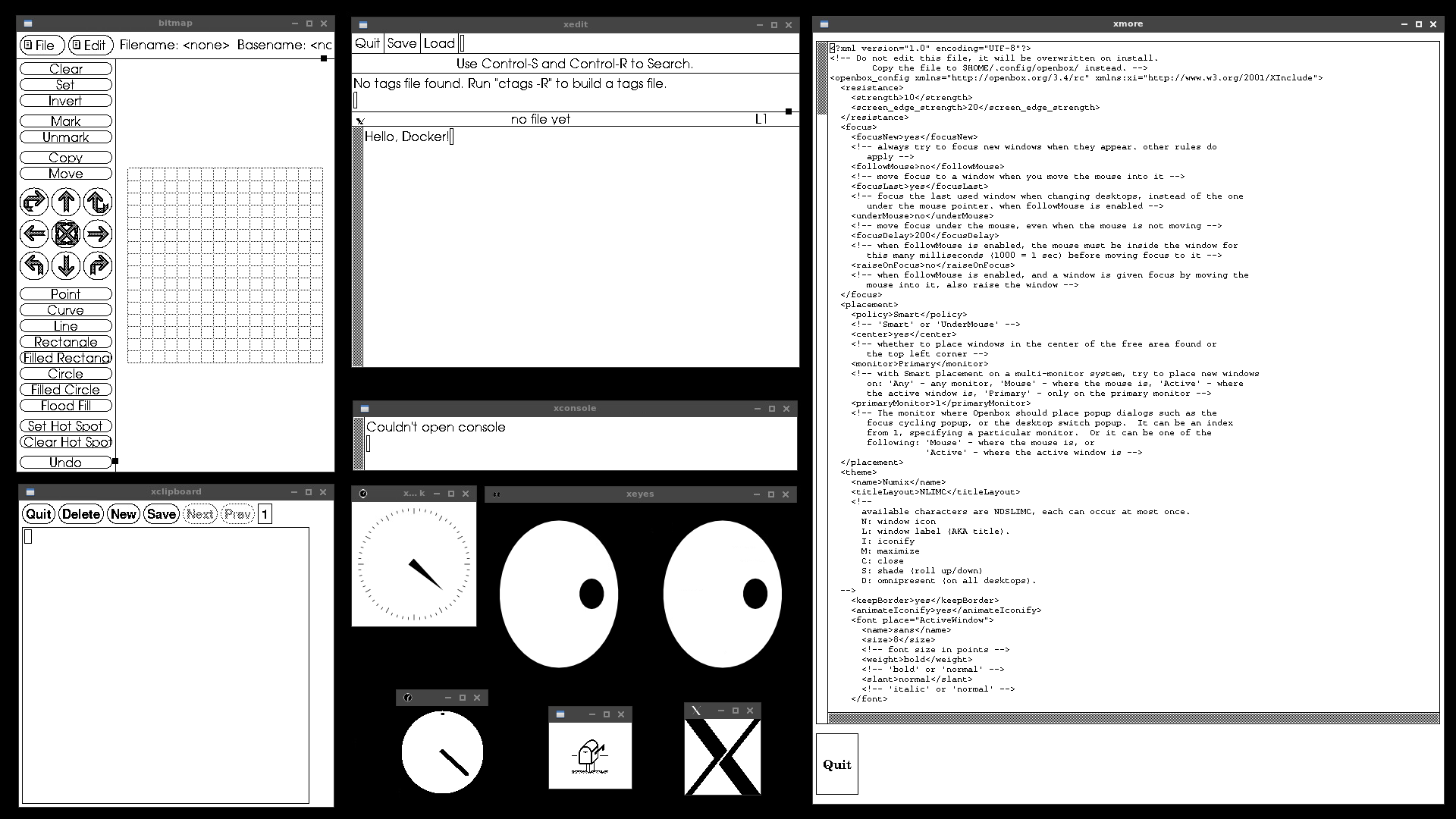
docker-gui - is the base image for running GUI applications in Docker.
NOTE
It's a crazy idea to run GUI applications in Docker containers, but sometimes there is no other way to run the application on the server or on the current OS.
How to create a new image?
Let's look at an example of creating a new image to run the Chromium browser in Docker.
Create image directory
Create a new directory for the image files anywhere and go to it:
$ mkdir ~/docker-chromium
$ cd ~/docker-chromium
Next, create a directory and file structure as shown below:
.
├── Dockerfile
└── root
    └── etc
        └── s6-overlay
            └── s6-rc.d
                ├── chromium
                │   ├── dependencies
                │   ├── run
                │   └── type
                └── user
                    └── contents.d
                        └── chromium
The image uses the s6-overlay service manager. Therefore, to understand why each directory or file is needed, it is better to refer to the official documentation.
Create service
The file ./root/etc/s6-overlay/s6-rc.d/chromium/run
contains the code to start the service (in the example browser).
It is recommended to use the execline language:
#!/command/execlineb -P

with-contenv

backtick -E HOME { homeof user }
s6-env HOME="$HOME"

redirfd -w 2 /dev/null

s6-setuidgid user chromium --no-sandbox --start-maximized
In the ./root/etc/s6-overlay/s6-rc.d/chromium/type file,
specify the type of service: longrun - starts at startup, if the service crashes,
it will be restarted (the browser cannot be closed =)
longrun
In the ./root/etc/s6-overlay/s6-rc.d/chromium/dependencies file,
specify the dependencies on other services (who should be started first),
one dependency per line:
openbox
The file ./root/etc/s6-overlay/s6-rc.d/user/contents.d/chromium is empty,
it is a link indicating that this service is enabled and should be started.
Dockerfile
Create a new Dockerfile and install the application with all required dependencies, for example:
FROM kyzimaspb/gui

RUN --mount=type=cache,target=/var/cache/apt,sharing=locked \
    --mount=type=cache,target=/var/lib/apt,sharing=locked \
    rm -f /etc/apt/apt.conf.d/docker-clean; \
    echo 'Binary::apt::APT::Keep-Downloaded-Packages "true";' > /etc/apt/apt.conf.d/keep-cache \
    && apt update && apt install -yq --no-install-recommends \
        chromium

COPY ./ /
Build
Build an image file named chromium:
$ docker build -t chromium -f Dockerfile ./root
Run in daemon mode
Run the container named chromium_1 in daemon mode
and forward the specified ports
to the specified ports of the host machine:
$ docker run -d --name chromium_1 \
      -p 5900:5900 \
      --shm-size 2g \
      chromium
Forwarded ports:
5900- TCP port for connecting VNC clients;
Stop a running container:
$ docker stop chromium_1
Environment Variables
XVFB_RESOLUTION- screen resolution of the virtual X server, by default1280x720VNC_SERVER_PASSWORD- password for the VNC server, by default not setVNC_SERVER_PASSWORD_FILE- password for the VNC server, by default not setUSER_UID- user ID, by default is1000USER_GID- user's group ID, by default is1000
Autostart with a password
Automatically start the container at system startup
with the password qwe123 to connect to the VNC server:
$ docker run -d --name chromium_1 \
      -p 5900:5900 \
      --shm-size 2g \
      -e VNC_SERVER_PASSWORD=qwe123 \
      --restart unless-stopped \
      chromium
Example with secrets in Docker Compose:
secrets:
  vnc_password:
    file: ./secrets/vnc_password

services:
  chromium:
    build:
      context: ./root
      dockerfile: ../Dockerfile
    secrets:
      - vnc_password
    ports:
      - "5900:5900"
    environment:
      VNC_SERVER_PASSWORD_FILE: /run/secrets/vnc_password
    restart: unless-stopped
Building the project and running:
$ docker compose --project-directory ./examples/chromium build
$ docker compose --project-directory ./examples/chromium up
How to change user or group ID?
$ docker run -d --name chromium_1 \
      -p 5900:5900 \
      --shm-size 2g \
      -e USER_UID=1001 \
      -e USER_GID=1001 \
      --restart unless-stopped \
      chromium
The source code for the example is available in the examples/chromium directory.
Build Arguments
RELEASE- The release name of the Debian distribution. Available values arebookworm-slim,bookworm,bullseye-slim,bullseye,buster-slim,buster. The default isbookworm-slim.S6_DOWNLOAD_URL- Download URL for s6-overlay. The default ishttps://github.com/just-containers/s6-overlay/releases/download.S6_OVERLAY_VERSION- s6-overlay version. By default, the latest version.S6_ARCH- s6-overlay architecture. The default isx86_64.
How to change Debian distribution release?
The RELEASE build argument allows you to specify the release of the Debian distribution:
$ git clone https://github.com/kyzima-spb/docker-gui.git
$ cd docker-gui/docker
$ docker build -t gui \
    --build-arg RELEASE=bullseye \
    -f Dockerfile ./root
How to change s6-overlay version?
$ git clone https://github.com/kyzima-spb/docker-gui.git
$ cd docker-gui/docker
$ docker build -t gui \
    --build-arg S6_OVERLAY_VERSION=3.1.2.0 \
    -f Dockerfile ./root
How to change s6-overlay architecture?
We clone the sources of the base image,
specify the architecture in the S6_ARCH argument
and optionally the version in the S6_OVERLAY_VERSION argument.
The available values for the selected version can be found on the downloads page.
Build an image, for example, for Orange Pi:
$ git clone https://github.com/kyzima-spb/docker-gui.git
$ cd docker-gui/docker
$ docker build -t gui \
    --build-arg S6_ARCH=armhf .
    -f Dockerfile ./root
Tag summary
Content type
Image
Digest
sha256:b235439c8…
Size
168.1 MB
Last updated
about 7 hours ago
docker pull kyzimaspb/gui