legraina/empty-docplex-notebook
Based docplex notebook without cplex installed. Base to install cplex.
372
legraina/empty-docplex-notebook repository overview
Docplex Notebook
We will be using a notebook docker image to run cplex on your computer. We are using the free edition that cannot solve problems with more than 1000 variables or 1000 constraints.
Reference: https://github.com/legraina/docplex-notebook
Docker and Jupyterhub
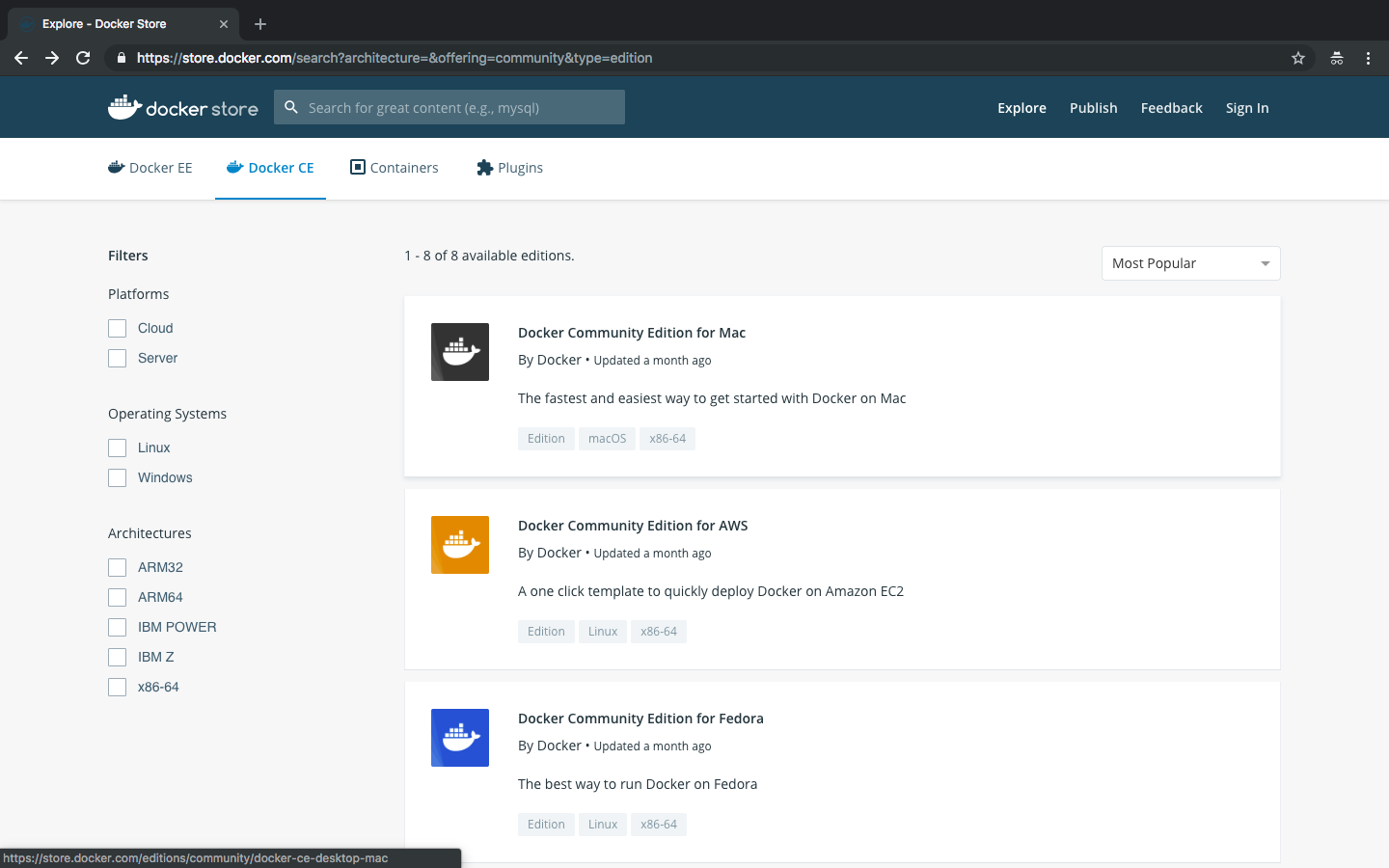
First, you need to install docker. This software is managing all the images for you. You can download the adequate version depending on your system on https://store.docker.com/search?type=edition&offering=community. You will need to create account first. The different steps for mac are detailed below:
- Choose the mac version.
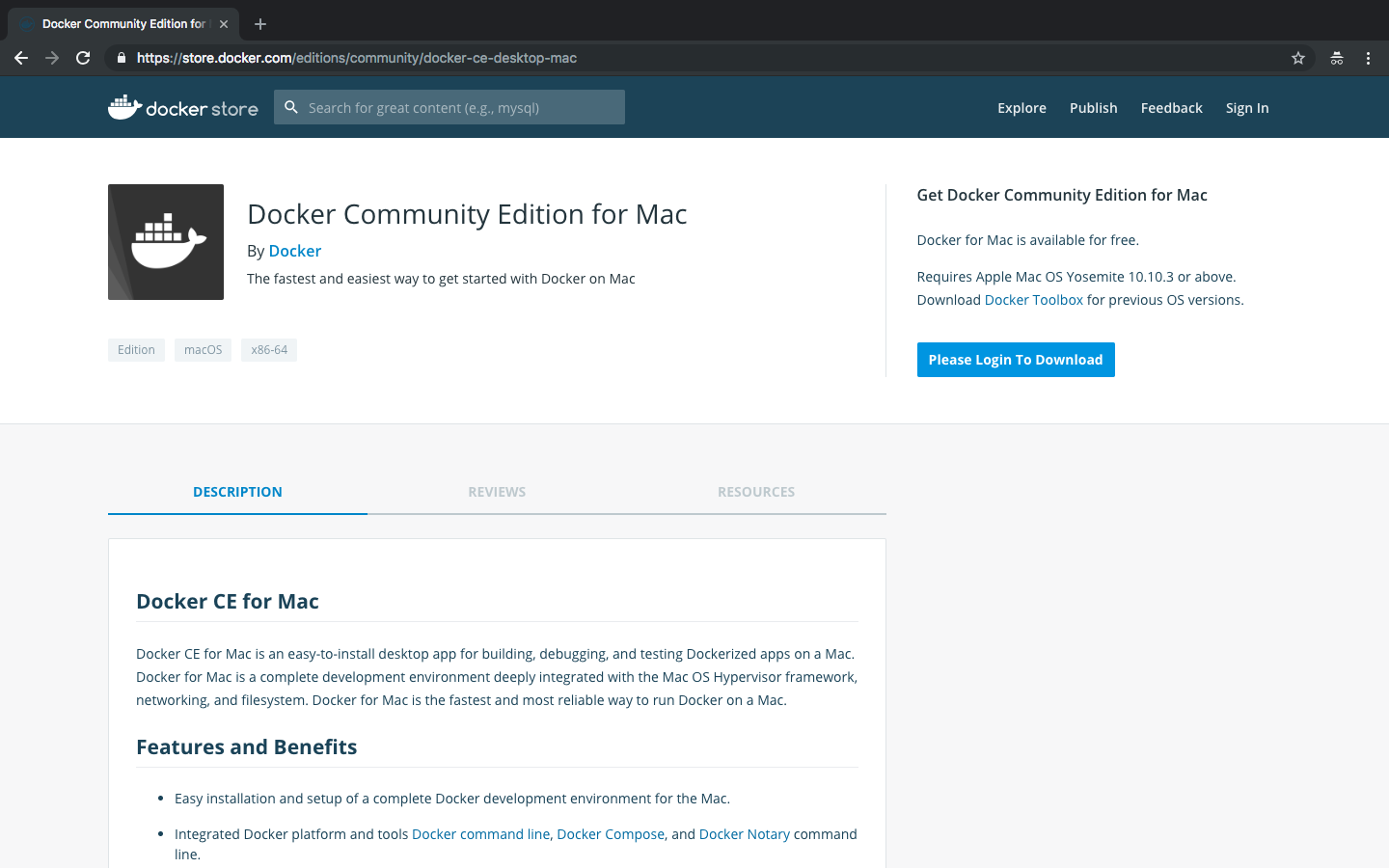
- You need to login before being able to download it.
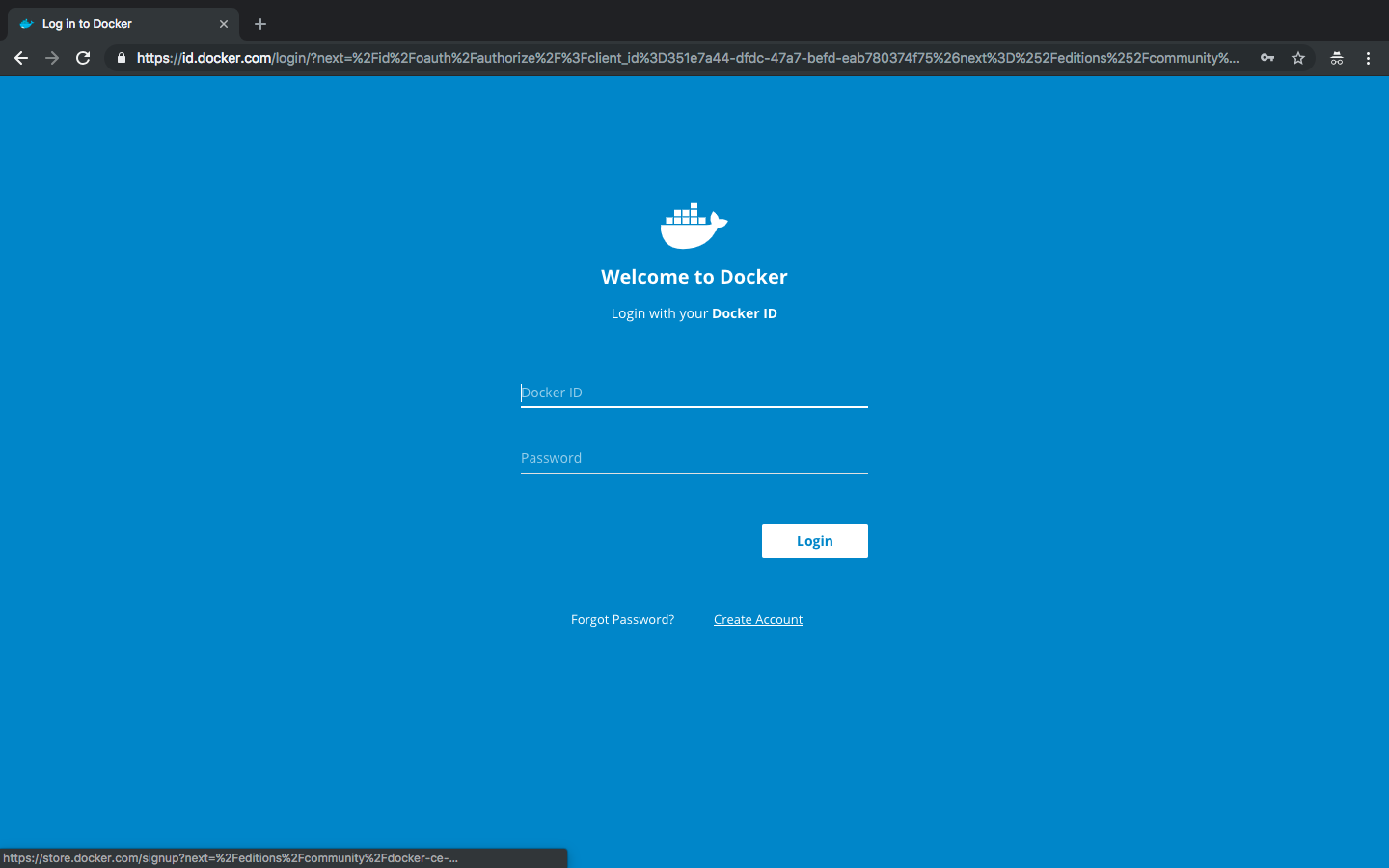
- If you have an account, you can login and go directly to 9. Otherwise, let's create an account.
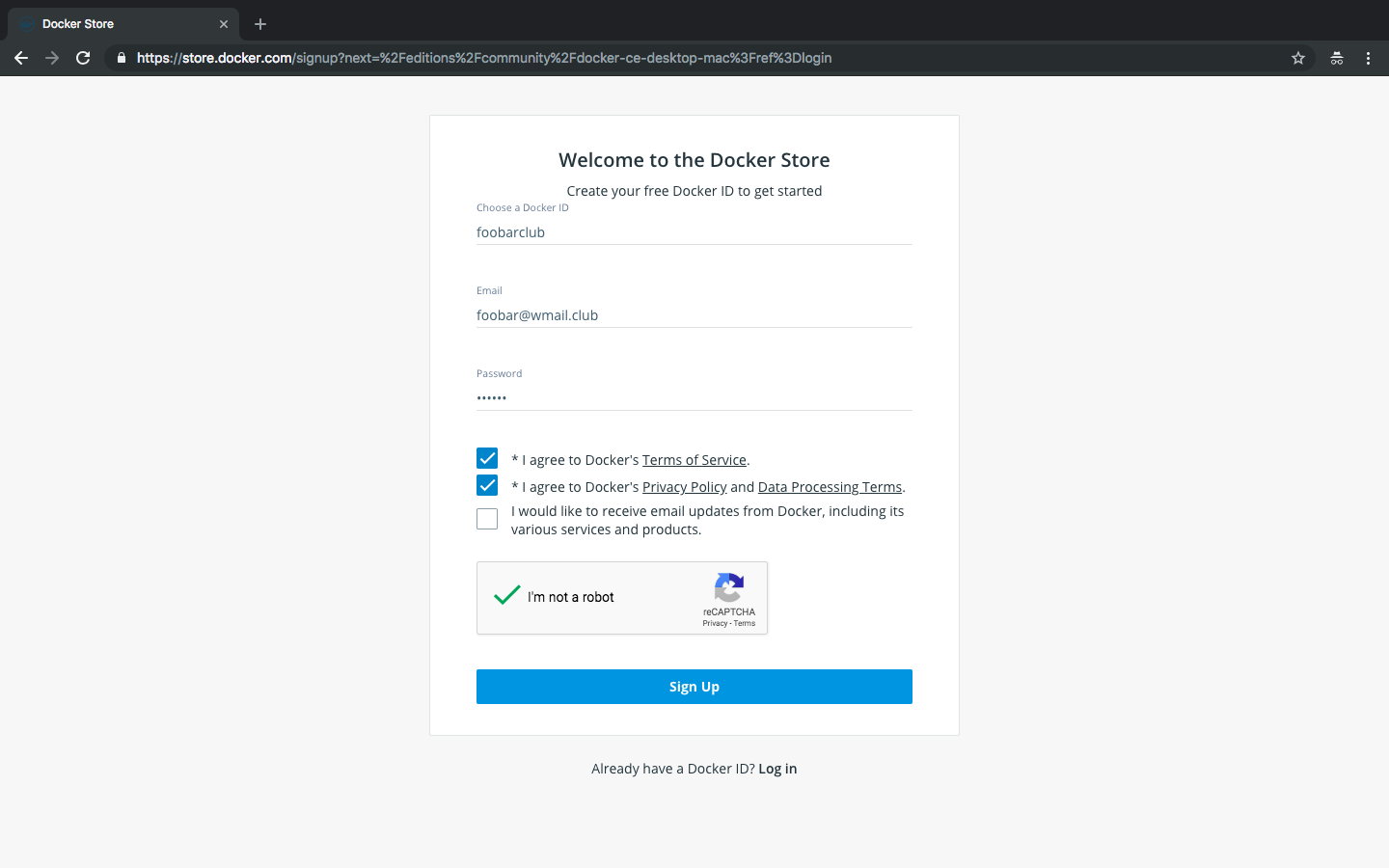
- Just fill the fields and sign up.
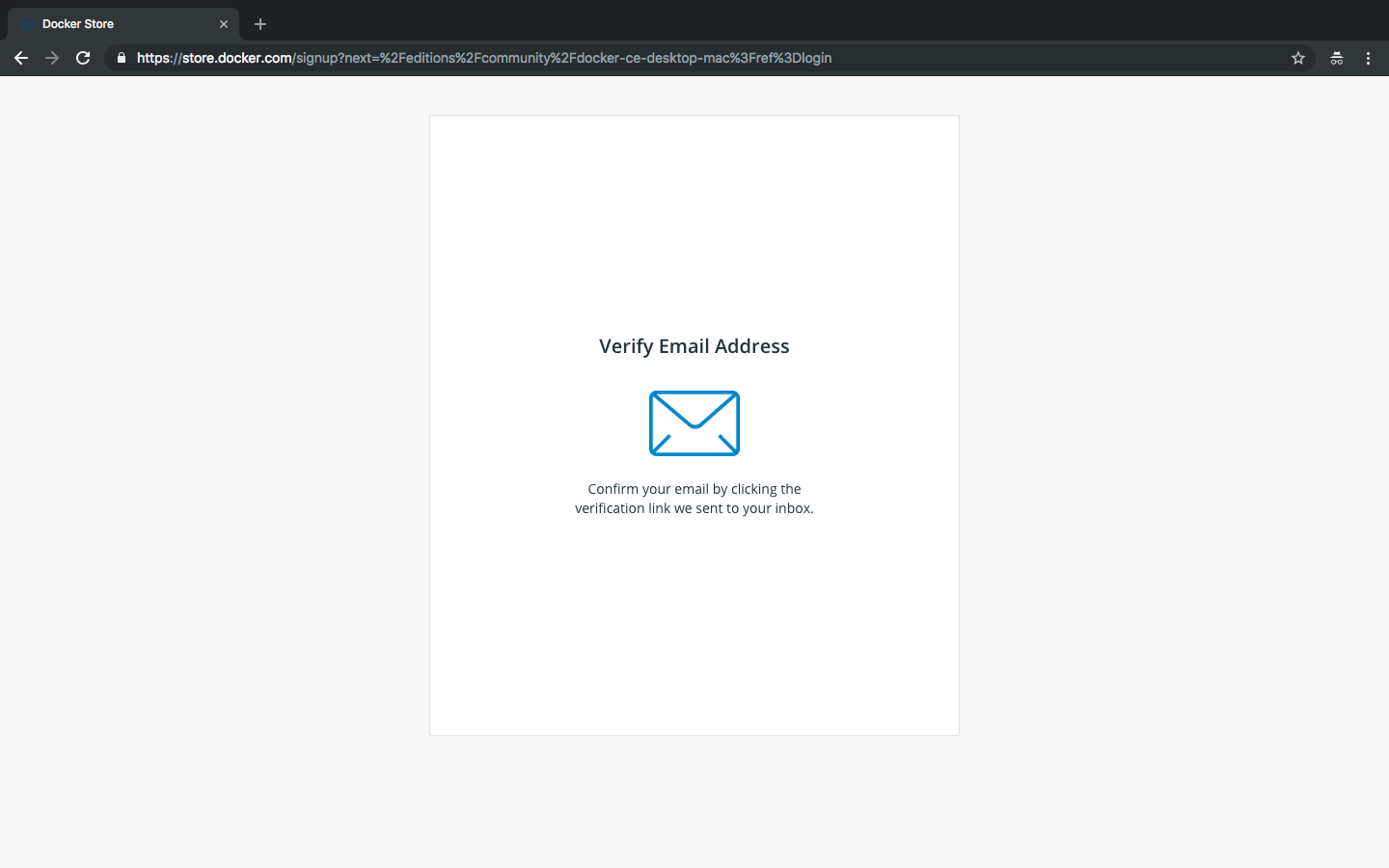
- An email is sent to verify your email address.
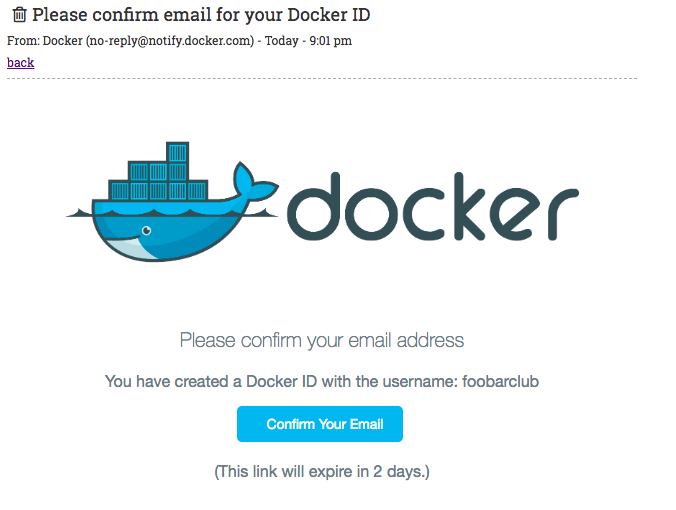
- Once you have received the email, click on "Confirm your email".
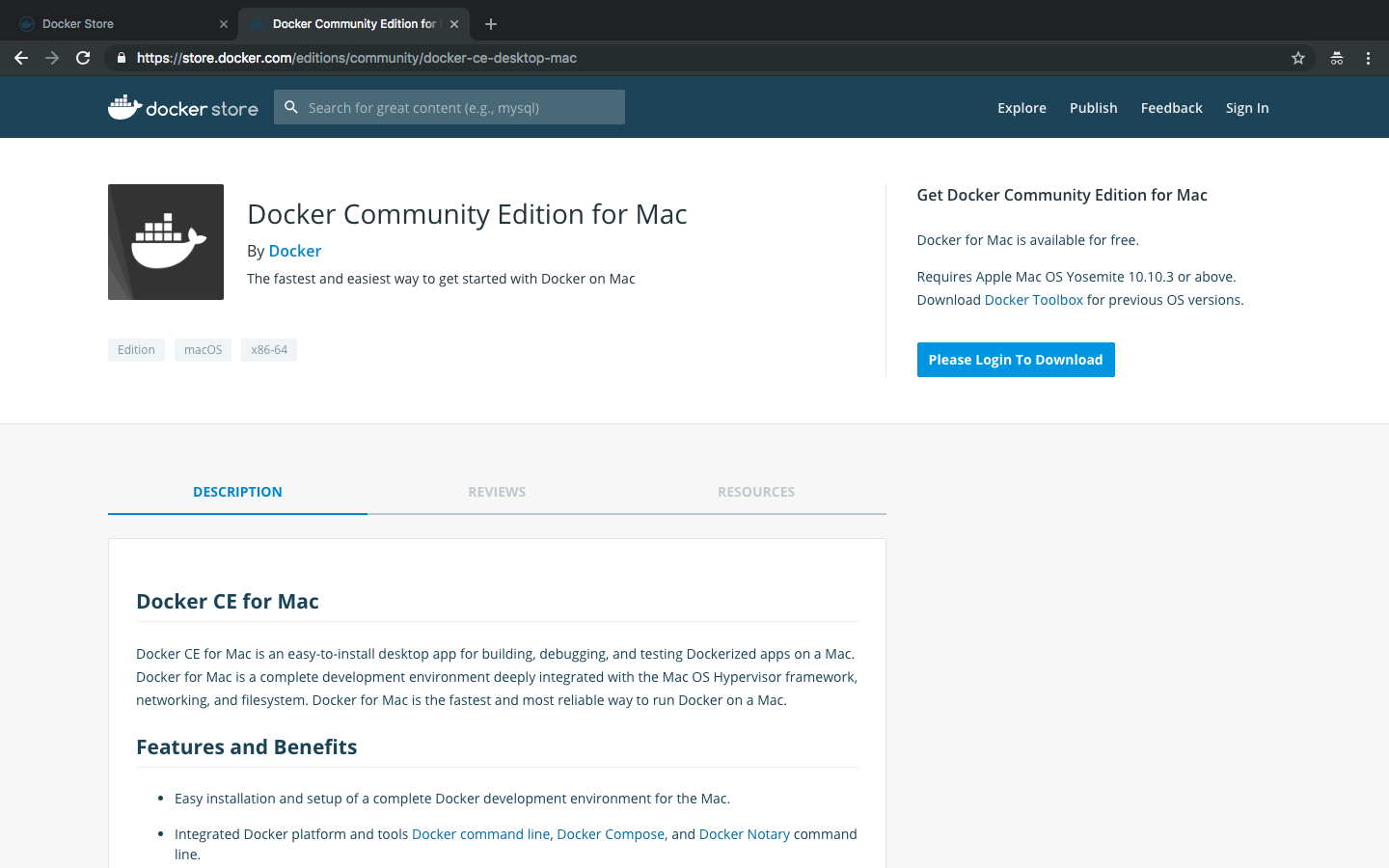
- You will be redirected on the download page for mac (if you are downloading the mac client).
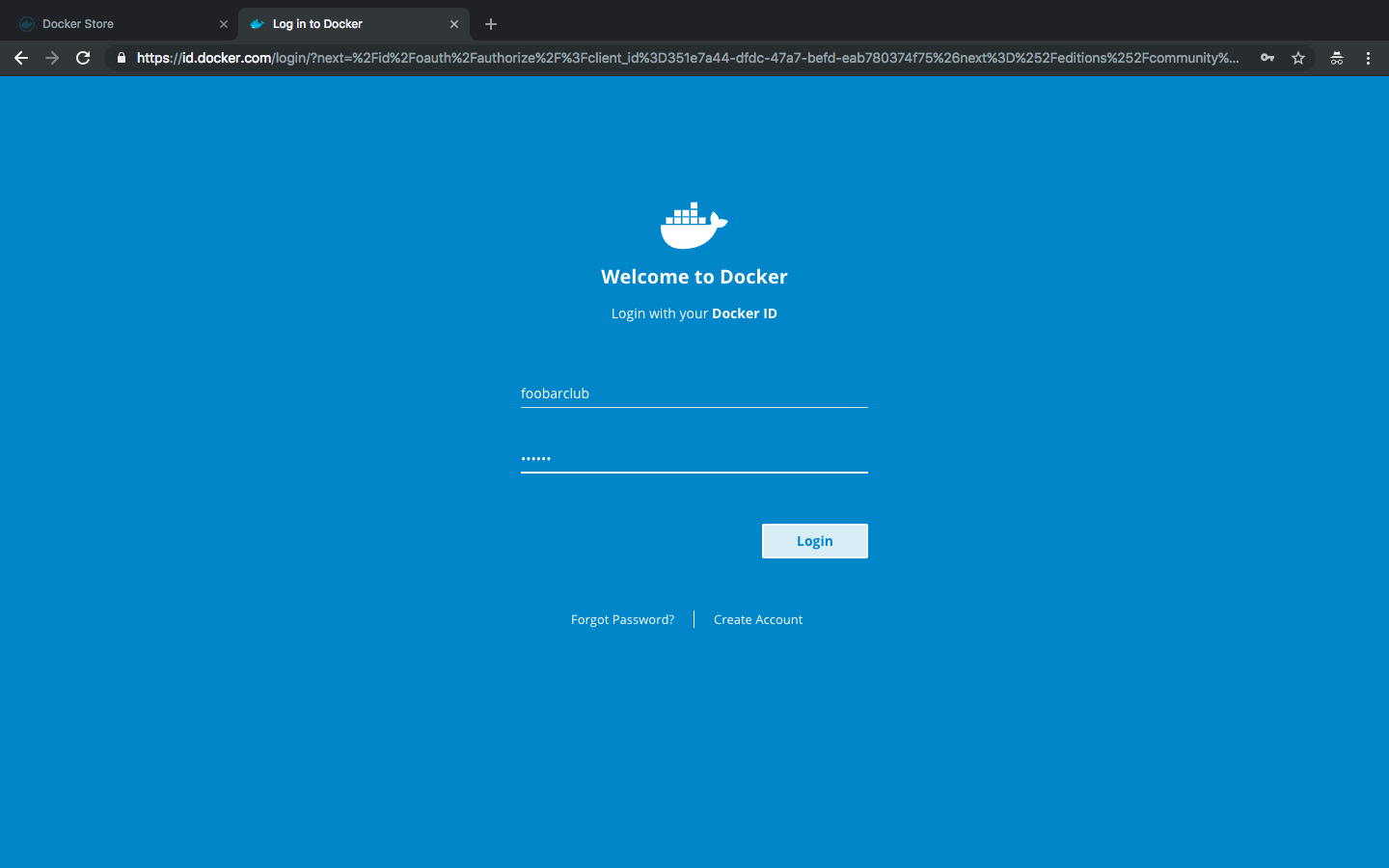
- You may now login with your new account.
- You can finally download the client.
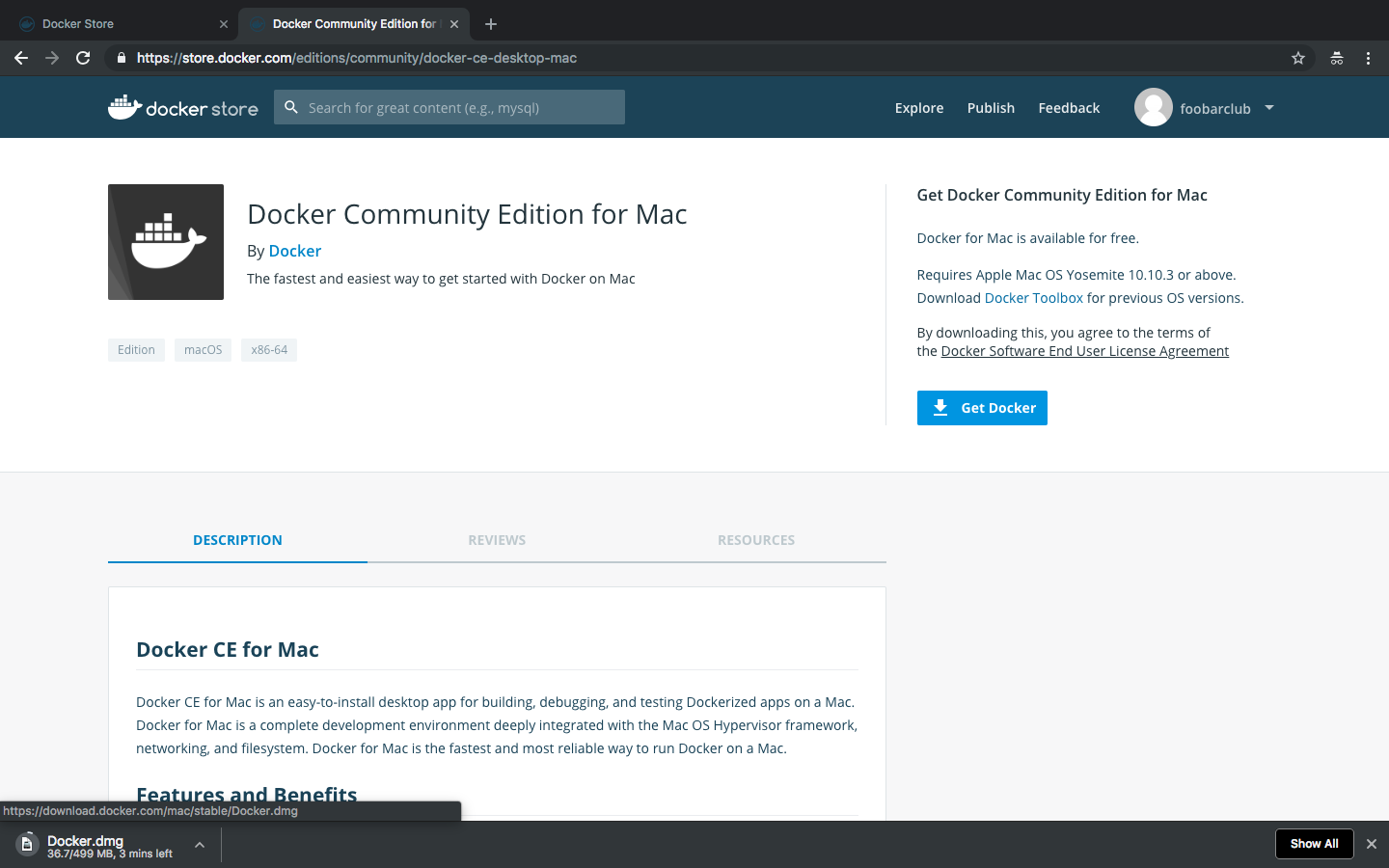
- Just install docker and then launch it. If you need more information for the installation process, please refer to the official documentation:
Once docker has started, we will test the system with a basic notebook.
Open a terminal, and run:
docker run --rm -it -p 8888:8888 jupyter/base-notebook
Once it's running, you will see:
Copy/paste this URL into your browser when you connect for the first time,
to login with a token:
    http://(58a38e1b28f5 or 127.0.0.1):8888/?token=8f2df45e526c81bdbfe17e3a9d1da64e4a6edf6573e7cdca
Note that the token will be different.
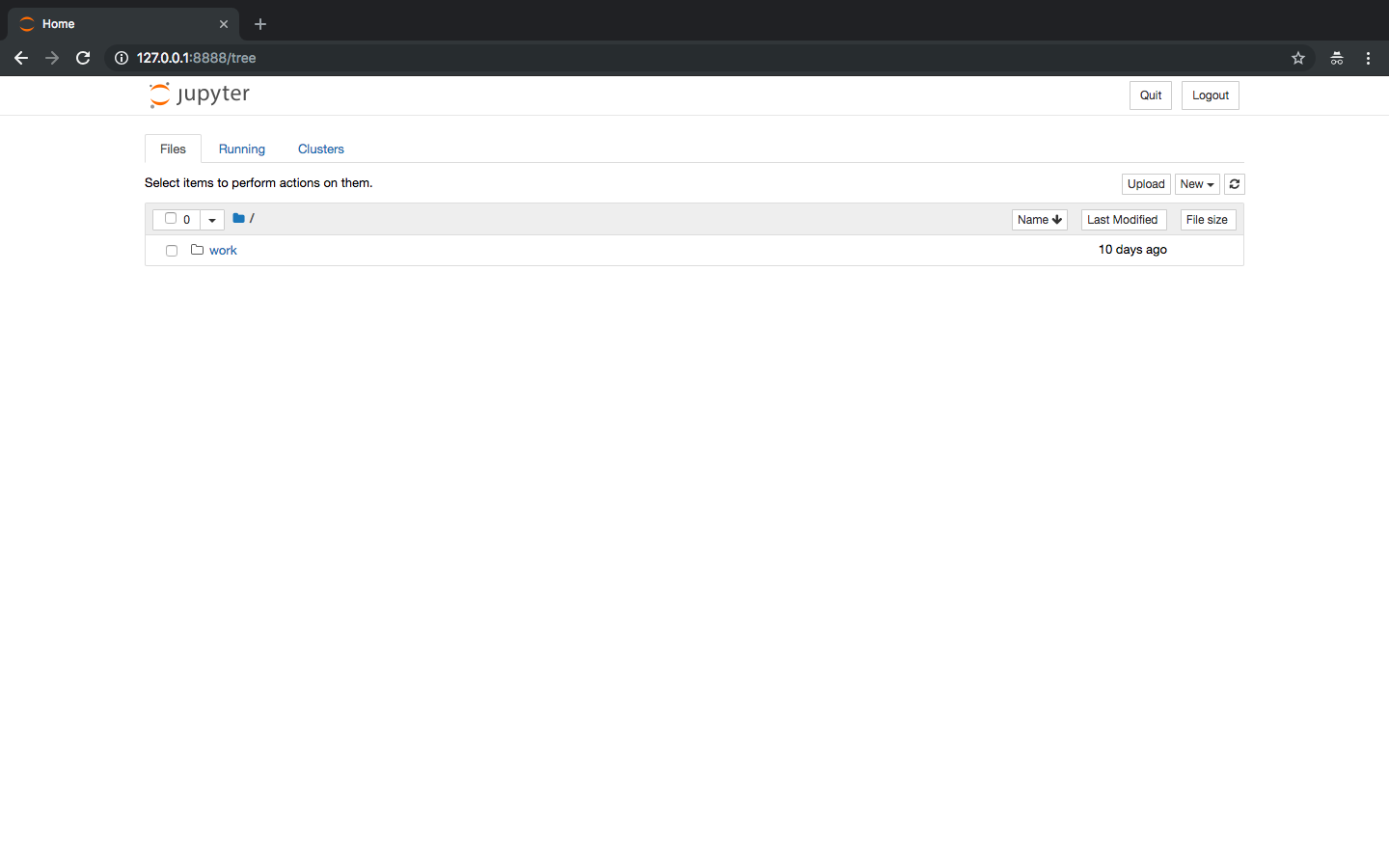
Finally, open your favorite browser and go to http://127.0.0.1:8888/?token=8f2df45e526c81bdbfe17e3a9d1da64e4a6edf6573e7cdca (replace the token with yours).
You are now on jupyter notebook: you can create new notebook and be ready to code. You can kill the process when you have finished .
Cplex and Docplex
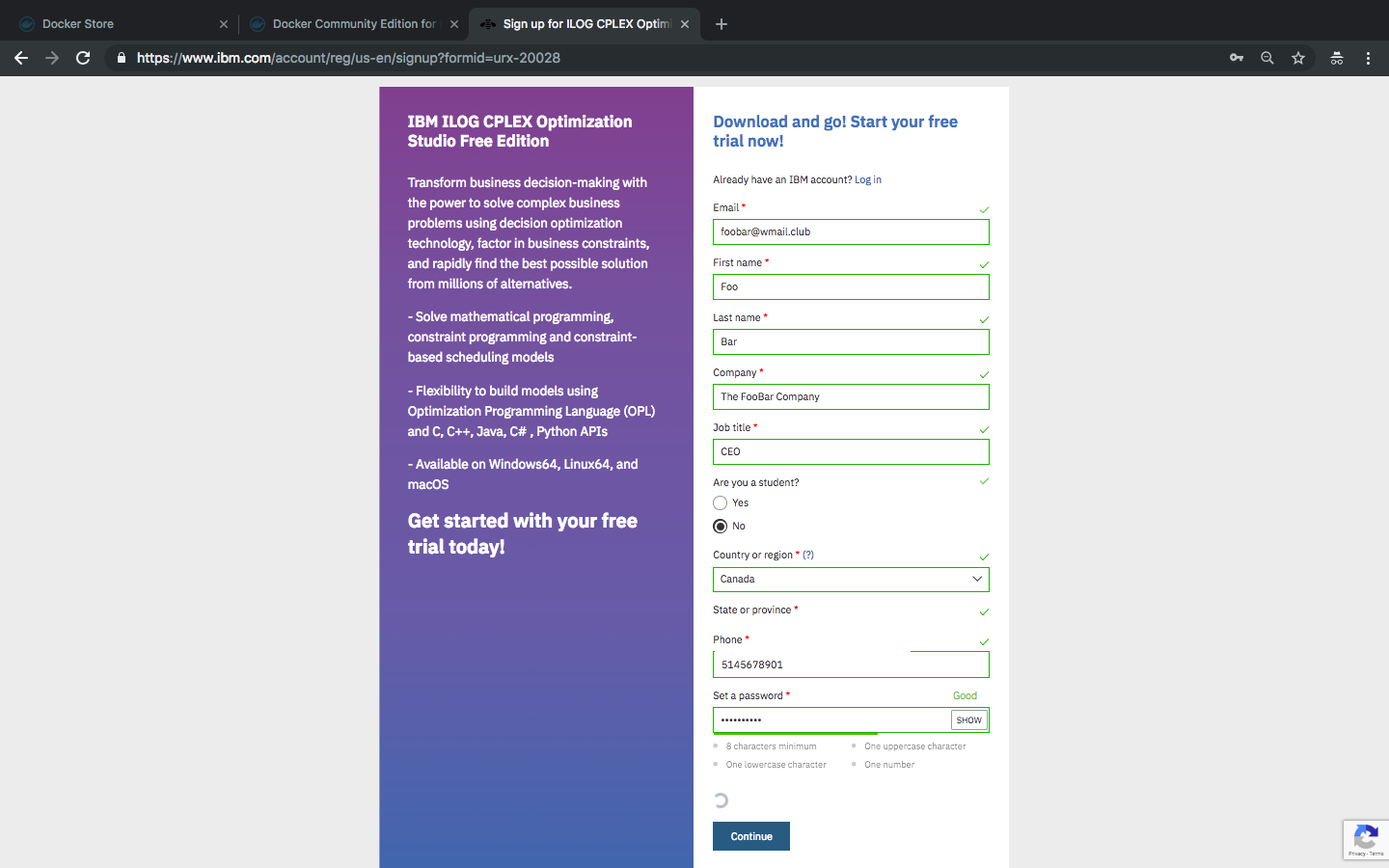
We will now install cplex inside a docker. First, you need an installer for cplex on linux 64 bits. It can be either the free edition or one that you already have. However, your version needs to support python 3.6 (12.8.0 supports it). To get the free edition, create an account on ibm and download it on: https://www.ibm.com/account/reg/us-en/signup?formid=urx-20028.
- If you already have an account, just login and go to 6. Otherwise, fill the fields and then click on "Continue".
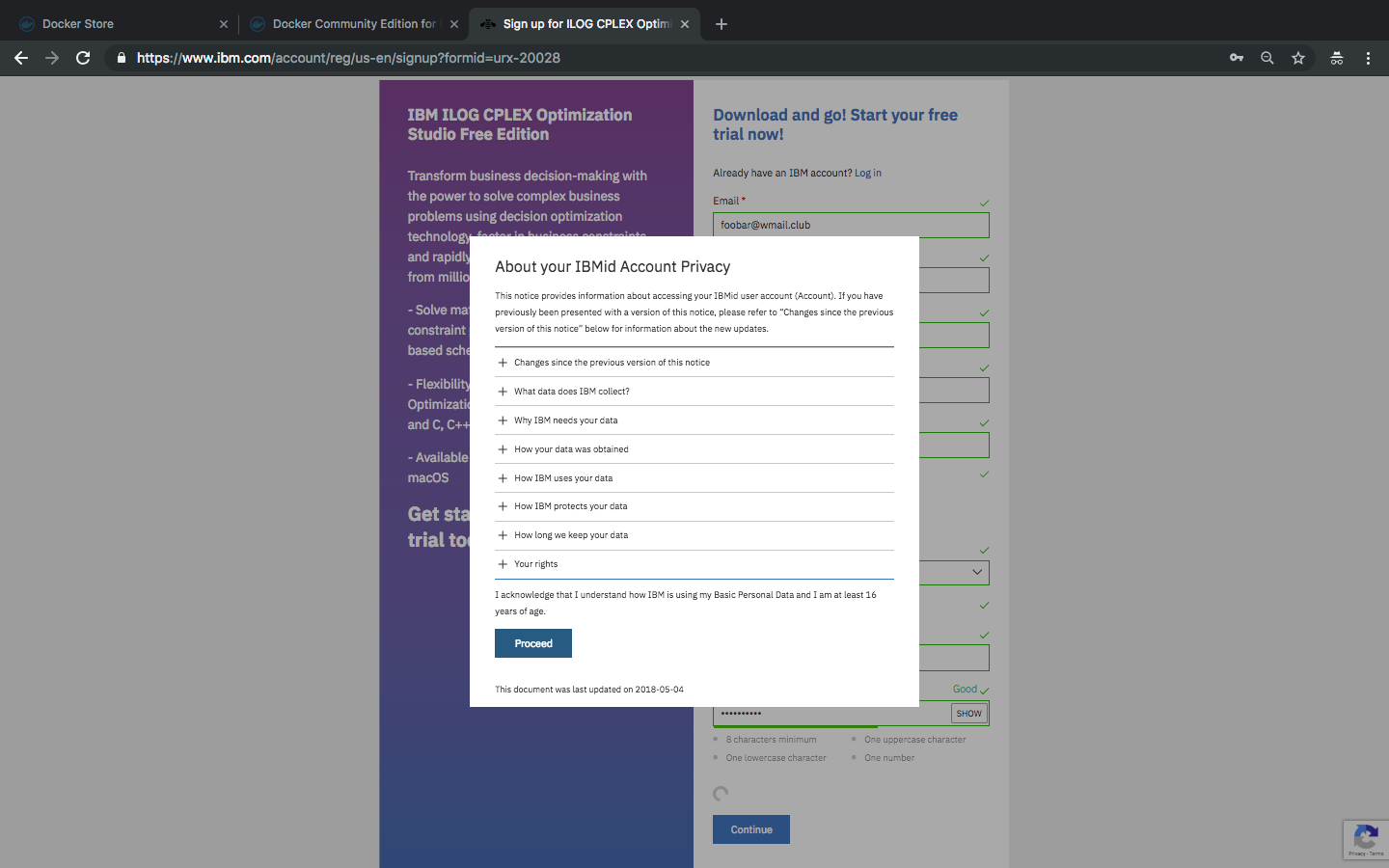
- Then, click on "Proceed".
- An email with a code will be sent to you.
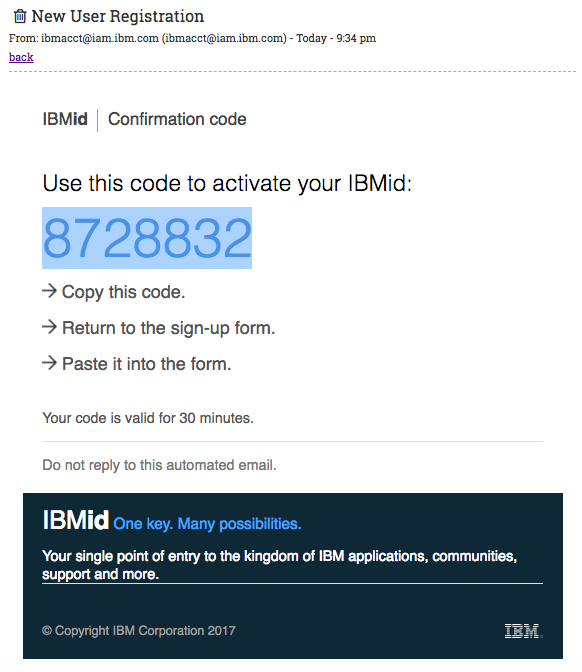
- Once received, enter the code on the ibm website.
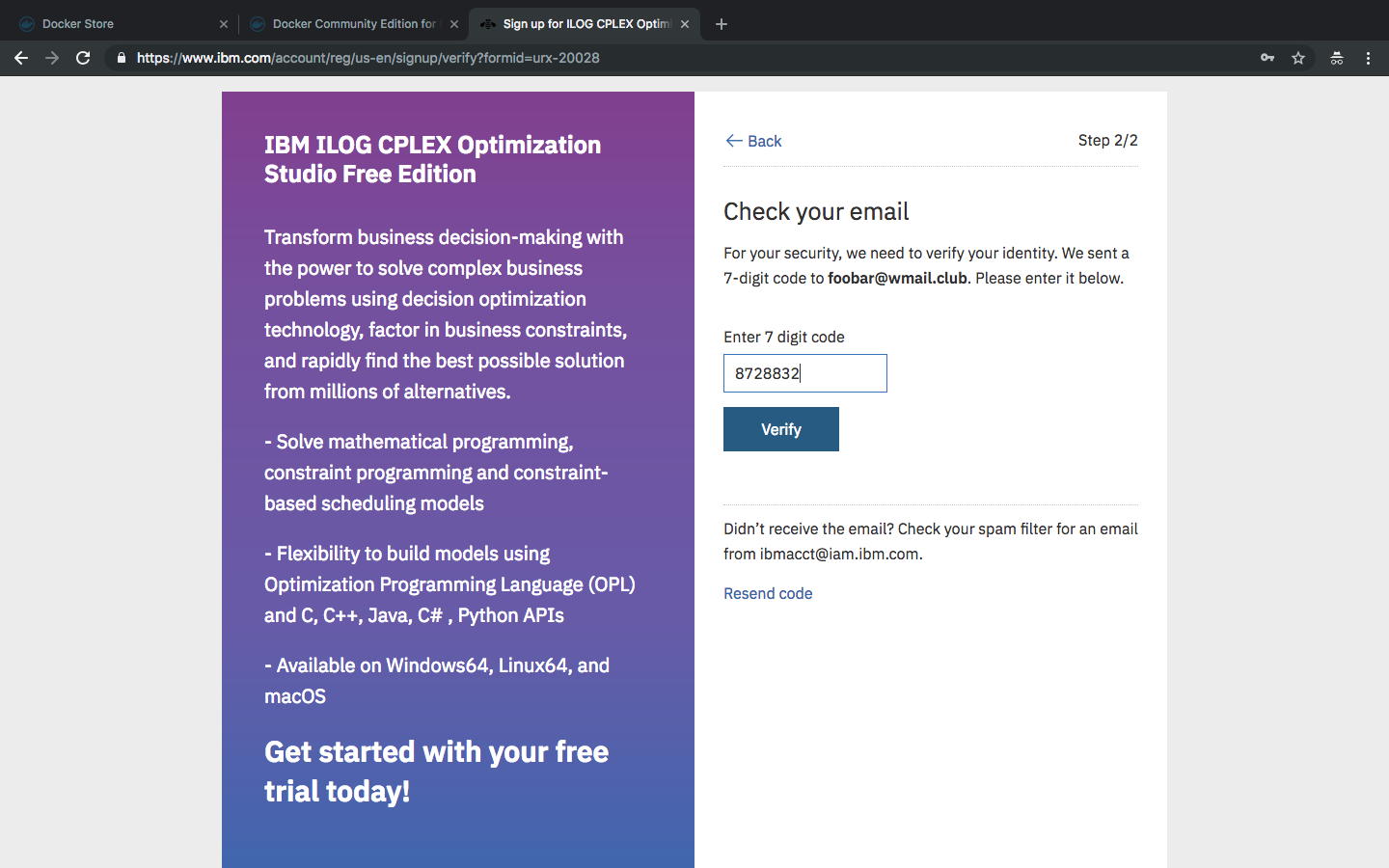
- Now, you are logged in. However, you may have to wait to have an active account.
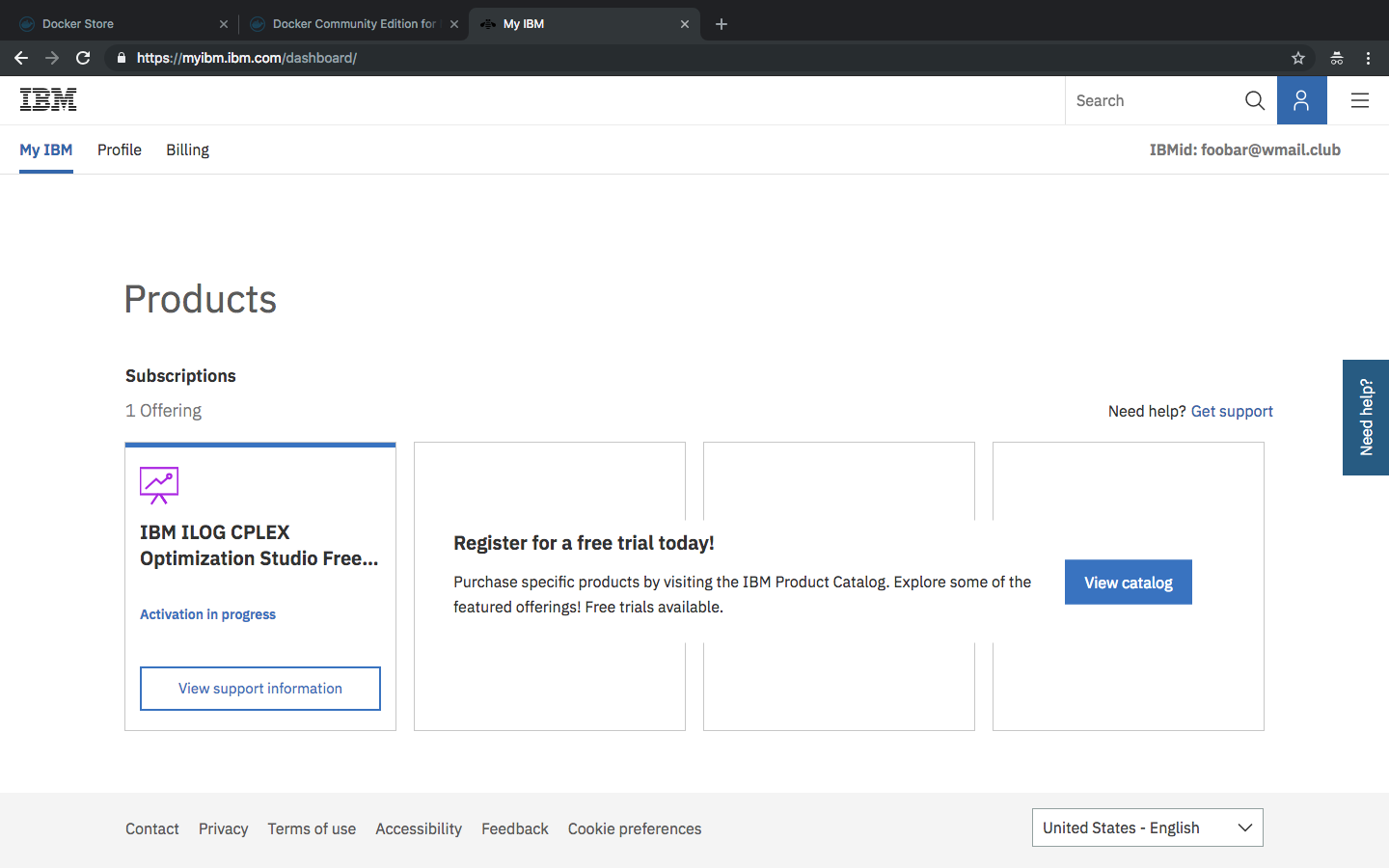
- You will receive an email once your account is activated.
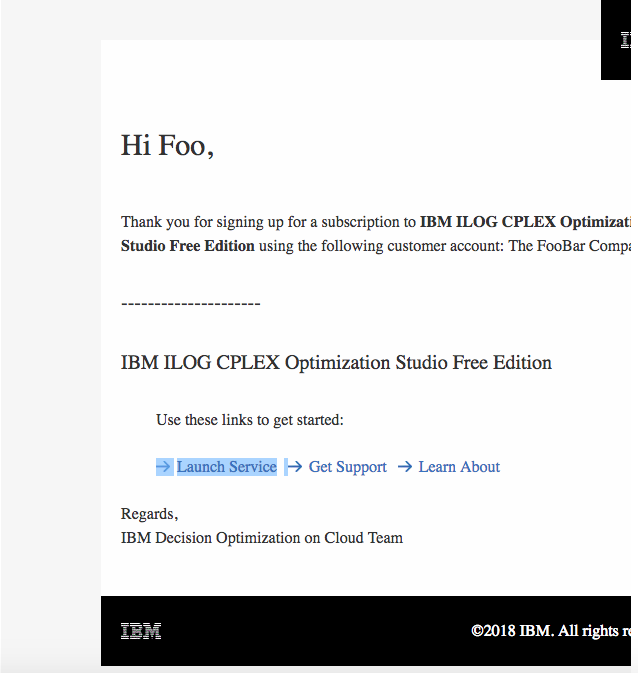
You may also refresh the page until it's activated. 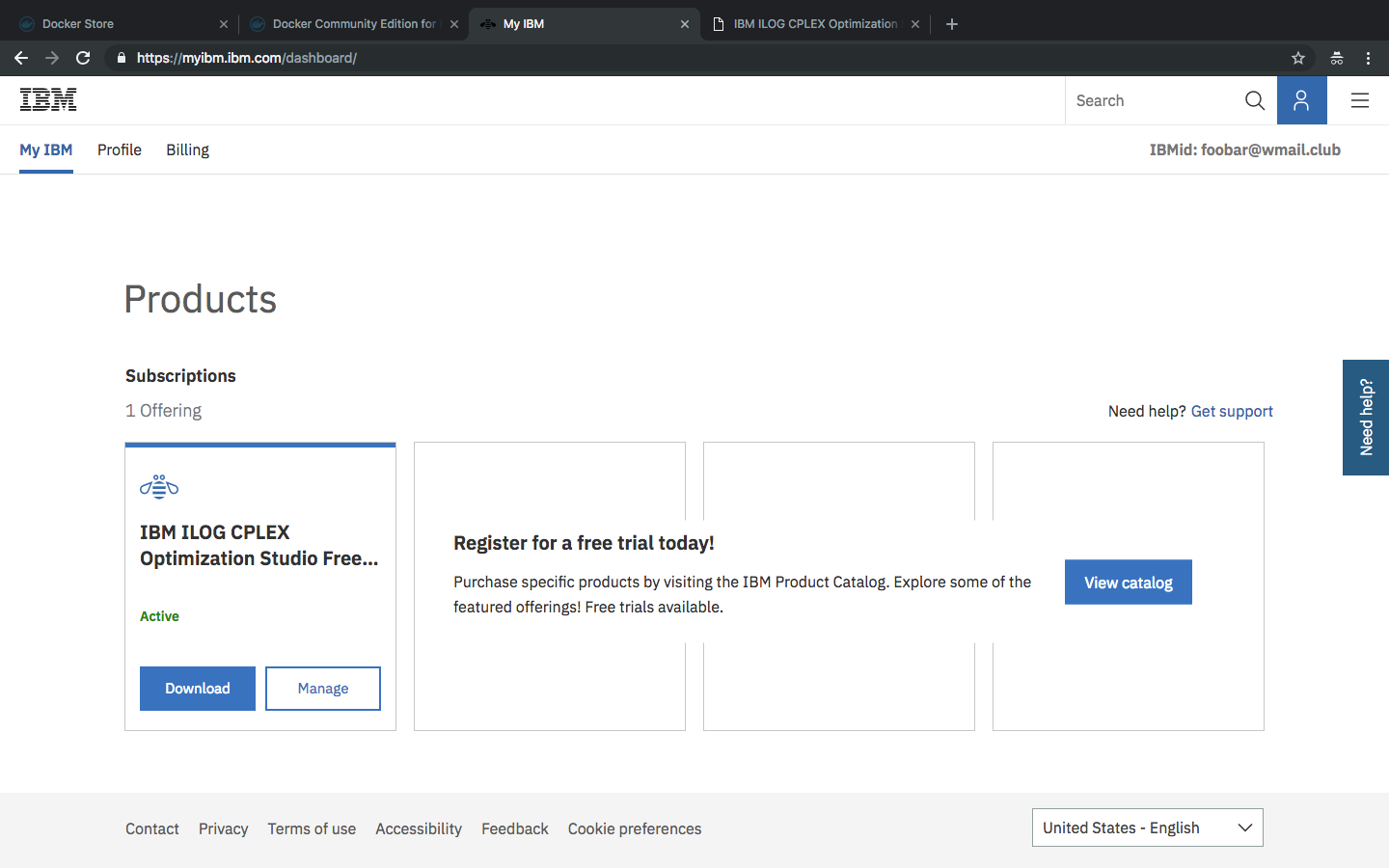
Now, download CPLEX.
8. Click another time on "Download". 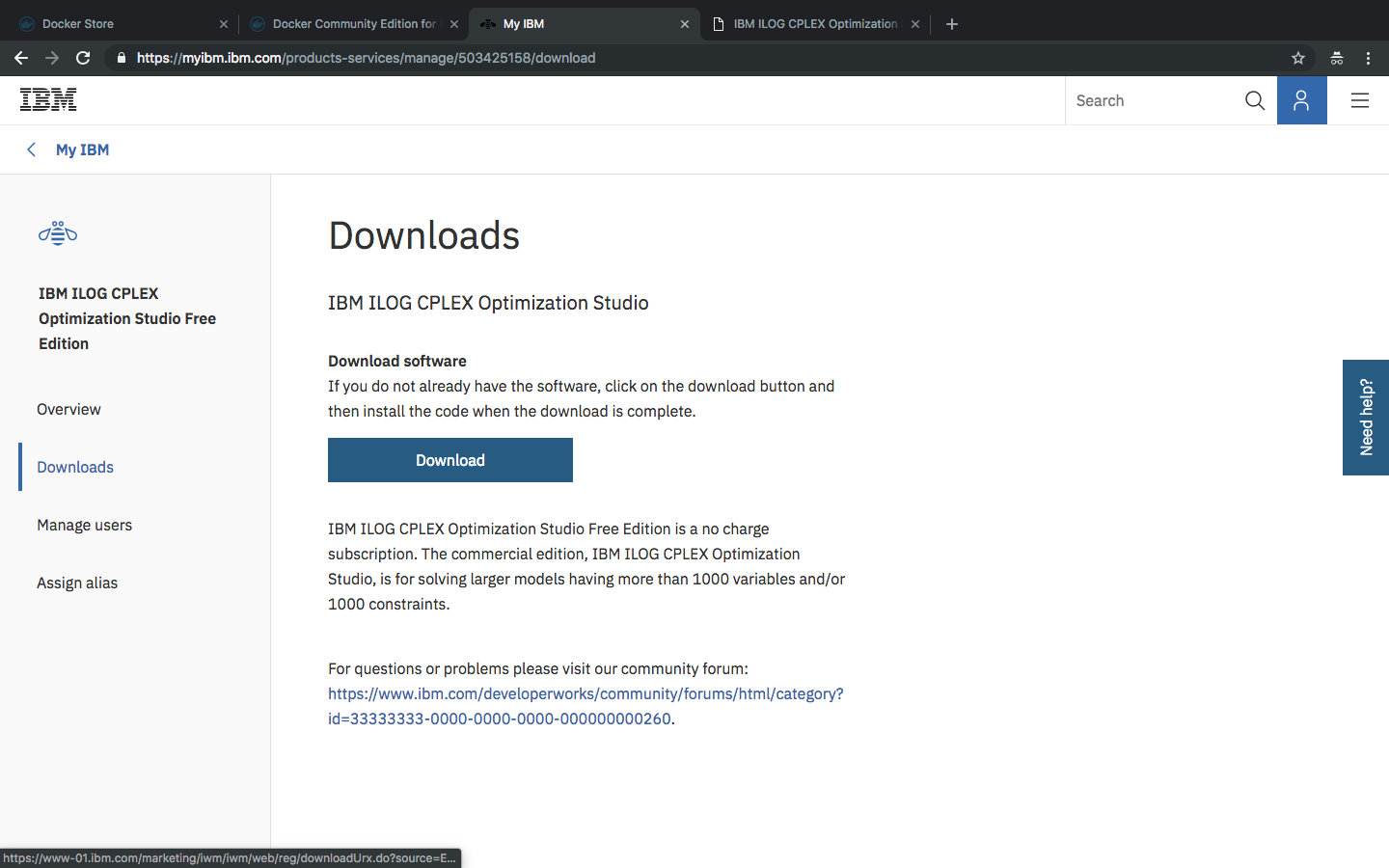 9. On the download page, you must choose the version for Linux x86-64. Click on "I Agree" for this version to start the download.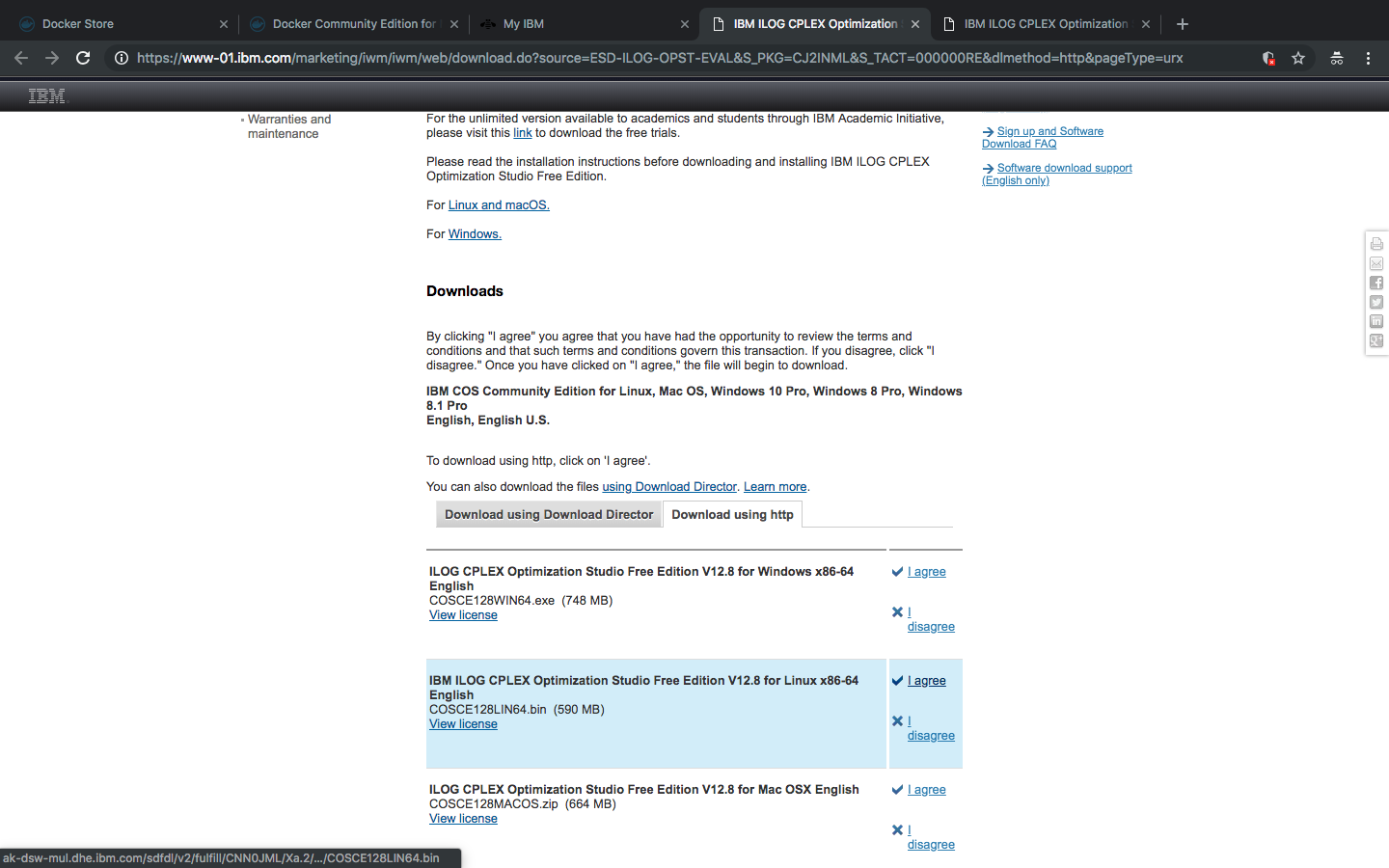
If you have any issues with IBM website (it can happen ...), just retry later or contact IBM support.
Now that you have the installer for Linux-64 downloaded, you need to install it within a container:
- Run the container "legraina/empty-docplex-notebook" with docplex (the python framework for cplex) and jupyterhub. We give the name "empty-docplex-notebook" to this container:
docker run --rm -v "/path/to/cplex/installer/directory:/home/jovyan/cplex" --name empty-docplex-notebook legraina/empty-docplex-notebook
You must give the absolute path to the directory where the cplex installer has been downloaded on your computer (instead of "/path/to/cplex/installer/directory") in order to be able to access the installer from within the container. For Windows, your firewall will block the volume, see this documentation: https://success.docker.com/article/error-a-firewall-is-blocking-file-sharing-between-windows-and-the-containers.
- Leave the container running, open a new terminal tab or window, and then enter the container:
docker exec -it empty-docplex-notebook bash
- Install cplex (for 12.8 for example):
./cplex/COSCE128LIN64.bin
You will then answer to the questions asked by the script:
- Choose your language. Press enter to choose the default one (english).
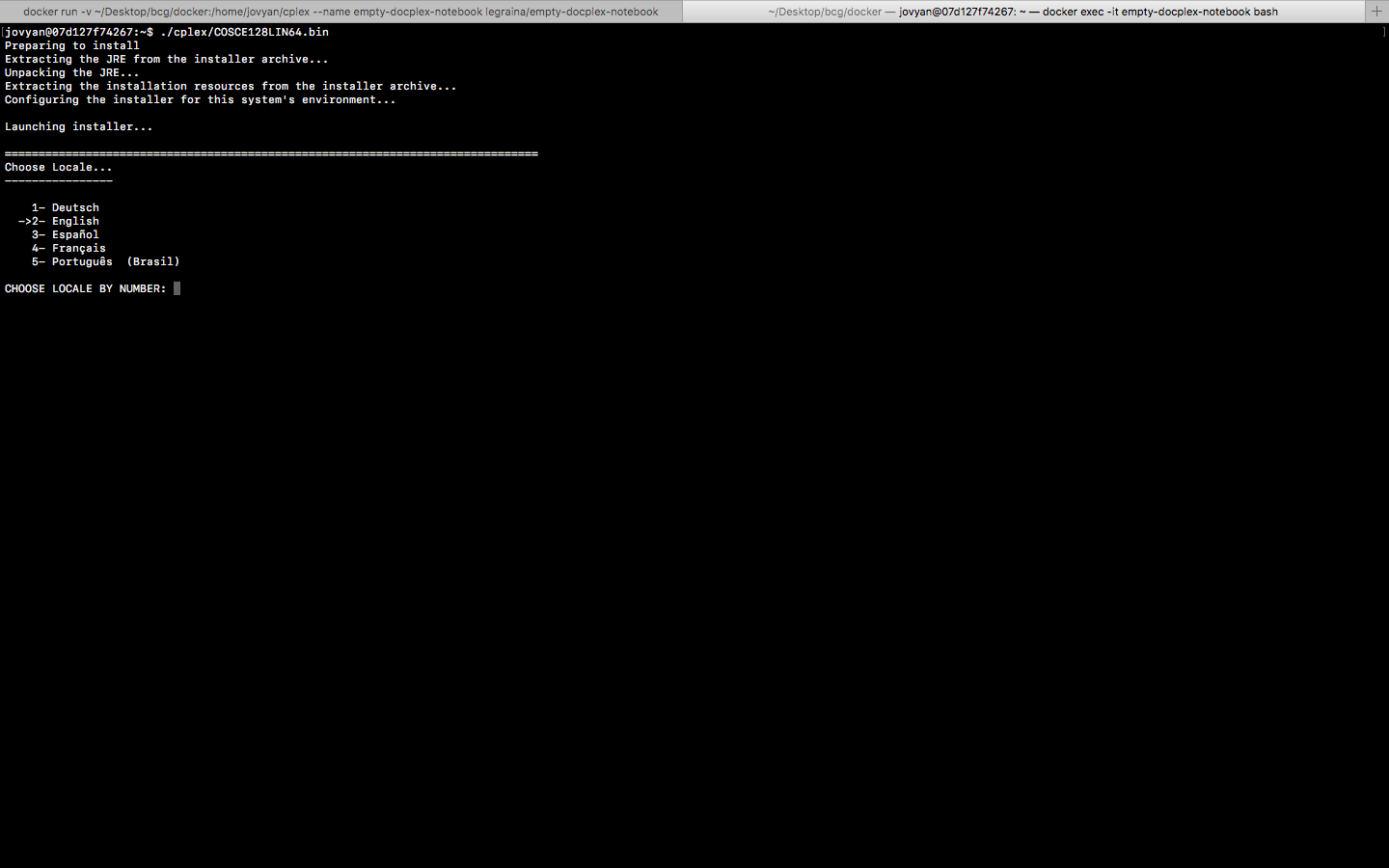
- Press enter to continue.
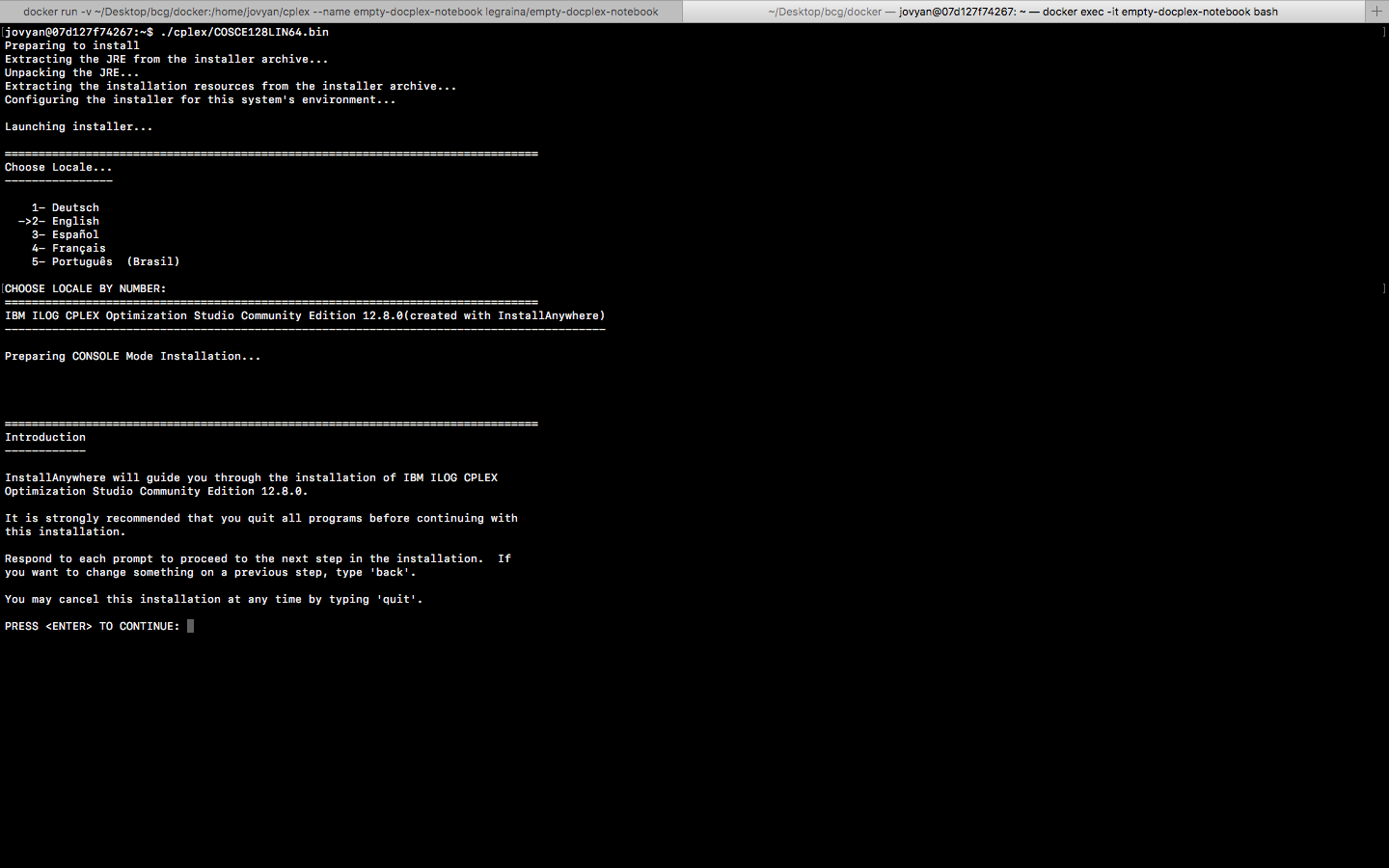
- Enter "1" and then press enter to agree to the license.
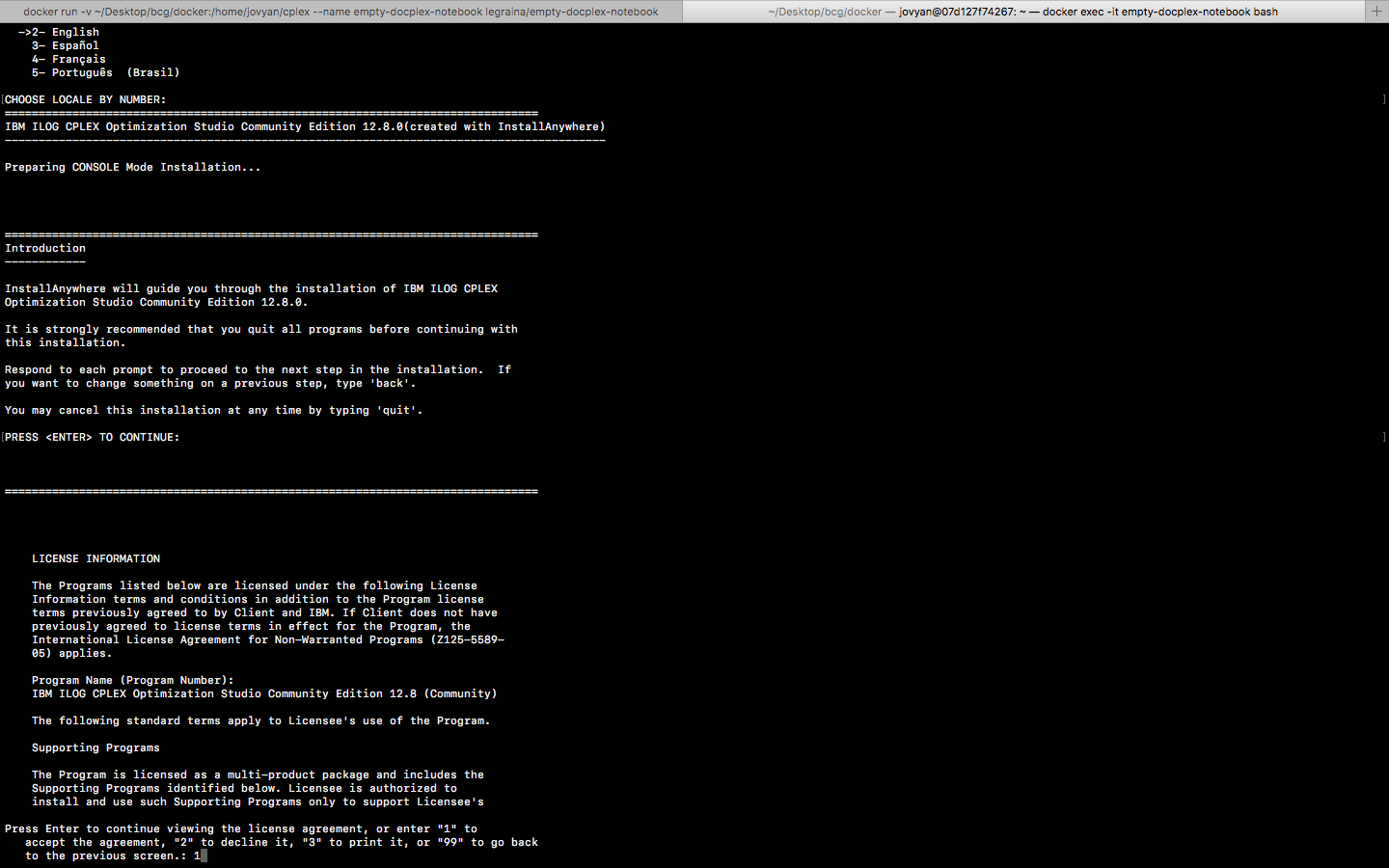
- Enter "/home/jovyan/CPLEX_Studio" for the installation path and then press enter. YOU MUST USE THIS PATH TO GET A WORKING CONTAINER WITH DOCPLEX.
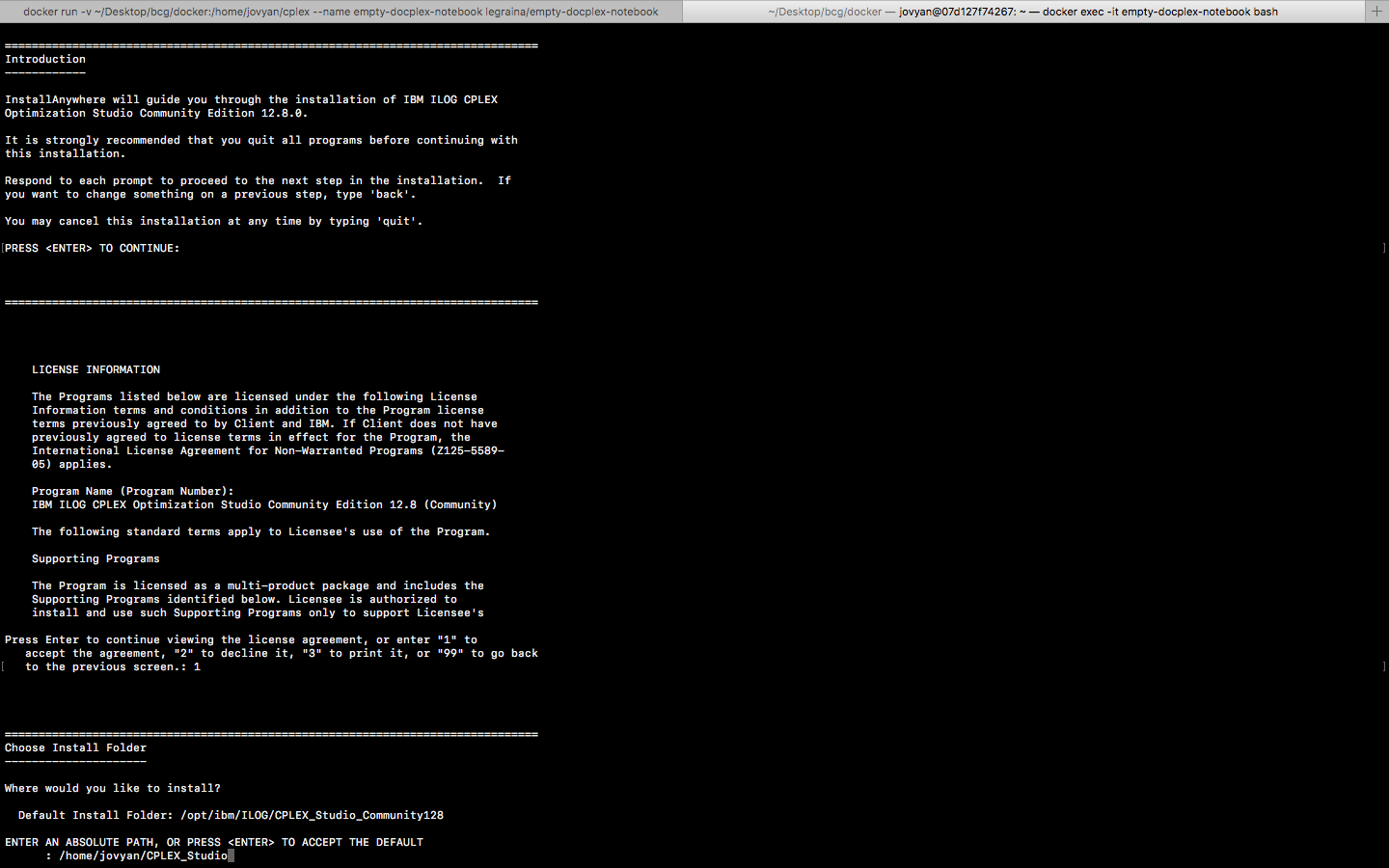
- Enter "Y" and then press enter to confirm the path.
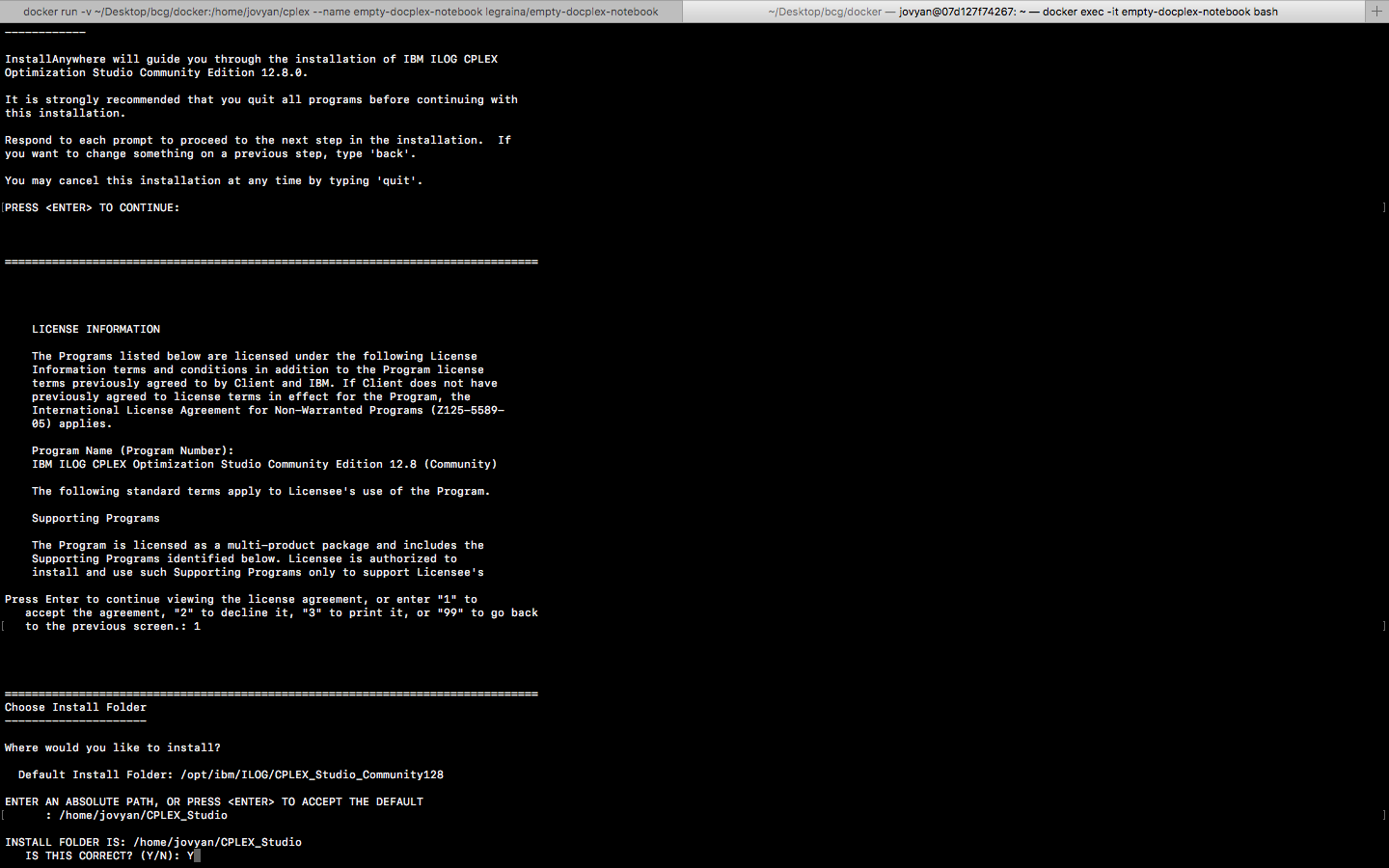
- Press a last time enter to confirm the path and the installation.
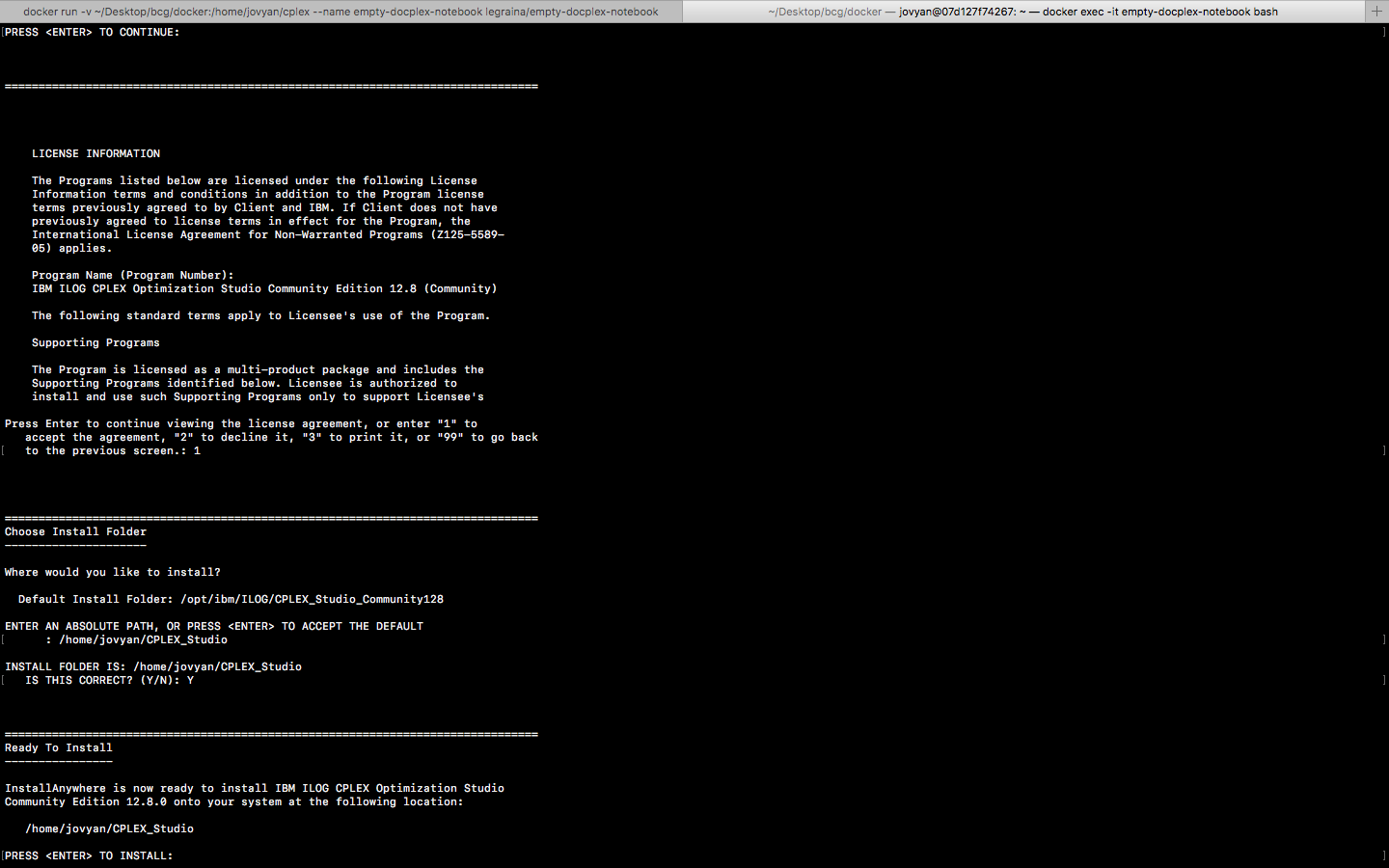
- Press enter to start the installation, it will take a while.
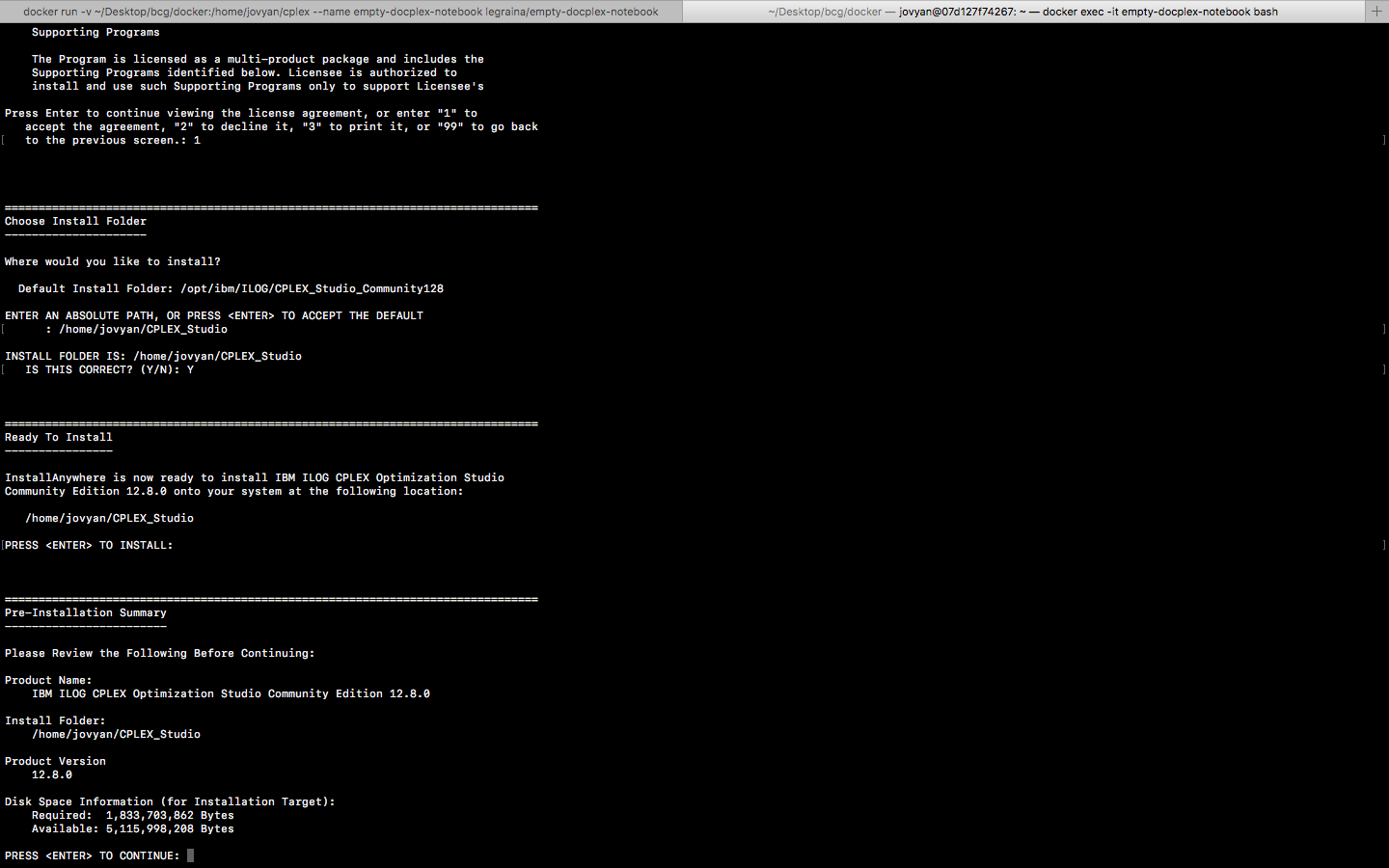
- Press enter to exit the installer.
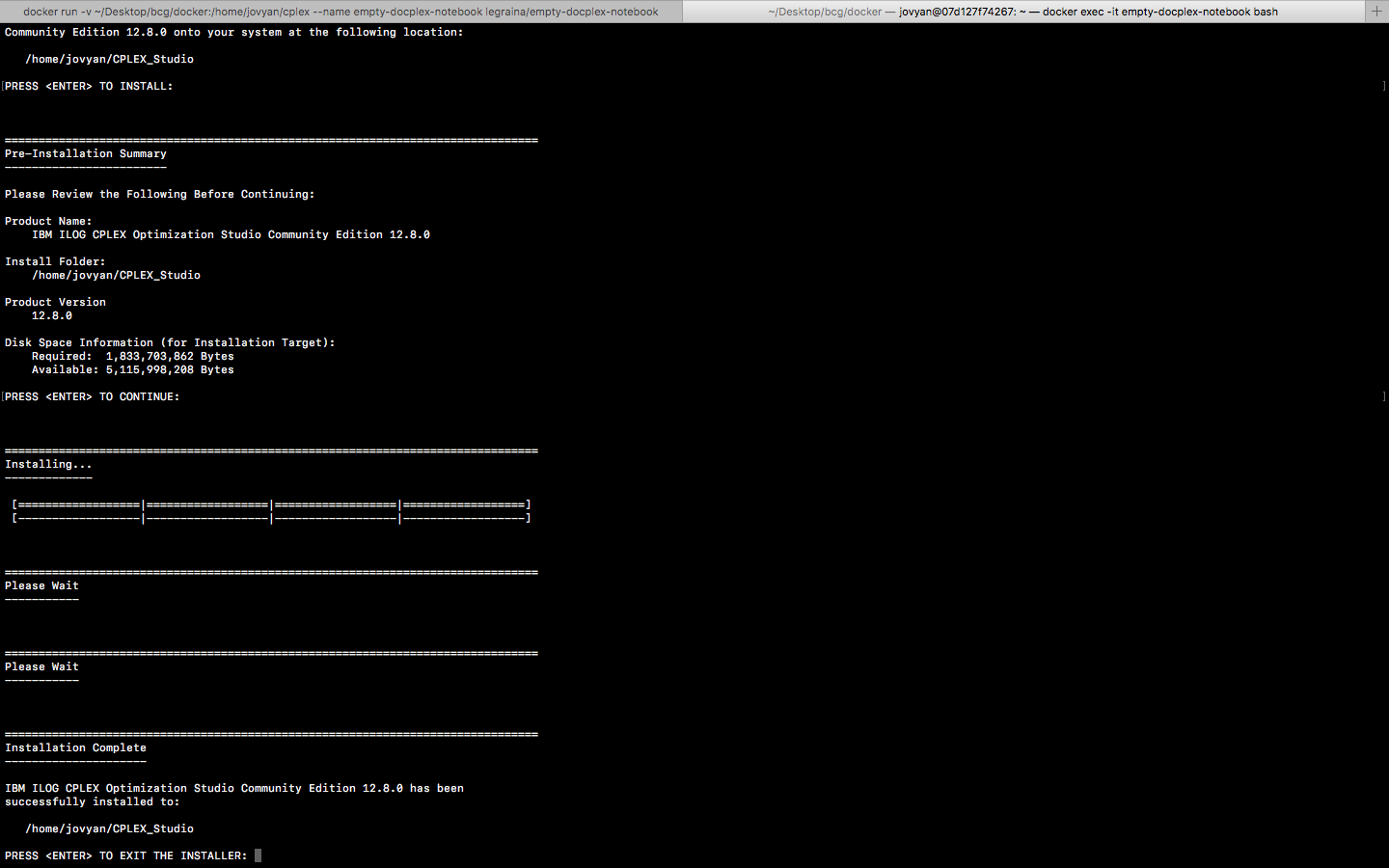
- Once the installation is finished, you finally need to install cplex in your python environment:
cd CPLEX_Studio/cplex/python/3.6/x86-64_linux/ && python3 setup.py install
Now that cplex is installed in your container and ready to be used, we will save the image. First quit the container, with "ctrl+D" or by typing "exit". Then, commit the container:
docker commit empty-docplex-notebook docplex-notebook
You have now an image "docplex-notebook" ready to be used. You may now kill the container empty-docplex-notebook that you have started on 1. You can finally launch the your jupyter server and play with docplex.
docker run --rm -v "/path/to/some/exercices:/home/jovyan/work/exercises" -p "8888:8888" --name docplex-notebook docplex-notebook
You may add a volume with the command "-v": the idea is to load some existing notebooks within jupytherhub, for example some exercises. The volume command links the directory "/path/to/some/exercises" to the directory "/home/jovyan/work/exercises" inside the container. You need to use absolute paths for this command. Note that the volume is mounted inside the container, it means that if you add any file in the directory on your system or in the container, you will be able to access it on the other system immediately.
You can now connect to the jupytherhub (with the token given in the terminal output) and try to run the files that are either preloaded in the "examples" directory or the ones in the mounted directory "exercises".
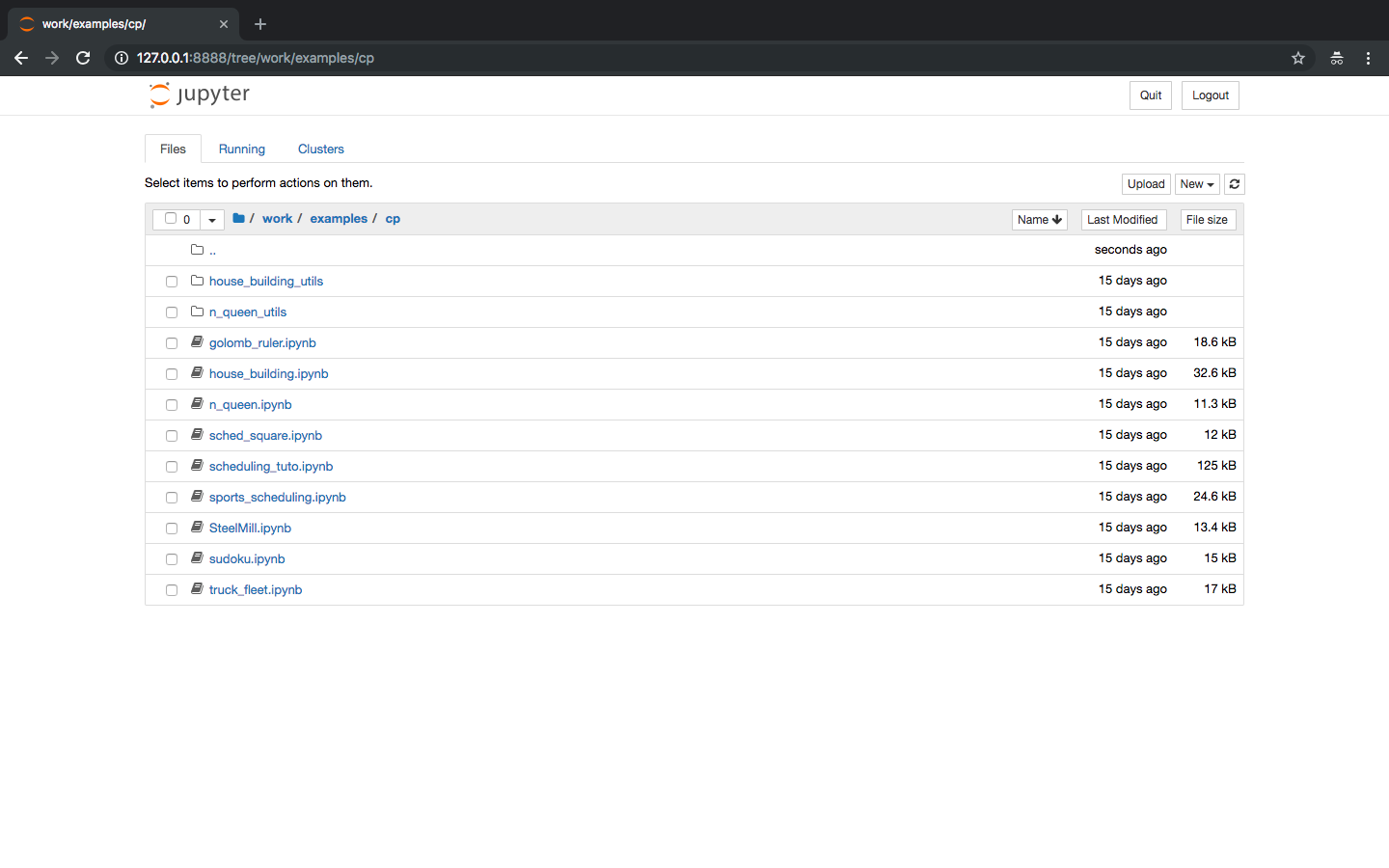
Here, the SteelMill example in the cp directory of the examples.

Docplex
MP documentation: https://ibmdecisionoptimization.github.io/docplex-doc/mp/index.html
CP documentation: https://rawgit.com/IBMDecisionOptimization/docplex-doc/master/docs/cp/index.html
Examples: https://github.com/IBMDecisionOptimization/docplex-examples
Tag summary
Content type
Image
Digest
Size
1.5 GB
Last updated
almost 8 years ago
docker pull legraina/empty-docplex-notebook