lishizhen/postgresql84_debug
用于调试postgresql8.4源码的镜像,搭配《PostgreSQL数据库内核分析》学习。 此镜像基于centos镜像构建,安装了gcc与gdb,编译和安装了postgresql的源代码。
368
lishizhen/postgresql84_debug repository overview
此镜象用于调试postgresql代码,可以直接使用GDB调试,推荐与vscode配合,有可视的调试界面,更加直观
一:环境准备
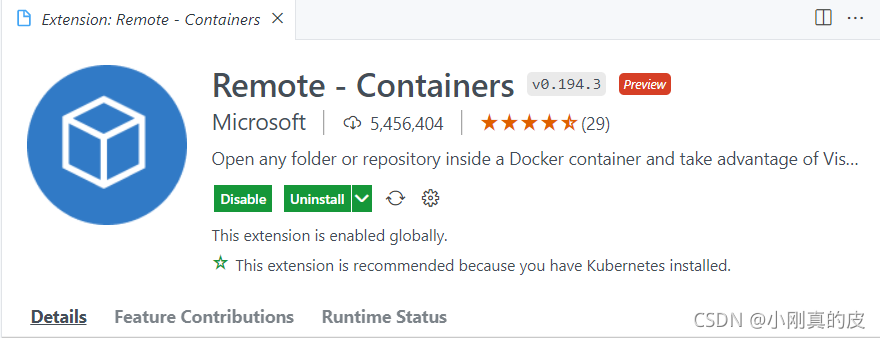
首先需要安装 docker 和 vscode,vscode要安装docker和Reomte-Containers插件

二:下载镜像
docker pull lishizhen/postgresql84_debug
此镜像基于 postgres8.4版本代码,基于centos镜像构筑,安装了编译postgresql所需的依赖库,并且进行了编译与安装,可以直接调试。 官方地址:https://hub.docker.com/r/lishizhen/postgresql84_debug
三:启动镜像
这里必须使用命令行启动镜像,不要使用docker插件的方式启动,因为我们要指定postgres用户作为我们的登录用户,因为postgresql只能在postgres用户下使用。
docker run -it -u postgres lishizhen/postgresql84_debug
四:使用vscode remote连接运行的容器
点击Attach Visual Studio Code用vscode连接容器。
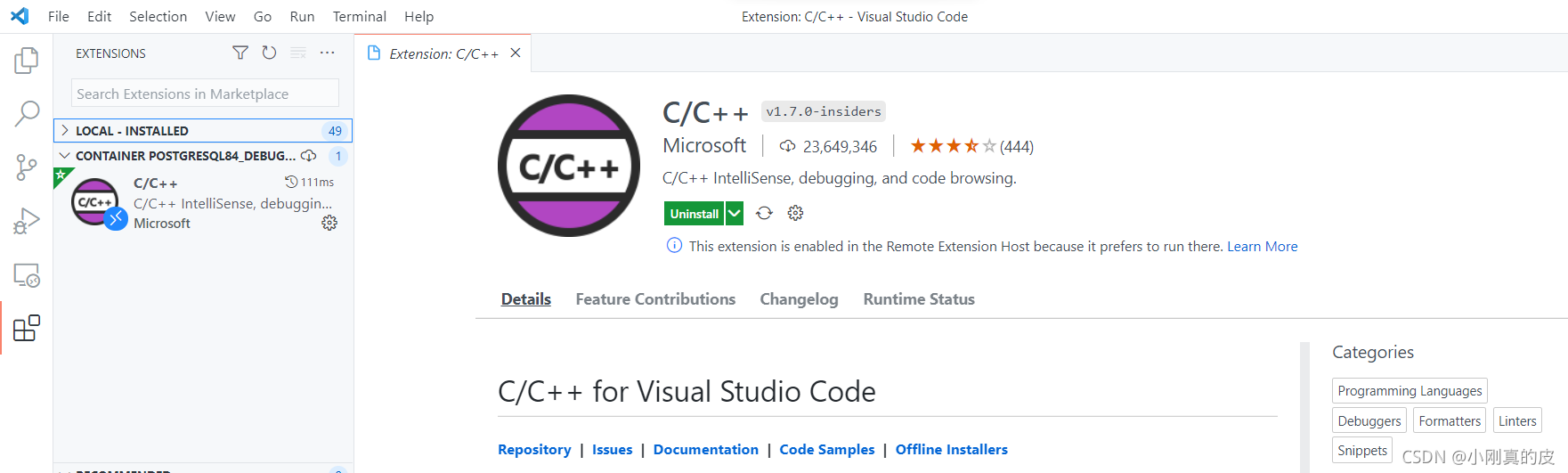
 要使用vscode调试c代码,需要安装C/C++插件(在容器中安装)。此容器已经安装了GDB调试器,不需要安装。
五:开始调试
首先打开源代码,open folder /home/postgres
 打开之后看到
 首先查看.vscode下的launch.json文件,此文件配置了GDB调试的设置。
你需要去vscode的官方文档了解此文件的配置信息。https://code.visualstudio.com/docs/editor/debugging#_launch-configurations
首先查看.vscode下的launch.json文件,此文件配置了GDB调试的设置。
你需要去vscode的官方文档了解此文件的配置信息。https://code.visualstudio.com/docs/editor/debugging#_launch-configurations
 容器里默认配置了一个调试示例:postgres --help,查看配置的
 program 和 args项。(更建议从postgresql的安装目录启动 /usr/local/pgsql/bin/)
(你需要自己写更多的调试配置,来调试其他部分的postgresql程序,例如initdb)
然后打开src/bakend/main/main.c文件,在main函数开始处打个断点。此函数为 postgresql后台服务的入口函数,postgresql整个项目会生成多个可执行文件,postgres是最重要的一个。
 然后按
然后按F5开始调试
 此时就进入了vscode的调试模式。vscode自带的调试功能非常强大,可以通过官方文档了解。
Tag summary
Content type
Image
Digest
Size
222.7 MB
Last updated
almost 5 years ago
docker pull lishizhen/postgresql84_debug