lyqu/vnc repository overview
Headless Ubuntu/Xfce container with VNC
accetto/xubuntu-vnc
Docker Hub - Git Hub - Changelog - Wiki - Hierarchy

TIP If you need also noVNC, then you can use the image accetto/xubuntu-vnc-novnc, which is the base of another family of application images (image hierarchy).
This repository contains resources for building Docker images based on Ubuntu with Xfce desktop environment and VNC server for headless use.
The main image is a streamlined and simplified version of my other image accetto/ubuntu-vnc-xfce and it is part of the growing image hierarchy.
The main features and components of the images are:
- utilities ping, wget, zip, unzip, sudo, curl, git (Ubuntu distribution)
- current version of JSON processor jq
- light-weight Xfce desktop environment (Ubuntu distribution)
- current version of high-performance TigerVNC server and client
- popular text editor vim (Ubuntu distribution)
- lite but advanced graphical editor mousepad (Ubuntu distribution)
- current version of tini as the entry-point initial process (PID 1)
- support for overriding both the container user account and its group
- support of version sticker (see below)
The history of notable changes is documented in the CHANGELOG.
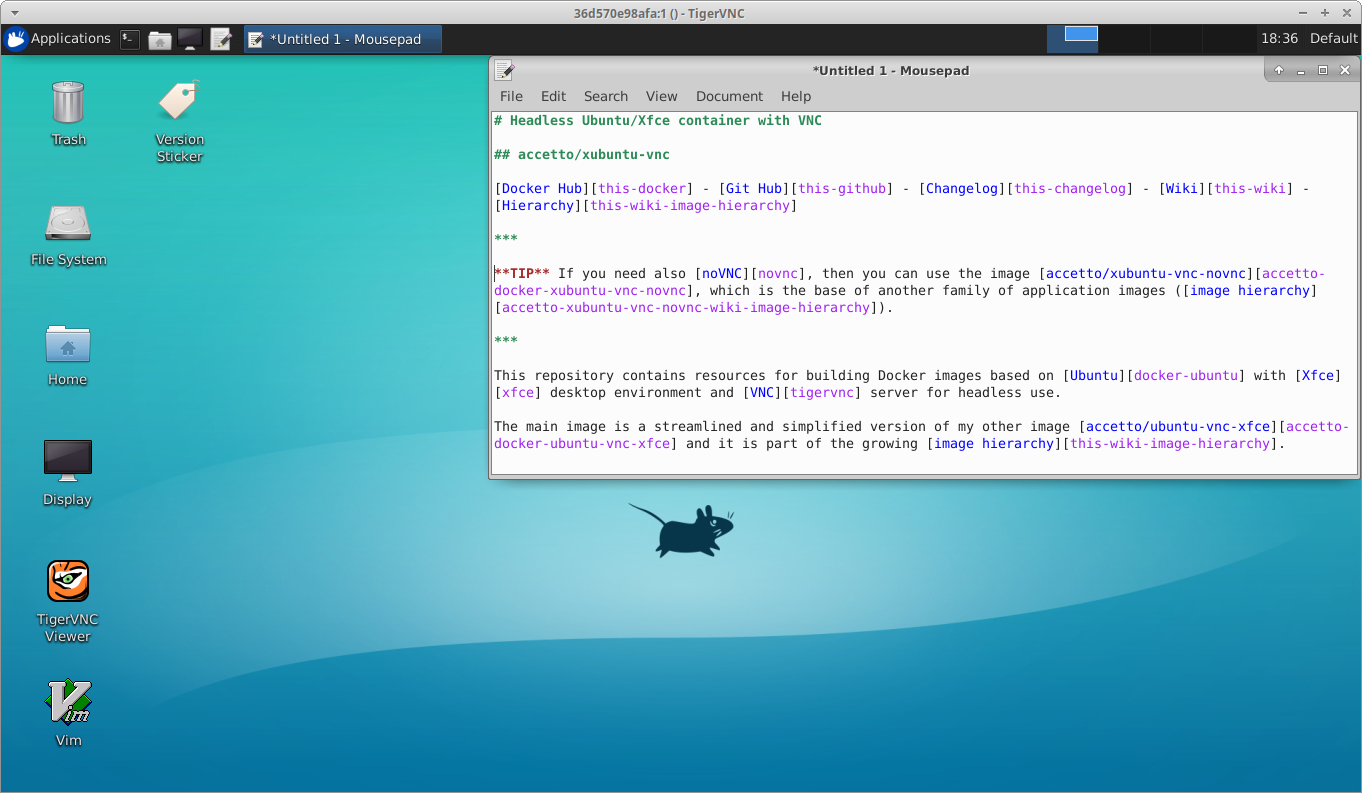
Image tags
The following image tags are regularly maintained and rebuilt:
-
latestis based onubuntu:latest
-
labis also based onubuntu:latest, but it is built withARG_SUPPORT_USER_GROUP_OVERRIDE
There are also archive images that are tagged like ubuntu18.04.2 and similar. Those are previous production images and they can be useful for testing.
Sometimes you can also spot tags like dev, lab-dev and similar. Those are temporary images under development and they should not be used.
Dockerfiles
The Git Hub repository contains several Dockerfiles that can be used to build the images.
-
DockerfileThis is the main Dockerfile for building the
latestimage tag based on theubuntu:latesttag by default.However, by providing the
BASETAGbuild argument it is possible to build images based on other Ubuntu tags, for exampleubuntu:rolling.docker build --build-arg BASETAG=rolling -t accetto/xubuntu-vnc:rollingBy providing the
ARG_SUPPORT_USER_GROUP_OVERRIDEbuild argument it is possible to build thelabimages that support overriding the container user group. Note that the value of the build argument does not really matter, anything means true.docker build --build-arg ARG_SUPPORT_USER_GROUP_OVERRIDE=yes -t accetto/xubuntu-vnc:lab
Ports
The image exposes only the TCP port 5901 and therefore the containers consume only one TCP port (per container) on the host computer.
Volumes
The containers do not create or use any external volumes by default. However, the following folders make good mounting points: /home/headless/Documents/, /home/headless/Downloads/, /home/headless/Pictures/, /home/headless/Public/
Both named volumes and bind mounts can be used. More about volumes can be found in the Docker documentation (e.g. Manage data in Docker).
Version sticker
Version sticker serves multiple purposes that are closer described in Wiki. The version sticker value identifies the version of the docker image and it is persisted in it when it is built. It is also shown as a badge in the README file.
However, the script version_sticker.sh can be used anytime for convenient checking of the current versions of installed applications.
The script is deployed into the startup folder, which is defined by the environment variable STARTUPDIR with the default value of /dockerstartup.
If the script is executed inside a container without an argument, then it returns the current version sticker value of the container. This value is newly calculated and it is based on the current versions of the essential applications in the container.
The current version sticker value will differ from the persisted value, if any of the included application has been updated to another version.
If the script is called with the argument -v (lower case v), then it prints out verbose versions of the essential applications that are included in the version sticker value.
If it is called with the argument -V (upper case v), then it prints out verbose versions of some more applications.
Examples can be found in Wiki.
Using headless containers
The containers are intended to be used through a VNC Viewer (e.g. TigerVNC or TightVNC). The viewer should connect to the host running the container, pointing to its TCP port mapped to the container's port 5901.
The default VNC password is headless.
Container user accounts
Containers created from this image run under the default application user (headless, 1001:0). The password is set from the environment variable VNC_PW (headless by default) and it can be changed by the user inside the container using the following command:
passwd
The sudo command allows user elevation, so the default application user can, for example, install new applications.
The following example shows how to install git:
sudo apt-get update
sudo apt-get install -y git
Note that the default application account's group membership (group zero) does not give it automatically the privileges of the root user. Technical details will be described in Wiki.
The container user ID (1001 by default) can be changed by creating the container using the --user parameter, for example:
docker run -itP --rm --user 2019 accetto/xubuntu-vnc
The image supports also overriding the container user's group ID (0 by default). However, the image must be built with the argument ARG_SUPPORT_USER_GROUP_OVERRIDE. Otherwise the following command line would fail:
### This will fail (Permission denied)
docker run -itP --rm --user 2019:2000 accetto/xubuntu-vnc:latest

### This will work (image built with ARG_SUPPORT_USER_GROUP_OVERRIDE)
docker run -itP --rm --user 2019:2000 accetto/xubuntu-vnc:lab
The image tag lab is build just that way.
Note that only numerical ID and GID are supported. Technical details will be described in Wiki.
Running containers in background (detached)
The following container will keep running in the background and it will listen on an automatically selected TCP port on the host computer:
docker run -dP accetto/xubuntu-vnc
The following container will listen on the host's TCP port 25901:
docker run -d -p 25901:5901 accetto/xubuntu-vnc
The following container will create (or re-use) the local named volume my_Downloads mounted as /home/headless/Downloads:
docker run -dP -v my_Downloads:/home/headless/Downloads accetto/xubuntu-vnc
or using the newer syntax with --mount flag:
docker run -dP --mount source=my_Downloads,target=/home/headless/Downloads accetto/xubuntu-vnc
Running containers in foreground (interactively)
The image supports the following container start-up options: --wait (default), --skip, --debug (also --tail-log) and --help.
The following container will print out the help and then it will remove itself:
docker run --rm accetto/xubuntu-vnc --help
Excerpt from the output describing the options:
-w, --wait      (default) Keeps the UI and the vnc server up until SIGINT or SIGTERM are received.
                An optional command can be executed after the vnc starts up.
                example: docker run -d -P accetto/xubuntu-vnc
                example: docker run -it -P --rm accetto/xubuntu-vnc bash

-s, --skip      Skips the vnc startup and just executes the provided command.
                example: docker run -it -P --rm accetto/xubuntu-vnc --skip echo $BASH_VERSION

-d, --debug     Executes the vnc startup, prints some additional info and tails the VNC logs.
                Any parameters after '--debug' are ignored. CTRL-C stops the container.
                example: docker run -it -P --rm accetto/xubuntu-vnc --debug

-t, --tail-log  similar to '--debug' but no additional diagnostic info

-h, --help      Prints out this help.
                example: docker run --rm accetto/xubuntu-vnc
It should be noticed, that the --debug start-up option does not show the command prompt, even if the docker run arguments -it are provided. This is because the container is watching the incoming VNC connections and prints out the logs in real time. However, it is easy to attach to the running container from the second terminal window.
In the first terminal window on the host computer, create a new container named, for example, foo:
docker run --rm --name foo accetto/xubuntu-vnc --debug
In the second terminal window, execute the shell inside the running foo container:
docker exec -it foo bash
Issues
If you have found a problem or you just have a question, please check the Issues and the Wiki first. Please do not overlook the closed issues.
If you do not find a solution, you can file a new issue. The better you describe the problem, the bigger the chance it'll be solved soon.
Credits
Credit goes to all the countless people and companies, who contribute to open source community and make so many dreamy things real.
Tag summary
Content type
Image
Digest
Size
288.7 MB
Last updated
almost 7 years ago
docker pull lyqu/vnc