michdo93/crestron-roomview
Remotely control Crestron RoomView using Firefox & Flash Player in a virtual display via Python.
262
michdo93/crestron-roomview repository overview
crestron-roomview
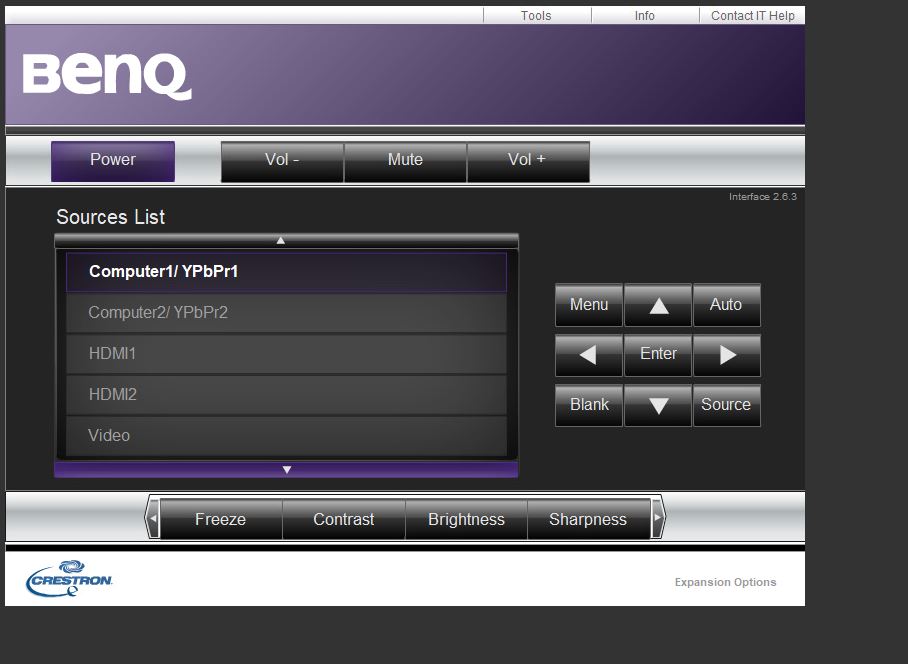
A Docker container for the use of Crestron RoomView. This program is remotely controlled with Firefox 52 and Flash Player 32 in a virtual display by a Python script.
Crestron RoomView is an application for controlling projectors.
📦 Docker Image
The image is available on Docker Hub:
docker pull michdo93/crestron-roomview
🐳 Docker Compose Example
version: '3.8'

volumes:
  x11socket:

services:
  crestron-roomview:
    build: ./crestron-roomview
    container_name: crestron-roomview
    volumes:
      - x11socket:/tmp/.X11-unix
      - /opt/docker/containers/crestron-roomview/config/url.txt:/config/url.txt:ro
      - /opt/docker/containers/crestron-roomview/config/resolution.txt:/config/resolution.txt:ro
      - /opt/docker/containers/crestron-roomview/config/display.txt:/config/display.txt:ro
      - /opt/docker/containers/crestron-roomview/app:/app
    environment:
      DISPLAY: ':99'
    restart: unless-stopped
    network_mode: "host"
📁 Required Files and Directories
Before starting the container, make sure the following files and folders exist on your host:
/opt/docker/containers/crestron-roomview/
├── config/
│   ├── url.txt          # e.g. http://192.168.0.59/
│   ├── resolution.txt   # e.g. 1920x1200x24
│   └── display.txt      # e.g. :99
└── app/                 # optional: custom scripts like crestron_roomview.py
Note: The value in
display.txtmust match theDISPLAYenvironment variable defined in the Compose file (recommended::99). If you choose a different display number, make sure Xvfb is started accordingly and the Python script is updated as well.
Make sure you create it with:
mkdir -p /opt/docker/containers/crestron-roomview/app
mkdir -p /opt/docker/containers/crestron-roomview/config
🖥️ Display Resolution
The default resolution is:
1920x1200x24
You can adjust this by editing the resolution.txt file. At first you have to create it with:
echo "1920x1200x24" >> /opt/docker/containers/crestron-roomview/config/resolution.txt
🖥️ Display
For the DISPLAY we use :99. If you want to use something else, you have to adjust the docker-compose.yml file, as well as the Python script (you can find it in the volumes), and restart Xfvb in the Docker container manually or by using the display.txt file.
At first you have to create it with:
echo ":99" >> /opt/docker/containers/crestron-roomview/config/display.txt
The
DISPLAYvariable is set via thedocker-composefile, thedisplay.txtfile only starts services such asXvfbwith the corresponding variable. The Python script must always be adapted manually.
🌐 URL Configuration
The url.txt file must contain the URL to your Crestron RoomView web interface, e.g.:
http://192.168.0.59/
Modify this according to where your RoomView system is hosted.
echo "http://192.168.0.59/" >> /opt/docker/containers/crestron-roomview/config/url.txt
🔌 Toggle Projector/Beamer Power
To toggle the projector or display device on or off, run the following command:
docker exec -it crestron-roomview /usr/bin/python3 /app/crestron_roomview.py togglePower
Make sure the
DISPLAYenvironment inside the container is correctly set to match what's indisplay.txt(typically:99).
🧠 Available Commands
You can control the projector or display device by executing one of the following Python functions inside the container:
docker exec -it crestron-roomview /usr/bin/python3 /app/crestron_roomview.py <command>
| Command | Description |
|---|---|
togglePower | Toggles the projector power ON or OFF, depending on the current state. |
powerOn | Turns the projector ON. |
powerOff | Turns the projector OFF. |
reduceVolume | Decreases the audio volume. |
increaseVolume | Increases the audio volume. |
muteVolume | Toggles mute ON or OFF. |
changeSourceToComputer1 | Switches the input source to "Computer 1". |
changeSourceToComputer2 | Switches the input source to "Computer 2". |
changeSourceToHDMI1 | Switches the input source to "HDMI 1". |
changeSourceToHDMI2 | Switches the input source to "HDMI 2". |
changeSourceToVideo | Switches the input source to "Video". |
changeSourceToSVideo | Switches the input source to "S-Video". |
source | Opens the source selection menu. |
auto | Triggers automatic image adjustment. |
blank | Blanks (hides) the current display output. |
enter | Sends an Enter key action (usually for menu confirmation). |
freeze | Freezes the current screen image. |
openMenu | Opens the projector menu. |
menuLeft | Navigates the menu to the left. |
menuRight | Navigates the menu to the right. |
menuUp | Navigates the menu upwards. |
menuDown | Navigates the menu downwards. |
increaseBrightness | Increases the screen brightness. |
decreaseBrightness | Decreases the screen brightness. |
increaseContrast | Increases the contrast of the display. |
decreaseContrast | Decreases the contrast of the display. |
increaseSharpness | Increases the image sharpness. |
decreaseSharpness | Decreases the image sharpness. |
💡 All functions simulate button interactions via image recognition and browser control.
🛠️ Optional: Manual Build
If you want to build the container locally (without cache), use:
docker compose build --no-cache
📝 License
MIT License – see LICENSE.
Tag summary
Content type
Image
Digest
sha256:201e243d2…
Size
795.4 MB
Last updated
over 1 year ago
docker pull michdo93/crestron-roomview