michdo93/ros-kinetic-thormang3 repository overview
Docker
Why Docker?
"With Docker, developers can build any app in any language using any toolchain. “Dockerized” apps are completely portable and can run anywhere - colleagues’ OS X and Windows laptops, QA servers running Ubuntu in the cloud, and production data center VMs running Red Hat.
Developers can get going quickly by starting with one of the 13,000+ apps available on Docker Hub. Docker manages and tracks changes and dependencies, making it easier for sysadmins to understand how the apps that developers build work. And with Docker Hub, developers can automate their build pipeline and share artifacts with collaborators through public or private repositories.
Docker helps developers build and ship higher-quality applications, faster." -- What is Docker
How to pull the container
docker pull michdo93/ros-kinetic-thormang3
How to run a container
The container needs admin permissions because it uses systemd. So you have to run something like following:
docker run --net=host -d -it --name <container_name> --privileged -v /sys/fs/cgroup:/sys/fs/cgroup:ro <image_name>
As example:
docker run --net=host -d -it --name ros-kinetic-thormang3 --privileged -v /sys/fs/cgroup:/sys/fs/cgroup:ro ros-kinetic-thormang3
If you want to run the container after your system is restarted, please add --restart=always. The argument --net=host will make the container use the ip address of the host system. This is needed if you want to run the roscore for public access which means that you can communicate with your robot(s).
How to open a bash shell
(Please notice that ROS needs a bash shell).
docker exec -it <container_name> /bin/bash
Of coure you can open multiple bash shell's.
How to save changes
Before shutting down your host system or stopping the docker container you should save changes you made in the container otherwise it will be lost.
docker commit <container_name> <image_name>:<tag>
As example:
docker commit ros-kinetic-thormang3 ros-kinetic-thormang3:11/29/2021
How to stop a container
You can stop a container with:
docker stop <container_name>
Please notice if you commited the container because of changes you should remove the old container before starting the new container. You can do that with:
docker rm <container_name>
How to restart a container
docker restart <container_name>
Please notice that restart only works if the container is shut dowm but not removed!
How to re-run a container
docker run --net=host -d -it --name <container_name> --privileged -v /sys/fs/cgroup:/sys/fs/cgroup:ro <image_name>
Maybe you want ro run another version of your image as example with commited changes:
docker run --net=host -d -it --name <container_name> --privileged -v /sys/fs/cgroup:/sys/fs/cgroup:ro <image_name>
VNC Viewer
Instead of using tigervnc directly with a VNC viewer, please use a browser and the Web Interface of noVNC.
noVNC
noVNC is both a HTML VNC client JavaScript library and an application built on top of that library. noVNC runs well in any modern browser including mobile browsers (iOS and Android).
How to login
Go to https://<your_hostname_or_ip>:6901.
Username: ubuntu
Password: ubuntu
How to use special keys
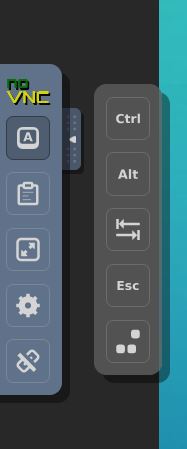
Click on the left panel on the A button and select one of the special keys.
How to copy + paste
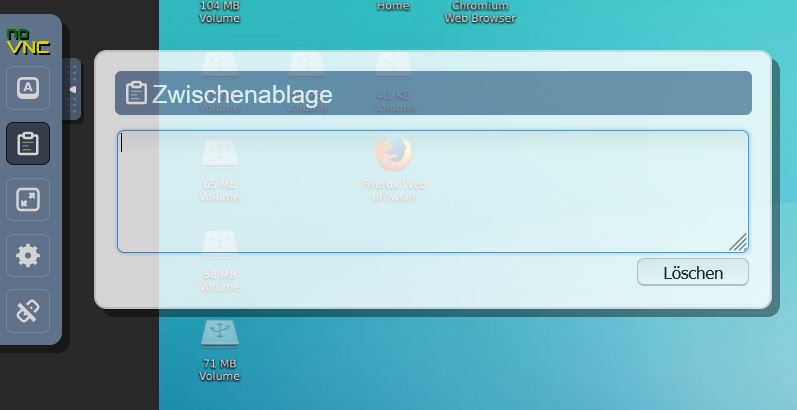
Click the clipboard icon on the left panel. Copy from the VNC desktop or paste to the VNC desktop using the textfield as clipboard for copy/paste.
How to change the Resolution
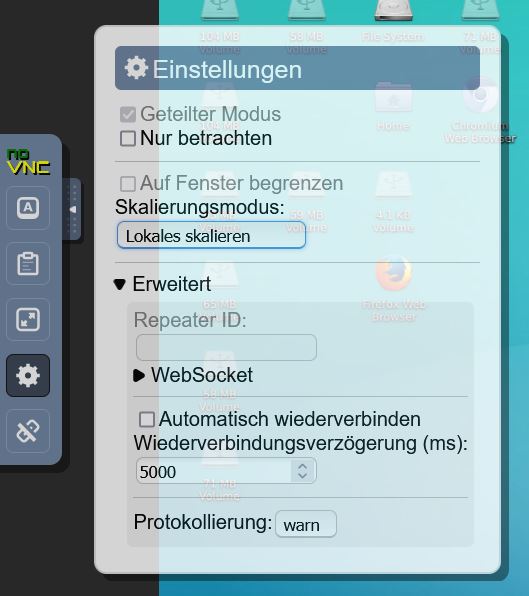
Click on the settings icon on the left panel. Then change the scaling mode to locally scaling.
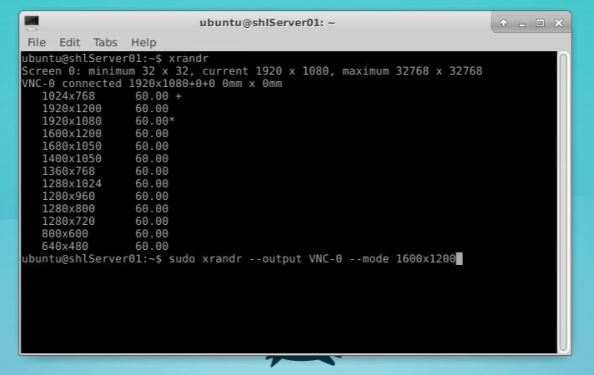
After that open a terminal window inside the noVNC desktop environment and run xrandr to see all posible resolution modes. In the next step you can change the resolution by running sudo xrandr --ouptut <display_name> --mode <favourite_resolution>.
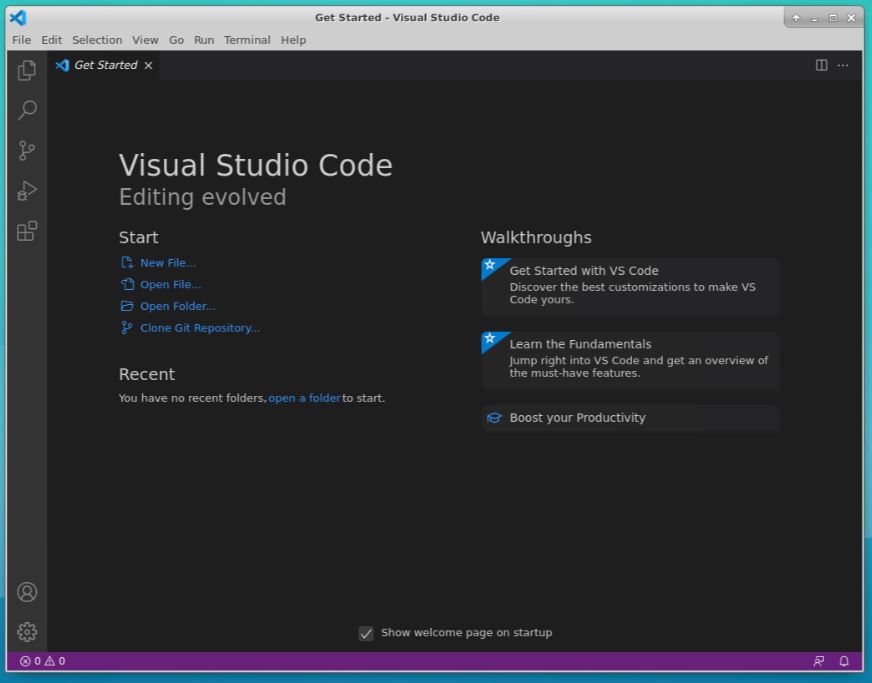
Visual Studio Code
You can run VS Code if you open a terminal in the noVNC desktop enviroment and run code. If you want to open a whole directory you can navigate to it and run:
cd <path/to/directory>
code .

or

code <path/to/directory>
ROS
ROS Kinetic Kame is automatically started after system boot if you run this container on startup with --restart=always. If the container is started a systemd service will start the roscore so you do not have to execute roscore in a bash shell.
ROS environment variables
You do not have to parse environment variables to the docker container by starting the container. The environment variables $ROS_DISTRO, $ROS_HOSTNAME, $ROS_MASTER_URI and $ROS_IP are set inside the /etc/environment file of the docker container. Optionally you have to change the $ROS_IP that the roscore ir ROS Master is in the same network as your robot(s).
You can check following:
echo "$(hostname -I | awk '{print $1;}')"
echo "$(hostname -I | awk '{print $2;}')"
Please make sure that you change the ROS_IP="$(hostname -I | awk '{print $2;}')" or ROS_IP="$(hostname -I | awk '{print $2;}')"line inside the/etc/environment` before running the roscore. Maybe you have to restart the roscore.service.
roscore.service
The roscore.service is used to run the roscore.
You can start the roscore.service with:
sudo systemctl start roscore.service
It normally should be started on boot with sudo systemctl enable roscore.service.
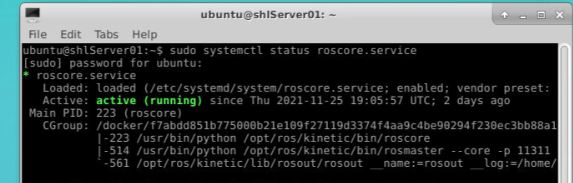
You can check the status with:
sudo systemctl status roscore.service
You can stop the roscore.service with:
sudo systemctl stop roscore.service
If you want to disable the roscore.service you can run:
sudo systemctl disable roscore.service
You can restart the roscore.service with:
sudo systemctl restart roscore.service
Please notice that you also have to commit your docker file if you make changes to the settings of the roscore.service.
roslaunch.service
The roslaunch.service is used to run (multiple) launch files by starting the docker container. Please change the /usr/sbin/roslaunch file for adding (multiple) launch files:
#!/bin/bash
source /home/ubuntu/catkin_ws/devel/setup.bash
source /etc/environment
export ROS_HOME=$(echo /home/ubuntu/.ros
# place your roslaunch command here! &
PID=$!
wait "$PID"
You can start the roslaunch.service with:
sudo systemctl start roslaunch.service
It normally should be started on boot with sudo systemctl enable roslaunch.service.
You can check the status with:
sudo systemctl status roslaunch.service
You can stop the roslaunch.service with:
sudo systemctl stop roslaunch.service
If you want to disable the roslaunch.service you can run:
sudo systemctl disable roslaunch.service
You can restart the roslaunch.service with:
sudo systemctl restart roslaunch.service
Please notice that you also have to commit your docker file if you make changes to the settings of the roslaunch.service.
Tag summary
Content type
Image
Digest
Size
3.4 GB
Last updated
almost 5 years ago
docker pull michdo93/ros-kinetic-thormang3