mjaksn/bravia-http-remote repository overview
Bravia Console


A single-page vanilla JS web app for controlling a Sony Bravia TV / professional display over
your local network. It talks directly to the TV using the Bravia HTTP REST API
(JSON-RPC over plain HTTP, no encryption) and authenticates with the
pre-shared key (X-Auth-PSK header). No frameworks, no build step, no
dependencies, just static files you can open from disk.
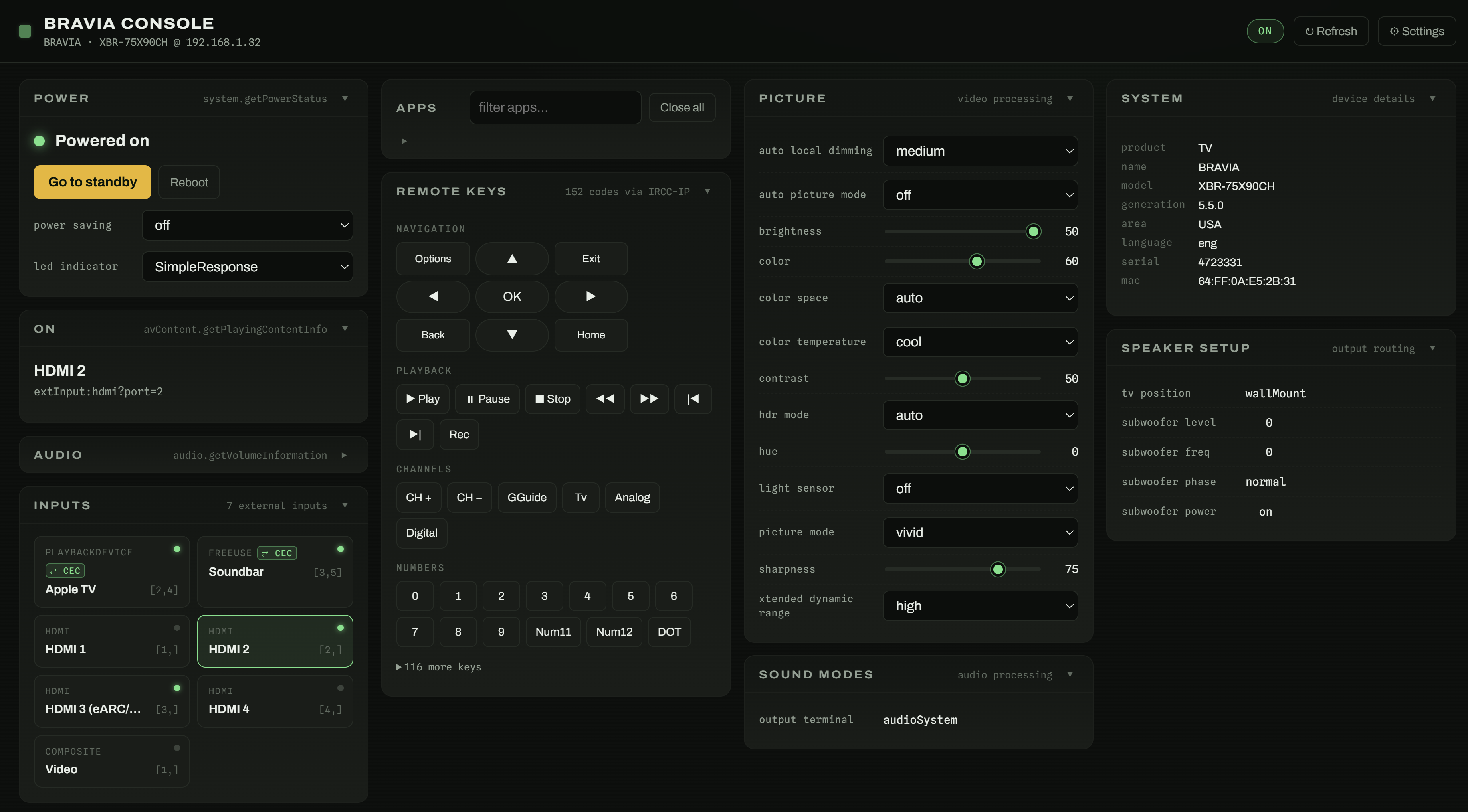
The UI is a status dashboard, not a picture of a remote: everything the TV reports is visible at once, and every supported action is one click away.
Features
- Power: on / standby / reboot, power-saving mode, LED indicator mode
- On: current input or channel, program title, start/end time with progress
- Audio: per-output volume sliders (speaker, headphone, …), mute, ±1 steps
- Inputs: one-click switching, live "device connected" indicators, active input highlight
- Apps: full app grid with icons, filter box, one-click launch, close-all
- Remote keys: every IRCC code the TV advertises, grouped by function (nothing skeuomorphic)
- Text entry: appears automatically when a text field is focused on the TV
- Picture / Sound / Speaker settings: rendered dynamically from what the TV reports, sliders for numeric ranges, dropdowns for enumerations
- Capability discovery: the app asks the TV what it supports
(
guide.getSupportedApiInfo, withgetMethodTypesfallback) and hides unsupported controls. Anything that only fails at runtime is hidden the moment the TV reports "no such method". Controls that exist but are unavailable in standby are shown dimmed with an "unavailable in standby" tag. - Locked deployments: ship the app with the address and key already in it, sealed under a password, so that a browser that has never been given the password cannot read either one. A browser can be told to stay signed in, which saves the password there and skips the prompt on later visits. See Deploying a locked copy.
- Cards a deployment leaves out:
deploy-config.jscan name cards this copy of the console never draws, so a page going on a wall panel shows what that room needs and nothing else. Locked or not, and nothing in the app puts one back. See Leaving cards out.
State is polled on a configurable interval; the settings dialog (first launch, or the ⚙ button) asks for hostname/IP, pre-shared key, and refresh interval. A copy deployed with a locked configuration asks for its password instead, at every launch unless that browser was told to stay signed in, and its settings dialog offers the refresh interval alone.
TV-side setup (one time)
On the TV: Settings → Network → Home Network Setup → IP Control
- Authentication → Normal and Pre-Shared Key
- Pre-Shared Key → choose your key
- Remote start → On (required if you want to wake the TV from standby; browsers cannot send Wake-on-LAN packets)
Running the app
Whether you need the bundled proxy depends on your TV. Every request this app
makes carries the X-Auth-PSK header and a non-safelisted Content-Type, so the
browser preflights all of them. Some Bravia models and firmware answer those
preflights with permissive CORS headers, and the app then works straight from a
file:// page with no setup at all. Others never answer them, and the browser
blocks every call. There is no middle ground: a TV that refuses preflights leaves
the whole dashboard empty rather than half working.
So try Option A first, and fall back to the proxy only if it fails.
Option A: open index.html directly
Double-click index.html, then enter the TV's hostname and pre-shared key in
settings. Nothing else is needed, provided the TV answers preflight requests.
To find out before trying, no pre-shared key required:
curl -i -X OPTIONS http://192.168.1.50/sony/system -H "Origin: null" -H "Access-Control-Request-Method: POST" -H "Access-Control-Request-Headers: x-auth-psk,content-type"
The response has to come back 2xx with two things in it: an
Access-Control-Allow-Origin whose value matches the page's origin, and an
Access-Control-Allow-Headers covering x-auth-psk and content-type. A
file:// page sends Origin: null, which is what the probe above imitates, so
either null or * satisfies it. Note that null is a literal match and not a
wildcard: it permits a file:// page and nothing else. Some firmware instead
echoes back whatever Origin it was sent, which permits everything.
A missing header, a value that does not match, or an error status all mean the browser will block the app's calls, so use Option C.
Option B: any static file server
Serve the files from anywhere over plain http://, or put your own
reverse proxy in front of /sony/*.
Serving them changes the page's origin from null to http://host:port, so a TV
that allowed Option A will not necessarily allow this. Re-run the Option A probe
with the origin you will actually be serving from:
curl -i -X OPTIONS http://192.168.1.50/sony/system -H "Origin: http://localhost:8080" -H "Access-Control-Request-Method: POST" -H "Access-Control-Request-Headers: x-auth-psk,content-type"
Firmware that echoes the origin back answers with that same URL and will work.
Firmware that answers with a literal null, or with nothing, will not, and you
want Option C.
Do not serve the page over https://; the browser would then also block the
plain-HTTP calls to the TV as mixed content, independent of CORS.
Option C: bundled proxy (fallback for TVs that will not do CORS)
Not every Bravia answers preflight requests. When yours does not, the proxy sits in between and makes every request same-origin, so CORS never comes into it. It also works regardless of what the TV's headers say, which makes it the reliable choice if you would rather not think about any of the above. It is standard library only, so Python 3 is all it needs:
python proxy.py 192.168.1.50
Then open http://localhost:8585. The app auto-detects the proxy; you can leave
the hostname field blank in settings. (Defaults: port 8585, bound to 127.0.0.1.
Passing ... 8585 0.0.0.0 exposes it to your LAN; anyone who can reach the port
can then control the TV.)
Option D: Docker
An image is published on every release, to
GHCR
and Docker Hub, for
linux/amd64, linux/arm64 and linux/arm/v7.
It runs the proxy from Option C rather than serving the files alone, and that is deliberate. The reason to run this in a container is to reach it from a phone or a laptop, which puts the page and the display on different origins, which is exactly the case a missing CORS preflight breaks.
docker run -d --name bravia-console --restart unless-stopped \
    -e BRAVIA_TV=192.168.1.50 -p 8585:8585 \
    ghcr.io/mjaksn/bravia-http-remote:latest
Then open http://this-machine:8585. docker-compose.yml is that same run,
expressed as a Compose file. BRAVIA_TV has no default: a proxy pointed at
nothing starts happily and fails on every request, so the container refuses to
start without it.
Published on every interface, as above, anyone on your network who loads the
page can drive the display. That is the case
a locked copy exists for, and it is the usual reason
to want one. Publish to 127.0.0.1:8585:8585 instead if you only ever want it
from the machine running it.
A sealed config is mounted, never built in:
docker run ... -v ~/deploy-config.js:/app/deploy-config.js:ro ...
The image ships the placeholder. Baking a sealed one into a published image
hands the blob to anyone who can pull it, and registry layers outlive any
attempt to take it back, which turns "someone on my network could attack this
offline" into "anyone could, forever". seal.py refuses to write anywhere
under a directory holding a Dockerfile for the same reason, and both CI and
the release workflow check that the image is carrying the placeholder.
Installing it
scripts/install.sh sets the console up as either a systemd service or a Docker
container, and offers to seal a locked config on the way:
sudo scripts/install.sh
It asks which, then asks for the display's address, the port, and which cards
this copy should leave out, listing them to pick from; see Leaving cards
out. The pre-shared key is asked for only when it is
sealing a locked config. Every answer can be given as a flag instead, and
--non-interactive refuses to guess rather than hanging on a prompt:
sudo scripts/install.sh --docker --tv 192.168.1.50 --port 8585 \
    --lock --psk-file ./psk --password-file ./pw --hide apps,keys \
    --non-interactive
Neither the pre-shared key nor the deployment password is ever taken as an
argument, or passed as one to seal.py, because an argument is visible in ps
to every user on the machine. Both are asked for, or read from a file. Delete
those files afterwards.
Deploying a locked copy
Left alone, the app asks each browser for the hostname and the pre-shared key and keeps them in that browser's localStorage. That is fine for your own machine and wrong for a page you leave sitting on the LAN, where anyone who loads it inherits control of the display.
A locked deployment ships the connection details inside the page instead, encrypted with a password. The app starts at a password prompt; a wrong password gets access denied and nothing else. Everything past that point is the normal console. The prompt offers Stay signed in on this computer, off unless someone ticks it; see Staying signed in for what that keeps and what it costs.
- Open
pack.html(double-click it, same as the app itself). - Fill in the display's address, the pre-shared key, a starting refresh interval, and the password you intend to hand out.
- Optionally pick cards under Cards to leave out. See Leaving cards out; nothing is left out unless something is picked here.
- Press Seal. The page encrypts the lot, opens it again to prove the file
works, and offers it for download as
deploy-config.js. - Put that file next to
index.html, replacing the placeholder the repo ships, and deploy the folder however you were going to.
Sealing without a browser
pack.html is the right tool when somebody is sitting at a keyboard. For an
installer, a build step, or a machine with no display, seal.py writes the same
file from a shell:
python seal.py --host 192.168.1.50 --psk-file ./psk --out ~/deploy-config.js
--psk-file rather than --psk, because an argument is visible in ps to
every user on the machine. --psk exists for a quick run at your own keyboard
and is the wrong thing in a script.
--interval sets the starting refresh interval in seconds, the same field
pack.html asks for, and defaults to 5. --iterations sets the PBKDF2 rounds
and defaults to 120,000; going below that default warns, and going above two
million is refused, because the console will not open a file claiming more
rounds than that.
It asks for the password twice without echoing it, seals the details, opens the
result again to prove the file works, and writes the file. --hide takes the
cards to leave out, repeated or comma-separated; see
Leaving cards out.
Write it outside the checkout, as above. seal.py refuses to write into a
Docker build context, which means a directory holding a Dockerfile and every
directory beneath one. This repository root is such a directory, so both a bare
--out deploy-config.js and an --out content/deploy-config.js from a clone are
turned away on purpose: a sealed config in the working tree is one docker build
away from being published inside an image. It also refuses to overwrite an
existing file, and the repository ships the placeholder. --force lifts both
refusals, and the build context one is the one to think twice about.
The password is never taken as an argument, since an argument is visible in
ps. For unattended use there is --password-file, and --psk-file for the
same reason; delete both afterwards.
It is the same format, not a similar one: tests/seal.test.js has seal.py and
lockbox.js each open what the other sealed, in both directions, on every CI
run. A sealer that only checked its own work would pass just as happily with
both halves wrong together.
To go back to the ordinary behavior, delete deploy-config.js or set
window.BRAVIA_DEPLOY_CONFIG back to null. To change the address, the key, the
sealed card list or the password, repack: there is nothing in a sealed file to
edit by hand, and a forgotten password cannot be recovered.
What a locked copy does with the details
Once unlocked, the address and key live in memory for the life of the tab and nowhere else: neither is written to localStorage, sessionStorage, cookies or IndexedDB. A reload therefore comes back at the password prompt, unless someone asked that browser to stay signed in, in which case the saved password opens the config again with nothing to type. What the page keeps between visits is everything that is not the address or the key: the refresh interval, which cards you collapsed, and that saved password if it was asked for. The settings dialog drops the address and key fields, keeps the refresh interval, and gains a Log out button that forgets any saved password and reloads. While it is held, the key is XORed under a mask minted per page load and unmasked only for the moment a request needs it, so it is not sitting in plain sight in a heap snapshot or a devtools scope view.
Staying signed in
Ticking Stay signed in on this computer at the password prompt saves the
deployment password in that browser's localStorage, under
bravia-console-remember. The next visit opens itself: the page reads the saved
password, opens the sealed config with it and goes straight to the console with
nothing to type. A saved password that no longer opens the config, or that
someone has edited into nonsense, is discarded and the prompt comes up exactly as
it would have on a first visit. Log out deletes it, and so does loading a
copy of the app that has no sealed config.
The box is off unless it is ticked, and it is worth leaving off on any machine that is not yours. What is saved is the password with five random characters in front of it, UTF-8 encoded and then base64 encoded, which keeps it from being legible over a shoulder and does nothing else: anyone at that browser can read it back out, and anyone at that browser can drive the display anyway.
What it protects against, and what it does not
The bar being cleared is a machine on the LAN that has never been given the password cannot get the display's address or key out of this page. That much it does.
It is not a security boundary beyond that, and it is not trying to be:
- Anyone who can load the page can take a copy of
deploy-config.jsand attack it offline, at whatever rate their hardware allows. The password is stretched with 120,000 rounds of PBKDF2-HMAC-SHA256 and the payload is sealed with HMAC-SHA256, which buys time against a weak password rather than safety. Pick a password worth guessing at. - On a machine where the right password has been entered, the decrypted values are in that page's memory and can be read by anyone at that keyboard. Browser caches, swap files and memory dumps are all outside the scope of this.
- A machine told to stay signed in holds the password in localStorage in a form anyone at that browser can undo, which trades the lock away on that one machine in exchange for not typing. It is a per-machine choice and it is off by default.
- The requests themselves are unchanged: the key still travels in a cleartext
X-Auth-PSKheader over plain HTTP once the page is unlocked.
The crypto lives in lockbox.js and is deliberately self-contained rather than
using WebCrypto: crypto.subtle exists only in a secure context, and this app is
served over plain http:// on a LAN, exactly where it would be missing.
Leaving cards out
deploy-config.js can name cards the console must never draw, which is how a
copy going on a wall panel shows power, inputs and volume and nothing else. It
works locked or not, and there are three ways to set it:
In the file itself, which needs no tooling and no password. The
deploy-config.js the repo ships carries an empty list, and a name added to it
takes effect on the next reload:
window.BRAVIA_DEPLOY_CONFIG = null;
window.BRAVIA_HIDDEN_CARDS = ['apps', 'keys'];
Sealed, for a locked deployment. Pick the cards in pack.html, or pass
--hide to seal.py, and they travel inside the encrypted payload with the
address and the key:
python seal.py --host 192.168.1.50 --psk-file ./psk --hide apps,keys,picture
During the install. scripts/install.sh lists the cards and asks which to
leave out, sealed or not, and --hide apps,keys answers it without a prompt.
--hide '' answers it the other way, putting every card back, which a run with
no terminal has no other way to say. A re-run given neither keeps what the last
one settled.
The names are power, playing, volume, inputs, apps, keys, text,
picture, sound, system and speaker, in the order the page lays them out.
seal.py and the installer both refuse a name that is not one of them, before
anything is written and before either asks for a password. The console itself
passes an unknown name over, so a typo hand-edited into the file shows up as a
card that is still there rather than as a page that will not load. A copy that
uses both ways at once gets both lists; neither overrules the other.
A card named there is gone from the document before the console has fetched anything or drawn anything: at boot for the plaintext list, and as the password opens the config for a sealed one. The picture, sound and speaker cards stop costing a request each as well. Nothing in the app puts one back and nothing in the app offers to; editing the file, or repacking, is the only way to change the list. It is not a security measure either. The plaintext list is there for anyone with the file to read and edit, and even the sealed one, which nobody can edit without the password, only decides what this console draws: a card left out is a card the display would still obey if it were asked another way.
Cards the TV itself does not support are hidden regardless, and always were. This is for the ones it supports and a deployment has no use for.
Notes
- Without a deployment config, the pre-shared key is stored unencrypted in the browser's localStorage. In every mode it travels in cleartext HTTP headers on your LAN. That last part is inherent to the PSK variant of the Bravia API.
- Some firmware answers CORS preflights by reflecting back whatever
Originit was sent, together withAccess-Control-Allow-Credentials: true. On such a TV any web page you visit can reach the API from your browser, so the pre-shared key is the only barrier and is worth making long and non-obvious. A couple of methods (getPowerStatus,getRemoteControllerInfo) are answered without any key at all; the rest return403 Forbidden. - Chromium is moving toward prompting for permission before a page may reach local-network addresses. If a browser update ever starts blocking the direct connection, the proxy in Option C is the way back.
- Wake-from-standby uses
system.setPowerStatus; it only works when the TV's network-standby ("Remote start") is enabled. Some models also power the API down in deep eco standby. - Most state queries fail while the TV is in standby; the app expects that and simply dims those cards instead of surfacing errors.
API surface used
POST http://<tv>/sony/<service> with JSON-RPC body and X-Auth-PSK header:
| Service | Methods |
|---|---|
guide | getSupportedApiInfo |
system | getSystemInformation, getPowerStatus, setPowerStatus, requestReboot, getPowerSavingMode, setPowerSavingMode, getLEDIndicatorStatus, setLEDIndicatorStatus, getRemoteControllerInfo |
audio | getVolumeInformation, setAudioVolume, setAudioMute, getSoundSettings, setSoundSettings, getSpeakerSettings, setSpeakerSettings |
avContent | getPlayingContentInfo, getCurrentExternalInputsStatus, setPlayContent |
appControl | getApplicationList, getApplicationStatusList, setActiveApp, terminateApps, setTextForm |
video | getPictureQualitySettings, setPictureQualitySettings |
ircc (SOAP) | X_SendIRCC for remote key codes |
When a display does not offer guide.getSupportedApiInfo, capability discovery
falls back to getMethodTypes, which is probed on every JSON-RPC service in the
table above and on videoScreen. ircc is left out of that probe: it is a SOAP
endpoint rather than a JSON-RPC service.
License
MIT. See LICENSE.
Tag summary
Content type
Image
Digest
sha256:9e5146568…
Size
42.1 MB
Last updated
27 days ago
docker pull mjaksn/bravia-http-remote