motey/labeljetty
Network-accessible printing for USB TSPL thermal label printers (web UI + REST API).
1.9K
motey/labeljetty repository overview
🏷️ LabelJetty
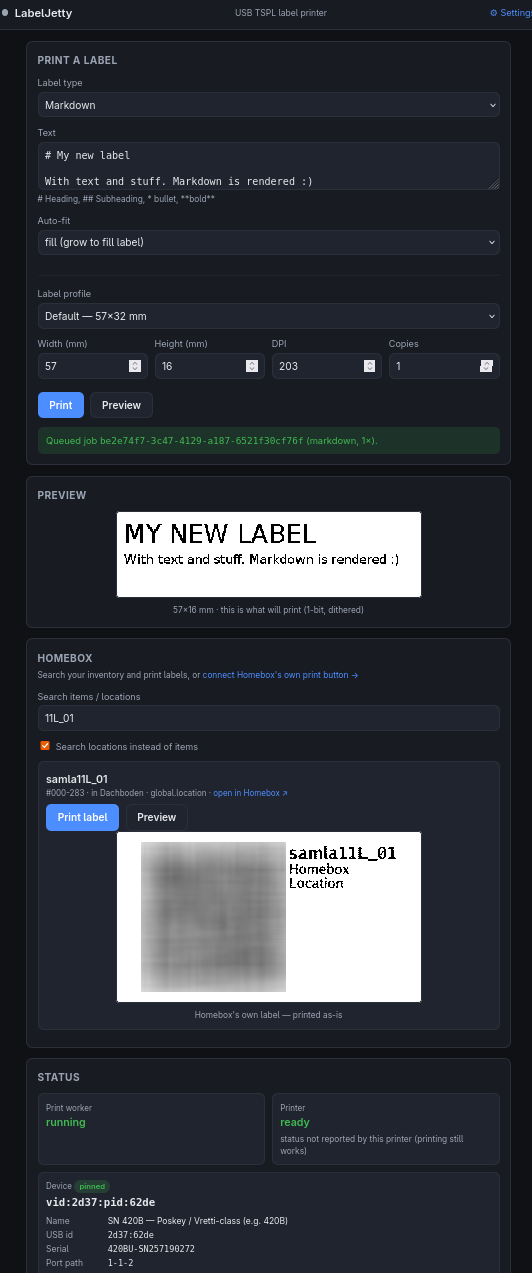
Turn a cheap, USB-only TSPL thermal label printer into a smart, network-accessible label printer - drive it from your phone, desktop, or another machine over your LAN. It talks to the printer directly over USB (no CUPS, no vendor driver) and gives you a mobile-first web UI, a REST API, and a Python library for printing PNGs, PDFs, text, markdown, barcodes and QR codes. Optional, self-contained Homebox integration is built in.
Quick start (Docker Compose)
Compose is the recommended way to deploy:
services:
  labeljetty:
    image: motey/labeljetty:latest
    restart: unless-stopped
    ports:
      - "8888:8888"
    device_cgroup_rules:
      - "c 189:* rmw"                  # allow all USB device nodes (survives replug)
    environment:
      PRINTER_USB: vid:2d37:pid:62de   # the only required setting; find yours with `lsusb`
    volumes:
      - ./data:/data                   # persists the job DB + stored images
      - /dev/bus/usb:/dev/bus/usb      # the printer's USB bus (live, so replugs appear)
docker compose up -d
Then open http://localhost:8888/.
/dev/bus/usb(bind mount) +device_cgroup_rulesgive the container the printer's USB bus. We use a bind mount rather thandevices:on purpose: a staticdevices:mapping pins the node that existed atuptime, so unplugging/replugging the printer (which gives it a new device node) leaves the container stuck on the old one. The bind mount plus the cgroup rule let replugged devices show up live. Permissions are still governed by a host udev rule you set once, see Manual Docker setup.PRINTER_USBselects which USB device is your printer. Leave it unset to auto-detect a single connected TSPL printer, or pin one withvid:<vendor>:pid:<product>(the robust form; find yours withlsusb)../data:/datapersists the SQLite job DB and stored images.
Every setting is an env var (and the operational ones can also be edited at runtime from the
optional in-app settings page, SETTINGS_UI_ENABLED=true). The
Setup guide
walks through the printer, install, and your first label end to end.
Just testing?
A one-off docker run (no compose file) is fine for a quick try:
docker run --rm -p 8888:8888 \
  --device-cgroup-rule='c 189:* rmw' \
  -v /dev/bus/usb:/dev/bus/usb \
  -e PRINTER_USB=vid:2d37:pid:62de \
  -v "$(pwd)/data:/data" \
  motey/labeljetty:latest
Tags
| Tag | When it's pushed |
|---|---|
latest | Every normal release |
beta | Every pre-release |
X.Y.Z | The exact version |
dev | Every push to main (amd64-only, bleeding edge) |
Multi-arch (linux/amd64 + linux/arm64, so 64-bit Raspberry Pi 3/4/5 works).
Updating
The web UI shows an update-available banner when a newer release is out. To apply it:
docker compose pull && docker compose up -d
Your ./data volume carries over. Full instructions (plain docker run, the installer,
Watchtower auto-updates) are in
Updating.
Heads-up
- No authentication by default - fine on a trusted home LAN, but turn on
AUTH_MODE=protectedbefore exposing it to an untrusted network. - Reference hardware is a Vretti 420B (Poskey-class TSPL, ~203 dpi). It should work with any USB TSPL printer; feedback/PRs for other models are welcome.
More information
Full docs, configuration reference, authentication, the REST API, and Homebox setup live on GitHub: https://github.com/motey/LabelJetty
Tag summary
Content type
Image
Digest
sha256:de81e040d…
Size
120.4 MB
Last updated
3 months ago
docker pull motey/labeljetty