nextpvr/restream4me
Application to copy video streams from an online source to your own web server.
3.3K
nextpvr/restream4me repository overview
Restream4ME
Restream4ME is an application that makes it easy copy HTTP Live Streams video stream (m3u8 url) from another site, to your local web serverInstall/Upgrade
The following command can be used to either install (or upgrade) Restream4ME on your device:docker pull nextpvr/restream4me:latestRunning Restream4ME
The following command can be used to run Restream4ME. As you can see from the command line, docker needs to have the "/config" directory mapped into the container. The application will write it's configuration file to this directory.If you're running the image on your webhost, you'll likely want to also map "/www" mapped into the container. This directory would be where you'd like to host the web stream from. The application will write .ts and .m3u8 files to this directory.
docker run -d --name restream4me --volume /var/restream-config:/config --volume /var/www/example.com:/www --publish 8080:8080 nextpvr/restream4me
In this example:
- the /config directory in the container will map to /var/restream-config. This will be used to store the settings and streams, and log files.
- the /www directory the container will map to /var/www/example.com. This is the directory on your web server where stream files will be written.
- the local port 8080 will mapped to port 8080 in the container. This is the web application that can be used for configuration.
The directories you map into the container must exist on the local machine. So, in the example above, the /var/restream-config and /var/www/example.com directories would need to exist. In the case of /var/www/example.com, this would be the directory your web server is hosting, so that stream files can be written in a place the web clients are able to download the stream.
Using Restream4ME
After running Restream4ME, you can access it via a web browser at http://[ipaddress]:8080/index.html. The default login is admin/password.On a new install, the first thing you'd do is check the settings to make sure the stream will be sent to the destination you need, then hit the 'Add Source' button to enter the name and url of a channels you'd like to restream. When you've added your sources, you can hit the 'Start ReStreaming' button to begin restreaming.
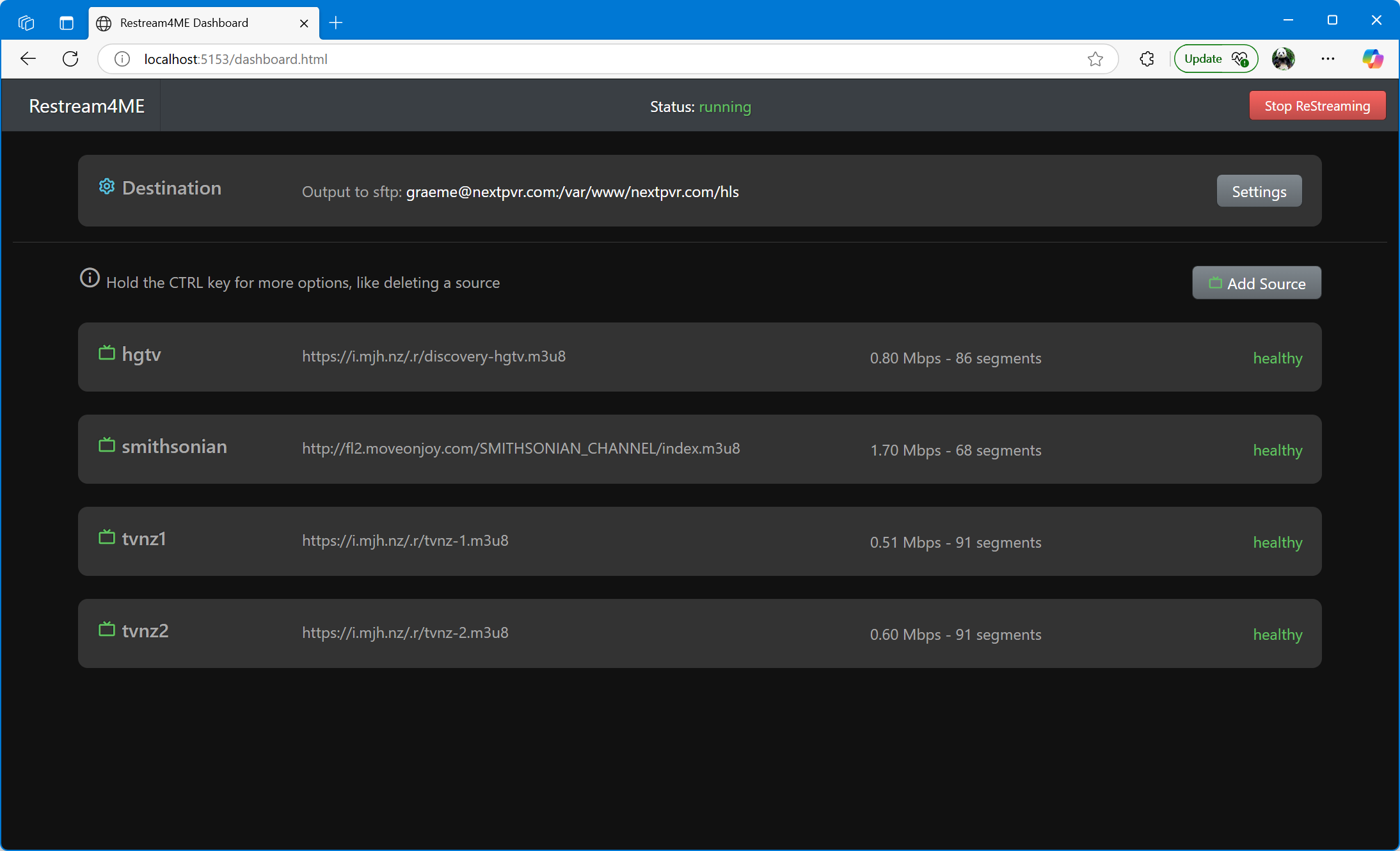
The default username/password can be overriden by passing RESTREAM_USERNAME=username and RESTREAM_PASSWORD=password environment variables into the docker container.
docker run -d --name restream4me --volume /var/restream-config:/config --volume /var/www/example.com:/www --publish 8080:8080 -e RESTREAM_PASSWORD=bacon4life nextpvr/restream4me
Stopping Restream4ME
You can stop Restream4ME with the following command:docker stop restream4meFAQ
Problems starting...
When I try to start restream4me, it gives me an error saying "Unhandled exception. System.UnauthorizedAccessException: Access to the path '/config/settings.json' is denied.". This is because it doesn't have permission to write to the config location you've supplied. If you're not sure how to proceed, you could try 'chmod 755 /path/to/config' to change the permission on your specified config directory.Deleting a source
How do I delete a source? If you hold the ctrl key, a set of buttons will appear on each source, allowing you to delete a source, or get log files etc. This is hidden by default to minimize the chance of accidentally deleting sources...and to keep it looking clean/pretty...Tag summary
Content type
Image
Digest
sha256:c4bf0271d…
Size
93.7 MB
Last updated
5 months ago
docker pull nextpvr/restream4me