nopenix/whale-mate
Whale Mate - Automated Portainer & Docker Compose Stack Updater
5.0K
nopenix/whale-mate repository overview



Whale Mate - Automated Docker Stack Manager & Backup Solution
Whale Mate is a comprehensive management tool for your Docker stacks. Originally started as a simple container updater, it has evolved into a full-featured solution for backing up, restoring, and managing your Portainer stacks and Docker Compose files.
MINIMUM REQUIREMENTS:
- Portainer minimum Version 2.30.0 (optional - only needed for Portainer integration)
- Portainer Business Edition get a free max 3 node license for non commercial here
Screenshots
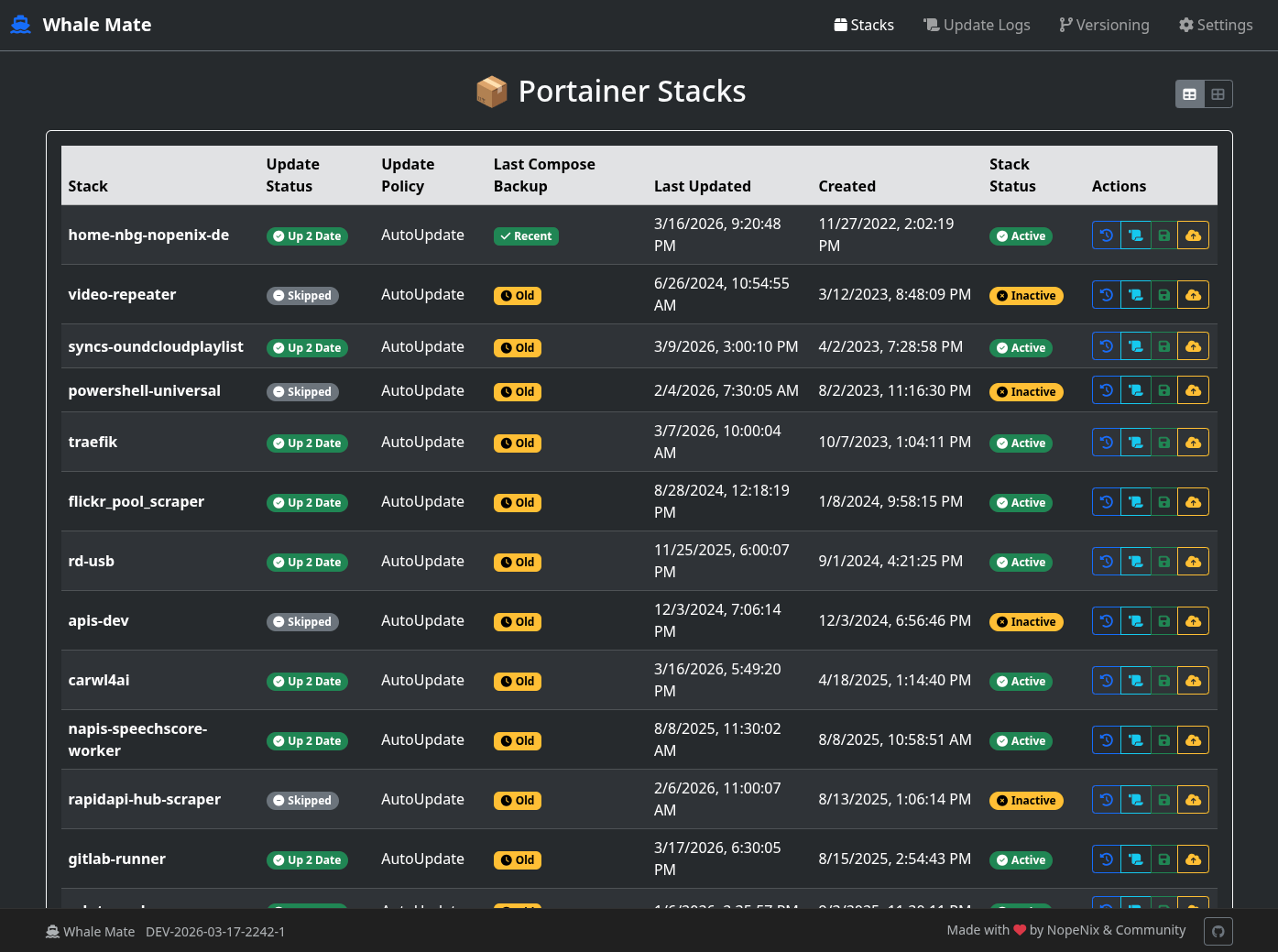
Portainer Stacks |
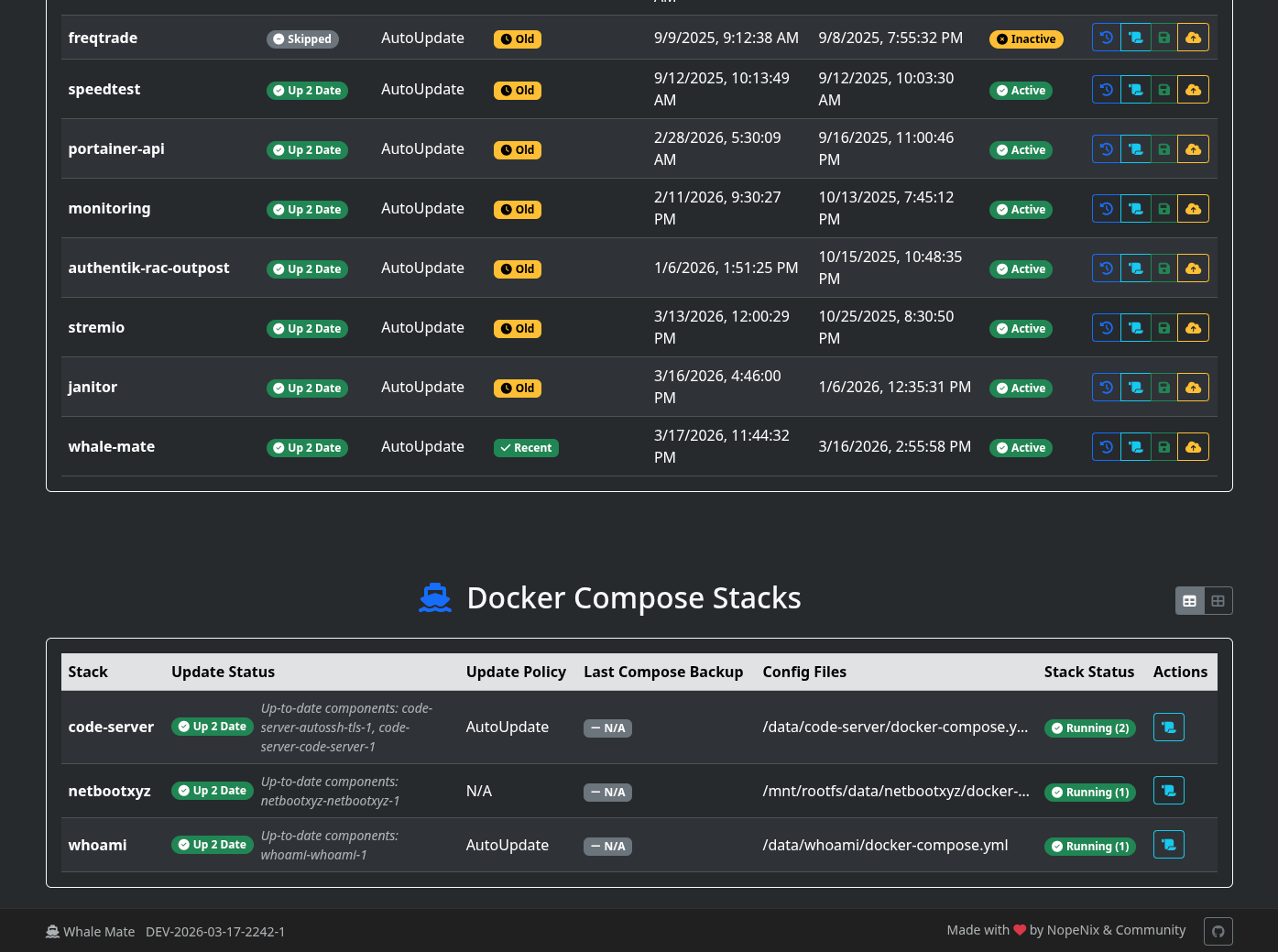
Docker Compose Stacks |
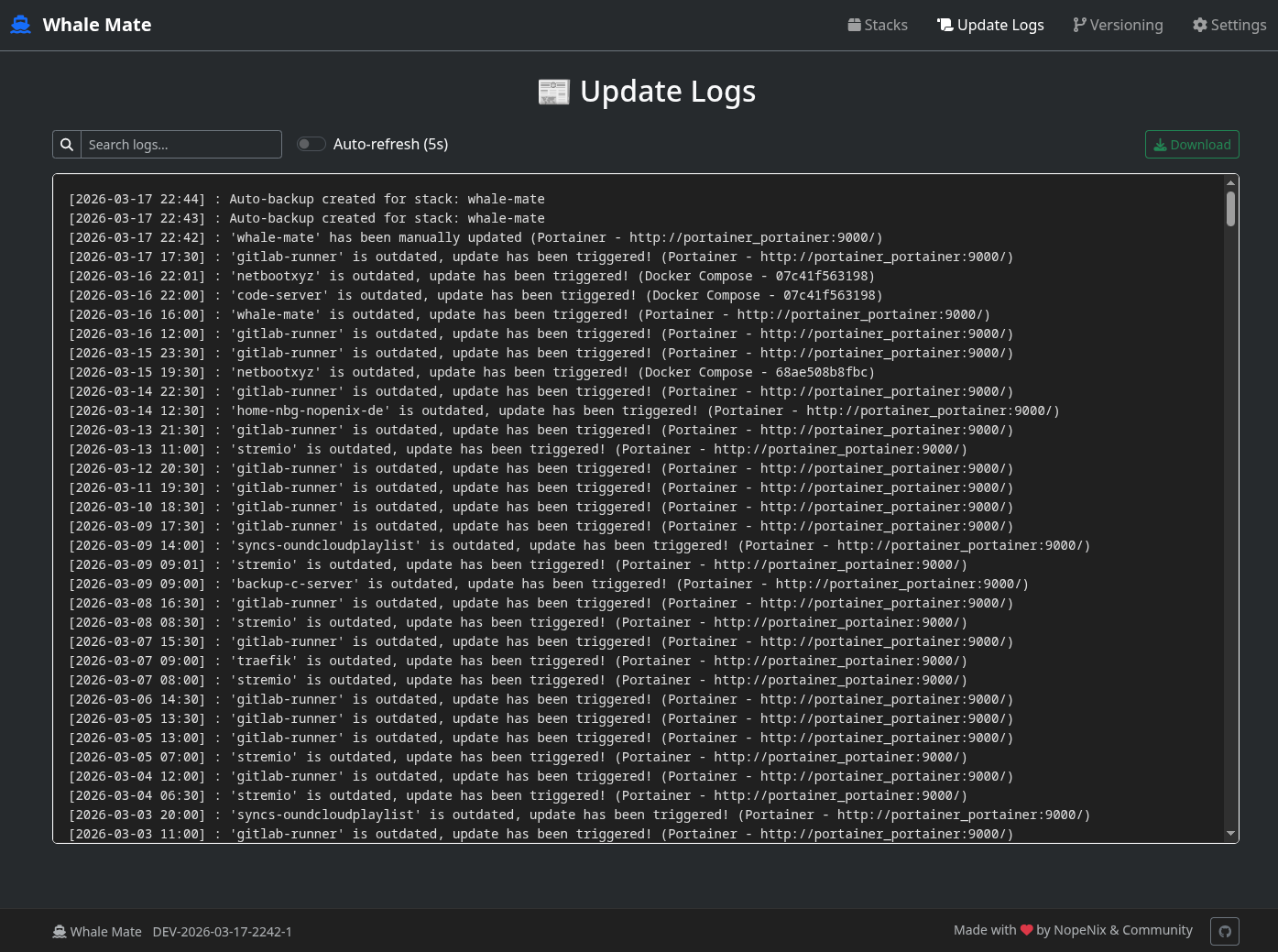
Update Logs |
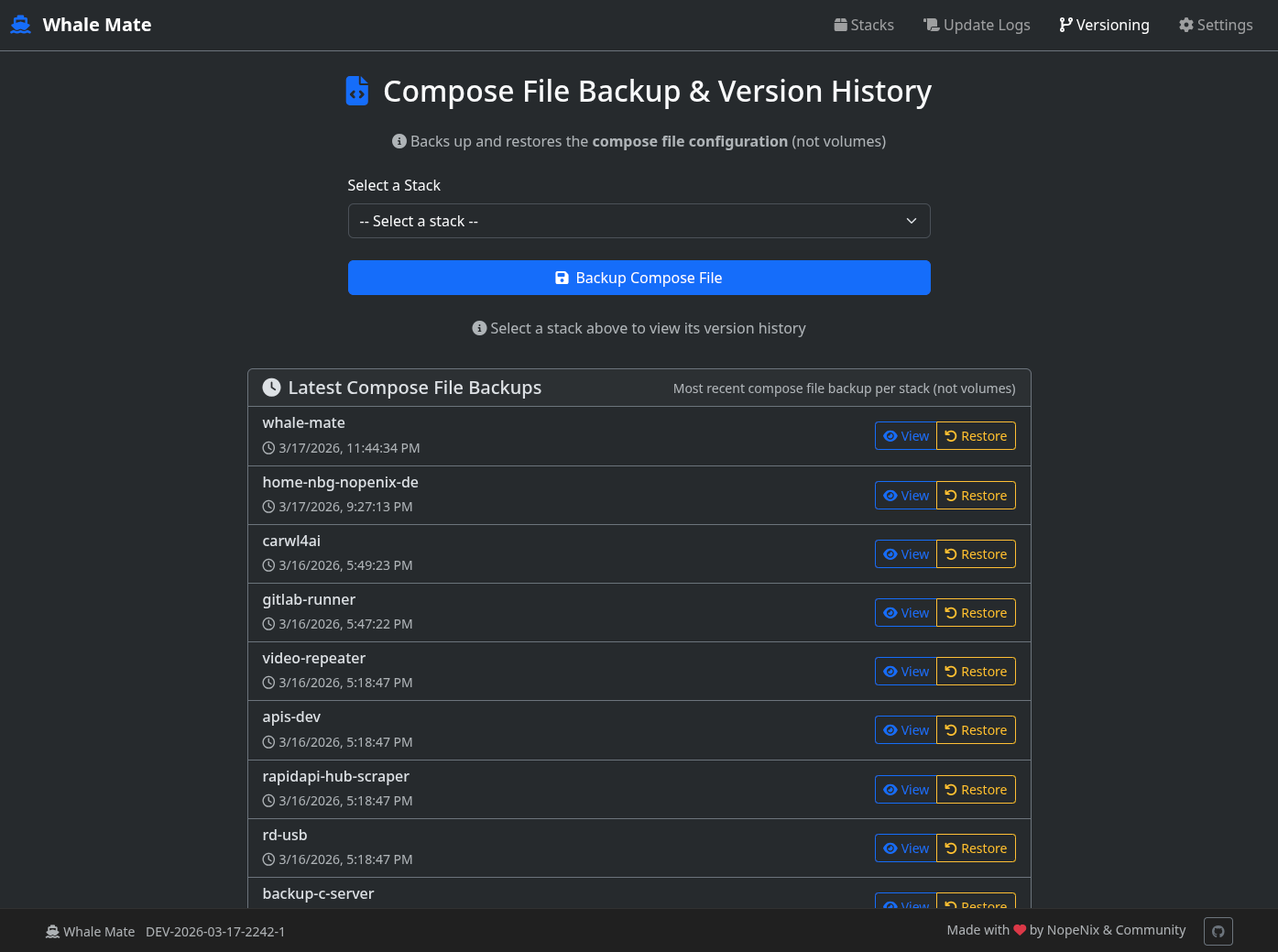
Versioning Overview |
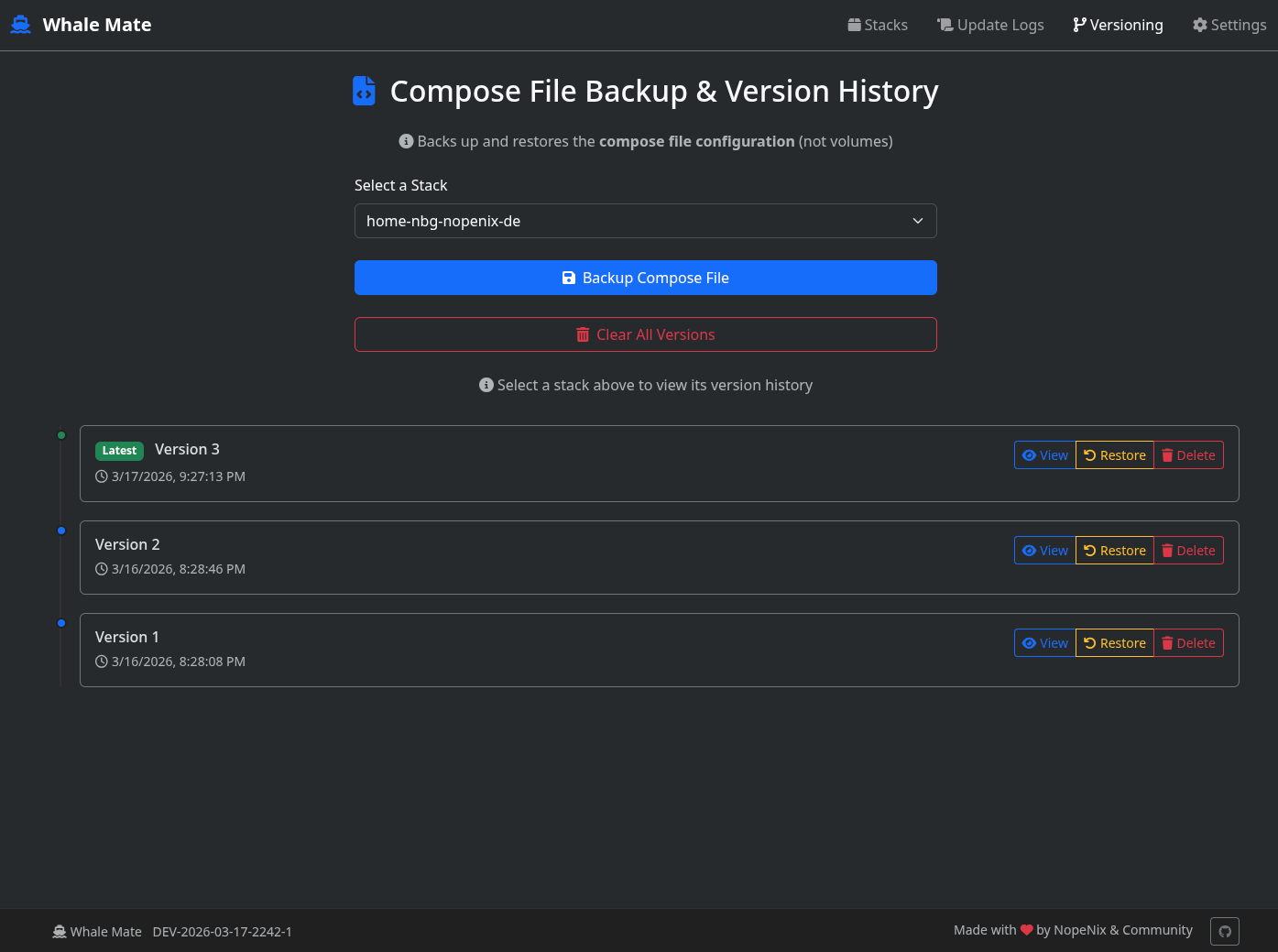
Versioning Stack Selected |
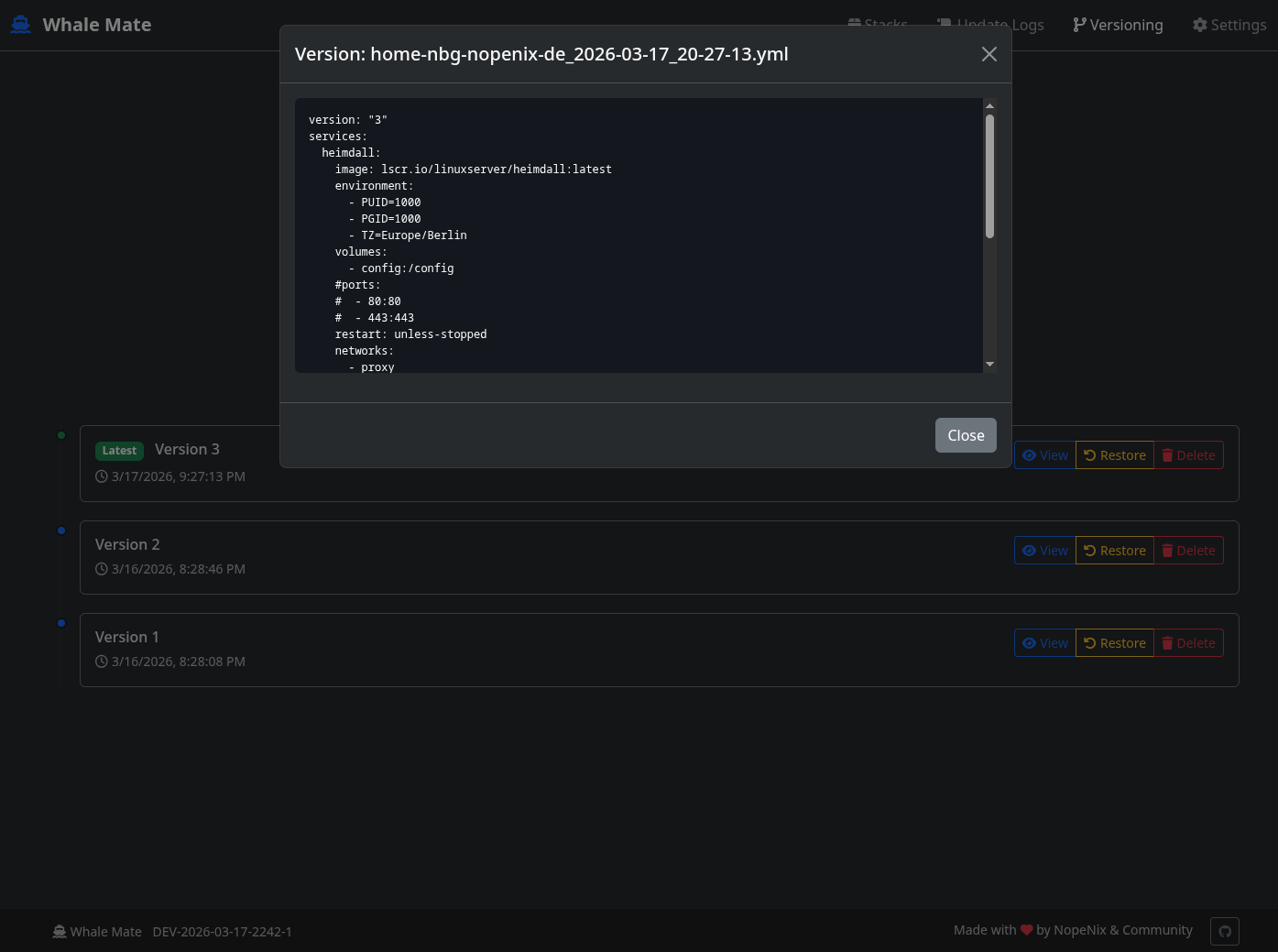
Stackfile Preview |
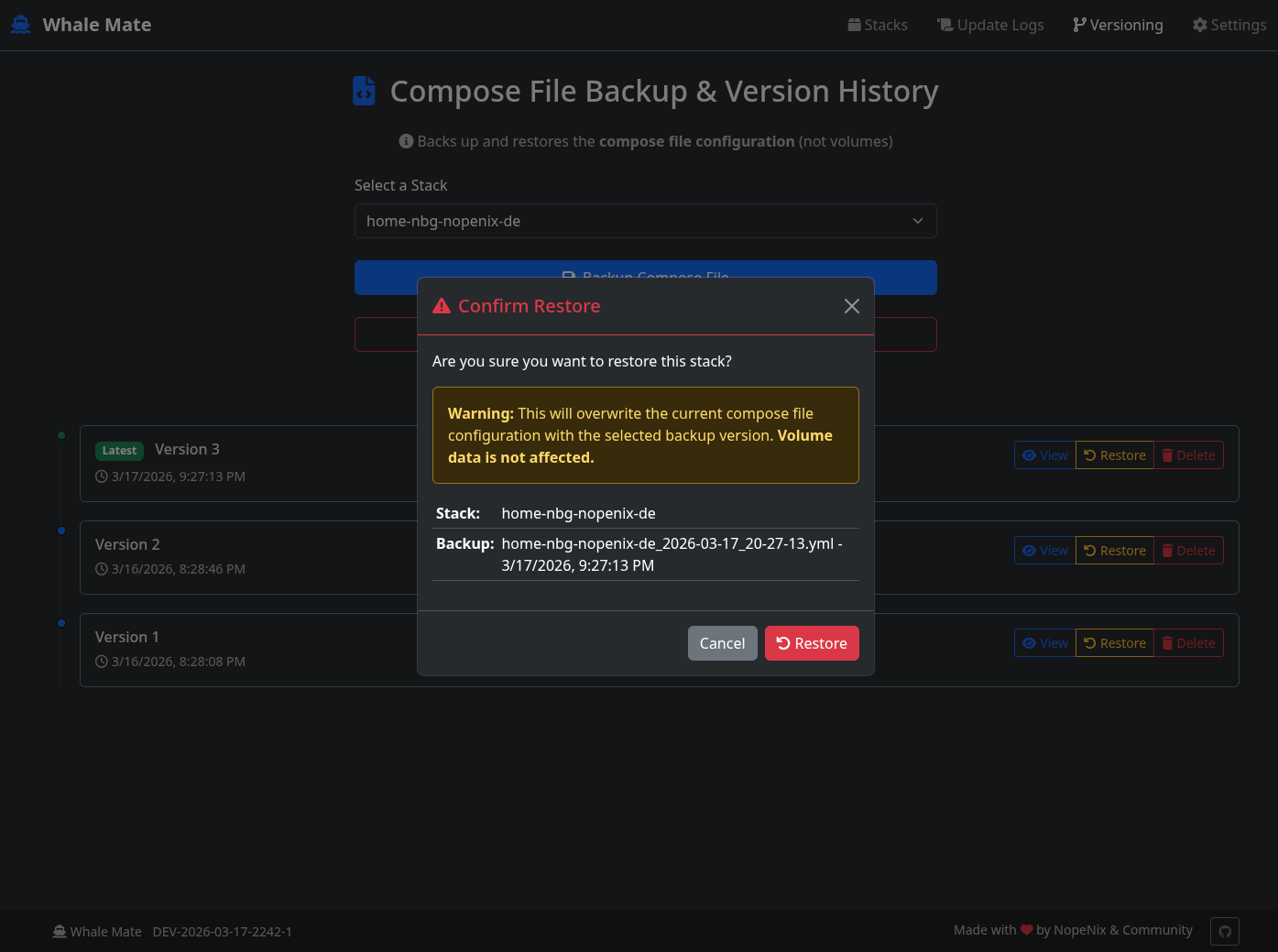
Restore Dialog |
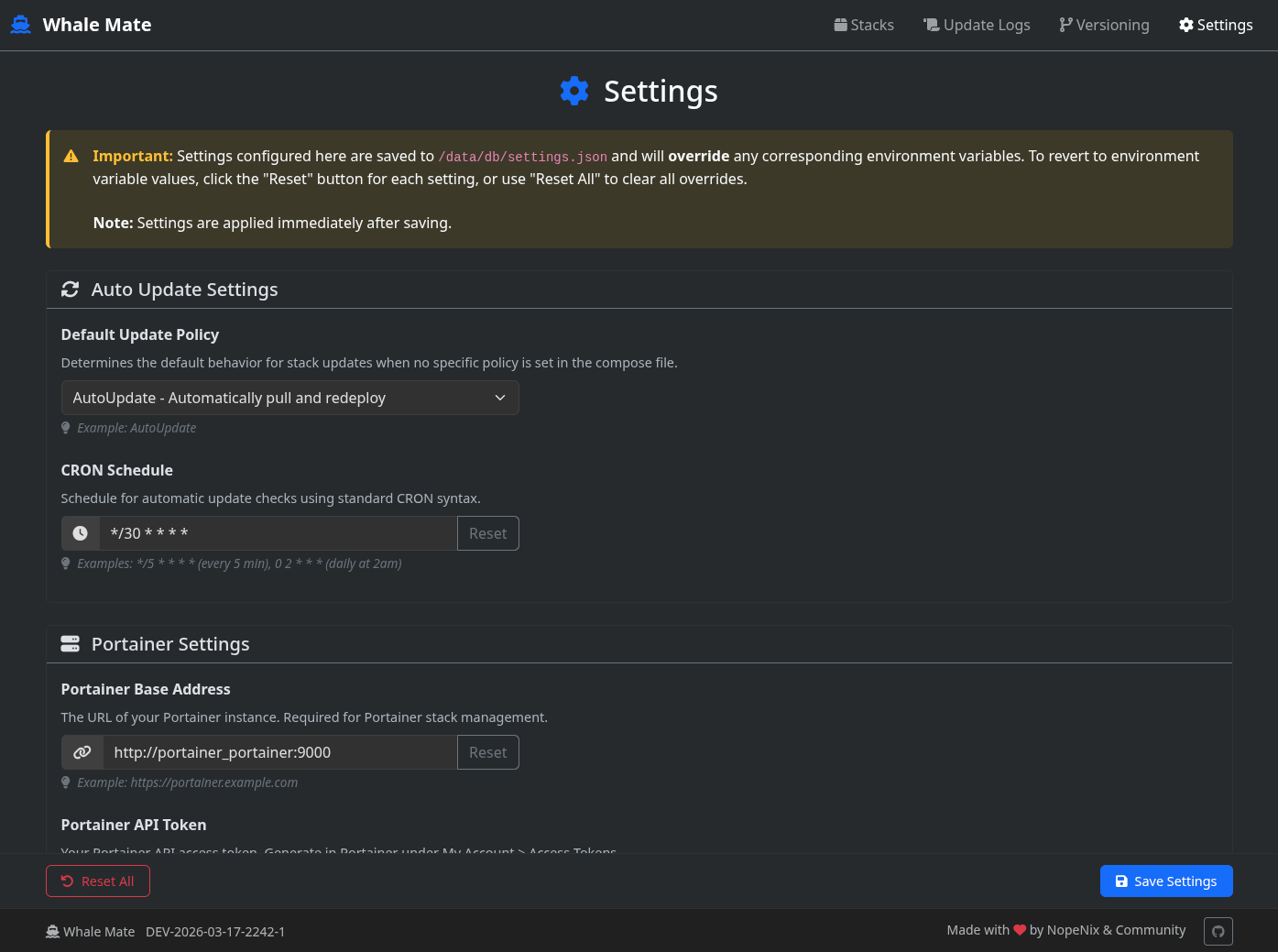
Settings (Upper) |
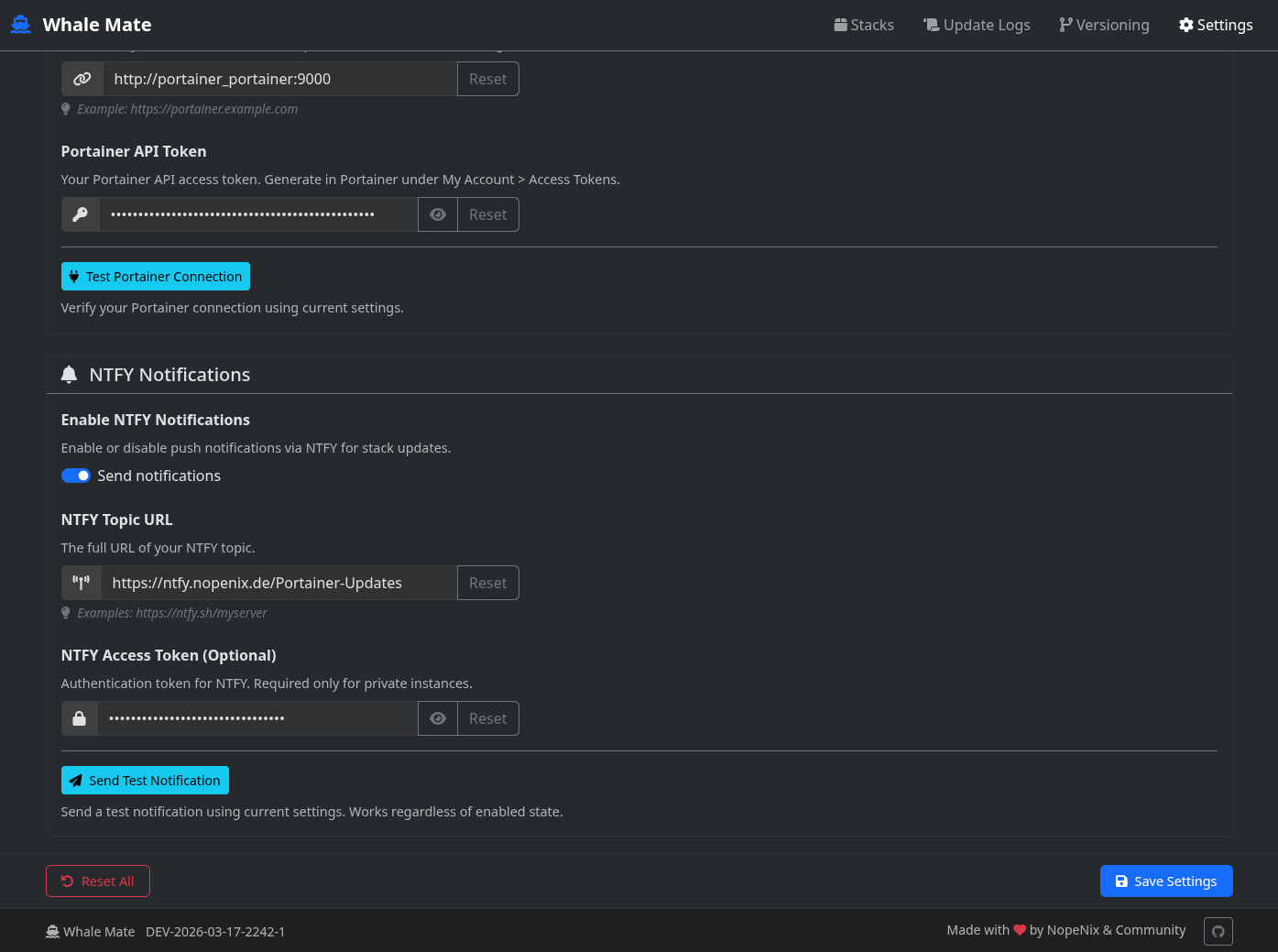
Settings (Lower) |
Click on any image to view it in full size
Introduction
Whale Mate is a Docker stack management tool that helps you keep your containers updated and backed up. It provides:
- Automatic Container Updates: Keep your containers up-to-date based on flexible policies
- Version History & Backups: Automatic and manual backups of your compose files with full version control
- Restore Capability: Revert to any previous backup version with one click
- Visual Web Dashboard: Beautiful dark-mode UI to monitor and manage all your stacks
- NTFY Notifications: Get push notifications about updates, backups, and restores
- Scheduled & Manual Updates: CRON-based automatic updates or trigger updates on-demand
- Full Activity Logs: Complete audit trail of all actions performed
- Web-Based Settings: Configure all options through the UI without restarting
Features
Stack Management
- Portainer Integration: Full management of your Portainer stacks (Standalone & Swarm)
- Docker Compose Support: Manage standalone docker-compose.yml files
- Visual Dashboard: Beautiful dark-mode UI with table and card views
- Real-time Status: See update status, backup status, and stack health at a glance
- View Toggle: Switch between table and card views for better visualization
Backup & Versioning
- Automatic Backups: Stacks are automatically backed up when changes are detected (every 20 seconds)
- Manual Backups: Trigger backups on-demand from the web UI
- Version History: Full timeline of all backups with timestamps
- Restore Functionality: Revert any stack to a previous backup version with confirmation dialog
- Delete Versions: Clean up old versions individually or in bulk
- Latest Activity View: See the most recent backups across all stacks at a glance
Update Automation
- Flexible Update Policies:
AutoUpdate: Automatically update the stack when images changeNTFYOnly: Only send notification about available updatesDoNotUpdate: Never update this stack (monitor only)
- Per-Stack Control: Override default policy via comments in compose files
- CRON Scheduling: Runs updates on your configurable schedule
- Manual Trigger: One-click manual update button for instant updates
Notifications & Logging
- NTFY Integration: Push notifications for updates, backups, and restores
- Full Activity Logs: Complete audit trail with search and filtering
- Stack-specific Logs: Filter logs by specific stack name via URL parameter
- Export Logs: Download logs as text files for analysis
- Auto-refresh: Optional 5-second auto-refresh on logs page
Settings & Configuration
- Web-Based Settings UI: Configure all options through the dashboard
- Settings Override: Web settings override environment variables
- Immediate Application: Settings apply immediately without restart
- Connection Testing: Test Portainer and NTFY connections directly from UI
- Reset Options: Reset individual settings or all settings to defaults
Prerequisites
Before using Whale Mate, you'll need:
- Docker and Docker Compose installed
- (Optional) A running Portainer instance minimum Version 2.30.0 - only needed for Portainer integration
- (Optional) An NTFY server if you want push notifications
Note: Whale Mate can run in multiple modes:
- Full Mode: Portainer integration + Docker Compose + Auto-update + Backup + Versioning
- Docker Compose Only: Just monitor and update docker-compose stacks (requires docker.sock mount)
- Dashboard Only: View logs and manage backups without auto-updates
Installation
- Create a
docker-compose.ymlfile with the following content:
version: '3'
services:
  whale-mate:
    image: nopenix/whale-mate:latest
    ports:
      - 8080:8080 # Exposes HTTP
    restart: unless-stopped
    volumes:
      - /var/run/docker.sock:/var/run/docker.sock # only needed for docker compose
      - /versions:/data/versions
      - /:/mnt/rootfs/:ro # only needed for docker compose and only if you want the update feature
      - db:/data/db
    environment:
      # Auto Update Settings
      AutoUpdateDefaultMode: AutoUpdate # Can be: NTFYOnly, AutoUpdate, DoNotUpdate
      CRON_SCHEDULE: "*/30 * * * *" # CRON String. Sets when the Programm is triggered in this example every 30min
      # Portainer Settings
      PortainerBaseAddress: https://portainer.yourdomain.com # just the base address of your portainer
      PortainerAPIToken: your-portainer-api-token # Portainer API Token goes here
      # NTFY Settings
      NTFYEnabled: $true # Can be $true or $false
      NTFYTopicURL: https://ntfy.yourdomain.com/Portainer-Updates
      NTFYToken: # Can also be left empty if there is none
volumes:
  db:
-
Customize the environment variables (Optional):
/versions:/data/versions: Volume to persist your stack backups (required for versioning & restore)PortainerBaseAddress: Your Portainer instance URLPortainerAPIToken: Generate this in Portainer (In Portainer: My Account > Access Tokens)- Adjust
CRON_SCHEDULEfor your needs (default every 5 mins) - Configure NTFY settings if desired
-
Start the container:
docker-compose up -d
Architecture
Whale Mate runs three background services via Supervisord:
- Updater Service: Runs the update check script on your CRON schedule
- Web Dashboard Service: Serves the web UI and API on port 8080
- Auto-Backup Service: Continuously monitors for stack changes and creates automatic backups (every 20 seconds)
This ensures that:
- Updates happen on schedule without manual intervention
- The web interface is always available
- Backups are created automatically when stack configurations change
Configuration Options
Environment Variables
| Variable | Description | Default | Required |
|---|---|---|---|
AutoUpdateDefaultMode | Default update policy (AutoUpdate, NTFYOnly, DoNotUpdate) | AutoUpdate | No |
CRON_SCHEDULE | CRON expression for update schedule | */5 * * * * | No |
PortainerBaseAddress | Base URL of your Portainer instance | - | No |
PortainerAPIToken | API token for Portainer | - | No |
NTFYEnabled | Enable/disable NTFY notifications | $false | No |
NTFYTopicURL | NTFY topic URL | - | Only if NTFY enabled |
NTFYToken | NTFY access token | - | Only if your NTFY requires auth |
Per-Stack Configuration
You can control updating behavior for individual stacks by adding comments to your stack files:
#UpdatePolicy=AutoUpdate  # Will automatically update this stack
#UpdatePolicy=NTFYOnly    # Only notify about updates, don't auto-update
#UpdatePolicy=DoNotUpdate # Never update this stack
Usage
- After starting the container, access the web interface at
http://your-host:8080 - The dashboard shows:
- All Portainer stacks with their update status
- All Docker Compose stacks
- Navigate between views:
- Stacks: Monitor status, trigger updates, view backup status
- Update Logs: Search and filter activity logs
- Versioning: View backup history, restore previous versions, create manual backups
- Settings: Configure all application settings
Quick Actions (Portainer Stacks)
From the Stacks page you can:
- 👁 View Versions: See complete backup history
- 📜 View Logs: Filter logs for specific stack
- 💾 Backup: Manually backup compose file
- 📤 Update: Trigger instant update (pull latest images)
- 🗑 Clear: Delete all version history
Update Policies
Whale Mate supports three update policies:
- AutoUpdate: Automatically pull latest images and update the stack when CRON triggers
- NTFYOnly: Check for updates but only send notification (don't auto-update)
- DoNotUpdate: Skip this stack completely (monitor only)
The default policy can be set via AutoUpdateDefaultMode environment variable, and can be overridden per-stack with the #UpdatePolicy comment.
Manual Updates
In addition to scheduled automatic updates, you can trigger instant updates manually:
- Click the cloud-upload icon (📤) in the Actions column on any Portainer stack
- Confirmation dialog shows before triggering
- Status refreshes automatically after the update completes
Notifications
When configured with NTFY, you'll receive notifications about:
- Available updates for outdated stacks
- Successful automatic updates
- Successful manual updates
- Automatic backups created
- Restore operations completed
Version History
Whale Mate automatically backs up your Portainer stack configurations when changes are detected. This feature allows you to:
- Automatic Backups: Stacks are automatically backed up when content changes are detected (checks every 20 seconds)
- Manual Backups: You can manually trigger a backup anytime via the web UI
- Version Timeline: View the complete history of backups for each stack
- Restore: Revert to any previous version with confirmation dialog
- Delete: Remove individual versions or clear all history
How it works:
- The auto-backup service checks every 20 seconds for changes in your Portainer stacks
- Changes are detected by comparing SHA-256 hashes and timestamps
- When a change is detected, a timestamped backup is created in
/data/versions/<stack-id>/ - You can view all backups in the Versioning section of the web UI
Accessing Version History:
- Open the web interface at
http://your-host:8080 - Click on "Versioning" in the navigation
- On the landing page, you'll see the latest backups across all stacks
- Select a specific stack to view its complete version history
- Click "Backup Now" to manually create a backup
- Click "View" on any version to see its content
- Click "Restore" to restore a previous backup (requires confirmation)
Restore Feature
The restore feature allows you to revert a Portainer stack to a previous backup version:
- Restore from Latest Backups: On the landing page, click "Restore" next to any backup
- Restore from Version Timeline: Select a stack, then click "Restore" on any version
- Confirmation Required: Every restore requires explicit confirmation to prevent accidental restores
⚠️ Security Considerations
Important: This section applies if you're using Portainer integration.
Web Interface Security
The Whale Mate web interface currently does not include built-in authentication. This means:
- Plain HTTP: By default, the interface runs on plain HTTP (not HTTPS)
- No Access Control: Anyone with network access can view and manage stacks
- Credentials in Environment Variables: Portainer API tokens are stored as environment variables, which may be visible in:
- Process environment listings
- Docker container inspect
- Log files (if accidentally logged)
Recommended Security Measures
To secure your deployment:
-
Use a Reverse Proxy with Authentication:
- Place Whale Mate behind a reverse proxy (like nginx, traefik, or Caddy)
- Configure HTTP Basic Auth or OAuth2/OIDC authentication at the proxy level
- Enable HTTPS at the proxy
-
Network Isolation:
- Run Whale Mate in an isolated network/VPC
- Use firewall rules to restrict access
- Consider using Docker network isolation
-
Environment Variable Protection:
- Use Docker secrets or a secrets manager for the API token
- Avoid logging environment variables
- Use read-only container deployments where possible
-
HTTPS Configuration:
- Configure a TLS certificate if exposing Whale Mate externally
- Consider using a VPN tunnel instead of direct exposure
Disclaimer: Running this software without additional authentication is at your own risk. Always review your deployment configuration and understand the security implications.
Troubleshooting
-
Can't access Portainer API:
- Verify
PortainerBaseAddressis correct - Check API token has proper permissions
- Ensure Portainer is accessible from the Whale Mate container
- Portainer API requires Business Edition for stacks endpoint
- Verify
-
Stacks not appearing:
- For Portainer stacks, ensure they're not Swarm stacks (only Standalone stacks supported)
- For Docker Compose, ensure files have proper permissions and docker.sock is mounted
-
Backups not being created:
- Verify Portainer credentials are configured
- Check that the
/data/versionsdirectory is writable
-
Manual update fails:
- Ensure stack is Active (not Inactive)
- Check Portainer has available resources to perform the update
-
Check logs:
docker-compose logs -f
FAQ
Q: How often does it check for updates?
A: By default every 5 minutes (configurable via CRON_SCHEDULE)
Q: How often does it check for backup changes?
A: Every 20 seconds automatically
Q: Can I exclude specific stacks from updates?
A: Yes, add #UpdatePolicy=DoNotUpdate to your stack file
Q: Does it work with Swarm mode?
A: Portainer stacks are supported in Swarm mode. Docker Compose support is for standalone stacks.
Q: What gets backed up?
A: Only the compose file configuration is backed up (the YAML file). Volume data is not included.
Q: Can I trigger updates manually without waiting for CRON?
A: Yes! Click the cloud-upload icon (📤) on any Portainer stack to trigger an instant update.
Q: Does Whale Mate work without Portainer?
A: Yes, you can use it for Docker Compose stacks only, or even just as a log viewer and dashboard.
Q: How do I restore a stack to a previous version?
A: Go to Versioning > Select your stack > Click Restore on any backup version > Confirm.
Q: Can I configure settings through the UI?
A: Yes! The Settings page allows you to configure all options. Settings are saved and override environment variables.
Q: Do I need to restart after changing settings?
A: No! Settings are applied immediately after saving.
Contributing
Contributions are welcome! Please open issues or PRs on GitHub.
License
MIT
Tag summary
Content type
Image
Digest
sha256:7c9776885…
Size
162.7 MB
Last updated
5 months ago
docker pull nopenix/whale-mate