norkz/comic-downloader
Fast, reliable, and easy-to-use CLI tool for downloading comics from popular websites.
675
norkz/comic-downloader repository overview

Fast, reliable, and easy-to-use CLI tool for downloading comics (manga, manhwa, and more) from popular websites.





📚 Table of Contents
Expand Table of Contents
🌐 Supported Websites
Expand Supported Websites
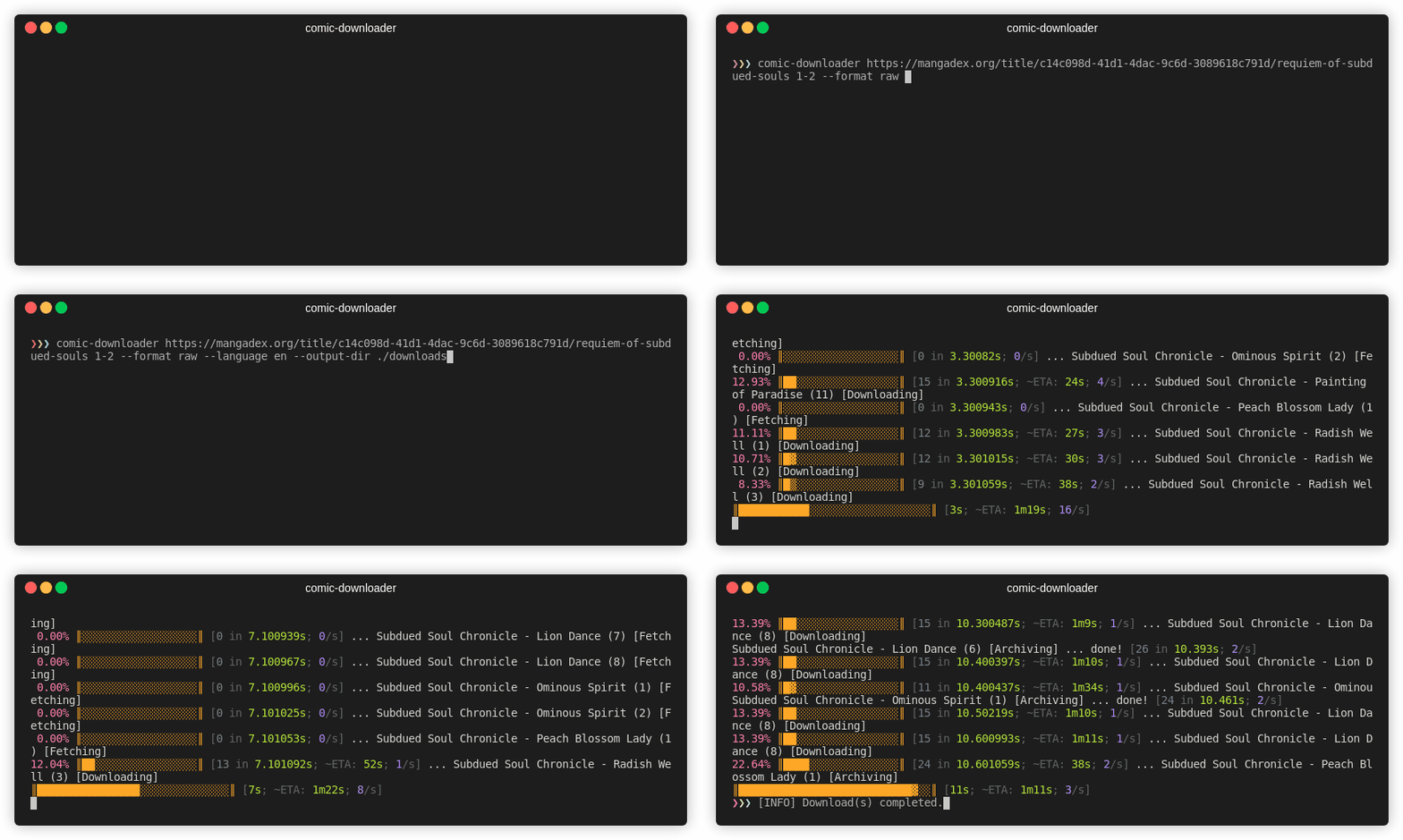
Currently, comic-downloader supports the following websites:
- Asura Scans
- CypherScans
- InManga
- KappaBeast
- MangaDex
- MangaMonk
- ReaperScans
- Toongod
- ToonClash
If a site you use isn't listed, please open an issue or contribute directly via pull request.
🚀 Installation
Linux & macOS
- Download the latest binary from the Releases page.
- Extract the downloaded archive.
- Move the binary into a directory within your system's
PATH:
sudo mv comic-downloader /usr/local/bin/
Or create Symbolic Link. This way, if you rebuild the binary, the link will still point to the updated file.
sudo ln -s comic-downloader /usr/local/bin/comic-downloader
macOS Users
To bypass the Gatekeeper security prompt, run:
sudo spctl --master-disable
🖥️ Windows
- Download the latest
.exefrom Releases. - Place the
.exein a directory in your system'sPATH(e.g.,C:\Windows\System32).
Run via Command Prompt:
comic-downloader [URL] [range]
🐳 Docker
Before running comic‑downloader (whether you use the local CLI or the Docker image), you must start your Browserless & Tenshi containers:
make up
comic-downloader Container
Rrun comic-downloader via Docker Compose with:
docker compose -f docker/containers/comic-downloader/docker-compose.yml up -d --force-recreate
Note: Downloads will be saved in your current working directory.
🔧 Environment Setup
-
Copy the example file:
cp .env.example .env -
Open
.envand fill in each value (the example is below). At minimum you need:# Enable compose bake (optional) COMPOSE_BAKE=true # Tenshi (FastAPI) container credentials TENSHI_PASSWORD='tenshi' TENSHI_VNC_PASSWORD='xxx' # Browserless (Chromium) settings BROWSERLESS_HOST_IP='xxx.xxx.xxx.xx' BROWSERLESS_TOKEN='your_token_here' REMOTE_DEBUG_URL='http://localhost:6082' FASTAPI_BASE_URL='http://localhost:6081' # Toggle Docker mode and debug logs DOCKER=false DEBUG=false -
Make sure those containers are up:
make up
Important: If Browserless (port 8454 or 3000 in Docker) or Tenshi (port 6081) aren’t reachable, comic-downloader will refuse to start.
If you're running locally, the application will connect to:
ws://${BROWSERLESS_HOST_IP}:8454?token=${BROWSERLESS_TOKEN}
If you're running under Docker (i.e. DOCKER=true), it will connect to:
ws://comic-downloader-browserless:3000?token=${BROWSERLESS_TOKEN}
Note: Make sure your
.envfile is correctly configured; otherwise, comic-downloader will not be able to establish a connection with Browserless.
💻 Usage
Basic Usage
Interactive download of all chapters:
comic-downloader [URL]
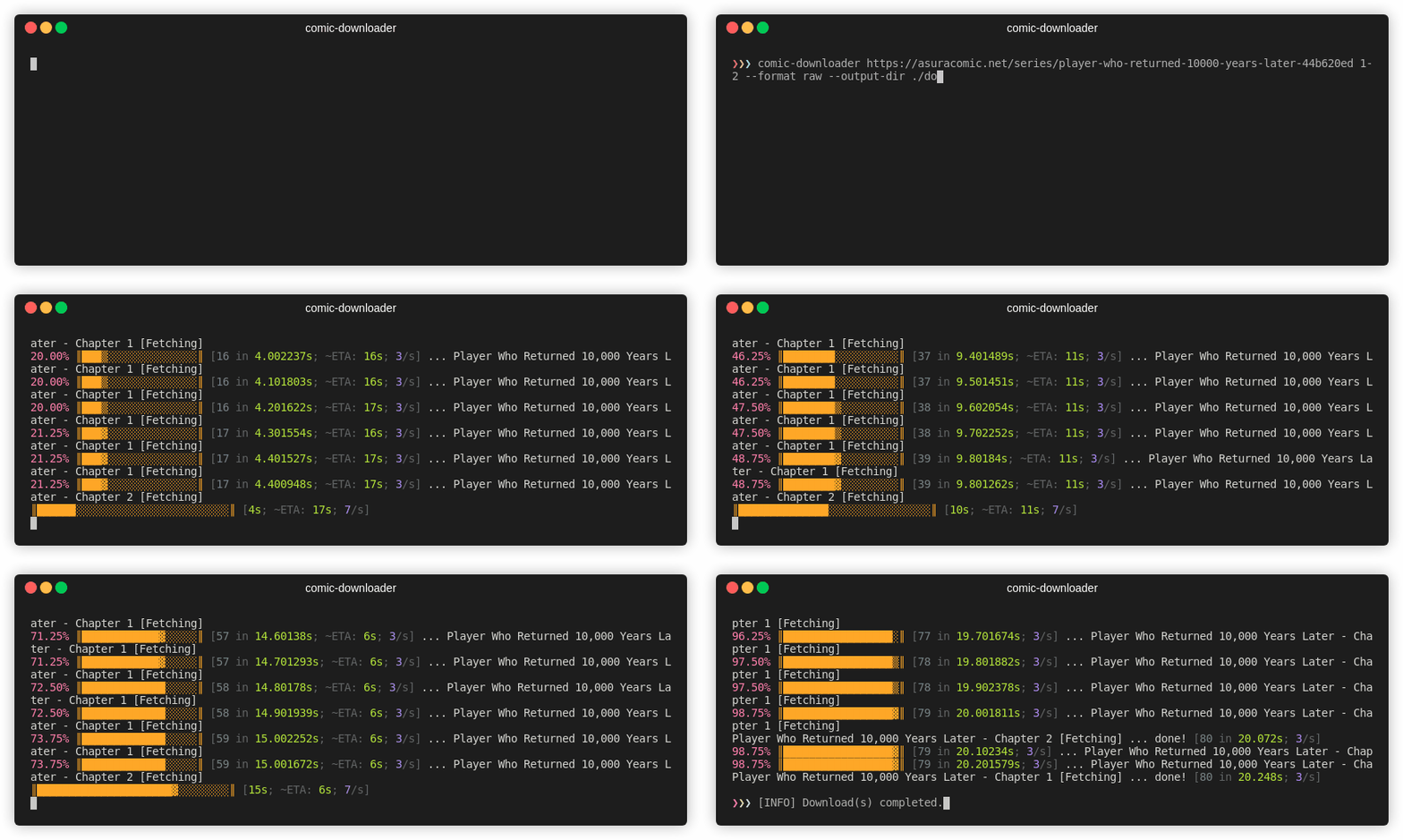
The URL must be the series' main page.
Chapter Range
Specify specific chapters or ranges:
comic-downloader [URL] 1-50
Language Selection
Explicitly select a language:
comic-downloader [URL] 1-10 --language en
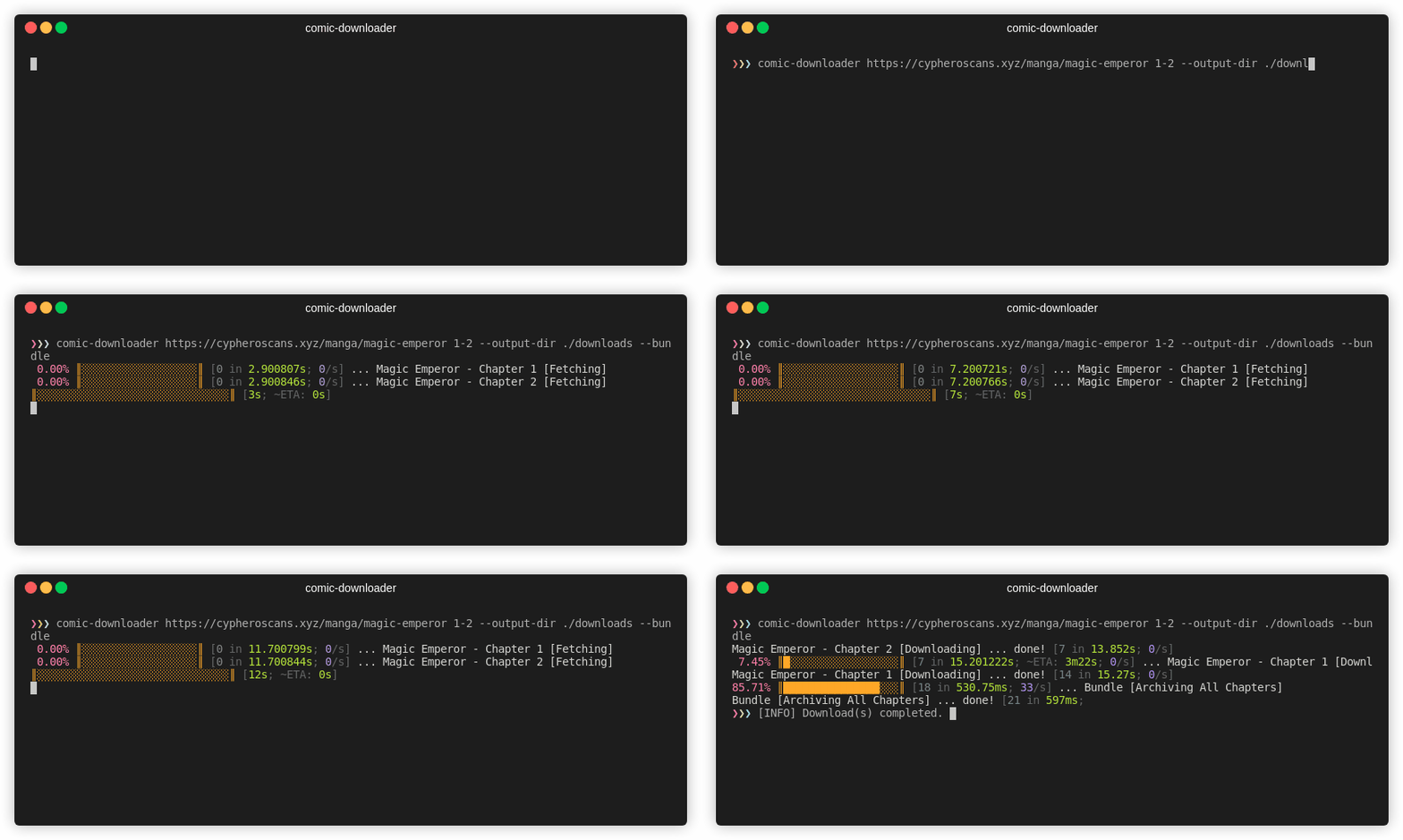
Bundling Chapters
Combine chapters into a single .cbz file:
comic-downloader [URL] 1-2 --bundle
Help
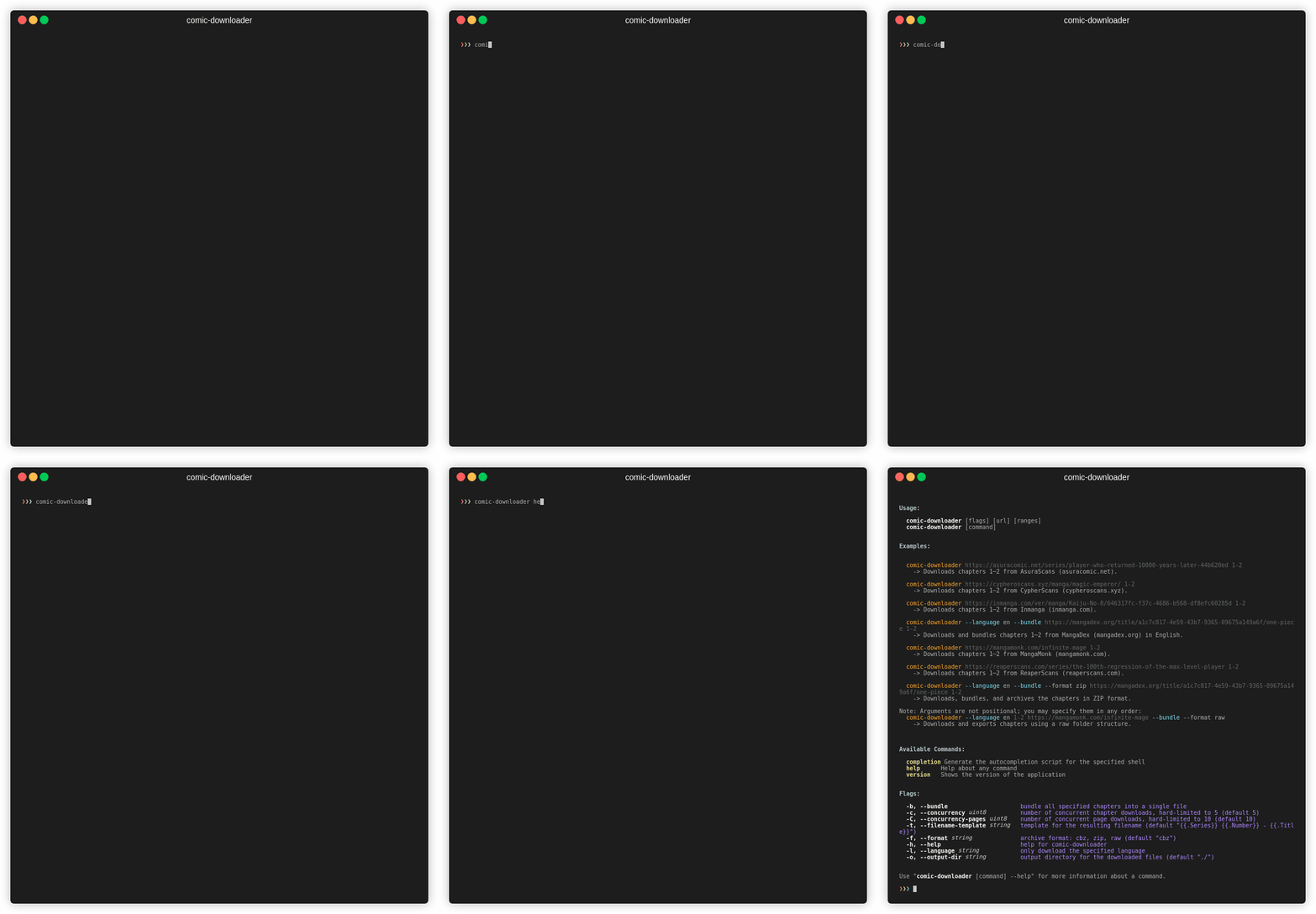
View all commands and options:
comic-downloader help
🛠️ Troubleshooting
- "Command not recognized": Verify the binary is in a PATH-accessible location.
- macOS unsigned binary error: Run
sudo spctl --master-disable.
🤝 Contribution
Contributions, issues, and pull requests are welcome! See CONTRIBUTING.md for guidelines.
📈 Star History
Tag summary
Content type
Image
Digest
sha256:e56c07a4d…
Size
12.2 MB
Last updated
over 1 year ago
docker pull norkz/comic-downloader