petersem/gym repository overview
Gym app
Gym app for Tafe stage 2 assessment
- Backend MVC app
- Backend JSON API with interactive Swagger documentation
- Frontend React app (daisyUI + Tailwind) using the JSON API
Frontend React App
A mobile-first React app in frontend/ built with Vite, React Router,
daisyUI and Tailwind CSS. It talks only to the /api/v1 JSON API and follows the
API access by role rules:
| Role | Timetable | Blog | Bookings | Profile |
|---|---|---|---|---|
| Guest | No access (login required) | Read, search, sort | — | Register as a member |
| Member | Book sessions (shows "Booked") | Create; edit/delete own | Own bookings, cancel, XML export | View / edit |
| Trainer | Booking counts and delete on own sessions, XML | Create; edit/delete own | Read bookings for own sessions | View / edit |
| Admin | Rejected at login (no API access) |
On the bookings page, members and trainers can search session titles and sort by session date or title in either direction. Members can also sort by trainer name or booking date. Trainer booking counts include all bookings, regardless of the search term.
The frontend is an installable Progressive Web App (via vite-plugin-pwa): it has a
web manifest, HSG icons in frontend/public/, and a service worker that precaches the
app shell. Public (keyless) blog API reads use a
network-first cache so they still show offline. Signed-in API responses are never
cached, so one user's bookings or profile can't appear for someone else on a shared
device. When a new version is deployed, a toast offers to reload. The service worker
is only built for production, so test it with:
Backend Gym App
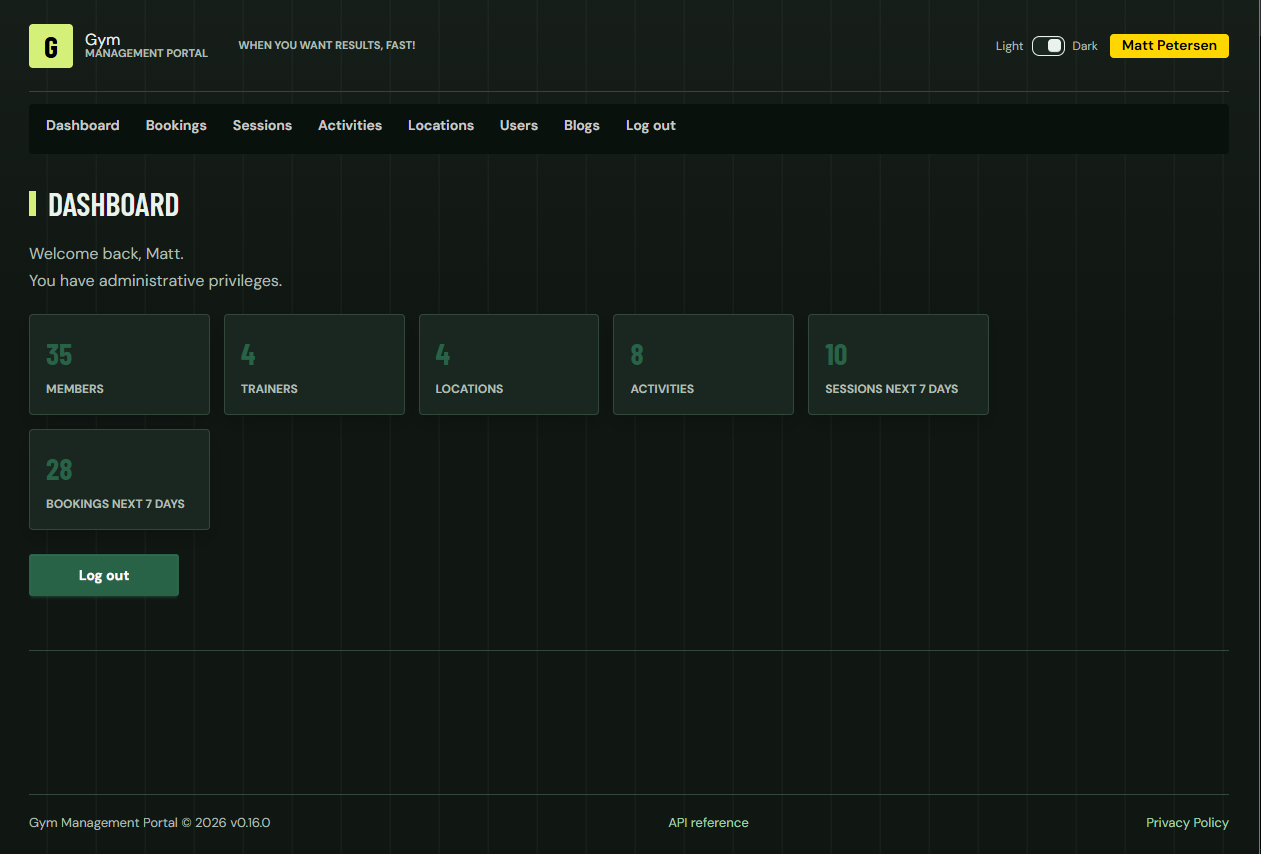
Architecture

Backend API
All API endpoints use the /api/v1 prefix.
Open /api/v1/docs/ for interactive Swagger documentation, or /api/v1/openapi.json
for the OpenAPI specification. The specification includes request examples,
field limits, response schemas, error codes, and role/ownership rules.
Each operation lists explicit error statuses with descriptions and example JSON
messages: invalid input (400), missing/invalid authentication (401), forbidden
access (403), missing records (404), conflicts (409), oversized bodies (413),
unsupported content types (415), and unexpected server errors (500), as applicable.
- Send
POST /api/v1/authenticatewith JSON{"username":"[email protected]","password":"your-password"}. - Copy the returned
keyinto Swagger's Authorize dialog, or send it as thex-auth-keyrequest header. - Send
DELETE /api/v1/authenticateto revoke the key. Logging in again replaces the previous key.
Administrators cannot log in to the API or use existing API keys. Members can download all of their past bookings as XML from
GET /api/v1/bookings/xml. Trainers can download their own sessions for the next seven days fromGET /api/v1/sessions/xml. Both files include a DTD and session, activity, trainer and location details. XML downloads (including the browser booking download) use Australian local formatting:DD/MM/YYYYdates and 12-hour times such as1:05pm, in the server's local timezone. Booking creation timestamps use the same format, for example16/10/2026, 1:05pm. JSON date/time formats are unchanged.
The API uses API keys rather than browser cookie sessions, validates JSON against
OpenAPI instead of the HTML form sanitiser, and does not require an
Idempotency-Key header. Browser page routes keep their existing middleware.
Sitemap by Role (backend app)
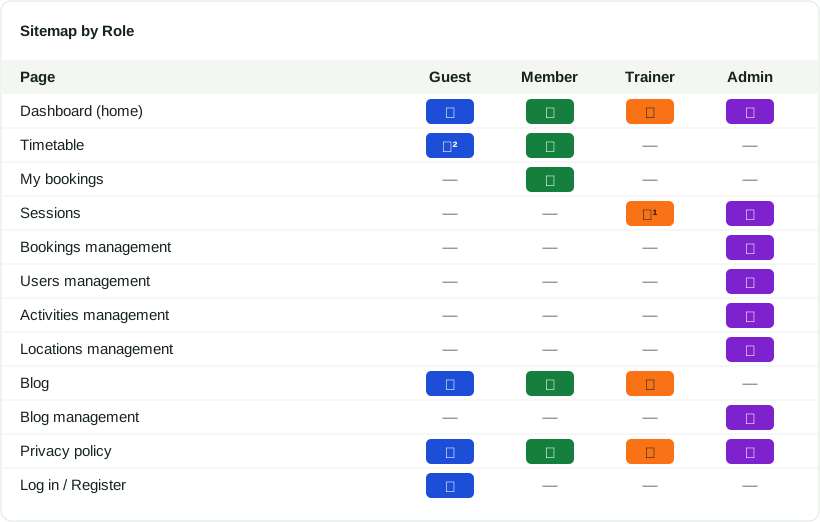
¹ Trainers can manage only their own
² Guests can only view, not book sessions
Running the code
There is NO NEED to run any speific database or schema creation SQL. The application takes care of this for you.
Sample data
If you choose to seed sample data on your first install, the passowrd for all sample users is testing123.
Sample sessions include 15 sessions spread across today and the next six days, plus six sessions from the previous four days, using the database's current date when seeding runs. Existing databases are not reseeded.
Sample bookings use a fixed, randomly generated selection of members and sessions. Six selected members each book 10–80% of sessions; users 10036 and 8 each book 20 of the 21 sessions (about 95%). Booking timestamps are seven days before seeding, before all sample sessions.
Besides your app admin account, here are a few users to get you started:
Trainers
Members
Development Environment
- You will need to have mySQL v8 or above installed and running
- Configure the .env file.
Example backend/.env:
# app settings
PORT=3000

# database connection settings
DB_HOST=127.0.0.1
DB_PORT=3307
DB_ROOT_PASSWORD=rootymctooty
DB_NAME=gym

# database app user credentials
DB_USER=gymuser
DB_PASSWORD=Testing123!

# app admin credentials
[email protected]
ADMIN_PASSWORD=testing123

# Seed sample data into database
DATA_SEED=true
- If you have just cloned this repo, run
npm iandnpm i -w backendto install prerequisit packages. - From the top-level folder, run the following command
npm run devall -w backend
This is how you will start the app in development every time.
- A database initialisation script process is started. If this is a new installation the following will execute, otherwise these steps will skip:
- Create the database
- Create tables and foriegn keys
- Create a database user account for the application
- Set priviledges for database user account
- Create an application admin user if there is no admin
- Seed sample data if a new database and the seed option is true
- The application is then started and available locally on the specified port.
** Other dev options **
- Run unit and integration tests with individual test results and coverage
npm run test - Run eslint linter
npm run lint - Run prettier linter
npm run prettier:check - Generate JSDoc documentation backend/src/public/docs
npm run jsdoc - Run tests with output to test_results.txt file
npm run testfilee
Docker (Recomended for production)
- Docker is installed and configured
- On your docker host machine, create and populate
.envandcompose.yamlfiles. Suggested options below:
Example .env:
# app settings
PORT=3000

# database connection settings
DB_HOST=127.0.0.1
# This is the port if you want to connect with mysql workbench. Change as needed
DB_PORT=3307
# Your mySQL root password
DB_ROOT_PASSWORD=rootymctooty
DB_NAME=gym

# database app user credentials
DB_USER=gymuser
DB_PASSWORD=Testing123!

# app admin credentials
[email protected]
ADMIN_PASSWORD=testing123

# Option to populate with same data (only on first install)
DATA_SEED=true
Example compose.yaml file
services:
  gymdb:
    image: mysql:8.0
    container_name: gymdb
    restart: unless-stopped
    environment:
      MYSQL_ROOT_PASSWORD: ${DB_ROOT_PASSWORD}
      MYSQL_ROOT_HOST: "%"
    ports:
      - ${DB_PORT}:3306
    volumes:
      - gymdb-data:/var/lib/mysql
    healthcheck:
      # $$ defers expansion to the container so the healthcheck uses its own root password.
      test:
        [
          "CMD-SHELL",
          'MYSQL_PWD="$$MYSQL_ROOT_PASSWORD" mysqladmin ping -h 127.0.0.1 -uroot',
        ]
      interval: 10s
      timeout: 5s
      retries: 10
      start_period: 180s

  gymapp:
    image: petersem/gym:latest
    container_name: gymapp
    restart: unless-stopped
    ports:
      - "3001:3000"
    environment:
      NODE_ENV: production
      PORT: 3000
      DB_HOST: gymdb
      DB_PORT: 3306
      DB_USER: ${DB_USER}
      DB_PASSWORD: ${DB_PASSWORD}
      DB_NAME: ${DB_NAME}
      DB_INIT_USER: root
      DB_INIT_PASSWORD: ${DB_ROOT_PASSWORD}
      DATA_SEED: ${DATA_SEED:-false}
      ADMIN_EMAIL: ${ADMIN_EMAIL}
      ADMIN_PASSWORD: ${ADMIN_PASSWORD}
    depends_on:
      gymdb:
        condition: service_healthy

volumes:
  gymdb-data:
Once you have configured these files, from the same directory, run docker compose up -d gymapp This will first create and install mySQL, and then it will create a container for the gym app.
If this is the first time the database is being created, this process can take a couple of minutes before things are running. Be patient!
Once it says gymdb is healthy and gymapp says running, the app is ready to be opened in a browser on the docker host ip:[specified port]
Tag summary
Content type
Image
Digest
sha256:ee2b75a4a…
Size
131 MB
Last updated
3 days ago
docker pull petersem/gym