pollenrobotics/reachy2
A reachy2 standalone core image to use as demo, test or development tool.
5.4K
pollenrobotics/reachy2 repository overview
Play with Reachy2 in a Docker container with all the necessary tools pre-installed.
TL;DR
Already have Docker installed? Launch the Reachy2 simulation in a one command!
docker run --rm --platform linux/amd64 -p 8888:8888 -p 6080:6080 -p 50051:50051 --name reachy2 docker.io/pollenrobotics/reachy2
Go check the display sections to access the simulation interfaces.
Pre-requisites
Install Docker
Follow the installation instructions for Docker Desktop.
You don't need to be logged in, as the image is open.
Platform-specific Instructions
MacOS (Apple Silicon)
Apple Silicon (M1/M2)
For Apple Silicon Macs, Docker uses Rosetta to run x86_64 images. Follow these steps after installing Docker Desktop:
-
Install Rosetta: Run the following command to install Rosetta:
softwareupdate --install-rosetta -
Enable Rosetta in Docker:
- Go to
Docker settings>General - Check
Use Virtualization Framework - Check
Use Rosetta for x86/amd64 emulation on Apple Silicon - Click
Apply & Restart
If the Rosetta integration option is not available, update your macOS version (it should be available from macOS Sonoma (v14)).
- Go to
-
Check Emulation: To verify that emulation is working, run:
docker run --rm --platform linux/amd64 busybox uname -mThis should output
x86_64if emulation is working.
Run the Robot Simulation
-
Via Docker Desktop (GUI)
- Search for the image in the
Docker Hubtab. - Pull the image.
- Click
Runto launch it via the Docker Desktop GUI. - Ensure to set the ports as pre-configured in the command.
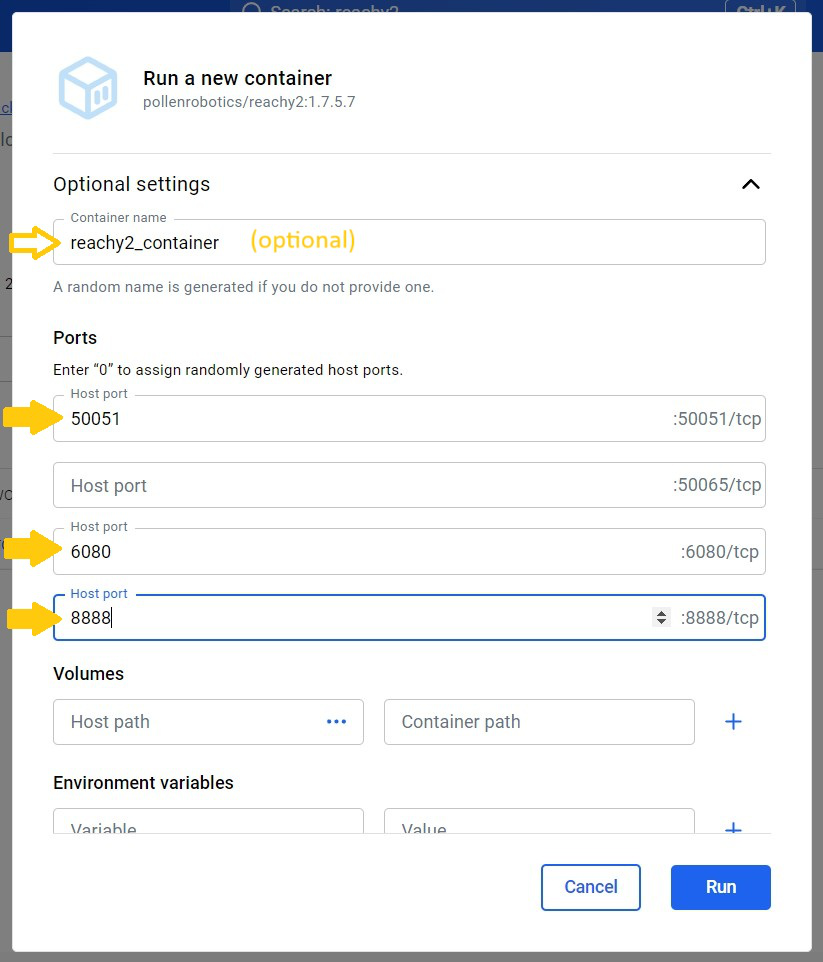
- Search for the image in the
-
Via Command Line Interface
If you prefer using the terminal, you can run the following command. This is a one-liner that launches the container with the required ports exposed:
docker run --rm --platform linux/amd64 -p 8888:8888 -p 6080:6080 -p 50051:50051 --name reachy2 docker.io/pollenrobotics/reachy2--platform linux/amd64is only necessary for Apple Silicon (aarch64) platforms.
-
Running with Gazebo
To launch the simulation with Gazebo and additional configurations, you can add arguments to the command like this:docker run --rm --platform linux/amd64 -p 8888:8888 -p 6080:6080 -p 50051:50051 --name reachy2 docker.io/pollenrobotics/reachy2 start_rviz:=true start_sdk_server:=true fake:=true orbbec:=false gazebo:=true -
Running with MuJoCo
For now the mobile base is not handled yet, may come in later update:docker run --rm --platform linux/amd64 -p 8888:8888 -p 6080:6080 -p 50051:50051 --name reachy2 docker.io/pollenrobotics/reachy2 start_rviz:=true start_sdk_server:=true fake:=true orbbec:=false mujoco:=true
Accessing the Displays
-
Rviz/Gazebo
To access Rviz or Gazebo, open the following URL in your web browser: http://localhost:6080/vnc.html?autoconnect=1&resize=remote -
Jupyter Notebook
To access the notebook interface, go to: http://localhost:8888/tree
Tag summary
Content type
Image
Digest
sha256:d5dd57681…
Size
4.2 GB
Last updated
about 1 year ago
docker pull pollenrobotics/reachy2