portainer24/portainer-dockerfile-example
An example dockerfile and how to run a dockerfiles in Portainer. How to build Docker images.
209
portainer24/portainer-dockerfile-example repository overview
Portainer Dockerfiles: Running an example Dockerfile in Portainer
If you're interested in running a Dockerfile, you've come to the right place. In this article, we'll be discussing how to run a Dockerfile using portainer. Running a Dockerfile can be a challenging task, but with the right tools, it can be quite simple.For those who may be unfamiliar, a Dockerfile is a script used to build Docker images. Dockerfiles are written in a specific format and include instructions for building an image. In this article, we'll provide an example Dockerfile and explain how to run it using Portainer.
Portainer is a popular tool for managing Docker containers, images, and networks. With Portainer, you can easily create, deploy, and manage Docker containers. In this article, we'll show you how to use Portainer to run a Dockerfile. Specifically, we'll be using Portainer to build an example Dockerfile and run it as a container. By the end of this article, you'll have a better understanding of how to use Portainer to manage your Docker containers and images.
Prerequisites
1. Basic understanding of Linux commands2. Linux Computer, Linux Virtual Machine or Linux Cloud Server
Relevant Beginner Friendly Courses:
a) Master DevOps Toolset a with a Cisco Course get an internationally recognized associate level certificate (Cost $26.99)b) Software Containerization with Docker and Portainer and Nginx Proxy Manager (Cost: Free)
Example Dockerfile in the GitHub Repository
In this example, we demonstrate how to push an app to a GitHub repository named myapp. The image below showcases the example app that we'll be using. However, you can create your own application and push it to your GitHub repository. Alternatively, you can use the app that we have uploaded to follow along with this tutorial.Pushing an app to GitHub allows you to store your code in a centralized location and collaborate with others. By creating your own app and pushing it to a GitHub repository, you can customize the application to meet your specific needs. On the other hand, using the app we've provided can be a helpful learning experience and provide you with a better understanding of how to push an app to GitHub.
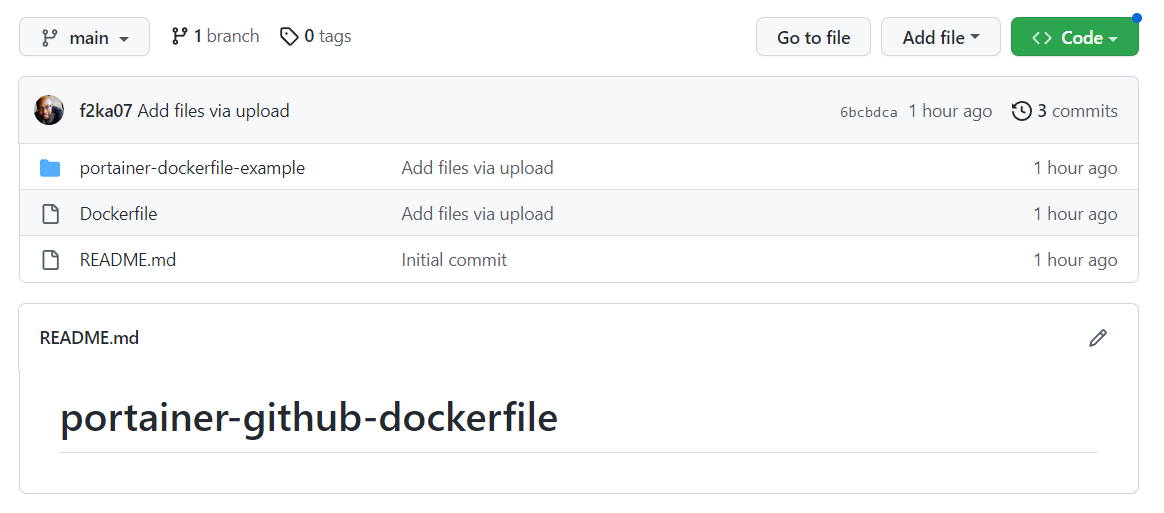
The Dockerfile Example on GitHub
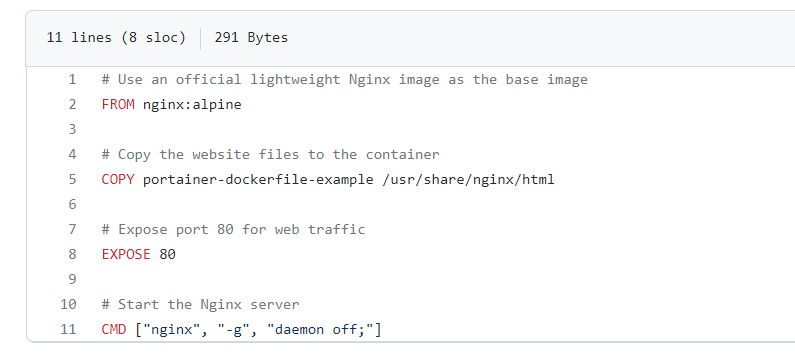
The Dockerfile Code for the Example App
# Use an official lightweight Nginx image as the base image
FROM nginx:alpine

# Copy the website files to the container
COPY portainer-dockerfile-example /usr/share/nginx/html

# Expose port 80 for web traffic
EXPOSE 80

# Start the Nginx server
CMD ["nginx", "-g", "daemon off;"]
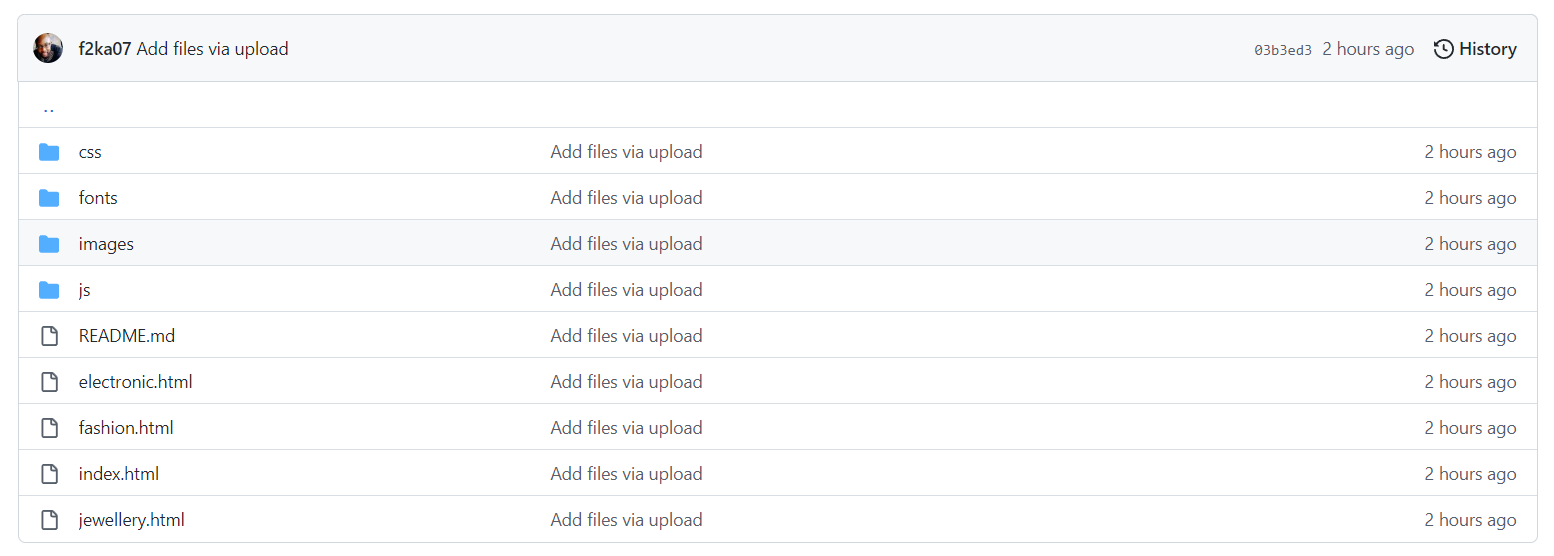
From the Dockerfile example above, we will only need to install Nginx in the container. The structure of the static website to be containerised is shown below. You can also access the sample web app dockerfile from GitHub
Creating a Docker Image from remote Dockerfile using Portainer
- First, open Portainer in your web browser and log in to the web UI.
- Once you are logged in, you will see the main dashboard with different tabs on the left-hand side.
- To create a new image, click on the "Images" tab and then click on the Build Image
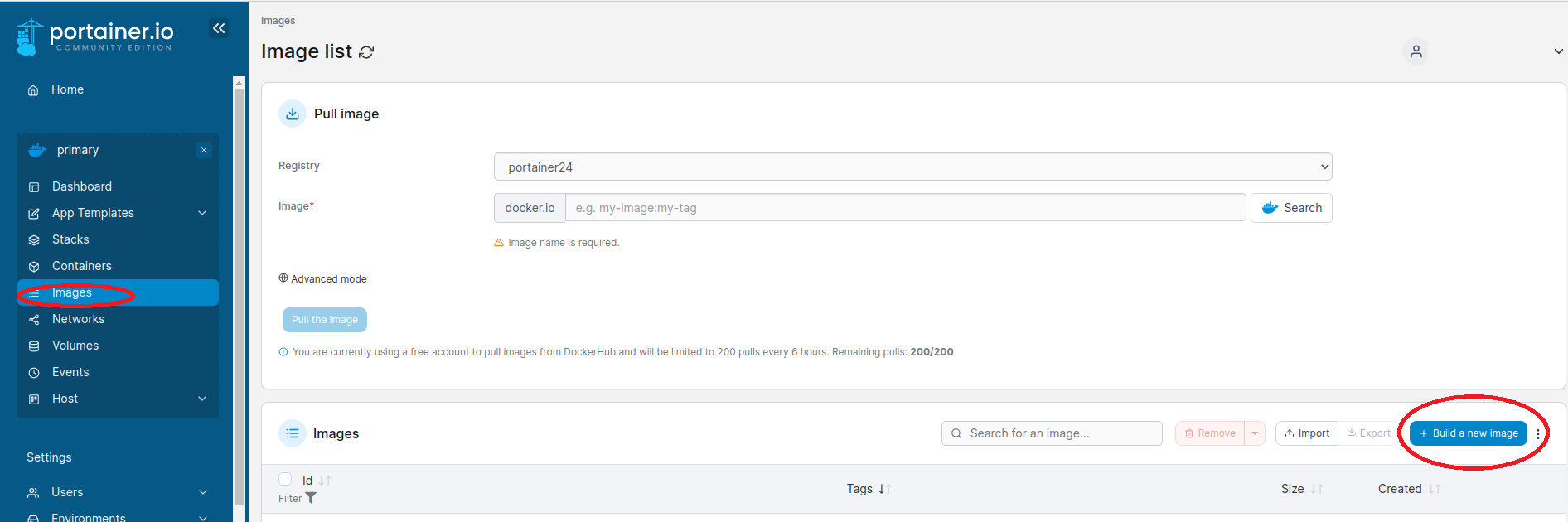
h3>Using Portainer to Build an image using a Dockerfile hosted in GitHub
The build image form below will appear, where you can specify the details of the image you want to create.
- In the Name field, give the image a name that is meaningful and easy to remember.
- In the Dockerfile field, you can input the path of the file in the Github repository.
- In the Build context field, you can specify the location of the build context, which is the location where the Dockerfile is located. If you leave this field empty, Portainer will use the current working directory as the build context.
- In the Build args field, you can specify any build arguments you want to pass to the Dockerfile.
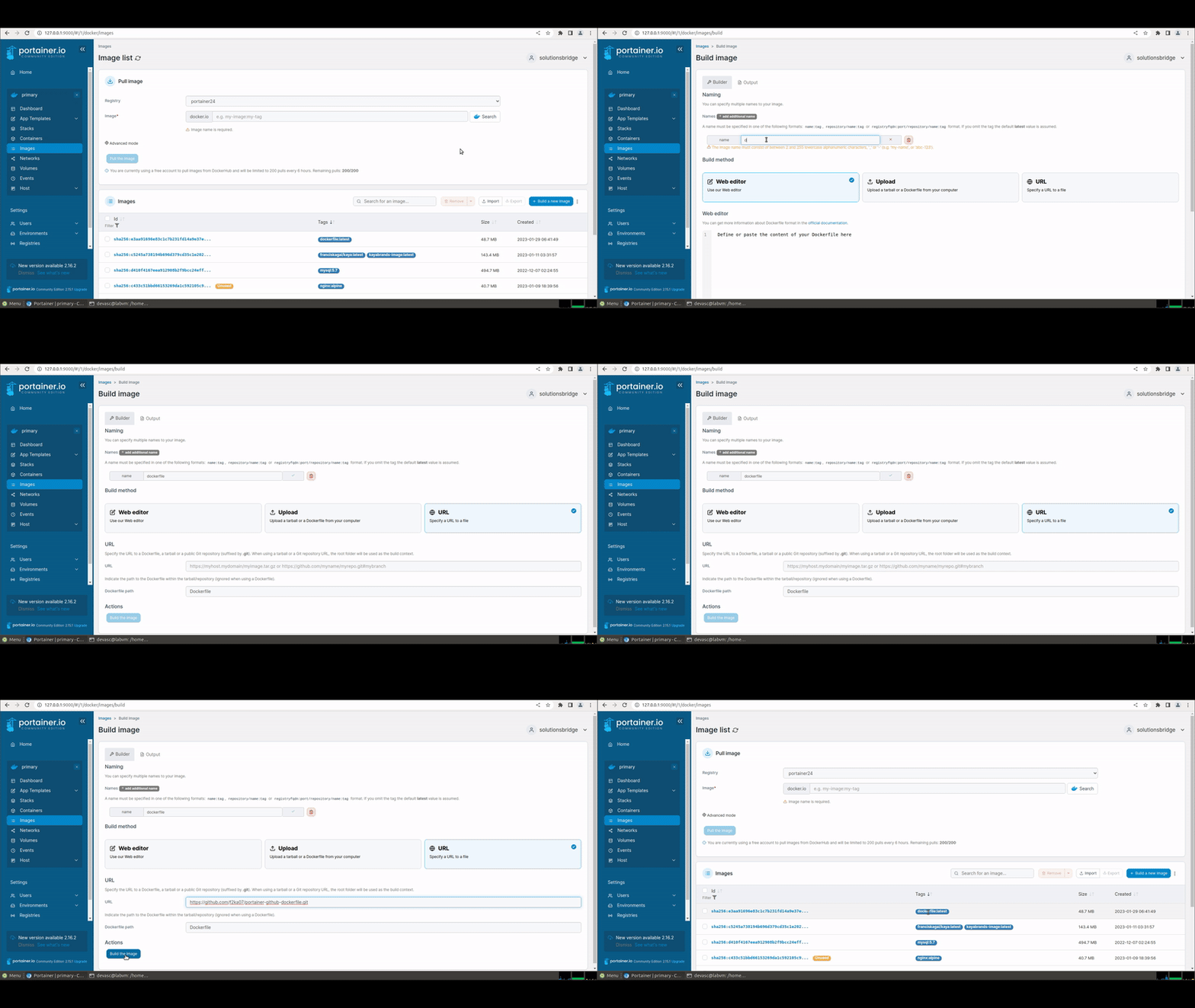
As shown in the image above, once you have filled in the form, click on the Build the image button to start the build process. Portainer will then display the build logs in real-time, which can be useful for troubleshooting any issues that may arise. Once the build process is complete, you will see the new image in the list of available images in Portainer.
Using Portainer to create container from local docker image
Now that you have created an image, its now time to create a container from the image. Creating a new container using a local image is simple if you are using Portainer business edition. The community edition of Portainer does not allow this process to be completed via its GUI. If you are using the community edition and are unable to see a list of local images in the image field, you may need to use the command line to create the container that uses a local image. Below is the format of the command you can use.
docker run -it --name example_dockerfile -p 8080:80 -v /var/lib/mysql:/data dockerfile:latest - The -it option allows you to interact with the container in a terminal session and the --name option allows you to specify a name for the container.
- The -p option maps the port 80 of the container to [port 8080](https://solid-future.com/docs/portainers-port-8000-9443-and-9000-in-docker-management/) on the host machine.
- The -v option mounts the host directory /var/lib/html to the /data directory inside the container.
Please note that in this case we have used the /var/lib/html as host_path which should be the path of your host machine where the required data is present and /data is container_path which is the path inside the container where you want to mount the host_path.
This command will start the container and you will be able to interact with it through the terminal. You can stop the container by typing exit or CTRL + C. You can also access it through http://127.0.0.1:8080 if you have not modified the port number.

Useful Related Resources and Guides
- How to upload a Docker Image from local machine to Docker Hub
- Python Flask Docker example: Dockerfile to containerize a Python Flask application
- Best Linux Distro for Docker Containers
- Docker Containerization benefits
- Docker Compose Networking
- Podman vs Docker
Useful Video on Docker Containers
- How to Create a Linux Cloud Server for Docker
- How to Install Nginx Reverse Proxy Server Manager in Docker
Relevant Beginner Friendly Courses
- Master DevOps Toolset a with a Cisco Course get an internationally recognized associate level certificate (Cost $26.99)
- Software Containerization with Docker and Portainer and Nginx Proxy Manager (Cost: Free)
Tag summary
Content type
Image
Digest
sha256:2edd63bd8…
Size
24.1 MB
Last updated
almost 4 years ago
docker pull portainer24/portainer-dockerfile-example