primeapps/hubspot-connector repository overview
Hubspot Connector
This sample demonstrates how to develop a PrimeApps project using .NET Core.
Prerequisites
Before running this sample locally, you need to install and start PrimeApps Runtime. Please follow this guide to install PrimeApps Runtime. Then follow the steps below.
Setup
1. Fork this repository
In the top-right corner of the page, click Fork.

2. Develop your code
You can clone your forked repository to your local machine now. Then develop your APIs, scripts and, components. Commit and push your code.
3. Build Docker image
You can build and push Docker image to GitHub Packages with simple steps. We've created ready-to-use Dockerfile and Github Build Actions for you.
3.1. Click "Actions" tab in your forked repository.

3.2. Click "I understand my workflows, go ahead and run them" button.
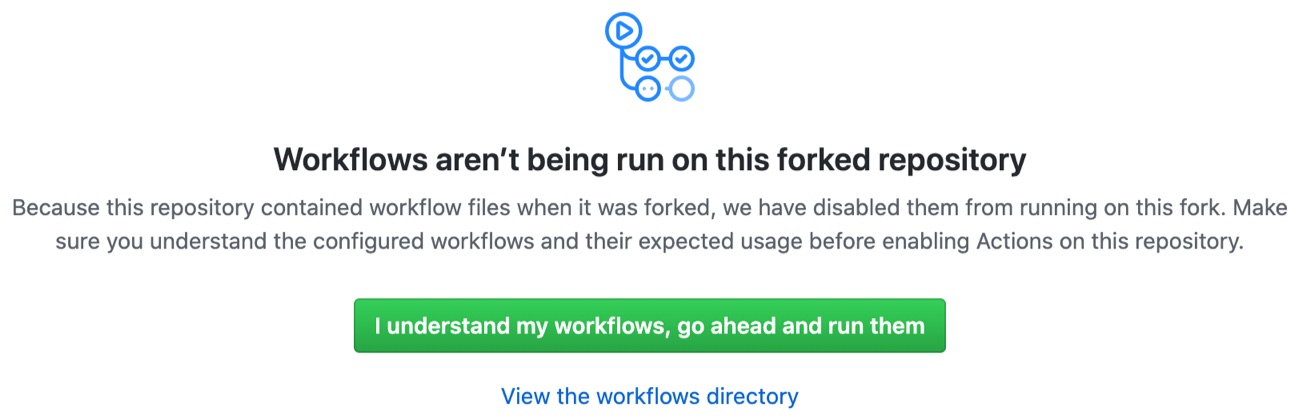
3.3. Enter "Releases" menu. It's a submenu under "Code" tab.

3.4. Click "Create a new release" button.
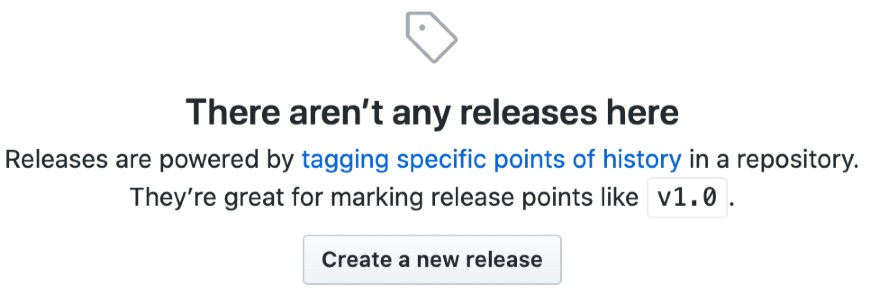
3.5. Enter v1.0 in "Tag version" input and click "Publish release" button. After that, a build is started automatically. You can see progress in "Actions" menu. It will be finished in about 2 minutes.


4. Publish Docker container
After the build is finished, your Docker image will be ready in "Packages" menu which is a submenu under "Code" tab. You can find the image path there. Something like that:
docker pull docker.pkg.github.com/username/sample-dotnet/primeapps-sample:1.0.0
You can now create a container in PrimeApps Studio using this information.
Tag summary
Content type
Image
Digest
Size
89 MB
Last updated
over 5 years ago
docker pull primeapps/hubspot-connector