redlistsolutions/ace-elera-bridge
ACE ELERA Bridge — Toshiba ACE to Elera Commerce Platform data bridge
155
redlistsolutions/ace-elera-bridge repository overview
ACE ELERA Bridge Platform — Docker Deployment
A containerized, GraalVM native-image build of the ACE ELERA Bridge Platform. Sub-second startup, minimal memory footprint, secure distroless base image.
Prerequisites
- Elera Platform running in Docker — The Bridge joins the ELERA Docker network to communicate with the ELERA API (via nginx) and RabbitMQ by their Docker service names. No
host.docker.internalworkarounds needed. - Docker and Docker Compose installed on the host.
What This Does
The ACE ELERA Bridge is a bidirectional data bridge between Toshiba ACE (SurePOS) and the Elera Commerce Platform. It runs as a single Docker container on the Elera Docker network, communicating with the Elera API through nginx and subscribing to Change Plan events via RabbitMQ.
The Bridge ships as a free tier with usage limits (see Free Tier Limits below). A licensed version removes all limits and unlocks additional features.
ACE to Elera (Import)
- File Watcher — Drop EAMMAINT files into
inbox/{nodeName}/folders. The Bridge picks them up, parses the binary ADDMI records, and pushes changes to Elera catalogs and price lists automatically. - Manual Import — Upload EAMMAINT files through the web UI. Scan the file to see what it contains, select target catalogs and price lists, and execute.
- ACE Item Import — Bulk-load an entire ACE 4690 Keyed File (EAMITEMR.DAT) into Elera to seed a new store.
Elera to ACE (Export)
- Change Plan Sync — When a Change Plan executes on Elera, the Bridge receives the event via RabbitMQ, queries the Change Plan API for exactly what changed, and generates binary EAMMAINT files in
outbox/{storeNumber}/for your ACE file distribution system. - Per-Store Format — Each store's record length (127 or 169 bytes) and key length (12 or 14 digits) are configurable. The Bridge generates EAMMAINT files in the exact binary format each ACE store expects.
Free Tier Limits
The Bridge runs in free tier mode by default. Free tier is fully functional but has the following limits:
| Capability | Free Tier | Licensed |
|---|---|---|
| Inbox node folders (watched stores) | 1 store | Unlimited |
| Records per ACE Item Import | 500 | Unlimited |
| Records per watcher file | 50 | Unlimited |
| Changes per Change Plan export | 50 | Unlimited |
When a limit is reached, the Bridge processes items up to the limit and stops — no data is lost or corrupted, but remaining items beyond the limit are skipped. The UI displays a warning before each import when running in free tier mode.
Change Plan sync via RabbitMQ is fully functional in free tier — the Bridge listens for Change Plan execution events, generates EAMMAINT files, and writes them to the outbox. The only restriction is the 50-change cap per Change Plan.
Upgrading to a Licensed Version
A license file (config/license.json) removes all limits and enables automatic Change Plan synchronization. To obtain a license, contact:
Place the provided license.json file in the config/ directory and restart the container. The Bridge validates the license on startup and displays the license status on the home page.
Dashboard
The Bridge includes a built-in web UI for monitoring and management.
Home
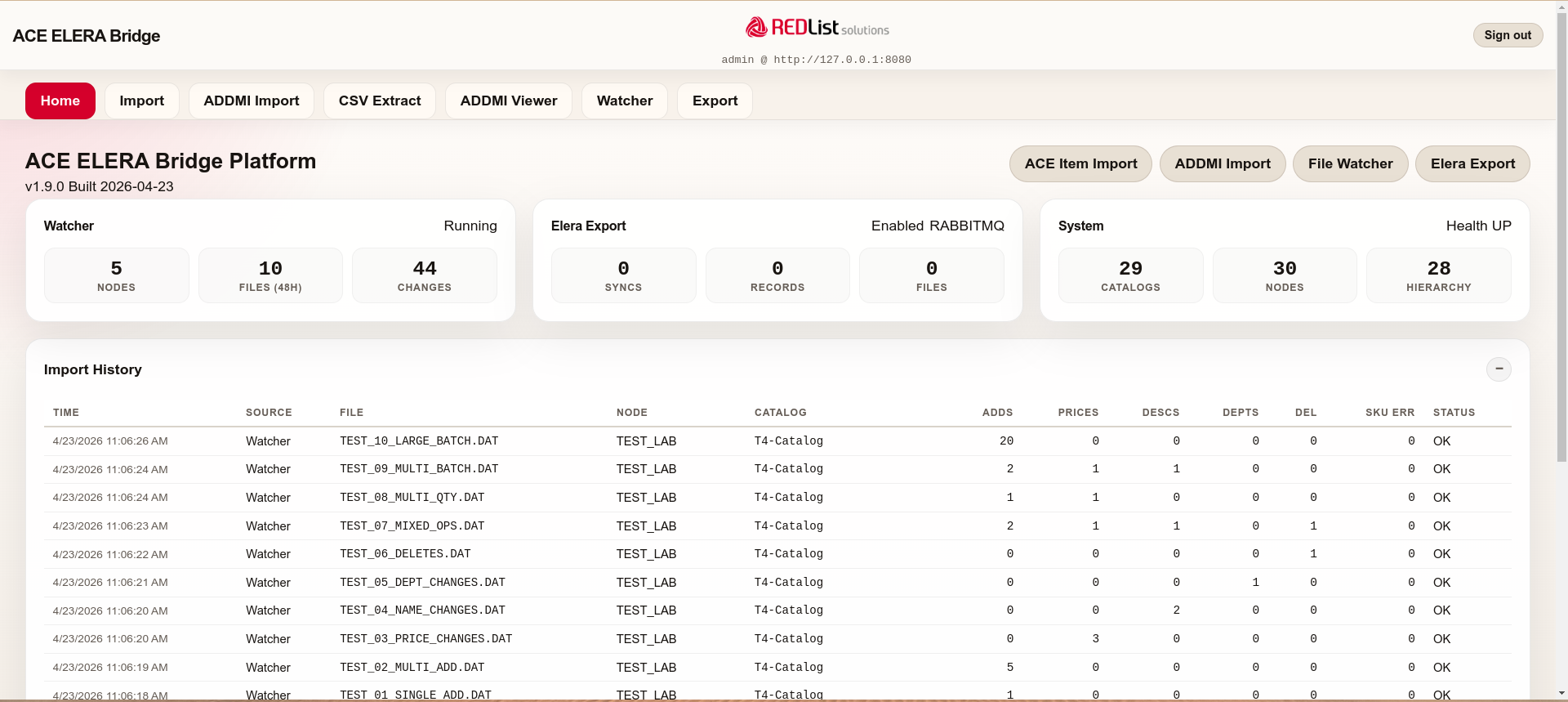
At-a-glance status of the Watcher, Export pipeline, and System health. Import History shows all recent ADDMI file processing (both watcher and manual imports) with timestamps, source markers, and change counts.
Watcher
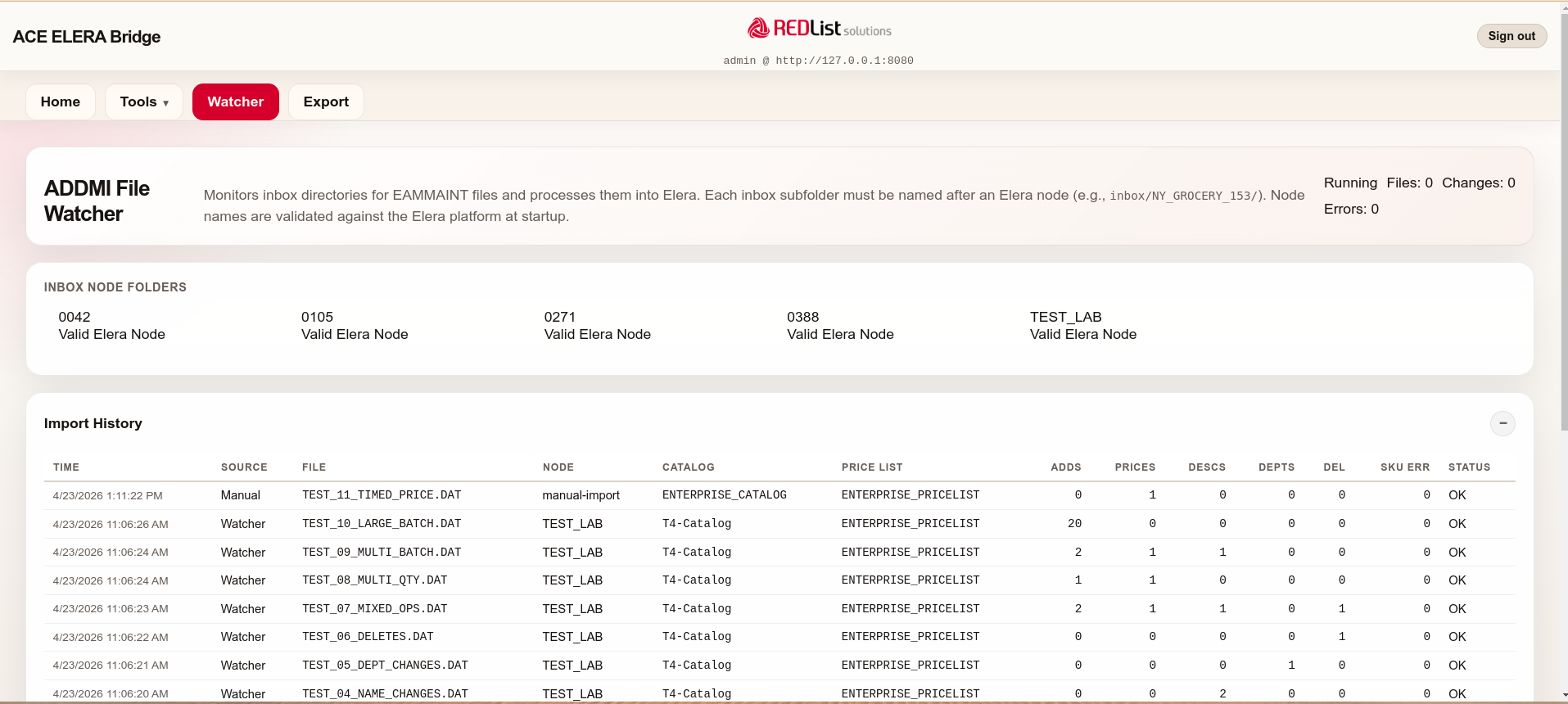
Live status of inbox node folders with validation against the Elera platform. The Import History table shows every file processed with detailed metrics — item adds, price changes, description updates, department moves, deletes, and SKU validation errors.
Export
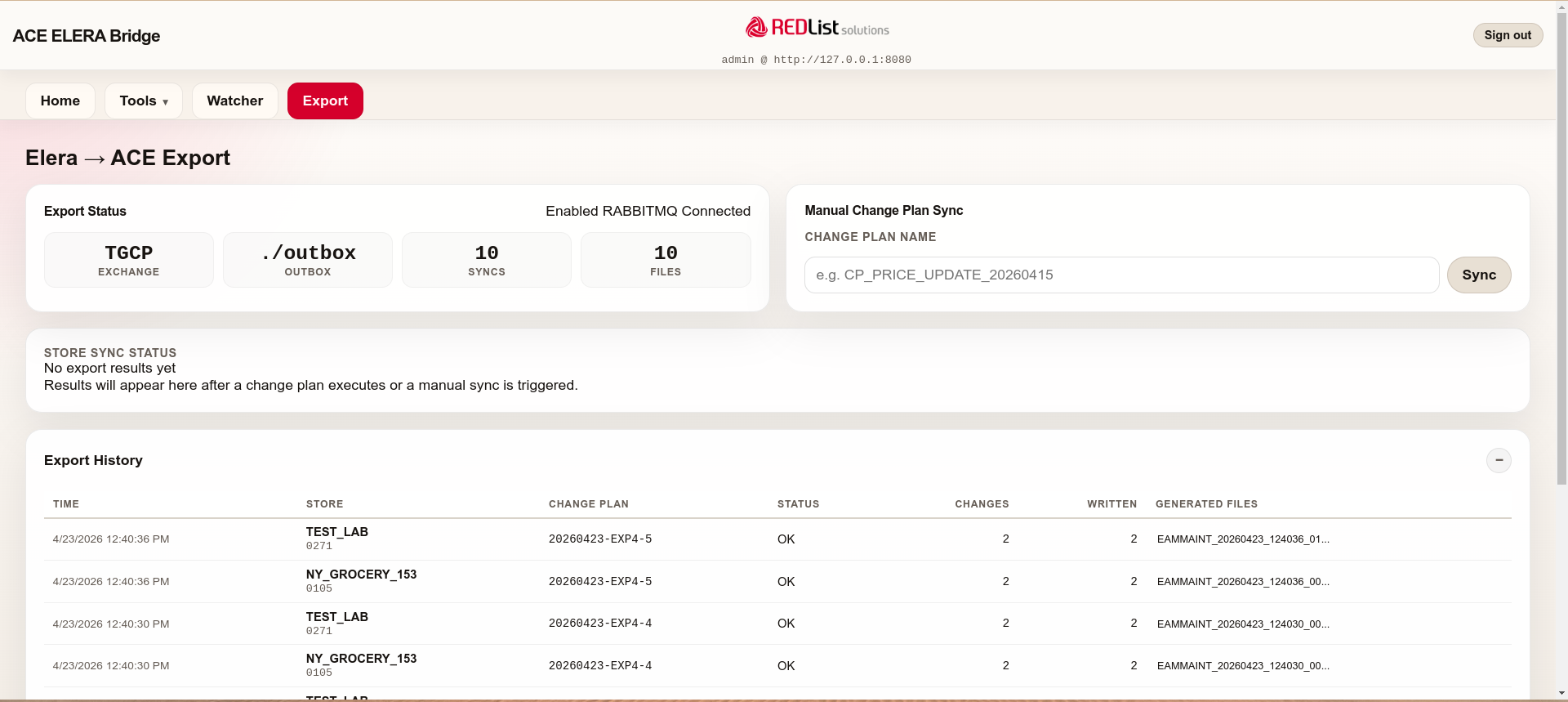
Export status dashboard showing RabbitMQ connection state, sync statistics, and manual Change Plan sync trigger. The Export History table shows every change plan processed with per-store results and generated EAMMAINT filenames.
Quick Start
# Clone the repository
git clone https://github.com/redlistsolutions/addmi-platform.git
cd addmi-platform

# Create host directories for file exchange and persistent data
mkdir -p config inbox outbox processed data

# Build the native image
docker build -f Dockerfile.native -t redlistsolutions/ace-elera-bridge:native ..

# Start the Bridge (joins Elera's Docker network automatically)
UID=$(id -u) GID=$(id -g) docker compose -f docker-compose.native.yml up -d

# Open the UI
open http://localhost:8083
The Bridge starts in under 0.3 seconds and is ready to process ADDMI files immediately. Login with your Elera platform credentials.
Connecting to the Elera Platform
The Bridge container joins the same Docker network as your Elera platform so it can reach the Elera API and RabbitMQ by their Docker service names — no port mapping or host networking required.
Network Configuration
The docker-compose.native.yml file connects to the Elera network:
networks:
  elera:
    external: true
    name: docker_backups_tgcp    # <-- Your Elera compose network name
Finding your Elera network name: Run
docker network lsand look for the network created by your Elera Docker Compose (typically named{directory}_defaultor similar). Update thename:field indocker-compose.native.ymlto match.
Service Names
Once on the Elera network, the Bridge reaches Elera services by their Docker service names:
| Service | Default | Description |
|---|---|---|
ELERA_API_BASE_URL | http://elera-nginx:80 | Elera API via the nginx reverse proxy container |
RABBITMQ_HOST | rabbitmq | Elera's RabbitMQ broker container |
If your Elera compose uses different service names, override these in the environment section of docker-compose.native.yml or via a .env file.
File Permissions
The Bridge container runs as the host user (UID/GID) so it can read and write to mounted volumes (inbox, outbox, data) without permission issues:
user: "${UID:-1000}:${GID:-1000}"
If your host user has a different UID, set it in your environment or .env file:
export UID=$(id -u)
export GID=$(id -g)
docker compose -f docker-compose.native.yml up -d
Docker Images
GraalVM Native Image (Recommended)
Sub-second startup (~0.2s), ~166MB image, minimal attack surface using Google's distroless base.
# Build
docker build -f Dockerfile.native -t redlistsolutions/ace-elera-bridge:native ..

# Run with Docker Compose (recommended)
docker compose -f docker-compose.native.yml up -d

# Or run standalone
docker run -p 8083:8083 \
  --network docker_backups_tgcp \
  -e SERVER_PORT=8083 \
  -e ELERA_API_BASE_URL=http://elera-nginx:80 \
  -e ELERA_API_USERNAME=admin \
  -e ELERA_API_PASSWORD=password \
  -e RABBITMQ_HOST=rabbitmq \
  -v ./config:/app/config:ro \
  -v ./inbox:/app/inbox \
  -v ./outbox:/app/outbox \
  -v ./data:/app/data \
  redlistsolutions/ace-elera-bridge:native
Standard JVM Image
Traditional Spring Boot JAR on Eclipse Temurin JRE. Larger image (~300MB), ~5s startup.
docker build -f Dockerfile -t redlistsolutions/ace-elera-bridge:jvm ..
Configuration
All settings are configured through environment variables or a .env file.
Elera Connection
| Variable | Description | Default |
|---|---|---|
ELERA_API_BASE_URL | Elera API endpoint (use nginx service name on Docker network) | http://elera-nginx:80 |
ELERA_API_USERNAME | Elera service account username | admin |
ELERA_API_PASSWORD | Elera service account password | password |
SERVER_PORT | Port the Bridge listens on | 8083 |
Message Broker
| Variable | Description | Default |
|---|---|---|
MESSAGE_BROKER | Broker type: rabbitmq or azure-servicebus | rabbitmq |
RABBITMQ_HOST | RabbitMQ hostname (use Docker service name) | rabbitmq |
RABBITMQ_PORT | RabbitMQ AMQP port | 5672 |
RABBITMQ_USER | RabbitMQ username | guest |
RABBITMQ_PASS | RabbitMQ password | guest |
AZURE_SERVICEBUS_CONNECTION_STRING | Azure Service Bus connection string (when broker=azure-servicebus) | — |
Storage Backend
| Variable | Description | Default |
|---|---|---|
STORAGE_BACKEND | Storage type: local, azure-blob, or sftp | local |
AZURE_STORAGE_CONNECTION_STRING | Azure Blob connection string (when backend=azure-blob) | — |
SFTP_HOST / SFTP_USER / SFTP_PASS | SFTP credentials (when backend=sftp) | — |
Export
| Variable | Description | Default |
|---|---|---|
BRIDGE_EXPORT_ENABLED | Enable Elera-to-ACE export pipeline | true |
BRIDGE_EXPORT_OUTBOX_PATH | Output directory for generated EAMMAINT files | ./outbox |
History
| Variable | Description | Default |
|---|---|---|
BRIDGE_HISTORY_RETENTION_HOURS | How long to keep import/export history | 48 |
Container User
| Variable | Description | Default |
|---|---|---|
UID | Host user ID — container runs as this user for volume permissions | 1000 |
GID | Host group ID | 1000 |
Volume Mounts
The Bridge container bind-mounts host directories for file exchange and persistent data. These directories live alongside your docker-compose.native.yml file and are accessible from both the host and the container.
| Host Path | Container Path | Purpose | Mode |
|---|---|---|---|
./config | /app/config | store-config.json, field-mappings.json, license.json | Read-only |
./inbox | /app/inbox | Drop EAMMAINT files here for ACE-to-Elera import | Read-write |
./processed | /app/processed | Archived files after successful import | Read-write |
./outbox | /app/outbox | Generated EAMMAINT files for Elera-to-ACE export | Read-write |
./data | /app/data | Persistent import/export history (JSON files) | Read-write |
Create these directories on the host before starting the container:
mkdir -p config inbox outbox processed data
Inbox Folders (ACE to Elera Import)
The Bridge watcher monitors the inbox/ directory for subdirectories. Each subdirectory must be named after an Elera node name — the text-based name assigned to the node in the Elera platform (e.g., AL_STORE_543), not the numeric ACE store number (e.g., 0543).
On startup, the watcher validates each folder name against the Elera platform by calling the Configurations API. A folder is only accepted if:
- The node exists in Elera with that exact name
- The node has a CATALOG configured
- The node has PRICE_LISTS configured
Folders that fail validation (wrong name, numeric store numbers, nodes without catalog/price list config) are flagged as invalid in the UI and their files are not processed.
Setting Up Inbox Folders
Look up your Elera node names in the Elera platform (Configurations > Nodes), then create a subdirectory under inbox/ on the host for each node:
# Create inbox folders using Elera node names (NOT store numbers)
mkdir -p inbox/AL_STORE_543
mkdir -p inbox/NY_GROCERY_153
mkdir -p inbox/TEST_LAB
Your host directory structure should look like:
addmi-platform/
├── docker-compose.native.yml
├── config/
│   └── store-config.json
├── inbox/
│   ├── AL_STORE_543/         ← drop EAMMAINT files here (Elera node name)
│   ├── NY_GROCERY_153/       ← drop EAMMAINT files here (Elera node name)
│   └── TEST_LAB/             ← drop EAMMAINT files here (Elera node name)
├── outbox/
│   ├── 0543/                 ← generated export files appear here (ACE store number)
│   ├── 0105/                 ← generated export files appear here (ACE store number)
│   └── 0271/                 ← generated export files appear here (ACE store number)
├── processed/
├── data/
Common mistake: Do not use ACE store numbers (
0543,0105) as inbox folder names. The watcher validates folder names against the Elera Configurations API, and numeric store numbers will fail validation. Use the Elera node name fromstore-config.jsoninstead.
Importing Files
To import ADDMI data into Elera, copy or move EAMMAINT files into the appropriate node folder on the host:
cp EAMMAINT_001.DAT inbox/AL_STORE_543/
The watcher detects the file automatically, parses the binary ADDMI records, and pushes the changes to the node's Elera catalog and price lists. After processing, the file is moved to processed/AL_STORE_543/ with a timestamp prefix.
Adding New Nodes
You can create new inbox subdirectories on the host at any time. Restart the container to trigger node discovery and validation:
mkdir -p inbox/FL_STORE_027
docker compose -f docker-compose.native.yml restart
Outbox Folders (Elera to ACE Export)
When a Change Plan executes on the Elera platform, the Bridge receives the event via RabbitMQ and generates binary EAMMAINT files in the outbox/ directory on the host. Files are organized by ACE store number (from store-config.json) — not the Elera node name.
Collecting Export Files
Generated files appear in store-numbered subdirectories under outbox/ on the host:
ls outbox/0543/
# EAMMAINT_CP1234_20260501_143022.DAT

ls outbox/0105/
# EAMMAINT_CP1234_20260501_143022.DAT
Copy these files to your ACE file distribution system for delivery to the target stores:
# Copy all generated files for ACE store 0543 (Elera node AL_STORE_543)
cp outbox/0543/*.DAT /path/to/ace/distribution/0543/
Store number, not node name: Outbox folders use the ACE store number (e.g.,
0543), the reverse of inbox folders which use the Elera node name (e.g.,AL_STORE_543). The mapping between the two is defined instore-config.json.
Store Configuration
Create config/store-config.json to map ACE store numbers to Elera node names. This mapping drives both inbox folder validation (import) and outbox file generation (export):
{
  "stores": [
    {
      "storeNumber": "0543",
      "nodeName": "AL_STORE_543",
      "itemRecordLength": 127,
      "keyLength": 12,
      "enabled": true,
      "description": "AL Store 543 - Sedona AZ"
    },
    {
      "storeNumber": "0153",
      "nodeName": "NY_GROCERY_153",
      "itemRecordLength": 127,
      "keyLength": 12,
      "enabled": true,
      "description": "NY Store 153 - Albany NY"
    },
    {
      "storeNumber": "0271",
      "nodeName": "TEST_LAB",
      "itemRecordLength": 127,
      "keyLength": 12,
      "enabled": true,
      "description": "Test Lab"
    }
  ]
}
Each entry maps an ACE store number to an Elera node name:
nodeName(AL_STORE_543) — the Elera node name, used for inbox folder names and Elera API callsstoreNumber(0543) — the ACE store number, used for outbox folder names and EAMMAINT file generationitemRecordLength/keyLength— binary format settings for the store's EAMMAINT files
Important: Inbox folders must be named after
nodeNamevalues, notstoreNumbervalues. For the config above, createinbox/AL_STORE_543/,inbox/NY_GROCERY_153/, andinbox/TEST_LAB/— notinbox/0543/orinbox/0105/.
Health Check
curl http://localhost:8083/actuator/health
Architecture
┌──────────────────────┐                                      ┌──────────────────────┐
│  Legacy ACE          │         ┌────────────────────┐       │   Elera Platform      │
│                      │         │                    │       │   (Docker Network)    │
│  ERP / Host System   │────────>│  ACE ELERA Bridge  │──────>│                       │
│  ADDMI Batches       │  inbox  │                    │ nginx │   Catalogs            │
│                      │         │  Docker Container  │──────>│   Price Lists         │
│  ACE Item Files      │────────>│  GraalVM Native    │       │   Change Plans        │
│                      │         │                    │       │                       │
│  ACE Stores          │<────────│  Port 8083         │<──────│   RabbitMQ            │
│  (receive EAMMAINT)  │ outbox  └────────────────────┘ events│   (TGCP Exchange)     │
└──────────────────────┘                │                     └──────────────────────┘
                                        │
                                   Elera Docker Network
                                  (docker_backups_tgcp)
Security
- Runtime image: Google's
distroless/java-base-debian12— no shell, no package manager, no OS utilities. Minimal attack surface. - Host user mapping: Container runs as the host user (configurable via
UID/GID) for proper volume permissions without running as root. - Elera credential passthrough: The Bridge authenticates with your Elera credentials — no separate user database.
- CSRF protection: Full CSRF token handling for the web UI.
- Session security: HTTP session with fixation attack mitigation.
- Network isolation: Communicates with Elera services via Docker's internal network — no Elera ports need to be exposed to the host for the Bridge to function.
Ports
| Port | Service | Description |
|---|---|---|
8083 | Bridge UI & API | Web interface and REST API |
Troubleshooting
Container can't reach Elera API: Verify the Bridge is on the same Docker network as Elera. Run docker network inspect docker_backups_tgcp and confirm ace-elera-bridge is listed. If your Elera network has a different name, update the networks.elera.name field in docker-compose.native.yml.
"Write failed" errors on Export page: The container can't write to the outbox directory. Ensure the user: setting in docker-compose.native.yml matches your host UID. Check with id -u on the host and set UID accordingly.
RabbitMQ connection failing: Verify the RabbitMQ container name matches RABBITMQ_HOST. Run docker ps to find the actual container name (typically rabbitmq). The Bridge retries automatically — once RabbitMQ is reachable, it connects.
No export events after Change Plan: Verify the Export page shows "RABBITMQ Connected" in the status card. If disconnected, check the RabbitMQ host setting and that the TGCP exchange exists on the broker.
Inbox folder shows "Invalid": The folder name must match an Elera node name exactly (e.g., AL_STORE_543), not an ACE store number (e.g., 0543). The Bridge validates that the node exists in Elera and has both CATALOG and PRICE_LISTS configured. Check Elera's Configurations > Nodes to confirm the node name and its configuration.
EAMMAINT files not generated: Verify store-config.json maps your store numbers to valid Elera nodes. The Bridge only generates files for stores whose node's catalog hierarchy includes the affected catalog.
Import history empty after restart: History is persisted to /app/data/. Ensure the volume is mounted and writable.
Finding your Elera network name: Run docker network ls and look for the network your Elera Docker Compose created. Common names: docker_backups_tgcp, elera_default, {directory}_default.
Copyright and License
Copyright (c) 2025-2026 REDList Solutions. All rights reserved.
ACE ELERA Bridge Platform is proprietary software developed by REDList Solutions. The compiled native binary, all source code, user interface assets, and accompanying documentation are the intellectual property of REDList Solutions.
This software is currently provided free of charge for evaluation and use with the Toshiba Elera Platform. REDList Solutions reserves the right to change the licensing terms for future versions as additional capabilities are introduced.
Retailers and organizations interested in licensing the software, requesting additional features, or obtaining a commercial support agreement should contact REDList Solutions directly.
No Warranty
THIS SOFTWARE IS PROVIDED "AS IS", WITHOUT WARRANTY OF ANY KIND, EXPRESS OR IMPLIED, INCLUDING BUT NOT LIMITED TO THE WARRANTIES OF MERCHANTABILITY, FITNESS FOR A PARTICULAR PURPOSE, AND NONINFRINGEMENT. IN NO EVENT SHALL REDLIST SOLUTIONS BE LIABLE FOR ANY CLAIM, DAMAGES, OR OTHER LIABILITY, WHETHER IN AN ACTION OF CONTRACT, TORT, OR OTHERWISE, ARISING FROM, OUT OF, OR IN CONNECTION WITH THE SOFTWARE OR THE USE OR OTHER DEALINGS IN THE SOFTWARE.
REDLIST SOLUTIONS MAKES NO GUARANTEES REGARDING THE AVAILABILITY, ACCURACY, OR COMPLETENESS OF THE INFORMATION PROVIDED BY THIS SOFTWARE. USE OF THIS SOFTWARE IS AT YOUR OWN RISK.
Trademarks
Toshiba, Elera, and Toshiba Global Commerce Solutions are trademarks or registered trademarks of Toshiba Global Commerce Solutions. ACE ELERA Bridge Platform is an independent product and is not affiliated with, endorsed by, or sponsored by Toshiba Global Commerce Solutions.
REDList Solutions | redlistsolutions.com
Tag summary
Content type
Image
Digest
sha256:c5793ad58…
Size
56.8 MB
Last updated
5 months ago
docker pull redlistsolutions/ace-elera-bridge