redlistsolutions/elera-admin-lite
Lightweight admin UI for Toshiba Elera Platform - GraalVM native image, Veracode score 100/100
496
redlistsolutions/elera-admin-lite repository overview
REDList Elera Admin Lite - Docker Installation Guide
Version: 0.86.0
Image: redlistsolutions/elera-admin-lite
Platform: GraalVM Native Image (no JVM required)
What's New in 0.86.0 — UI Updates and Fixes
While testing our soon to be released ACE Item Record Import for Elera we ran into some usability issues with the UI (it imported over 120k items), so we reworked the UI to better handle larger item sets. We also addressed some bugs in Item handling. Feedback welcome at [email protected].
Overview
REDList Elera Admin Lite is a lightweight administration interface for the Toshiba Global Commerce Solutions Elera Platform. It provides read-only visibility into enterprise node hierarchies, inherited configuration, catalog and price list browsing, cross-price-list item search, and a receipt template workspace with live preview rendering.
The application is distributed as a pre-compiled GraalVM native executable packaged in a minimal Docker container. It connects to your existing Elera Platform deployment and requires no additional infrastructure beyond Docker.
Application Screenshots
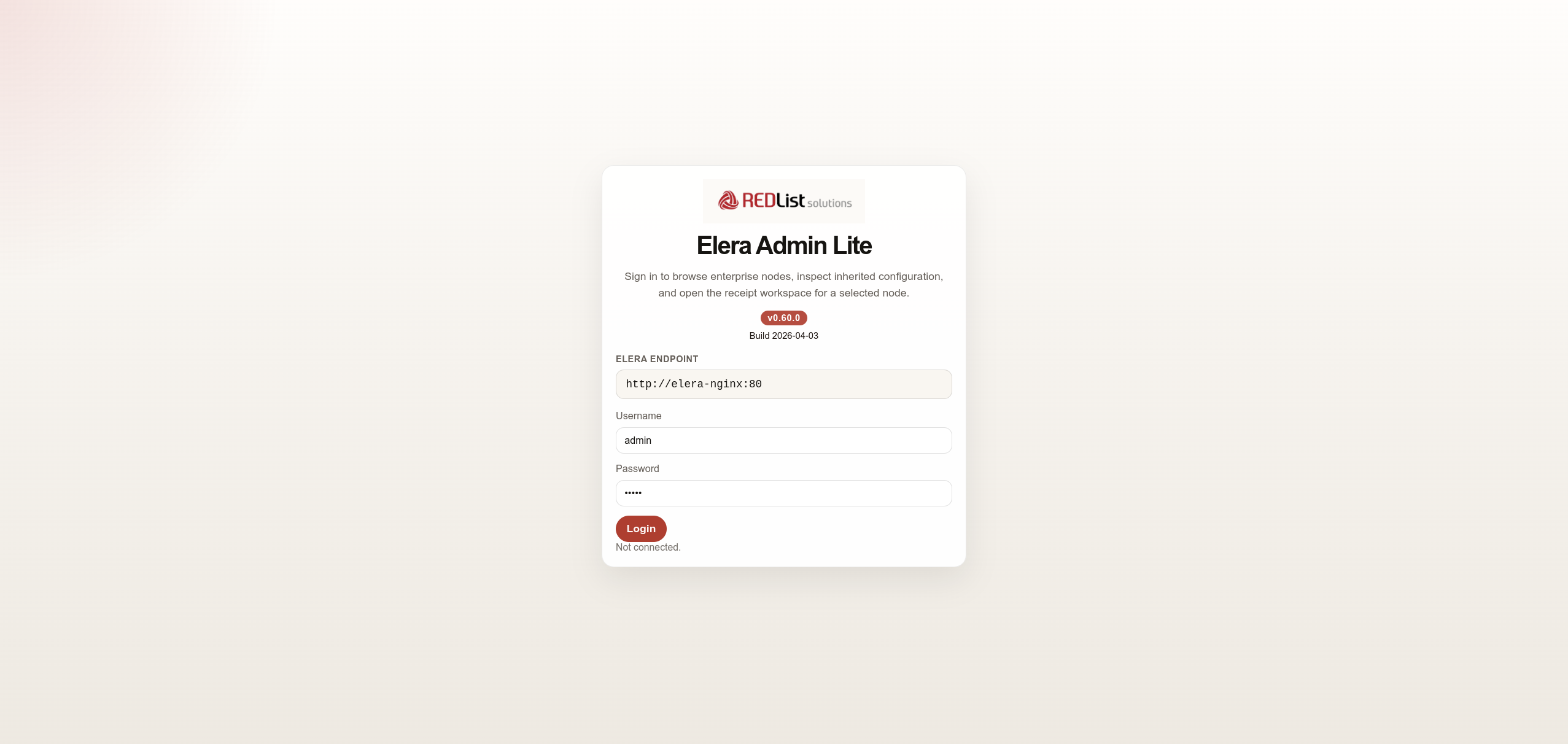
Login
Sign in with your Elera Platform credentials. The Elera endpoint is pre-configured via the ELERA_BASE_URL environment variable.
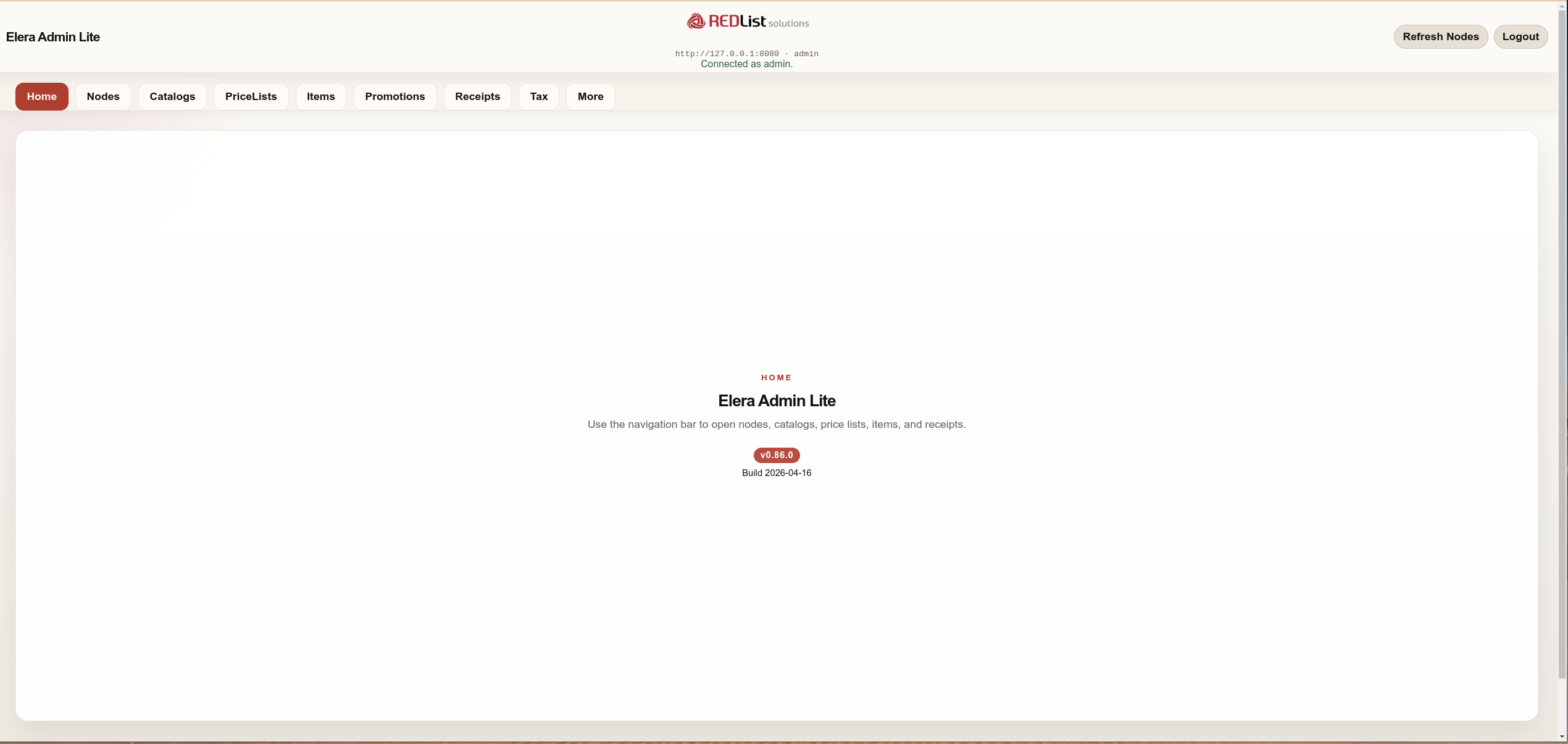
Home
After login, the home screen provides navigation to all sections: Nodes, Catalogs, PriceLists, Items, Receipts, Tax, and More.
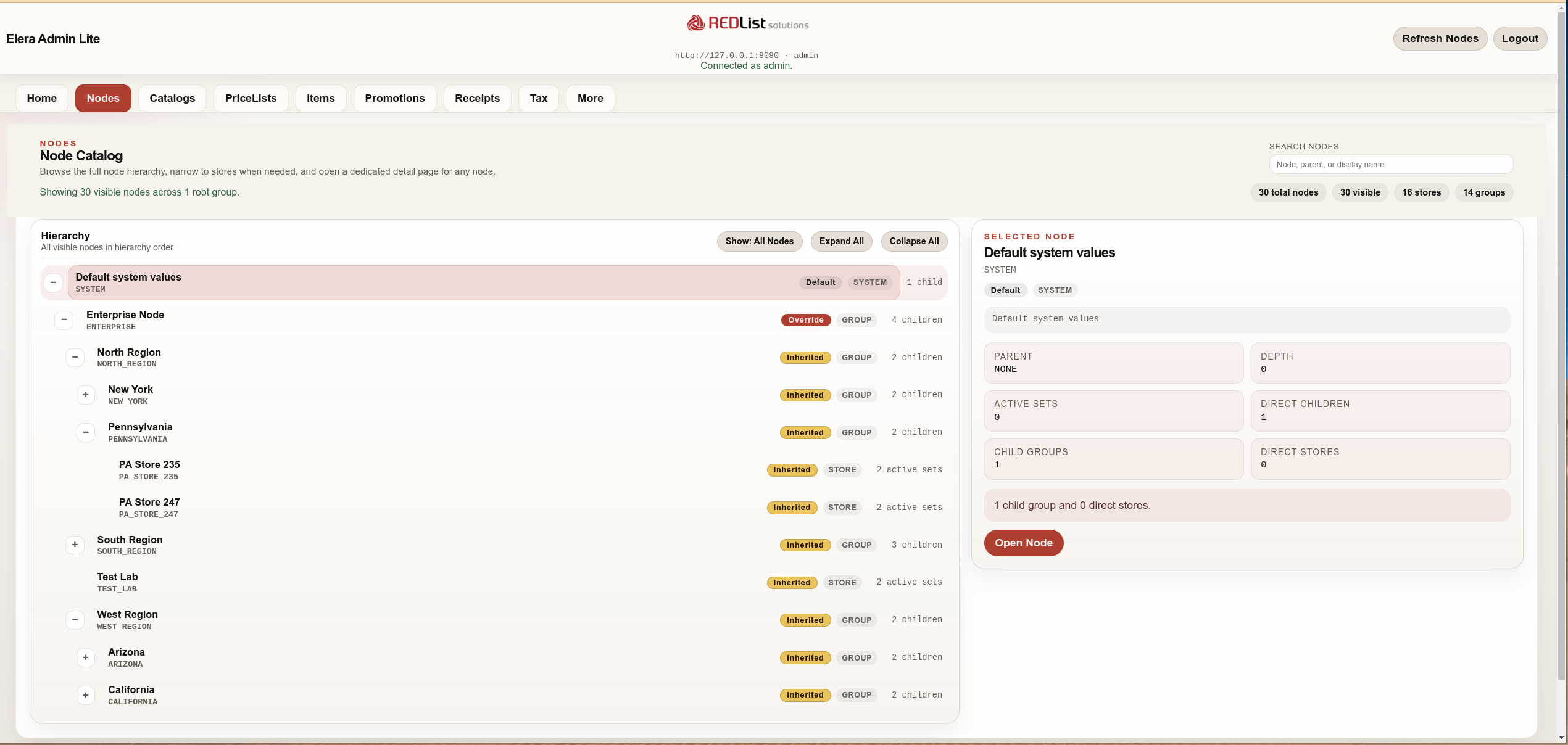
Enterprise Nodes
Browse the full node hierarchy, narrow to stores when needed, and open a dedicated detail page for any node.
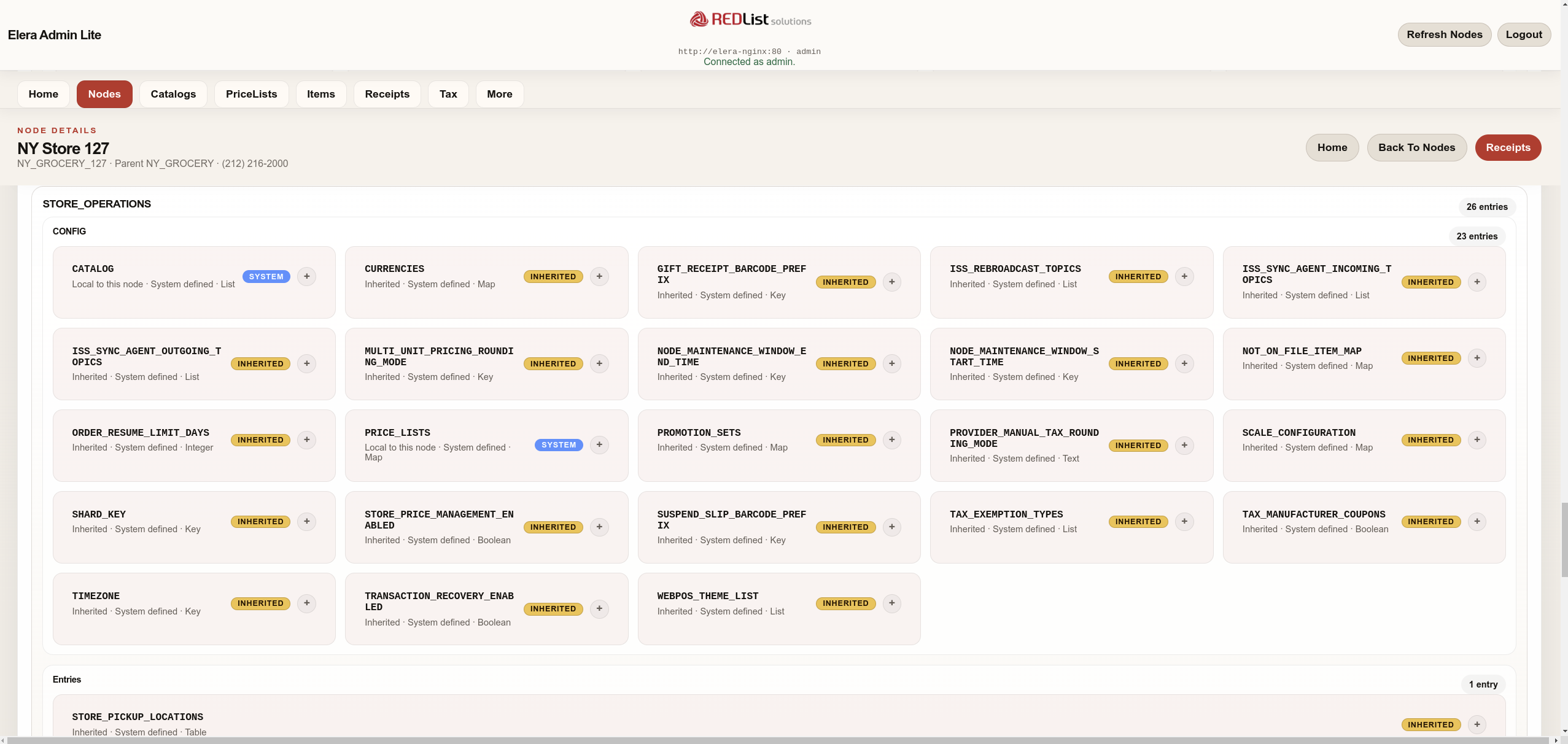
Node Details - Configuration Cards
Inspect inherited and locally overridden configuration for any node. Cards show the source (inherited vs. local), value type, and effective value at a glance.
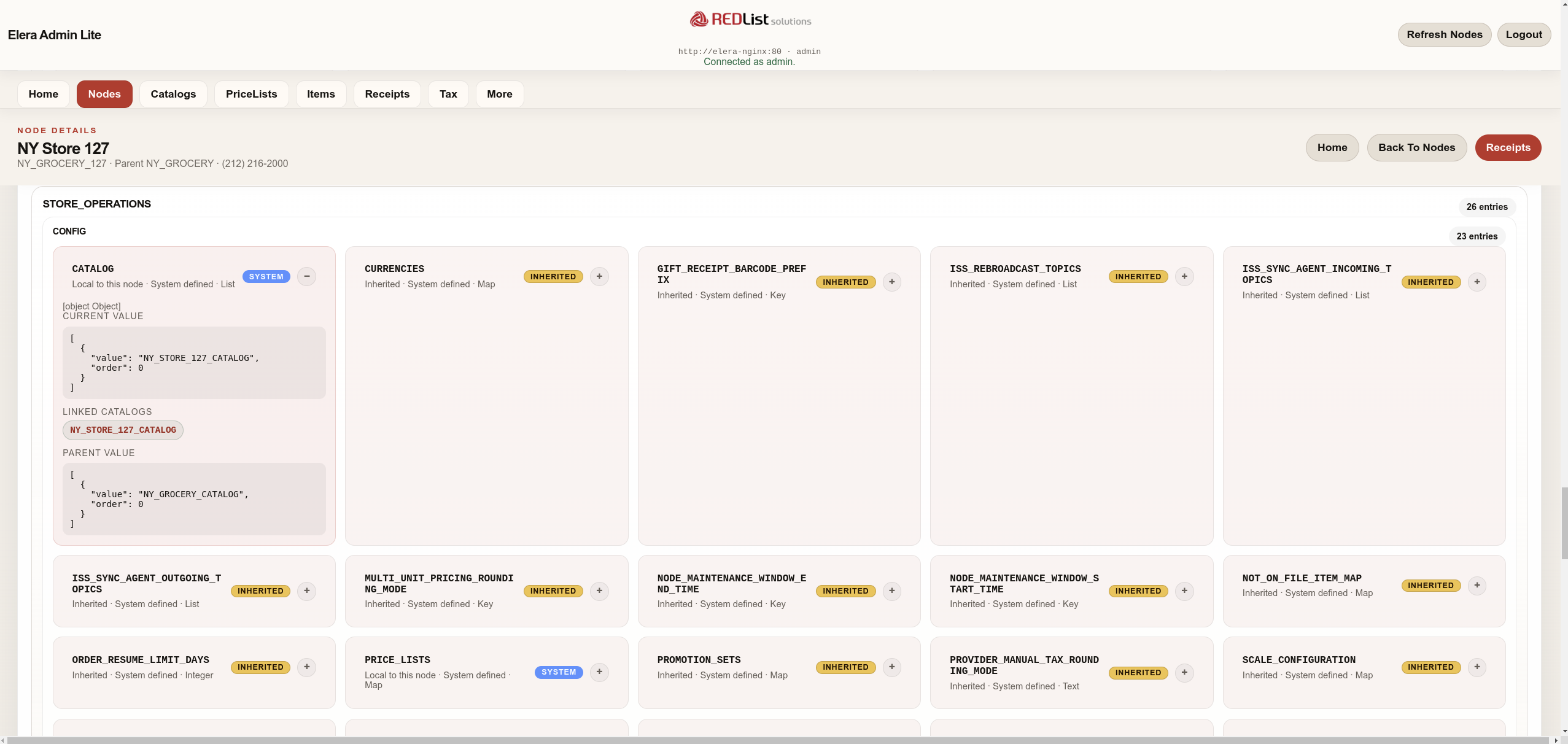
Node Details - Configuration Drill-Down
Expand any configuration card to compare the local value, linked catalogs, and parent value side by side. Quickly identify where overrides diverge from inherited defaults.
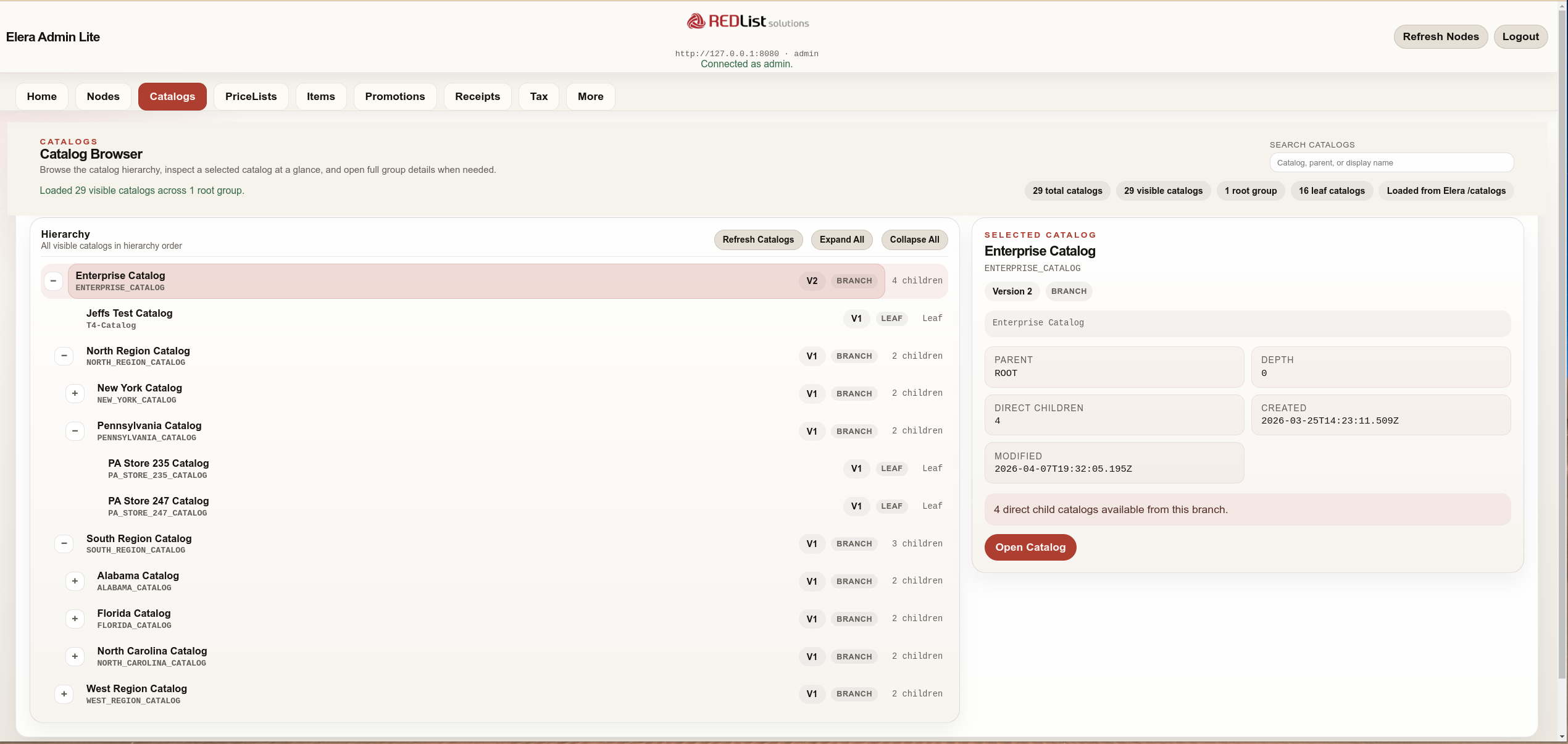
Catalog Hierarchy
View the full catalog hierarchy with parent-child relationships, group counts, and card counts. Open any catalog to inspect its groups and metadata.
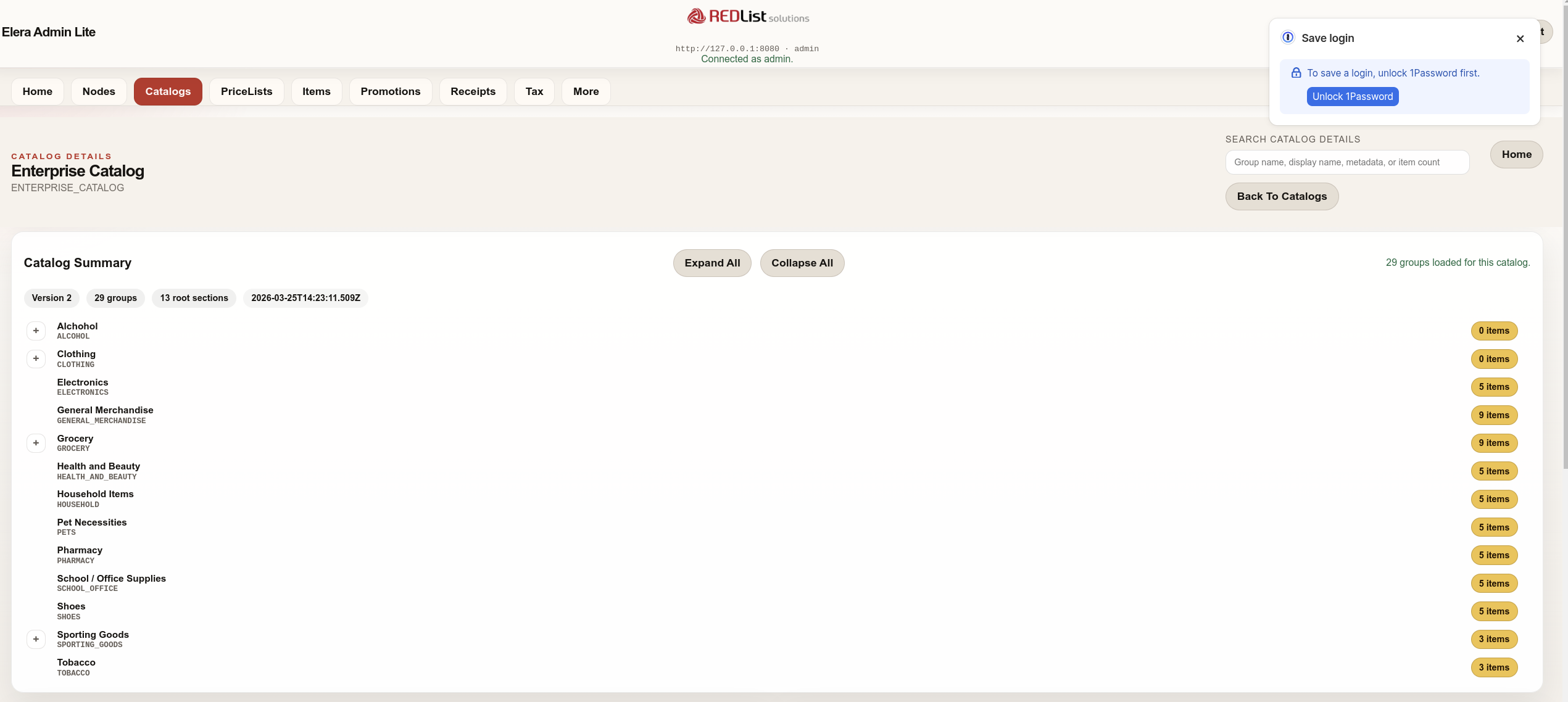
Catalog Details
View the catalog details and groups. Open the catalog group to inspect its items and metadata.
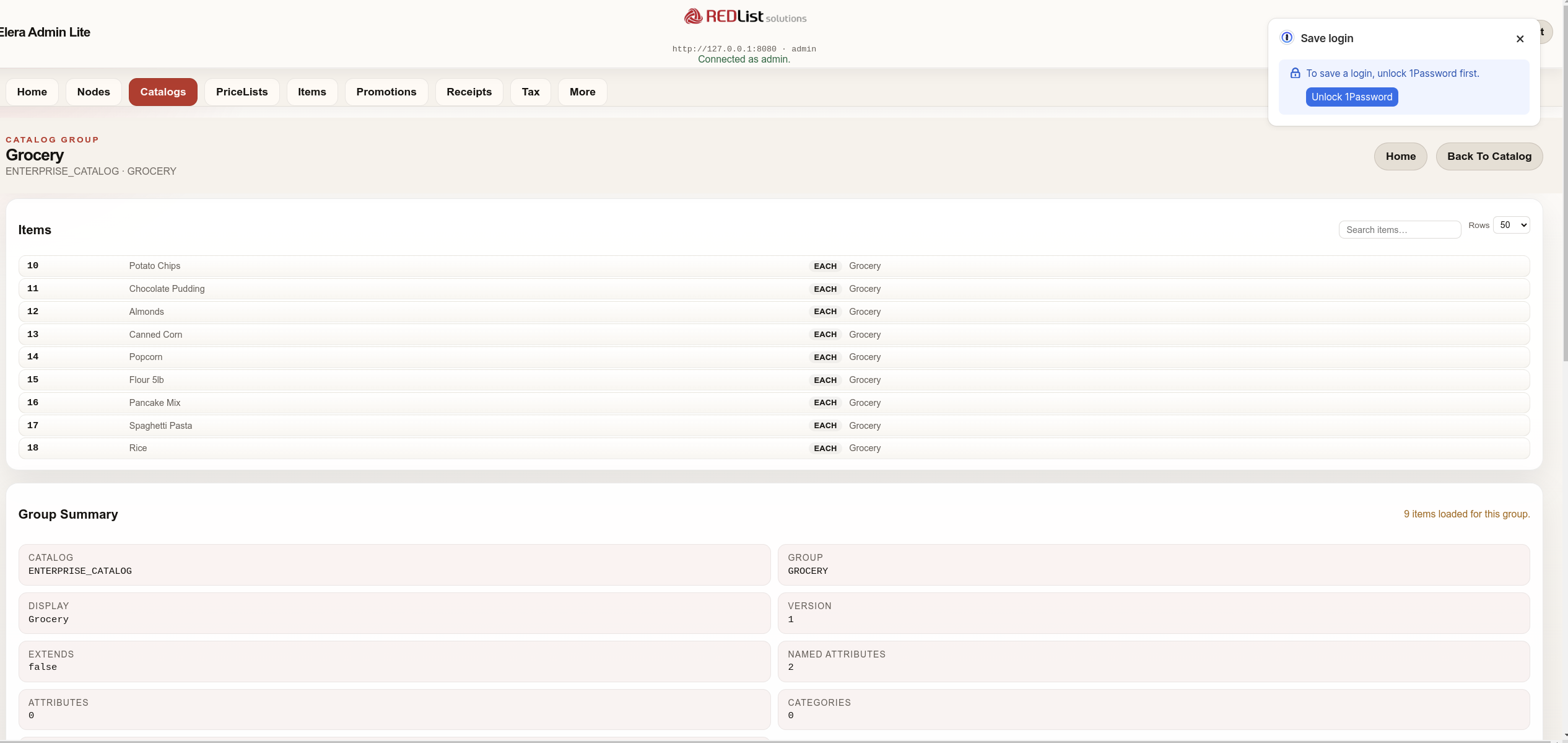
Catalog Group
View the the catalog group details, view and search the items on the Catalog Group.
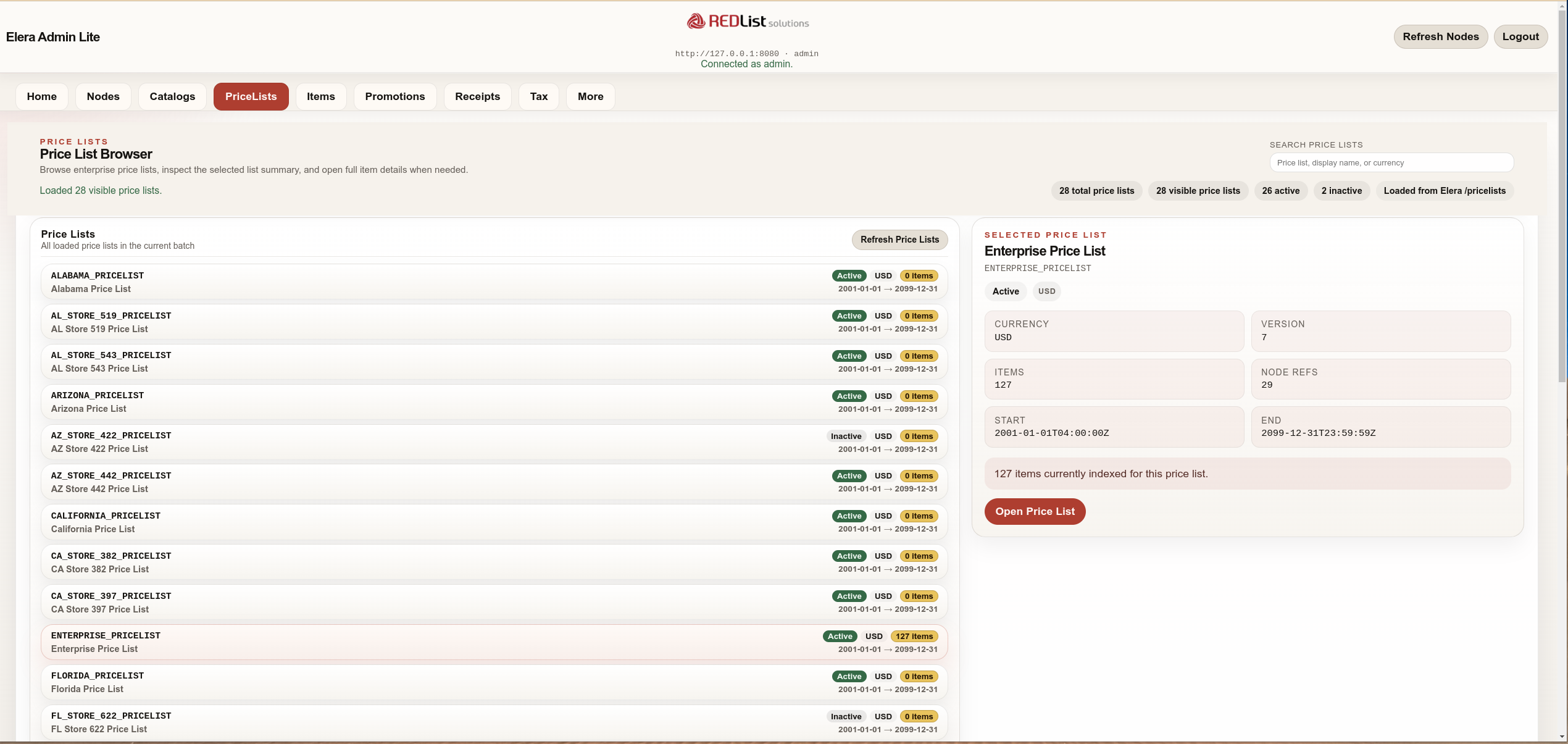
Enterprise Price Lists
Browse all price lists with status, currency, item counts, and date ranges. Search and filter across the full price list catalog.
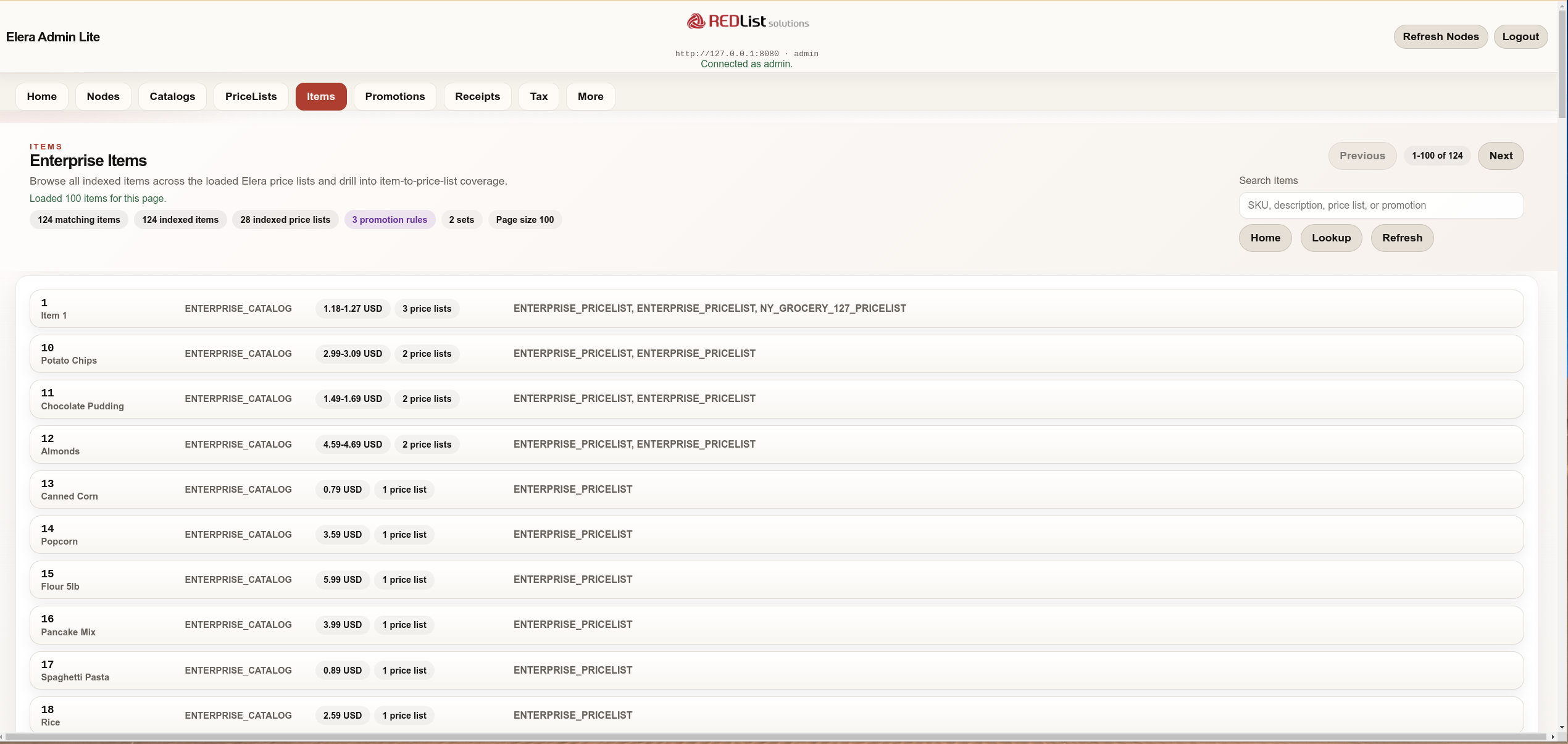
Cross-Price-List Item Search
Search for items across all loaded Elera price lists. View indexed item counts, price list coverage, and drill into individual item details.
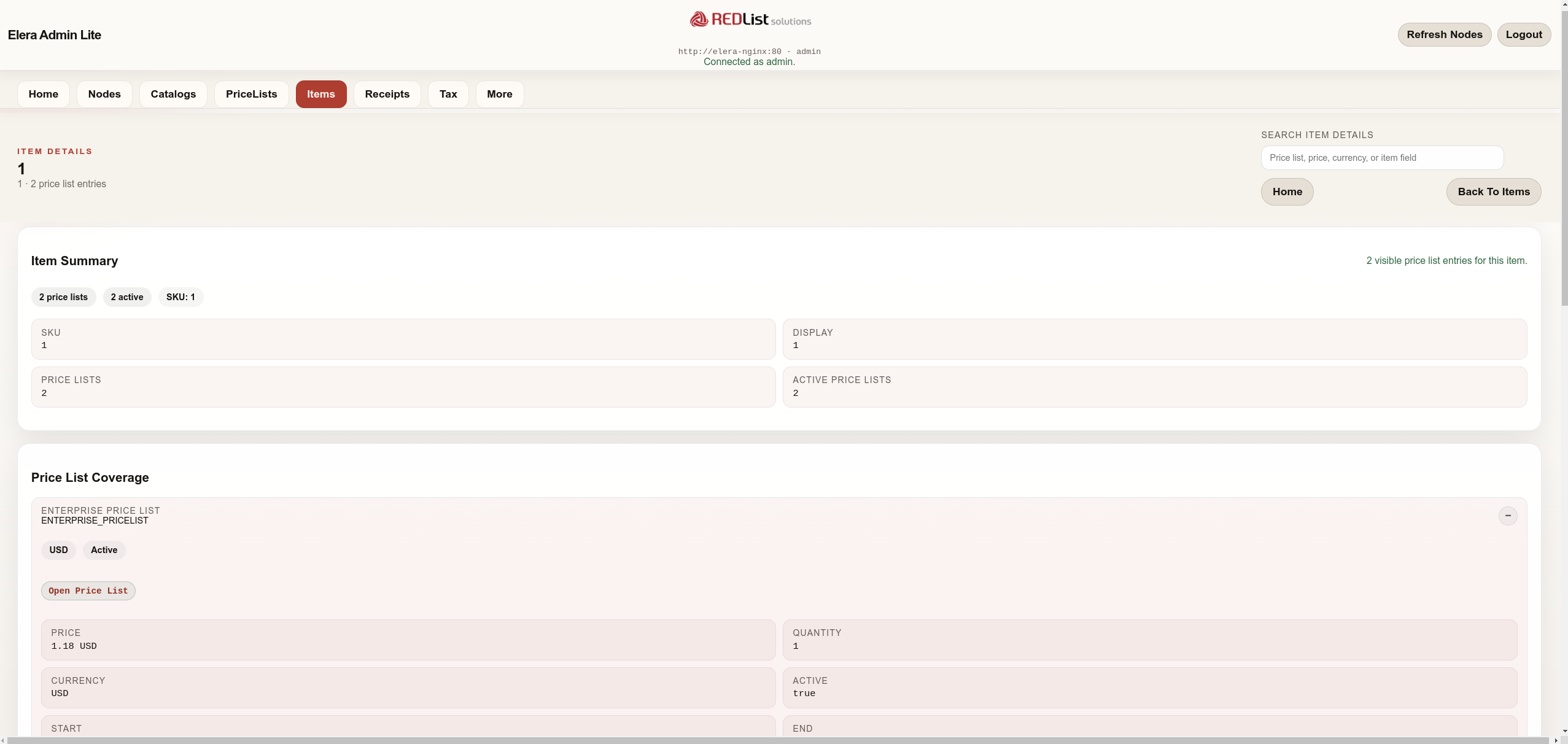
Item Details - Price List Coverage
Inspect an item's price list entries with price, currency, quantity, active status, and date ranges. Navigate directly to the associated price list.
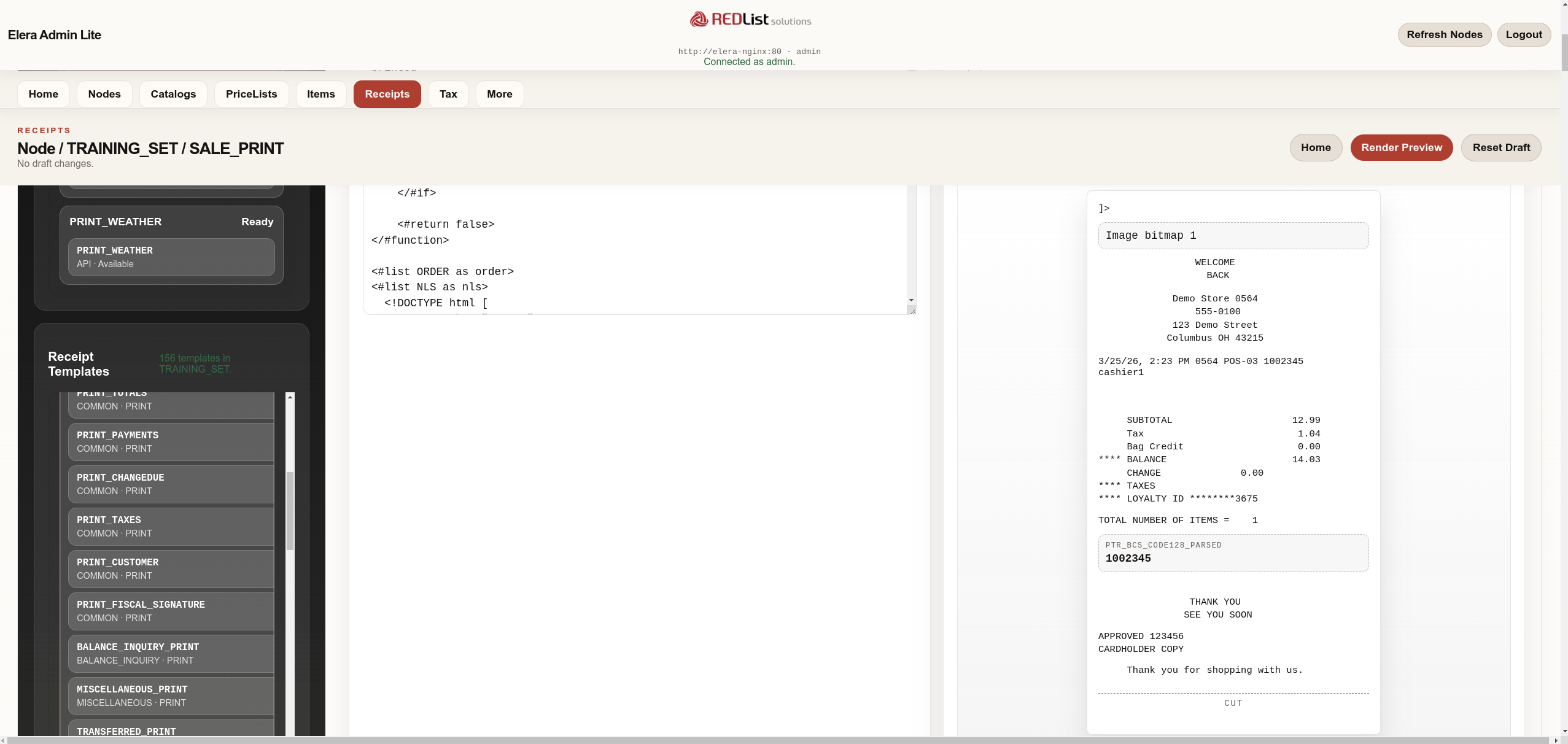
Receipt Studio
Open the receipt template workspace for any node. Select a template set and template, edit FreeMarker source with syntax context, and render a live receipt preview with diagnostics, variable analysis, and dependency tracking.
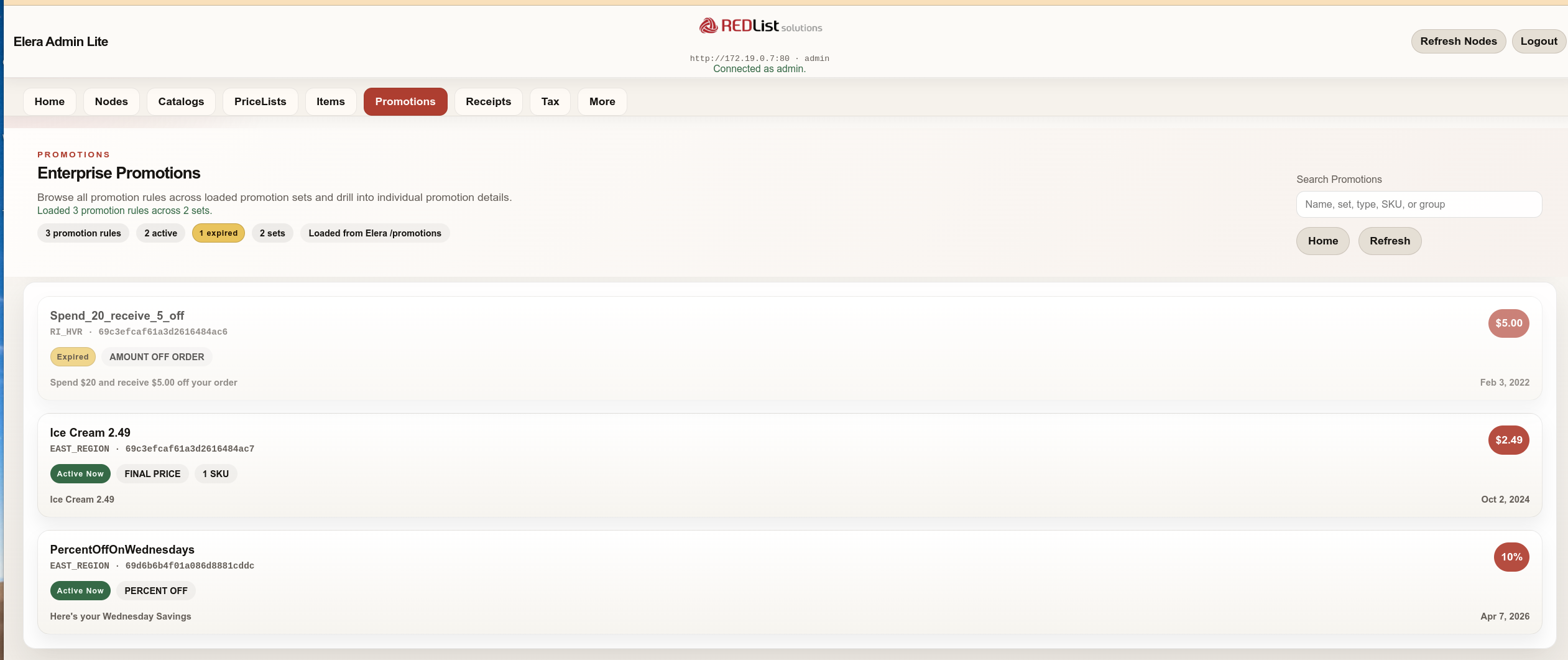
Enterprise Promotions
The new Promotions tab (between Items and Receipts in the navigation bar) lists every promotion rule loaded from the Elera /promotions API. Each tile shows the promotion name, promotion set, modification type, adjustment amount, eligible SKU and group counts, and a color-coded status pill: Active Now (green), Expired (yellow), Future (blue), or Disabled (gray). Summary pills at the top provide an at-a-glance count of total rules, active rules, expired rules, and promotion sets.
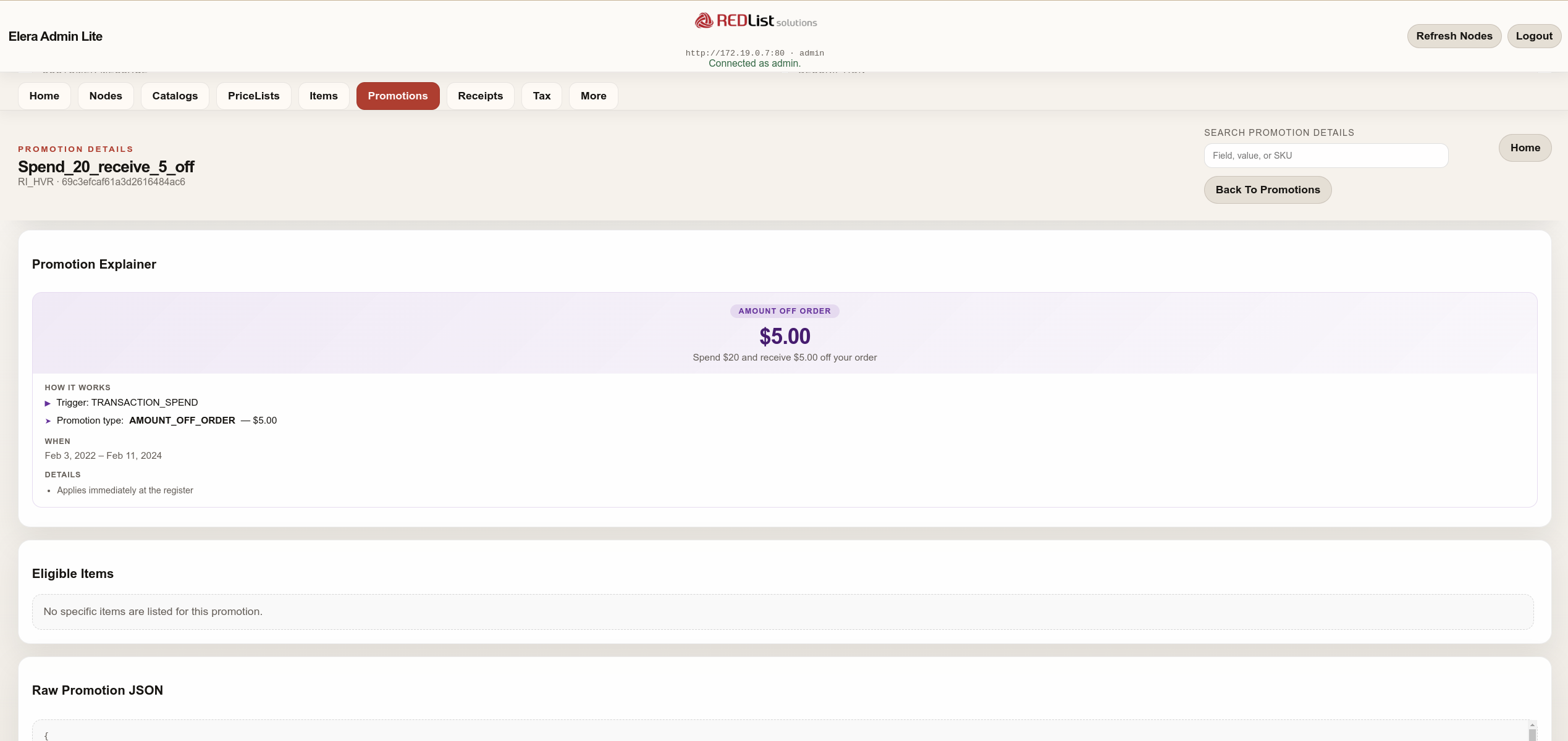
Promotion Detail — Expired Promotion
Drilling into a promotion opens a detail page with full metadata, a Promotion Explainer card, an eligible items list, and the raw promotion JSON. Here the "Spend_20_receive_5_off" promotion is shown with an Expired status. The explainer describes the trigger (TRANSACTION_SPEND) and effect (AMOUNT_OFF_ORDER — $5.00). Because this is an order-level promotion, the Eligible Items section notes that no specific items are listed.
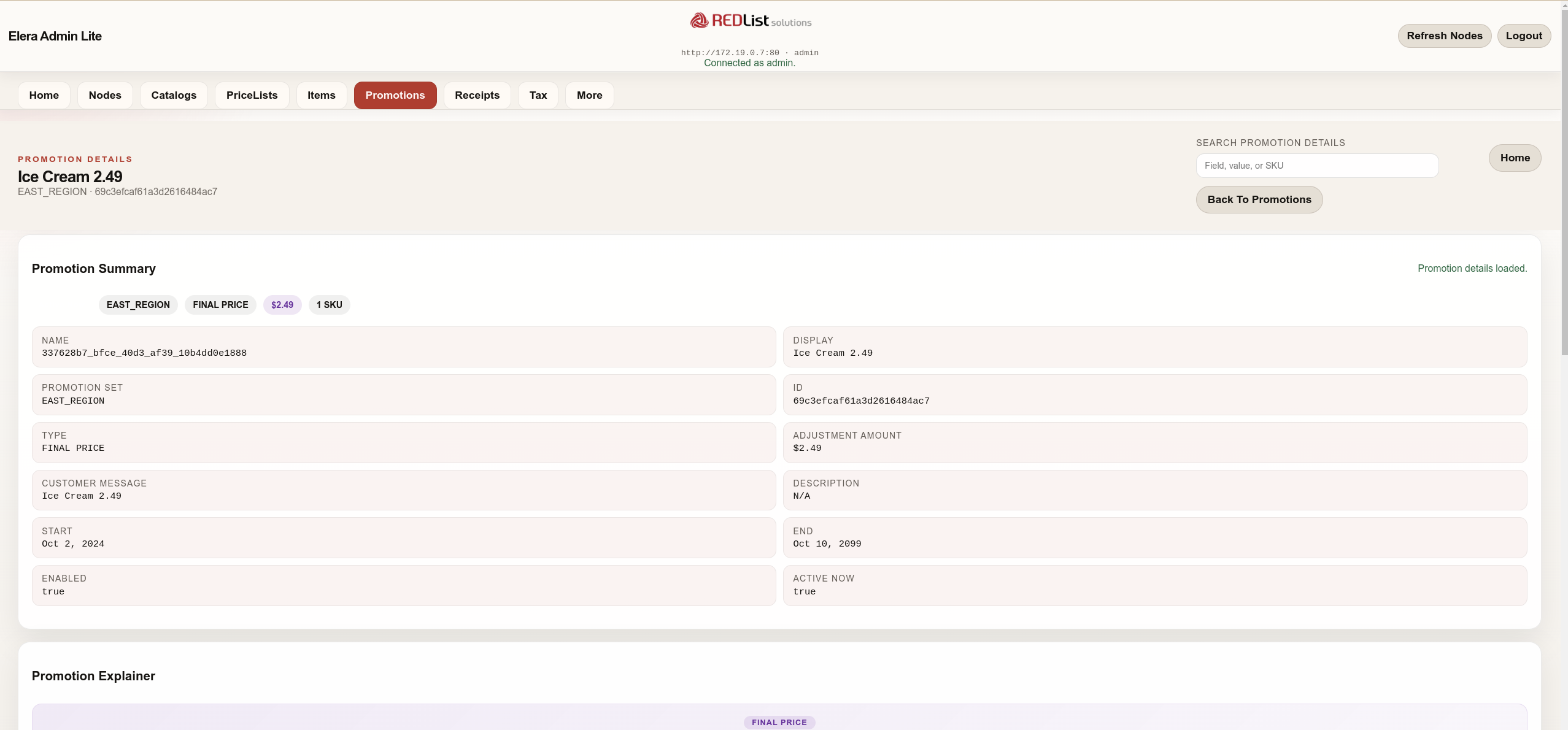
Promotion Detail — Active Promotion Summary
The "Ice Cream 2.49" promotion detail page shows a currently active FINAL_PRICE rule from the EAST_REGION promotion set. The summary panel displays the promotion set, modification type, adjustment amount ($2.49), and eligible SKU count; the metadata grid below includes name, ID, customer message, date range, and status.
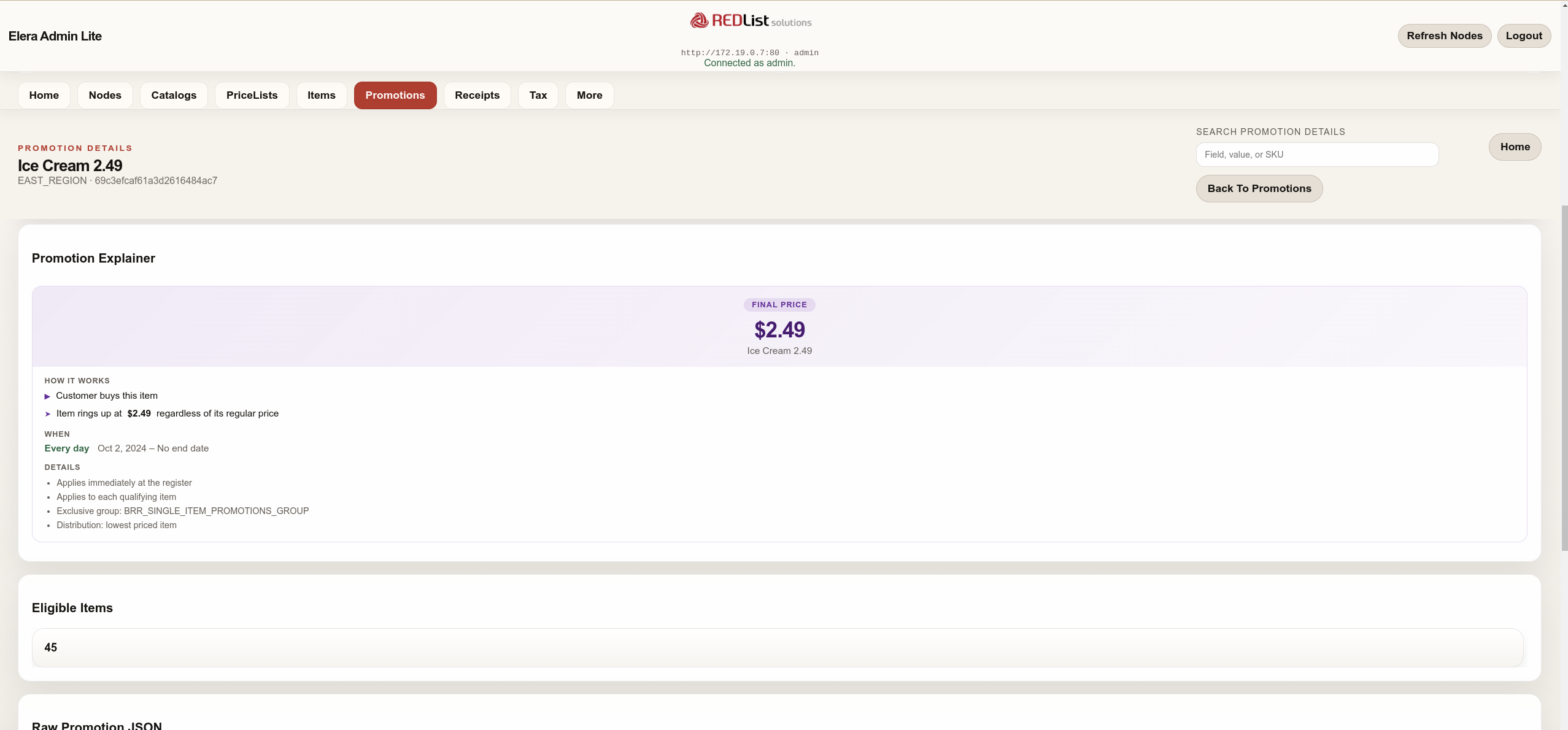
Promotion Detail — Explainer & Eligible Items
Scrolling down reveals the Promotion Explainer — a visual card that translates the raw promotion rule into plain language, with the FINAL PRICE badge, promotional price, customer message, and step-by-step logic ("Customer buys this item → Item rings up at $2.49"). The Eligible Items section lists SKU 45 with a link to the item detail page.
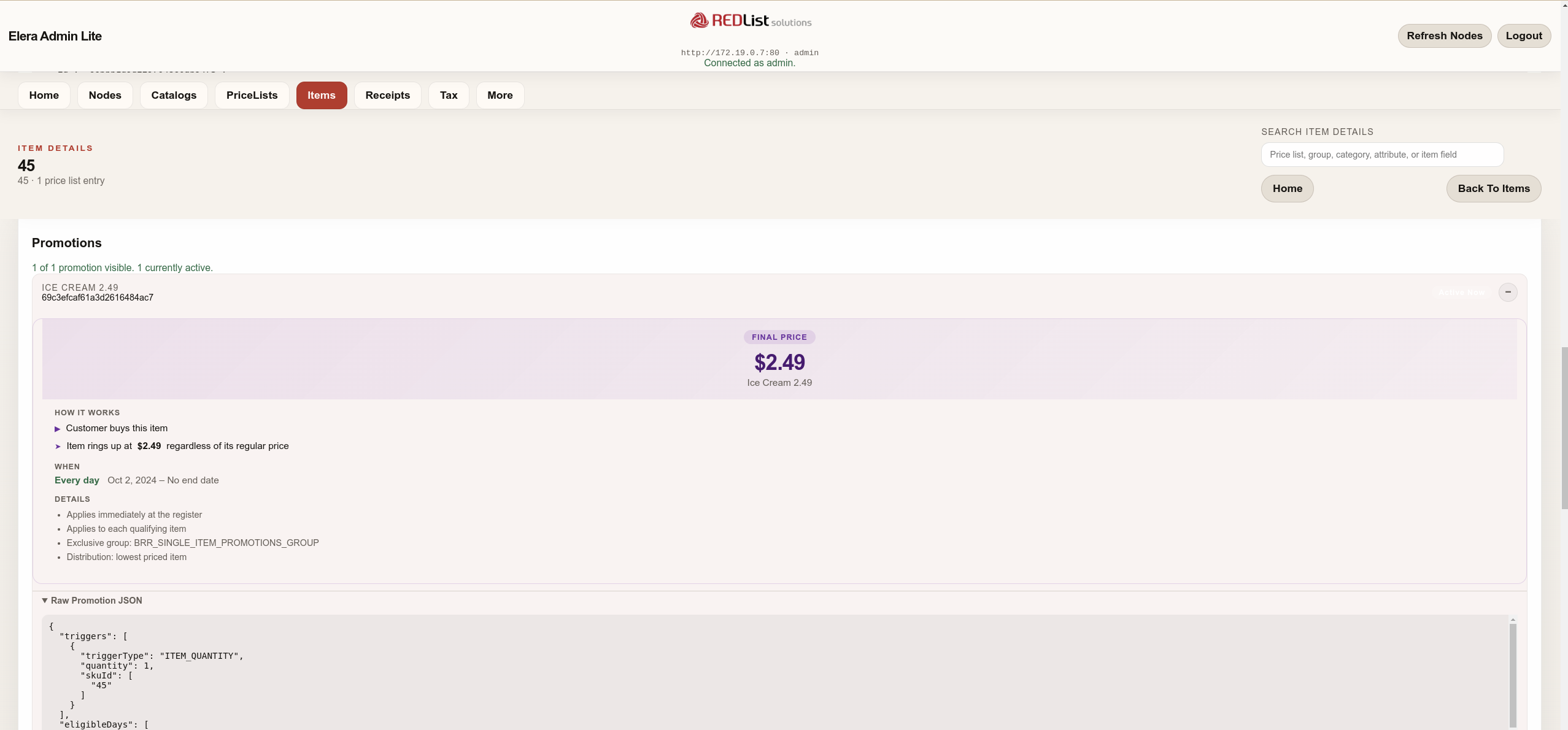
Item Details — Promotion Integration
When viewing an item that is part of a promotion, the item detail page now includes color-coded status pills in the summary bar (e.g., "Ice Cream 2.49 · Active Now") and a dedicated Promotions section showing each applicable promotion with the full Promotion Explainer card and a collapsible Raw Promotion JSON section.
Security
Security is a core design principle of REDList Elera Admin Lite.
Veracode Static Analysis - Score: 100/100
All source code shipped with this application has been scanned using Veracode Static Analysis and received a perfect score of 100 out of 100 with zero flaws detected across all severity levels.
The following Veracode reports are included with this distribution for independent verification:
These reports provide third-party verification that the application code has been analyzed for common vulnerability classes including XSS, injection, insecure data handling, and OWASP Top 10 categories.
Native Binary Protection
The application is compiled ahead-of-time into a GraalVM native executable. Unlike traditional Java JAR distributions, the native binary cannot be decompiled using standard Java decompilers (JD-GUI, CFR, Procyon, etc.). The source code and business logic are protected within the compiled machine code.
Docker Sandbox Isolation
Running the application inside a Docker container provides an additional layer of security:
- The application runs as a non-root user (
appuser) inside the container - The container uses a minimal Debian base image with only the libraries required to run the native binary
- No JVM, compiler, package manager tools, or shell utilities are available in the runtime image beyond what is strictly necessary
- Network access is limited to the Docker network configuration you define
- The container filesystem is isolated from the host system
Application Security Model
- All communication with the Elera Platform API is server-side only - the browser never communicates directly with Elera
- User sessions are managed with server-side session storage and secure session cookies
- CSRF protection is enabled on all state-changing endpoints
- All dynamic content is sanitized through a DOM-based HTML sanitizer before rendering, preventing cross-site scripting (XSS) attacks
- No credentials, tokens, or sensitive data are stored in the browser or persisted to disk
Prerequisites
- Docker (version 20.10 or later)
- Toshiba Elera Platform deployed and accessible over the network (either on the same Docker host, on your local network, or remotely)
Quick Start
1. Pull the Image
docker pull redlistsolutions/elera-admin-lite:latest
To pull a specific version:
docker pull redlistsolutions/elera-admin-lite:0.86.0
2. Run the Container
docker run -d \
  --name elera-admin-lite \
  -p 8090:8090 \
  -e ELERA_BASE_URL=http://<your-elera-host>:8080 \
  redlistsolutions/elera-admin-lite:latest
Replace <your-elera-host> with the hostname or IP address of your Elera Platform (or its Nginx reverse proxy).
3. Access the Application
Open your browser and navigate to:
http://localhost:8090
Log in with your Elera Platform credentials.
Configuration
Environment Variables
| Variable | Default | Description |
|---|---|---|
ELERA_BASE_URL | http://127.0.0.1:8080 | Base URL of the Elera Platform API (or Nginx proxy) |
SERVER_PORT | 8090 | Port the application listens on inside the container |
APP_SESSION_TIMEOUT | 12h | Session timeout duration (e.g., 1h, 30m) |
APP_SESSION_COOKIE_SECURE | false | Set to true when serving over HTTPS |
APP_SESSION_COOKIE_SAME_SITE | Lax | SameSite cookie policy (Lax, Strict, or None) |
APP_SESSION_COOKIE_NAME | ELERA_ADMIN_LITE_SESSION | Name of the session cookie |
APP_DEFAULT_FILTER | ALL | Default node filter on the landing page |
APP_RECEIPT_LINE_WIDTH | 42 | Character width for receipt template rendering |
APP_MAX_BATCH_SIZE | 200 | Maximum batch size for API requests |
Setting the Elera Platform URL
The ELERA_BASE_URL variable tells Elera Admin Lite where to find your Elera Platform API. This is the most important configuration setting.
If Elera is running on the host machine (not in Docker):
docker run -d \
  --name elera-admin-lite \
  -p 8090:8090 \
  -e ELERA_BASE_URL=http://host.docker.internal:8080 \
  redlistsolutions/elera-admin-lite:latest
Note:
host.docker.internalresolves to the host machine on Docker Desktop (macOS/Windows). On Linux, you may need to add--add-host=host.docker.internal:host-gateway.
If Elera is at a known IP or hostname on your network:
docker run -d \
  --name elera-admin-lite \
  -p 8090:8090 \
  -e ELERA_BASE_URL=http://192.168.1.100:8080 \
  redlistsolutions/elera-admin-lite:latest
Network Configuration for Docker-Based Elera Deployments
If your Elera Platform is also running in Docker (common for development and testing), the Elera Admin Lite container must be on the same Docker network as the Elera containers in order to communicate with them.
Step 1: Identify the Elera Network
Find the Docker network your Elera containers are running on:
docker inspect elera-nginx --format '{{range $k, $v := .NetworkSettings.Networks}}{{$k}}{{end}}'
This will output a network name, for example: elera_default or docker_backups_tgcp.
Step 2: Run on the Same Network
docker run -d \
  --name elera-admin-lite \
  --network <elera-network-name> \
  -p 8090:8090 \
  -e ELERA_BASE_URL=http://elera-nginx:80 \
  redlistsolutions/elera-admin-lite:latest
Replace <elera-network-name> with the network name from Step 1.
When both containers share a network, Docker's built-in DNS allows you to reference the Elera Nginx container by its container name (elera-nginx) rather than by IP address.
Step 3: Verify Connectivity
docker exec elera-admin-lite wget -q -O- http://elera-nginx:80/health || echo "Connection failed"
Adding to an Existing Docker Compose File
If you manage your Elera deployment with Docker Compose, you can add Elera Admin Lite as a service:
services:
  elera-admin-lite:
    image: redlistsolutions/elera-admin-lite:latest
    container_name: elera-admin-lite
    ports:
      - "8090:8090"
    environment:
      ELERA_BASE_URL: http://nginx:80
    depends_on:
      - nginx
    restart: unless-stopped
Or, if Elera Admin Lite is in a separate Compose file and you need to join an external network:
services:
  elera-admin-lite:
    image: redlistsolutions/elera-admin-lite:latest
    container_name: elera-admin-lite
    ports:
      - "8090:8090"
    environment:
      ELERA_BASE_URL: http://elera-nginx:80
    networks:
      - elera-network
    restart: unless-stopped

networks:
  elera-network:
    external: true
    name: <elera-network-name>
Configuring Against an AKS-Hosted Elera Platform
When the Elera Platform is deployed to Azure Kubernetes Service (AKS), Elera Admin Lite runs outside the cluster as a standalone Docker container and connects to Elera through whatever endpoint AKS exposes for the Nginx / gateway service. The setup is conceptually the same as the Docker-native case — you point ELERA_BASE_URL at a reachable Elera endpoint — but the endpoint is discovered through kubectl instead of the Docker network.
Step 1: Connect to Your AKS Cluster
Make sure your kubectl context is pointed at the AKS cluster that hosts Elera:
az aks get-credentials \
  --resource-group <your-resource-group> \
  --name <your-aks-cluster-name>

kubectl config current-context
Step 2: Discover the Elera Endpoint
List the services in the Elera namespace to find the one that exposes the Elera Nginx / gateway tier. The Elera namespace is typically called elera, but may be customized for your deployment.
kubectl get service -n <elera-namespace>
Example output:
NAME              TYPE           CLUSTER-IP      EXTERNAL-IP      PORT(S)        AGE
elera-nginx       LoadBalancer   10.0.145.23     20.81.42.118     80:31245/TCP   14d
elera-system      ClusterIP      10.0.112.88     <none>           8080/TCP       14d
elera-db          ClusterIP      10.0.98.201     <none>           5432/TCP       14d
...
The service you want is the one fronting the Elera API — typically elera-nginx (or a similarly named ingress/gateway). How you reach it depends on its TYPE:
LoadBalancer (public or internal) — most common on AKS:
Use the value shown under EXTERNAL-IP together with the external port:
ELERA_BASE_URL=http://20.81.42.118:80
If the cluster uses an internal load balancer, the EXTERNAL-IP will be a private VNet address (e.g., 10.x.x.x). Elera Admin Lite must run on a Docker host that has network line-of-sight to that VNet (for example, an Azure VM peered to the cluster VNet).
Ingress / Application Gateway with a hostname:
If Elera is fronted by an Ingress controller or Azure Application Gateway, list the ingress instead of the service:
kubectl get ingress -n <elera-namespace>
Use the hostname shown under HOSTS, for example:
ELERA_BASE_URL=https://elera.contoso.com
When the ingress terminates TLS, use https:// and set APP_SESSION_COOKIE_SECURE=true (see HTTPS Considerations).
ClusterIP (not directly reachable):
A ClusterIP service is only reachable from inside the cluster. For a quick evaluation from a workstation, you can port-forward the service and point Elera Admin Lite at the forwarded port on the host:
kubectl port-forward -n <elera-namespace> service/elera-nginx 8080:80
Then run Elera Admin Lite with:
ELERA_BASE_URL=http://host.docker.internal:8080
Port-forwarding is suitable for evaluation only. For a persistent deployment, expose the Elera service via a LoadBalancer or Ingress, or deploy Elera Admin Lite inside the cluster (see Step 4).
Step 3: Run Elera Admin Lite Against the AKS Endpoint
Once you have the endpoint from Step 2, launch the container in the usual way:
docker run -d \
  --name elera-admin-lite \
  -p 8090:8090 \
  -e ELERA_BASE_URL=http://20.81.42.118:80 \
  redlistsolutions/elera-admin-lite:latest
Or, if the ingress terminates TLS:
docker run -d \
  --name elera-admin-lite \
  -p 8090:8090 \
  -e ELERA_BASE_URL=https://elera.contoso.com \
  -e APP_SESSION_COOKIE_SECURE=true \
  redlistsolutions/elera-admin-lite:latest
Verify the container can reach the AKS endpoint:
docker exec elera-admin-lite wget -q -O- http://20.81.42.118:80/health || echo "Connection failed"
Step 4: Optional — Deploying Elera Admin Lite Inside the AKS Cluster
If you would rather run Elera Admin Lite inside the same cluster as Elera, you can deploy it as a standard Kubernetes workload. This avoids exposing the Elera service outside the cluster and lets Admin Lite reach Elera over the cluster's internal DNS (<service>.<namespace>.svc.cluster.local).
A minimal manifest:
apiVersion: apps/v1
kind: Deployment
metadata:
  name: elera-admin-lite
  namespace: <elera-namespace>
spec:
  replicas: 1
  selector:
    matchLabels:
      app: elera-admin-lite
  template:
    metadata:
      labels:
        app: elera-admin-lite
    spec:
      containers:
        - name: elera-admin-lite
          image: redlistsolutions/elera-admin-lite:latest
          ports:
            - containerPort: 8090
          env:
            - name: ELERA_BASE_URL
              value: "http://elera-nginx.<elera-namespace>.svc.cluster.local:80"
            - name: APP_SESSION_COOKIE_SECURE
              value: "true"
---
apiVersion: v1
kind: Service
metadata:
  name: elera-admin-lite
  namespace: <elera-namespace>
spec:
  type: LoadBalancer
  selector:
    app: elera-admin-lite
  ports:
    - port: 80
      targetPort: 8090
Apply with:
kubectl apply -f elera-admin-lite.yaml
kubectl get service elera-admin-lite -n <elera-namespace>
Use the EXTERNAL-IP reported by that last command to reach the Admin Lite UI in a browser. For production, front the service with the same Ingress / Application Gateway and TLS certificate used by the rest of your Elera deployment.
AKS Troubleshooting
| Symptom | Cause | Fix |
|---|---|---|
EXTERNAL-IP stays <pending> | AKS is still provisioning the Azure Load Balancer, or the subnet is out of available IPs | Wait a minute and re-run kubectl get service. If it remains pending, check the service events with kubectl describe service -n <elera-namespace> <service-name>. |
502 BAD_GATEWAY from Admin Lite against AKS | Ingress is routing to the wrong backend or path | Confirm the ingress host/path rules point to the Elera Nginx service, not directly to elera-system. |
| Connection times out from a Docker host | The AKS load balancer is internal-only and the Docker host is not on a peered VNet | Either expose Elera via a public LoadBalancer/Ingress, run Admin Lite on a VM in a peered VNet, or deploy Admin Lite inside the cluster (Step 4). |
| TLS handshake errors | ELERA_BASE_URL is https:// but the ingress certificate is self-signed or incomplete | Use a certificate issued by a trusted CA (for example via cert-manager + Let's Encrypt), or terminate TLS at a separate reverse proxy that Admin Lite trusts. |
Managing the Container
Stop the container:
docker stop elera-admin-lite
Start a stopped container:
docker start elera-admin-lite
View logs:
docker logs elera-admin-lite
Follow logs in real time:
docker logs -f elera-admin-lite
Remove the container:
docker stop elera-admin-lite && docker rm elera-admin-lite
Update to a newer version:
docker pull redlistsolutions/elera-admin-lite:latest
docker stop elera-admin-lite && docker rm elera-admin-lite
docker run -d \
  --name elera-admin-lite \
  -p 8090:8090 \
  -e ELERA_BASE_URL=http://<your-elera-host>:8080 \
  redlistsolutions/elera-admin-lite:latest
HTTPS Considerations
For production deployments served over HTTPS (via a reverse proxy such as Nginx, Traefik, or a cloud load balancer), set the secure cookie flag:
-e APP_SESSION_COOKIE_SECURE=true
This ensures session cookies are only transmitted over encrypted connections.
Troubleshooting
| Symptom | Cause | Fix |
|---|---|---|
502 BAD_GATEWAY on login | Admin Lite cannot reach the Elera Platform API | Verify ELERA_BASE_URL is correct and the container can reach that address. If Elera is in Docker, ensure both containers are on the same network. |
| Login page loads but login fails silently | Elera Platform may require specific API paths through Nginx | Ensure ELERA_BASE_URL points to the Nginx proxy (typically port 80), not directly to the Elera system service. |
Connection refused in logs | Wrong host/port or Elera is not running | Confirm the Elera Platform is running and listening on the expected port. |
| Page loads but styles are missing | Browser cache | Hard-refresh the page (Ctrl+Shift+R). |
Copyright and License
Copyright (c) 2025-2026 REDList Solutions. All rights reserved.
REDList Elera Admin Lite is proprietary software developed by REDList Solutions. The compiled native binary, all source code, user interface assets, and accompanying documentation are the intellectual property of REDList Solutions.
This software is currently provided free of charge for evaluation and use with the Toshiba Elera Platform. REDList Solutions reserves the right to change the licensing terms for future versions as additional capabilities are introduced.
Retailers and organizations interested in licensing the software, requesting additional features, or obtaining a commercial support agreement should contact REDList Solutions directly.
No Warranty
THIS SOFTWARE IS PROVIDED "AS IS", WITHOUT WARRANTY OF ANY KIND, EXPRESS OR IMPLIED, INCLUDING BUT NOT LIMITED TO THE WARRANTIES OF MERCHANTABILITY, FITNESS FOR A PARTICULAR PURPOSE, AND NONINFRINGEMENT. IN NO EVENT SHALL REDLIST SOLUTIONS BE LIABLE FOR ANY CLAIM, DAMAGES, OR OTHER LIABILITY, WHETHER IN AN ACTION OF CONTRACT, TORT, OR OTHERWISE, ARISING FROM, OUT OF, OR IN CONNECTION WITH THE SOFTWARE OR THE USE OR OTHER DEALINGS IN THE SOFTWARE.
REDLIST SOLUTIONS MAKES NO GUARANTEES REGARDING THE AVAILABILITY, ACCURACY, OR COMPLETENESS OF THE INFORMATION PROVIDED BY THIS SOFTWARE. USE OF THIS SOFTWARE IS AT YOUR OWN RISK.
Trademarks
Toshiba, Elera, and Toshiba Global Commerce Solutions are trademarks or registered trademarks of Toshiba Global Commerce Solutions. REDList Elera Admin Lite is an independent product and is not affiliated with, endorsed by, or sponsored by Toshiba Global Commerce Solutions.
REDList Solutions | redlistsolutions.com
Tag summary
Content type
Image
Digest
sha256:638198377…
Size
86.3 MB
Last updated
6 months ago
docker pull redlistsolutions/elera-admin-lite