ruffsl/ros_caffe repository overview
A simple ROS Caffe package



Description
This package enables users to publish label predictions from a subscribed ROS image topic using a given Caffe model.
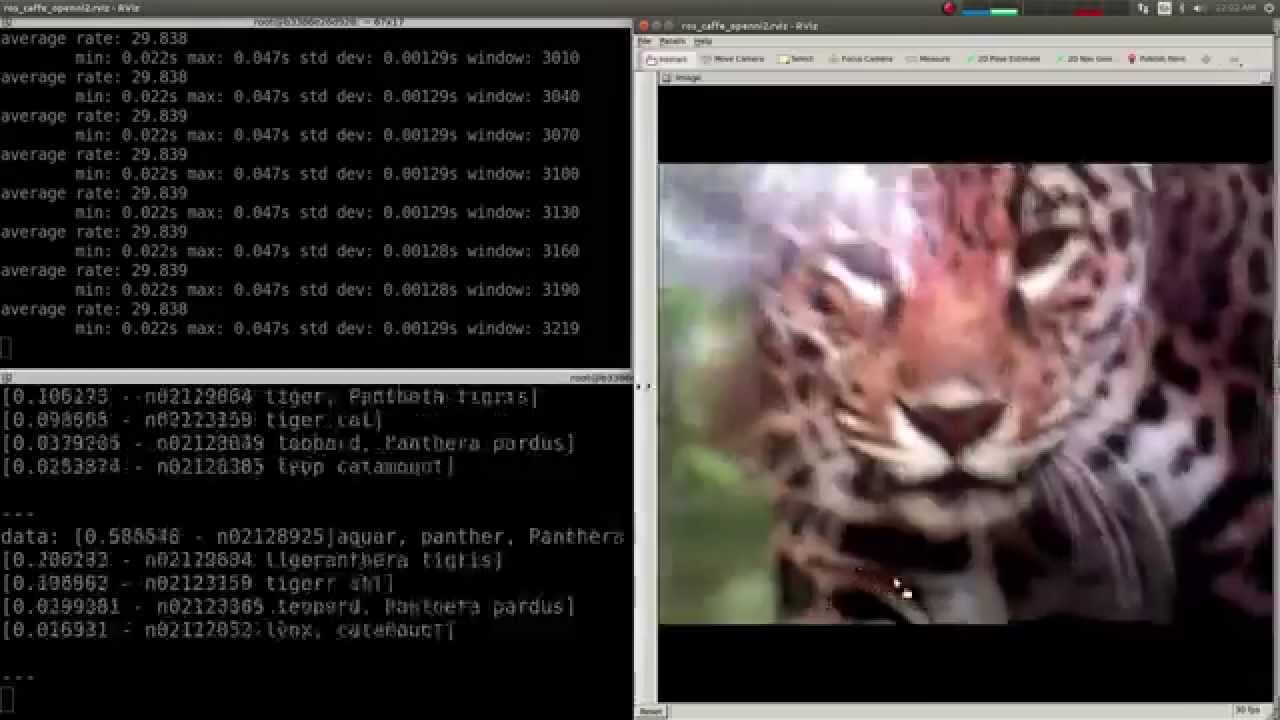
Click the YouTube thumbnail above to watch previous demo video:
Dependencies
- Ubuntu (or Docker Installation)
- Optional
- Nvidia Driver & Hardware
- Cuda Installation
- or Nvidia Docker Plugin
- USB webcam or common
/dev/video0device
Installation
There are two options to test out this package:
1: Docker (easy)
If you'd like to take the easy route, you can pull or build the necessary docker image and run the package from within a container. This involves properly installing Docker on your distribution. If you'd like to use GPU acceleration, then you will also need Nvidia's drives and docker plugin installed, linked above.
2: Host install (not so easy)
If you don't want to use docker, then you'll need to build the project from source locally on your host. This involves properly installing CUDA if you'd like to use GPU acceleration, as well as caffe and ROS of course. Having done that properly, you can then simply build this ROS package using catkin. For a detailed list of installation steps, you can read through the available Dockerfiles within the project's docker folder.
From here on we'll assume you've picked the Docker route to skip the lengthy standard CDUA, CUDNN, caffe, and ROS installation process. However if you didn't, just note that the underlying roslaunch commands are the same.
First we'll clone this git repository:
cd ~/
git clone https://github.com/ruffsl/ros_caffe.git
Then we'll download a model, CaffeNet, to use to generate labeled predictions. This can be done using a small python3 script in the repo to fetch the larger missing caffemodel file.
cd ~/ros_caffe/ros_caffe/
./scripts/download_model_binary.py data/
You can also download other example model files from Caffe's Model Zoo. Once we have the model, we can run a webcam and ros_caffe_web example using the nvidia docker plugin:
Finally we can pull the necessary image from Docker Hub
docker pull ruffsl/ros_caffe:cpu
# OR
docker pull ruffsl/ros_caffe:gpu
You could also build the images locally using the helper make file:
cd ~/ros_caffe/docker/
make build_cpu
# OR
make build_gpu
Running
To run the example web interface with a webcam, we can launch the node from a new container:
docker run \
  -it \
  --publish 8080:8080 \
  --publish 8085:8085 \
  --publish 9090:9090 \
  --volume="/home/${USER}/ros_caffe/ros_caffe/data:/root/catkin_ws/src/ros_caffe/ros_caffe/data:ro" \
  --device /dev/video0:/dev/video0 \
  ruffsl/ros_caffe:cpu roslaunch ros_caffe_web ros_caffe_web.launch
For best framerate performance, we can switch to using the GPU image and the Nvidia Docker plugin. Make sure you have the latest Nvidia Driver, plus at least more than (1/2)GB of free VRAM to load the provided default network.
nvidia-docker run \
  -it \
  --publish 8080:8080 \
  --publish 8085:8085 \
  --publish 9090:9090 \
  --volume="/home/${USER}/ros_caffe/ros_caffe/data:/root/catkin_ws/src/ros_caffe/ros_caffe/data:ro" \
  --device /dev/video0:/dev/video0 \
  ruffsl/ros_caffe:gpu roslaunch ros_caffe_web ros_caffe_web.launch
This command proceeds to:
- start up an an interactive container
- publishes the necessary ports to the host for ros_caffe_web
- mounts the data volume from the host with downloaded model
- mounts the host's GPU and camera devices
- and launches the ros_caffe_web example
You can see the
runscripts in the docker folder for more examples using GUIs. Also you could change the volume to mount the whole repo path not just the data directory, allowing you to change launch files locally.
-  --volume="/home/${USER}/ros_caffe/ros_caffe/data:/root/catkin_ws/src/ros_caffe/ros_caffe/data:ro" \
+  --volume="/home/${USER}/ros_caffe:/root/catkin_ws/src/ros_caffe:ro" \
Now we can point our browser to the local URL to ros_caffe_web for the web interface:
http://127.0.0.1:8085/ros_caffe_web/index.html

Notes
If you don't have a webcam, but would like to test your framework, you can enable the test image prediction:
roslaunch ros_caffe ros_caffe.launch test_image:=true
...
[ INFO] [1465516063.881511456]: Predicting Test Image
[ INFO] [1465516063.915942302]: Prediction: 0.5681 - "n02128925 jaguar, panther, Panthera onca, Felis onca"
[ INFO] [1465516063.915987305]: Prediction: 0.4253 - "n02128385 leopard, Panthera pardus"
[ INFO] [1465516063.916008385]: Prediction: 0.0062 - "n02128757 snow leopard, ounce, Panthera uncia"
[ INFO] [1465516063.916026233]: Prediction: 0.0001 - "n02129604 tiger, Panthera tigris"
[ INFO] [1465516063.916045619]: Prediction: 0.0000 - "n02130308 cheetah, chetah, Acinonyx jubatus"

You may also need to adjust the
usb_cam node'spixel_formatorio_methodvalues such that they are supported by your camera. Also, if CUDA returns an out of memory error, you can attempt to lower your displays resolution or disable secondary displays to free up space in your graphics' VRAM.
Nodes
ros_caffe
Subscribed Topics
~camera_info(sensor_msgs/CameraInfo)- Camera calibration and metadata
~image(sensor_msgs/Image)- classifying image
Published Topics
~predictions(string)- string with prediction results
Parameters
~model_path(string)- path to caffe model file
~weights_path(string)- path to caffe weights file
~mean_file(string)- path to caffe mean file
~label_file(string)- path to caffe label text file
~image_path(string)- path to test image file
~test_image(bool)- enable test for test image
ros_caffe_web
Subscribed Topics
~image(sensor_msgs/Image)- classifying image
Author
Credits
:coffee: tzutalin/ros_caffe: Original fork
:coffee: ykoga-kyutech/caffe_web: Original web interface
:coffee: Kaixhin/dockerfiles: Maintained caffe dockerfiles and base images
Tag summary
Content type
Image
Digest
Size
623 MB
Last updated
over 9 years ago
docker pull ruffsl/ros_caffe:cpu