scottibyte/incusbackup
Incus Backup is a comprehensive web based backup utility for all of your Incus servers.
769
scottibyte/incusbackup repository overview
ScottiBYTE Incus Backup
Current release: v1.1.2
ScottiBYTE Incus Backup is a centralized backup, restore, and scheduled backup platform for Incus containers and Incus virtual machines across every remote available to an Incus client.
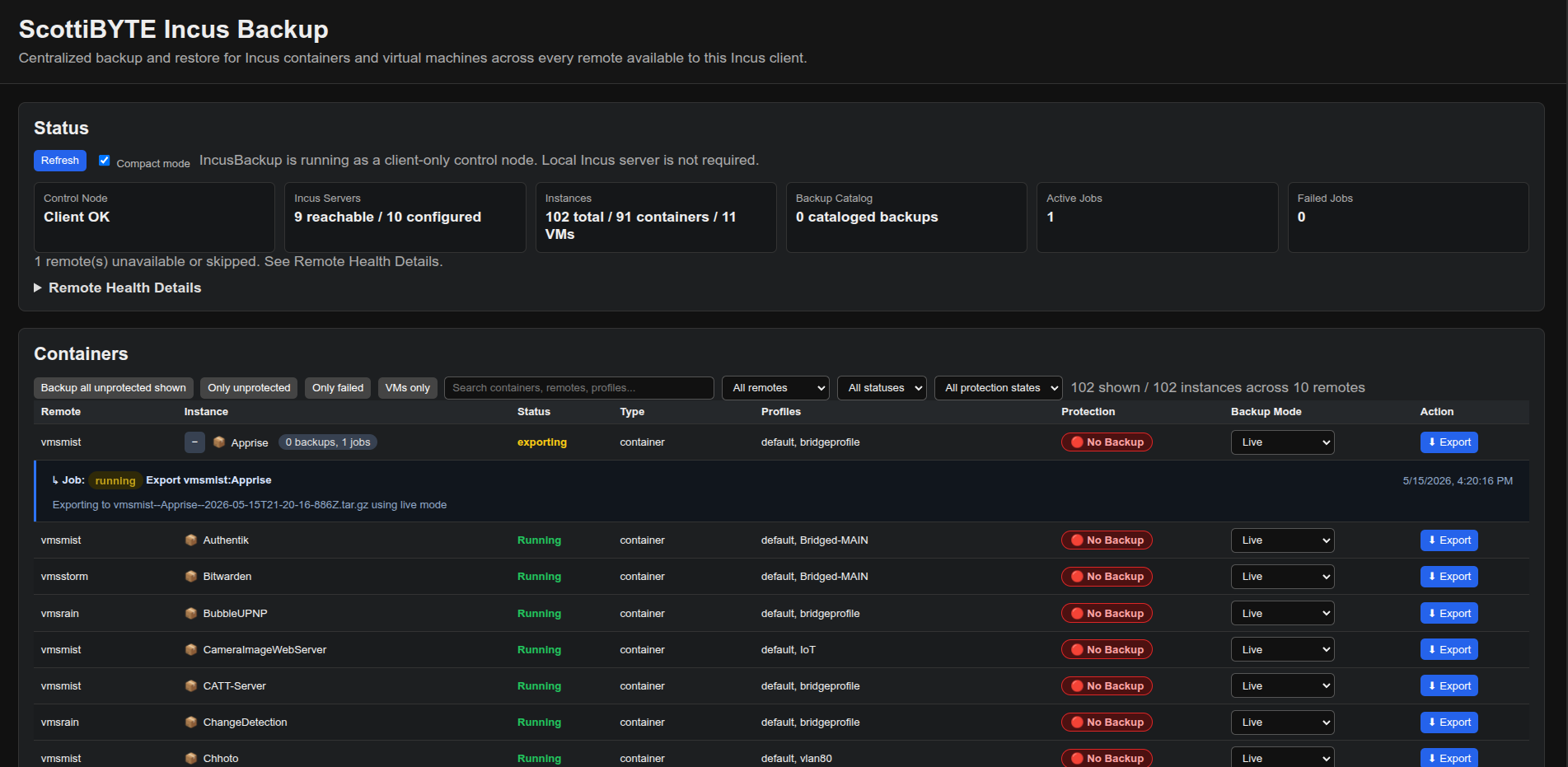
The application is designed to run as a lightweight client-only control node using Docker Compose. It leverages the native Incus client and existing trust relationships already configured on the Docker host.
Unlike traditional backup systems, ScottiBYTE Incus Backup does not require an Incus server locally. The container securely mounts the host Incus client configuration read-only and communicates directly with remote Incus servers using the official Incus CLI.
The result is a clean, lightweight, multi-remote backup solution with no database dependencies and no complicated infrastructure requirements.
Dashboard Overview
The ScottiBYTE Incus Backup dashboard provides:
- Multi-remote Incus backup management
- Centralized container and VM visibility
- One-click backup exports
- Persistent scheduled backups
- Bulk scheduling for visible or filtered instances
- Inline schedule editing
- Inline restore operations
- Backup age visualization
- Backup protection tracking
- Live or Stop+Restart backup modes
- IncusBackup self-protection when backing up the app container
- Remote health monitoring
- Recent activity logging
- Upload/import support for external backups
- Large inventory navigation with row highlighting, keyboard movement, floating headers, and scroll-to-top support
- Lightweight Docker deployment
- Native Incus client integration
- Secure read-only trust mounting
- No database required
Features
- Discover Incus containers and virtual machines across configured remotes
- Export backups as compressed
.tar.gz - Restore backups as:
- Original instance
- Cloned instance
- Upload and import local
.tar.gzbackup files - Persistent scheduled backups
- Per-instance schedule editing
- Bulk schedule assignment for visible or filtered instances
- Scheduled backup retention
- Optional missed-run handling on startup
- Scheduled backup dashboard count
- Backup protection indicators
- Backup age visualization:
- 🟢 Green = backed up today
- 🟡 Yellow = 1–7 days old
- 🟠 Orange = stale
- 🔴 Red = no backups
- Backup modes:
- Live
- Stop + Restart
- IncusBackup self-protection to force Live mode when backing up the backup application container
- Inline backup job tracking
- Recent activity feed
- Multi-remote Incus support
- Docker Compose deployment
- Watchtower-compatible labels
- Automatic remote health monitoring
- Compact dashboard mode
- Row highlighting and keyboard navigation for large instance inventories
- Floating Containers table header while scrolling
- Scroll-to-top button for long instance lists
- Client-only architecture
- Secure trust mounting
- Native Incus CLI support
Security Model
This application intentionally operates as an Incus client only.
The Docker container does not store or generate Incus trust credentials internally.
Instead, the existing Incus client configuration from the Docker host is mounted read-only into the container:
${HOME}/.config/incus:/incus-client:ro
This ensures:
- Trust credentials remain on the Docker host
- Docker Hub images remain safe to publish
- Remote trust relationships stay externally managed
- The container cannot modify Incus trust data
1. Install the Incus Client
The Docker host must have the Incus client installed before trust relationships can be configured.
Ubuntu example:
sudo apt update
sudo apt install -y incus-client
Verify:
incus version
2. Enable HTTPS API Access on Incus Servers
Run this on every Incus server you want ScottiBYTE Incus Backup to manage:
incus config set core.https_address :8443
Verify:
ss -ltnp | grep 8443
3. Create an Incus Trust Token
On the remote Incus server:
incus config trust add IncusBackup
Copy the generated trust token.
4. Add Remote Incus Servers
Run these commands on the Docker host.
Example remote:
incus remote add vmsmist https://vmsmist:8443 --accept-certificate
Paste the trust token when prompted.
Verify connectivity:
incus remote list
Verify instances are visible:
incus list vmsmist:
Repeat for every Incus server you want ScottiBYTE Incus Backup to manage.
Examples:
incus remote add vmsstorm https://vmsstorm:8443 --accept-certificate
incus remote add vmsrain https://vmsrain:8443 --accept-certificate
incus remote add mondo-2 https://mondo-2:8443 --accept-certificate
5. Create the Application Directory
mkdir -p ~/incusbackup
cd ~/incusbackup

mkdir -p backups
mkdir -p uploads
6. Create docker-compose.yml
Create:
nano docker-compose.yml
Paste:
services:
  incusbackup:
    image: scottibyte/incusbackup:latest
    container_name: incusbackup
    restart: unless-stopped

    ports:
      - "3030:3030"

    environment:
      PORT: "3030"
      INCUS_CONF: /incus-client
      INCUS_BACKUP_DIR: /app/backups
      INCUS_COMPLETED_JOB_TTL_MS: "180000"

    volumes:
      - ./backups:/app/backups
      - ./uploads:/app/uploads

      # Read-only host Incus trust mount
      - ${HOME}/.config/incus:/incus-client:ro

    security_opt:
      - no-new-privileges:true

    healthcheck:
      test: ["CMD", "curl", "-f", "http://localhost:3030"]
      interval: 30s
      timeout: 10s
      retries: 3

    labels:
      - "com.centurylinklabs.watchtower.enable=true"
7. Start ScottiBYTE Incus Backup
docker compose up -d
View logs:
docker logs -f incusbackup
You should see:
ScottiBYTE Incus Backup running at http://0.0.0.0:3030
Backup directory: /app/backups
Completed jobs auto-hide after 180 seconds.
Scheduled backup engine active. Interval 60 seconds. Concurrency 1.
8. Verify Incus Access Inside the Container
Verify the Incus CLI exists:
docker exec -it incusbackup which incus
Verify remotes:
docker exec -it incusbackup incus remote list
Verify instances:
docker exec -it incusbackup incus list vmsmist:
Replace vmsmist with one of your configured remotes.
9. Open the Dashboard
Open a browser and go to:
http://YOUR-SERVER-IP:3030
Example:
http://172.16.2.247:3030
Scheduled Backups
Version 1.1.0 adds a built-in scheduled backup engine.
Schedules are stored persistently in:
~/incusbackup/backups/settings.json
The scheduler runs inside the Incus Backup application container and uses the same backup engine as manual exports.
Supported schedule types:
- Off
- Hourly
- Daily
- Weekly
- Monthly
The dashboard supports:
- Per-instance schedule editing
- Bulk scheduling of currently visible or filtered instances
- Scheduled backup retention
- Optional missed-run handling on startup
- A scheduled backup count on the status dashboard
- Inline schedule summaries in the Containers table
Bulk scheduling is especially useful when filtering by remote, instance type, protection state, or backup age.
IncusBackup Self-Protection
When the Incus Backup application backs up its own IncusBackup container, it is automatically protected.
The app forces its own backup mode to:
Live - self protected
This prevents the backup process from stopping the container that is running the backup application.
Other containers and virtual machines can still use either Live or Stop + Restart mode.
Backup Modes
Live Backup
Exports the instance while it remains running.
Recommended for:
- General workloads
- Low-risk services
- Convenience backups
Stop + Restart Backup
Gracefully stops the instance before backup and restarts it afterward.
Recommended for:
- Databases
- Stateful applications
- Critical production workloads
- Consistency-sensitive backups
During Stop + Restart mode the dashboard temporarily displays:
Backing Up
instead of Running or Stopped so the UI accurately reflects backup activity.
Backup Age Visualization
Protection status is color coded:
| Color | Meaning |
|---|---|
| 🟢 Green | Backed up today |
| 🟡 Yellow | 1–7 days old |
| 🟠 Orange | Backup stale |
| 🔴 Red | No backups |
Restore Options
Expand a container or VM row to view backups.
Restore Original
Restores using the original instance name.
Disabled automatically if the original instance already exists.
Restore Clone
Restores using a generated safe clone name such as:
container-restored
or:
container-restored-2
Upload External Backups
The dashboard supports uploading external .tar.gz Incus exports.
Workflow:
- Choose backup file
- Select destination remote
- Enter restore name
- Upload and import
Uploaded files are staged in:
~/incusbackup/uploads
Backup Storage Locations
Docker host paths:
~/incusbackup/backups
~/incusbackup/uploads
Container paths:
/app/backups
/app/uploads
Incus trust mount:
/incus-client
Updating ScottiBYTE Incus Backup
From the ~/incusbackup directory:
docker compose pull
docker compose up -d
View logs:
docker logs -f incusbackup
Watchtower Support
The compose file includes:
labels:
  - "com.centurylinklabs.watchtower.enable=true"
This allows automated updates using Watchtower if desired.
Troubleshooting
No Containers Displayed
Verify remotes on the Docker host:
incus remote list
Verify remotes inside the container:
docker exec -it incusbackup incus remote list
Incus Client Missing Inside Container
Verify:
docker exec -it incusbackup which incus
Container Cannot Access Trust Configuration
Verify mount:
docker exec -it incusbackup ls -la /incus-client
Remote Unreachable
Verify connectivity:
incus list vmsmist:
Check remote server API:
ss -ltnp | grep 8443
Dashboard Will Not Load
Verify container:
docker ps
Check logs:
docker logs -f incusbackup
Verify port:
ss -ltnp | grep 3030
Port Conflict
Edit:
ports:
  - "3030:3030"
Example alternative:
ports:
  - "3031:3030"
Restart:
docker compose up -d
Access:
http://YOUR-SERVER-IP:3031
Important Notes
- Test restores regularly
- Stop + Restart mode is safest for databases
- Live backup mode is faster but may not guarantee perfect write consistency
- Scheduled backups use the same export engine as manual backups
- Backup files can consume significant storage
- This application can stop and restart containers during backup operations
- The
IncusBackupapplication container is self-protected and forced to Live mode - Remote Incus trust is fully controlled by the Docker host Incus client
Docker Hub
scottibyte/incusbackup:latest
scottibyte/incusbackup:1.1.0
Community Support
Need help with Incus Backup, Docker deployment, Incus profile management, container creation, or ScottiBYTE utilities?
Join the ScottiBYTE Rocket.Chat community:
New users can start in #general. From there, you can find other ScottiBYTE project channels and community discussions.
For bugs and feature requests, please continue to use GitHub Issues. For quick questions and community discussion, use Rocket.Chat.
Tag summary
Content type
Image
Digest
sha256:b1fc3b9c7…
Size
103.1 MB
Last updated
4 months ago
docker pull scottibyte/incusbackup