sixfeetup/pythonbooster_csv repository overview
Python Booster
Python and CSV
Calvin Hendryx-Parker, CTO Six Feet Up

Overview
This repository contains some sample code used during our Python Booster session to cover the basics of using the CSV module in Python.
If you run the Dockerized version of the Jupyter Notebooks below, please note that your changes to the Notebook will not be saved back to your working directory.
Getting Started
Build the container and run it locally
$ docker build -t pythonbooster_csv .
Start up the container in the foreground. Once running, Jupyter will output to
stdout the URL to access the notebook.
$ docker run -p 8888:8888 --name pythonbooster_csv pythonbooster_csv
Use ctrl-c to stop the running notebook and the following command to start
it back up again.
$ docker start -a pythonbooster_csv
Once you are done playing with the notebook and want to throw away the work and container, use the following command.
$ docker rm pythonbooster_csv
PyCharm Notes
You will need to create a Run Configuration either by clicking on the double
green arrow with the Dockerfile open and selecting "New Run Configuration" or
by going to the "Run" menu and selecting the "Edit Configurations..." option.
Click the plus to add a new "Docker > Dockerfile" configuration.
Configure the Image tag, Container name and the Bind ports.
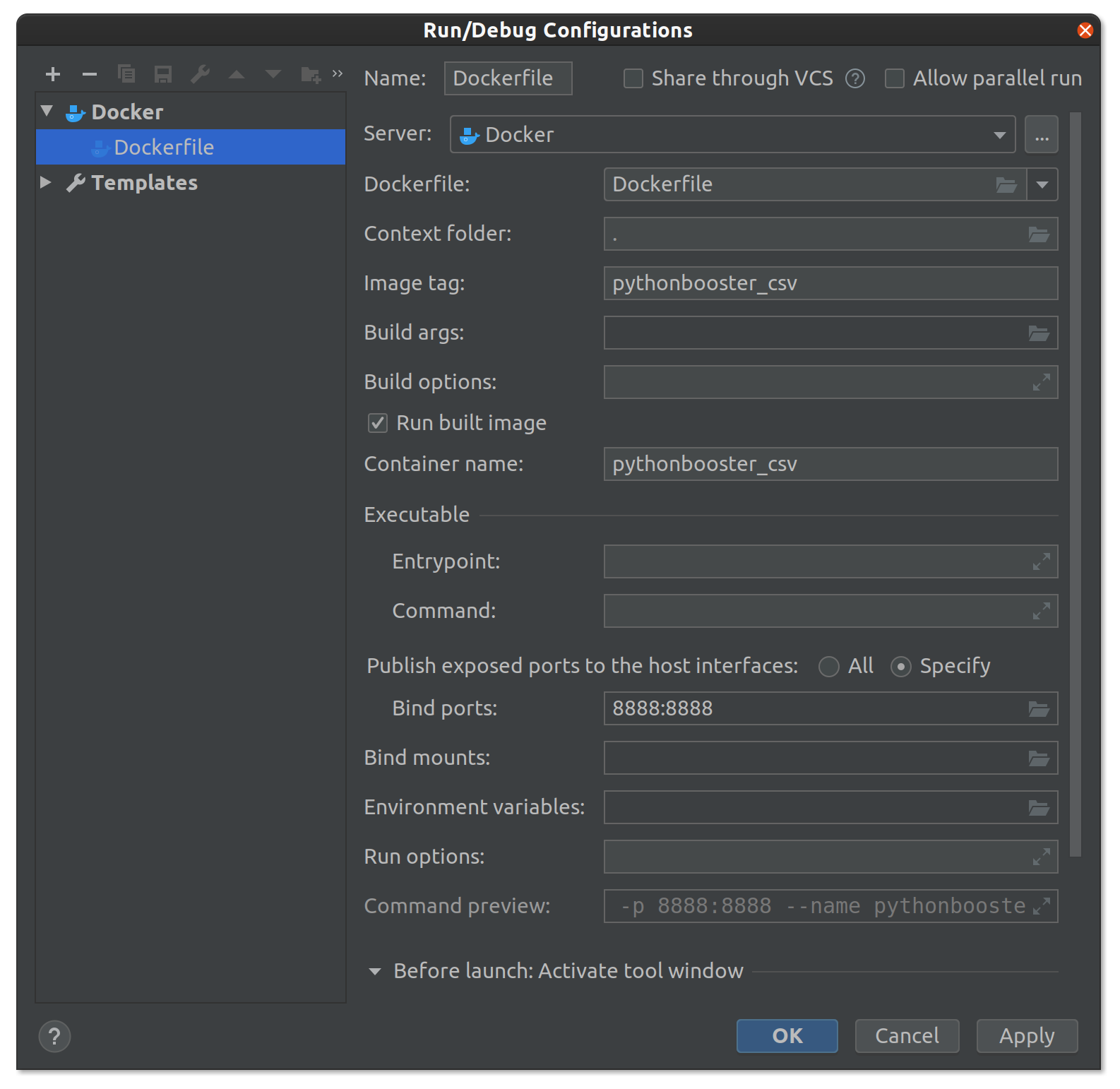
Once that is setup, you can run this configuration or click the double green
arrow to run/build the Dockerfile.
Note: PyCharm does not support running the Notebook files using a remote interpreter as of 2019.3, stay tuned!
The Services panel should show your container running and also show the URL to access the running Notebooks from your browser.
Tag summary
Content type
Image
Digest
Size
131.8 MB
Last updated
about 6 years ago
docker pull sixfeetup/pythonbooster_csv