Sales Tracker
A modern, playful web application for sales tracking and analytics with an interactive login experience.
Screenshots
Click to show screenshots
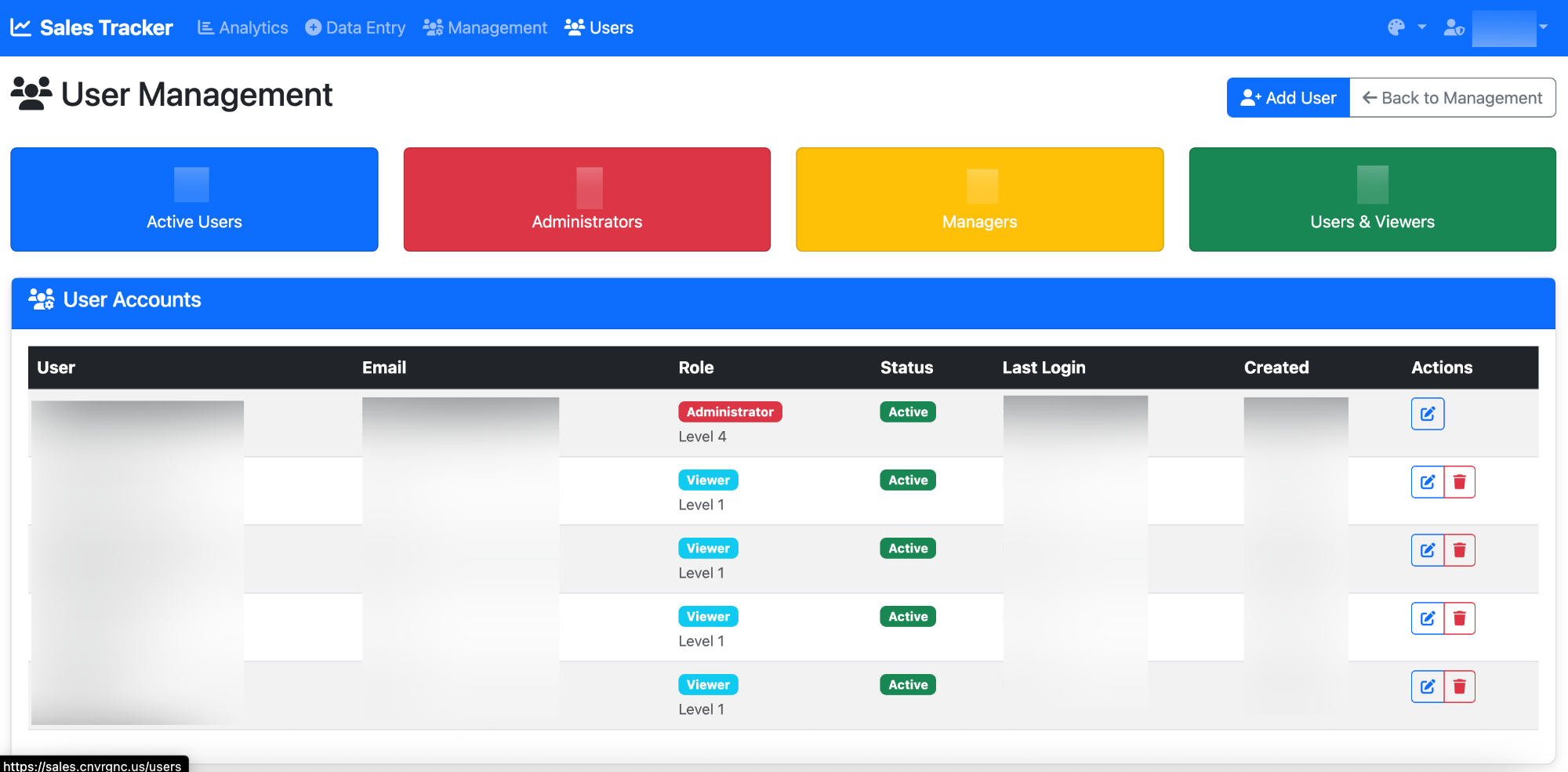
Features
- 📊 Sales Analytics Dashboard - Track and visualize sales performance
- 👥 User Management - Multi-level permission system for team collaboration
- 📈 Data Entry & Export - Easy sales data input with Excel export capabilities
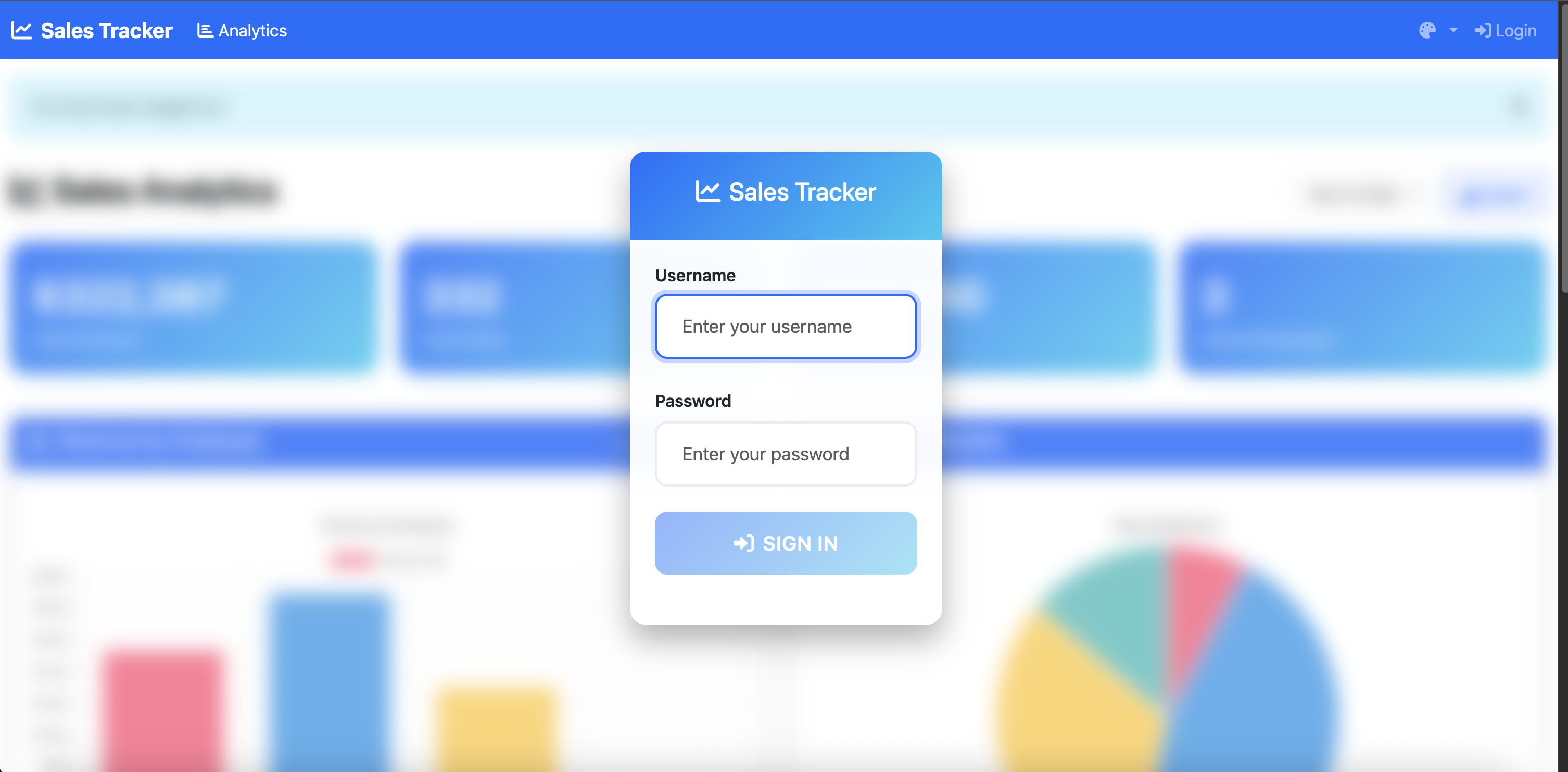
- 🎮 Interactive Login - Unique, playful login experience with cursor-evasive Sign In button
- 🔒 Secure Authentication - Session-based authentication with password hashing
- 📱 Responsive Design - Works seamlessly on desktop and mobile devices
Core Functionality
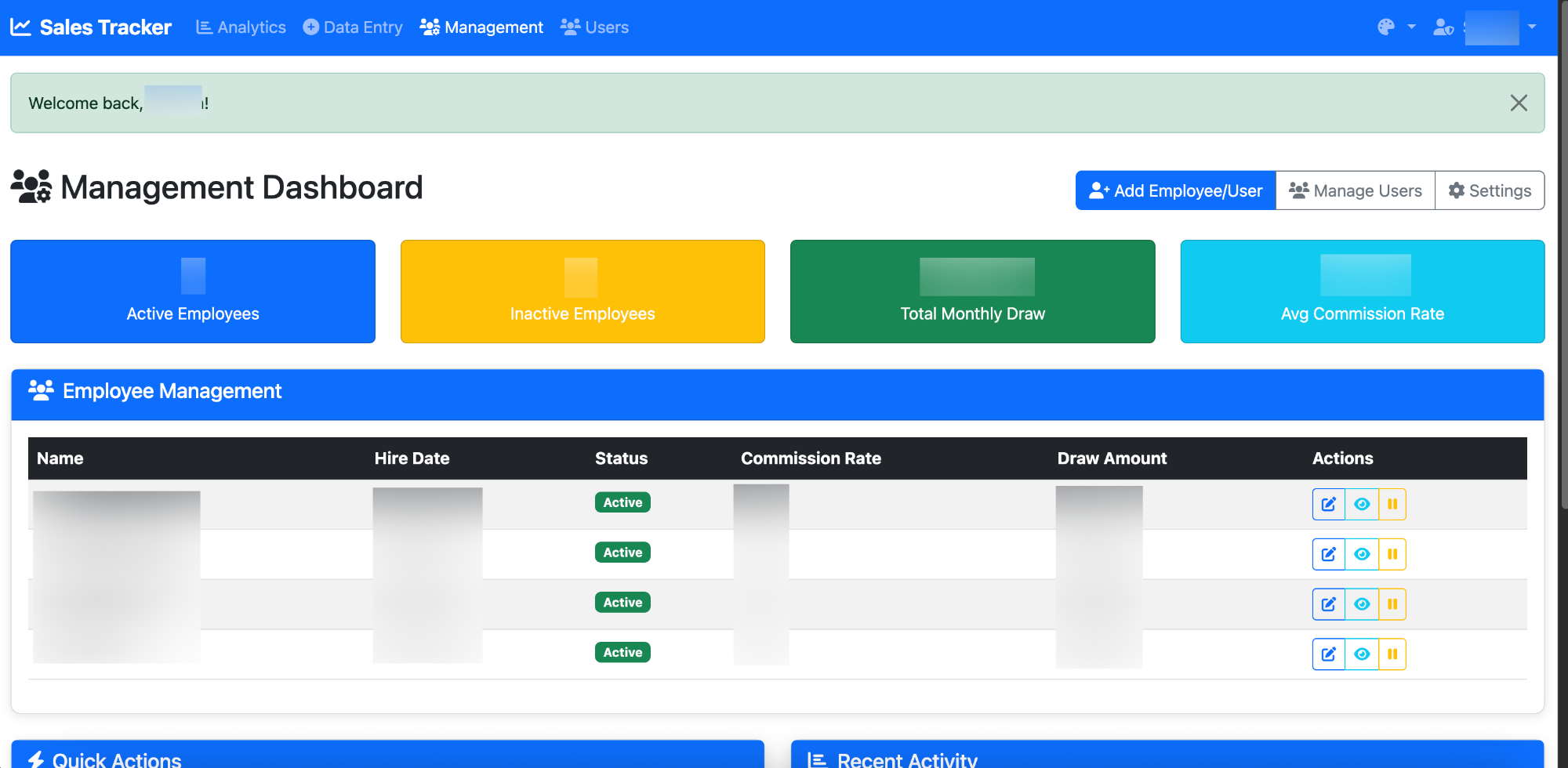
- Employee Management: Add, edit, and manage sales employees with commission rates and draw amounts
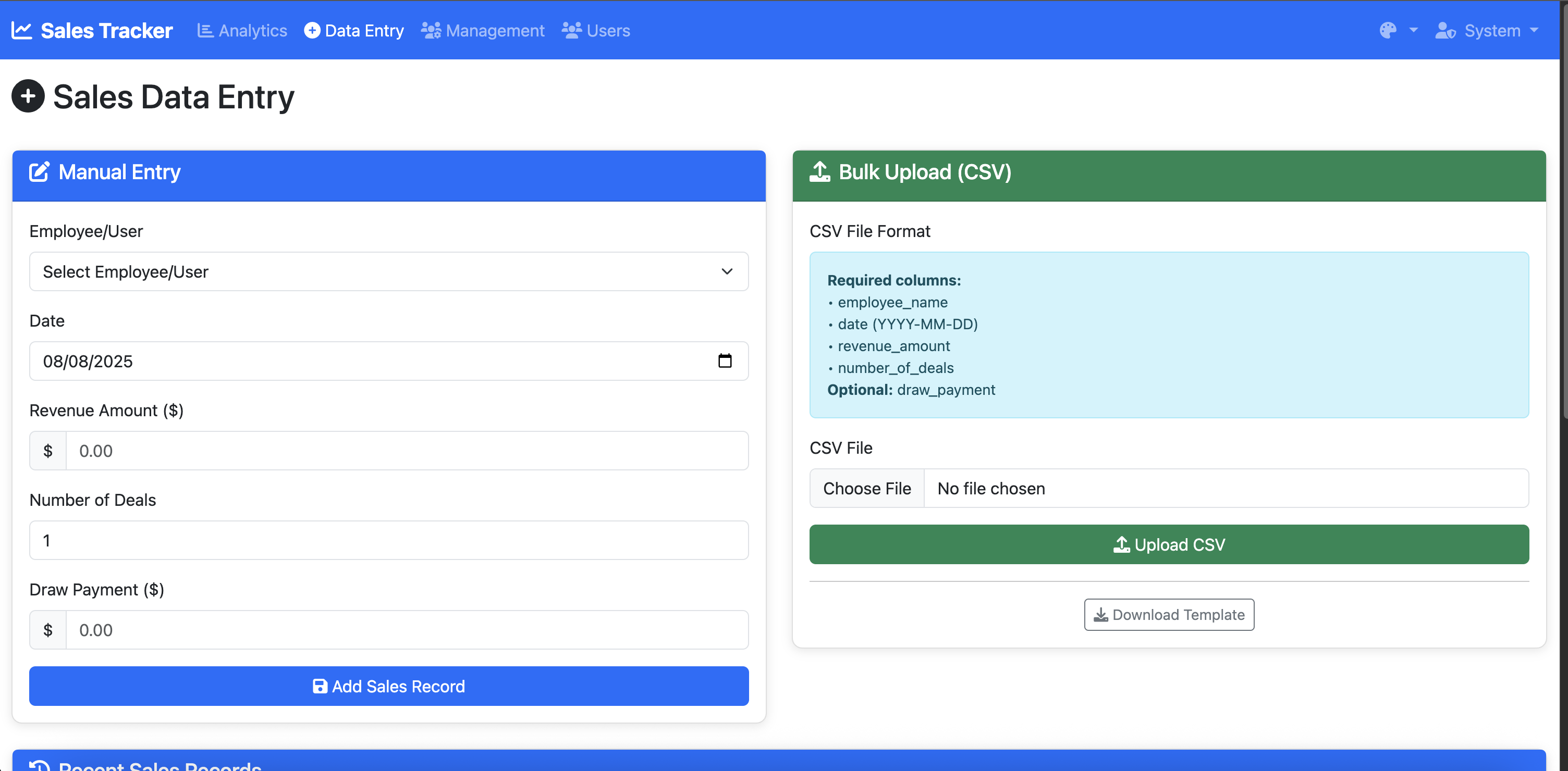
- Sales Data Entry: Manual entry and bulk CSV upload for sales records
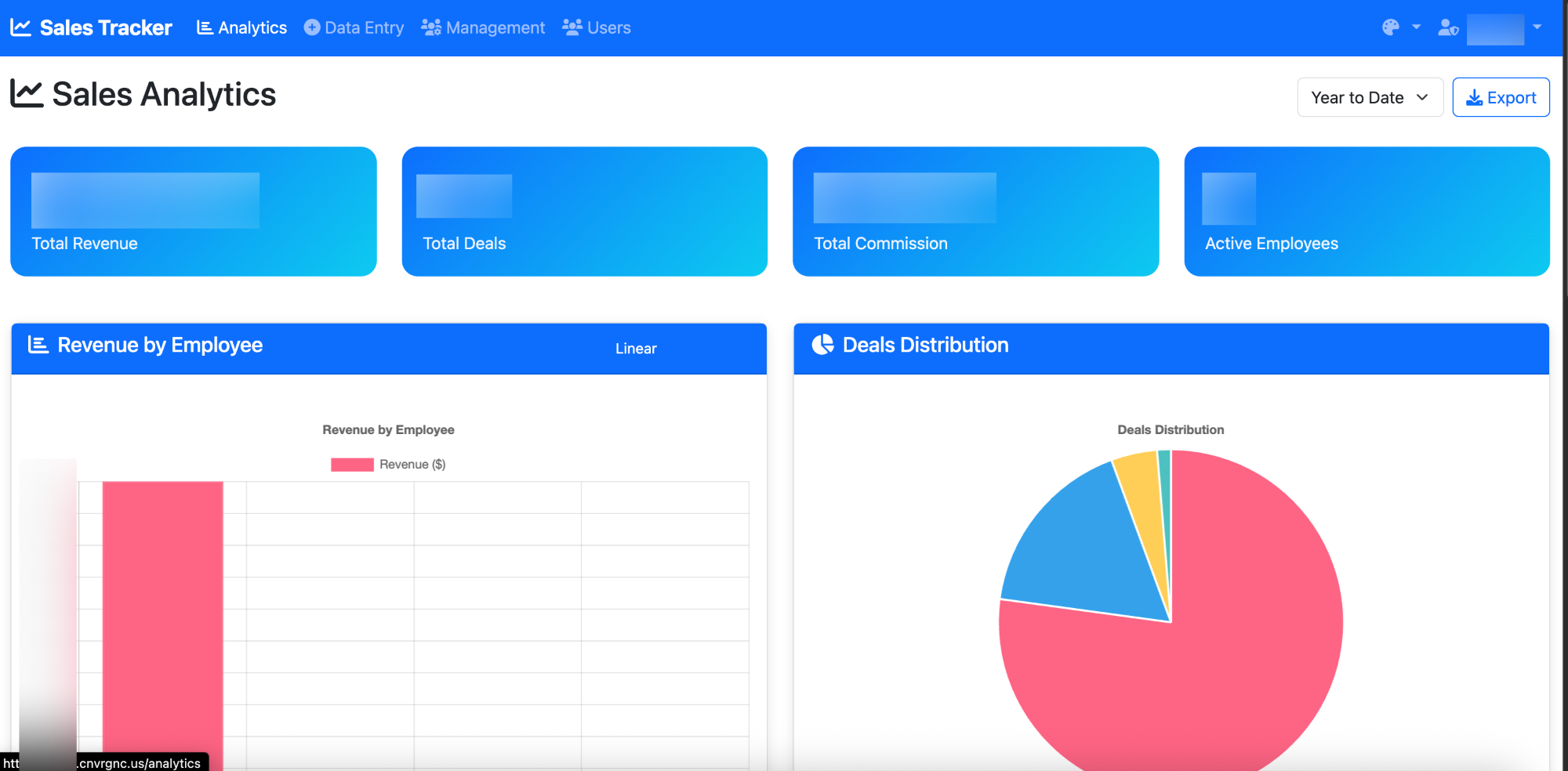
- Analytics Dashboard: Interactive charts and reports with multiple time period filters
- Admin Panel: Password-protected management interface
Database Schema
- Employee Table: ID, name, hire date, active status, commission rate, draw amount
- Sales Table: ID, employee ID, date, revenue, deals count, commission, draw payment, period type
- Settings Table: Default analytics period, admin credentials, field display toggles
- Goals Table: Employee goals by time period with revenue and deal targets
Three Main Pages
1. Management Tab (Password Protected)
- Login form with username/password authentication
- Employee management interface
- Settings panel for admin credentials and system configuration
- Field toggle switches for commission/draw display (% vs $)
- Color scheme customization with 8 preset themes
- Goal setting interface for employees
2. Analytics Page (Public Access)
- Year-to-Date sales view by default
- Interactive charts using Chart.js:
- Bar charts: Employee revenue comparison
- Pie charts: Deal distribution
- Line charts: Sales trends over time
- Time period filters: Week, Month, Quarter, Year, Custom date range
- Export functionality for reports
- Key performance indicators and metrics
- Adaptive UI that responds to selected color scheme
3. Data Entry Page (Public Access)
- Form for manual sales data input
- Automatic commission calculation based on employee rates
- Draw payment tracking with running balance
- Bulk CSV import functionality
- Data validation and error handling
- Recent sales records display
- Themed interface matching selected color scheme
Technical Stack
- Backend: Flask with SQLAlchemy ORM
- Database: SQLite with proper relationships
- Forms: Flask-WTF with CSRF protection
- Security: Werkzeug password hashing, session management
- Frontend: Bootstrap 5 responsive UI
- Charts: Chart.js for data visualization
- Deployment: Docker containerization
Installation & Setup
Quick Start with Docker (Recommended)
-
Easy setup with the provided script:
git clone <repository-url>
cd sales-tracker
chmod +x setup.sh
./setup.sh
-
Or manually with Docker Compose:
docker-compose up --build
-
Access the application:
Setup Options
Development Mode (default):
./setup.sh --dev
# or
docker-compose up --build
Production Mode (with Nginx reverse proxy):
./setup.sh --production
Persistent Data Mode (recommended for production):
./setup.sh --persistent
# Access at http://localhost:5001
Troubleshooting Database Issues
If you encounter SQLite permission errors:
-
Use the in-container database (default):
docker run -p 5000:5000 -e DATABASE_URL=sqlite:///sales_tracker.db sales-tracker
-
Fix local directory permissions:
mkdir -p data uploads
chmod 755 data uploads
-
Run with persistent data:
./setup.sh --persistent
Local Development
-
Install dependencies:
python3 -m venv venv
source venv/bin/activate
pip install -r requirements.txt
-
Run the application:
python app.py
# or
python run.py
-
Access at: http://localhost:5000
Configuration
Environment Variables
SECRET_KEY: Flask secret key for sessionsFLASK_ENV: Development or production modeDATABASE_URL: Database connection string (optional)
Default Settings
- Default admin username:
admin
- Default admin password:
admin
- Default analytics period: Year-to-Date
- Database: SQLite (
sales_tracker.db)
Usage Guide
Initial Setup
- Access the application at http://localhost:5000
- Click "Admin Login" and use default credentials
- Go to Settings to change admin password
- Add employees via Management > Add Employee
Adding Sales Data
- Navigate to Data Entry page
- Select employee, enter date, revenue, and deal count
- Commission is calculated automatically
- For bulk uploads, use CSV with columns: employee_name, date, revenue_amount, number_of_deals
Viewing Analytics
- Analytics page shows Year-to-Date data by default
- Use period filter to change time range
- Charts update automatically
- Export data using the Export button
Managing Employees
- Access Management tab (admin login required)
- Add/edit employees with commission rates and draw amounts
- Set goals for employees by time period
- Configure system settings and field display options
Customizing Color Schemes
- Quick Theme Switch: Use the palette icon in the navbar to instantly change themes
- Settings Panel: Access Settings > Color Scheme for full customization
- Live Preview: See theme changes instantly with color palette preview
- Theme Options: Choose from 8 professionally designed color schemes:
- Default Blue: Classic professional blue theme
- Dark Theme: Modern dark interface with reduced eye strain
- Nature Green: Fresh green palette inspired by nature
- Royal Purple: Elegant purple scheme for premium feel
- Sunset Orange: Warm orange tones for energy and creativity
- Ocean Teal: Calming teal colors for focus and clarity
- Corporate Red: Bold red theme for dynamic environments
- Modern Pink: Contemporary pink palette for modern aesthetics
- Persistent Settings: Admin theme preferences are saved to database
- Guest Themes: Non-admin users can use localStorage for temporary theme preferences
File Structure
sales-tracker/
├── app.py                 # Main Flask application
├── requirements.txt       # Python dependencies
├── Dockerfile            # Docker configuration
├── docker-compose.yml    # Docker Compose setup
├── nginx.conf            # Nginx reverse proxy config
├── templates/            # HTML templates
│   ├── base.html         # Base template
│   ├── login.html        # Admin login
│   ├── analytics.html    # Analytics dashboard
│   ├── data_entry.html   # Sales data entry
│   ├── management.html   # Employee management
│   ├── add_employee.html # Add employee form
│   ├── edit_employee.html# Edit employee form
│   └── settings.html     # System settings
├── uploads/              # CSV upload directory
└── data/                 # Database storage
API Endpoints
GET /api/sales_data?period=YTD - Sales data for chartsGET /api/trends_data - Historical trends dataPOST /bulk_upload - CSV bulk upload
Security Features
- Password hashing with Werkzeug
- CSRF protection on all forms
- Session-based authentication
- Input validation and sanitization
- SQL injection prevention via SQLAlchemy ORM
Performance Features
- Responsive Bootstrap 5 design
- Mobile-friendly interface
- Efficient database queries
- Chart.js for smooth visualizations
- Docker containerization for easy deployment
Maintenance
Database Backup
docker exec sales-tracker-app sqlite3 /app/sales_tracker.db ".backup /app/data/backup.db"
Updating the Application
docker-compose down
docker-compose up --build
Logs
docker-compose logs -f sales-tracker
Contributing
- Fork the repository
- Create a feature branch
- Make changes and test
- Submit a pull request
License
Built with Flask & Bootstrap. © 2024 Sales Tracker.
Support
Issues? Questions? Praise-singing?
File an issue on GitHub or yell at teb.
👑 Created by: tebbydog0605
🐋 Docker Hub: tebwritescode
💻 Website: teb.codes