techblog/voicy repository overview
voicy
Voice controled telegram bot for Smart Homes
Voicy is a Telegram bot written in python that accepts voice command and execute it using HTTP calls or MQTT topics. Voicy can be easely integrated with HomeAssistant or other Smart Home application that supports MQTT protocol.
Features
- 50+ Supported languages.
- Publish MQTT Topics.
- Send HTTP Post requests (with Headers abd payload).
- Integrate with nodered.
Components and Frameworks used in TTS-STT
- Loguru
- Google cloud speech
- Wavinfo
- Soundfile
- Wave
- Pydub
- PyYAML
- Numpy
- Requests
- pyTelegramBotAPI
- configparser
- paho-mqtt
Limitations
Speech To Text feature requires active google api cloud account with enabled billing account (pricing table can be found here).
Installation
As i mentioned, in order to use Google Speech Recognition, we need to create Google Application and enable the API. Here are the steps you need to follow to integrate your program with the Google Speech-To-Text API.
Step 1) Create a Google Application, Service account and activate Google speach API
The first thing you need to access Google APIs is a Google account and create a Google application. You can create a google application using the google console: Go to google console.
Once you open the google console, click on the dropdown at the top. This dropdown is displaying your existing google application. After clicking, a pop up will appear, then click on “New Project.”


Then enter your application name and click on Create.
Once you have created your google application, you need to grant your application access to the “Google Cloud Speech-To-Text” API. To do so, go to the application dashboard and from there, go to the APIs overview. See below how to access:

Click on “Enable Apis and Service,” and then search by “speech,” then all Google APIs to do with text will be listed.


And then click “Enable.” Once enabled, you will grant permissions to your application to access the “Google Cloud Speech to Text API.”
The next step is Downloading your Google credentials. The credentials are necessary so Google can authenticate your application, and therefore Google knows that their API is being accessed by you. This way, they can measure how much you are using their APIs and charge you if the consumption passes the free threshold.
Here are the steps to download the google credentials. First, from the home dashboard, got to “Go to APIs overview,” just like before, and on the left-hand side menu, click on credentials.

Then click on “Create Credentials” and create a “Service Account.”

Enter any service account name you like, and click Create. Optional, you can grant service account access to the project, and click Done.

Now click on the service account you just created. The last click will take you to the service account details.

Go to the “Keys” section and click on “Add Key” and “Create New Key,” which will create a new key. This key is associated with your application through the service account.

In the pop-up, select JSON and click on Create, which will download a JSON file containing the key to your machine. Please make a note of where you save this file since you will need it next.

Step 2) Create Telegram bot
How to Create a New Bot for Telegram Open Telegram messenger, sign in to your account or create a new one.
Enter @Botfather in the search tab and choose this bot (Official Telegram bots have a blue checkmark beside their name.)

Click “Start” to activate BotFather bot.
In response, you receive a list of commands to manage bots. Choose or type the /newbot command and send it.

Choose a name for your bot — your subscribers will see it in the conversation. And choose a username for your bot — the bot can be found by its username in searches. The username must be unique and end with the word “bot.”
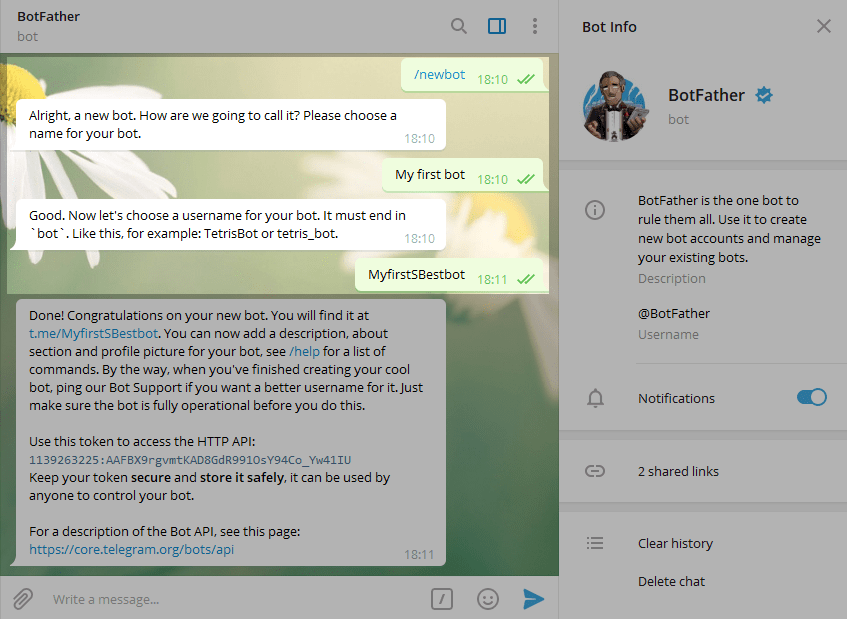
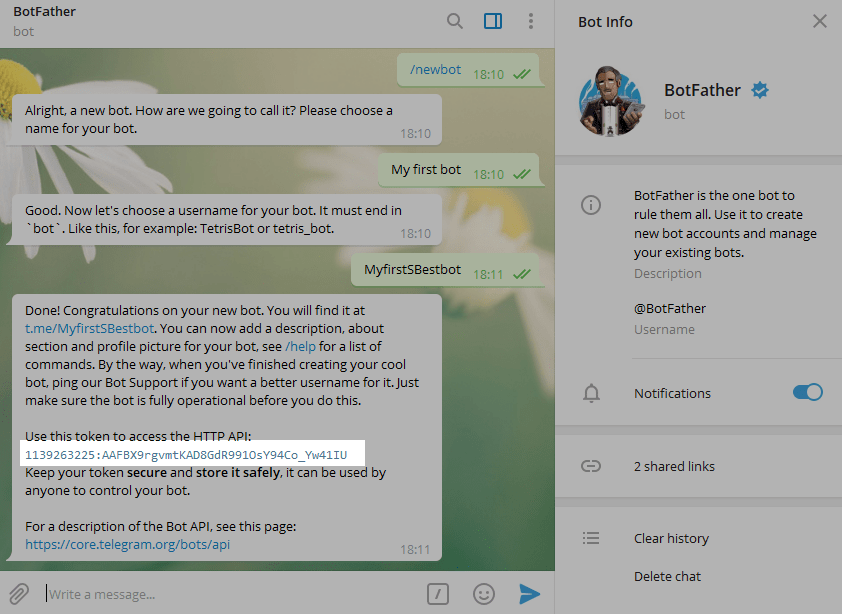
After you choose a suitable name for your bot — the bot is created. You will receive a message with a link to your bot t.me/<bot_username>, recommendations to set up a profile picture, description, and a list of commands to manage your new bot.
Step 3) Setup configuration folder
Before we can go and set up the container using docker command or docker-compose we need to set a persistent volume with 3 files in it:
- command.yaml - contains the mapping between voice commands and execution plan sample file
''' commands:
-
name: Boiler on text: turn boiler on type: mqtt topic: voicy/boiler payload: "on"
-
name: Send Post Request with data and headers text: test post with data and headers type: post url: https://webhook.site/0410c31b-5d90-4361-ae0a-1af846efe852 data: id: 1001 name: geek passion: coding headers: Content-Type: application/json; charset=utf-8 User-Agent: My User Agent 1.0 Authorization: Bearer ABCDEFGH
'''
- config.ini - contains the bot settings (Language, bot token, mqtt broker details) sample file
[Telegram]
bot.token=
bot.allowedid=
bot.welcome.message=Hi, my name is Voicy

[MQTT]
mqtt.host=
mqtt.port=
mqtt.username=
mqtt.password=

[GOOGLE]
speech.language=iw-IL

[Defaults]
default.protocol=mqtt

[RESULTS]
result.ok=
result.error=
- key-file.json - contains the credentials for the google api (Created at step 1)
{
  "type": "service_account",
  "project_id": "",
  "private_key_id": "",
  "private_key": "-----BEGIN PRIVATE KEY-----\n \n-----END PRIVATE KEY-----\n",
  "client_email": "my-service-account@***.iam.gserviceaccount.com",
  "client_id": "",
  "auth_uri": "https://accounts.google.com/o/oauth2/auth",
  "token_uri": "https://oauth2.googleapis.com/token",
  "auth_provider_x509_cert_url": "https://www.googleapis.com/oauth2/v1/certs",
  "client_x509_cert_url": "https://www.googleapis.com/robot/v1/metadata/x509/my-service-account-***.iam.gserviceaccount.com"
}
After saving these files, create the following docker-compose file:
version: "3.7"

services:

  voicy:
    image: techblog/voicy:latest
    container_name: voicy
    restart: always
    volumes:
      - ./voicy/config:/app/config
Now, run the following command to install and start the bot:
docker-compose up -d
Tag summary
Content type
Image
Digest
sha256:154b6125a…
Size
419.9 MB
Last updated
about 4 years ago
docker pull techblog/voicy