tedsluis/dump1090-mutability
Dump1090-mutability v1.15, ARM & X86_64/AMD64 (optional:+ heatmap & radarview)
50K+
tedsluis/dump1090-mutability repository overview
Docker image for Dump1090-Mutability
Try the dump1090 application in an easy way and run it in a Docker container.
No RTL-SDR receiver is required.
You have two options:
- Run it on a X86_64 or AMD64 Linux Docker host (Intel or AMD hardware).
- Run it on a Raspberry pi with raspbian and Hypriot Docker (ARM hardware).
While running this dump1090 docker container you are able to view airplanes in your web browser.
You can always rebuild it in minutes from the latest source code (on a raspberry pi that is already running dump1090 and piaware it takes about a hour!).
Downloading the latest docker image from Docker hub takes a few minutes.
These docker images are based on dump1090-mutability v1.15 by Oliver Jowett -also known as Obj- and my own fork with heatmap and rangeview:
- https://github.com/mutability/dump1090 (version v1.15 and v1.15_arm)
- https://github.com/tedsluis/dump1090 (version v1.15_heatmaprangeview and v1.15_heatmaprangeview_arm)
Note: You must use the desired github source at build time and specify the dump1090 version (v1.15, v1.15_arm, v1.15_heatmaprangeview or v1.15_heatmaprangeview_arm) upon runtime.
These builds are based on the latest Debian Jessie Docker image (for X86_64,AMD64) or Raspbian Jessie Docker image (for ARM) according the default installation instruction by Obj. Some packages were added, because they are not default available in the Docker bases images. The way in which the Lighttpd and Dump1090 services are started is slightly different as is usual with containers. The configuration is of course without user interaction.
Heatmap & rangeview features
In my fork of dump1090-mutability v1.15 I have added the following features:
- Display a csv heatmap file.
- Adjust the opacity, intensity and radius of the heatmap from a movable panel.
- Load a heatmap from the dump1090 web directory or from the heatmap panel in the browser.
- Display a KML range/altitude file.
- Display distance range rings around the antenna.
- Provide movable legends for the altitude colors and range rings.
- Toggle plane colors between Altitude colors and adb-s/mlat position colors.
- Toggle the heatmap, the range/altitude view and the range rings on and off (including their panel and legends).
Screenshot and video
Using the dump1090-mutability with a heatmap and radarview (on youtube)
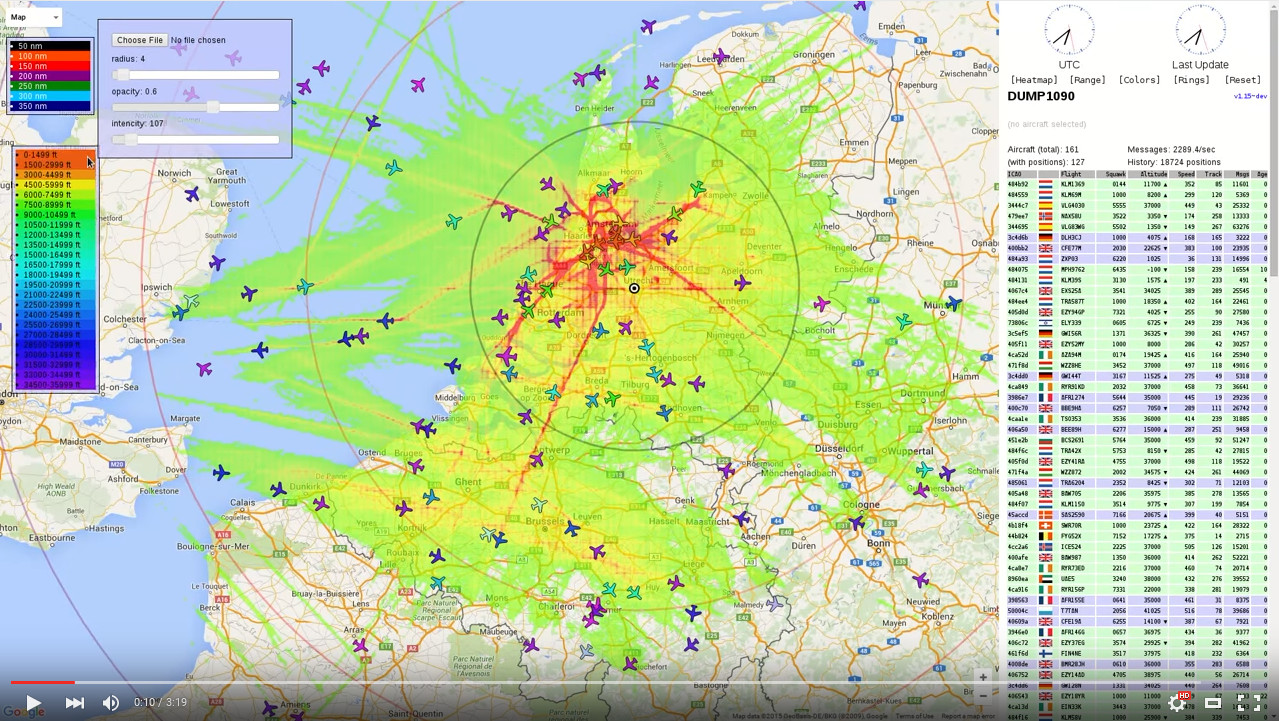
Live view
Try my dump1090 fork with heatmap and rangeview in the Google cloud: http://130.211.110.109/dump1090/gmap.html
(This dump1090 runs on a 60-day free trail that is available until September 6 2016, more info at https://cloud.google.com/free-trial/)
Docker Hub
The following images are available at docker hub https://hub.docker.com/r/tedsluis/dump1090-mutability:
- tedsluis/dump1090-mutability:v1.15 (latest version by obj for X86_64 / AMD64 hardware)
- tedsluis/dump1090-mutability:v1.15_arm (latest version by obj for Raspberry pi / ARM hardware)
- tedsluis/dump1090-mutability:v1.15_heatmaprangeview (my fork for X86_64 / AMD64 hardware)
- tedsluis/dump1090-mutability:v1.15_heatmaprangeview_arm (my fork for Raspberry pi / ARM hardware)
Note: Correctly speaking, there is only one docker image called 'tedsluis/dump1090-mutability' and it has four different versions, identified by their version labels (v1.15, v1.15_arm, v1.15_heatmaprangeview or v1.15_heatmaprangeview_arm).
The X86_64/AMD64 images are automated builds by docker hub using Github intergration, see build details.
Unfortunately Docker Hub does not support automated build for ARM images currently, so those ARM images are builded manualy.
More info at Automated Builds on Docker Hub.
FlightAware ADS-B flight tracking forum
At FlightAware ADS-B flight tracking forum you can find three related topics:
- Running Dump1090 Mutability in Docker container
- Heatmap & range/altitude view for dump1090-mutability v1.15
- Raspberry Pi + Docker = From blank SD to feeding in 15 mins
Usage
docker command and sudo
In all the examples down here I have not used the 'sudo' command. Depending on the way you have implementated Docker (or Hypriot Docker) you may need to use 'sudo' in front every 'docker' command. For example:
$ sudo docker version
or
$ sudo docker stats $(sudo docker ps -a -q)
Otherwise you may get an error message telling that it cannot connect to the docker daemon!
Download the dockerfile
This step is optional: If you don't build the image your self it will be downloaded the first time you try to run it. In this case skip the sections 'Download the dockerfile', 'Tweak the dockerfile' and 'Build the docker image' continue at 'Run a docker container:'.
Download the dockerfile (select the version you want: The first is with heatmap & rangeview, the seconds is without, the third and fourth are for ARM):
$ wget https://raw.githubusercontent.com/tedsluis/docker-dump1090/master/dockerfile
or
$ wget -O dockerfile https://raw.githubusercontent.com/tedsluis/docker-dump1090/master/dockerfile.org
or
$ wget -O dockerfile https://raw.githubusercontent.com/tedsluis/docker-dump1090/master/dockerfile.arm
or
$ wget -O dockerfile https://raw.githubusercontent.com/tedsluis/docker-dump1090/master/dockerfile.org.arm
Tweak the dockerfile
Optional: At this stage you may want to edit the dockerfile and change for example:
- the URL of your own config files (config.js and dump1090-mutability).
- your own ADS-B BEAST source IP address.
- the URL of your own heatmapdata.csv and rangeview.kml files (if you use the heatmap & rangeview source).
- the URL of your own dump1090-mutability fork.
notes:
Check the comments inside the dockerfiles for more info.
You can host your own config , heatmap and rangeview files in Dropbox, Github or on a webserver and use their URL's in the dockerfile.
Build the docker image
Build the image (select the version you want, X86/AMD64 or ARM, with or without heatmap & rangview):
$ docker build -t tedsluis/dump1090-mutability:v1.15_heatmaprangeview .
or
$ docker build -t tedsluis/dump1090-mutability:v1.15 .
or
$ docker build -t tedsluis/dump1090-mutability:v1.15_heatmaprangeview_arm .
or
$ docker build -t tedsluis/dump1090-mutability:v1.15_arm .
Run a docker container
Run it (select the version you want, X86/AMD64 or ARM, with or without heatmap & rangview):
note: If you did not build the image yourself it will be downloaded from the Docker Hub.
$ docker run -d -h dump80 -p 8080:80 tedsluis/dump1090-mutability:v1.15_heatmaprangeview
or
$ docker run -d -h dump80 -p 8080:80 tedsluis/dump1090-mutability:v1.15
or
$ docker run -d -h dump80 -p 8080:80 tedsluis/dump1090-mutability:v1.15_heatmaprangeview_arm
or
$ docker run -d -h dump80 -p 8080:80 tedsluis/dump1090-mutability:v1.15_arm
You can run more then a single dump1090 container, but be sure that you use a different 'host name' (-h <host name>) and 'outside port number' (-p <outside port:inside port>) for every container!
Run a docker container with an alternative remote source
You can changes the setting remote ADS-B BEAST input source in the startdump1090.sh or in the dockerfile and rebuild the docker image. It is easier (and your only option if you don't build the Docker image your self) to specify your own remote BEAST source dump1090 IP address like this (this can be any dump1090 with a RTL-SDR receiver).
(select the version you want, X86/AMD64 or ARM, with or without heatmap & rangview):
$ docker run -d -h dump01 -p 8080:80 tedsluis/dump1090-mutability:v1.15_heatmaprangeview /usr/share/dump1090-mutability/startdump1090.sh "your remote source dump1090 IP"
or
$ docker run -d -h dump01 -p 8080:80 tedsluis/dump1090-mutability:v1.15 /usr/share/dump1090-mutability/startdump1090.sh "your remote source dump1090 IP"
or
$ docker run -d -h dump01 -p 8080:80 tedsluis/dump1090-mutability:v1.15_heatmaprangeview_arm /usr/share/dump1090-mutability/startdump1090.sh "your remote source dump1090 IP"
or
$ docker run -d -h dump01 -p 8080:80 tedsluis/dump1090-mutability:v1.15_arm /usr/share/dump1090-mutability/startdump1090.sh "your remote source dump1090 IP"
Try dump1090 in the browser
To use the GUI, go to your browser and type:
http://IPADDRESS_DOCKERHOST:8080/dump1090
You may need to refresh your web browser a view times before you seen planes.
Running on a raspberry pi it can take a while.
Run multiple docker containers
To run multiple dump1090 docker containers on the same host (past the following 4 lines to the commandline all at ones):
(If you are running Docker on ARM then add '_arm' to the version label!)
On a raspberry you can only run a couple of containers, because you run quickly out of memory, cpu and block io resources!
for i in {81..99}
do
docker run -h dump${i} -d -p 80${i}:80  tedsluis/dump1090-mutability:v1.15_heatmaprangeview
done
And an other 20 containers with the original v1.15 version:
(If you are running Docker on ARM then add '_arm' to the version label!)
for i in {60..79}
do
docker run -h dump${i} -d -p 80${i}:80  tedsluis/dump1090-mutability:v1.15
done
Check if they are really running:
$ docker ps
An example of 20 containers with dump1090-mutability with heatmap & rangeview and 20 containers without:
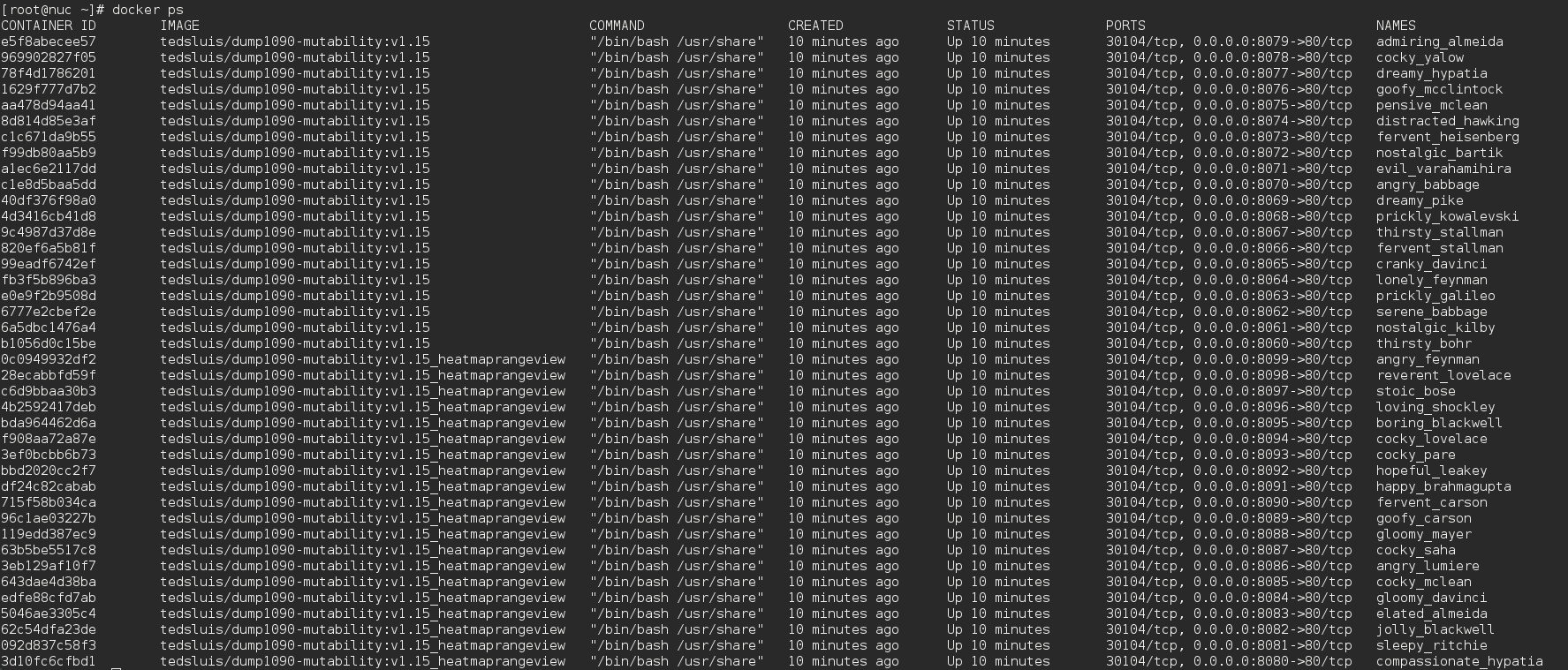
Note: All containers must have a different port name which you can use in your web browser:
http://IPADDRESS_DOCKERHOST:8060/dump1090/gmap.html
http://IPADDRESS_DOCKERHOST:8061/dump1090/gmap.html
http://IPADDRESS_DOCKERHOST:8062/dump1090/gmap.html
http://IPADDRESS_DOCKERHOST:8063/dump1090/gmap.html
http://IPADDRESS_DOCKERHOST:8064/dump1090/gmap.html
http://IPADDRESS_DOCKERHOST:8065/dump1090/gmap.html
http://IPADDRESS_DOCKERHOST:8066/dump1090/gmap.html
http://IPADDRESS_DOCKERHOST:8067/dump1090/gmap.html
http://IPADDRESS_DOCKERHOST:8068/dump1090/gmap.html
http://IPADDRESS_DOCKERHOST:8069/dump1090/gmap.html
(and so on, you get the idea)
http://IPADDRESS_DOCKERHOST:8090/dump1090/gmap.html
http://IPADDRESS_DOCKERHOST:8091/dump1090/gmap.html
http://IPADDRESS_DOCKERHOST:8092/dump1090/gmap.html
http://IPADDRESS_DOCKERHOST:8093/dump1090/gmap.html
http://IPADDRESS_DOCKERHOST:8094/dump1090/gmap.html
http://IPADDRESS_DOCKERHOST:8095/dump1090/gmap.html
http://IPADDRESS_DOCKERHOST:8096/dump1090/gmap.html
http://IPADDRESS_DOCKERHOST:8097/dump1090/gmap.html
http://IPADDRESS_DOCKERHOST:8098/dump1090/gmap.html
http://IPADDRESS_DOCKERHOST:8099/dump1090/gmap.html
You are probably thinking "why run 40 or more dump1090 containers on one host?". Well, for a couple of reasons:
- To proof that it is possible without any performance issue. Infact you can run hundreds of dump1090 containers on a X86_64/AMD64 linux host with just 4GB of RAM and a quad core (or an ARM board with enough resources).
- To show new possibilities. Imagine running hundreds of dump1090 containers in the cloud serving thousands of visitors. A load balancer could be used to distribute the load over the dump1090 instances.
Manage the containers
Check the resource consumption per docker container and notice that it is very low compared to a VM or a raspberry:
$ docker stats $(docker ps -a -q)
A containers consumes only around 20MB memory and 2% CPU (of one of your cores).
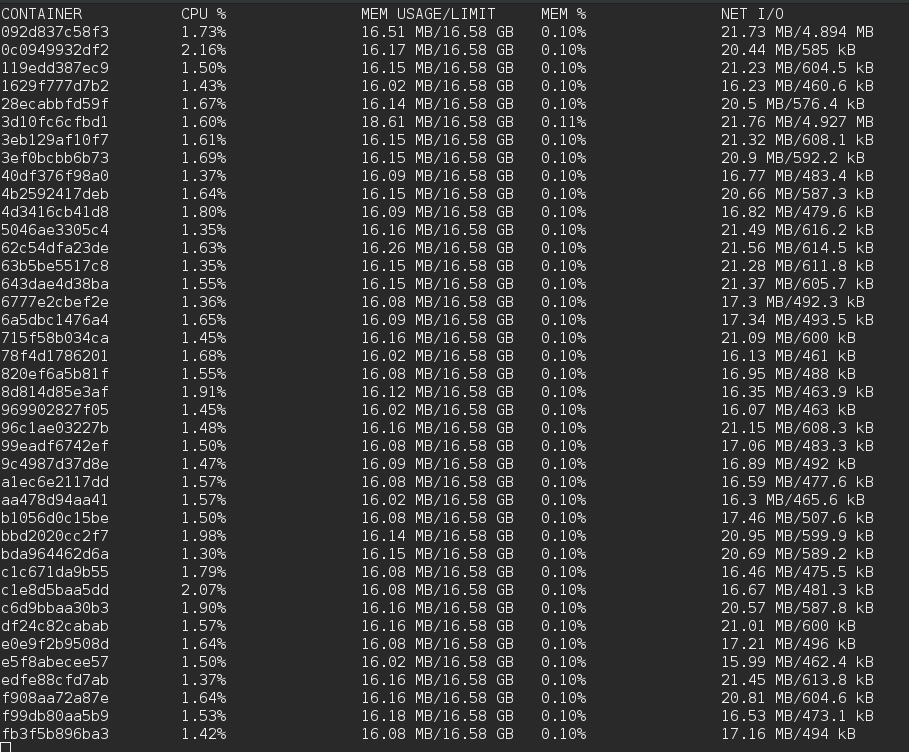
Only the dump1090, the lighttp web server and the netcat (nc) services are running:
docker top <container_id>

View the container log
docker logs <container_id>
This gives you the output from what is going on inside the container. The output of the last line in the dockerfile: 'CMD ["/bin/bash", "/usr/share/dump1090-mutability/startdump1090.sh"]'.
If you look in the startdump1090.sh script you can understand the meaning the output.
No errors. Everything looks okay.
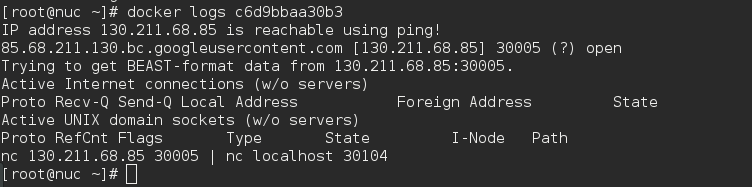
To stop a container, use:
docker stop <container_id>
Or stop all your containers all at ones:
docker stop $(docker ps -a -q)
Or kill them all at ones (much faster):
docker kill $(docker ps -a -q)
Start a docker container again:
docker start <container_id>
Start all your containers all at ones:
docker start $(docker ps -a -q)
Remove the containers all at ones:
docker rm $(docker ps -a -q)
Notes
These dockerfiles will override the default Dump1090 config files:
- /usr/share/dump1090-mutability/html/config.js
- /etc/default/dump1090-mutability
This way my personal settings like lat/lon, metric and the location of my 'radarview.kml' file are configured.
A 'heatmapdata.csv' file is downloaded from my personal dropbox to this image.
The 'raderview.kml' is hosted from the same dropbox. It is not copied to the container, since it must be publicly accessible for the Google Map API.
Of course you should modify the dockerfile and configure the location of your own config files, heatmapdata.csv and radarview.kml files and your own remote BEAST IP address.
If you want to create your own heatmapdata.csv and rangeview.kml you can check my https://github.com/tedsluis/dump1090.socket30003 repo.
30005 Data source
This dump1090 doesn't collect ADS-B data using an antenna and a RTL SDR receiver (although it can).
Instead it receives data using the BEAST_INPUT_PORT (30104, previously known as 30004).
In side the container I use netcat to copy 30005 traffic from an remote dump1090 to the local 30104 BEAST input port.
The remote dump1090 is located in the Google cloud running on a 60 days free trail (valid until 6 September 2016 and most likely continued with an other free trail account). This remote dump1090 gets his 30005 BEAST data from a raspberry pi located in my home in Utrecht, in the Netherlands. I leave this service available as long as it is not abused.
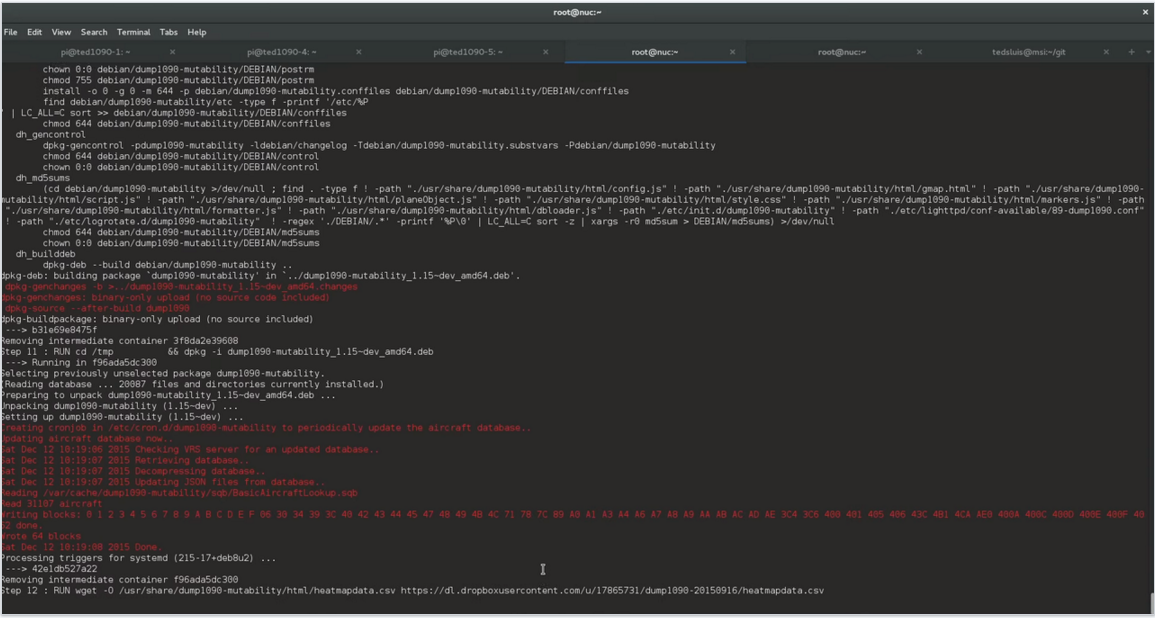
Build & run video
Build & run the dump1090-mutability docker image from scratch (on Youtube)
Ted Sluis
[email protected]
https://github.com/tedsluis
https://hub.docker.com/r/tedsluis
https://www.youtube.com/tedsluis
http://flightaware.com/adsb/stats/user/tedsluis
Tag summary
Content type
Unrecognized
Digest
Size
130.7 MB
Last updated
over 10 years ago
docker pull tedsluis/dump1090-mutability:v1.15_heatmaprangeview_arm