tremolosecurity/openunison-k8s-login-github
Login to Kubernetes and the dashboard with GitHub
10K+
tremolosecurity/openunison-k8s-login-github repository overview
Orchestra Login Portal for GitHub

Short video of logging into Kubernetes and using kubectl using GitHub
Orchestra Login Portal provides a login portal for Kubernetes that allows you to authenticate with GitHub, use GitHub teams and organizations for RBAC authorizations and provides integration for both kubectl and the Kubernetes Dashboard (https://github.com/kubernetes/dashboard). The portal runs inside of Kubernetes, leveraging Kubernetes for scalability, secret management and deployment.
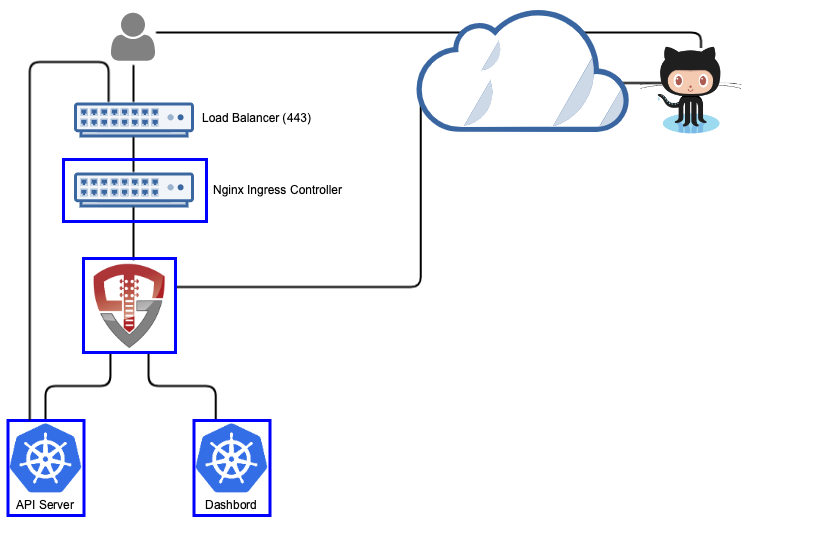
When a user accesses Kubernetes using Orchestra, they'll access both the login portal and the dashboard through OpenUnison (instead of directly via an ingress). OpenUnison will inject the user's identity into each request, allowing the dashboard to act on their behalf. The login portal has no external dependencies outside of GitHub and Kubernetes. All objects for session state are stored as CRDs.
Deployment
Watch a Video
This 7 minute video shows the entire deployment and user onboarding process

What You Need To Start
Prior to deploying Orchestra you will need:
- Kubernetes 1.10 or higher
- The Nginx Ingress Controller deployed (https://kubernetes.github.io/ingress-nginx/deploy/)
- Client id and secret from a GitHub OAuth2 Application
- Deploy the dashboard to your cluster
- helm 3.0+
When creating your GitHub OAuth2 application, the callback URL is https://host_name/auth/github where host_name is the host you want to use for your login portal.
The deployment is a four step process:
- Add Tremolo Security's Helm repo to your own
- Deploy the OpenUnison Operator
- Create a secret for your Active Directory password
- Deploy OpenUnison
Add Tremolo Security's Helm Repo
helm repo add tremolo https://nexus.tremolo.io/repository/helm/
helm repo update
Deploy The OpenUnison Operator
Create your namespace
kubectl create ns openunison
Deploy the operator
helm install openunison tremolo/openunison-operator --namespace openunison
Wait for the operator pod to be available
watch kubectl get pods -n openunison
Create A Secret For Your Active Directory Password
Create a secret in the openunison namespace:
apiVersion: v1
type: Opaque
metadata:
  name: orchestra-secrets-source
  namespace: openunison
data:
  GITHUB_SECRET_ID: aW0gYSBzZWNyZXQ=
  K8S_DB_SECRET: aW0gYSBzZWNyZXQ=
  unisonKeystorePassword: aW0gYSBzZWNyZXQ=
kind: Secret
| Property | Description |
|---|---|
| GITHUB_SECRET_ID | The secret from your GitHub OAuth2 application |
| unisonKeystorePassword | The password for OpenUnison's keystore, should NOT contain an ampersand (&) |
| K8S_DB_SECRET | A random string of characters used to secure the SSO process with the dashboard. This should be long and random, with no ampersands (&) |
Deploy OpenUnison
Copy values.yaml (https://raw.githubusercontent.com/OpenUnison/helm-charts/master/openunison-k8s-login-github/values.yaml) and update as appropriate:
| Property | Description |
|---|---|
| network.openunison_host | The host name for OpenUnison. This is what user's will put into their browser to login to Kubernetes |
| network.dashboard_host | The host name for the dashboard. This is what users will put into the browser to access to the dashboard. NOTE: network.openunison_host and network.dashboard_host Both network.openunison_host and network.dashboard_host MUST point to OpenUnison |
| network.api_server_host | The host name to use for the api server reverse proxy. This is what kubectl will interact with to access your cluster. NOTE: network.openunison_host and network.dashboard_host |
| network.k8s_url | The URL for the Kubernetes API server |
| network.session_inactivity_timeout_seconds | The number of seconds of inactivity before the session is terminated, also the length of the refresh token's session |
| network.ingress_type | The type of Ingress object to create. Right now only nginx is supported |
| network.ingress_annotations | Annotations to add to the Ingress object |
| cert_template.ou | The OU attribute for the forward facing certificate |
| cert_template.o | The O attribute for the forward facing certificate |
| cert_template.l | The L attribute for the forward facing certificate |
| cert_template.st | The ST attribute for the forward facing certificate |
| cert_template.c | The C attribute for the forward facing certificate |
| certs.use_k8s_cm | Tells the deployment system if you should use k8s' built in certificate manager. If your distribution doesn't support this (such as Canonical and Rancher), set this to false |
| myvd_config_path | The path to the MyVD configuration file, unless being customized, use WEB-INF/myvd.conf |
| dashboard.namespace | The namespace for the dashboard. For the 1.x dashboard this is kube-system, for the 2.x dashboard this is kubernetes-dashboard |
| dashboard.cert_name | The name of the secret in the dashboard's namespace that stores the certificate for the dashboard |
| dashboard.label | The label of the dashboard pod, this is used to delete the pod once new certificates are generated |
| dashboard.service_name | The name of the service object for the dashboard |
| k8s_cluster_name | The name of the cluster to use in the ./kube-config. Defaults to kubernetes |
| image | The name of the image to use |
| enable_impersonation | If true, OpenUnison will run in impersonation mode. Instead of OpenUnison being integrated with Kubernetes via OIDC, OpenUnison will be a reverse proxy and impersonate users. This is useful with cloud deployments where oidc is not an option |
| monitoring.prometheus_service_account | The prometheus service account to authorize access to the /monitoring endpoint |
| github.client_id | The client id from your OAuth2 application configuration |
| github.teams | A comma separated list of authorized teams and organizations. An organization is listed in the format OrgName/ and a team in the formate OrgName/TeamName |
| network_policies.enabled | If true, creates a deny-all network policy and additional policies based on below configurations |
| network_policies.ingress.enabled | if true, a policy will be created that allows access from the Namespace identified by the labels |
| network_policies.ingress.labels | Labels for the Namespace hosting the Ingress |
| network_policies.monitoring.enabled | if true, a policy will be created that allows access from the Namespace identified by the labels to support monitoring |
| network_policies.monitoring.labels | Labels for the Namespace hosting monitoring |
| network_policies.apiserver.enabled | if true, a policy will be created that allows access from the kube-ns Namespace identified by the labels |
| network_policies.apiserver.labels | Labels for the Namespace hosting the api server |
| services.enable_tokenrequest | If true, the OpenUnison Deployment will use the TokenRequest API instead of static ServiceAccount tokens. *** NOT AVAILABLE UNTIL OPENUNISON 1.0.21 *** |
| services.token_request_audience | The audience expected by the API server *** NOT AVAILABLE UNTIL OPENUNISON 1.0.21 *** |
| services.token_request_expiration_seconds | The number of seconds TokenRequest tokens should be valid for, minimum 600 seconds *** NOT AVAILABLE UNTIL OPENUNISON 1.0.21 *** |
| services.node_selectors | annotations to use when choosing nodes to run OpenUnison, maps to the Deployment nodeSelector |
| services.pullSecret | The name of the Secret that stores the pull secret for pulling the OpenUnison image |
| services.resources.requests.memory | Memory requested by OpenUnison |
| services.resources.requests.cpu | CPU requested by OpenUnison |
| services.resources.limits.memory | Maximum memory allocated to OpenUnison |
| services.resources.limits.cpu | Maximum CPU allocated to OpenUnison |
| openunison.replicas | The number of OpenUnison replicas to run, defaults to 1 |
| openunison.non_secret_data | Add additional non-secret configuration options, added to the non_secret_data secrtion of the OpenUnison object |
| openunison.secrets | Add additional keys from the orchestra-secrets-source Secret |
Finally, run the helm chart:
helm install orchestra tremolo/openunison-k8s-login-github --namespace openunison -f /path/to/values.yaml
Complete SSO Integration with Kubernetes
Run kubectl describe configmap api-server-config -n openunison to get the SSO integration artifacts. The output will give you both the API server flags that need to be configured on your API servers. The certificate that needs to be trusted is in the ou-tls-certificate secret in the openunison namespace.
First Login
To login, open your browser and go to the host you specified for OU_HOST in your input.props. For instance if OU_HOST is k8sou.tremolo.lan then navigate to https://k8sou.tremolo.lan. You'll be prompted for your Active Directory username and password. Once authenticated you'll be able login to the portal and generate your .kube/config from the Tokens screen.
Authorizing Access via RBAC
On first login, if you haven't authorized access to any Kubernetes roles you won't be able to do anything. There are two approaches you can take:
Organization / Team Driven Membership
Kubernetes will see your user's organizations and teams as groups. To authorize users based on these groups, list them in your RBAC policies as groups with organizations being in the format OrgName/ and teams being the format OrgName/TeamName. To authorize members of team TremnoloSecurity/Ownsers to be cluster administrators, we create a ClusterRoleBinding:
kind: ClusterRoleBinding
apiVersion: rbac.authorization.k8s.io/v1
metadata:
  name: github-cluster-admins
subjects:
- kind: Group
  name: TremoloSecurity/Owners
roleRef:
  kind: ClusterRole
  name: cluster-admin
  apiGroup: rbac.authorization.k8s.io
User Driven Membership
If you are not able to use teams or organizations in GitHub, you can directly add users to role bindings. Kubernetes requires that you identify openid connect users with the prefix of the url of the identity provider. So if your OU_HOST is k8sou.tremolo.lan and your user's login is mmosley your username to Kubernetes would be https://k8sou.tremolo.lan/auth/idp/k8sIdp#mmosley. To create a cluster role binding to give cluster-admin access to a specific user:
kind: ClusterRoleBinding
apiVersion: rbac.authorization.k8s.io/v1
metadata:
  name: github-cluster-admins
subjects:
- kind: User
  name: https://k8sou.tremolo.lan/auth/idp/k8sIdp#mmosley
roleRef:
  kind: ClusterRole
  name: cluster-admin
  apiGroup: rbac.authorization.k8s.io
NOTE: There are multiple reasons this is a bad idea:
- Hard to audit - There is no easy way to say "what role bindings is
mmosleya member of? - Difficult to remove access - Same reason as #1, you need to figure out every role binding a user is a member of to remove
- Easy to get wrong - If you mistype a user's login id Kubernetes won't tell you
Adding Applications and Clusters for Authentication
OpenUnison can support more applications for SSO then just Kubernetes and the dashboard. You can add other clusters and applications that support OpenID Connect by adding some custom resources to your openunison namespace.
Add a Trust
The Trust tells your OpenID Connect enabled application it can trust authentication requests from your OpenUnison. To start you'll need:
- Callback URL - This URL is where OpenUnison redirects the user after authenticating.
- Client Secret - Web applications, like GitLab, will need a secret that is shared between the two systems. Applications with CLI components, like ArgoCD, don't need a client secret.
- Client ID - This is how you identify your application to OpenUnison.
OpenUnison will provide the following claims for your application to consume:
| Claim | Description |
|---|---|
| sub | Unique identifier as supplied from authentication |
| name | Combination of first name and last name |
| preferred_username | A username supplied from authentication |
| The user's email address | |
| groups | The list of groups provided by the authentication source |
Once you have everything you need to get started, create the Trust object.
Create a Secret
If you're application is using a client secret, a Secret needs to be created to hold it. This can either be a new Secret or it can be a new one. Which ever Secret you add it to, keep a note of the name of the Secret and the key in the data section used to store it.
If your application doesn't have a client secret, skip this step.
Create the Trust
Create a Trust object in the openunison namespace. Here's one for GitLab you can use as an example:
apiVersion: openunison.tremolo.io/v1
kind: Trust
metadata:
  name: gitlab
  namespace: openunison
spec:
  accessTokenSkewMillis: 120000
  accessTokenTimeToLive: 60000
  authChainName: LoginService
  clientId: gitlab
  clientSecret:
    keyName: gitlab
    secretName: orchestra-secrets-source
  codeLastMileKeyName: lastmile-oidc
  codeTokenSkewMilis: 60000
  publicEndpoint: false
  redirectURI:
  - https://gitlab.local.tremolo.dev/users/auth/openid_connect/callback
  signedUserInfo: false
  verifyRedirect: true
Here are the details for each option:
| Option | Desription |
|---|---|
| accessTokenSkewMillis | Milliseconds milliseconds added to account for clock skew |
| accessTokenTimeToLive | Time an access token should live in milliseconds |
| authChainName | The authentication chain to use for login, do not change |
| clientId | The client id shared by your application |
| clientSecret.scretName | If using a client secret, the name of the Secret storing the client secret |
| clientSecret.keyName | The key in the data section of the Secret storing the client secret |
| codeLastMileKeyName | The name of the key used to encrypt the code token, do not change |
| codeTokenSkewMilis | Milliseconds to add to code token lifetime to account for clock skew |
| publicEndpoint | If true, a client secret is required. If false, no client secret is needed |
| redirectURI | List of URLs that are authorized for callback. If a URL is provided by your application that isn't in this list SSO will fail |
| signedUserInfo | if true, the userinfo endpoint will return a signed JSON Web Token. If false it will return plain JSON |
| verifyRedirect | If true, the redirect URL provided by the client MUST be listed in the redirectURI section. Should ALLWAYS be true if not in a development environment |
Once the Trust is added to the namespace, OpenUnison will pick it up automatically. You can test by trying to login to your application.
Add a "Badge" to Your Portal
When you login to the Orchestra portal, there are badges for your tokens and for the dashboard. You can dynamically add a badge for your application too. Here's an example PortalUrl object for ArgoCD:
apiVersion: openunison.tremolo.io/v1
kind: PortalUrl
metadata:
  name: argocs
  namespace: openunison
spec:
  label: ArgoCD
  org: B158BD40-0C1B-11E3-8FFD-0800200C9A66
  url: https://ArgoCD.apps.192-168-2-140.nip.io
  icon: iVBORw0KGgoAAAANSUhEUgAAANIAAADwCAYAAAB1/Tp/AAAfQ3pUWHRSYXcgcHJvZ...
  azRules:
  - constraint: o=Tremolo
    scope: dn
| Option | Descriptoin |
|---|---|
| label | The label shown on badge in the portal |
| org | If using orgnaizations to organize badges, the uuid of the org. If not using organizations, leave as is |
| url | The URL the badge should send the user to |
| icon | A base64 encoded icon with a width of 210 pixels and a height of 240 pixels |
| azRules | Who is authorized to see this badge? See https://portal.apps.tremolo.io/docs/tremolosecurity-docs/1.0.19/openunison/openunison-manual.html#_applications_applications for an explination of the authorization rules |
Once created, the badge will appear in the Orchestra portal! No need to restart the containers.
Organizing Badges
If you're adding multiple badges or clusters, you may find that the number of badges on your front page become difficult to manage. In that case you can enable orgnaizations in OpenUnison and organize your badges using an orgnaization tree.
Enable Organizations on your Portal Page
Edit the orchestra object in the openunison namespace (kubectl edit openunison orchestra -n openunison). Look for the non_secret_data section and add the following:
- name: SHOW_PORTAL_ORGS
  value: "true"
Once you save, OpenUnison will restart and when you login there will now be a tree that describes your organizations.

Creating Organizations
Add an Org object to the openunison namespace. Here's an example Org:
apiVersion: openunison.tremolo.io/v1
kind: Org
metadata:
  name: cluster2
  namespace: openunison
spec:
  description: "My second cluster"
  uuid: 04901973-5f4c-46d9-9e22-55e88e168776
  parent: B158BD40-0C1B-11E3-8FFD-0800200C9A66
  showInPortal: true
  showInRequestAccess: false
  showInReports: false
  azRules:
  - scope: dn
    constraint: o=Tremolo
| Option | Description |
|---|---|
| description | What appears in the blue box describing the organization |
| uuid | A unique ID, recommend using Type 4 UUIDs |
| parent | The unique id of the parent. B158BD40-0C1B-11E3-8FFD-0800200C9A66 is the root organization |
| showInPortal | Should be true |
| showInRequestAccess | N/A |
| showInReports | N/A |
| azRules | Who is authorized to see this badge? See https://portal.apps.tremolo.io/docs/tremolosecurity-docs/1.0.19/openunison/openunison-manual.html#_applications_applications for an explination of the authorization rules |
Once added, the new organizations will be loaded dynamiclly by OpenUnison. Change the org in your PortalUrl object to match the uuid of the Org you want it to appear in.
Using Your Own Certificates
If you want to integrate your own certificates see our wiki entry - https://github.com/TremoloSecurity/OpenUnison/wiki/troubleshooting#how-do-i-change-openunisons-certificates
Monitoring OpenUnison
This deployment comes with a /metrics endpoint for monitoring. For details on how to integrate it into a Prometheus stack - https://github.com/TremoloSecurity/OpenUnison/wiki/troubleshooting#how-do-i-monitor-openunison-with-prometheus.
Trouble Shooting Help
Please take a look at https://github.com/TremoloSecurity/OpenUnison/wiki/troubleshooting if you're running into issues. If there isn't an entry there that takes care of your issue, please open an issue on this repo.
Whats next?
Now you can begin mapping OpenUnison's capabilities to your business and compliance needs. For instance you can add multi-factor authentication with TOTP or U2F, Create privileged workflows for onboarding, scheduled workflows that will deprovision users, etc.
Customizing Orchestra
To customize Orchestra - https://github.com/TremoloSecurity/OpenUnison/wiki/troubleshooting#customizing-orchestra
Tag summary
Content type
Image
Digest
sha256:7cfadd55e…
Size
723.4 MB
Last updated
over 3 years ago
docker pull tremolosecurity/openunison-k8s-login-github