w0rp/ale
A Docker image for running tests for ALE, a Vim plugin
50K+
w0rp/ale repository overview
Asynchronous Lint Engine 



ALE (Asynchronous Lint Engine) is a plugin providing linting (syntax checking and semantic errors) in NeoVim 0.2.0+ and Vim 8 while you edit your text files, and acts as a Vim Language Server Protocol client.
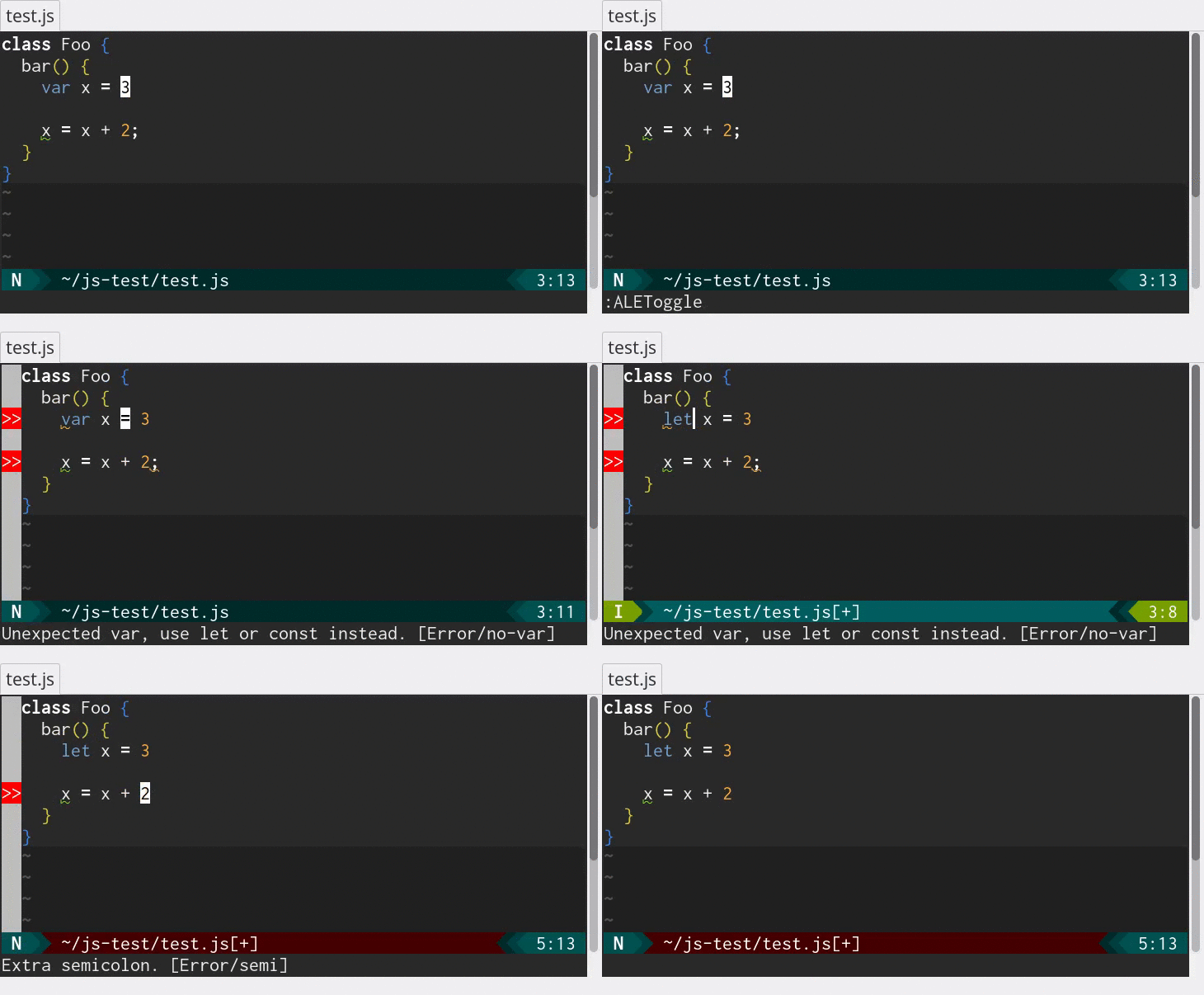
ALE makes use of NeoVim and Vim 8 job control functions and timers to run linters on the contents of text buffers and return errors as text is changed in Vim. This allows for displaying warnings and errors in files being edited in Vim before files have been saved back to a filesystem.
In other words, this plugin allows you to lint while you type.
ALE offers support for fixing code with command line tools in a non-blocking
manner with the :ALEFix feature, supporting tools in many languages, like
prettier, eslint, autopep8, and more.
ALE acts as a "language client" to support a variety of Language Server Protocol features, including:
- Diagnostics (via Language Server Protocol linters)
- Go To Definition (
:ALEGoToDefinition) - Completion (Built in completion support, or with Deoplete)
- Finding references (
:ALEFindReferences) - Hover information (
:ALEHover) - Symbol search (
:ALESymbolSearch)
If you don't care about Language Server Protocol, ALE won't load any of the code for working with it unless needed. One of ALE's general missions is that you won't pay for the features that you don't use.
Help Wanted: If you would like to help maintain this plugin by managing the many issues and pull requests that are submitted, please send the author an email at [email protected].
If you enjoy this plugin, feel free to contribute or check out the author's other content at w0rp.com.
Table of Contents
- Supported Languages and Tools
- Usage
- Installation
- Contributing
- FAQ
- How do I disable particular linters?
- How can I see what ALE has configured for the current file?
- How can I use ALE and coc.nvim together?
- How can I keep the sign gutter open?
- How can I change the signs ALE uses?
- How can I change or disable the highlights ALE uses?
- How can I show errors or warnings in my statusline?
- How can I show errors or warnings in my lightline?
- How can I change the format for echo messages?
- How can I execute some code when ALE starts or stops linting?
- How can I navigate between errors quickly?
- How can I run linters only when I save files?
- How can I use the quickfix list instead of the loclist?
- How can I check JSX files with both stylelint and eslint?
- How can I check Vue files with ESLint?
- Will this plugin eat all of my laptop battery power?
- How can I configure my C or C++ project?
- How can I configure ALE differently for different buffers?
- How can I configure the height of the list in which ALE displays errors?
- How can I run linters or fixers via Docker or a VM?
1. Supported Languages and Tools
ALE supports a wide variety of languages and tools. See the full list in the Supported Languages and Tools page.
2. Usage
2.i Linting
Once this plugin is installed, while editing your files in supported languages and tools which have been correctly installed, this plugin will send the contents of your text buffers to a variety of programs for checking the syntax and semantics of your programs. By default, linters will be re-run in the background to check your syntax when you open new buffers or as you make edits to your files.
The behavior of linting can be configured with a variety of options,
documented in the Vim help file. For more information on the
options ALE offers, consult :help ale-options for global options and :help ale-integration-options for options specified to particular linters.
2.ii Fixing
ALE can fix files with the ALEFix command. Functions need to be configured
either in each buffer with a b:ale_fixers, or globally with g:ale_fixers.
The recommended way to configure fixers is to define a List in an ftplugin file.
" In ~/.vim/ftplugin/javascript.vim, or somewhere similar.

" Fix files with prettier, and then ESLint.
let b:ale_fixers = ['prettier', 'eslint']
" Equivalent to the above.
let b:ale_fixers = {'javascript': ['prettier', 'eslint']}
You can also configure your fixers from vimrc using g:ale_fixers, before or
after ALE has been loaded.
A * in place of the filetype will apply a List of fixers to all files which
do not match some filetype in the Dictionary.
Note that using a plain List for g:ale_fixers is not supported.
" In ~/.vim/vimrc, or somewhere similar.
let g:ale_fixers = {
\   '*': ['remove_trailing_lines', 'trim_whitespace'],
\   'javascript': ['eslint'],
\}
If you want to automatically fix files when you save them, you need to turn a setting on in vimrc.
" Set this variable to 1 to fix files when you save them.
let g:ale_fix_on_save = 1
The :ALEFixSuggest command will suggest some supported tools for fixing code.
Both g:ale_fixers and b:ale_fixers can also accept functions, including
lambda functions, as fixers, for fixing files with custom tools.
See :help ale-fix for complete information on how to fix files with ALE.
2.iii Completion
ALE offers some support for completion via hijacking of omnicompletion while you
type. All of ALE's completion information must come from Language Server
Protocol linters, or from tsserver for TypeScript.
ALE integrates with Deoplete as a
completion source, named 'ale'. You can configure Deoplete to only use ALE as
the source of completion information, or mix it with other sources.
" Use ALE and also some plugin 'foobar' as completion sources for all code.
call deoplete#custom#option('sources', {
\ '_': ['ale', 'foobar'],
\})
ALE also offers its own automatic completion support, which does not require any other plugins, and can be enabled by changing a setting before ALE is loaded.
" Enable completion where available.
" This setting must be set before ALE is loaded.
"
" You should not turn this setting on if you wish to use ALE as a completion
" source for other completion plugins, like Deoplete.
let g:ale_completion_enabled = 1
ALE provides an omni-completion function you can use for triggering
completion manually with <C-x><C-o>.
set omnifunc=ale#completion#OmniFunc
ALE supports automatic imports from external modules. This behavior is disabled by default and can be enabled by setting:
let g:ale_completion_autoimport = 1
See :help ale-completion for more information.
2.iv Go To Definition
ALE supports jumping to the definition of words under your cursor with the
:ALEGoToDefinition command using any enabled Language Server Protocol linters
and tsserver.
See :help ale-go-to-definition for more information.
2.v Find References
ALE supports finding references for words under your cursor with the
:ALEFindReferences command using any enabled Language Server Protocol linters
and tsserver.
See :help ale-find-references for more information.
2.vi Hovering
ALE supports "hover" information for printing brief information about symbols at
the cursor taken from Language Server Protocol linters and tsserver with the
ALEHover command.
Truncated information will be displayed when the cursor rests on a symbol by default, as long as there are no problems on the same line.
The information can be displayed in a balloon tooltip in Vim or GVim by
hovering your mouse over symbols. Mouse hovering is enabled by default in GVim,
and needs to be configured for Vim 8.1+ in terminals.
See :help ale-hover for more information.
2.vii Symbol Search
ALE supports searching for workspace symbols via Language Server Protocol
linters with the ALESymbolSearch command.
Search queries can be performed to find functions, types, and more which are similar to a given query string.
See :help ale-symbol-search for more information.
2.viii Refactoring: Rename, Actions
ALE supports renaming symbols in symbols in code such as variables or class
names with the ALERename command.
ALECodeAction will execute actions on the cursor or applied to a visual
range selection, such as automatically fixing errors.
See :help ale-refactor for more information.
3. Installation
To install this plugin, you should use one of the following methods.
For Windows users, replace usage of the Unix ~/.vim directory with
%USERPROFILE%\vimfiles, or another directory if you have configured
Vim differently. On Windows, your ~/.vimrc file will be similarly
stored in %USERPROFILE%\_vimrc.
3.i. Installation with Vim package management
In Vim 8 and NeoVim, you can install plugins easily without needing to use
any other tools. Simply clone the plugin into your pack directory.
Vim 8 on Unix
mkdir -p ~/.vim/pack/git-plugins/start
git clone --depth 1 https://github.com/dense-analysis/ale.git ~/.vim/pack/git-plugins/start/ale
NeoVim on Unix
mkdir -p ~/.local/share/nvim/site/pack/git-plugins/start
git clone --depth 1 https://github.com/dense-analysis/ale.git ~/.local/share/nvim/site/pack/git-plugins/start/ale
Vim 8 on Windows
# Run these commands in the "Git for Windows" Bash terminal
mkdir -p ~/vimfiles/pack/git-plugins/start
git clone --depth 1 https://github.com/dense-analysis/ale.git ~/vimfiles/pack/git-plugins/start/ale
Generating Vim help files
You can add the following line to your vimrc files to generate documentation
tags automatically, if you don't have something similar already, so you can use
the :help command to consult ALE's online documentation:
" Put these lines at the very end of your vimrc file.

" Load all plugins now.
" Plugins need to be added to runtimepath before helptags can be generated.
packloadall
" Load all of the helptags now, after plugins have been loaded.
" All messages and errors will be ignored.
silent! helptags ALL
3.ii. Installation with Pathogen
To install this module with Pathogen,
you should clone this repository to your bundle directory, and ensure
you have the line execute pathogen#infect() in your ~/.vimrc file.
You can run the following commands in your terminal to do so:
cd ~/.vim/bundle
git clone https://github.com/dense-analysis/ale.git
3.iii. Installation with Vundle
You can install this plugin using Vundle
by adding the GitHub path for this repository to your ~/.vimrc:
Plugin 'dense-analysis/ale'
Then run the command :PluginInstall in Vim.
See the Vundle documentation for more information.
3.iiii. Installation with Vim-Plug
You can install this plugin using Vim-Plug
by adding the GitHub path for this repository to your ~/.vimrc:
Plug 'dense-analysis/ale'
Then run the command :PlugInstall in Vim.
See the Vim-Plug documentation for more information.
4. Contributing
If you would like to see support for more languages and tools, please create an issue or create a pull request. If your tool can read from stdin or you have code to suggest which is good, support can be happily added for it.
If you are interested in the general direction of the project, check out the wiki home page. The wiki includes a Roadmap for the future, and more.
If you'd liked to discuss the project more directly, check out the #vim-ale channel
on Freenode. Web chat is available here.
5. FAQ
5.i. How do I disable particular linters?
By default, all available tools for all supported languages will be run. If you
want to only select a subset of the tools, you can define b:ale_linters for a
single buffer, or g:ale_linters globally.
The recommended way to configure linters is to define a List in an ftplugin file.
" In ~/.vim/ftplugin/javascript.vim, or somewhere similar.

" Enable ESLint only for JavaScript.
let b:ale_linters = ['eslint']

" Equivalent to the above.
let b:ale_linters = {'javascript': ['eslint']}
You can also declare which linters you want to run in your vimrc file, before or after ALE has been loaded.
" In ~/.vim/vimrc, or somewhere similar.
let g:ale_linters = {
\   'javascript': ['eslint'],
\}
For all languages unspecified in the dictionary, all possible linters will be run for those languages, just as when the dictionary is not defined. Running many linters should not typically obstruct editing in Vim, as they will all be executed in separate processes simultaneously.
If you don't want ALE to run anything other than what you've explicitly asked
for, you can set g:ale_linters_explicit to 1.
" Only run linters named in ale_linters settings.
let g:ale_linters_explicit = 1
This plugin will look for linters in the ale_linters directory.
Each directory within corresponds to a particular filetype in Vim, and each file
in each directory corresponds to the name of a particular linter.
5.ii. How can I see what ALE has configured for the current file?
Run the following to see what is currently configured:
:ALEInfo
5.iii. How can I use ALE and coc.nvim together?
coc.nvim is a popular Vim plugin written in TypeScript and dependent on the npm ecosystem for providing full IDE features to Vim. Both ALE and coc.nvim implement Language Server Protocol (LSP) clients for supporting diagnostics (linting with a live server), and other features like auto-completion, and others listed above.
ALE is primarily focused on integrating with external programs through virtually any means, provided the plugin remains almost entirely written in Vim script. coc.nvim is primarily focused on bringing IDE features to Vim. If you want to run external programs on your files to check for errors, and also use the most advanced IDE features, you might want to use both plugins at the same time.
The easiest way to get both plugins to work together is to configure coc.nvim to send diagnostics to ALE, so ALE controls how all problems are presented to you, and to disable all LSP features in ALE, so ALE doesn't try to provide LSP features already provided by coc.nvim, such as auto-completion.
- Open your coc.nvim configuration file with
:CocConfigand add"diagnostic.displayByAle": trueto your settings. - Add
let g:ale_disable_lsp = 1to your vimrc file, before plugins are loaded.
You can also use b:ale_disable_lsp in your ftplugin files to enable or disable
LSP features in ALE for different filetypes. After you configure coc.nvim and
ALE this way, you can further configure how problems appear to you by using all
of the settings mentioned in ALE's help file, including how often diagnostics
are requested. See :help ale-lint.
The integration between ALE and coc.nvim works using an API ALE offers for
letting any other plugin integrate with ALE. If you are interested in writing a
similar integration, see :help ale-lint-other-sources.
5.iv. How can I keep the sign gutter open?
You can keep the sign gutter open at all times by setting the
g:ale_sign_column_always to 1
let g:ale_sign_column_always = 1
5.v. How can I change the signs ALE uses?
Use these options to specify what text should be used for signs:
let g:ale_sign_error = '>>'
let g:ale_sign_warning = '--'
ALE sets some background colors automatically for warnings and errors
in the sign gutter, with the names ALEErrorSign and ALEWarningSign.
These colors can be customised, or even removed completely:
highlight clear ALEErrorSign
highlight clear ALEWarningSign
5.vi. How can I change or disable the highlights ALE uses?
ALE's highlights problems with highlight groups which link to SpellBad,
SpellCap, error, and todo groups by default. The characters that are
highlighted depend on the linters being used, and the information provided to
ALE.
Highlighting can be disabled completely by setting g:ale_set_highlights to
0.
" Set this in your vimrc file to disabling highlighting
let g:ale_set_highlights = 0
You can control all of the highlights ALE uses, say if you are using a different color scheme which produces ugly highlights. For example:
highlight ALEWarning ctermbg=DarkMagenta
See :help ale-highlights for more information.
5.vii. How can I show errors or warnings in my statusline?
vim-airline integrates with ALE for displaying error information in the status bar. If you want to see the status for ALE in a nice format, it is recommended to use vim-airline with ALE. The airline extension can be enabled by adding the following to your vimrc:
" Set this. Airline will handle the rest.
let g:airline#extensions#ale#enabled = 1
If you don't want to use vim-airline, you can implement your own statusline function without adding any other plugins. ALE provides some functions to assist in this endeavour, including:
ale#statusline#Count: Which returns the number of problems found by ALE for a specified buffer.ale#statusline#FirstProblem: Which returns a dictionary containing the full loclist details of the first problem of a specified type found by ALE in a buffer. (e.g. The first style warning in the current buffer.) This can be useful for displaying more detailed information such as the line number of the first problem in a file.
Say you want to display all errors as one figure, and all non-errors as another figure. You can do the following:
function! LinterStatus() abort
    let l:counts = ale#statusline#Count(bufnr(''))

    let l:all_errors = l:counts.error + l:counts.style_error
    let l:all_non_errors = l:counts.total - l:all_errors

    return l:counts.total == 0 ? 'OK' : printf(
    \   '%dW %dE',
    \   all_non_errors,
    \   all_errors
    \)
endfunction

set statusline=%{LinterStatus()}
See :help ale#statusline#Count() or :help ale#statusline#FirstProblem()
for more information.
5.viii. How can I show errors or warnings in my lightline?
lightline does not have built-in support for ALE, nevertheless there is a plugin that adds this functionality: maximbaz/lightline-ale.
For more information, check out the sources of that plugin, :help ale#statusline#Count() and lightline documentation.
5.ix. How can I change the format for echo messages?
There are 3 global options that allow customizing the echoed message.
g:ale_echo_msg_formatwhere:%sis the error message itself%...code...%is an optional error code, and most characters can be written between the%characters.%linter%is the linter name%severity%is the severity type
g:ale_echo_msg_error_stris the string used for error severity.g:ale_echo_msg_warning_stris the string used for warning severity.
So for example this:
let g:ale_echo_msg_error_str = 'E'
let g:ale_echo_msg_warning_str = 'W'
let g:ale_echo_msg_format = '[%linter%] %s [%severity%]'
Will give you:

See :help g:ale_echo_msg_format for more information.
5.x. How can I execute some code when ALE starts or stops linting?
ALE runs its own autocmd events when a lint or fix cycle are started and stopped. There is also an event that runs when a linter job has been successfully started. These events can be used to call arbitrary functions during these respective parts of the ALE's operation.
augroup YourGroup
    autocmd!
    autocmd User ALELintPre    call YourFunction()
    autocmd User ALELintPost   call YourFunction()

    autocmd User ALEJobStarted call YourFunction()

    autocmd User ALEFixPre     call YourFunction()
    autocmd User ALEFixPost    call YourFunction()
augroup END
5.xi. How can I navigate between errors quickly?
ALE offers some commands with <Plug> keybinds for moving between warnings and
errors quickly. You can map the keys Ctrl+j and Ctrl+k to moving between errors
for example:
nmap <silent> <C-k> <Plug>(ale_previous_wrap)
nmap <silent> <C-j> <Plug>(ale_next_wrap)
For more information, consult the online documentation with
:help ale-navigation-commands.
5.xii. How can I run linters only when I save files?
ALE offers an option g:ale_lint_on_save for enabling running the linters
when files are saved. This option is enabled by default. If you only
wish to run linters when files are saved, you can turn the other
options off.
" Write this in your vimrc file
let g:ale_lint_on_text_changed = 'never'
let g:ale_lint_on_insert_leave = 0
" You can disable this option too
" if you don't want linters to run on opening a file
let g:ale_lint_on_enter = 0
If for whatever reason you don't wish to run linters again when you save
files, you can set g:ale_lint_on_save to 0.
5.xiii. How can I use the quickfix list instead of the loclist?
The quickfix list can be enabled by turning the g:ale_set_quickfix
option on. If you wish to also disable the loclist, you can disa
Tag summary
Content type
Image
Digest
Size
66.5 MB
Last updated
almost 6 years ago
docker pull w0rp/ale