webkul/orocommerce repository overview
OROCOMMERCE
OroCommerce is a open-source Business to Business Commerce application built with flexibility in mind. OroCommerce can be customized and extended to fit any B2B commerce needs. Using this, sellers and buyers can manage there own complex structure. Sellers can manage multiple stores through a single console. It makes easier for them to manage a lot of data. Content Management System (CMS) allows the sellers to manage their product catalogs. It also provides seller-buyer interaction which is helpful in managing relationship with the customers.
SYSTEM REQUIREMENTS FOR OROCOMMERCE
Operating System:
- Linux x86, x86-64
- Windows 7 and 8
- Mac OS X 10.9 and above.
Browsers:
- Mozilla Firefox 6 and above
- Google Chrome 31 and above
- Microsoft Internet Explorer 10 and above
- Safari
- Opera 12.16 and above
Web Servers:
- Apache 2.2.x
- Nginx
- Lighttpd
Database Management Systems:
- MySQL 5.1 and above
- PostgreSQL/EnterpriseDB 9.1 and above
PHP 5.5.9 and above.
PHP extensions:
- ctype
- fileinfo
- GD 2.0 and above
- intl
- JSON
- Mcrypt
- PCRE 8.0 and above
- SimpleXML
- Tokenizer
PHP settings:
- date.timezone must be set
- detect_unicode must be disabled in php.ini
- memory_limit should be at least 512M
- xdebug.scream must be disabled in php.ini
- xdebug.show_exception_trace must be disabled in php.ini
DOCKERIZING OROCOMMERCE-APPLICATION
OroCommerce can be dockerized and can be installed inside a container using composer tool. These containers are very light weight which can be easily ported from one location to another. Composer tool check all the php dependencies and other requirements to install the package.
Creating a Dockerfile is not a cumbersome task as you can directly use commands beginning with Dockerfile Instructions and Arguments. This is a Dockerfile that holds the installation and configuation steps for orocommerce. It pulling an image "ubuntu:14.04" from repository and then LAMP setup, installing apache server, mysql-server, PHP and its dependencies. Database name, user and password has been mentioned in mysql.sh that will be called upon by supervisor.
Also, supervisor manage multiple processes, here managing apache2 and mysql server. Composer.phar has already been cloned from its repository and ready to be copied in dockerfile. Parameters.yml holds database and other configuration setup for orocommerce (that can be changed as per requirements).
To get started with, clone or download this repository and unzip the folder.
To build Docker image from dockerfile, run command "docker build -t image_name /path/of/Dockerfile"
To list the images, use "docker images" command.
To remove an image, use "docker rmi image_name" command.
To begin with its docker image run command "docker run -d -p 80:80 -p 3306:3306 image_name:latest"
Take a note that no other services should be running on port 80 and 3306 of your host system. If so, change ports in the above docker command.
We have taken oro_commerce as database name, user, and password. You can create different database by altering in mysql.sh file as per requirements.
Once container is running, you can access container and change database credentials. To access the container run "docker exec -it container_id bash" .
You can see running conatiner, run command "docker ps" .
To see all the container,run command "docker ps -a" .
To remove a container, run command "docker rm container_name"
After launching the container, hit the URL http://your-server-name/install.php and begin with the installation .
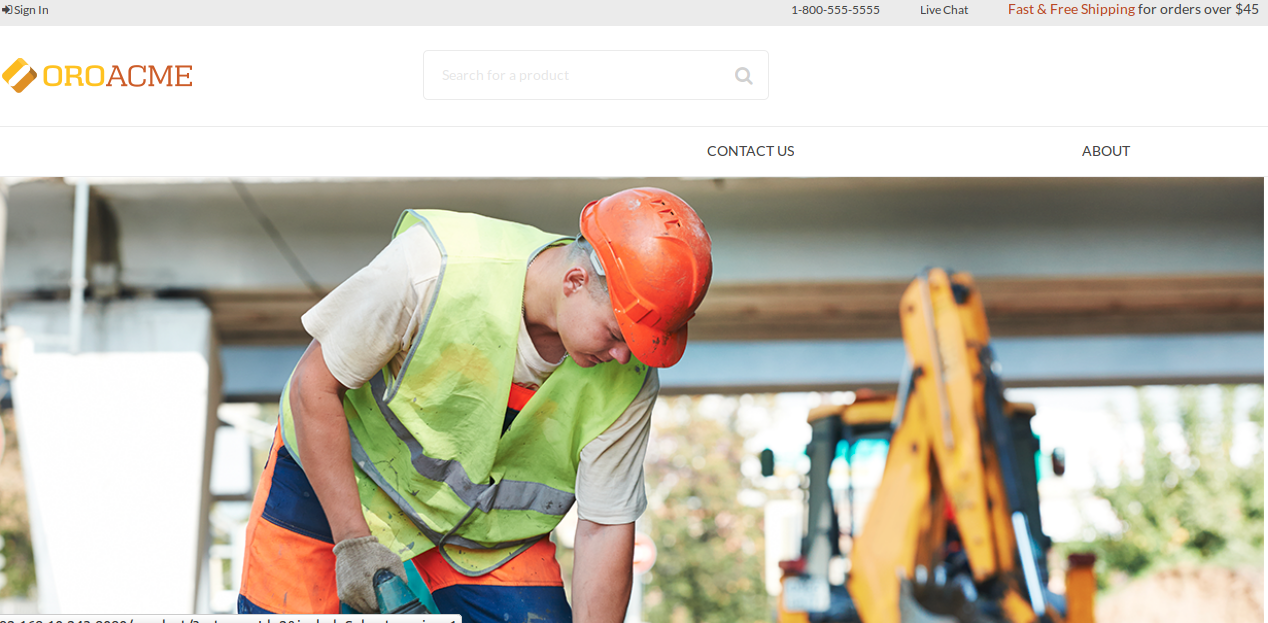
After installation, launch the orocommerce application. You will see frontend as:
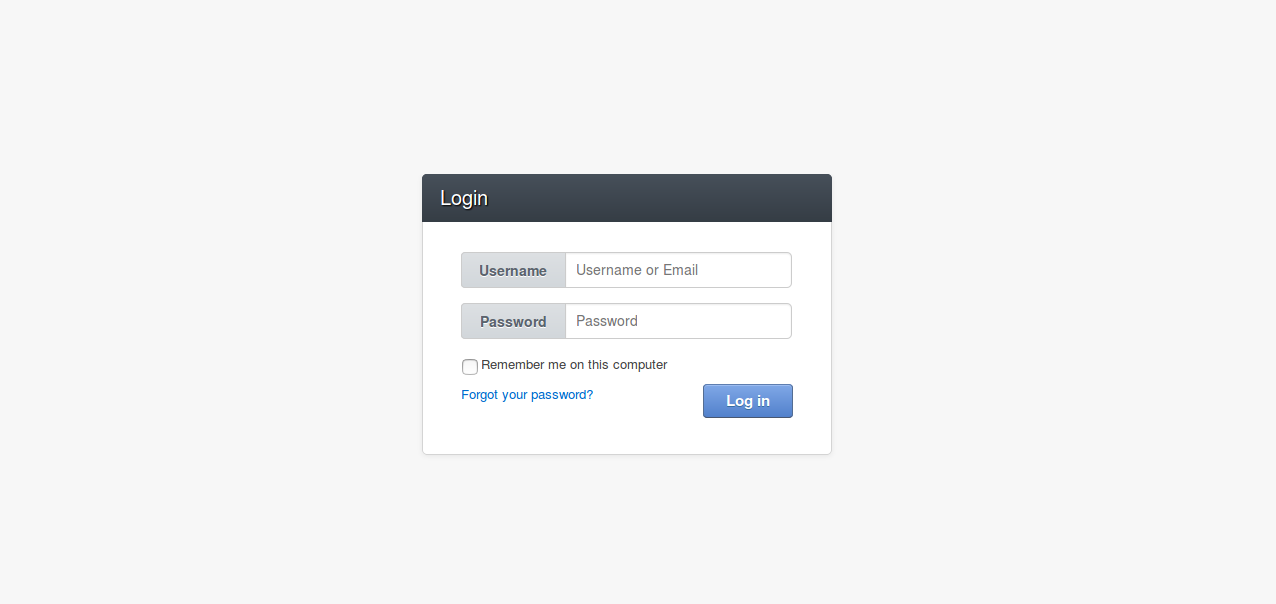
You can login to admin panel by http://your-server-name/admin:
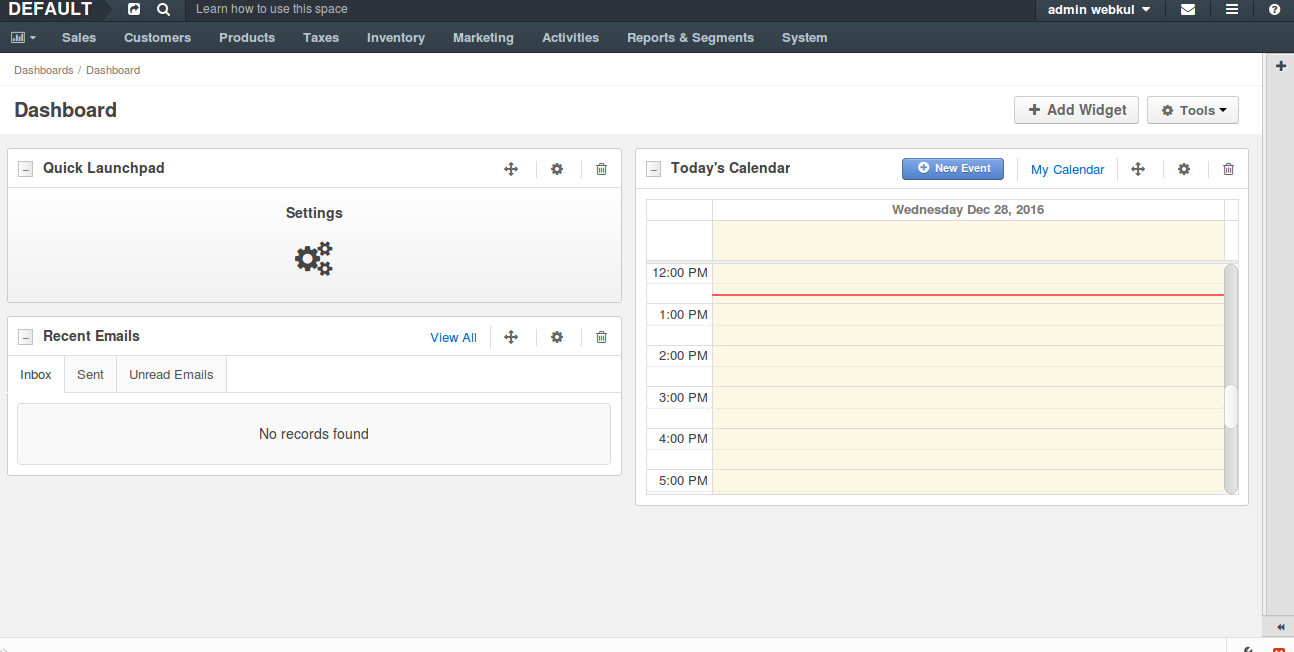
Enter the admin credentials and you can enter the admin dashboard:
GOOD LUCK WITH DOCKERIZING THE OROCOMMERCE-APPLICATION.
Tag summary
Content type
Image
Digest
Size
360.7 MB
Last updated
almost 10 years ago
docker pull webkul/orocommerce