whumphrey/docker-ubuntu-desktop repository overview
Ubuntu 18.04 Mate Desktop with XRDP & VNC


Docker image to provide HTML5 VNC interface or RDP server to access Ubuntu 16.04 LXDE desktop environment.
Quick Start
Run the docker container and access with port 6080
docker run -p 6080:80 whumphrey/ubuntu-desktop
Browse http://127.0.0.1:6080/
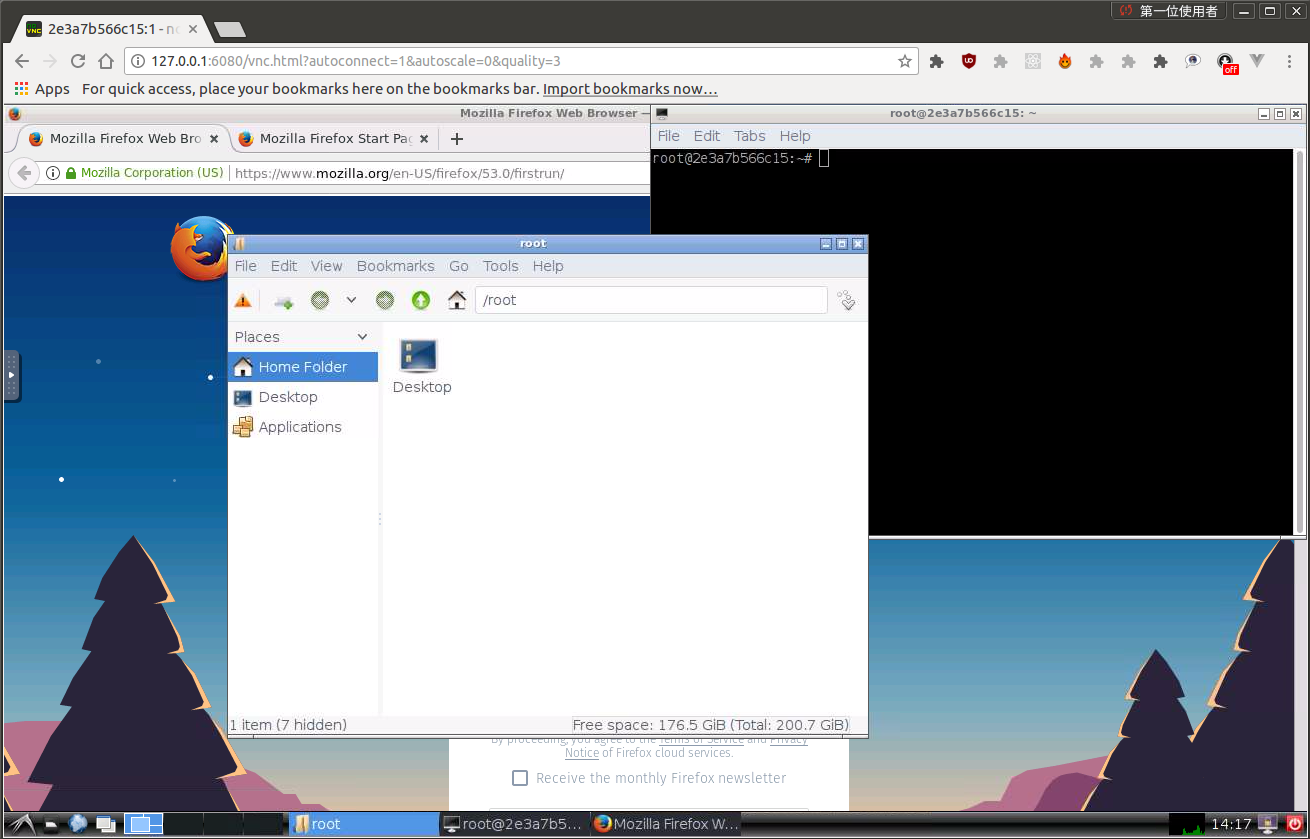
VNC Viewer
Forward VNC service port 5900 to host by
docker run -p 6080:80 -p 5900:5900 whumphrey/ubuntu-desktop
Now, open the vnc viewer and connect to port 5900. If you would like to protect vnc service by password, set environment variable VNC_PASSWORD, for example
docker run -p 6080:80 -p 5900:5900 -e VNC_PASSWORD=mypassword whumphrey/ubuntu-desktop
A prompt will ask password either in the browser or vnc viewer.
HTTP Base Authentication
This image provides base access authentication of HTTP via HTTP_PASSWORD
docker run -p 6080:80 -e HTTP_PASSWORD=mypassword whumphrey/ubuntu-desktop
SSL
To connect with SSL, generate self signed SSL certificate first if you don't have it
mkdir -p ssl
openssl req -x509 -nodes -days 365 -newkey rsa:2048 -keyout ssl/nginx.key -out ssl/nginx.crt
Specify SSL port by SSL_PORT, certificate path to /etc/nginx/ssl, and forward it to 6081
docker run -p 6081:443 -e SSL_PORT=443 -v ${PWD}/ssl:/etc/nginx/ssl whumphrey/ubuntu-desktop
Screen Resolution
The Resolution of virtual desktop adapts browser window size when first connecting the server. You may choose a fixed resolution by passing RESOLUTION environment variable, for example
docker run -p 6080:80 -e RESOLUTION=1920x1080 dwhumphrey/ubuntu-desktop
Default Desktop User
The default user is root. You may change the user and password respectively by USER and PASSWORD environment variable, for example,
docker run -p 6080:80 -e USER=doro -e PASSWORD=password whumphrey/ubuntu-desktop
Sound (Preview version and Linux only)
It only works in Linux.
First of all, insert kernel module snd-aloop and specify 2 as the index of sound loop device
sudo modprobe snd-aloop index=2
Start the container
docker run -it --rm -p 6080:80 --device /dev/snd -e ALSADEV=hw:2,0 whumphrey/ubuntu-desktop
where --device /dev/snd -e ALSADEV=hw:2,0 means to grant sound device to container and set basic ASLA config to use card 2.
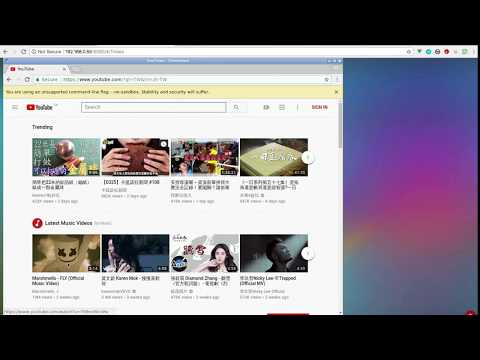
Launch a browser with URL http://127.0.0.1:6080/#/?video, where video means to start with video mode. Now you can start Chromium in start menu (Internet -> Chromium Web Browser Sound) and try to play some video.
Following is the screen capture of these operations. Turn on your sound at the end of video!
Troubleshooting and FAQ
- boot2docker connection issue, https://github.com/fcwu/docker-ubuntu-vnc-desktop/issues/2
- Multi-language supports, https://github.com/fcwu/docker-ubuntu-vnc-desktop/issues/80
- Autostart, https://github.com/fcwu/docker-ubuntu-vnc-desktop/issues/85
Build
git clone --recursive https://github.com/nitr8/docker-ubuntu-desktop
docker build -t whumphrey/ubuntu-desktop .
docker run -p 3389:3389 -p 6081:443 -p 9001:9001 -e USER=test -e PASSWORD=user -e HOME=/home/test -e ENABLE_XRDP=true whumphrey/ubuntu-desktop
docker run -it --rm -p 3389:3389 -p 6080:80 -p 2222:22 -p 9001:9001 -e USER=doro -e PASSWORD=password -e ENABLE_XRDP=true -e ENABLE_SSH=true -e USE_MATE=true -e USE_NOVNC=true -v $PWD/home:/home whumphrey/ubuntu-desktop
CONTAINER_ID=$(docker run -d -P ubuntu-desktop)
Tag summary
Content type
Image
Digest
Size
770.9 MB
Last updated
over 7 years ago
docker pull whumphrey/docker-ubuntu-desktop