raabf/ona
OpenNetAdmin (ONA), an IP Address Management (IPAM) web-app http://opennetadmin.com
100K+
raabf/ona repository overview
🐳🖧 OpenNetAdmin (ONA) Docker







The image is automatically rebuilt monthly to include changes in php and git-develop as well as git-master branches.
📑️ Table of Contents
ℹ️ ONA Description
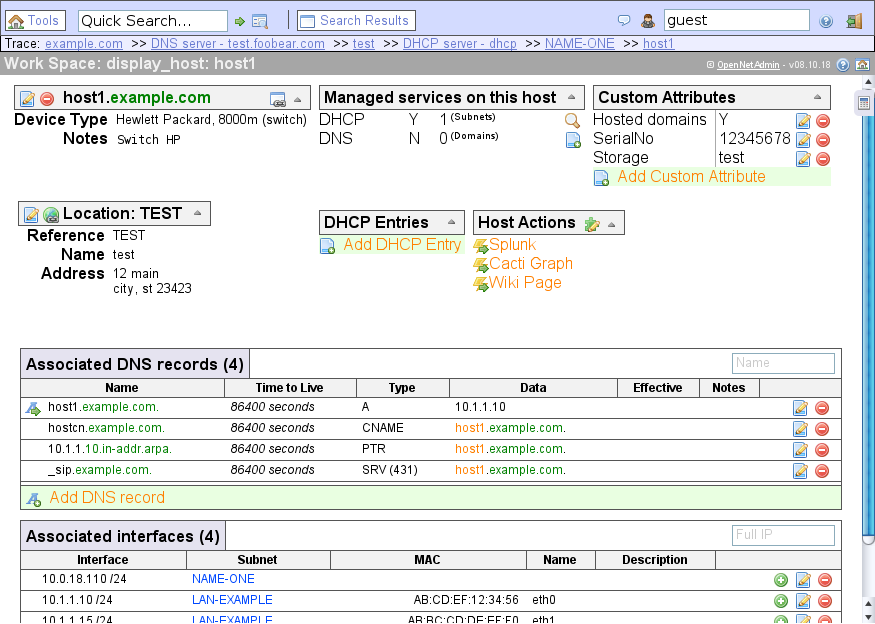
OpenNetAdmin provides a database managed inventory of your IP network. Each subnet, host, and IP can be tracked via a centralized AJAX enabled web interface that can help reduce tracking errors. A full CLI interface is available as well to use for scripting and bulk work. We hope to provide a useful Network Management application for managing your IP subnets, hosts and much more. Stop using spreadsheets to manage your network! Start doing proper IP address management!
- Full CLI interface for batch and scripting
- Plugin system to extend functionality
- Audit managed subnets and discover new IPs
- Manage DNS and DHCP server configs, archive host configs
- And much more …
🏷 Supported tags
The “🖧ONA” column contains a reference to the git ref from which the respective images were built from. The “🏷tag ONA version” and “🏷tag with 🕸️php” are both container-tags you can reference – Tags in the same row are pointing to the same image and hence are aliasing each other. Additionally two images are als tagged with “latest” and “testing”, which can be seen in the “📋Notes” column.
There are two type of images “Static Build” and “Auto Build”.
The first one are images which were built from the referenced ONA version and php-patch version and are static and will not change – Useful if you need reproducibility from the docker registry.
The “Auto Build” is building in regular schedules (by a cron job) and are referencing the php-minor version, hence always take the newest php-patch version – This is useful if you want to always have the newest php version for bug fixing and security reasons.
In case of the develop and master tags, they take whatever the same-named git branches contain during build.
You can still get reproducability when you store your current local state by docker image save.
| 🖧ONA | 🏷tag ONA version | 🏷tag with 🕸️php | 📋Notes |
|---|---|---|---|
| git-develop | develop | develop-php8.2 |  |
develop-php8.1 | | ||
develop-php7.4 |  deprecated - no builds anymore deprecated - no builds anymore | ||
| git-master | master-php8.2 | | |
master | master-php8.1 |  | |
master-php7.4 | deprecated - no builds anymore | ||
| v19.0.2 | v19.0.2-php8.3 | | |
v19.0.2, v19.0, v19 | v19.0.2-php8.3.7 |   | |
v19.0.2-php8.3.6 | | ||
v19.0.2-php8.2 | | ||
v19.0.2-php8.2.19 | | ||
v19.0.2-php8.2.18 | | ||
v19.0.2-php7.4.33 | with-working-ldap¹ | ||
| v19.0.1 | v19.0.1-php8.3 | | |
v19.0.1-php8.3.7 | | ||
v19.0.1-php8.2 | | ||
v19.0.1-php8.2.19 | | ||
v19.0.1-php8.1 | | ||
v19.0.1 | v19.0.1-php8.1.28 | | |
v19.0.1-php7.4 | with-working-ldap¹, deprecated - no builds anymore | ||
v19.0.1-php7.4.33 | with-working-ldap¹ | ||
| v19.0.0 | v19.0.0-php8.2 | On upgrade to v19 it is more recommended than normally to make a backup before. | |
v19.0.0-php8.2.19 | | ||
v19.0.0-php8.1 | | ||
v19.0.0 | v19.0.0-php8.1.28 | | |
v19.0.0-php7.4 | with-working-ldap¹, deprecated - no builds anymore | ||
v19.0.0-php7.4.33 | with-working-ldap¹ | ||
| v18.1.1 | v18.1.1 | v18.1.1-php5 | deprecated - no builds anymore |
v18.1.1-php7.0 | deprecated - no builds anymore | ||
| v17.12.22 | v17.12.22 | v17.12.22-php5 | deprecated - no builds anymore |
with-working-ldap¹: There is a build with php7, because the ldap-authentication module from ONA does not work yet with php8. Athough that means that ONA is not fully compatible with php8 yet, I still use php8 as default because (1) it seems it only affects the ldap-authentication, which many probably do not need, and (2) php7 has several security vulnerabilites which won’t be fixed as php7 as EOL.
🛠 Installation
📀 Get Image
Pull the image or build it manually.
⬇️ Pull from Dockerhub
Pull from Dockerhub. The tag latest can be replaced by any of the „Supported tags“ section:
docker pull raabf/ona:latest
🔨 Manual Building
Checkout or download the repository and run:
ENGINE=docker ONA_VERSION="v19.0.1" PHP_VERSION="8.2" IMAGE_NAME="ona" IMAGE_TAG="mytag" DOCKERFILE_PATH='ona/Dockerfile' ona/scripts/build.sh
PHP_VERSION='8.1'(optional) can be any version available at php (all*-apachetags are valid; examples:7,5.6,7.1.22,7.3.0RC1,8,8.2)ONA_VERSION="v19.0.2"(required) can be any branch, git-tag, or commit-hash from ONAENGINE=docker(optional) which cli command to use. Can be a full path, for example/usr/bin/docker, or something in $PATH, for examplepodman. Defaults todocker.IMAGE_NAME=ona(optional) The name of the image. Defaults toona.IMAGE_TAG="mytag"(required) The tag of the image.DOCKERFILE_PATH=ona/Dockerfile(optional) Path to the Dockerfile to build. Defaults toona/Dockerfile.
🎽 Create Container
Execute the following
docker run --detach --name ona --publish 0.0.0.0:8666:80 -v /etc/ona/local/:/opt/ona/www/local -v /etc/ona/etc/:/opt/ona/etc -v /etc/timezone:/etc/timezone:ro -v /etc/localtime:/etc/localtime:ro raabf/ona:latest
--publish 0.0.0.0:8666:80ONA is reachable at the interface0.0.0.0(=any) and the port8666. Adapt to your needs.-v /etc/ona/local/:/opt/ona/www/local/etc/ona/local/is the configuration directory of your ONA instance and the path must already exist. It must be a permanent storage. If omitted docker will create an unnamed volume (usedocker inspectto find out this directory).-v /etc/ona/etc/:/opt/ona/etcSpecifies another permanent configuration directory with the same properties. However, it might keep empty if you do not install any plugins, or do not use their client scripts on this host.-v /etc/timezone:/etc/timezone:ro-v /etc/localtime:/etc/localtime:rotimezone information required by PHP.raabf/ona:latestThe image pulled earlier.
As an alternative, you can use a docker-compose file (I inlcuded an example with a suitable MariaDB image).
Put the following in an own folder with a specific filename, namely ./ona/docker-compose.yml:
---
services:
  ona:
    image: raabf/ona:latest
    container_name: ona
    # This containes does not dirctly get the database credentials, please
    # set them during ONA Installation (continue reading in the README.md)
    volumes:
      - /etc/ona/local/:/opt/ona/www/local
      - /etc/ona/etc/:/opt/ona/etc
      - /etc/timezone:/etc/timezone:ro
      - /etc/localtime:/etc/localtime:ro
    ports:
      - 8666:80
    restart: unless-stopped

  # Put “sql” in the “Database Host” field during the ONA Installation
  sql:
    image: mariadb:10.4
    container_name: ona-sql
    environment:
      # Put this in the “Database Admin Password” field during the ONA Installation
      - MYSQL_ROOT_PASSWORD=YourRootSecretPassword

      # The following would be common options for a MariaDB container initialization,
      # however, they are set during the ONA Installation, so do not provide them here.
      # Anyway this would be the content of the “Database Name” filed (without the `ona_` prefix
      # as it is automatically added by installer) during the ONA Installation
      # - MYSQL_DATABASE=ona_default
      # This would be the “Application Database User Name” field during the ONA Installation
      # - MYSQL_USER=ona_sys
      # This would be the “Application Database User Password” field during the ONA Installation
      # - MYSQL_PASSWORD=YourOnaSysSecretPassword
    volumes:
      - db:/var/lib/mysql
    restart: unless-stopped

volumes:
  db:
Then execute docker compose up -d in the ona folder.
🚢 Setup ONA
Then you have to find out the container name and copy it:
docker ps
We assume in the following that your container name is ona (If you choose the docker-compose from above, ona is the correct container name).
If you are running a rootless (i.e. skip this step if you are using docker) container engine, you have to set permissions on the volume:
podman unshare chown www-data:www-data -R /etc/ona/local/
podman unshare chown www-data:www-data -R /etc/ona/etc/
Moreover, we have to initialize the config directory and timezone of your server. This has to be done only once after creating a new container. Execute the following (existing files in the config directory will not be overwritten):
docker exec --interactive --tty ona ./init_conf.sh
Now restart your container to apply changes:
docker restart ona
ONA is now reachable at http://localhost:8666/ona and present you the ONA Web Installation.
OR, you might also go through the ONA CLI Installation on the command line (It does the same checks and presents the same fields as the Web Installation):
docker exec --interactive --tty ona php /opt/ona/install/installcli.php
Note that this image is shipped without a database. Use either an MySQL/MariaDB instance running at your one of your hosts or use an MariaDB Docker image.
Now follow the ONA Installation guide to complete your installation.
❗ATTENTION: After Installation you have to change the host part in the MySQL user table of the “Application Database User” (by default “ona_sys”) you provide during the ONA Installation. ONA will create the MySQL/MariaDB user with a host, which limits connections in a way so that ONA cannot connect to the database¹.
To fix that run the following command. “ona-sql” is the name of your MySQL/MariaDB container, and you will be asked for its MYSQL_ROOT_PASSWORD (You have set this during docker run of the MySQL/MariaDB container).
The "sql" is the service-name (i.e. the hostname, which can be different to the container name) of your MySQL/MariaDB container.:
If you have kept the default “ona_sys” during ONA Installation used the docker-compose file from above, you can use the following command as it is:
docker exec -it ona-sql mysql --user root --password -e 'RENAME USER "ona_sys"@"sql" TO "ona_sys"@"%";'
Then restart the continer:
docker restart ona-sql
¹ If you are interested why: In docker-networks you usually just use the service-name to reference other containers, which is technically the hostname (i.e. without full FQDN) of the container.
MySQL/MariaDB containers ships by default with skip-name-resolve=true, which means that IP-Addresses are not resolved to its domain - as
the ONA container will connecty by its IP-Address, it can never match to the host in the MySQL/MariaDB user table. Even if you set skip-name-resolve=false, it will not match as the
IP Address will resolve to the FQDN (which includes the docker-network name, so for the above docker-compose file ona.ona-generic_default) and hence will never match to the hostname.
⬆️ Upgrades
If upgrade to a container with a never ONA version, but with an existing database you might have to do a manual database migration by calling http://localhost:8666/ona/?runinstaller=y, see also the Upgrades Wiki.
🔀 HTTP-Proxy
Due to docker-hub’s maximum character limit, you find the rest at README_MORE.
💡 Contributing
If something is missing or not working, then I’m happy for any contribution. You can find the repository and issues board at GitLab.
Tag summary
Content type
Image
Digest
sha256:e398fa186…
Size
192.6 MB
Last updated
2 days ago
docker pull raabf/ona:v19.0.0-php8.2