roqueribeiro1988/roqueos-server repository overview
RoqueOS Server
🚀 Unified Backend Server for RoqueOS
Transform your RoqueOS web desktop into a powerful cloud computing platform



🌟 What is RoqueOS Server?
RoqueOS Server is the backend component that unlocks the full potential of RoqueOS - a web-based operating system interface. While RoqueOS works standalone as a beautiful web desktop, connecting it to RoqueOS Server transforms it into a complete cloud computing platform with real terminal access, remote browsing, file management, and Docker-based applications.
Why Install RoqueOS Server?
| Without Server | With Server |
|---|---|
| ❌ Limited to browser-based apps | ✅ Full Linux terminal with Docker isolation |
| ❌ No persistent file storage | ✅ Real file system with upload/download |
| ❌ No remote browsing | ✅ Playwright-powered remote browser |
| ❌ No container apps | ✅ Install Docker apps from App Store |
| ❌ Basic functionality | ✅ VS Code Server, databases, dev tools |
✨ Features Unlocked with Server Mode
🐚 Docker-Isolated Terminal
Each user gets their own isolated Ubuntu container with:
- Full Linux command-line access
- Persistent home directory
- Pre-installed development tools (git, curl, wget, vim, nano)
- Resource limits for security
💻 VS Code (Code-Server)
Full Visual Studio Code experience in the browser:
- Integrated code-server with WebSocket proxy
- Dark theme by default
- Access to terminal container filesystem
- Extensions support via Open VSX
- Automatic startup when opening VS Code app
🌐 Remote Browser
Browse the web through a Playwright-powered headless browser:
- Access websites from your server's network
- Bypass CORS restrictions
- Stream video and audio
- Configurable quality settings (FPS, JPEG quality)
📁 File System Management
Complete file management API:
- Upload and download files
- Create, rename, delete files and folders
- Browse your server's file system
- Persistent storage across sessions
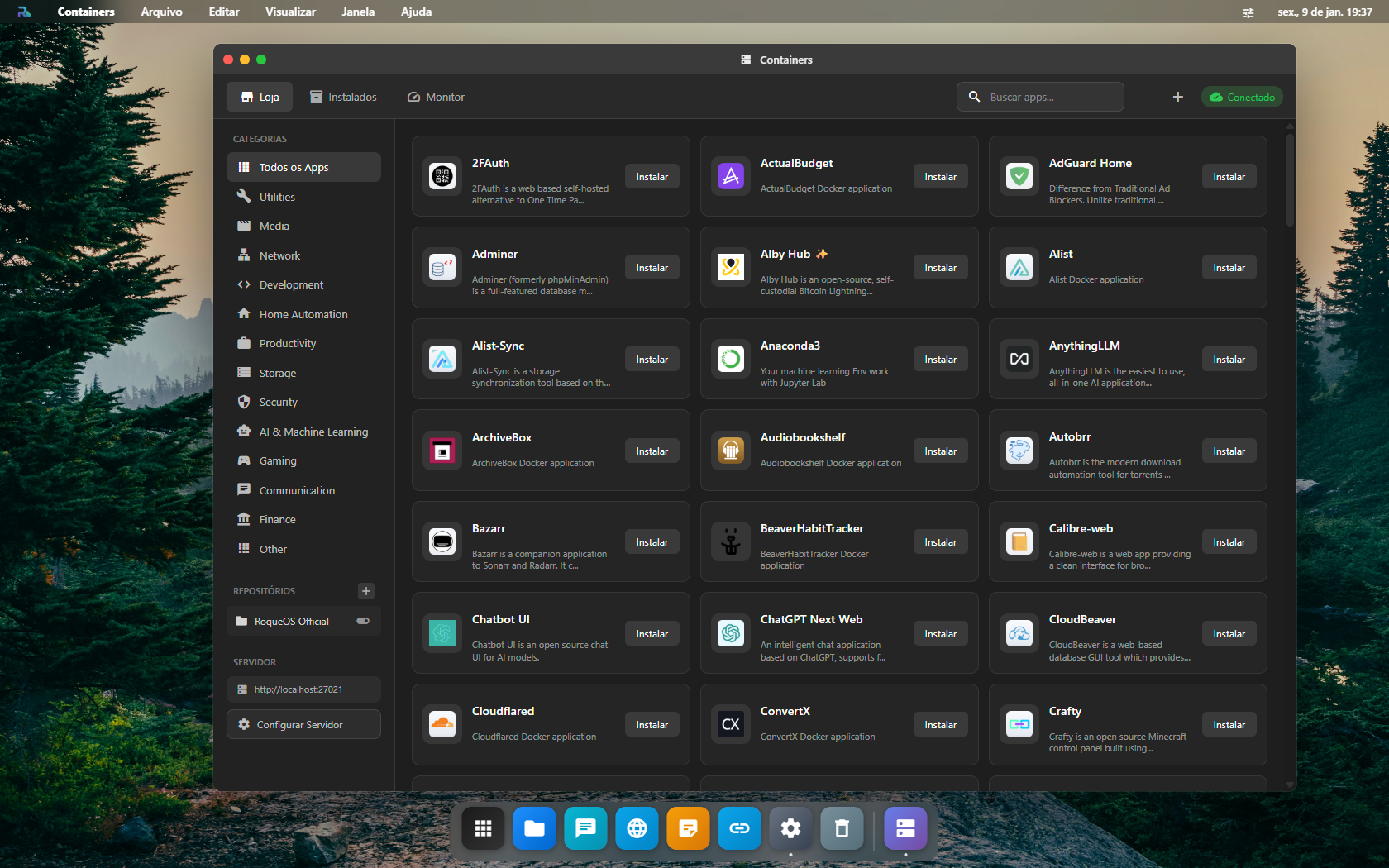
📦 Docker App Store
Install and manage Docker-based applications:
- One-click installation from catalog
- Start, stop, restart containers
- View logs and resource usage
- Custom app repositories from roqueos-containers-list
🔐 Secure API Authentication
Enterprise-grade security:
- API Key + Secret authentication
- Permission-based access control
- Admin panel for key management
- Audit logging
🖥️ Remote Desktop (RDP/VNC)
Remote Desktop streaming via Guacamole:
- Create and manage RDP/VNC connections
- Fixed resolution sessions (RDP-like behavior)
- WebSocket stream on
/guacamole
⚠️ Requires
guacd(Guacamole daemon) reachable from RoqueOS Server (default port4822).If
guacdis not running or not reachable, Remote Desktop will fail with errors like:
connect ECONNREFUSED 127.0.0.1:4822Important:
127.0.0.1inside a Docker container refers to the container itself (not your host). For Docker setups, the recommended approach is to runguacdas a separate container and connect to it by container name (see Quick Start).
📋 Prerequisites
Before installing RoqueOS Server, you need:
- Docker installed and running
- Docker Socket accessible (
/var/run/docker.sock) - Ubuntu Image (required for terminal functionality):
# Pull the Ubuntu image BEFORE starting the server
docker pull roqueribeiro1988/roqueos-server-ubuntu:latest
⚠️ Important: The Ubuntu image is required for the Terminal feature to work. Without it, users won't be able to open terminal sessions. The server will automatically use this image to create isolated containers for each user.
🚀 Quick Start
Option 1: Docker Run (Linux)
# Step 1: Pull the required Ubuntu image
docker pull roqueribeiro1988/roqueos-server-ubuntu:latest

# Step 2: Create a shared Docker network (recommended)
docker network create roqueos-network

# Step 3: Start guacd (required for Remote Desktop)
docker run -d \
  --name roqueos-guacd \
  --restart unless-stopped \
  --network roqueos-network \
  guacamole/guacd:1.5.5

# Step 4: Run the server
docker run -d \
  --name roqueos-server \
  --restart unless-stopped \
  --network roqueos-network \
  --add-host=host.docker.internal:host-gateway \
  -p 27021:27021 \
  -v /var/run/docker.sock:/var/run/docker.sock \
  -v /data/roqueos/users:/data/roqueos/users \
  -v /data/roqueos/shared:/data/roqueos/shared \
  -v roqueos-db:/app/data \
  -e GUACD_HOST="roqueos-guacd" \
  -e GUACD_PORT="4822" \
  -e GUACAMOLE_CRYPT_KEY="your-32-char-secret-key-here123" \
  roqueribeiro1988/roqueos-server:latest
Option 2: Docker Run (Windows PowerShell)
# Step 1: Pull the required Ubuntu image
docker pull roqueribeiro1988/roqueos-server-ubuntu:latest

# Step 2: Create a shared Docker network (recommended)
docker network create roqueos-network

# Step 3: Start guacd (required for Remote Desktop)
docker run -d `
  --name roqueos-guacd `
  --restart unless-stopped `
  --network roqueos-network `
  guacamole/guacd:1.5.5

# Step 4: Create directories (if needed)
New-Item -ItemType Directory -Force -Path "C:\data\roqueos\users"
New-Item -ItemType Directory -Force -Path "C:\data\roqueos\shared"

# Step 5: Run the server
docker run -d `
  --name roqueos-server `
  --restart unless-stopped `
  --network roqueos-network `
  --add-host=host.docker.internal:host-gateway `
  -p 27021:27021 `
  -v //var/run/docker.sock:/var/run/docker.sock `
  -v C:/data/roqueos/users:/data/roqueos/users `
  -v C:/data/roqueos/shared:/data/roqueos/shared `
  -v roqueos-db:/app/data `
  -e GUACD_HOST="roqueos-guacd" `
  -e GUACD_PORT="4822" `
  -e GUACAMOLE_CRYPT_KEY="your-32-char-secret-key-here123" `
  roqueribeiro1988/roqueos-server:latest
Option 3: Docker Compose (Recommended)
Create a docker-compose.yml file:
version: '3.8'

services:
  guacd:
    image: guacamole/guacd:1.5.5
    container_name: roqueos-guacd
    restart: unless-stopped
    ports:
      - "4822:4822"

  roqueos-server:
    image: roqueribeiro1988/roqueos-server:latest
    container_name: roqueos-server
    restart: unless-stopped
    extra_hosts:
      - "host.docker.internal:host-gateway"
    ports:
      - "27021:27021"
    environment:
      - PORT=27021
      - UBUNTU_IMAGE=roqueribeiro1988/roqueos-server-ubuntu:latest
      - GUACD_HOST=guacd
      - GUACD_PORT=4822
      - GUACAMOLE_CRYPT_KEY=MySuperSecretKeyForParamsToken12
      - CONTAINER_MEMORY_LIMIT=2048m
      - CONTAINER_CPU_LIMIT=2.0
      - STORAGE_BASE_PATH=/data/roqueos/users
      - STORAGE_SHARED_PATH=/data/roqueos/shared
      - DATABASE_PATH=/app/data/roqueos.db
    volumes:
      - /var/run/docker.sock:/var/run/docker.sock
      - roqueos-data:/data/roqueos/users
      - roqueos-shared:/data/roqueos/shared
      - roqueos-db:/app/data
    shm_size: "1gb"
    depends_on:
      - guacd
    healthcheck:
      test: ["CMD", "wget", "-q", "--spider", "http://localhost:27021/health"]
      interval: 30s
      timeout: 10s
      retries: 3

volumes:
  roqueos-data:
  roqueos-shared:
  roqueos-db:
Then run:
# Step 1: Pull required images
docker pull roqueribeiro1988/roqueos-server:latest
docker pull roqueribeiro1988/roqueos-server-ubuntu:latest

# Step 2: Start the server
docker-compose up -d
Verify Installation
Check if the server is running:
curl http://localhost:27021/health
Expected response:
{"status":"ok","timestamp":"...","version":"2.1.0"}
🔑 Generating API Keys (Required)
To connect RoqueOS frontend to your server, you need to generate API credentials.
Step 1: Access Admin Panel
Open your browser and navigate to:
http://YOUR_SERVER_IP:27021/admin
Step 2: Create Initial Admin Key
On first access, you'll see the setup screen:
- Click "Criar API Key Admin"
- Save the returned
API KeyandAPI Secretsecurely
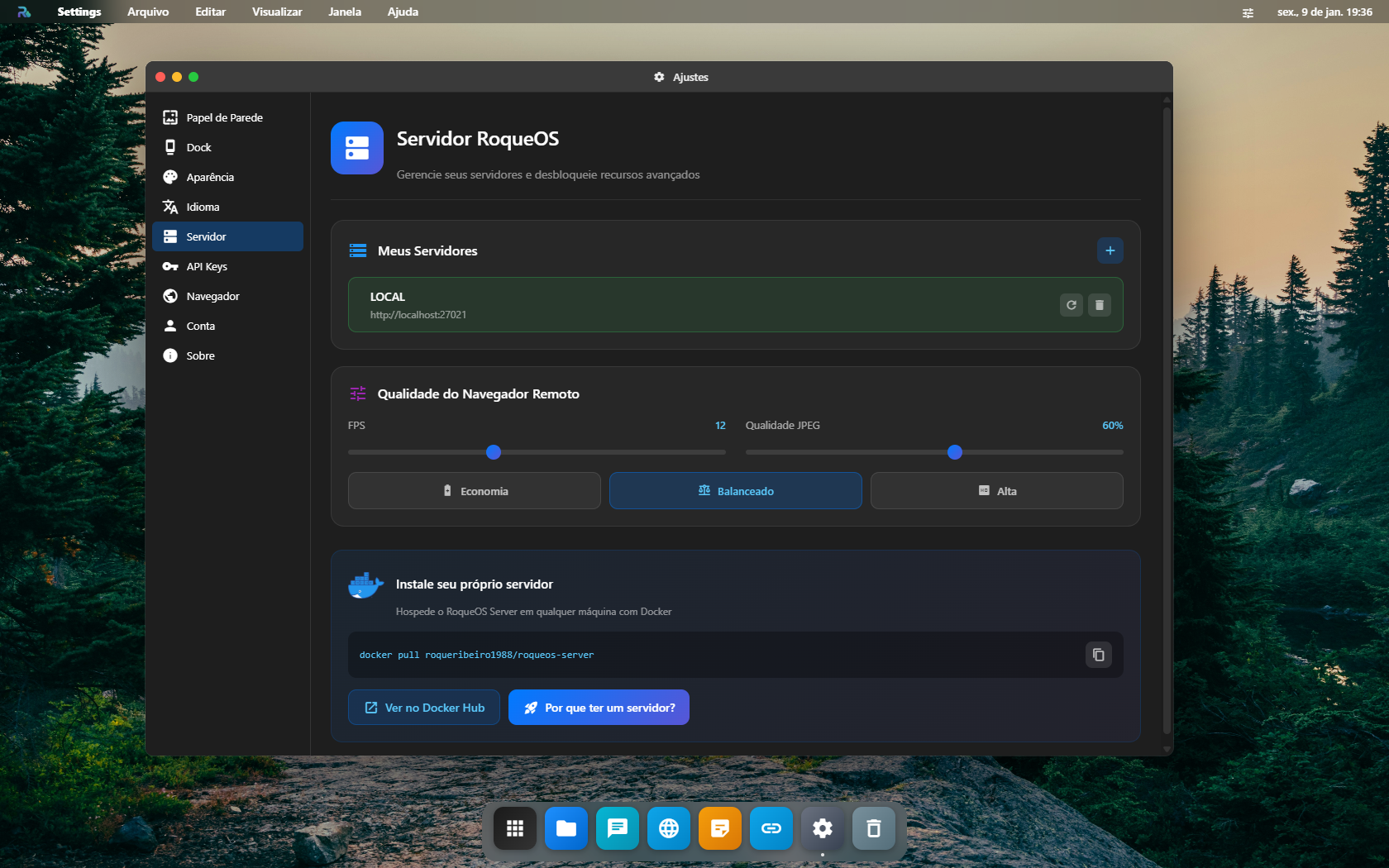
Step 3: Connect RoqueOS Frontend
- Open RoqueOS in your browser
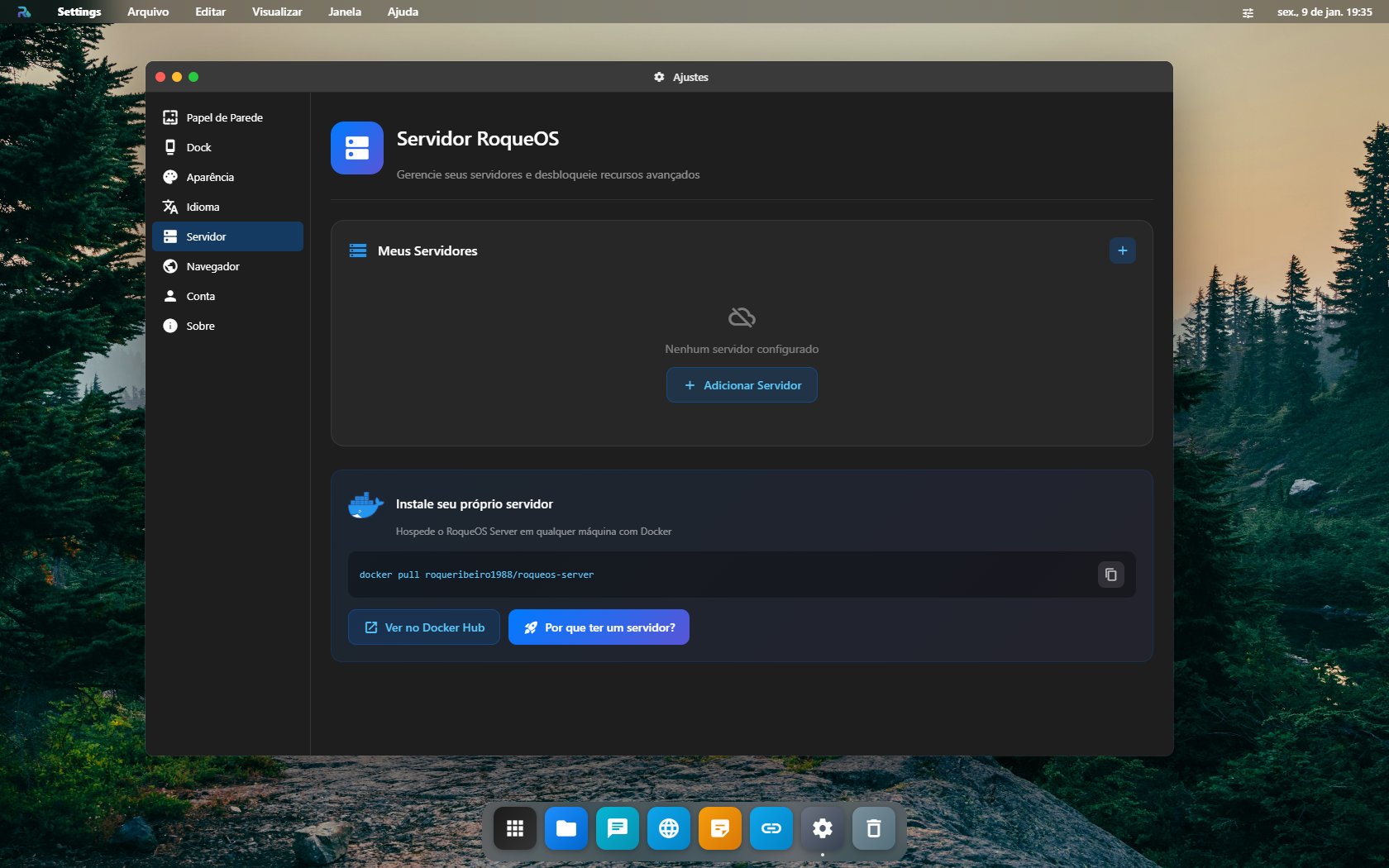
- Go to Settings → Server
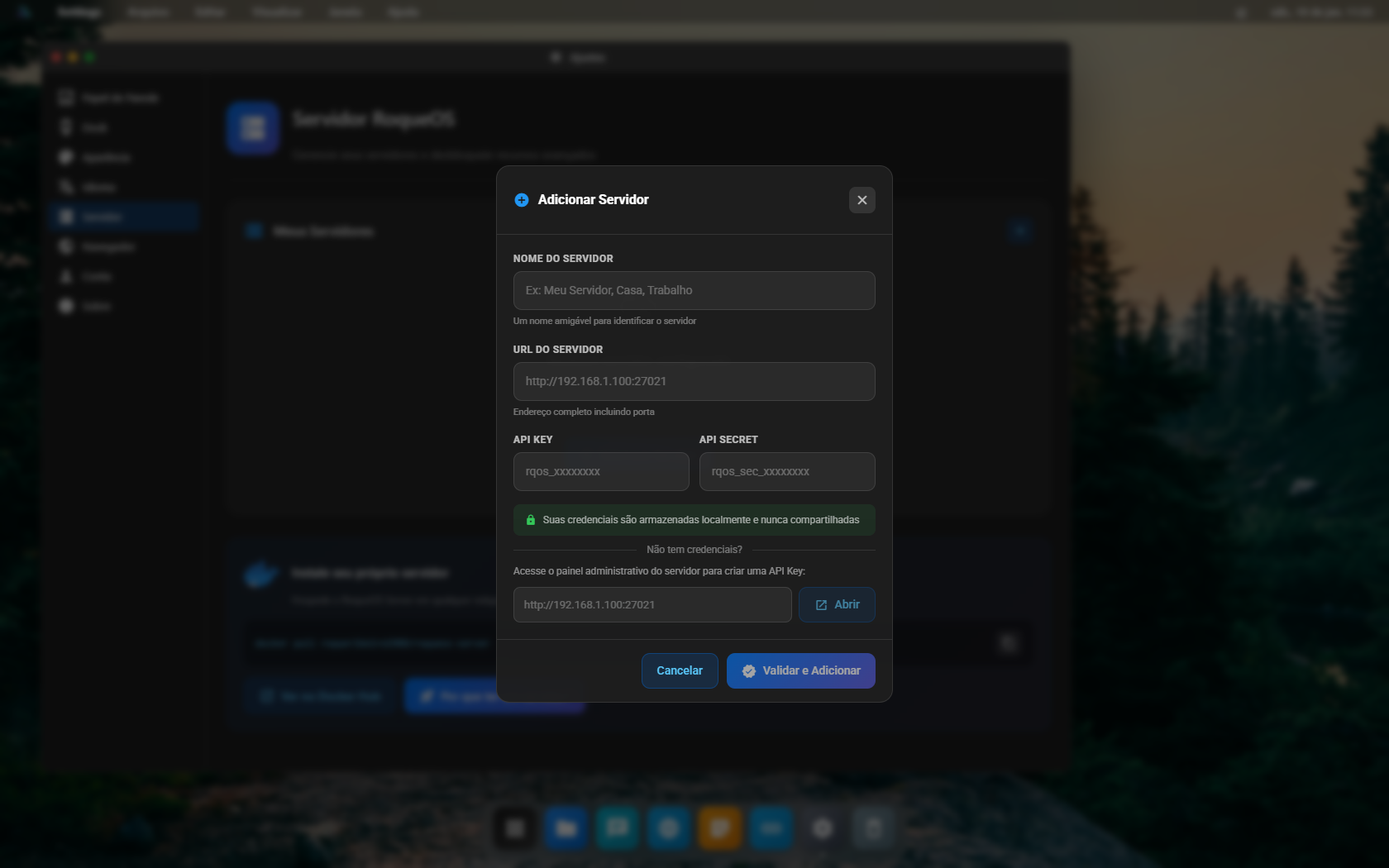
- Click + Add Server
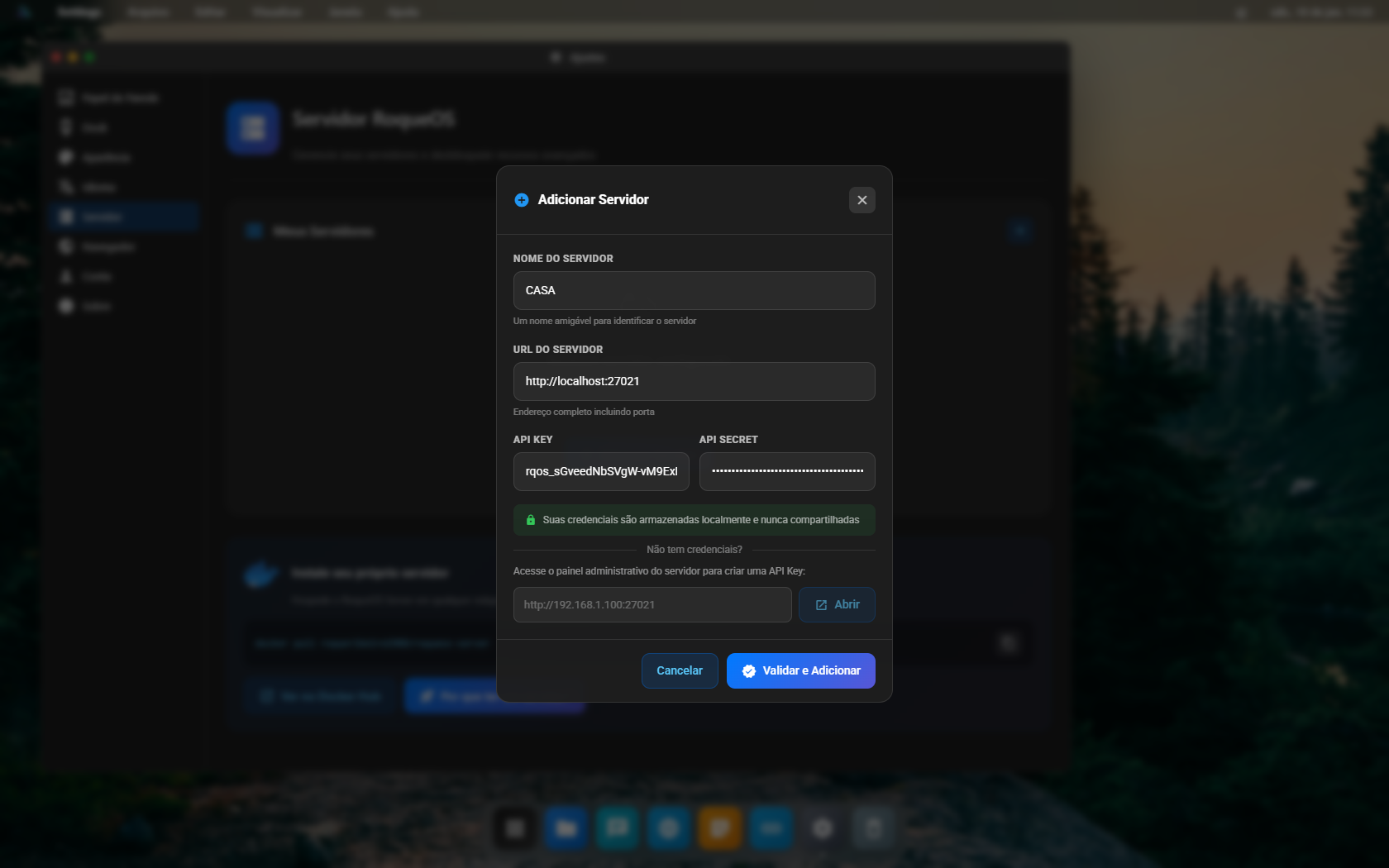
- Fill in the details:
- Name: My Server (or any name you prefer)
- URL:
http://YOUR_SERVER_IP:27021 - API Key: (paste from Step 2)
- API Secret: (paste from Step 2)
- Click Add & Connect
Step 4: Verify Connection
Once connected, you'll see:
- ✅ Green status indicator next to your server
- ✅ "Remote Browser Quality" settings appear
- ✅ Terminal app now works with real Linux shell
- ✅ File Manager shows your server files
🛠️ Admin Panel
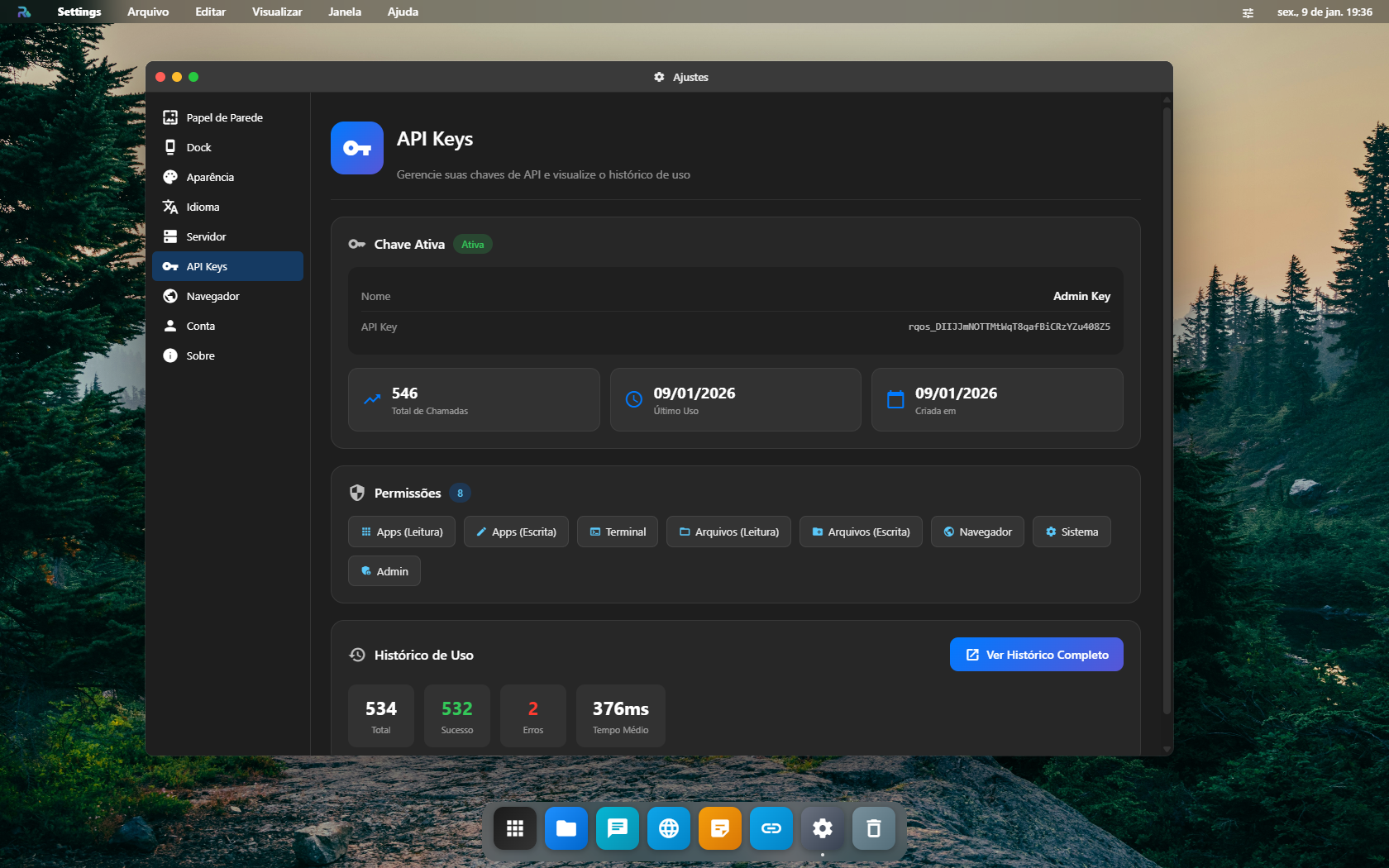
The Admin Panel (/admin) provides a complete management interface:
API Keys Tab
Manage your API keys with full control:
- Create new keys with custom permissions
- View usage statistics
- Regenerate secrets
- Enable/disable keys
- Delete keys
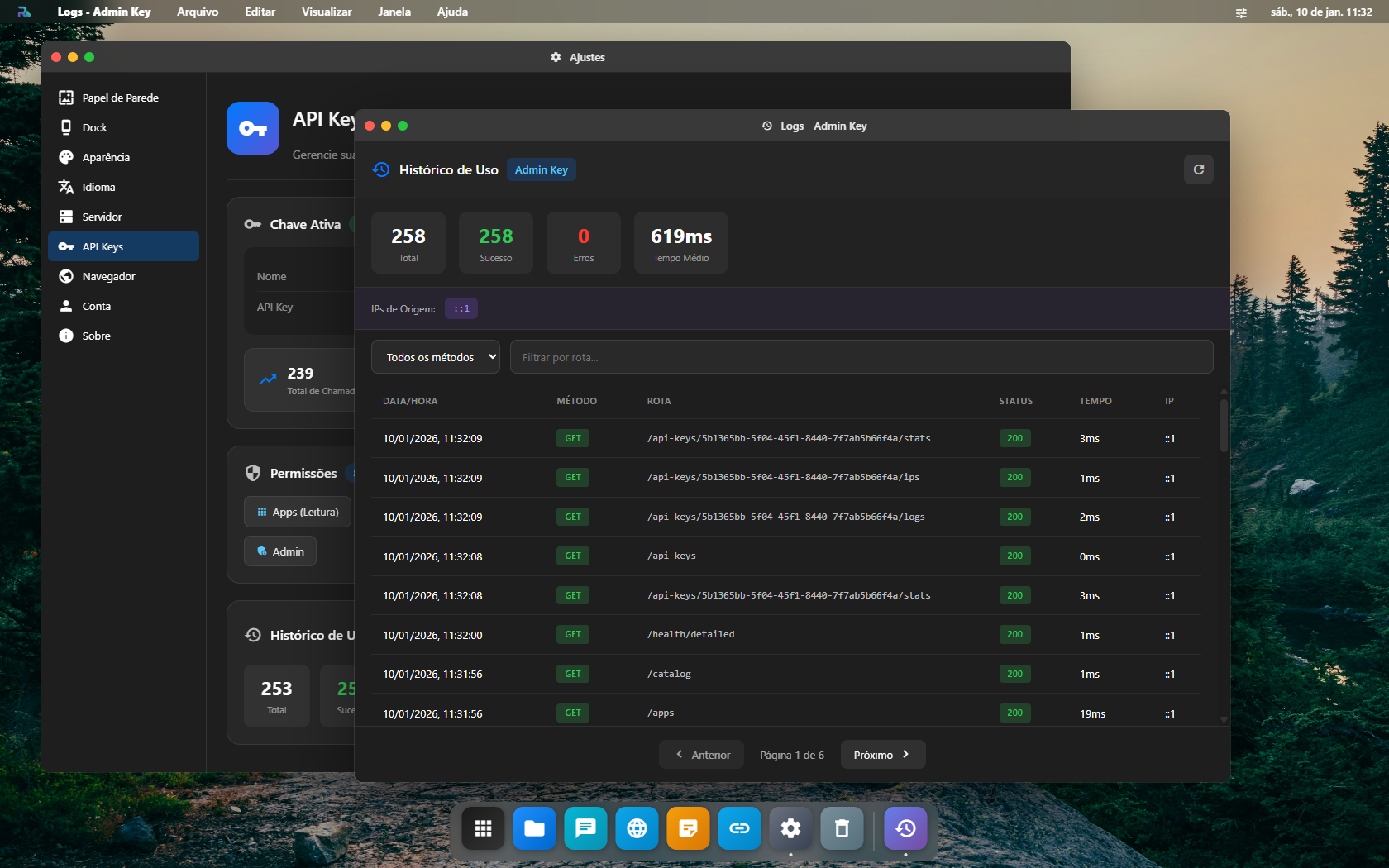
Logs de Uso Tab
Monitor API usage in real-time:
- Filter by API Key, method, endpoint, status
- View request details
- Track usage patterns
Cloudflare Tab
Native Cloudflare Tunnel integration:
- Connect with your Cloudflare account
- Create and manage tunnels
- Configure custom domains
- Add routes for your containers
- Copy Docker commands for cloudflared
🌐 Cloudflare Tunnel Integration
RoqueOS Server includes native Cloudflare Tunnel management directly from the Admin Panel!
Features
| Feature | Description |
|---|---|
| 🔗 Connect Cloudflare | Enter your Account ID and API Token to connect |
| 📦 Create Tunnels | Create new tunnels directly from the UI |
| 📋 Expandable List | Click on any tunnel to expand and see details |
| 🌐 Custom Domain | Configure your domain with optional Zone ID for automatic DNS |
| 🔄 Wildcard DNS | Automatically creates *.yourdomain.com DNS record |
| 🛣️ Route Management | Add/remove routes to expose your containers |
| 📋 Docker Command | Copy the cloudflared run command with one click |
Setup Steps
- Connect - Enter your Cloudflare credentials (Account ID + API Token)
- Create/Select Tunnel - Create a new tunnel or select an existing one
- Configure Domain - Set your custom domain and optionally provide Zone ID
- Add Routes - Map hostnames to your container services
- Run Cloudflared - Copy the Docker command and run it on your server
API Token Permissions Required
Your Cloudflare API Token needs these permissions:
- Account → Cloudflare Tunnel → Edit
- Zone → DNS → Edit (optional, for automatic DNS records)
⚙️ Environment Variables
| Variable | Default | Description |
|---|---|---|
PORT | 27021 | Server port |
UBUNTU_IMAGE | roqueribeiro1988/roqueos-server-ubuntu:latest | Docker image for terminal containers |
CONTAINER_MEMORY_LIMIT | 2048m | Memory limit per terminal container |
CONTAINER_CPU_LIMIT | 2.0 | CPU cores limit per container |
SESSION_IDLE_TTL_MS | 300000 | Terminal session timeout (5 min) |
STORAGE_BASE_PATH | /data/roqueos/users | User files storage path |
STORAGE_SHARED_PATH | /data/roqueos/shared | Shared directory path |
DATABASE_PATH | /app/data/roqueos.db | SQLite database path |
BROWSER_HEADLESS | true | Run browser in headless mode |
MAX_BROWSER_SESSIONS | 10 | Maximum concurrent browser sessions |
GUACD_HOST | localhost | guacd host for Remote Desktop |
GUACD_PORT | 4822 | guacd port |
GUACAMOLE_CRYPT_KEY | (required) | 32 bytes (utf8) key for Guacamole tokens |
💾 Volumes & Persistence
| Volume | Container Path | Description |
|---|---|---|
| Docker Socket | /var/run/docker.sock | Required - Enables container management |
| User Data | /data/roqueos/users | Persistent user files and home directories |
| Shared Data | /data/roqueos/shared | Shared directory accessible by all containers |
| Database | /app/data | SQLite database for API keys, settings |
📂 Shared Directory
The shared directory allows you to share files between all RoqueOS components:
| Component | Access Path | Description |
|---|---|---|
| Finder | /shared | Upload/download files via web interface |
| Terminal | /shared | Access files via command line |
| VS Code | /shared | Edit files in the code editor |
| Apps (EmulatorJS, etc.) | /shared | Apps can read ROMs, media, etc. |
🖼️ Screenshots
App Store / Container Catalog
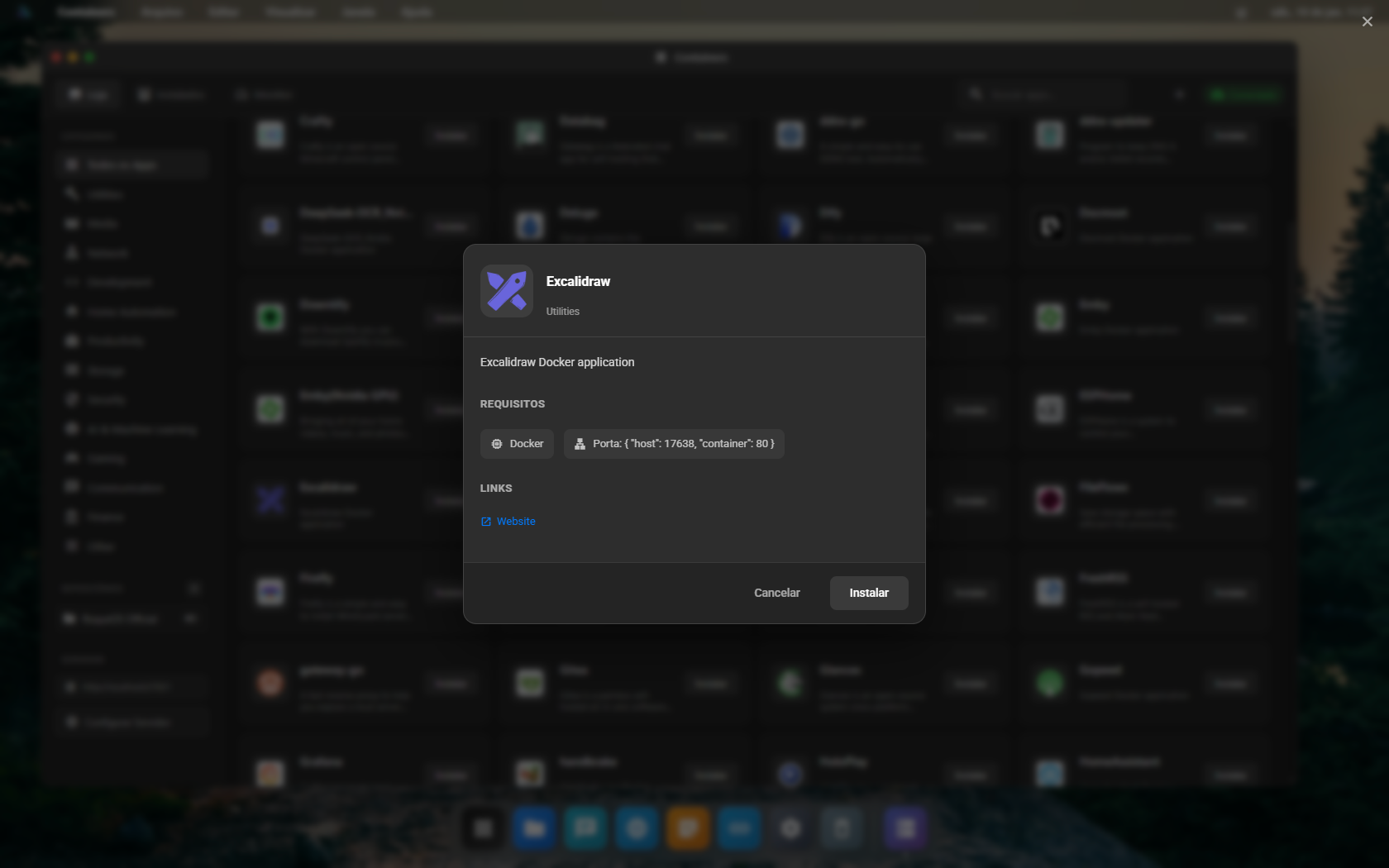
App Install Modal
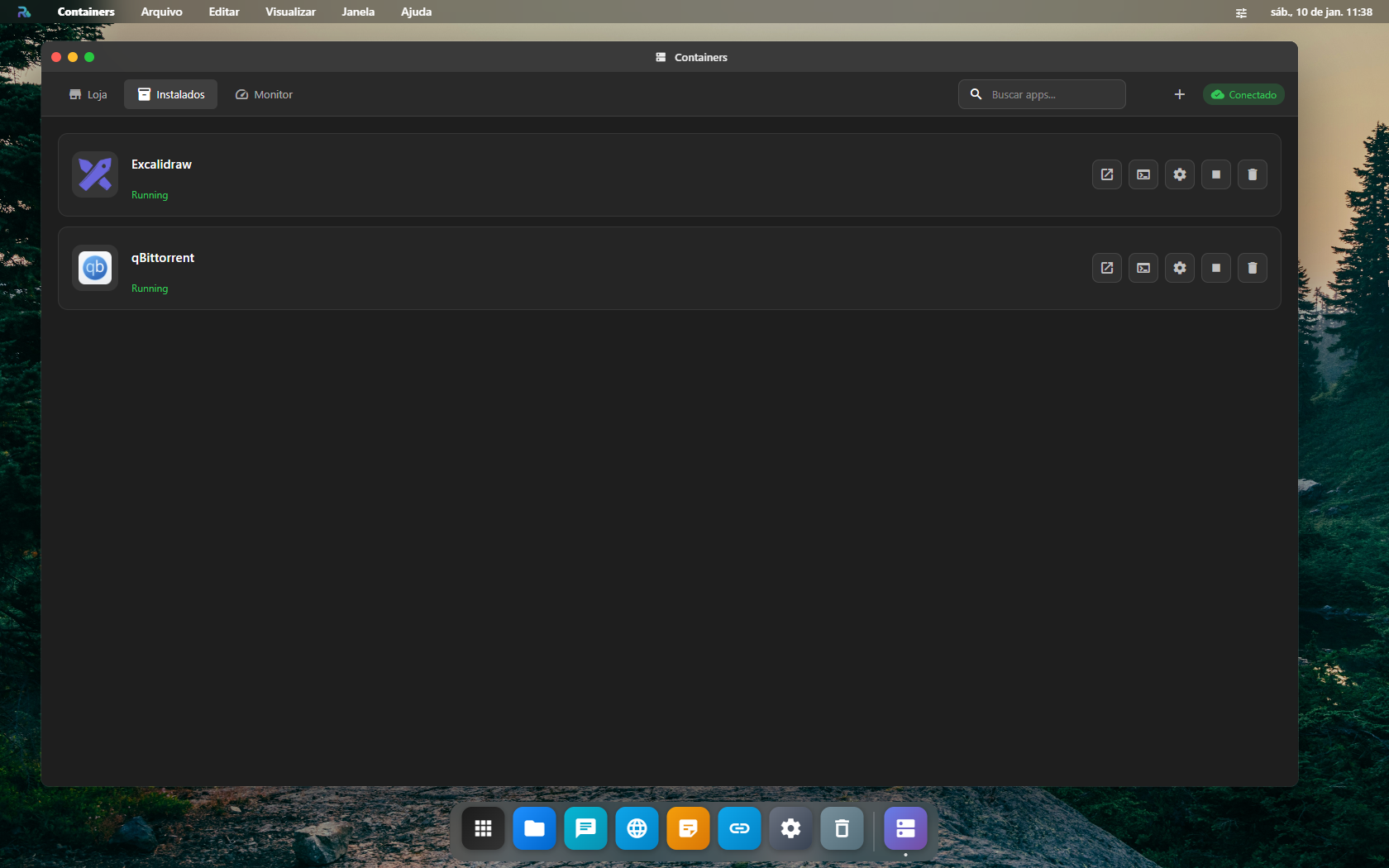
Installed Apps List
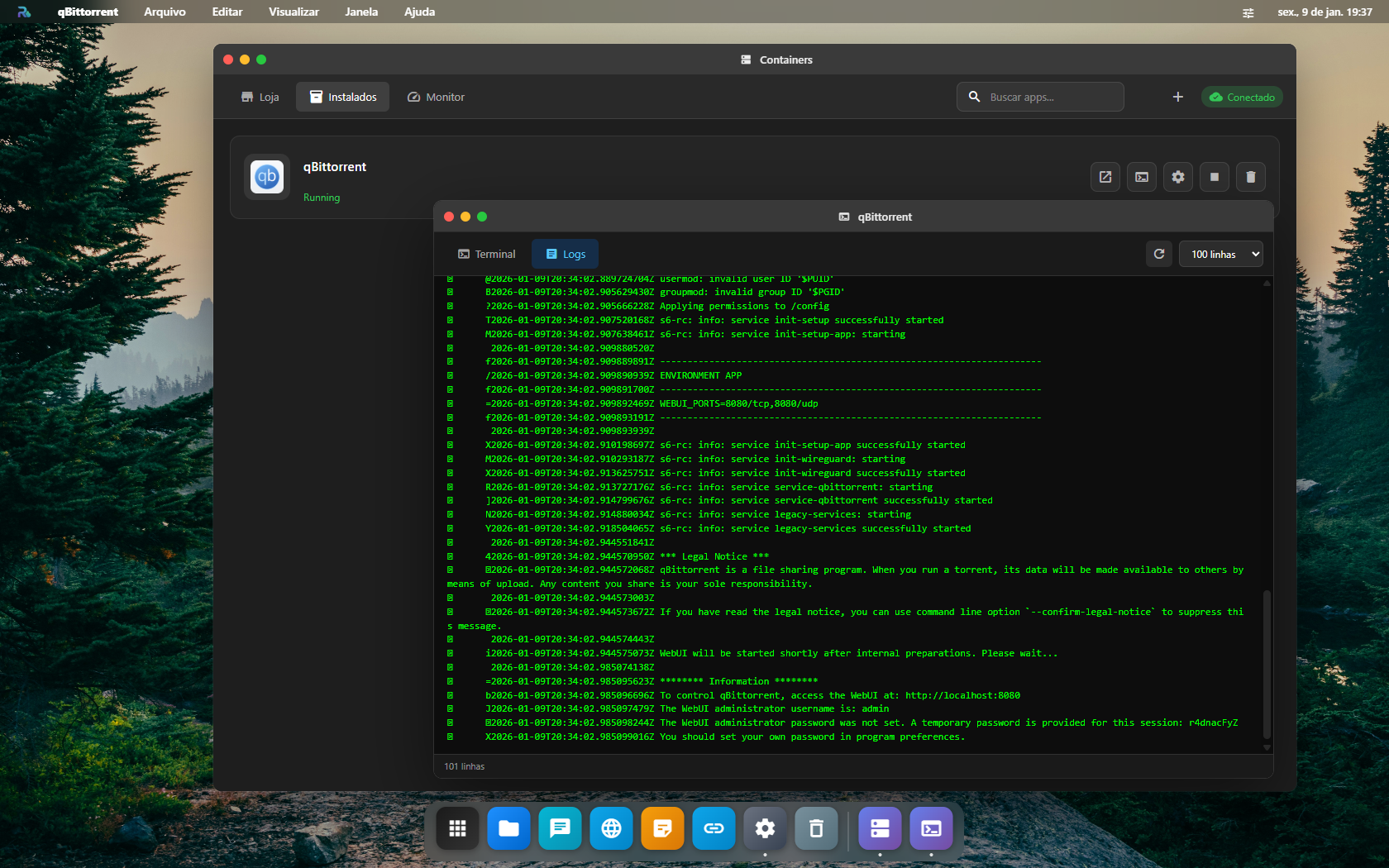
Container Logs
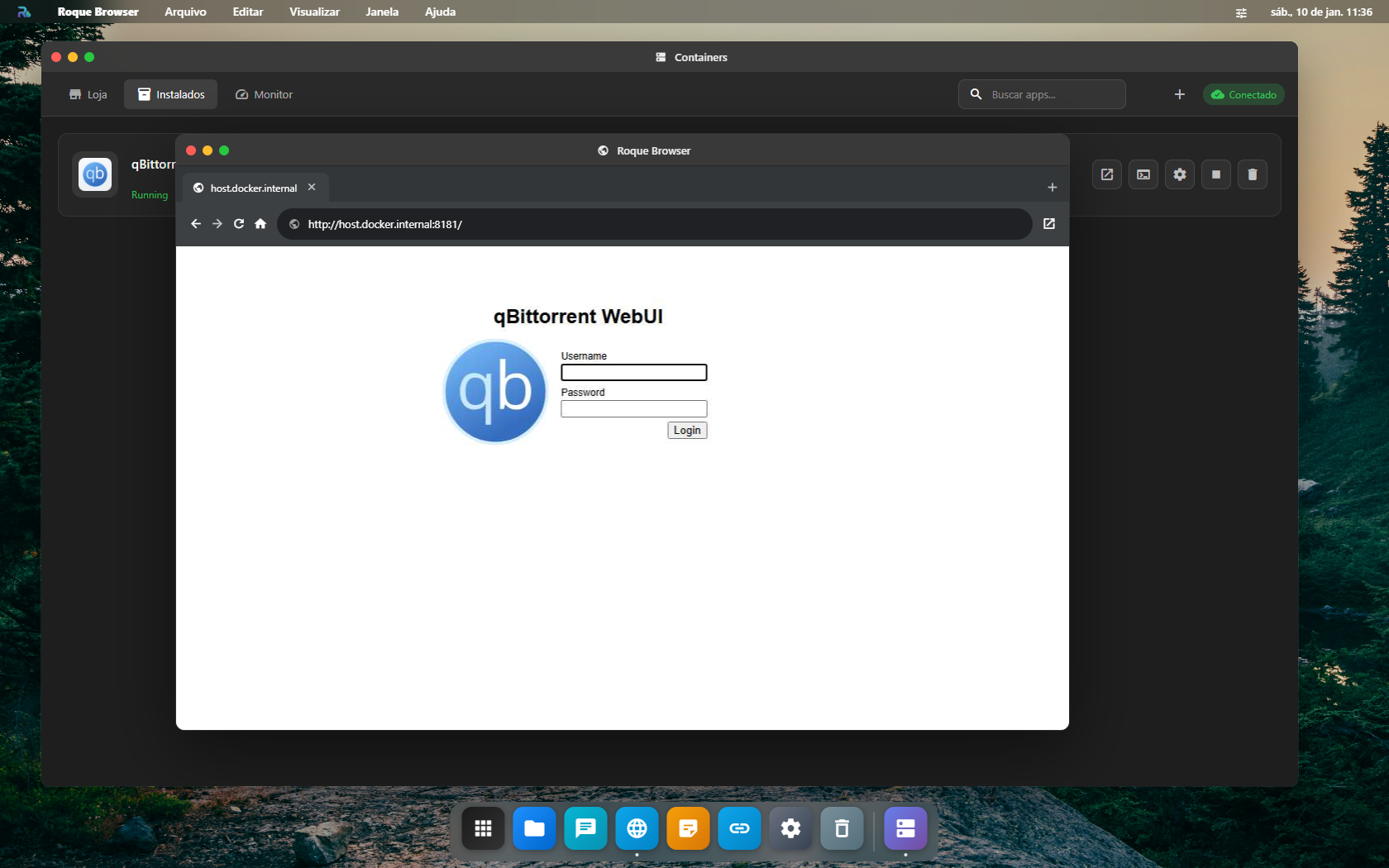
Container WebUI in Browser
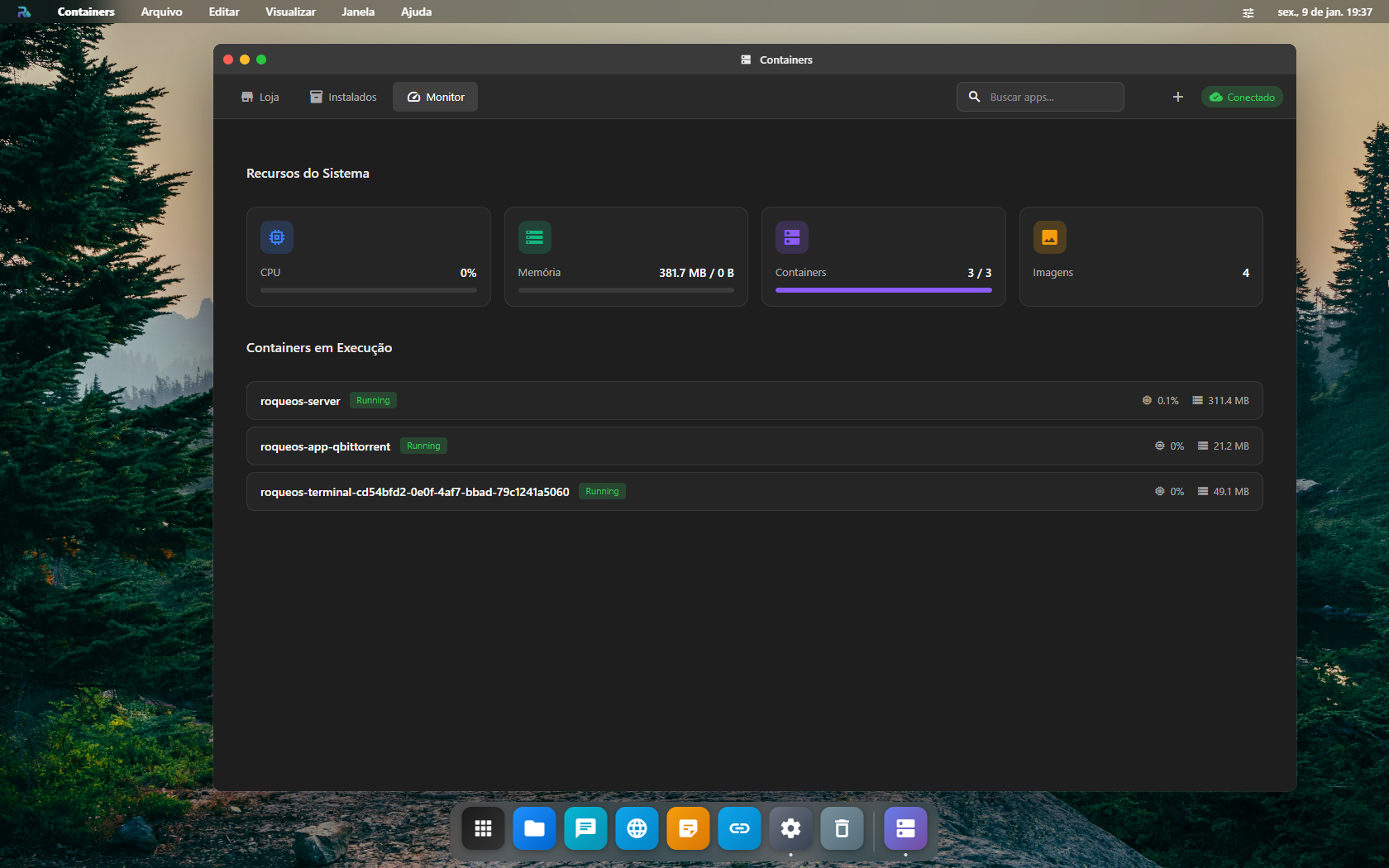
System Resource Monitor
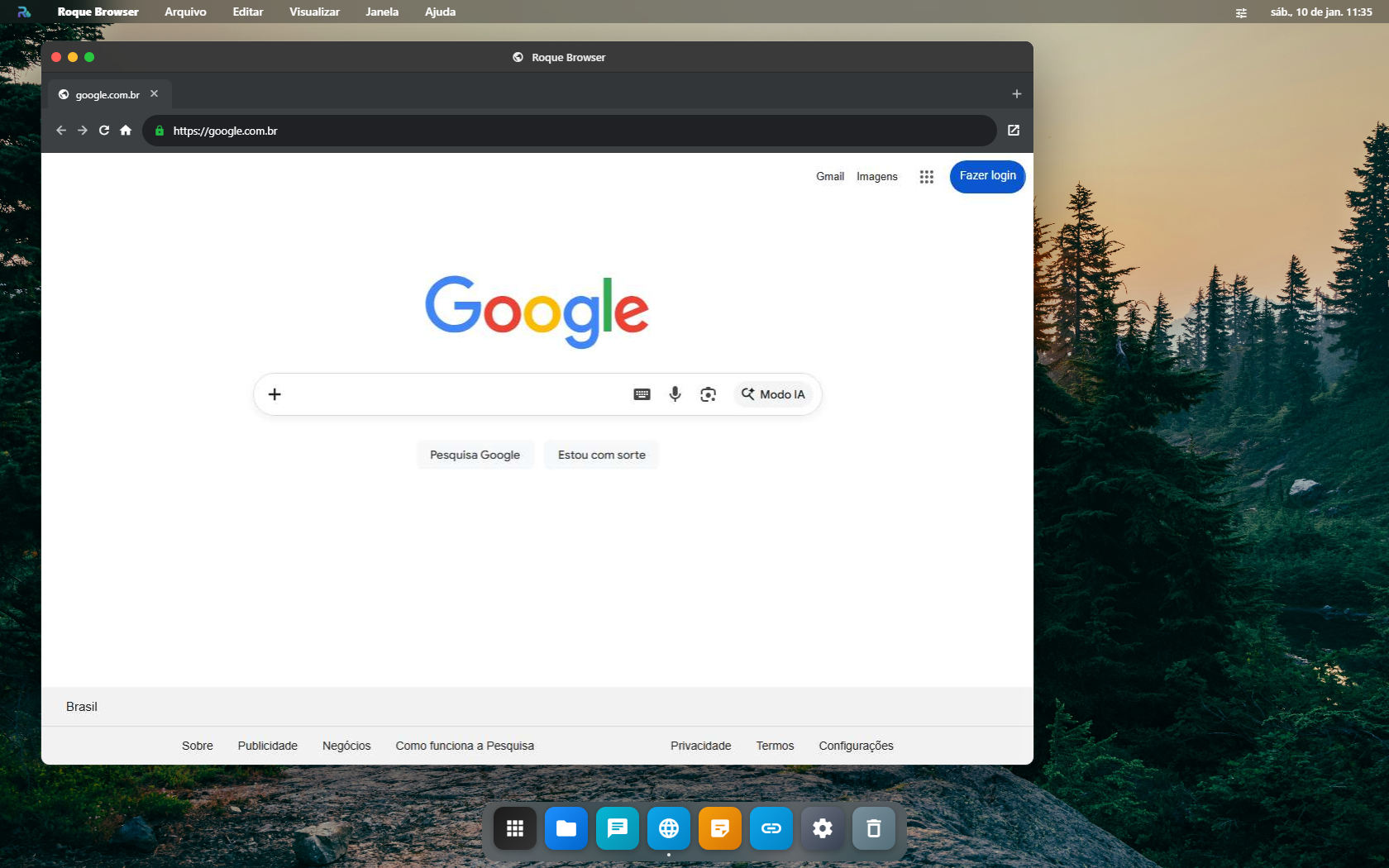
Remote Browser - Google
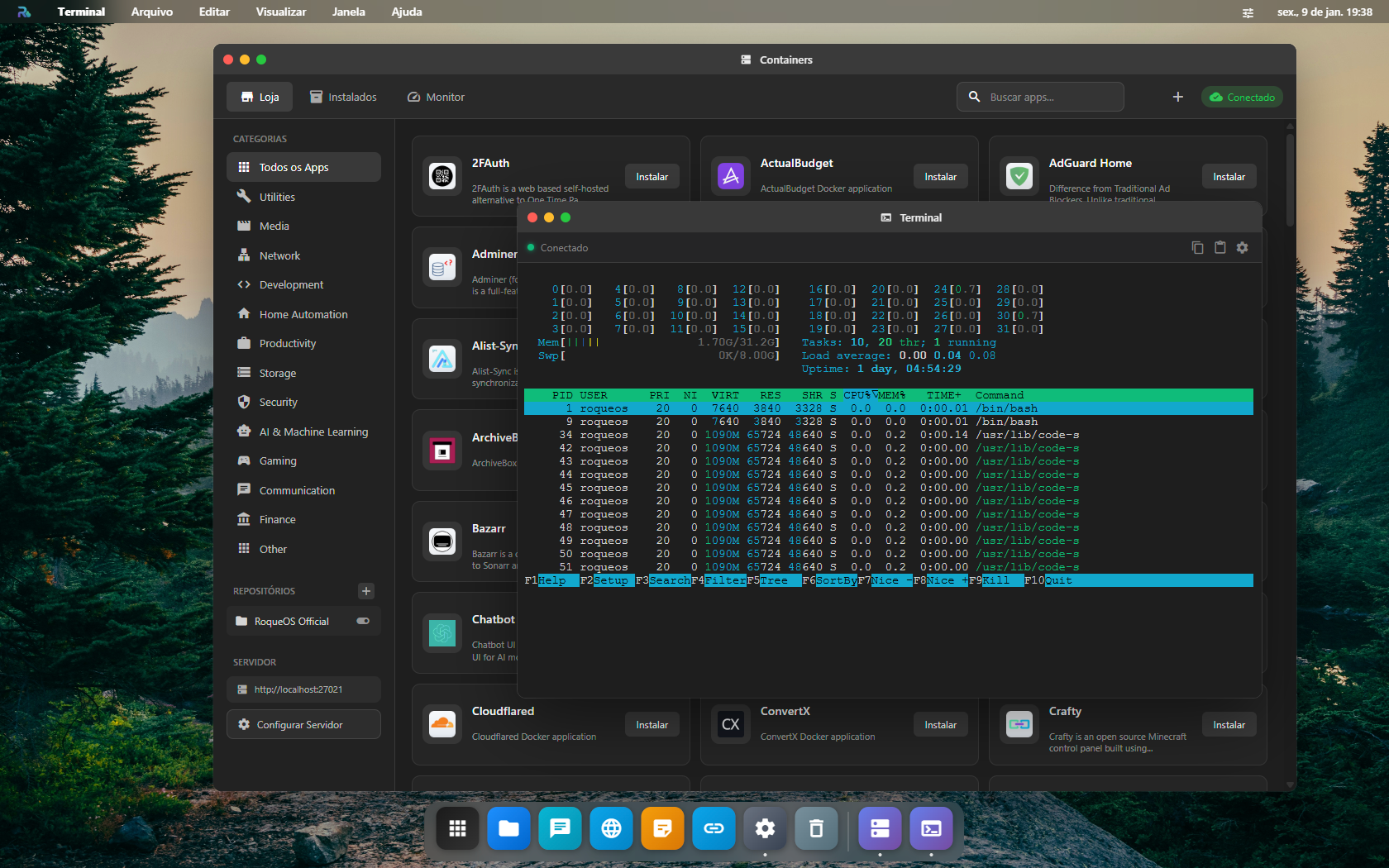
Terminal with htop
Terminal and File Manager
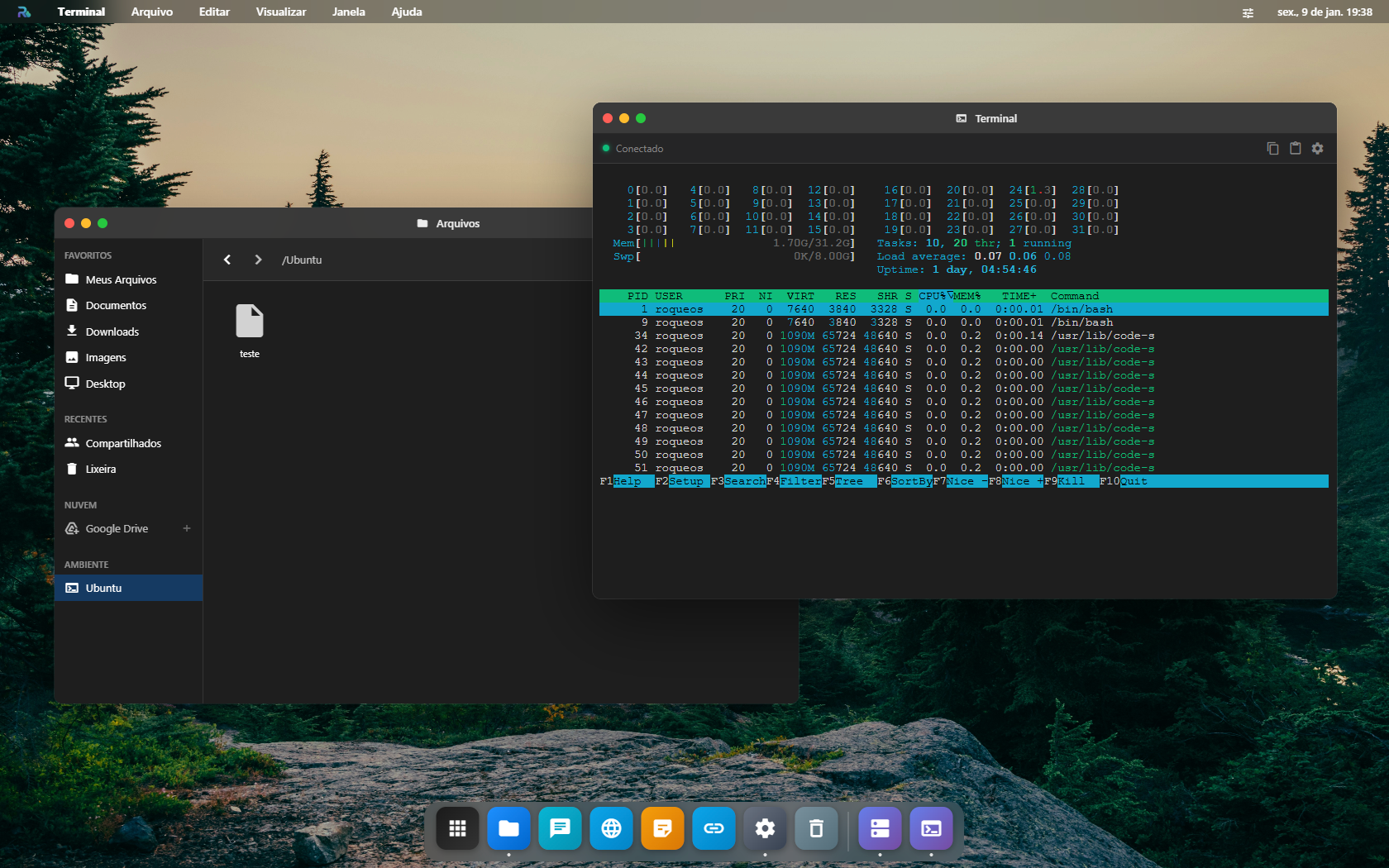
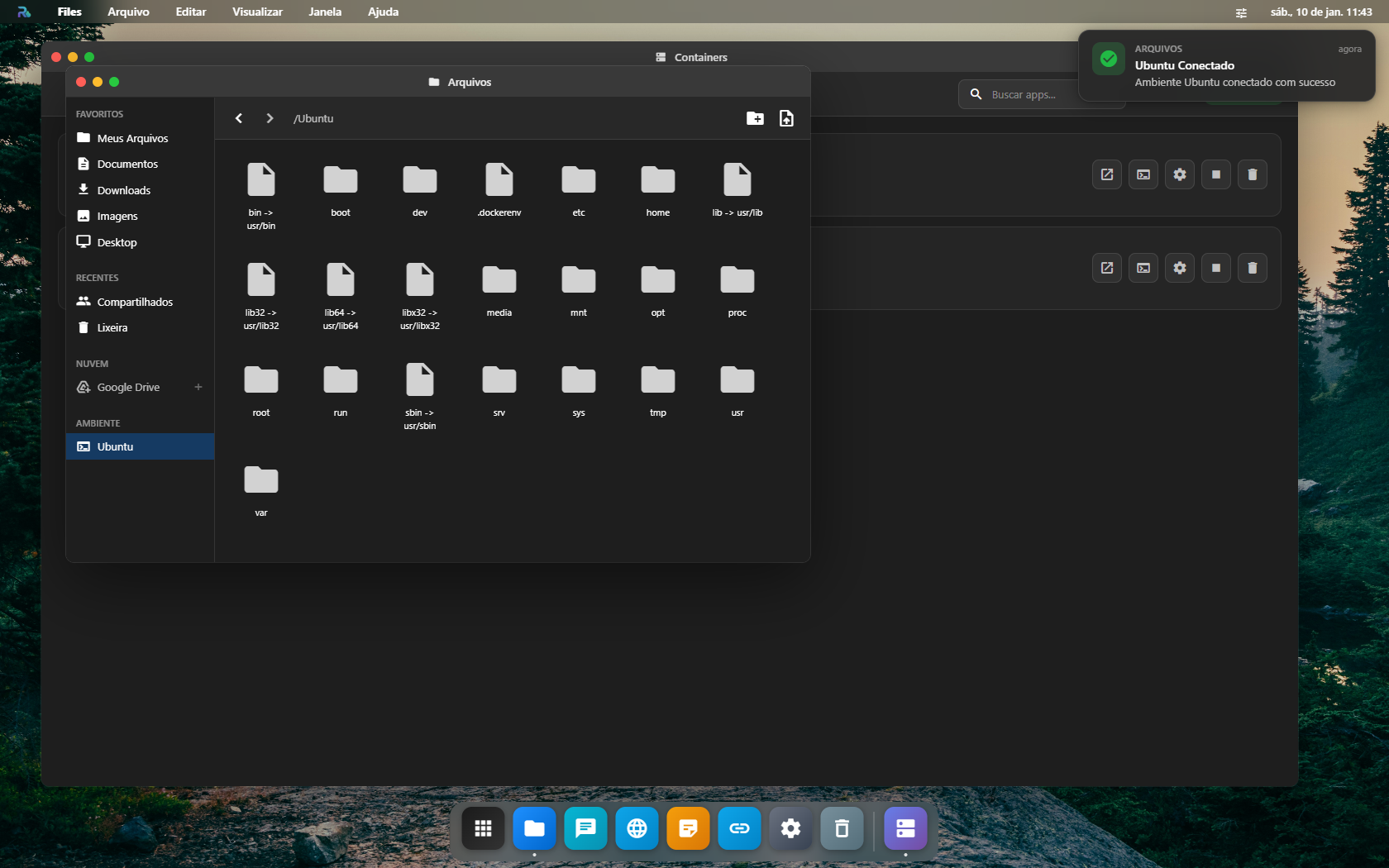
File Manager - Ubuntu Environment
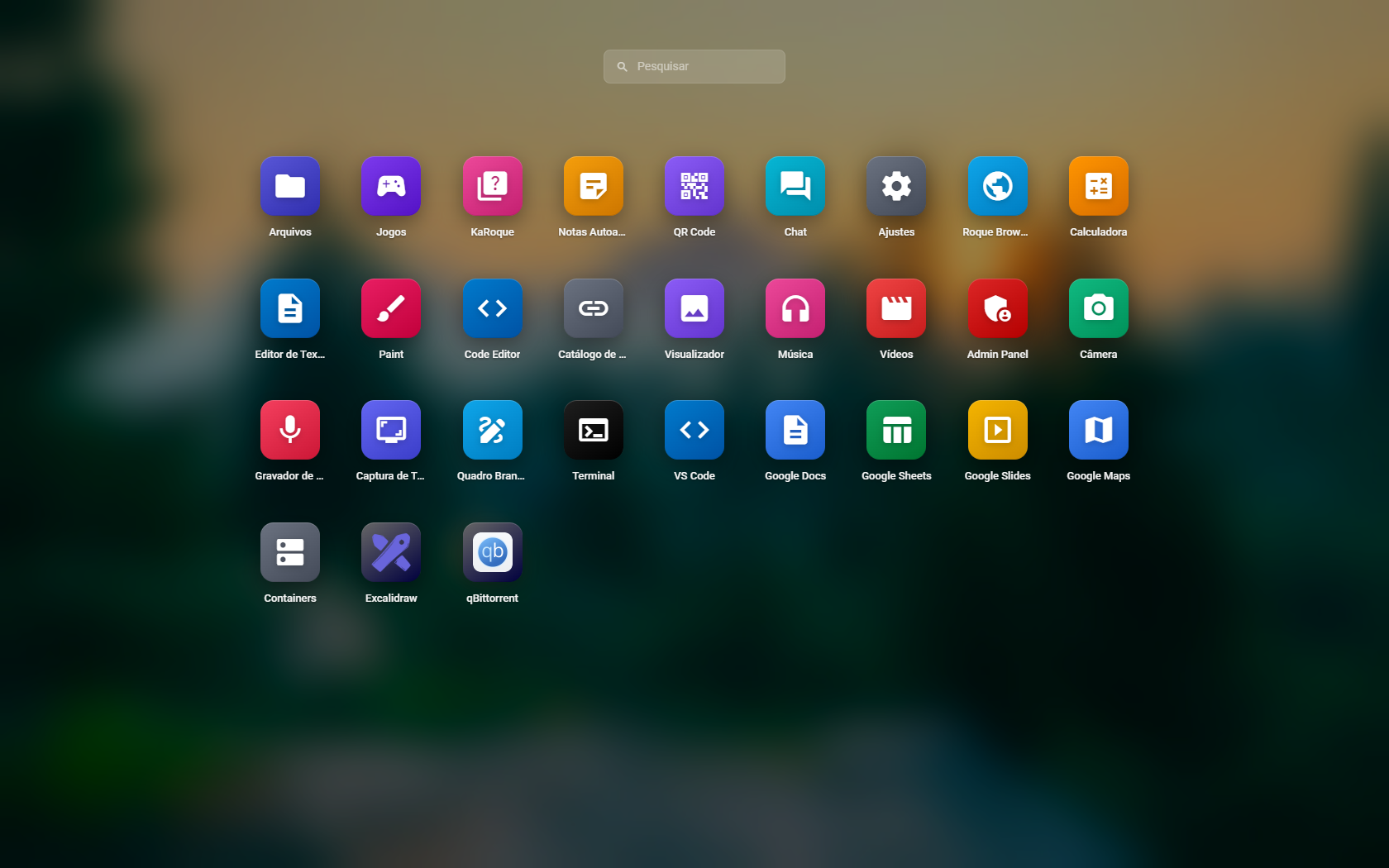
Launchpad with Installed Apps
📡 API Reference
Public Endpoints (No Authentication Required)
| Method | Endpoint | Description |
|---|---|---|
| GET | /health | Health check |
| GET | /catalog | List available apps |
| GET | /catalog/categories | List app categories |
| GET | /catalog/featured | Featured apps |
| GET | /catalog/search?q=term | Search apps |
Authenticated Endpoints
All require X-API-Key and X-API-Secret headers.
Apps Management
| Method | Endpoint | Description |
|---|---|---|
| GET | /apps | List installed apps |
| POST | /apps/install | Install an app |
| POST | /apps/uninstall | Uninstall an app |
| POST | /apps/:appId/start | Start an app |
| POST | /apps/:appId/stop | Stop an app |
| POST | /apps/:appId/restart | Restart an app |
| GET | /apps/:appId/logs | Get app logs |
File System
| Method | Endpoint | Description |
|---|---|---|
| GET | /fs/list | List directory contents |
| GET | /fs/read | Read file content |
| POST | /fs/write | Write file content |
| POST | /fs/mkdir | Create directory |
| DELETE | /fs/delete | Delete file/folder |
| POST | /fs/upload | Upload file (multipart) |
| GET | /fs/download | Download file |
| POST | /fs/rename | Rename file/folder |
Terminal, VS Code & Browser
| Method | Endpoint | Description |
|---|---|---|
| WS | /terminal | WebSocket terminal connection |
| WS | /preview/:port/* | WebSocket proxy for code-server |
| GET | /preview/:port/* | HTTP proxy for code-server |
| POST | /container/start-code-server | Start code-server in container |
| WS | /browser/ws | WebSocket remote browser stream |
| POST | /browser/session | Create browser session |
| DELETE | /browser/session/:id | Close browser session |
System
| Method | Endpoint | Description |
|---|---|---|
| GET | /system | System information |
| GET | /system/stats | Resource statistics |
Remote Desktop
| Method | Endpoint | Description |
|---|---|---|
| GET | /remote-desktop | List remote connections |
| POST | /remote-desktop | Create remote connection |
| PUT | /remote-desktop/:id | Update remote connection |
| DELETE | /remote-desktop/:id | Delete remote connection |
| POST | /remote-desktop/:id/guac-token | Generate Guacamole session token |
| WS | /guacamole | WebSocket stream for Remote Desktop |
🔄 Updating to a New Version
Using Docker Run
# Step 1: Stop and remove the current container
docker stop roqueos-server
docker rm roqueos-server

# Step 2: Pull the latest images
docker pull roqueribeiro1988/roqueos-server:latest
docker pull roqueribeiro1988/roqueos-server-ubuntu:latest

# Step 3: Start the server again (use your original command)
docker run -d \
  --name roqueos-server \
  --restart unless-stopped \
  -p 27021:27021 \
  -v /var/run/docker.sock:/var/run/docker.sock \
  -v /data/roqueos/users:/data/roqueos/users \
  -v /data/roqueos/shared:/data/roqueos/shared \
  -v roqueos-db:/app/data \
  -e GUACAMOLE_CRYPT_KEY="your-32-char-secret-key-here123" \
  roqueribeiro1988/roqueos-server:latest
Using Docker Compose
docker-compose pull
docker-compose up -d
💡 Your data is safe! All configurations, API keys, and user data are stored in Docker volumes and will be preserved during updates.
🔧 Troubleshooting
Server not starting?
# Check container logs
docker logs roqueos-server

# Verify Docker socket permissions
ls -la /var/run/docker.sock

# On Linux, add your user to docker group
sudo usermod -aG docker $USER
Cannot connect from frontend?
- Check network access: Ensure the server is accessible from your browser
- Firewall rules: Open port 27021 in your firewall
- API credentials: Verify API Key and Secret are correct
- CORS errors: Check browser console for CORS issues
Terminal not working?
# Pull the Ubuntu image manually
docker pull roqueribeiro1988/roqueos-server-ubuntu:latest

# Verify the image is available
docker images | grep roqueos-server-ubuntu

# Test container creation
docker run --rm roqueribeiro1988/roqueos-server-ubuntu:latest echo "Container works!"
Remote browser not working?
# Ensure shm_size is set (required for Playwright)
docker run -d --shm-size=1gb ...

# Check if Playwright browsers are installed
docker exec roqueos-server npx playwright install chromium
📦 Related Images
| Image | Description | Link |
|---|---|---|
roqueribeiro1988/roqueos-server | Main server (this image) | Docker Hub |
roqueribeiro1988/roqueos-server-ubuntu | Ubuntu container for terminal | Docker Hub |
🔗 Links
- Frontend: https://roqueos.com.br
- App Catalog Repository: github.com/roqueribeiro/roqueos-containers-list
- Swagger API Docs:
http://YOUR_SERVER:27021/api
🤝 Contributing
The app catalog is open source! You can contribute new apps to the RoqueOS ecosystem:
- Repository: roqueos-containers-list
- See
CONTRIBUTING.mdfor guidelines
📄 License
MIT License - Copyright (c) 2024 Roque Ribeiro
Made with ❤️ by Roque Ribeiro
Tag summary
Content type
Image
Digest
sha256:c15e306a0…
Size
1.3 GB
Last updated
9 days ago
docker pull roqueribeiro1988/roqueos-server